
Leatrix Maps (USE THIS ONE)
- By
Enhancements for your maps. Supports all WoW games including Midnight and Burning Crusade Classic Anniversary (as well as all the others).
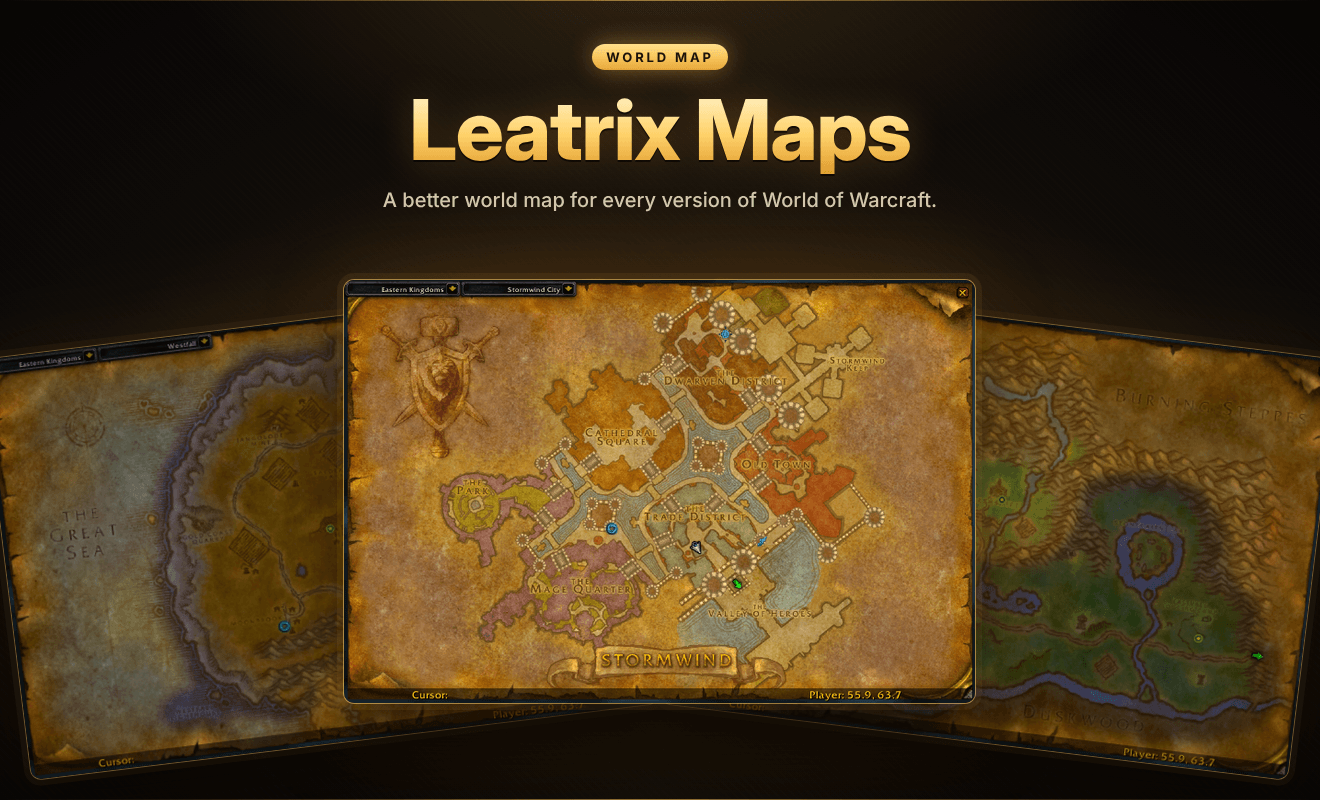
A better world map for World of Warcraft.
Leatrix Maps improves the world map. Reveal unexplored areas, find the areas you still need to discover, show dungeons, flight points and coordinates, move and scale the map, keep your zoom level, give the map a new look, enhance the battlefield map and more. Every setting is optional, and nothing changes until you choose it.
Type /ltm to open it, or set a key for it in the game's keybindings.
🌟 At a glance
- 🗺️ Reveal the map: see the parts of every zone you haven't explored yet
- ⛰️ Discovery areas: see exactly where to go to finish exploring a zone
- 📍 Points of interest: dungeons, flight points, boats, zeppelins, trams, portals and more
- 🧭 Coordinates for you and your cursor
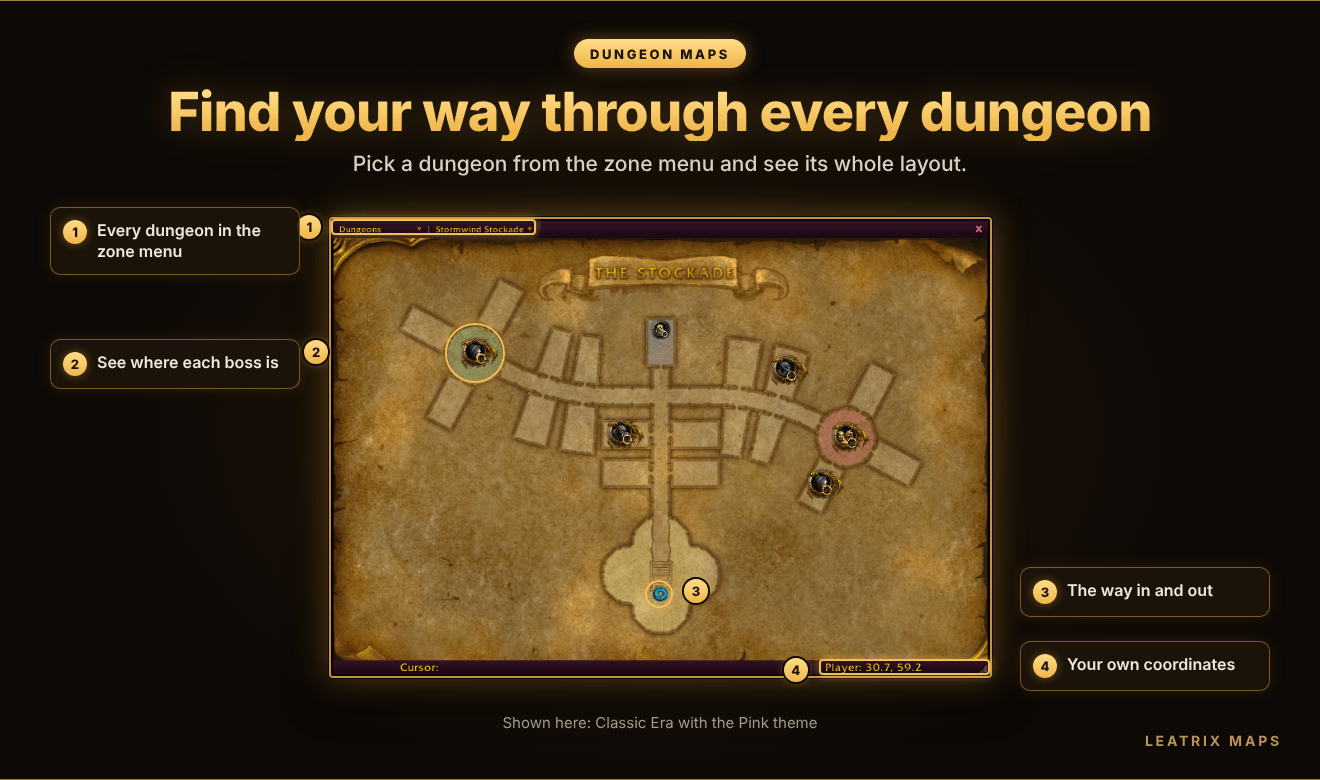
- 🐉 Dungeon maps: see the layout of each dungeon, with its bosses and entrance marked
- 🖼️ Move and scale the map, and keep your zoom level
- 🎨 Map themes: give the map frame a new look, from Classic to Retro TV
- 💎 Gemfall: a gem matching game to play while you wait, built into the Games theme
- ⚔️ A better battlefield map you can move, resize and fine-tune
- 🌍 Available in 10 languages, for every version of the game
🐉 Dungeon maps
Find your way through every dungeon. Turn on Show dungeon maps in the Elements section of the settings, then choose Dungeons from the zone menu at the top of the map.
✨ Features
Leatrix Maps is available for every version of the game. Each version's map is different, so some options are only available in some versions.
🗺️ Show unexplored areas
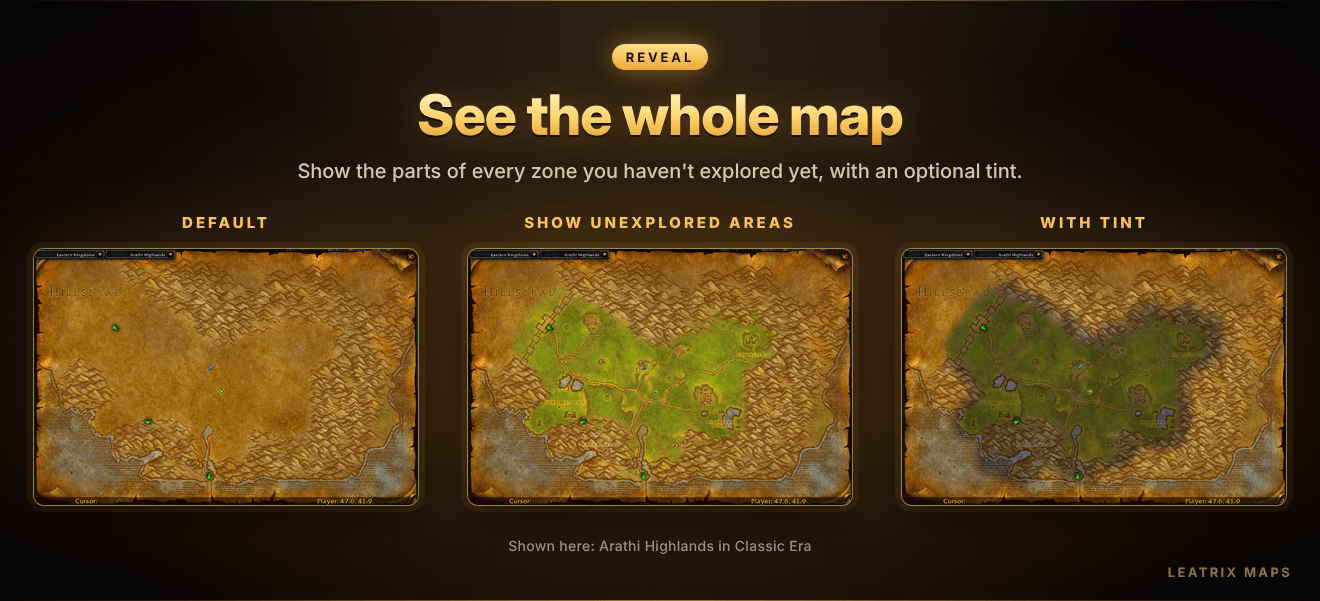
- See the whole of every zone on the world map and the battlefield map, including the parts you haven't explored yet.
- Tint the unexplored areas if you want to tell them apart from the places you've been.
⛰️ Discovery areas
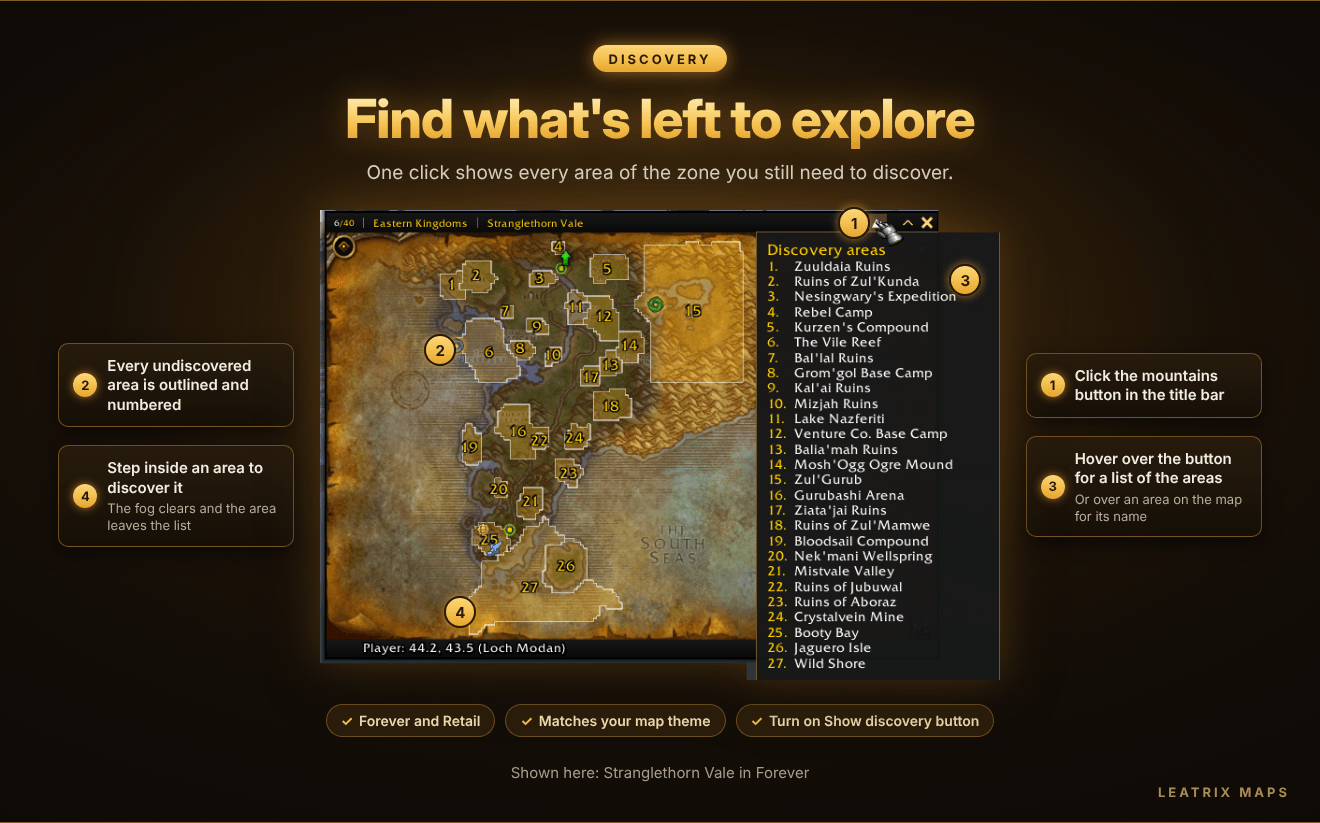
- Turn on Show discovery button and a mountains button is added to the map's title bar.
- Click it to outline and number every area of the zone you haven't discovered yet.
- Hover over the button for a list of the areas, or over an area on the map for its name.
- Step inside an area to discover it. The fog clears from that part of the map, and the area is removed from the list.
- Available in Forever and Retail.
📍 Points of interest
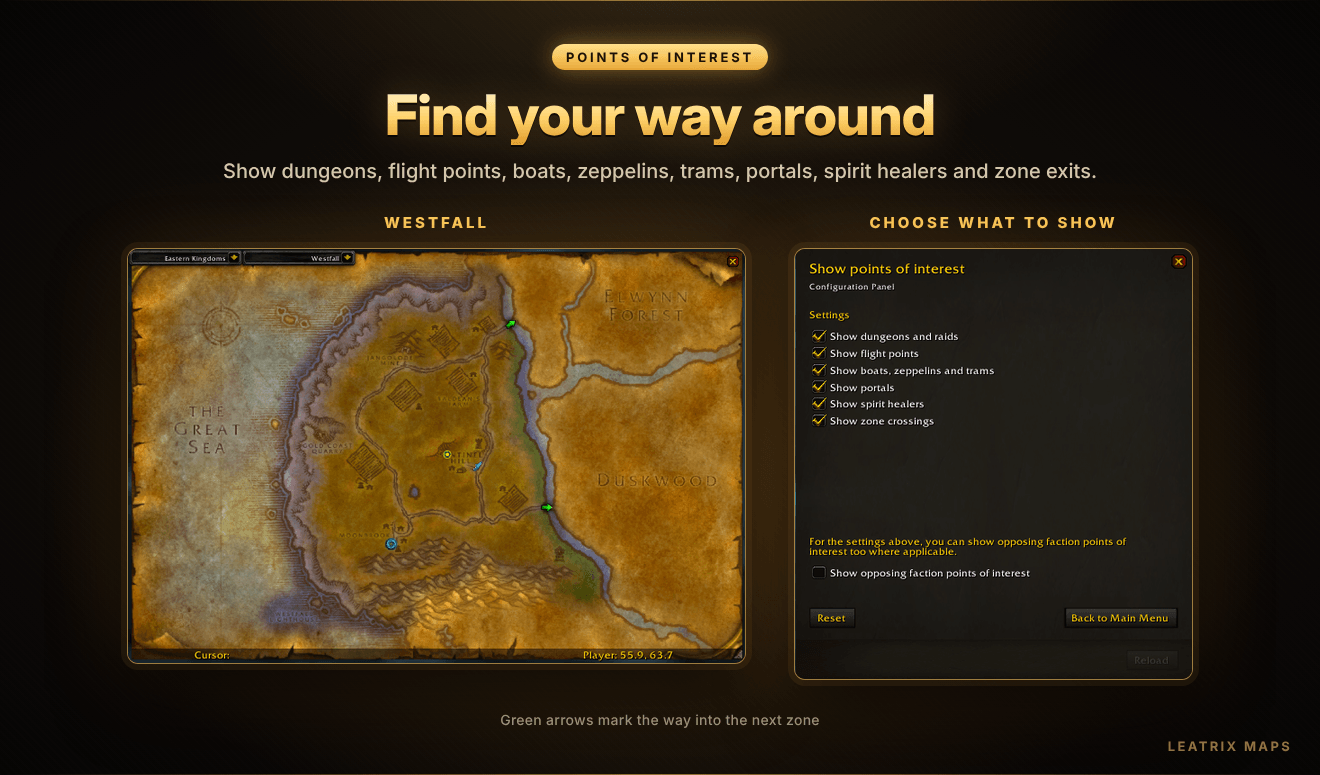
- Show dungeons and raids, flight points, boats, zeppelins and trams, portals, spirit healers and zone crossings on the map.
- Choose which ones you want, and show the opposing faction's too.
- Show the level range of each zone on the continent maps, and the fishing skill you need there.
- Hide town and city icons on the continent maps for a cleaner look.
🧭 Zone menus and coordinates
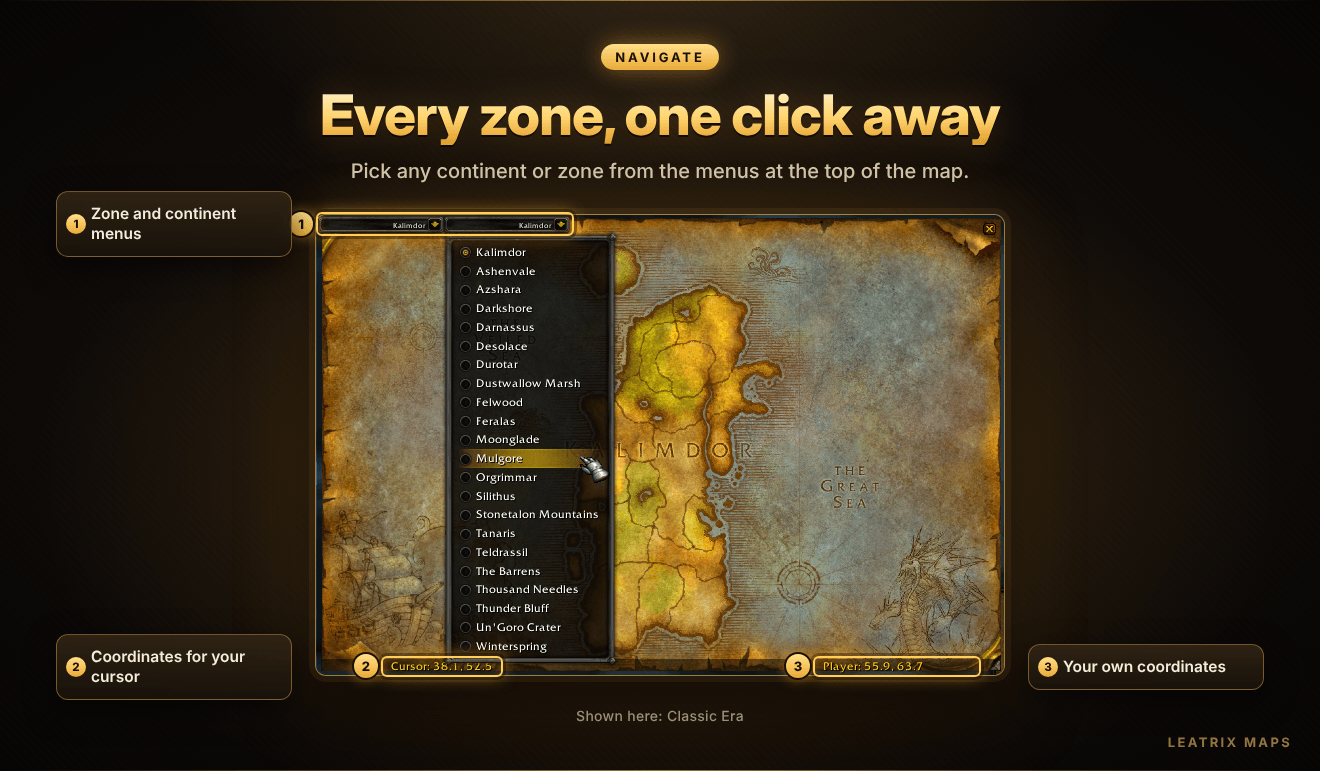
- Jump to any continent or zone from menus at the top of the map.
- See coordinates for your character and your cursor.
- Have the map change to your new zone automatically when you travel.
🖼️ Map frame and zoom
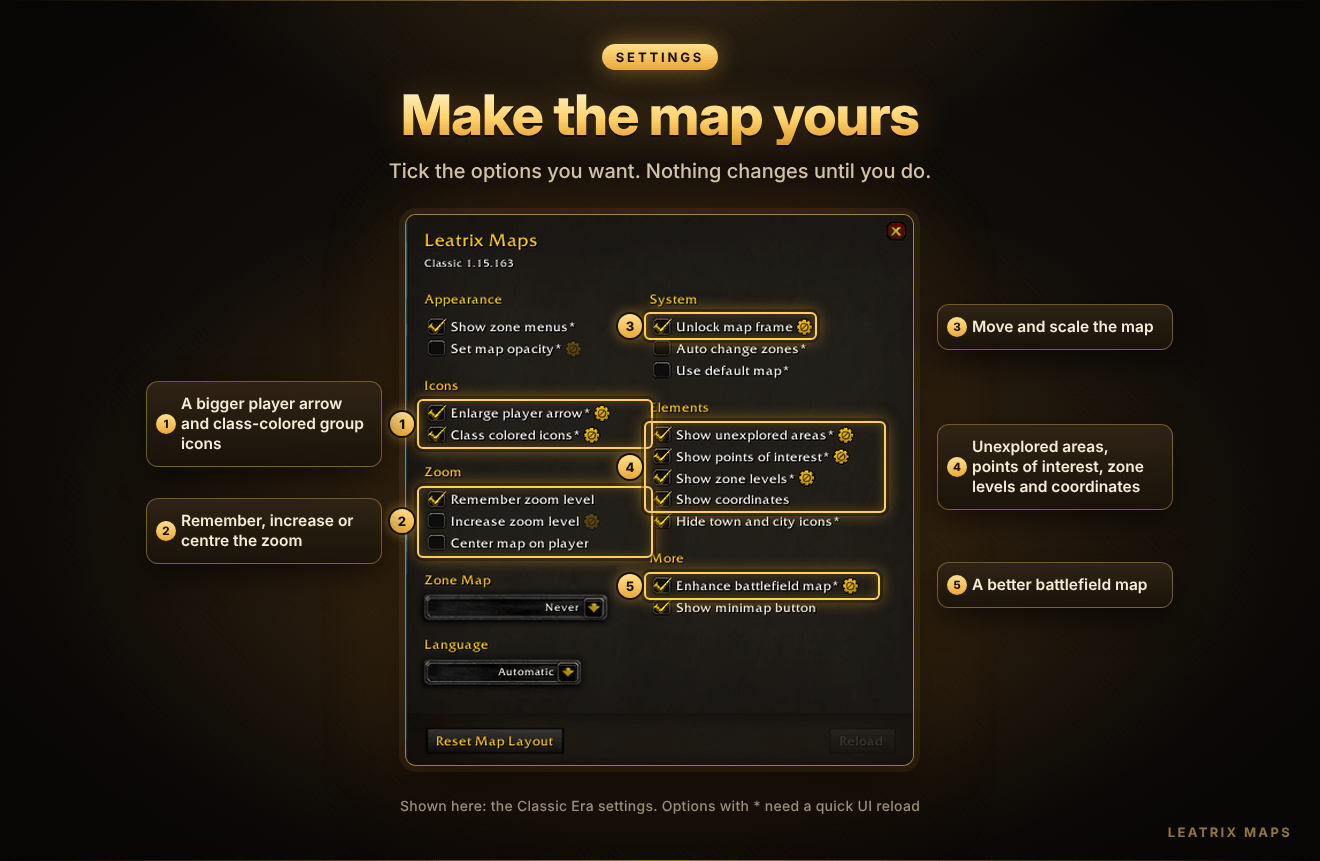
- Move and scale the map wherever you want it, and put it back with the Reset map layout button.
- Use a simple map frame with a compact title bar, and hide the dark blackout behind the map.
- Choose a theme for the map frame (see Map themes below).
- Remember your zoom level, zoom in further, and keep the map centred on your character.
- Set the map's opacity, so you can see the game behind it while you move.
- Enlarge the player arrow and use class-colored group icons.
- Stop the map fading while you move, and stop your character doing the reading emote when you open it.
🎨 Map themes
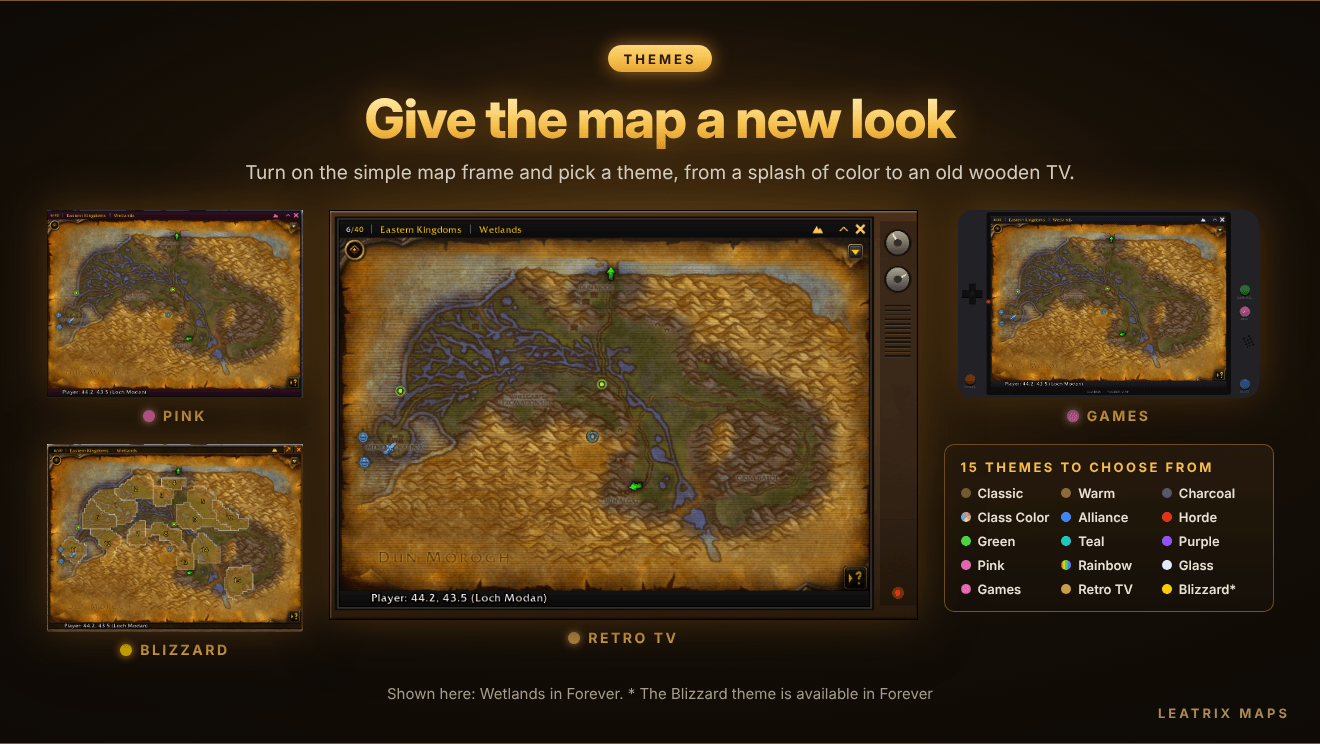
- Turn on the simple map frame, then choose a theme for it in its settings.
- Pick a color: Classic, Warm, Charcoal, Class Color, Alliance, Horde, Green, Teal, Purple, Pink or Rainbow.
- Or go further with Glass, Retro TV, which puts the map on the screen of an old wooden TV, and Games, which turns the map into a handheld console.
- Forever also has a Blizzard theme that matches the game's own frames.
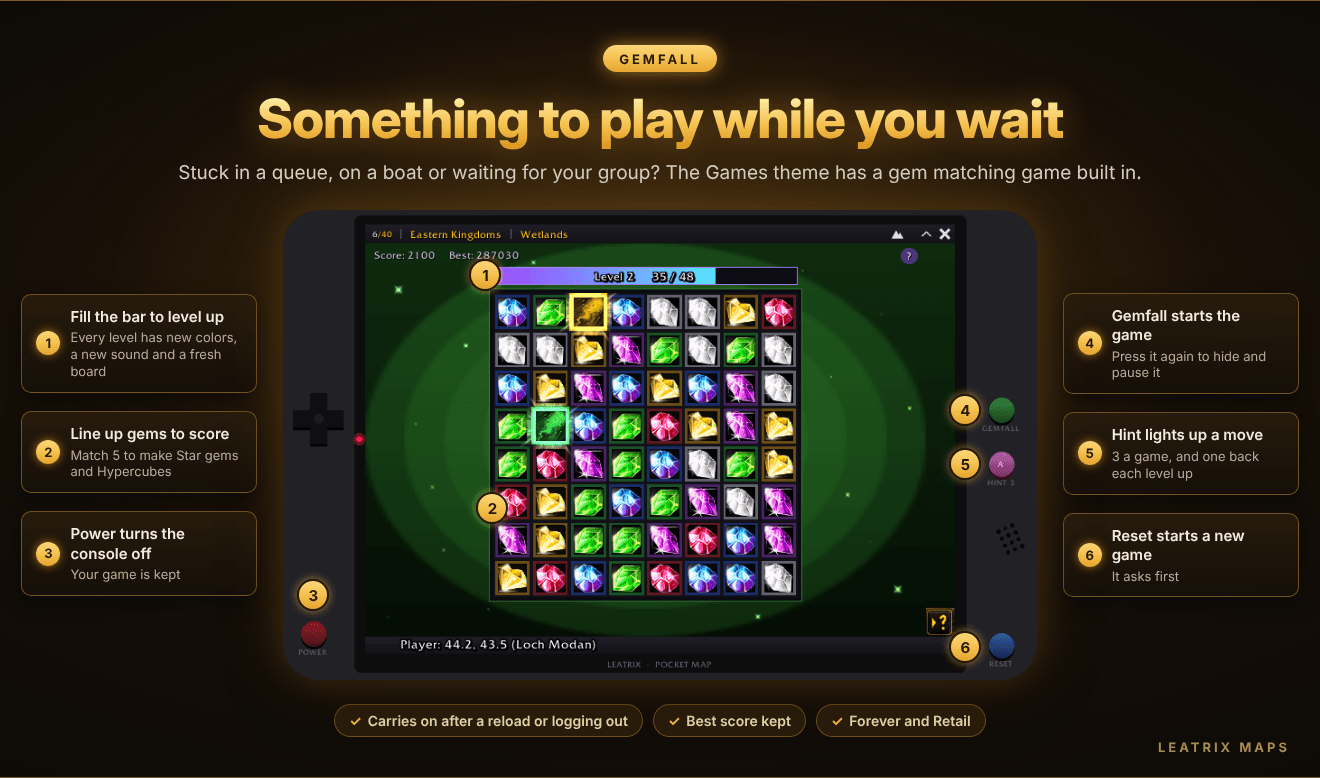
💎 Gemfall
- The Games theme comes with Gemfall, a gem matching game for when you're stuck in a queue, on a boat or waiting for your group.
- Press Gemfall on the console to play, and press it again to hide and pause the game.
- Line up gems to score, make special gems, level up and chase your best score.
- Your game carries on after a reload or logging out, and your best score is kept.
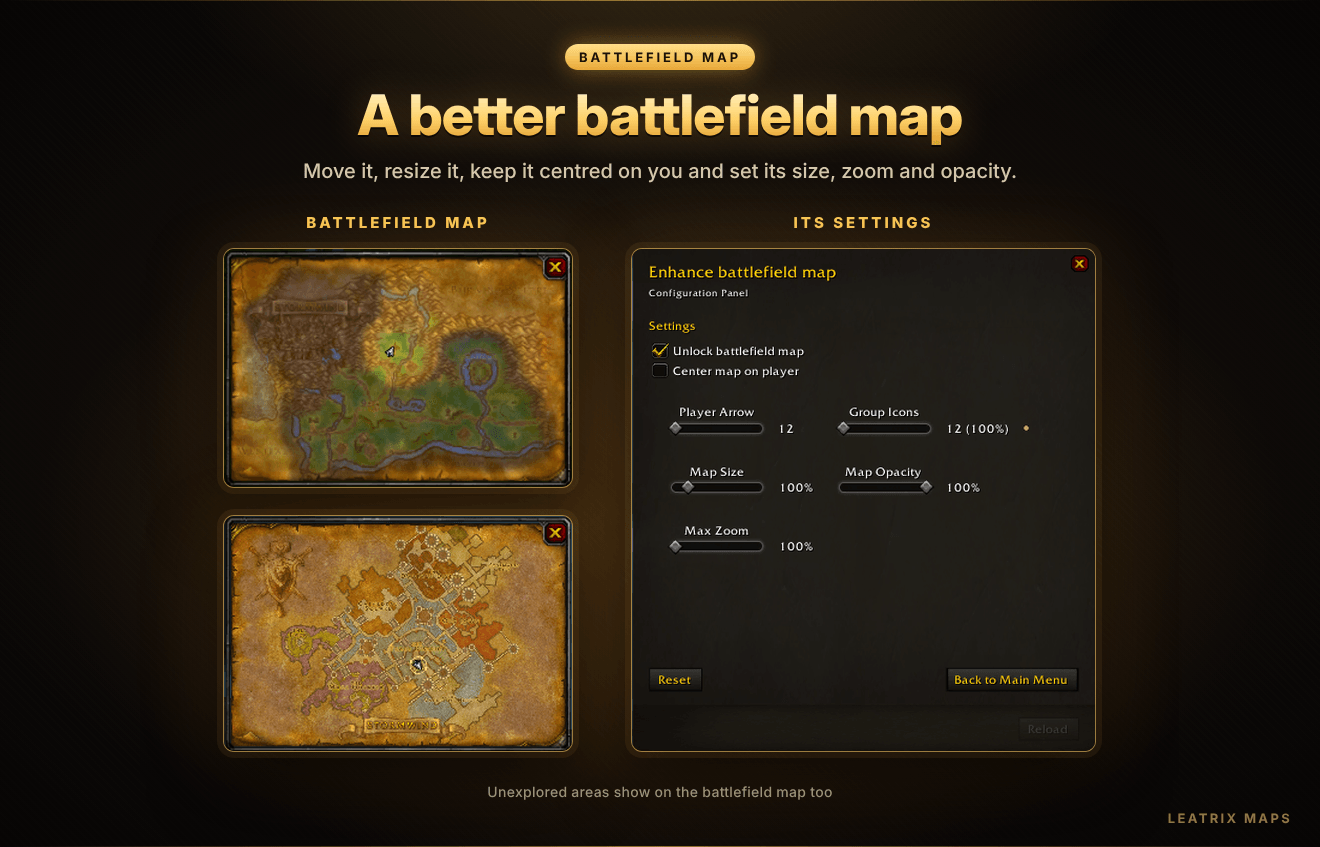
⚔️ Enhance battlefield map
- Move and resize the battlefield map, and keep it centred on your character.
- Set the size of the player arrow and group icons, the map size, the opacity and how far you can zoom in.
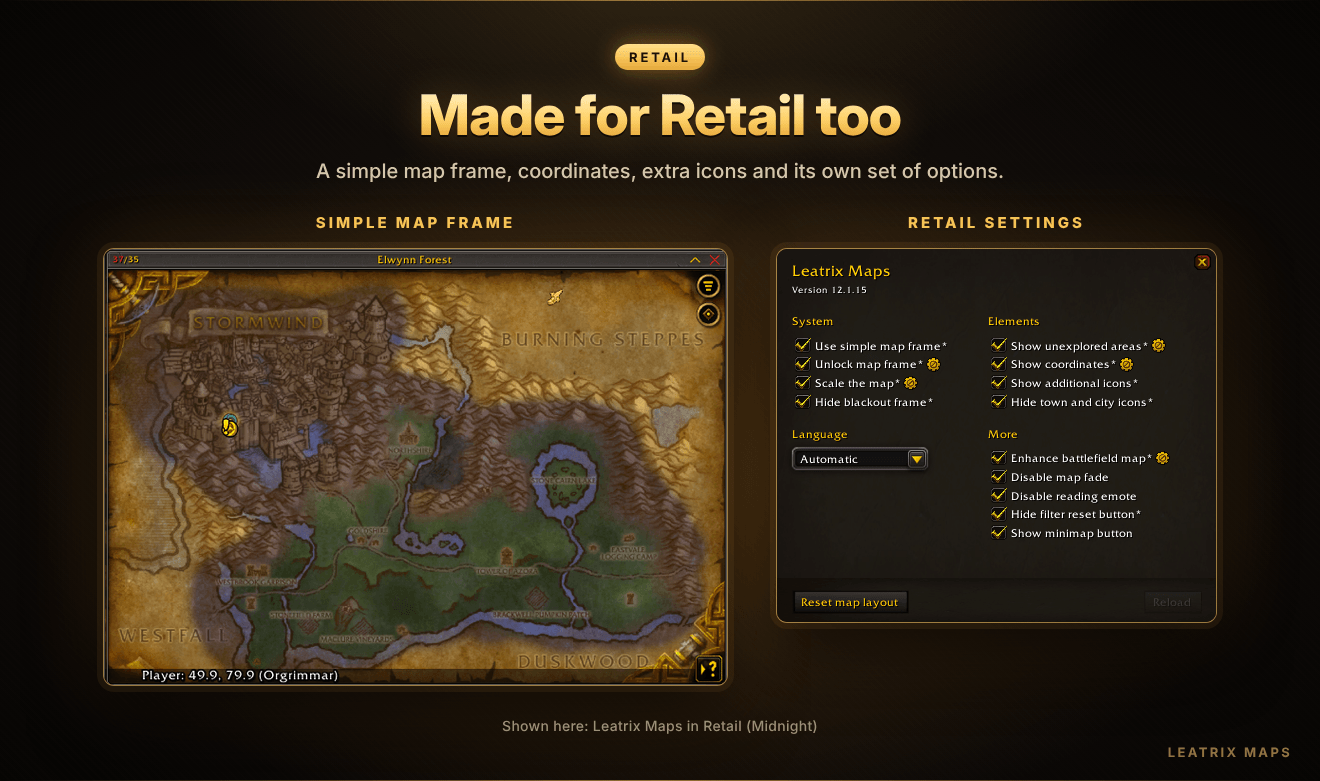
🏰 Retail
- Leatrix Maps works with the Retail map too, with a simple map frame and themes, discovery areas, coordinates, extra icons such as portals, and options made for the Retail map.
🌍 Settings
- Choose the addon's language: English, German, Spanish, French, Italian, Korean, Portuguese, Russian, Simplified Chinese or Traditional Chinese.
- Show or hide the minimap button.
- Options with a cogwheel have their own settings panel. Options marked with * need a quick UI reload.
🎮 Supported game versions
| Game | Supported |
|---|---|
| Retail (Midnight) | ✅ |
| Forever | ✅ |
| Mists of Pandaria Classic | ✅ |
| Titan Reforged Classic | ✅ |
| Burning Crusade Classic Anniversary | ✅ |
| Classic Era | ✅ |
⌨️ Slash commands
| Command | What it does |
|---|---|
/ltm |
Open or close Leatrix Maps |
/ltm reset |
Put the panel back in the middle of the screen |
/ltm wipe |
Reset all settings and reload |
/ltm help |
Show the list of slash commands |
💡 Good to know
- Leatrix Maps only does what you tell it to do. Nothing changes until you choose it.
🔄 Updates
The CurseForge App is the easiest way to keep Leatrix Maps up to date. In the app's settings, you can turn on Auto install updates for each game version you play.
If the addon stops updating, delete its folders by hand and install it again. Do this for each game version you play.
📺 Leatrix Maps in action
💬 Support
Questions, ideas or problems? Go to my profile page, consider clicking the Follow button as it tells me that you appreciate my addons, then click the 3 dots and click Message. Please say which game version you're messaging about otherwise I cannot action your message.
⚠️ Addon saying incompatible or out of date?
Each game version has its own version of the addon, so you need to install the one that matches the game you're playing. If the wrong one is installed, the game will say the addon is incompatible or out of date. This usually happens because the CurseForge App is set up with the wrong flavor for a game instance.
The CurseForge App is still the easiest way to keep Leatrix addons up to date. It just needs to be set up correctly once, like this:
In the CurseForge App, make sure the dropdown menu at the top shows the game you're playing (Forever in this example). Then click the 3 dots next to it and choose Open instance settings.
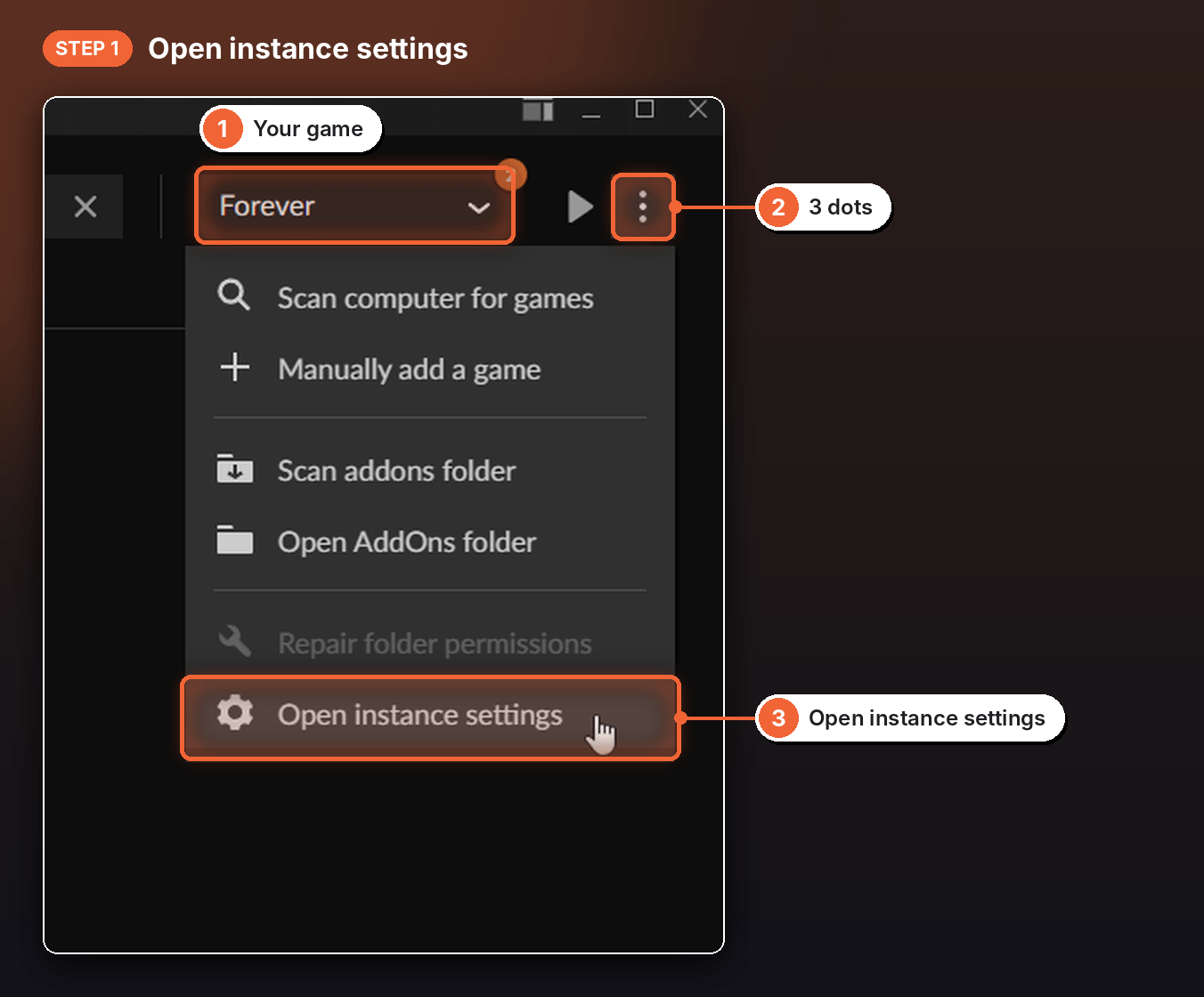
Under Game Specific, choose World of Warcraft. Then pick the game instance you want to check from the Game Instance menu (Forever in this example).
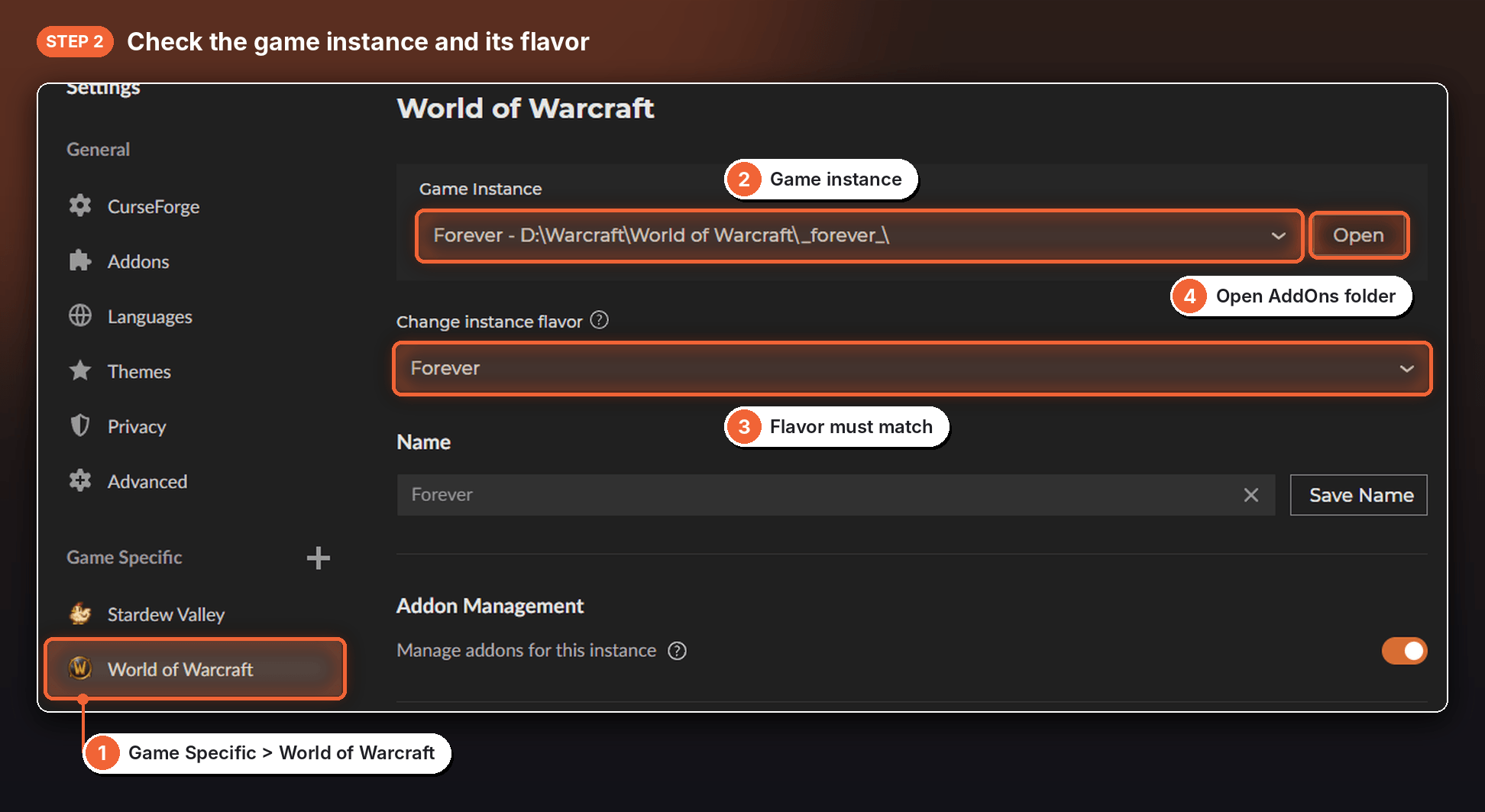
- Make sure Change instance flavor matches that game instance. For example, the Forever instance should be set to the Forever flavor.
- Click the Open button next to the Game Instance menu and your AddOns folder will be shown. Delete the Leatrix addons from there, then install them again with the CurseForge App.
Do this for each game version you play.
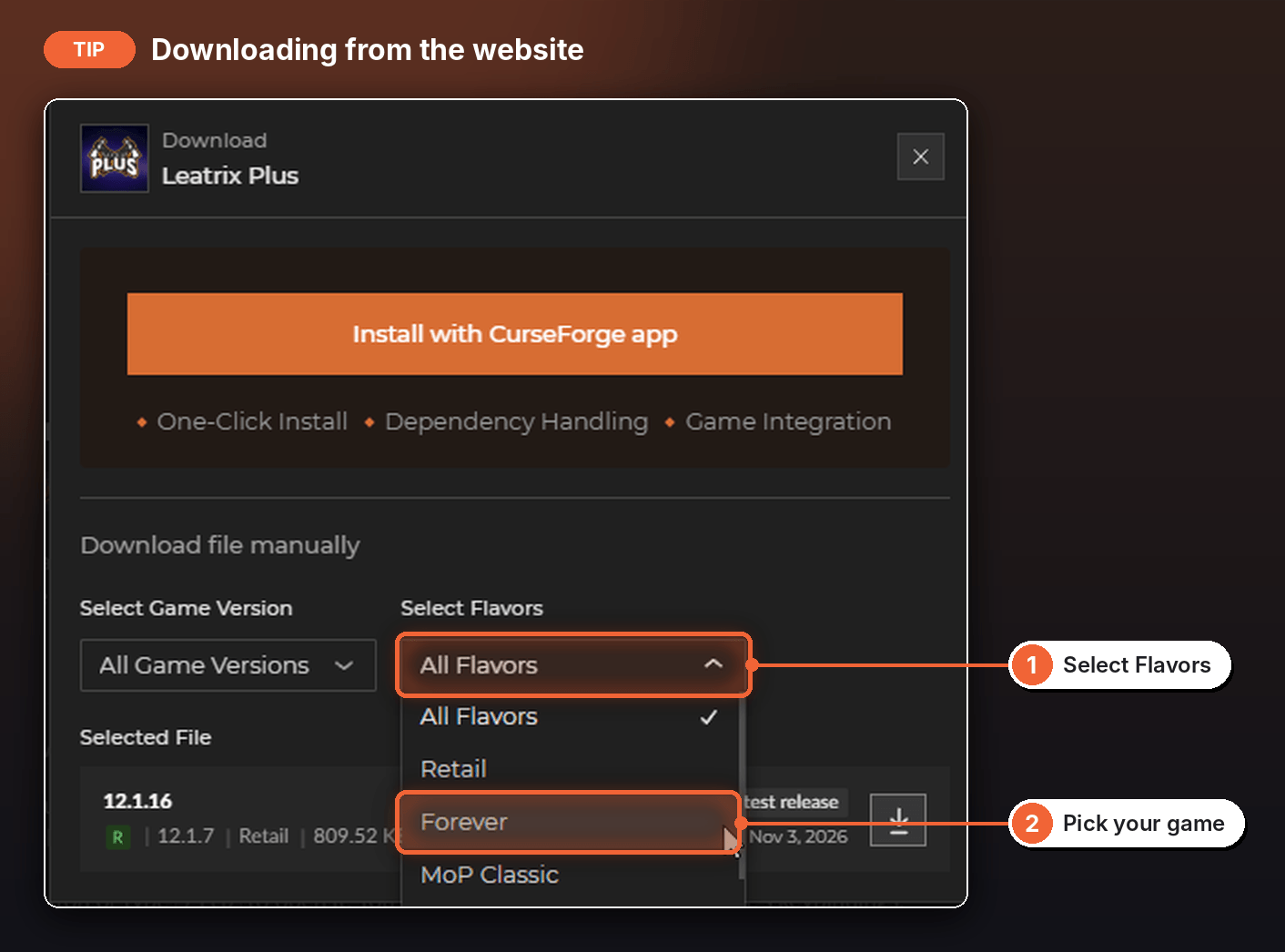
Downloading from the website instead? In the download window, pick the game you're playing from the Select Flavors menu before you download.
Leatrix Maps (USE THIS ONE) Team

Owner


