KP_QuietEffect
- By
Function: Mitigate full-screen ultimate skill visual clutter from various classes in raids; automatically reduce skill effect density for the entire group upon entering a; keep BOSS skill effects visible.
ScreenShot_2026-09-05_202858_055.png
Description
KP_QuietEffect – Timeless Server Raid Visual Noise Reduction Plugin
I. Plugin Overview
KP_QuietEffect is a visual noise reduction plugin designed for the Timeless Server, specifically optimized for raid encounters.
Functionality: Reduces visual clutter caused by full-screen abilities such as Druid's Moonfire Barrage or Shadow Priest's Shadow Word: Void in raids. Automatically lowers the overall particle density of all party members' effects when entering a dungeon and restores your original graphics settings upon exit. Boss ground-targeted skill circles remain fully visible, ensuring you can still avoid mechanics effectively. An advanced feature allows automatic clipping of distant allies’ skill effects (disabled by default—enable via the UI).
Important Technical Limitations – Please Read Carefully:
1. The game client does not provide an interface to selectively block specific players or individual spell effects; no plugin can achieve this.
2. This plugin reduces global particle density: all party members—including yourself—will have simplified visual effects. While large-scale ability-related light pollution will be significantly reduced, it won't be completely removed.
3. Boss ground effects and mechanic indicators use a separate rendering system, which remains unaffected by the plugin. You won’t miss floor-based cues.
II. In-Game Commands
Enter directly into chat to execute:
1. /kpeff on: Manually activate "Purified Mode" — simplifies spell effects for a cleaner screen
2. /kpeff off: Manually restore your original visual effect settings
3. /kpeff auto: Toggle automatic mode — enables noise reduction upon entering 5-player or raid dungeons, and reverts automatically upon leaving
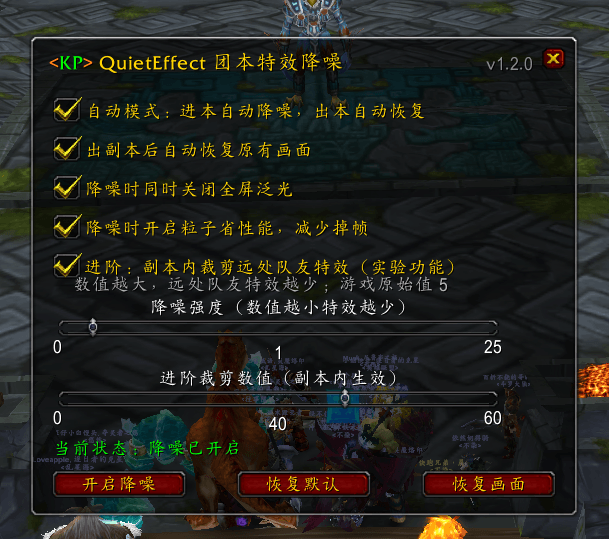
4. /kpeff ui: Opens the configuration interface with graphical controls for toggling and adjusting intensity—no need to memorize commands
5. /kpeff level [number]: Adjusts noise reduction strength. Lower values = fewer effects. Default is 1; typical default visuals are around 25
6. /kpeff: Displays help text
Default Behavior:
1. A small icon appears on the mini-map. Left-click to open/close the settings panel; right-click to quickly enable/disable noise reduction. Drag while holding left-click to reposition.
2. Use /kpeff ui to open the settings panel. Alternatively, access the plugin’s settings page through the ESC menu.
3. Automatic mode is enabled by default: noise reduction activates automatically when entering raid or 5-player dungeons and reverts upon exit.
4. Noise reduction does not activate in battlegrounds or arenas to prevent enemy effects from being simplified and causing danger. Before PvP, manually enter /kpeff off to confirm your visuals are restored.
5. If you log out briefly or disconnect during a dungeon, the plugin automatically detects your status: if still inside the dungeon, noise reduction continues; if outside, settings revert automatically—your display won’t remain muted after exiting.
III. Detailed Description of Two Modes
1. Purified Mode (Noise Reduction Mode)
When activated, the following native graphics settings are adjusted:
1. particleDensity set to 1 — minimum particle density, greatly simplifying spell visual effects
2. RAIDparticleDensity set to 1 — dedicated raid particle density value used when entering raids
3. graphicsParticleDensity set to lowest setting — corresponds to the particle quality level within outdoor graphics presets. Since the game overrides particle values based on preset quality levels, changing only the value without adjusting the preset has no effect. Therefore, both must be lowered together.
4. raidGraphicsParticleDensity set to lowest setting — corresponds to the particle quality level within raid-specific graphics presets. Function identical to above.
5. Set ffxGlow to 0 to disable fullscreen bloom, eliminating harsh flashes and overexposure (you can leave this unchecked in the UI).
6. Set vrsParticles to 1 to automatically reduce rendering precision when particle count is high, minimizing frame drops (this can also be left unchecked in the UI).
Effect Summary:
1. Full-screen explosion effects such as Bird's Moon God Railgun and Dark Priest Abyss are significantly toned down and no longer completely obscure boss models.
2. Boss ground skill circles and mechanic effects remain visible, reducing the risk of accidental death.
3. Screen particles are greatly reduced, which may also alleviate lag in raid encounters.
4. Note: Your own spell effects will also be simplified—this is a client-side behavior, and the plugin cannot distinguish between your effects and those of allies.
2. Restore Original Settings
When you first enable noise reduction, the plugin automatically saves your original settings along with its configuration. Restoration fully reverts all changes:
1. Automatically restores upon exiting dungeons.
2. Manually restore instantly by typing /kpeff off.
3. Correctly restores after minor logouts, disconnections, or game restarts—your graphics settings won't be permanently altered.
IV. Known Notes and Common Questions
Question 1: Can I simplify only allies' effects while keeping my own unchanged?
Answer: No. The game client does not provide an interface to differentiate effects by caster, so no plugin can achieve this. Reducing overall particle density is the only viable and legitimate method.
Question 2: Why can I still see some starlight from the Moon God Railgun? Can't it be completely removed?
Answer: This plugin only reduces particle density—it cannot remove effects entirely. Level 1 is already the maximum setting; any remaining visibility is at the limit of what’s possible.
Question 3: After enabling, I can’t see my teammates’ healing effects anymore.
Answer: With lower particle density, flashy visual effects become dimmer. However, critical information like healing amounts and skill hits remains displayed in combat logs, so your gameplay judgment isn’t affected. If you find it too minimal, type /kpeff level 10 to adjust and find your preferred balance.
Question 4: Will the noise reduction state get messed up after reloading the UI or logging back in?
Answer: No. The plugin stores its state within its configuration. Upon reloading or reconnecting, it automatically applies the correct setting based on your current location: noise reduction continues in dungeons, and original settings are restored in open-world areas.
Question 5: Does this cause taint pollution or key binding issues?
Answer: The plugin only uses SetCVar and GetCVar to read/write graphical settings. It is completely UI-safe, causes no taint pollution, and will not result in key failures.
Question 6: Could advanced clipping cut off important boss effects?
Answer: The game’s system inherently prioritizes effects that are close to you or related to your target. In theory, distant players’ effects are the first to be omitted. However, we haven’t tested every boss encounter thoroughly. We recommend testing with default settings in one or two raids first to confirm it doesn’t interfere with avoiding mechanics before using it long-term. If any issues arise, simply uncheck the option in the UI to immediately revert.
V. Manual Alternative Method (No Plugin Required)
Create a new macro with the following three lines to activate noise reduction:
/console particleDensity 1
/console RAIDparticleDensity 1
/console ffxGlow 0
Advanced cropping command (adjust the number as needed, original value 5):
/console spellClutterRangeConstantRaid 30
Restoration method: Open the graphics settings in the system menu, locate particle density, and revert it to your original setting. The game will automatically restore the correct value.
VI. Troubleshooting
1. No text output when entering commands: Check folder and file names for case sensitivity; confirm that the toc file is encoded in UTF-8 without BOM; ensure the plugin is enabled in the character selection interface.
2. Command not found error: Plugin failed to load properly—verify the file path.
3. No effect on visual effects: Enter /kpeff to check current noise reduction intensity—the lower the value, the more noticeable the effect. If you recently manually adjusted particle density in the graphics settings, try running /kpeff on again.
The KP_QuietEffect Team