KestrelUI
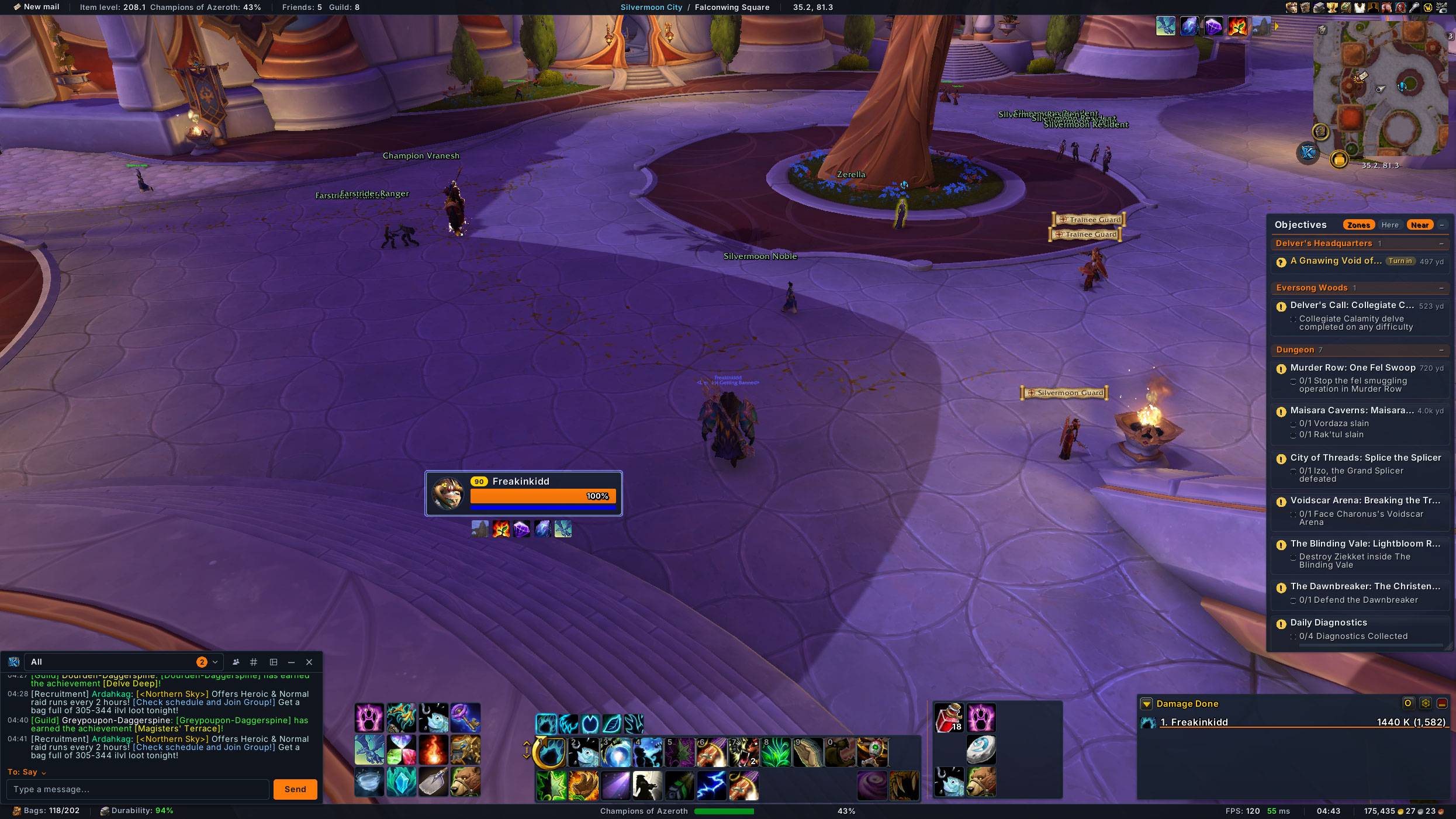
All-in-one themed UI for retail and WoW Forever: frames, bars, nameplates, chat, bags and bank, quest tracker, and More!
WoWScrnShot_110326_043612_menu.png
WoWScrnShot_110326_043548_menu.png
WoWScrnShot_110326_044318.jpg
Description
KestrelUI
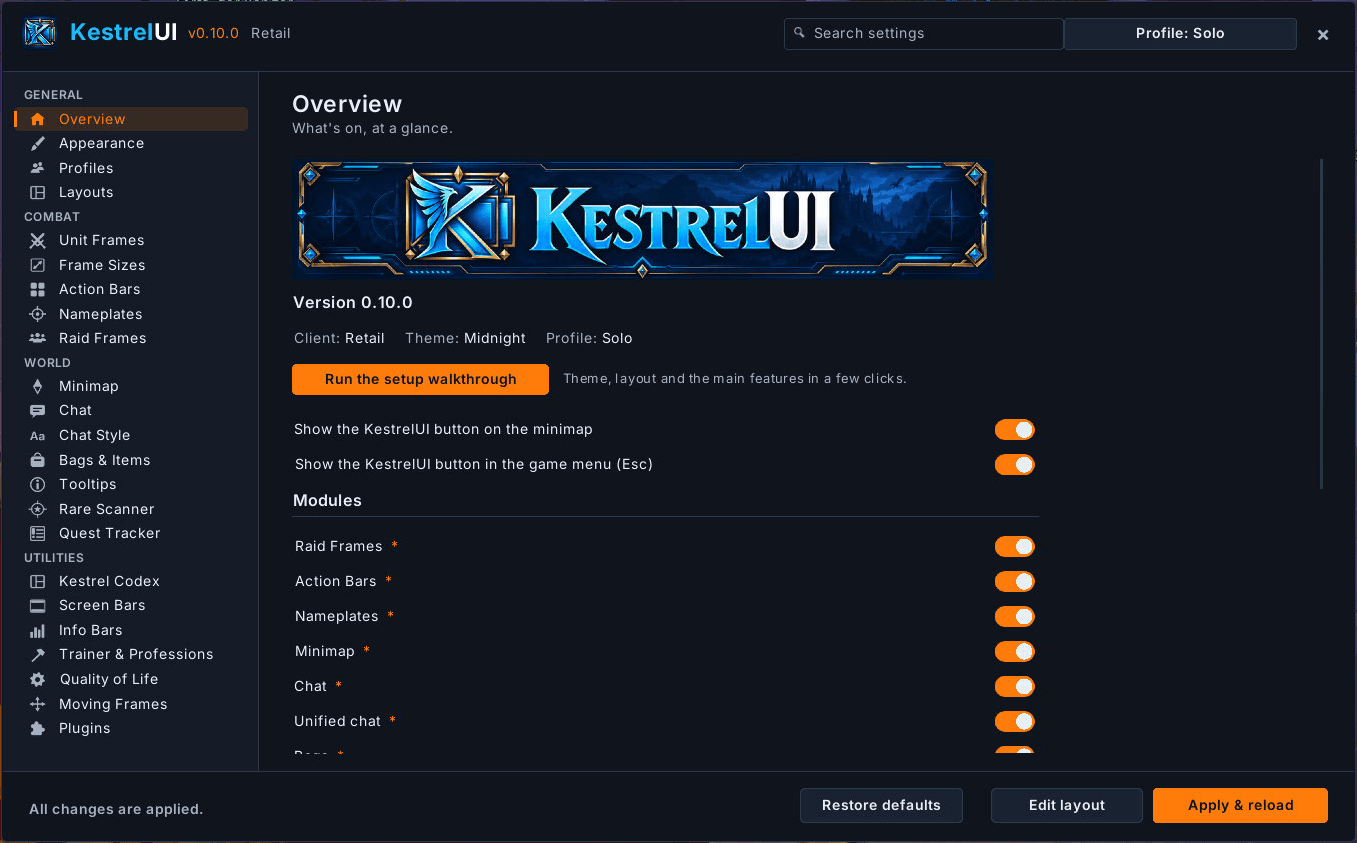
An all-in-one interface for World of Warcraft retail (Midnight) and WoW: Forever. One download restyles the whole default UI: unit frames, raid frames, action bars, nameplates, minimap, chat, bags, bank, guild bank, tooltips and the quest tracker. It also adds the Kestrel Codex (Blizzard's main windows in one place), a Guild & Communities hub, screen data bars, a Rare Scanner, an AFK screen and dozens of quality-of-life features. Everything follows one of 16 themes, and all of it is set up in a single searchable options window.
KestrelUI works out which game it's running in and adjusts itself. You can install the same copy in both.
Kestrel Codex
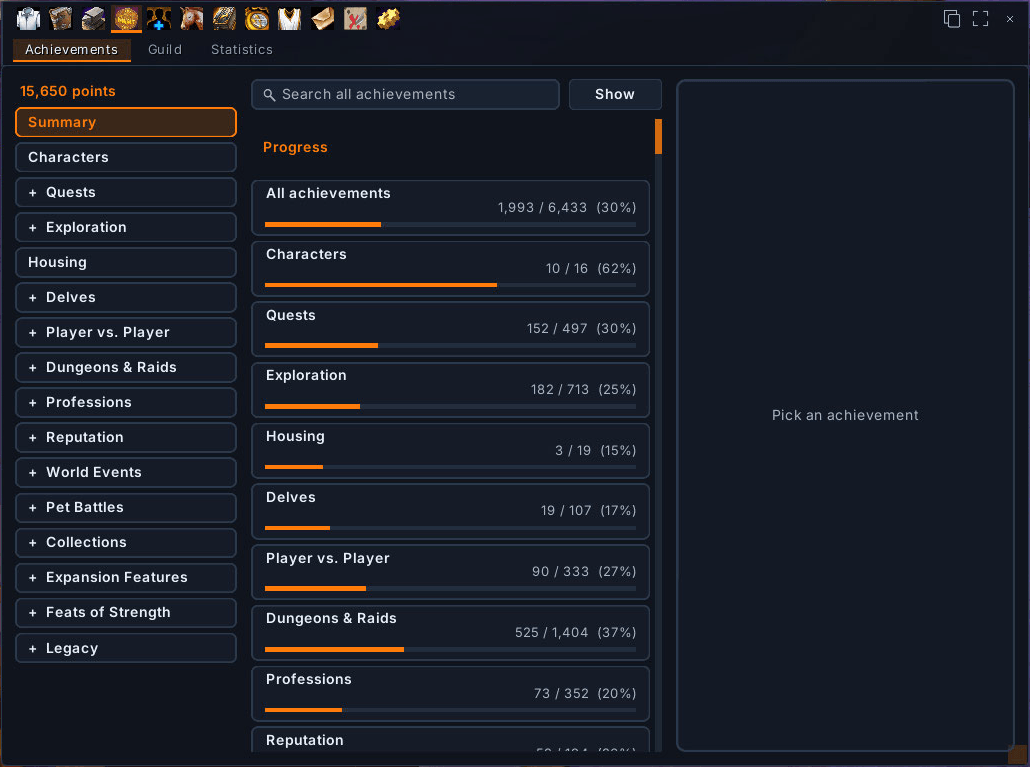
Character, Spells & Talents, Professions, Achievements (Retail) or Legacy (Forever), Group Finder, Collections, the Adventure Guide (Retail), the Calendar, Guild & Communities, Friends, the KestrelSky map and KestrelUI's settings open in one place, with one bar to switch between them.
- Top bar: page icons along the top, the page's tabs in a row underneath. Every window opens with its top-left corner in the same spot, so the buttons never move when you switch pages. Prefer a sidebar on the right? One click switches.
- Blizzard's windows stay Blizzard's: the Codex adds a themed frame and the bar, and switches pages by pressing Blizzard's own buttons, so casting, talents and group finder keep working, in combat too.
- Size per page: a size button on the bar (click for a slider, scroll to resize, right-click to reset). Each page and each Talents tab keeps its own size.
- Pop out any window to keep it open beside the next page, for side-by-side comparisons or multitasking. Ctrl + drag moves it, and it rejoins the Codex when you close it.
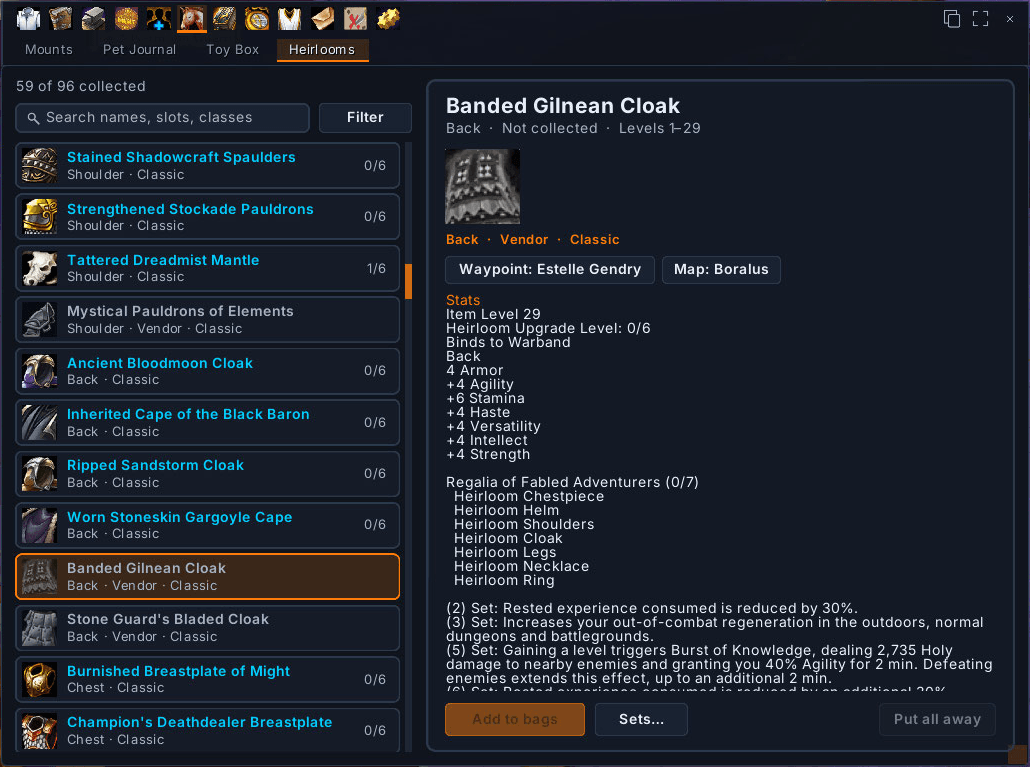
- Collections: Mounts, Pets, Toys and Heirlooms with search, tags and filters (utility mounts like auction house or mailbox, source, expansion, pet family, toy uses like Teleport), favorites, How to obtain with map buttons, toys you can use straight from the list, and your own heirloom sets.
- Character pages beside Blizzard's paper doll: Reputation (renown, friendships, paragon, tips), Currency (caps, warband), Titles (favorites, which achievement gave each) and Equipment sets (saved gear, where each piece is, icon picker).
- Achievements and Statistics (Retail): a summary per category, Almost there, search across every achievement, criteria you can jump through, Track and Link. Guild achievements too.
- Calendar: the month at a glance, a day panel with holidays and raid lockouts, answering invitations, and hide an event by name (the Darkmoon Faire, say).
- Heirlooms in your bags: Put all away and Put set away clear collected heirlooms out of your bags (you can add them back from the collection any time), and heirlooms past their top level get an Old mark.
- The Codex look everywhere: Inspect, the dressing room, Options and key bindings, the Esc menu, Edit Mode and pop-up dialogs get the same themed frame.
Themes
- 16 themes (dark, classic, faction, glass, high-contrast and more) with a live preview before you pick.
- Your choice of accent colour (or your class colour), panel opacity and border style.
Layouts, moving frames & profiles
- Eight ready-made layouts: Solo, Party, Raid, Tank, Healer, Melee DPS, Ranged DPS and PvP. Each has its own frame positions, sizes and role tweaks: a bigger target-of-target for tanks, centred group frames for healers, a clear middle for ranged, a large focus frame for PvP. Switch with one click or
/kui layout healer. - Switch with your spec (optional): KestrelUI offers to change layout when you change specialization, and you pick which layout goes with each spec.
- Blizzard's frames, arranged too (retail): KestrelUI keeps its own Edit Mode layout so action bars, chat, the damage meter, minimap, buffs and the quest tracker sit around its frames without overlaps. Button size fits your screen. Your own Edit Mode layouts are never edited.
- Edit layout: one button unlocks KestrelUI's frames and opens Blizzard's Edit Mode together. An "Editing layout" bar stays on screen with Snap, Move Blizzard frames too and Done. Frames snap to screen edges, the centre and each other. Right-click a frame to reset it.
- Ctrl + drag almost any window (character, bags, quest log, professions…) anywhere on screen. Named windows remember their spot.
- Profiles per character (create, copy, use, reset, delete), plus an optional settings backup that restores your settings and frame positions if the game ever forgets them.
- Welcome walkthrough: the first time you log in, pick a theme, a layout and the big features in a few clicks. Run it again any time with
/kui setup. - Searchable options: type "timestamps", "snap" or "dark mode" in the options window and jump straight to the setting. Every page has hover help, live settings apply immediately, and reload-only ones are marked.
Unit frames & raid frames
- Player, target, target-of-target, focus, pet and party 1–4 in a modern card style: round portrait, level badge, name above the bar, health text inside, slim power bar. The Original theme keeps compact inline frames.
- Target auras, target and focus cast bars, combo points (up to 7), pet happiness, party leader, and range fading.
- Status is never colour-only: Dead, Ghost and Offline are written on the frame.
- Rested glow: your player frame glows in rest areas, so you know it's safe to log out.
- Health text: value + percent, value, percent or none. Portraits can be turned off for slimmer frames.
- Player buff and debuff row with timers. Aura timers on player and target auras, red in the last 5 seconds.
- Player cast bar between the frames or under the player frame, with time remaining.
- Energy bar: smooth, or a spark sweeping to the next energy tick (Forever).
- Class resources: on retail, Blizzard's class-resource bar moves under KestrelUI's player frame. On Forever, combo points show on the target frame and totems under the player frame.
- Raid frames: 40 compact cells by group or raid order, class-coloured health, names, Dead/Offline, raid markers and range fading. Left-click targets, right-click opens the unit menu. Blizzard's raid frames and raid manager can be hidden.
- Frame sizes: a separate 50–200% size for player, target, target-of-target, focus, pet, party and raid.
Action bars
- Flat buttons with short keybinds, cooldown numbers and no bar art.
- Keybinds in the top-left corner and charges in the bottom-right, so the cooldown sweep has the middle of the icon.
- Themed trays: bars that touch share one tray, and a bar parked elsewhere gets its own. Optionally one panel behind all the bottom bars.
- Hide empty slots (they come back while you drag a spell).
- Fade out of combat, with the main bar kept visible if you like. Bars return in combat, on mouse-over, while dragging or when you target an enemy.
Nameplates
(Open world. The game locks nameplates inside dungeons and raids.)
- Live preview beside the settings, redrawn as you change anything.
- Names: above the bar or inside it (left or centred); white, class colour, or class/reaction colour; full names.
- Level on every plate, coloured by difficulty (skull for bosses, + for elites): before the name, in a badge, at the right end of the bar, left of the bar, or off. Show it for players, enemies or both.
- Rare enemies stand out:
- Riftbound: obsidian stone ends with violet cracks, the level in a diamond badge, a RARE label and a stone-grain bar. Rare elites get more stone, two diamonds and RARE ELITE. Comes in two art styles.
- Silver dragon: Blizzard's own silver dragon icon (two for rare elites).
- Adjustable size, compact ends for packs, crack glow and a slow pulse.
- Health text (percent, value, both or none; on your target or every plate).
- Target highlight: accent border, glow or side arrows. Dim other plates while you have a target. Set your target's size.
- Threat colours: tanks see green, orange and red as they hold or lose aggro; others see a warning before they pull.
- Execute range tint (20–35%), themed cast bars, timers on your debuffs, quest mob marker and combo points on your target's plate.
- Visibility: friendly plates only while grouped or only in combat, enemy plates only in combat, and the game's own toggles for pets, guardians, totems and minions.
- Crowded places: in cities and inns, townsfolk show only their name (or no plate at all), and clicks pass through friendly plates. Players, enemies and your target always keep their bars.
City guards
- Guards who give directions show their name on a parchment scroll, gold-trim badge, hanging signboard or cloth banner with a compass rose, so you can spot one when you're lost.
- When a guard marks a place for you, KestrelUI tracks it with the game's beacon and shows a DIRECTIONS banner with the place name and live distance. It clears when you arrive, after 10 minutes, or when you set your own waypoint.
Quest tracker
- Each quest is a raised card in your theme. Resize the tracker from its corner.
- New quests are tracked automatically (bonus objectives and world quests are left alone).
- Your tracked quests in a themed list: grouped like the game (Campaign / Quests / World quests) or by zone. Fold any group or the whole list.
- Here (only this zone) and Near (closest first). Each quest shows its distance, and the tracked quest a rough travel time.
- Click to track with the game's arrow, click again to clear it, double-click to open it on the map (KestrelSky's map when it's installed).
- Shift-click for a details panel: objectives, quest text, rewards with tooltips, money and XP, plus Track / Share / Map / Abandon.
- Ctrl-click quests and press Route for the quickest order through them. Stops are numbered, and the next one is tracked when you turn one in.
- Right-click menu: track, details, map, route, share, link in chat, stop tracking, abandon.
- In area and Turn in tags, progress bars, ticked objectives, and a sound and green flash when an objective completes.
- Quest item buttons that work in combat.
- The game's own tracker is put away. It comes back, restyled, only for delves, scenarios, bonus objectives and tracked achievements, recipes or monthly activities.
KestrelUI chat
One modern chat window for friends, whispers, Battle.net whispers, guild, officer, party, instance, raid, say/yell/emote, channels, system and loot. Blizzard's chat keeps running underneath, so sounds, slash commands and the game's chat box still work.
- Three layouts, usable together:
- Compact: a small gameplay window.
- Expanded: a full workspace with a navigation rail, searchable conversation list and presence.
- Sidebar: a full-height panel docked to a screen edge.
- Conversations with unread counts, shared drafts, message bubbles with times, and optional avatars.
- Pop-out windows for any conversation, up to 8 at once.
- Guild view with online and offline members (rank, level, zone) and search.
- Your status (Online / Away / Busy), which also sets your Battle.net status.
- People menu on any name: whisper, invite, add friend, ignore, copy name or BattleTag.
- Notifications per kind of chat: unread badge, badge and sound, sound only, or nothing.
- Loot & info choices, a read-only combat log view you can copy from, and copy a conversation.
- Filters for spam, carry adverts, repeated messages and your own spam words. Recruitment ads get their own conversation.
- Optional multi-line message box (Shift+Enter for a new line).
- Chat history between sessions: optional and off by default.
- Addon slash commands run straight from the KestrelUI box.
Prefer Blizzard's chat? Chat Style gives it a flat look, short channel names, class colours, a themed or no background, your choice of font, timestamps, fading, clickable web links, a copy chat button, themed tab pills, hidden realm names, and Shift/Ctrl mouse-wheel scrolling.
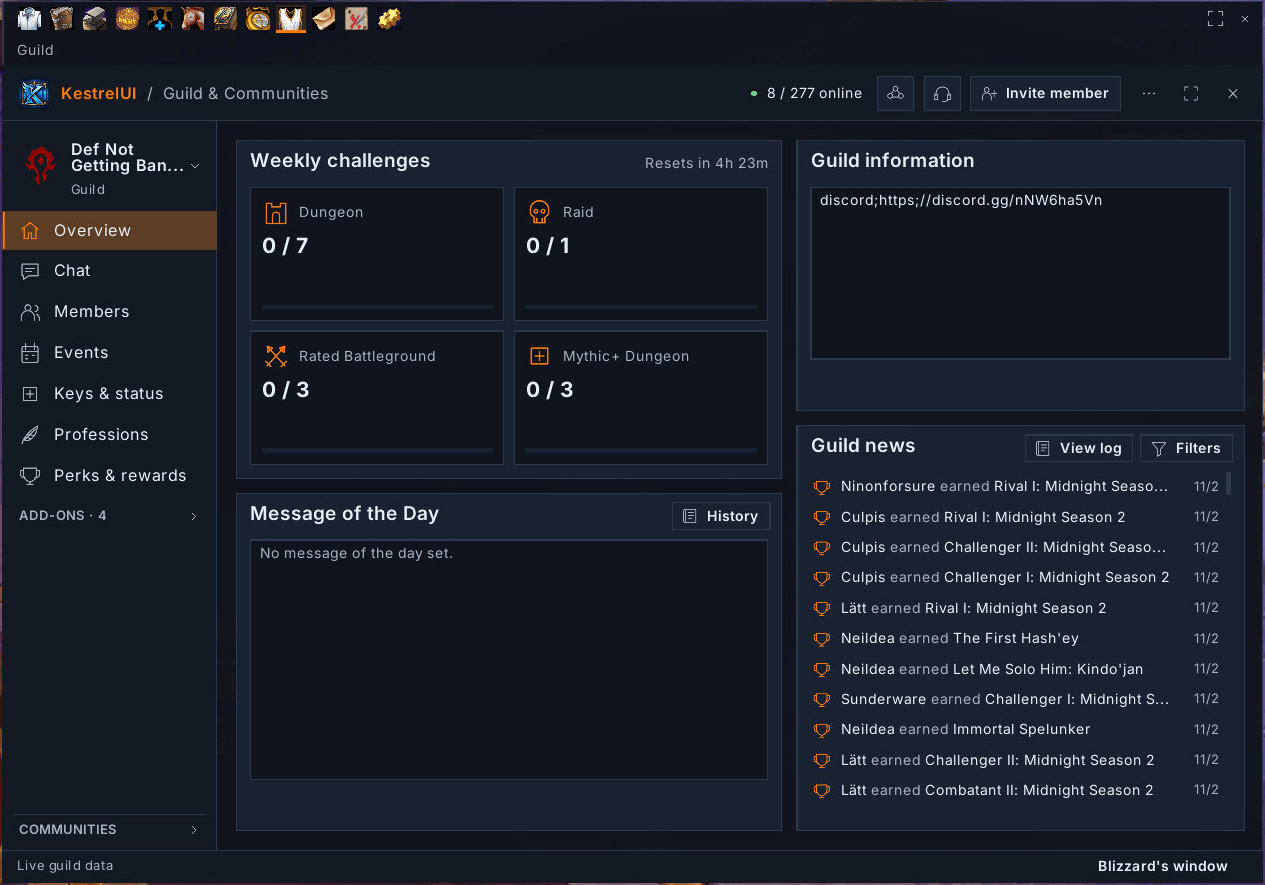
Guild & Communities hub
The guild key opens a KestrelUI window in place of Blizzard's Guild & Communities frame.
- Overview: weekly challenges, Message of the Day and guild info (editable when your rank allows), news with a Grats! button, the guild log and the weekly reset countdown.
- Chat: guild and officer chat, plus community channels.
- Members: sortable columns, search, rank and class filters, group by zone or rank, alts listed under their main, and an alert when someone you star comes online. Whisper, invite, promote, demote, notes and remove, each only when your rank allows.
- Events: the guild calendar three weeks ahead with Accept / Tentative / Decline.
- Keys & status: guildmates who run KestrelUI share item level, spec, Mythic+ rating, keystone and a short status ("LF healer for +12").
- Professions: who in the guild has each profession, and their recipes in a docked panel with Ask to craft and Link.
- Perks & rewards, a small pop-out roster, roster export and an inactivity report.
- Add-ons: other add-ons can add their own pages to the hub. The page list scrolls when it's full, and the Communities section (find, join, guild finder, recruitment) folds away below it.
- Blizzard's own window is one click away.
Bags, bank & guild bank
- Combined bag with flat slots, quality-coloured edges, item levels on gear, upgrade arrows on better gear for your class, BoE / warbound labels, a coin on junk, and "Set" on equipment-set items.
- Bag bar inside the bag: each bag with its free slots (hover to highlight its items), and what your junk sells for. Compact header with title, search and sort on one row. Free slots shown in the title.
- Bank window in the same style: every bank tab in one scrolling window with its name as a header, and a Warband tab for the warband bank and its gold. Search, Sort and Deposit reagents use the game's own sort and deposit. Free slots in the footer.
- Guild bank window: all 98 slots of a tab, tab buttons, search that counts matches on every tab, guild gold, your remaining daily withdrawal, and Deposit / Withdraw gold.
- Blizzard view: switch back to the game's own bank in one click. Turn either window off for good in the options, and choose bank columns and window height.
- Item counts on all your characters in tooltips: bags and bank per character, plus the warband bank, with a total.
Tooltips
- Item level and sell price when Blizzard's tooltip doesn't show them.
- Target: line showing who a unit is targeting (">> YOU <<" when it's you), and Targeted by: for your group.
- Tooltip position: game default, follow the cursor, or a spot you choose.
- Clicked chat links open in their own windows (up to 8), so you can compare items side by side.
Minimap & screen bars
- Minimap in the theme's shape (round, square or rounded square, or your pick), mouse-wheel zoom, coordinates, and the empty header band above it removed.
- One KestrelUI minimap button: left-click for options, right-click to move frames. It's shared with KestrelSky when that's installed.
- Screen bars: slim, full-width data bars along the top and bottom edges. Drag items between them on a board:
- zone and subzone, coordinates
- level and item level, plus an XP / reputation bar with rested XP (Renown, friendship and paragon aware)
- friends and guild online
- bags and durability
- gold across all your characters and the warband bank
- clock, FPS and latency
- the game menu buttons
- Every item has a hover window with details, plus click and right-click actions. For example, Mail summons your mailbox mount, or sets a waypoint to the nearest mailbox your characters have used.
- Whatever the bars show is hidden elsewhere, and nothing overlaps them.
- Info bars (if you don't use screen bars): a flat XP / reputation bar and a durability readout with low-durability warnings.
Rare Scanner
- Watches minimap markers (rares, and optionally treasures and events) and nearby nameplates.
- A new rare pops up a window with a flashing red border:
- 3D portrait, name, level and elite status
- live health, distance and direction, coordinates
- recommended group size, and whether you've already looted it
- Sets and tracks a waypoint. Plays the Raid Warning sound or a war horn and flashes the taskbar icon. Can announce in chat.
- Buttons: Target (with an optional skull marker), Waypoint, Share, Ignore.
- Learns what each rare drops for you, across all your characters, and shows it next time.
AFK screen
- When you go AFK, the interface fades away and the camera slowly circles your character.
- A panel shows your character in 3D with name, level, spec, item level, guild, time away and clocks.
- Your achievements drift across the screen in ornate gold frames. Pick how they move (drift, ring, orbit, float, fall, or a surprise each time), their speed and fade time.
- Or funny stat cards built from your real statistics, like "You have died 1,204 times?? Awkward...", or both taking turns.
- Rested XP: how much you have, and when it'll be full while you rest.
- Alerts while away: ready checks, role checks, invites, queue pops, summons and whispers show as cards, play a sound and flash the taskbar.
- Away summary when you return: whispers and who sent them, events, achievements, gold and XP gained.
- Optional power saver that lowers the frame rate while you're away.
Quality of life
- Auto repair (guild bank first) and sell grey items.
- Faster auto loot, movable loot-roll popups and optional decline duels.
- Auto quests: accepts and turns in quests when you talk to an NPC. It skips grey quests and waits for you on reward choices or gold costs. Hold Shift to do it yourself.
- Trainers: a Train All button, with known skills hidden.
- Professions: recipes coloured by skill-up chance, with the required skill shown.
- Damage meter skin: the game's built-in meter gets the theme's bars, fonts and window. Blizzard still does the counting.
Getting started
- Install, then restart the game (not just /reload) the first time.
- Type
/kuior click the KestrelUI minimap button. - Pick a theme under General → Appearance and a layout under General → Layouts.
| Command | What it does |
|---|---|
/kui |
Open the options window (also the KestrelUI button under the Esc menu) |
/kui setup |
The welcome walkthrough |
/kui codex |
Open the Kestrel Codex |
/kui guild |
Open the Guild & Communities hub |
/kui unlock / /kui lock |
Move KestrelUI's frames |
/kui layout <style> |
solo, party, raid, tank, healer, melee, ranged, pvp |
/kui scale |
Pixel-perfect UI scale |
/kui reset |
Reset all frame positions |
/kui minimap |
Show or hide the minimap button |
/kui afk |
Preview the AFK screen |
/kui rares |
List this session's rares |
/kui rep, /kui bank, /kui plate, /kui quests |
Diagnostics for bug reports |
Works with
- KestrelSky (optional): shares KestrelUI's theme font and minimap shape and uses one minimap button. KestrelSky shows Rare Scanner, mailbox and guard-directions pins on its map, and plans the quest tracker's routes with travel times. KestrelUI works fine on its own.
- For addon authors:
KestrelUI.APIexposes the current theme, fonts, minimap shape and mask, and which features KestrelUI is running. There's a Plugins page you can register on, and the Page API puts your add-on's pages in the Guild & Communities hub.
Privacy
KestrelUI makes no web calls and does no tracking. The only thing it sends on its own is the guild hub's Keys & status: your item level, spec, Mythic+ rating, keystone and the status you set, to your guild only, and only while that sharing is on (you can turn it off in the hub). Otherwise it only sends chat messages you type yourself, and the hub's Grats! button when you press it. Settings are stored in the game's normal saved-settings files. Chat history is off unless you turn it on, and it can be cleared any time.
Good to know
- KestrelUI follows Midnight's addon rules. It doesn't read the combat log and does no combat automation. Protected changes made in combat wait until combat ends.
- Nameplate features work in the open world only.
- In combat the game resets the Talents window's size when you change tabs; the Codex puts your size back when combat ends.
- City-guard detection and funny stat cards use English names, so they need an English game client.
- After a retail patch, the AddOns list may call KestrelUI "out of date" until it's updated. Tick Load out of date AddOns in the meantime.
Feedback
Found a bug or have an idea? Leave a comment or open an issue. A screenshot and your theme name help a lot, as does the matching diagnostic: /kui rep (XP or reputation bar), /kui bank (bank window), /kui plate (nameplates, with the enemy targeted) or /kui quests (auto quests).
KestrelUI Team