ItemRack Anniversary
- By
Anniversary Supported Version of ItemRack Classic Ported to support Era/ HC / Sod / and TBC Anniversary.
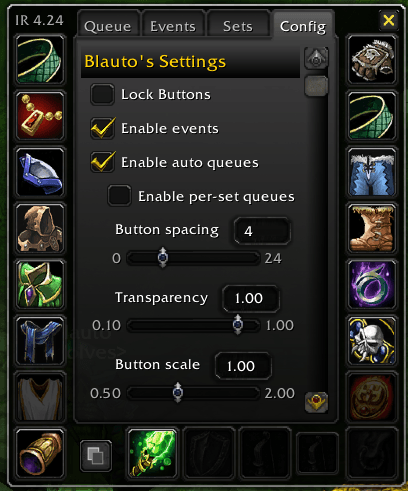
Config.png
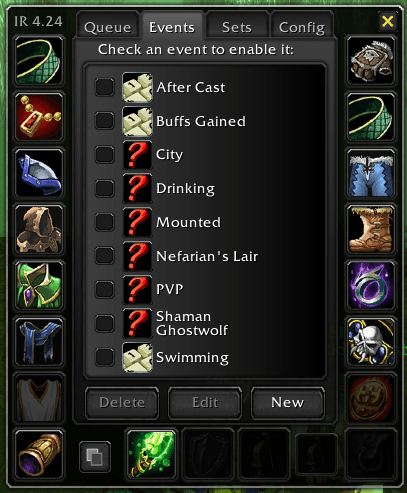
Events.png
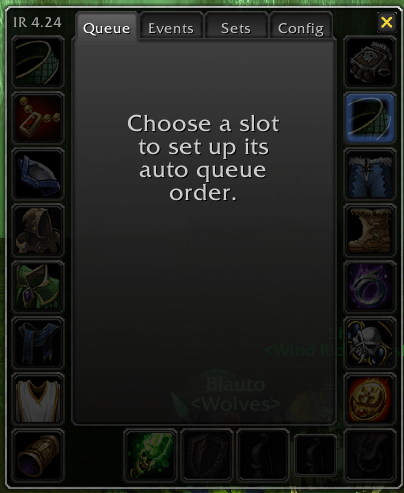
Que.png
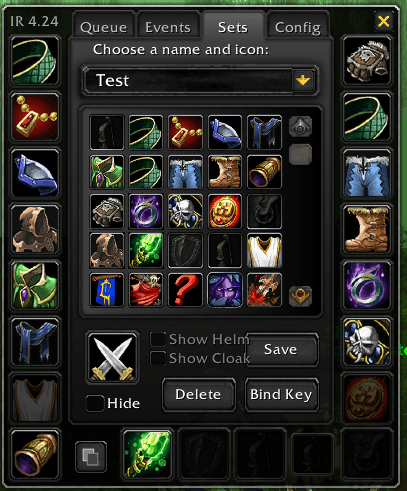
Sets.png
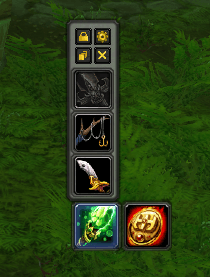
Quick Access.png
Description
ItemRack (Anniversary Edition)
Overview
ItemRack is a context menu-based inventory manager for quickly swapping equipment and managing gear sets. Create sets for any scenario—PvP, Tanking, Healing, resist fights—and swap with a single click, keybind, or automatically via event triggers.
This version is a dedicated update for the TBC Anniversary Edition client (2.5.4+). It builds upon the excellent work of previous maintainers to ensure full compatibility with the modern WoW API used by the Anniversary client.
🚀 Recent Updates
UI & Quality of Life Improvements
- Tooltips System Overhaul:
- Options to disable ItemRack's custom tooltips entirely if preferred.
- Tiny Tooltips on Quick Access Only: Keeps your main Set button detailed while shrinking individual gear slot tooltips.
- Suppresses duplicate overlapping item comparison tooltips from the default WoW UI when holding Shift.
- Audio System Enhancements:
- Dedicated options to mute all automatic swap sounds.
- LibSoundIndex Integration (WIP): ItemRack now optionally supports the LibSoundIndex library for surgical audio muting. Note: LibSoundIndex is currently a Work-in-Progress. If it's not installed, ItemRack uses a CVar fallback that fully mutes the game's SFX for 1.5s during a swap. The CVar fix works, just not perfectly, and the audio experience will be improved soon.
- Menu Mutual Exclusivity: Features like
Menu on ShiftandMenu on right clickare now mutually exclusive and auto-toggle each other to prevent control conflicts. - Shift-Click Equip via Bank: Holding Shift while clicking an item in an ItemRack popout menu with the bank open will properly equip it instead of depositing it.
⚠️ FAQ: Flyout Menu Opening on the Wrong Side?
Several users have reported that character sheet flyout menus open in the wrong direction (e.g., left-side slots opening to the left and overlapping the screen edge, or right-side slots going the wrong way). This is configurable!
Open ItemRack Options (/itemrack opt) and look under the "Character sheet menus" section. You'll find two checkboxes:
- "Left slots: menu on right" — Flips left-side slots (Head, Neck, Shoulder, Back, Chest, Shirt, Tabard, Wrist) to show menus on the RIGHT.
- "Right slots: menu on left" — Flips right-side slots (Hands, Waist, Legs, Feet, Rings, Trinkets) to show menus on the LEFT.
Toggle whichever option fixes the direction for your setup. Bottom weapon slots (Main Hand, Off Hand, Ranged) always dock vertically and are unaffected.
Validated Base Version
This adaptation is based on the 4.23 release by Rottenbeer (released November 28th, 2024), updated to support the unique requirements of the Anniversary client.
References to Previous Versions
We stand on the shoulders of giants:
- Original Base Version: ItemRack on CurseForge
- WoW Classic Version: ItemRack Classic on CurseForge
What's New in the Anniversary Edition
The TBC Anniversary client runs on a modern retail-based engine, which introduced several breaking changes for older addons. This version implements extensive fixes to bridge that gap.
Core Compatibility Fixes
- "On-Use" Item Functionality Restored: Solved "Action Blocked" errors by implementing Secure Item Attributes (
type="item"). Trinkets and on-use items work directly from the rack without error, just like standard action bar buttons. - API Compatibility Layer: Full support for migrated WoW APIs including
C_Container,C_Item, andC_AddOns. Cooldown tracking displays correctly on buttons. - No More Yellow Triangles: Fixed the graphical glitch in the Options menu caused by missing Atlas textures in the Anniversary client.
- Secure Button Templates: Rewrote button initialization with a custom icon layering system, ensuring buttons look correct and function securely.
Dual Spec Support
- Automatically swaps gear sets when you change talent specializations.
- UI adapts to show spec options only if Dual Spec is learned.
- Spec checkboxes are dynamically labeled with your talent tree name (e.g., "Holy", "Arms").
Blizzard Keybinding Integration
- All 20 equipment slots are registered in the Blizzard Keybindings panel under AddOns > ItemRack.
- Each slot has a descriptive label (e.g., "Head (Slot 1)", "Off Hand / Shield / Held In Off-hand (Slot 17)").
- Keybinds are saved immediately and persist through reloads.
Improved Cooldown Display
- Large Numbers mode: Cooldown text uses
mm:ss/h:mmformat with dynamic coloring—white above 60s, yellow under 60s, red under 5s. - WoW's native countdown numbers are suppressed on ItemRack buttons to prevent duplicate text.
Event System Reliability
- Buff events (Mounting, Drinking) properly track active state and cleanly revert gear when ending.
- Nested event transitions (e.g., Drinking ending while Mounted) correctly restore the original gear state.
- Stance events (Shapeshifting, Ghost Wolf) reliably revert gear even when the equipment API reports inconsistencies.
Tooltip Set Info
- "Show set info in tooltips" now reliably displays which sets contain an item when hovering in your bags or character panel.
- Uses exact item-field matching—correctly differentiates items with different enchants or gems.
- Internal system sets are hidden from tooltips.
Queue System
- Fixed item duplication and multiple stop markers in queue lists.
- Right-click queue cycling works reliably, including during combat (queued for after combat ends).
- Combat queue shows overlay icons on slot buttons indicating pending swaps.
UI Polish
- Smart Menu Docking: Left-side character sheet slots default to opening menus to the left, and right-side slots open to the right. If this automatic direction is wrong for your setup, you can override it per-side in Options (under "Character sheet menus"):
- "Left slots: menu on right" — Flips left-side slots (Head, Neck, Shoulder, Back, Chest, Shirt, Tabard, Wrist) to show menus on the RIGHT instead of the left.
- "Right slots: menu on left" — Flips right-side slots (Hands, Waist, Legs, Feet, Rings, Trinkets) to show menus on the LEFT instead of the right.
- Bottom weapon slots (Main Hand, Off Hand, Ranged) always dock vertically and are unaffected by these settings.
- Hotkey text renders in subtle gray with proper hide/show behavior.
- Set icon and label accurately reflect the equipped set after combat, spec changes, and event transitions.
Core Features
- Quick Swapping: Hover over a slot on your character sheet to pop out a menu of available items for that slot.
- Sets: Create and save gear sets and swap them with a single click or keybind.
- Events: Automate gear swaps based on events (mounting, entering a zone, shapeshifting, drinking, etc.).
- Auto-Queue: Automatically cycle items based on cooldown availability—equip your best-in-slot trinket as soon as the current one goes on cooldown.
- Combat Queue: Swaps attempted during combat are queued and executed automatically when combat ends.
Complete Control Scheme
📌 Character Sheet Controls
| Action | Effect |
|---|---|
| Alt+Click any equipment slot | Creates an on-screen "Quick Access" button for that slot |
| Alt+Click the Character Model | Creates a "Set Button" (slot 20) for gear set management |
| Hover over an equipment slot | Opens the item selection flyout menu (if enabled) |
| Shift+Hover over slot | Opens the flyout menu when "Menu on Shift" option is enabled |
🎮 Quick Access Slot Button Controls
| Action | Effect |
|---|---|
| Left-Click | Uses the item (activates on-use trinkets, equippables, etc.) |
| Right-Click | Advances to the next item in the queue for that slot |
| Hover | Opens the item selection flyout menu |
| Shift+Left-Click | Links the equipped item to chat (if chat edit box is open) |
| Alt+Left-Click | Toggles Auto-Queue ON/OFF for that slot |
| Alt+Right-Click | Opens the Queue configuration panel for that slot |
| Drag | Moves the button group (if unlocked); Shift+Drag moves only that button |
🔘 Set Button (Slot 20) Controls
| Action | Effect |
|---|---|
| Left-Click | Equips the current set (or toggles if "Equip Toggle" is ON) |
| Right-Click | Opens the Sets tab in Options |
| Shift+Left-Click | Unequips the current gear set |
| Alt+Left-Click | Toggles ItemRack Events ON/OFF |
| Alt+Right-Click | Opens the Sets tab in Options |
📋 Flyout Menu (Item Selection) Controls
| Action | Effect |
|---|---|
| Left-Click item | Equips that item to the slot |
| Right-Click item | Equips item (TrinketMenuMode: chooses slot 14) |
| Shift+Click item | Links the item to chat (if chat edit box is open) |
| Alt+Click item | Toggles the item as "Hidden" (if AllowHidden is ON) |
| Left-Click while bank is open | Pulls item from bank to bags, or pushes to bank |
| Right-Click menu frame | Toggles menu orientation (Vertical ↔ Horizontal) |
| Drag menu frame border | Re-docks the menu to a different corner of the button |
🌐 Minimap / Data Broker Button Controls
| Action | Effect |
|---|---|
| Left-Click | Opens the gear set selection menu |
| Right-Click | Opens the ItemRack Options window |
| Shift+Click | Unequips the current gear set |
| Alt+Left-Click | Shows hidden sets in the menu |
| Alt+Right-Click | Toggles ItemRack Events ON/OFF |
⌨️ Slash Commands
| Command | Effect |
|---|---|
/itemrack opt or /itemrack options |
Opens the Options window |
/itemrack equip <set name> |
Equips the specified set |
/itemrack toggle <set name> |
Toggles the specified set on/off |
/itemrack toggle <set1>, <set2> |
Toggles between two sets |
/itemrack lock |
Locks all buttons in place |
/itemrack unlock |
Unlocks buttons for repositioning |
/itemrack reset |
Resets all buttons and positions |
/itemrack reset everything |
Wipes all ItemRack data and reloads UI |
🔄 Auto-Queue System
The Auto-Queue system automatically swaps items based on cooldown availability:
- Enable Queue: Alt+Left-Click a slot button, or use the Queue tab in Options.
- Configure Priority: In the Queue tab, rank items from highest to lowest priority.
- How it works: When an equipped item goes on cooldown, ItemRack swaps to the next ready item.
- Pause Queue: Check "Pause Queue" on items to prevent them from being swapped out during use.
⚡ Combat Queue
If you try to swap items while in combat, ItemRack will:
- Queue the swap for when combat ends.
- Show a small overlay icon on the slot button indicating what's queued.
- Automatically perform the swap when you leave combat.
📝 Notes
- Most actions that modify buttons or swap gear are blocked during combat due to Blizzard's secure action restrictions.
- The "Set Button" (slot 20) appears when you Alt+Click the character model frame.
- Hidden items can still be seen by holding Alt while hovering over menus (if AllowHidden is enabled).
- TrinketMenuMode combines both trinket slots into a single menu for easier management.
Credits
- Gello: Original code and concept.
- Rottenbeer, Roadblock, Rozil & Other Maintainers: For keeping the Classic versions alive.
The ItemRack Anniversary Team

Owner