Interact Icon Target Pro
- By
One icon for whatever your Interact Key is on: loot, skin, herbs, ore, NPCs. Shows the skill you need and glows when you're in range.
to far.png
Description
Interact Icon Target Pro
One clean icon for whatever your Interact Key is pointing at. Loot, skinning, herbs, ore, NPCs, quest givers: you see what the key will do, whether you have the skill for it, and whether you're close enough, all at a glance.
Features
The icon
- Shows the game's own action icon: loot, skin, gather, mine, talk, attack and more.
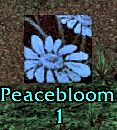
- Known herb and ore nodes can show the item itself, as a square or round picture, or the game's gather/mine icon. Your choice.
- The node name is shown under the icon (e.g. Silverleaf).
- Pictures dim when you're out of range, like the game's loot and skin icons do. You set how much.
Skill check
- Shows the skill level you need under the icon:
- 🟢 green: you can gather / skin it;
- 🔴 red: your skill is too low, or you don't have the profession;
- 🟡 gold: your skill couldn't be read.
- Skinning requirements come from the corpse's level. Herbs and ore come from a built-in node list.
- Option to hide the number for professions you don't have.
- Colorblind-safe mode: blue/orange plus symbols.
In-range glow
- The icon glows while you're close enough to act, and stays dark when your skill is too low.
- 7 glow styles: follow the icon's shape, square ring, pixel border, pixel chase, round glow, corner brackets, light up.
- A separate style for square pictures, so herbs and ore never get an odd box outline.
- Color, size, strength and pulse are all adjustable. Hover a style in the list to preview it.
Sound
- An optional sound when a new interact target appears. Pick from the game's sounds, or from any SharedMedia sounds you have installed. There's a Test button.
Edit Mode
- Drag the icon anywhere, with a grid and snapping to the grid and to other frames' edges. Hold Shift to place it freely.
- Right-click the icon in Edit Mode for quick settings: size, text size, name, skill number, reset position.
- Works together with UnitFramesPro's Edit Mode, so everything can be placed in one go.
Also
- Minimap button: left-click opens the options, right-click opens Edit Mode.
- Clean options window with a left menu and sub-tabs.
- 5 icon border styles: none, pixel, corners, tooltip, action button.
- Optional: keep the game's Interact Key setting switched on (the game can turn it off by itself).
Commands
| Command | What it does |
|---|---|
/iitp |
Open the options |
/iitp edit |
Edit Mode (move the icon) |
/iitp reset |
Reset the icon's position |
/iitp info |
Show what the icon sees right now |
/iitp minimap |
Show / hide the minimap button |
/iitp help |
List the commands |
/interacticon works too.
Supported game versions
- Classic Era (1.15)
- TBC Anniversary (2.5)
- MoP Classic (5.5)
Needs the game's Interact Key (soft interact) setting. Turn it on under Options → Controls, or tick "Keep Interact Key always on" in the addon.
UnitFramesPro users
This icon used to be part of UnitFramesPro. The first time you log in, your old interact settings are copied over automatically. UnitFramesPro's options link here, and its Edit Mode moves this icon too.
The Interact Icon Target Pro Team