CursorOrb_banner.png
Description
CursorOrb
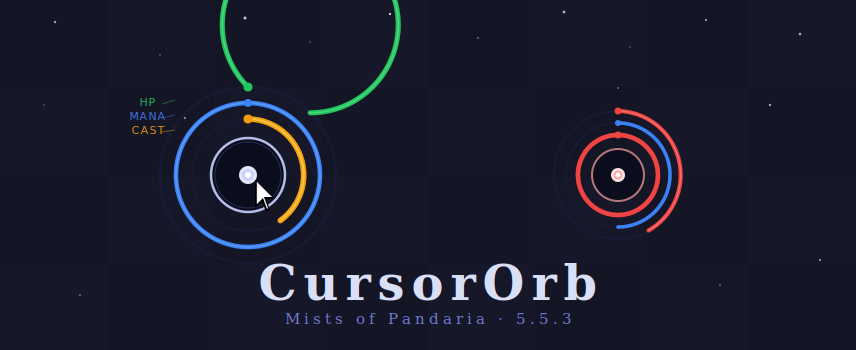
A lightweight orb that follows your cursor and shows your health, power and cast progress right where you're already looking. No more glancing at the corner of the screen mid-pull.
Works on Classic Era (1.15.x) and MoP Classic (5.5.x).
Features
- Follows your cursor. A clean ring and centre dot that track your mouse. You can also pin the orb to a fixed spot on screen.
- Health arc with a 3-stage colour (green → yellow → red) that blends smoothly, with thresholds you can set.
- Power arc for mana, rage, energy or focus, each in its own colour.
- Cast & channel arc. It fills while you cast and empties while you channel (fishing, long crafts). It moves smoothly even on 30-second casts, follows pushback, and flashes red when you're interrupted.
- Arc direction. Pick the start position (top, right, bottom, left) and the fill direction (clockwise or counter-clockwise) for each arc.
- Smooth bars. Health and power slide to their new values instead of jumping.
- Spell name & cast timer text, with adjustable size, padding and colour.
- Full colour control over every ring, arc, dot and background, including opacity.
- Minimap button. Left-click for options, right-click for Edit Mode, drag to move. Its icon is a tiny copy of your orb in your own colours.
- Light on performance. Everything is drawn once and reused, not rebuilt every frame.
Usage
/orb: open or close the options window/orb minimap: show or hide the minimap button
To pin the orb in place, click Edit Mode (in the options window or by right-clicking the minimap button). Move your cursor to where you want the orb, then click Lock Position. Reset Position sends it back to following the cursor.
Notes
- Colour pickers work with the default Blizzard picker and with ColorPickerPlus.
- If you use SexyMap, the minimap button may only appear when you hover over the minimap, like other addon buttons.
CursorOrb Team