Guild Builds
- By
Your guild's talent builds and gear sets in the guild roster, opened in the game's own windows
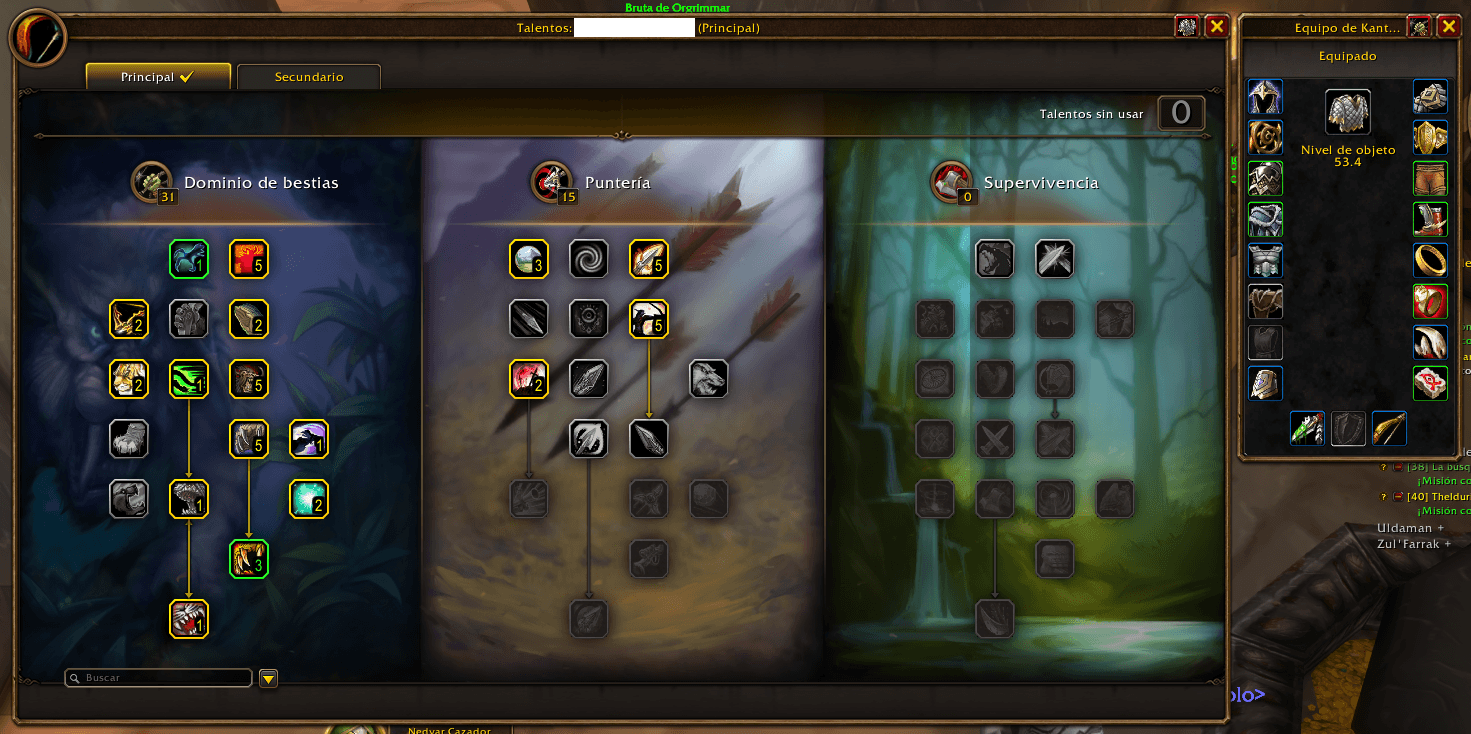
Open a guildmate's talents in the game's own talent window, with Primary and Secondary tabs for their two builds. Beside it, the gear panel shows what they wear or the gear sets of that build, with its item level
Description
Guild Builds shows your guild members' builds in the guild roster: their talent specializations, opened in the game's own talent window, and the gear sets that go with them. It also ties your own gear sets to your talents.
Made for WoW Forever.
Specializations in the roster
In the Class column of the guild window's Roster tab, next to each member's class icon, one icon per spec group: two with dual spec, Primary then Secondary, the one not active dimmed. The icon is the talent tree with the most points. Point at it for the tree, the points spent in each tree, its gear sets and when it was last updated.
Builds in the game's talent window
Click an icon and the game's talent window shows that build, the way it shows a talent build linked in the chat: the member's whole class tree with their points, also while they are offline. Click it again to close it. Your own icons open your own talents.
Gear beside the talents
The build's gear set shows in a panel beside the talent window, its items by slot as in the character window, with their tooltips (shift-click links one, control-click tries it on). A build with more sets has a menu to pick one, its default first. When only the gear is shared, the panel opens beside the guild window. A small button by each window's close button opens or closes the other one: the gear from the talents, the talents from the gear (greyed when that part is not shared).
Gear sets for your talents
Give the gear sets of the game's Equipment Manager to your Primary or Secondary talents, one or more each: from the menu at the bottom of your talent window, or from the settings button (the gear) of each set in the character window. The first set you give to some talents is their default, until you pick another. Switching talents equips the new ones' default set (after the combat, if you are in one); you can turn that off in the same menu.
You choose what to share
At the bottom of your talent window, two boxes for each spec group on its own: "Share talents", off until you tick it, and "Share gear", on until you untick it. Talents you do not share still show their main tree and their points in the roster, as anyone sees by inspecting you, but never leave your computer; taking something back removes it from the guild's copies too.
Automatic sharing
Each member's builds go to the rest of the guild through hidden addon messages, which never appear in any chat window. When you log in, a guild member who is online sends you whatever you are missing, so as long as someone with the addon is online, everyone ends up with the same builds. Members without the addon show only their class.
Every client language
English, German, Spanish (EU and Latin America), French, Italian, Korean, Portuguese (Brazil), Russian and Chinese (simplified and traditional).
Commands
/gbuildsor/gbuilds status: what the addon knows and is doing/gbuilds sync: ask the guild for missing builds now/gbuilds language [code|auto]: language of the addon's texts/gbuilds debug: show the sync log in the chat/gbuilds reset: forget the builds of your current guild
Requirements
LibGuildSync, the shared code of these guild addons. The CurseForge app installs it with Guild Builds.
Guild Builds Team