GreenScreen
- By
Solid-colour backdrop behind the UI for clean screenshots of addon windows, with minimap-only and single-window modes.
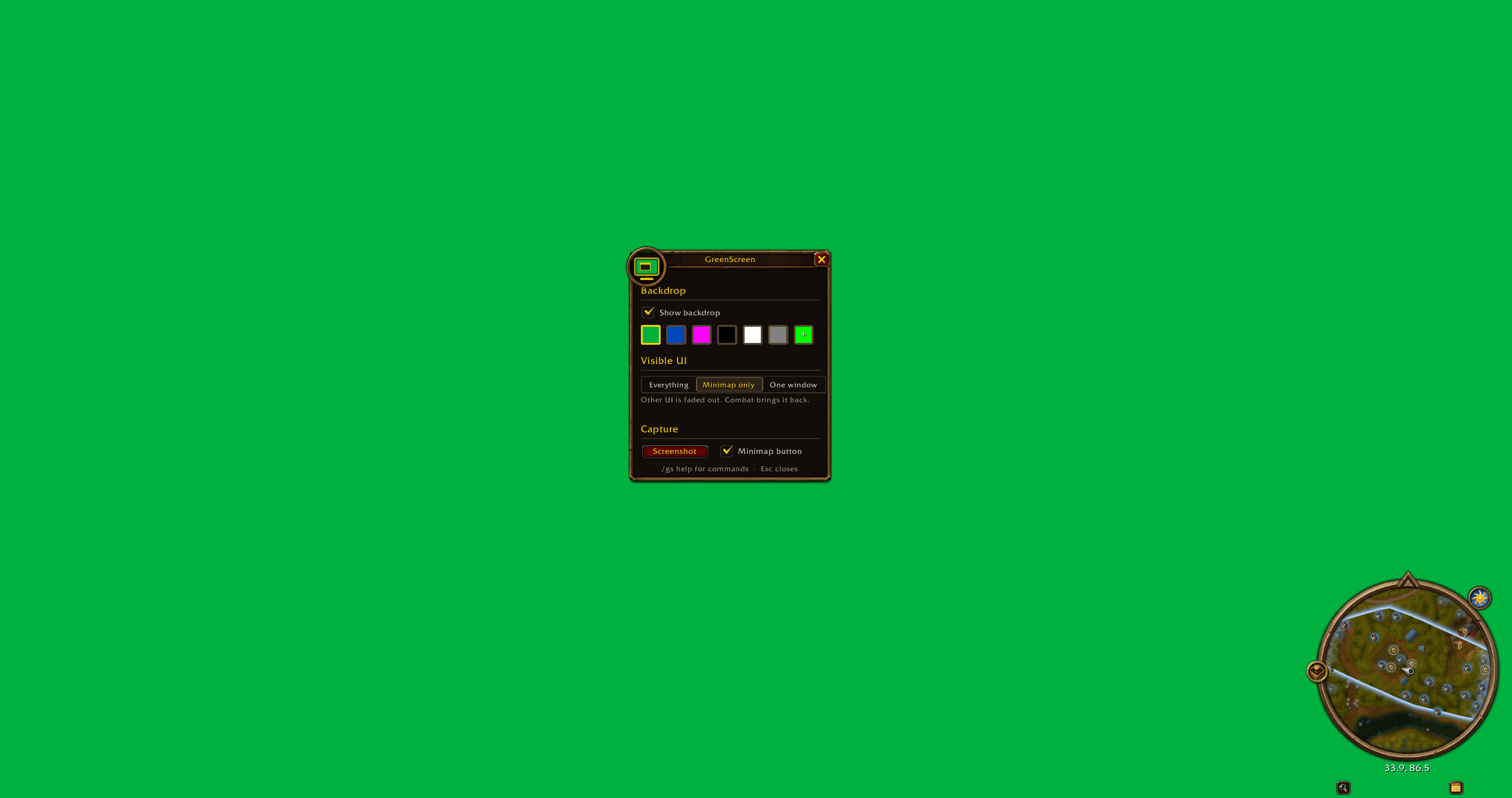
i cant believe it. it is a green screen.
Description
Left-click the minimap button to open the menu, or type /gs. Right-click the button to turn the backdrop on or off. The addon compartment entry works the same way.
| Command | What it does |
|---|---|
/gs |
Open the menu |
/gs bg |
Backdrop on or off (/gs on, /gs off) |
/gs green, blue, magenta, black, white, grey |
Set the colour |
/gs custom |
Colour picker. /gs custom 255 128 0 sets exact values |
/gs next |
Next colour |
/gs minimap |
Minimap only (again for everything) |
/gs isolate |
Keep only the window under the mouse (again for everything) |
/gs all |
Show all UI again |
/gs shot |
Take a screenshot |
Every action can also go on a key under Options > Keybindings > AddOns > GreenScreen. A key is the easiest way to isolate a window: hover over it and press the key.
For lossless screenshots, run /console screenshotFormat png once.
Notes
Nameplates and chat bubbles belong to the game world, so they can still show on top of the backdrop. Press V to hide nameplates. Hidden windows are made fully transparent, not closed, and a few of them (fading chat, action bar fade) may set their own transparency and come back. Windows that open after you switch modes show up as usual.
The minimap button joins LibDBIcon when another addon has loaded it, so button collectors can pick it up. GreenScreen ships no libraries of its own.
Source: https://github.com/EmberCatz/GreenScreen
License
MIT
GreenScreen Team