Goldworks Auction House
- By
Goldworks enhances the Auction House with price scanning, quick selling, shopping-list integration, auction tracking, and profession processing tools.
Goldworks-Quick-Sell-Guide.png
Goldworks-Auctionator-Shopping-Guide.png
Screenshot 2026-10-26 154422.png
Screenshot 2026-10-26 154347.png
Screenshot 2026-10-26 154216.png
Description
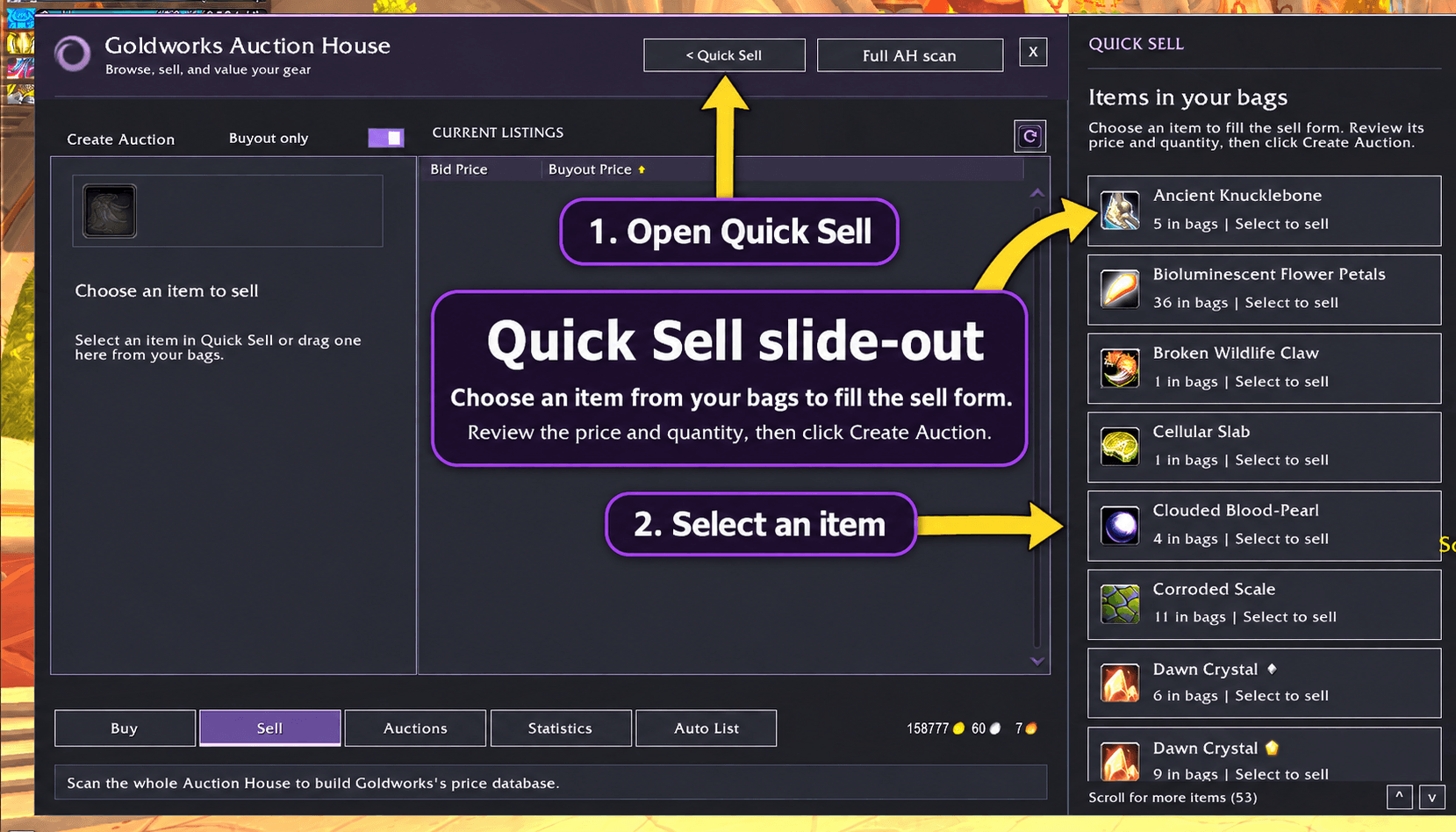
Goldworks Auction House Built for WoW Forever. Designed to make auctioning easier. Goldworks combines auction tools, price scanning, selling controls, and disenchanting in a clean, purple-themed interface. Browse the market, prepare auctions, check competing prices, and track incoming payments—all from one place. WoW Forever is the primary focus, with additional compatibility for other World of Warcraft clients. Quick Sell Choose an item. Review your price. Create your auction. The Quick Sell slide-out displays auctionable items from your bags beside the Auction House window. Select an item to fill the sell form, then review its price and quantity before posting. No need to search through bags or drag each item into the auction window. Price Scanning & Selling Tools Build a saved price database and use available market information to prepare your auctions.
- Price scanning: collect auction quotes for items and materials.
- Automatic suggestions: populate selling prices when enabled.
- Match lowest: match the lowest available competing buyout.
- Undercut pricing: undercut using the client’s supported price increments.
- Personal minimums: save a minimum selling price for individual items.
- Low-price warnings: review unusually low offers before posting. Saved quotes include their age and expire after seven days. Prices reflect auction listings, not guaranteed sale values. Missing prices remain unknown rather than being treated as zero. Selling Lists Save reusable selling rules for items you regularly auction. Each rule can include:
- Fixed or market-based pricing.
- A minimum selling price.
- A quantity to keep in your bags.
- A maximum posting quantity.
- An auction duration. Goldworks prepares a queue for review and rechecks the item, quantity, price, and deposit before submitting each entry. Each posting action requires a click. The Auto List page organizes your workflow; it does not post your inventory unattended. Undercut Checks Find out when competing listings are priced below your auctions. Scan your active auctions, review the results, and use the cancellation controls to work through eligible listings. Each cancellation remains under your control. Auction Statistics & Incoming Gold Follow auction activity and incoming payments using available auction and mailbox information.
- Review recorded auction activity.
- See incoming-payment estimates.
- Check estimated delivery status.
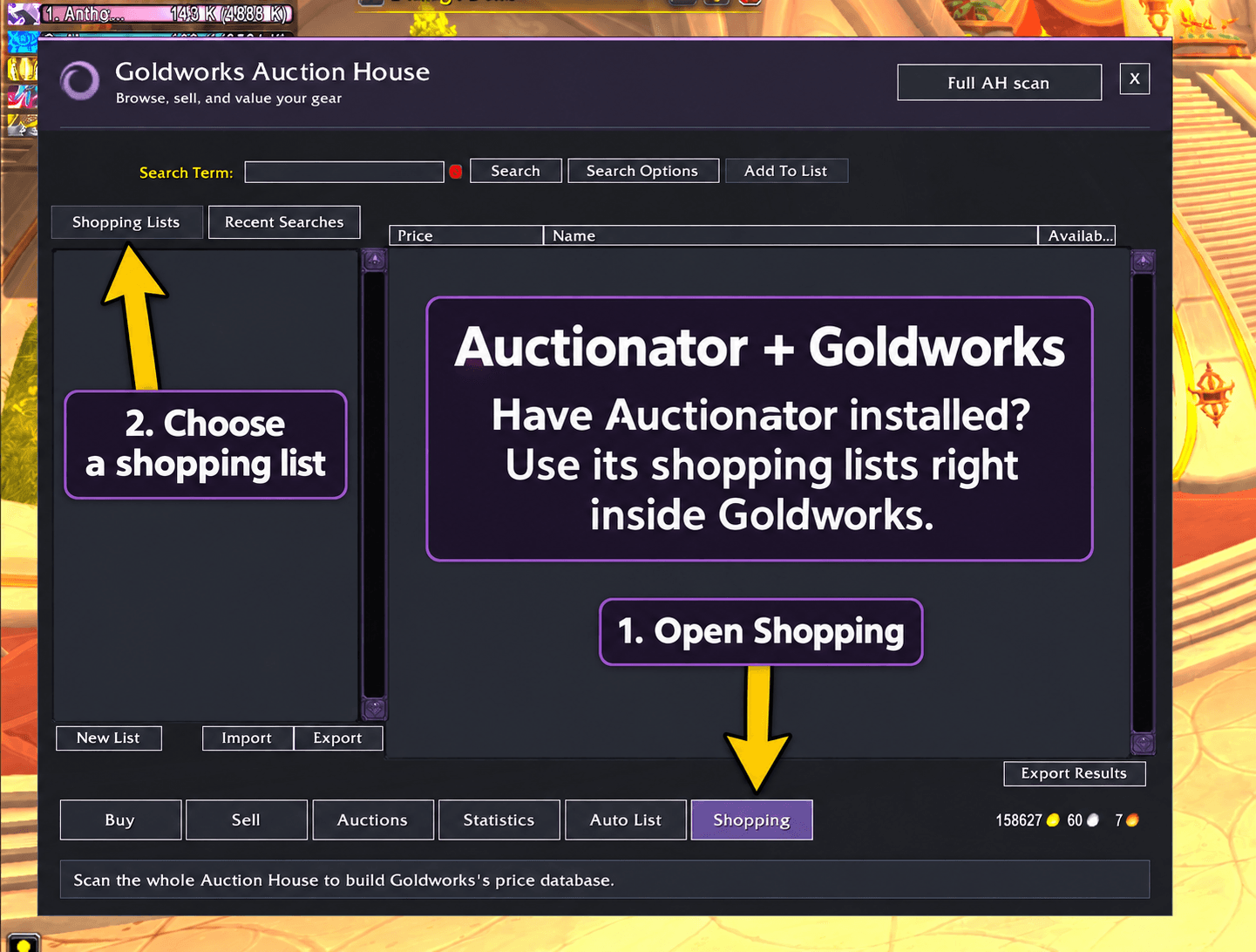
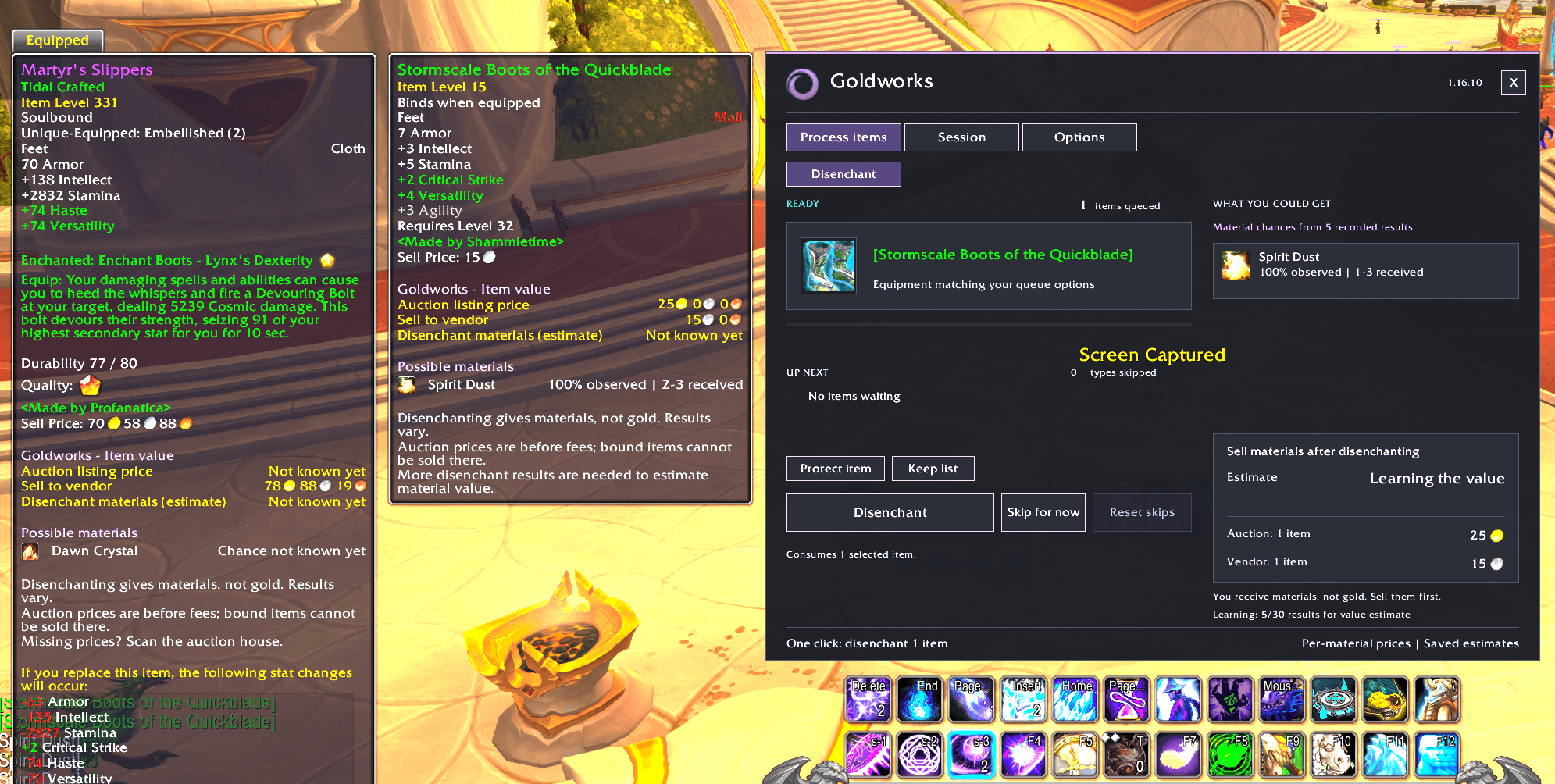
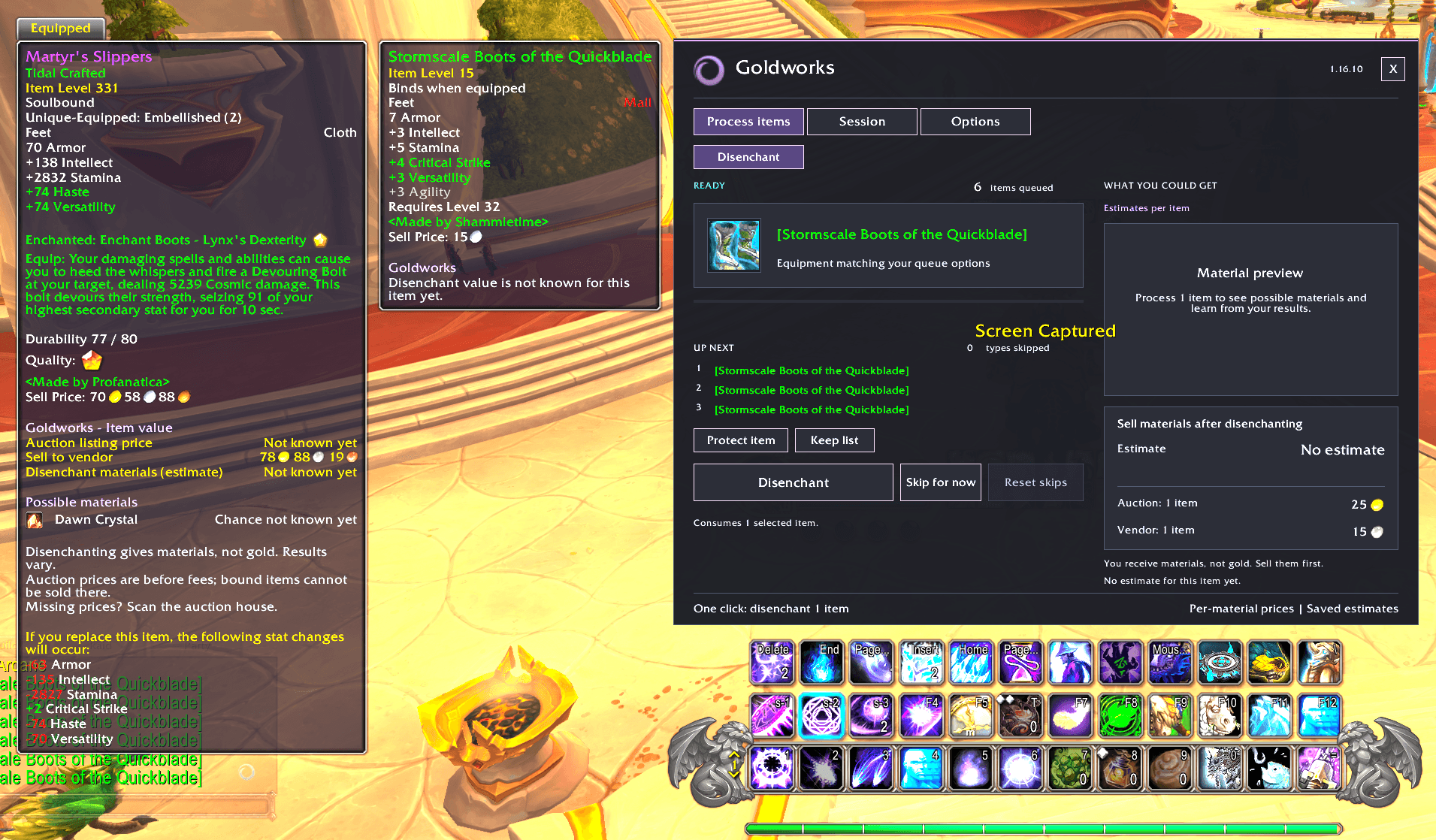
- Reconcile sales with mailbox invoices. Payment amounts and delivery times shown before an invoice is available are estimates. Confirmed invoice earnings exclude returned deposits. Auctionator Shopping-List Integration Use your Auctionator shopping lists inside Goldworks. When Auctionator is installed alongside Goldworks, open the Shopping tab to access its shopping-list workflow from the Goldworks interface. Goldworks takes priority when both addons are installed. It disables overlapping Auctionator tooltip, automatic scanning, crafting-information, and auction-chat settings while retaining the shopping-list workflow. These preferences are reapplied on login and when opening the Auction House. Disabling Goldworks does not automatically restore those saved Auctionator settings. Auctionator is optional—Goldworks works without it. Disenchanting Manage eligible equipment through a dedicated disenchanting interface.
- Preview the selected item and upcoming queue.
- Protect item types you want to keep.
- Temporarily skip items and return to them later.
- Choose which equipment qualities to include.
- Compare available vendor, auction, and estimated material values.
- Record results and review observed material frequencies. Rare, epic, and soulbound equipment are excluded by default. Each physical click disenchants one eligible item. Goldworks selects the next eligible item for you, but never processes the entire queue unattended. Material estimates use approximate starter data or recorded observations where available. Learned value estimates require enough recorded results and prices for the observed materials. Observed frequencies are not guaranteed drop rates. Quick Buy Reduce confirmation clicks on the supported legacy auction buyout path. Quick Buy is enabled by default. In first-buyout mode, your first buyout establishes the maximum for that Auction House visit and is accepted immediately. Further buyouts within that maximum also skip confirmation.
- Limits apply to the total listing or stack price.
- Hold Shift to keep the normal confirmation.
- Use /qbuy off to disable Quick Buy.
- Use /qbuy limit <gold> to set a custom maximum.
- A custom limit of 0 means no limit. Quick Buy does not automatically search for or select auctions. Appearance & Settings Adjust the interface to suit your setup with:
- Window scaling.
- Text scaling.
- Tooltip preferences.
- Minimap-button visibility.
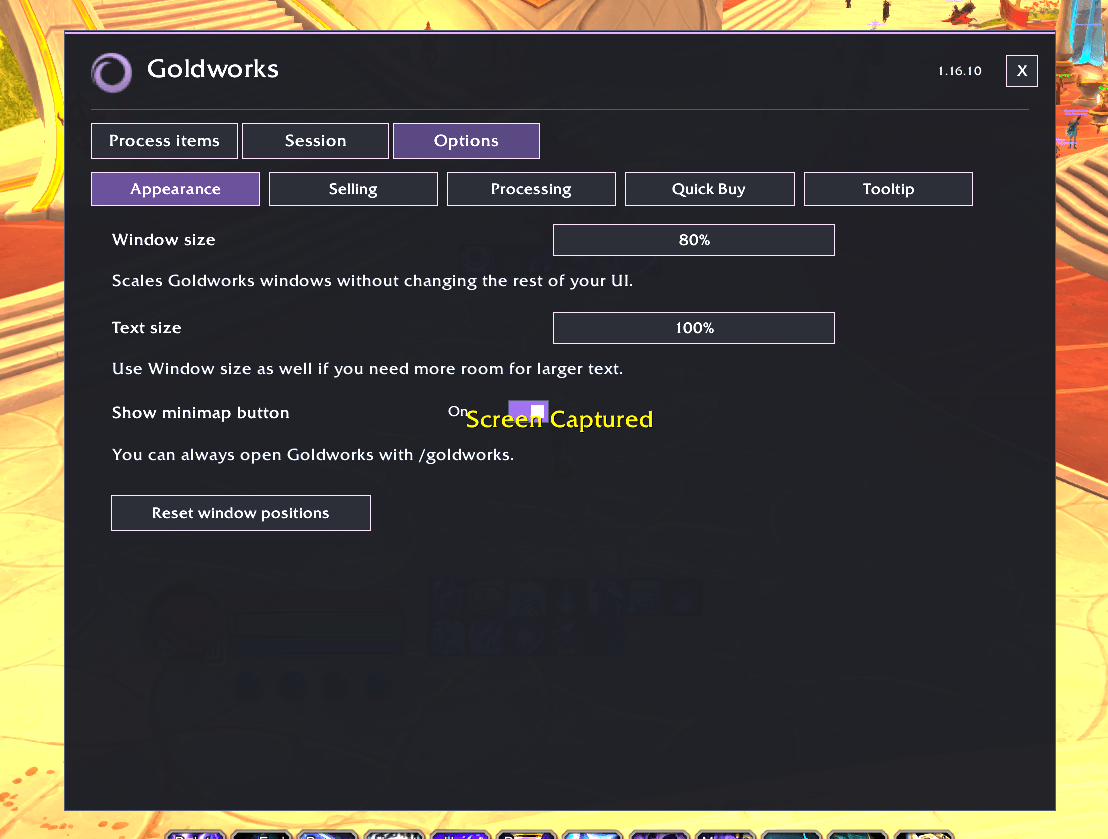
- Selling and disenchanting options. Open settings with /goldworks options. Client Compatibility Goldworks is built primarily for WoW Forever. The addon also includes compatibility for:
- Retail
- Classic Era
- Burning Crusade Classic
- Mists of Pandaria Classic Features depend on each client’s auction systems and available APIs. Modern auction clients provide the fuller interface; legacy clients retain native auction controls with Goldworks price scanning. Compatibility does not mean every feature is identical or live-verified on every client. Run /goldworks compat to display your client information and available auction capabilities. Installation
- Download and extract the release ZIP.
- Place the Goldworks folder in your client’s Interface/AddOns directory.
- Confirm the final path is Interface/AddOns/Goldworks/Goldworks.toc.
- Launch the game and enable Goldworks.
- Open it with /goldworks, /qde, or the minimap button. Updating? Replace the addon folder and preserve your existing settings in the WTF directory. Useful Commands Command Function /goldworks or /qde Open or close Goldworks /goldworks options Open settings /goldworks compat Show client capabilities /goldworks disenchant Select disenchanting /qbuy status Show Quick Buy settings /qbuy on Enable Quick Buy /qbuy off Disable Quick Buy /qbuy first Use the first buyout as the visit’s maximum /qbuy limit <gold> Set a custom buyout maximum
Beta Release & Feedback Goldworks is available as a beta release, with WoW Forever as its primary focus. When reporting an issue, please include:
- Your Goldworks version.
- The output of /goldworks compat.
- Whether Auctionator is installed, and its version.
- Steps to reproduce the issue.
- What you expected and what actually happened.
- Any Lua error text or a helpful screenshot. Thank you for testing Goldworks and helping improve the experience.
Goldworks Auction House Team