GearMenu - Forever
- By
WoW Classic Addon for switching between items and keybinding them
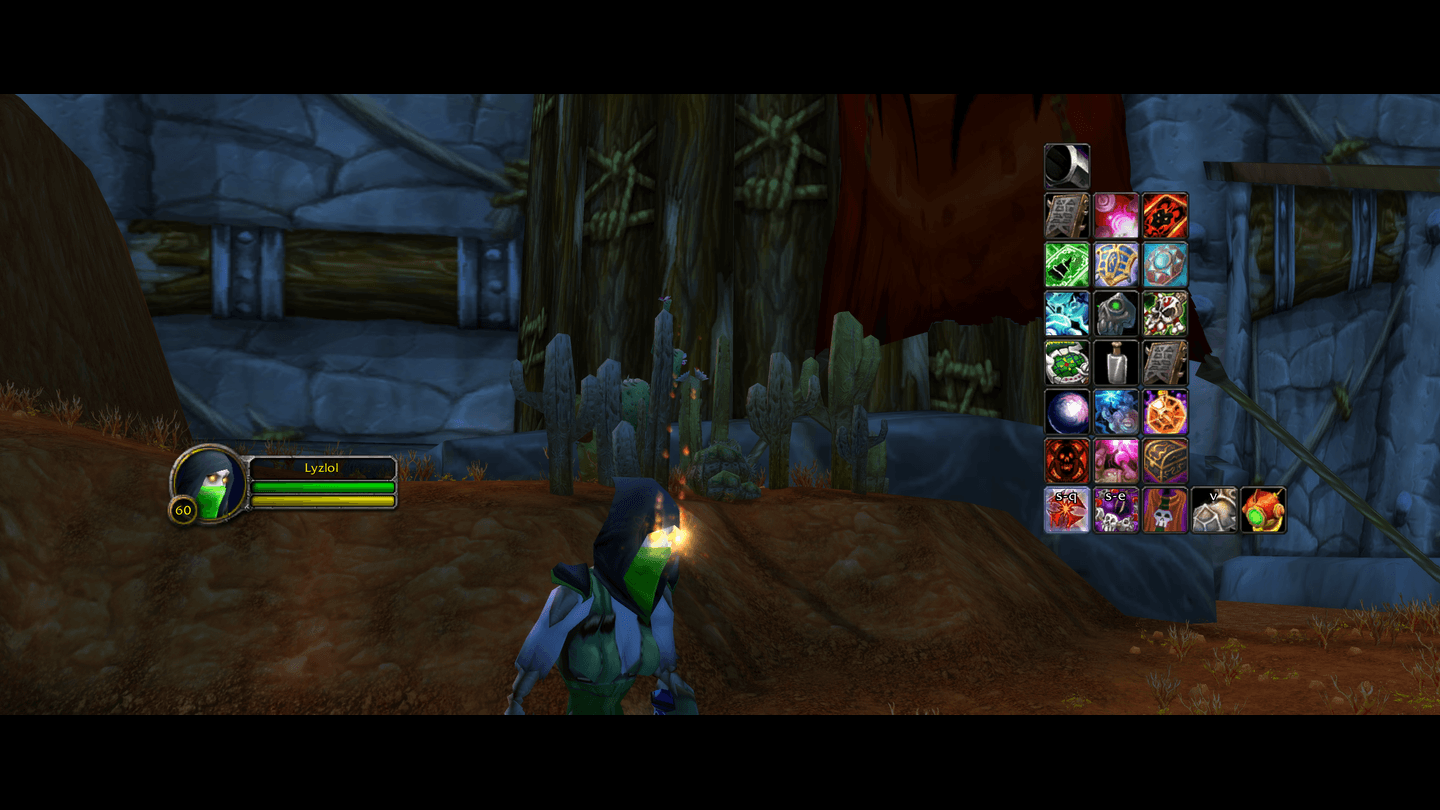
Swap the item in any equipment slot with a single click, in or out of combat - the core of GearMenu.
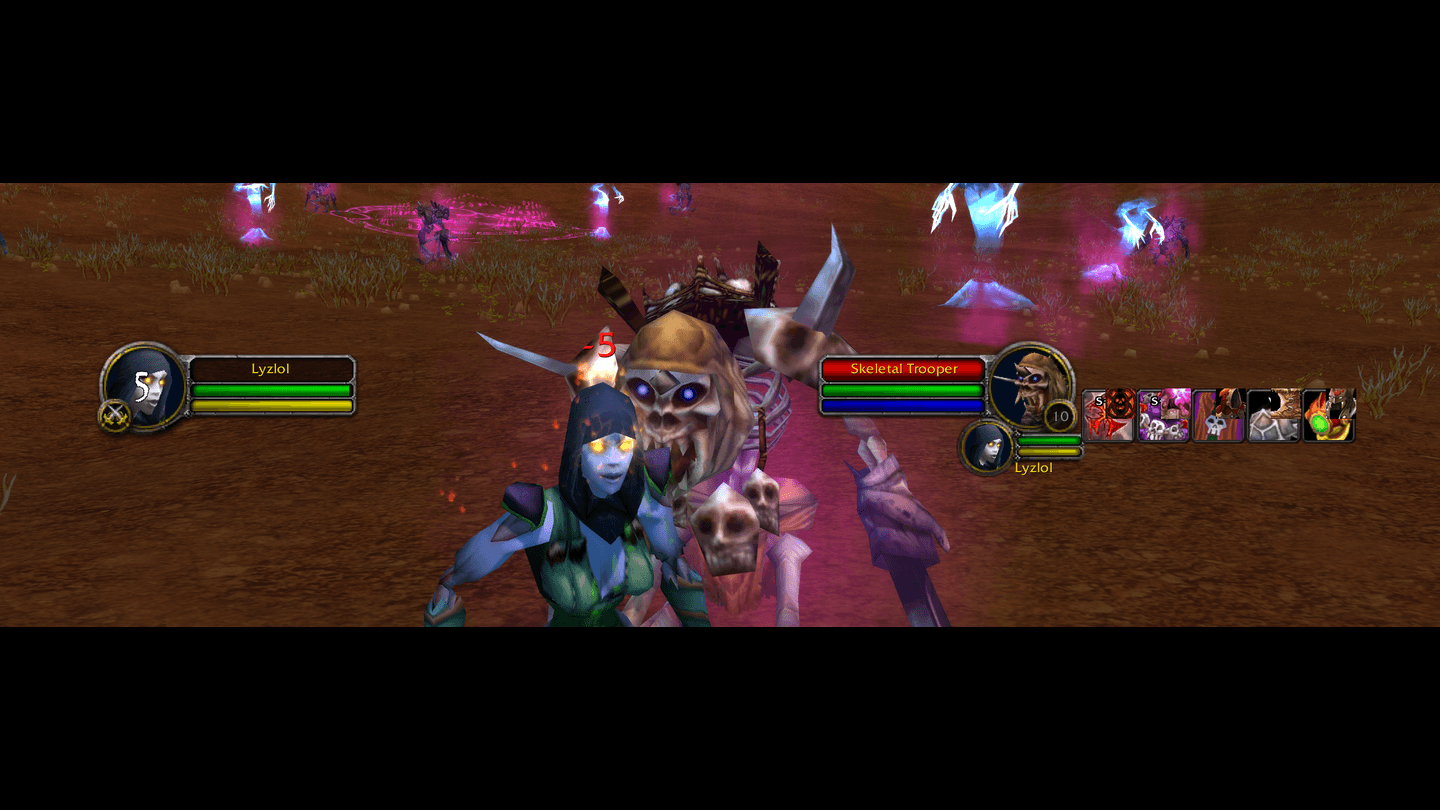
Can't switch in combat? GearMenu queues the swap and equips it the instant you leave combat. Ideal for PvP.
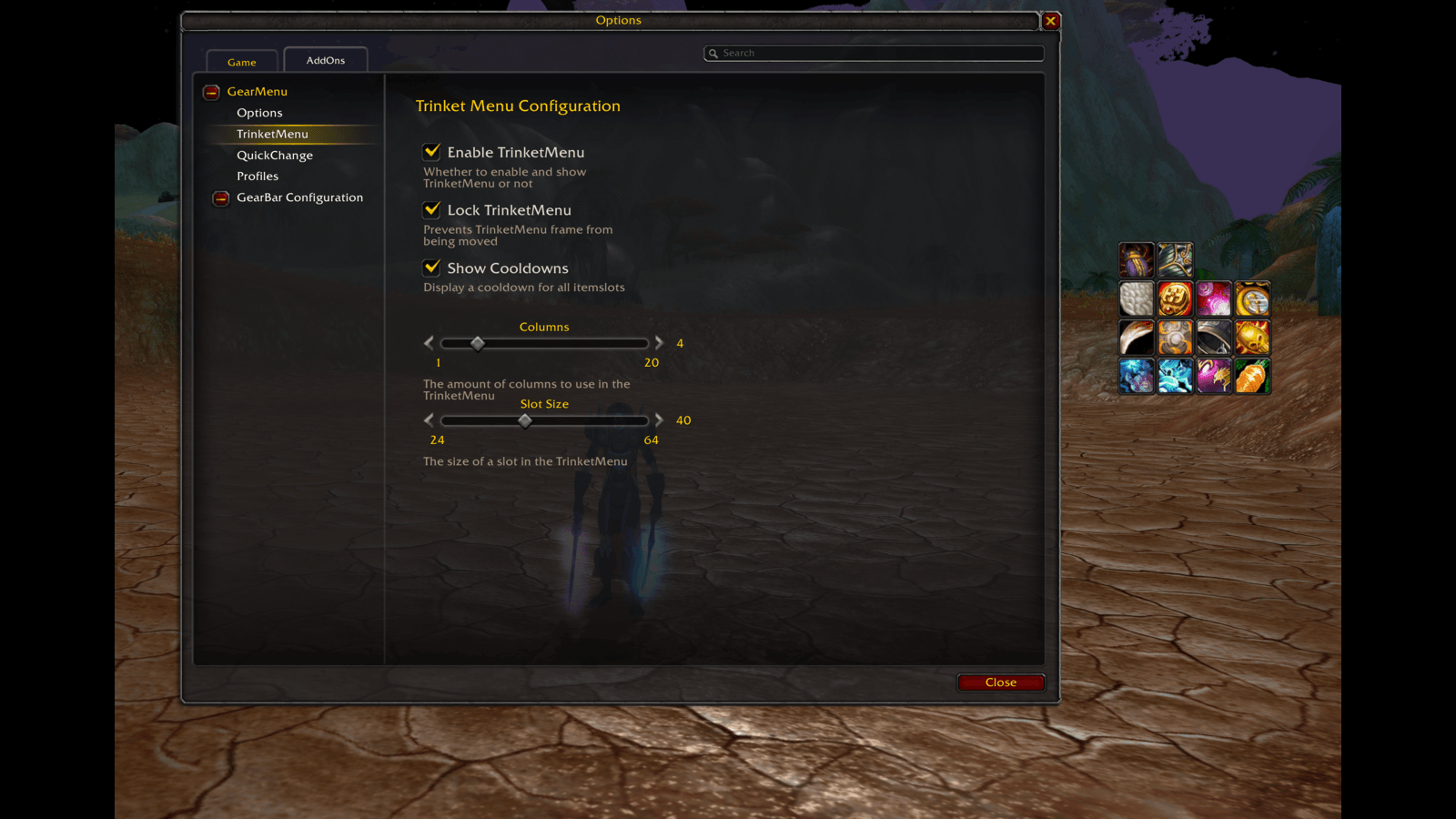
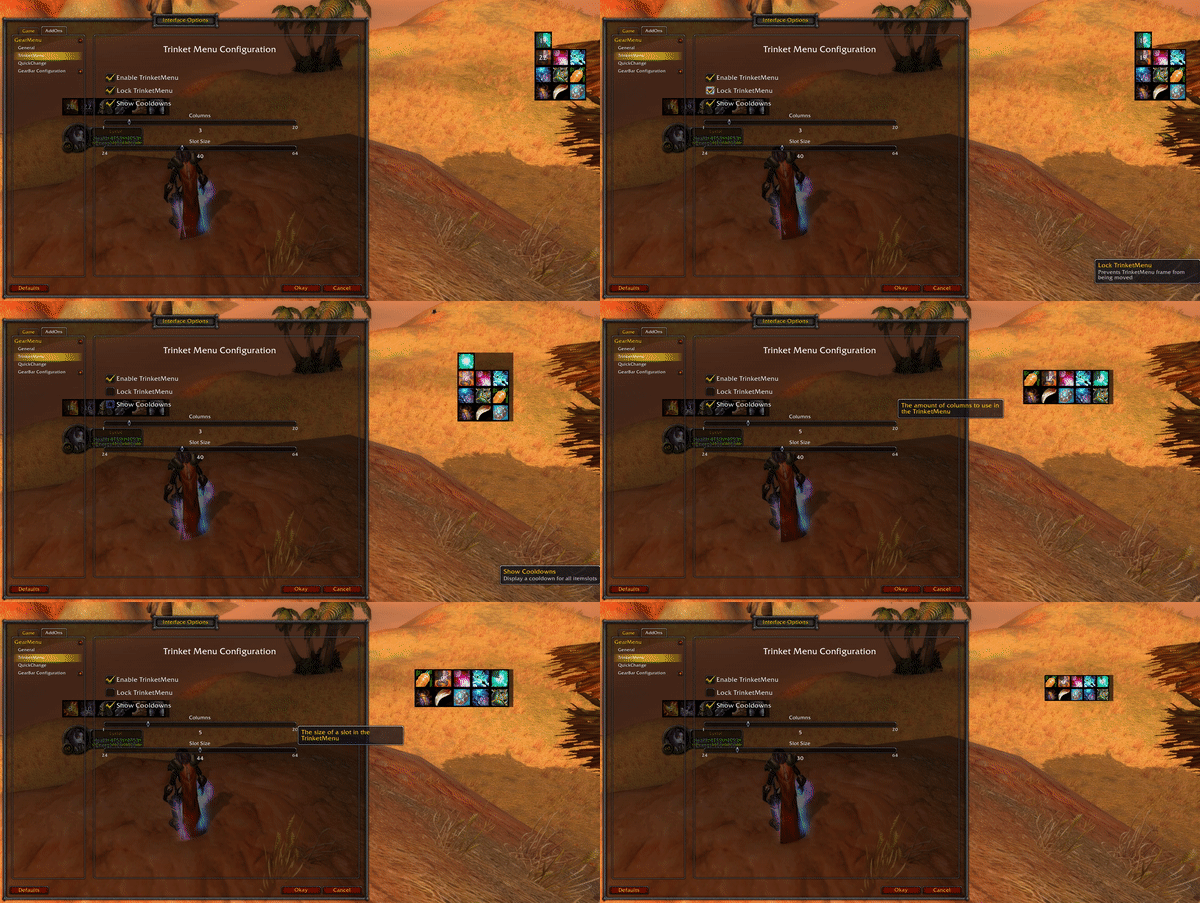
TrinketMenu keeps every trinket and its cooldown in view - enable it, lock it, and set the columns and size to taste.
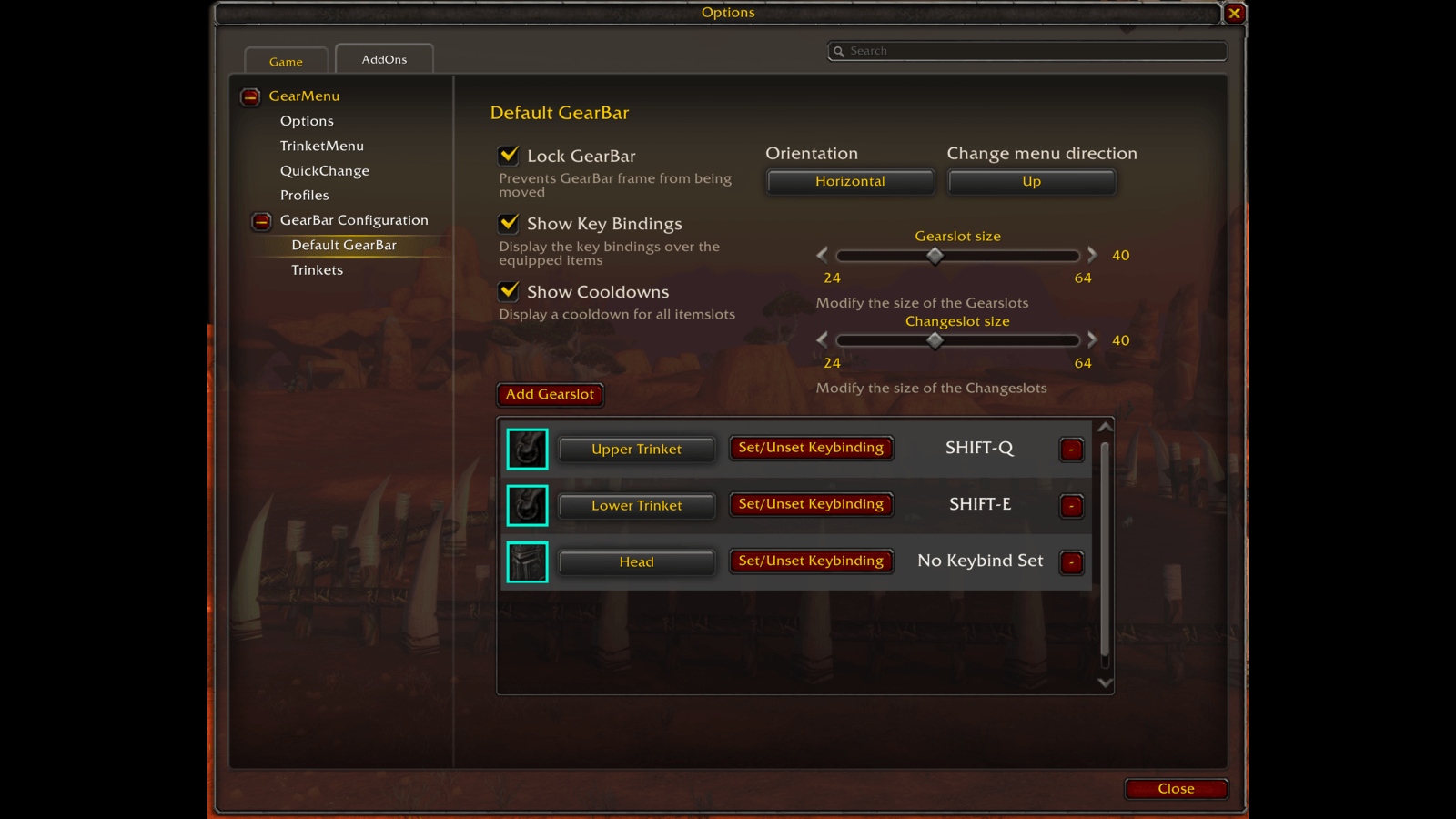
Configure each GearBar in depth: lock it, size the slots and change menu, pick which gear slots show, and bind a key to each slot.
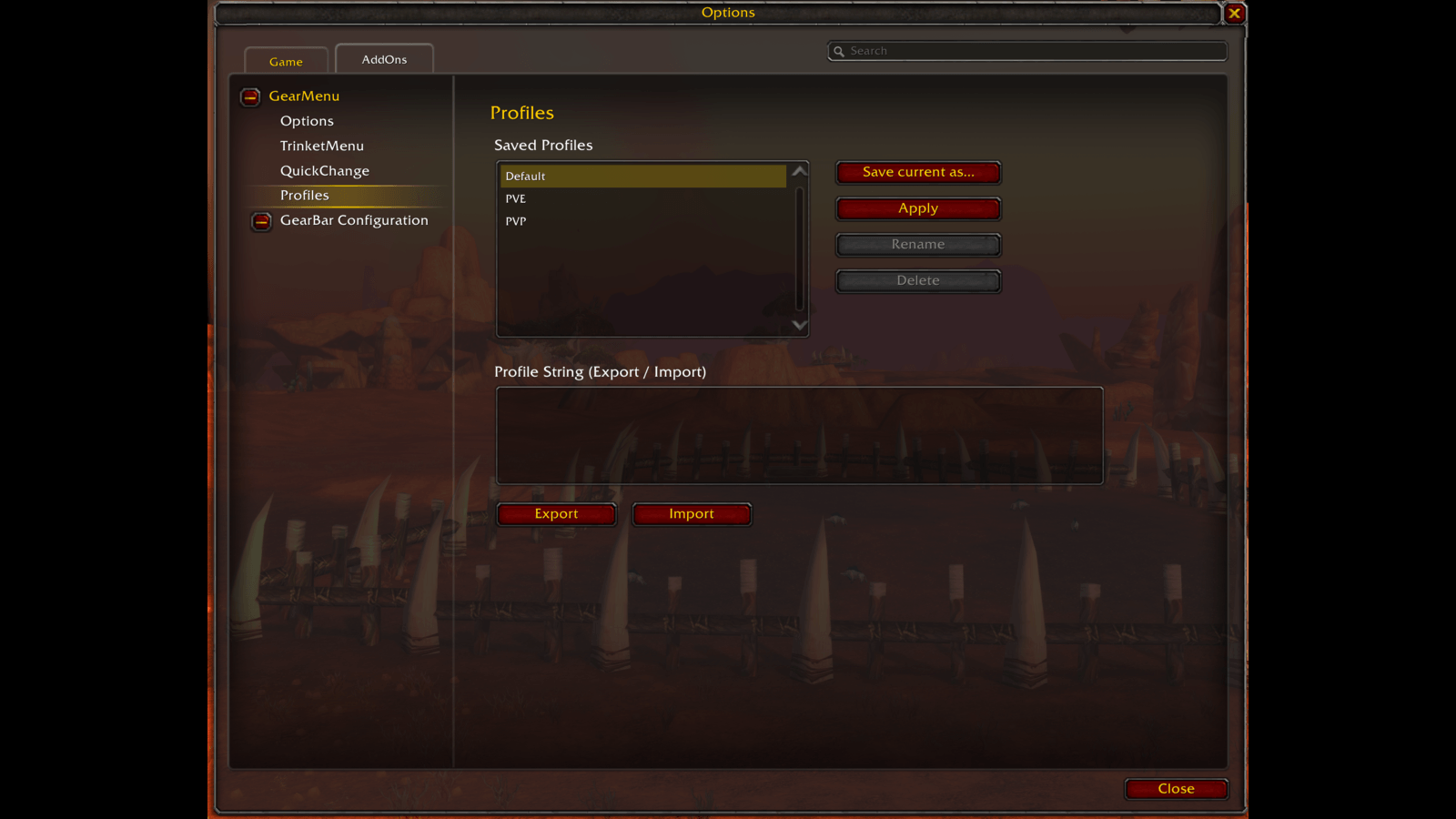
Save your whole GearMenu setup as named profiles and switch between them - export and import as strings to share a setup with another character.
Description
GearMenu
 GearMenu aims to help the player switch between items in and out of combat. When the player is in combat a combatqueue will take care of switching the item as soon as possible. It also allows you to define switching rules and keybinding slots.
Providers


Source/Issues


What is GearMenu?
GearMenu's goal is to help the player switch between items on certain slots. Often players have items such as engineering items that have a one-time use followed by a long cooldown. After using them during a fight the player wants to switch back to a more useful item. While changing items during combat is not possible (with some exceptions such as weapons) GearMenu can help with switching them as soon as possible. When a player tries to switch an item during combat it will be put into the combatqueue and switched as soon as possible. If the player leaves combat for just a split second all the items in the combatqueue will be switched. For some classes this might be even easier because they can use spells such as rogue - vanish or hunter - feign death.
GearMenu supports World of Warcraft: Forever.
Supported slots:
| Slotname | Description |
|---|---|
| HeadSlot | Head/Helmet slot |
| NeckSlot | Neck slot |
| ShoulderSlot | Shoulder slot |
| ChestSlot | Chest/Robe slot |
| WaistSlot | Waist/Belt slot |
| LegsSlot | Legs slot |
| FeetSlot | Feet/Boots slot |
| WristSlot | Wrist/Bracers slot |
| HandsSlot | Hands slot |
| Finger0Slot | First/Upper Ring slot |
| Finger1Slot | Second/Upper Ring slot |
| Trinket0Slot | First/Upper Trinket slot |
| Trinket1Slot | Second/Lower Trinket slot |
| BackSlot | Back/Cloak slot |
| MainhandSlot | Main-hand slot |
| SecondaryHandSlot | Secondary-hand/Off-hand slot |
| RangedSlot | Ranged slot |
| AmmoSlot | Ammo slot |
Features of GearMenu
Item switch for certain slots
With GearMenu it is easy to switch between items in supported slots. This is especially useful for engineering items that you wear for a certain amount of time and then switch back to your usual gear.
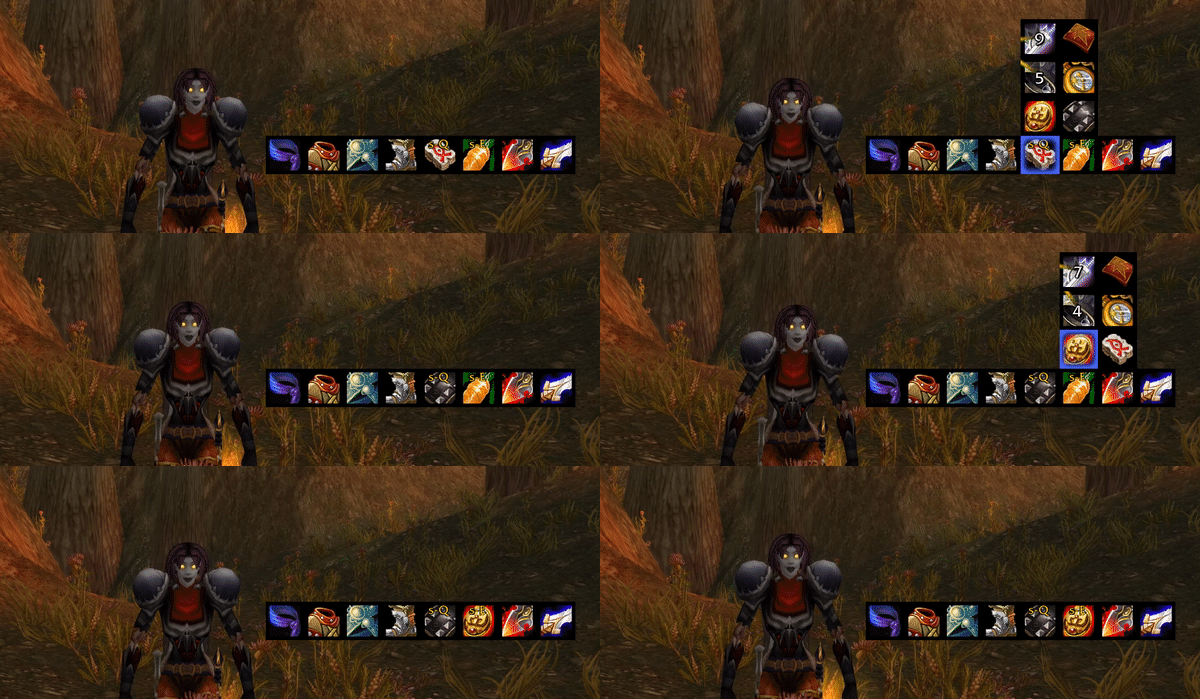
CombatQueue
Certain items cannot be switched while the player is in combat. While in combat all items, including weapons, are placed in the combatqueue and switched as soon as possible. This is especially useful in PvP when you leave combat for a short time.
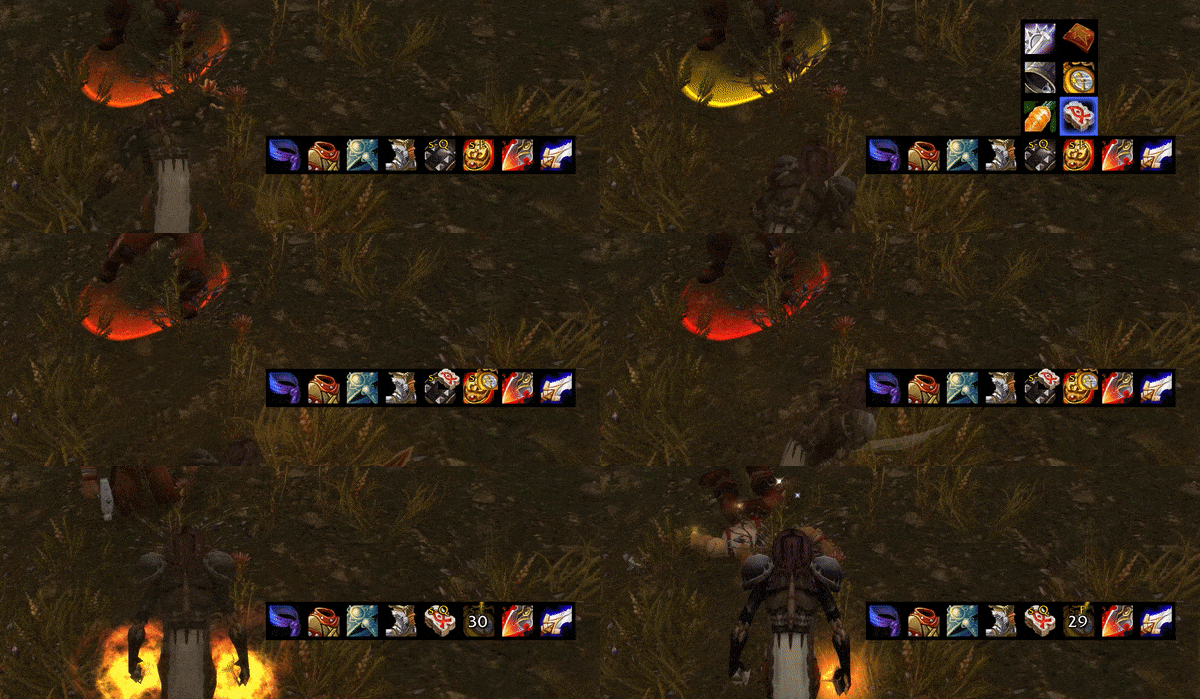
Note: You can right-click any slot to clear the combatqueue for that slot - the slot flashes red to confirm
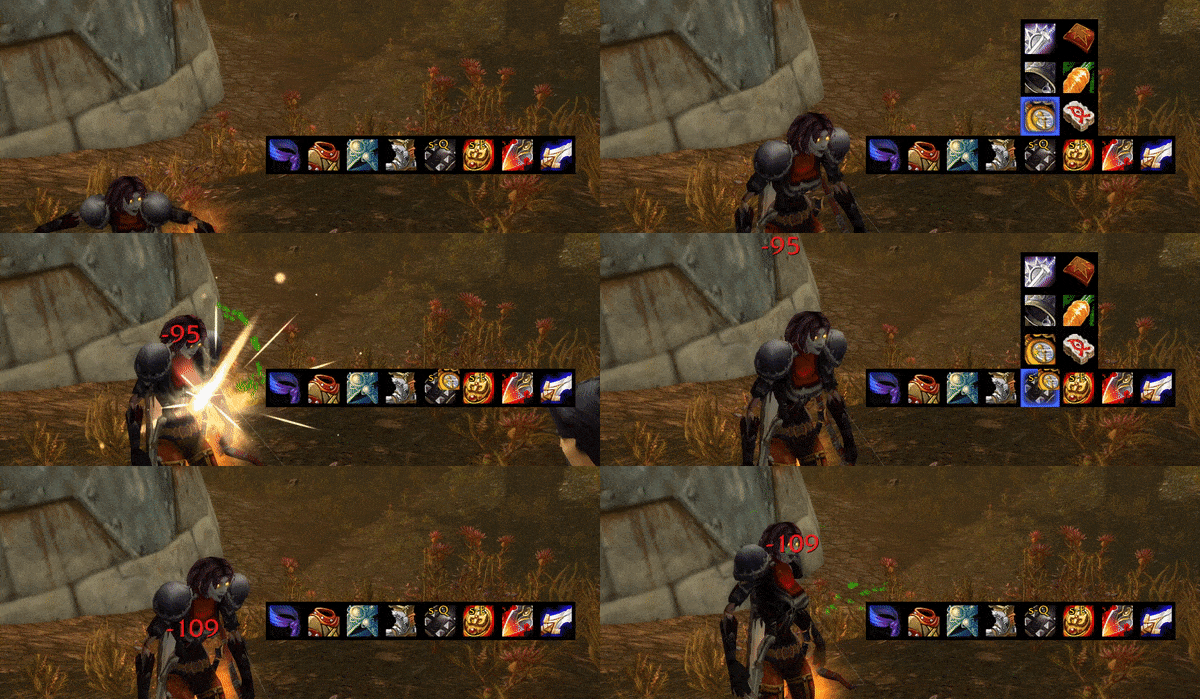
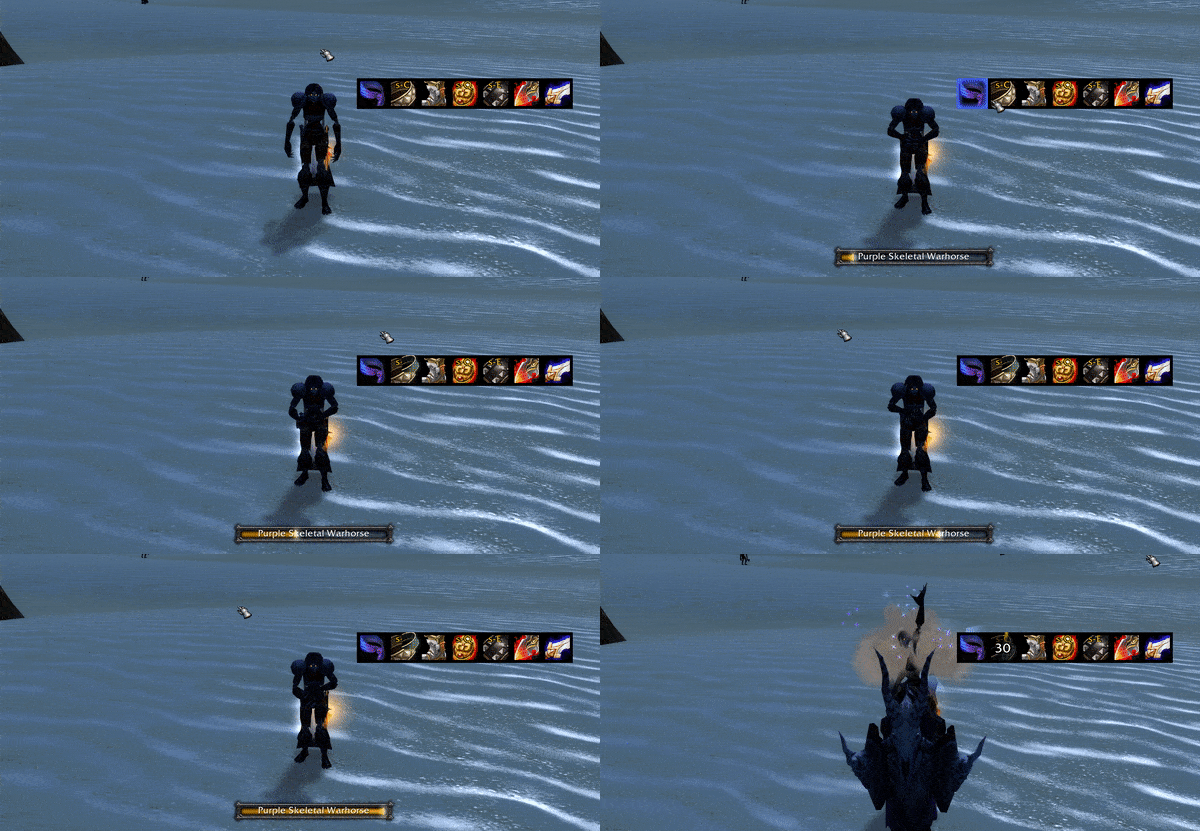
GearMenu also detects whether an itemswitch is possible even when out of combat. If you're switching an item while you're casting your mount or any other spell it will put the item in the combatqueue. As soon as the cast is over the item will be switched. This is also the case if you cancel your cast.
Keybinding
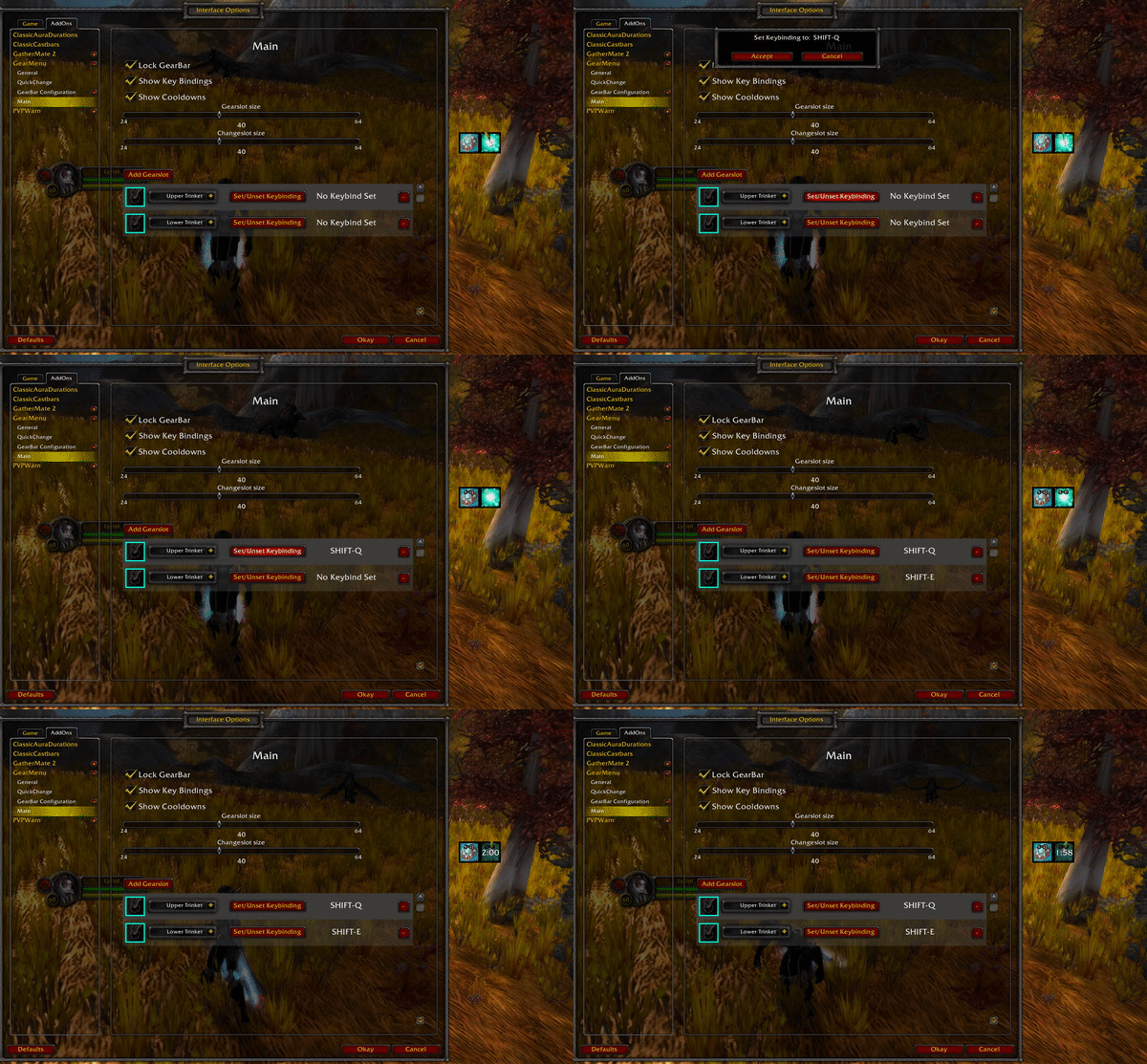
Every GearSlot can be bound to a key - up to two keys per slot - through the game's own keybinding UI:
- Settings > Keybindings lists a
GearMenusection with an entry per GearBar and GearSlot (GearBar 1 - Slot 3). TheKey Bindingsbutton in a GearBar's configuration opens the list at that section. - Quick Keybind Mode (Settings > Keybindings > Quick Keybind Mode, or the
Quick Keybind Modebutton in a GearBar's configuration): hover a GearSlot and press the key you want to bind, Escape unbinds.
The bound key is shown in the top right corner of the GearSlot like the hotkey of an action button; it turns red while the target is out of range of the item.
The bound key is shown on the GearSlot and in the slot's configuration row, where Unbind clears it. Keys are positional - GearBar 1 - Slot 3 is the third slot of your first GearBar - and follow a slot that moves up when a slot before it is removed. Keys cannot be changed while in combat; a change made in combat is applied as soon as you leave it.
Drag and drop support
GearMenu allows dragging and dropping items onto slots, removing them from slots, and even swapping items between slots. Drag and drop can be enabled or disabled in the options' menu.
Drag and drop between slots
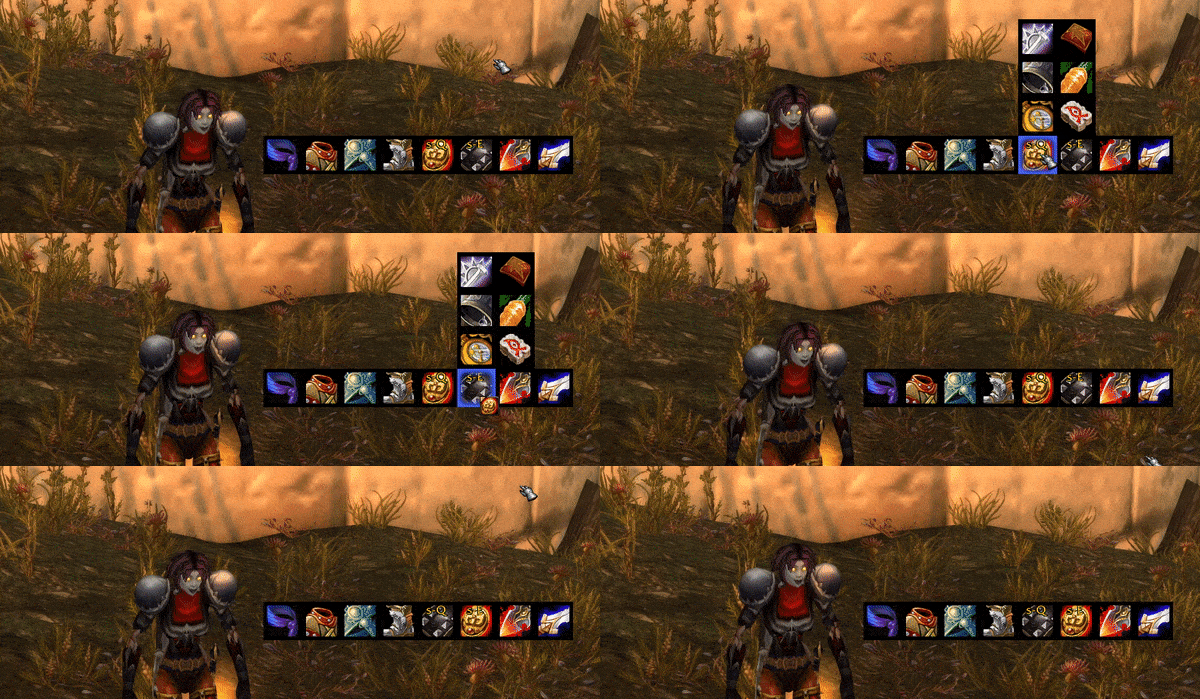
Drag and drop item to GearMenu
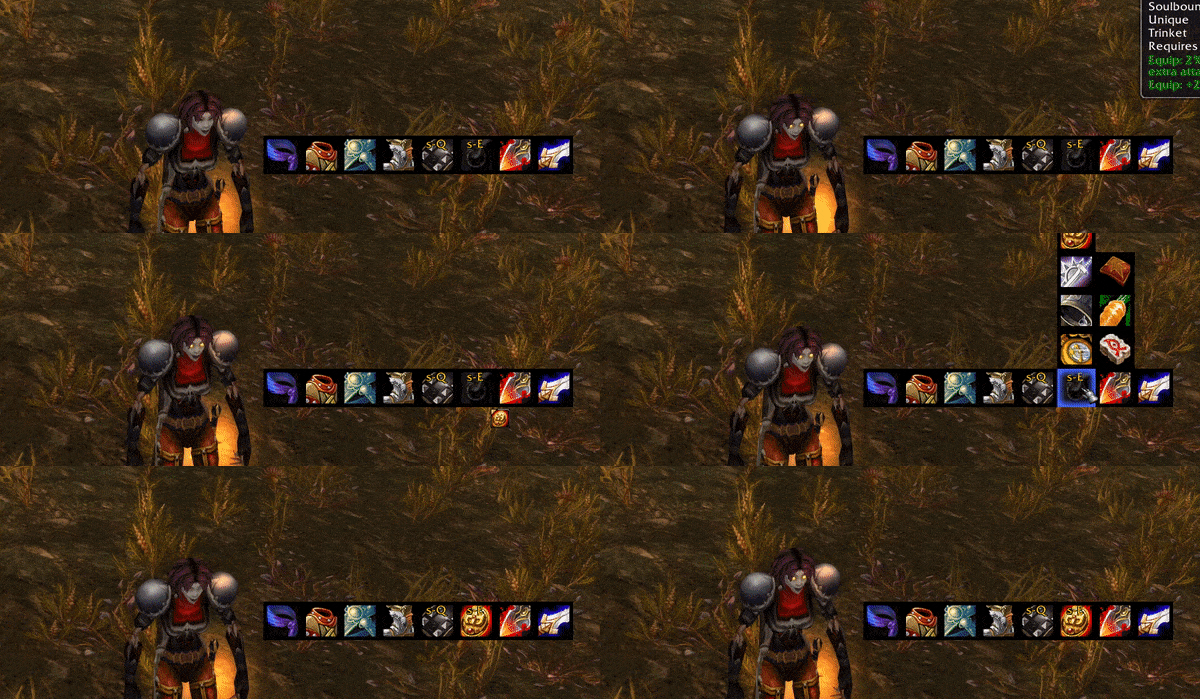
Unequip item by drag and drop
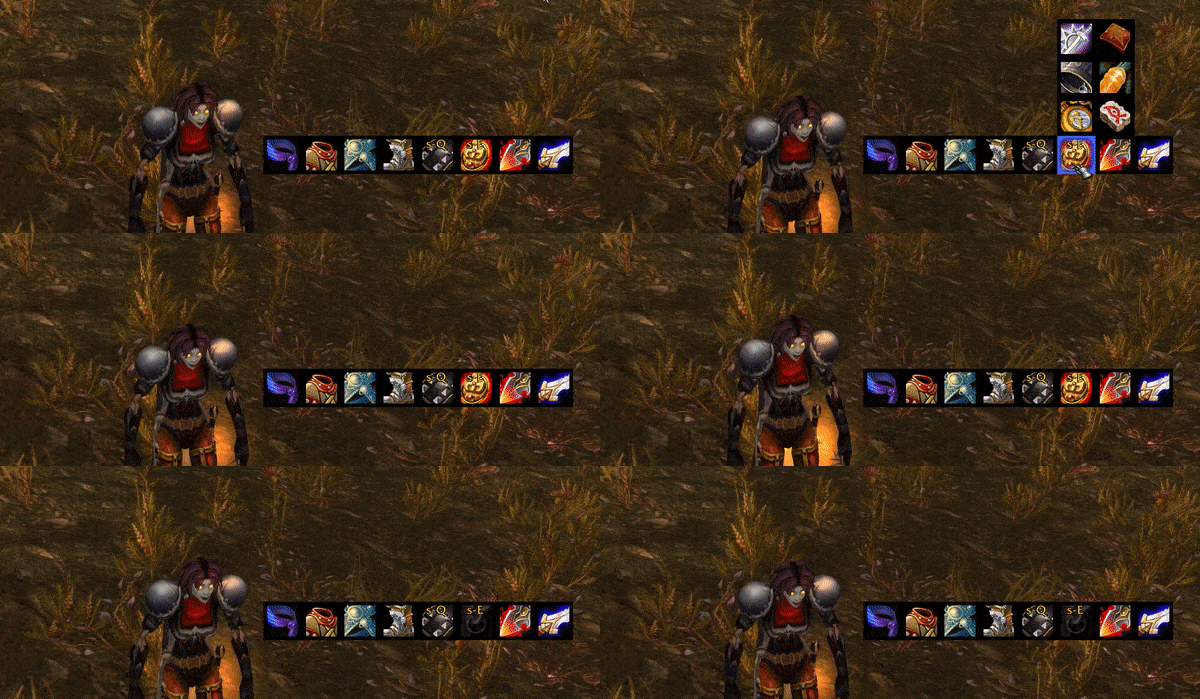
Combined Equipping
Slots such as trinket and ring slots have combined equipping enabled. This means that in addition to a left click on the item the player wishes to equip they also support right click. Slots that do not support combined equipping (which most don't) will normally equip any item whether it was left- or right-clicked. If the slot has combined equipping enabled a right click will instead put the chosen item into the opposite slot.
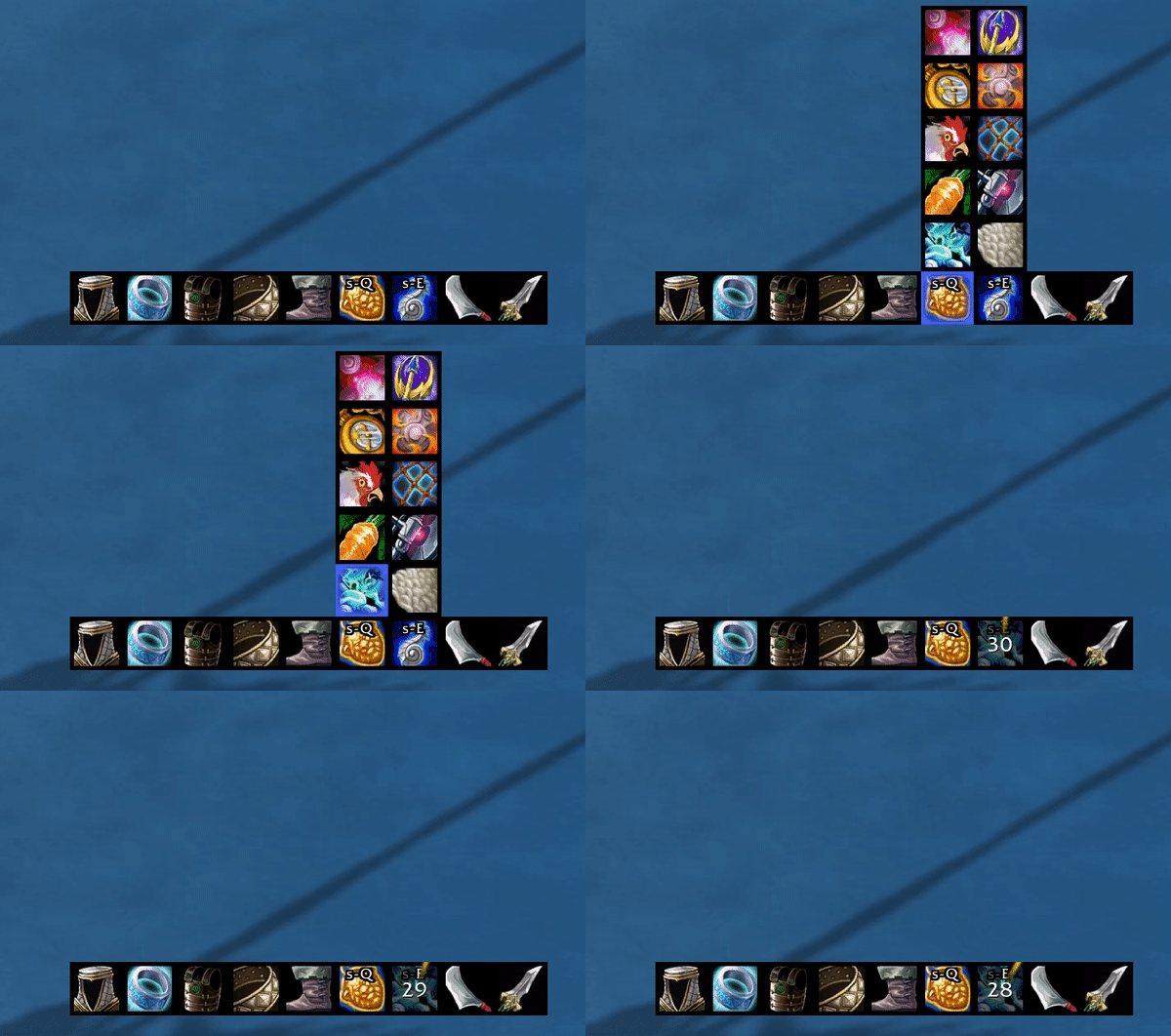
Unequip Items
Enable an empty slot in the changeMenu that allows for quicker and easier unequipping of items.
TrinketMenu
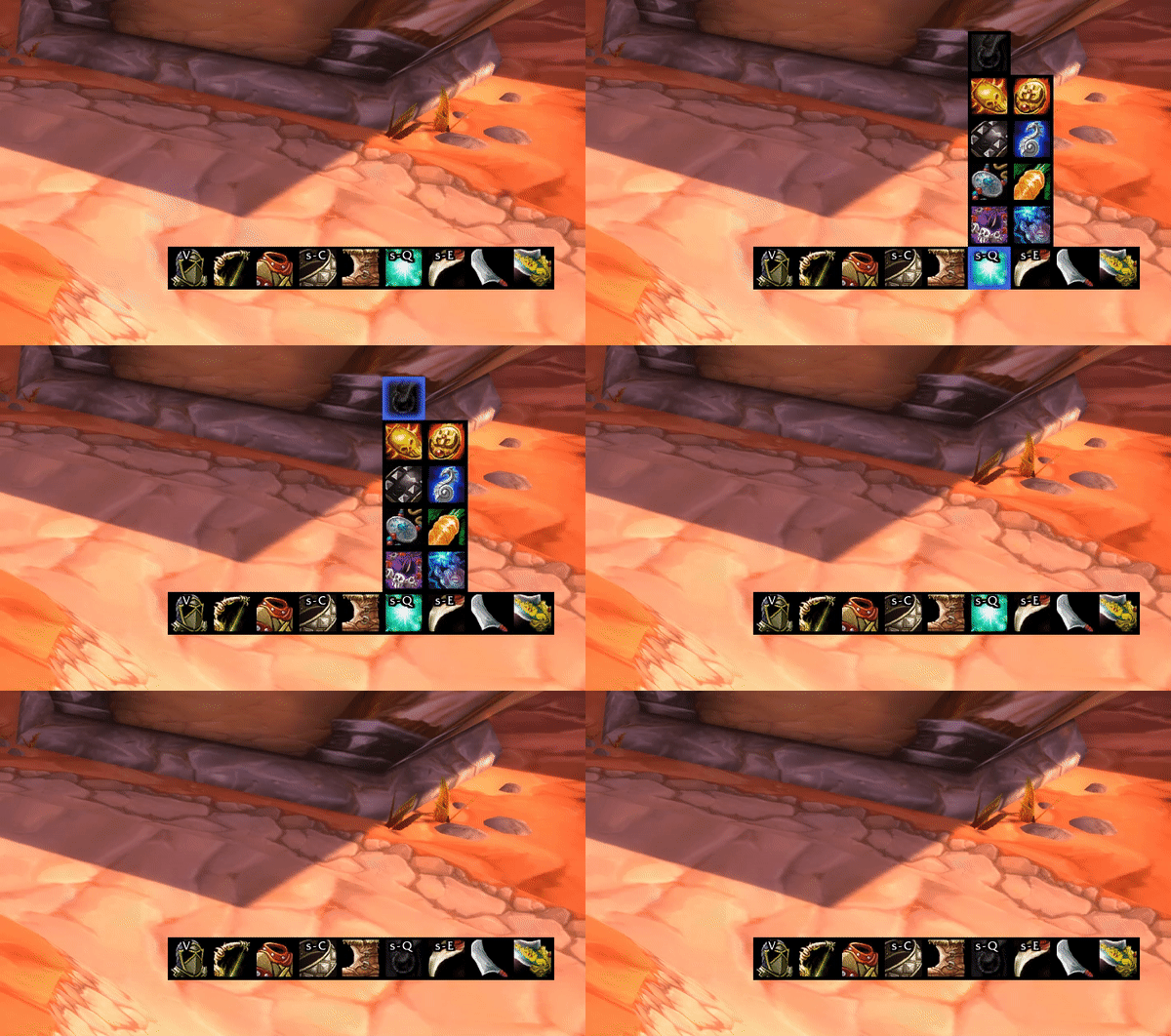
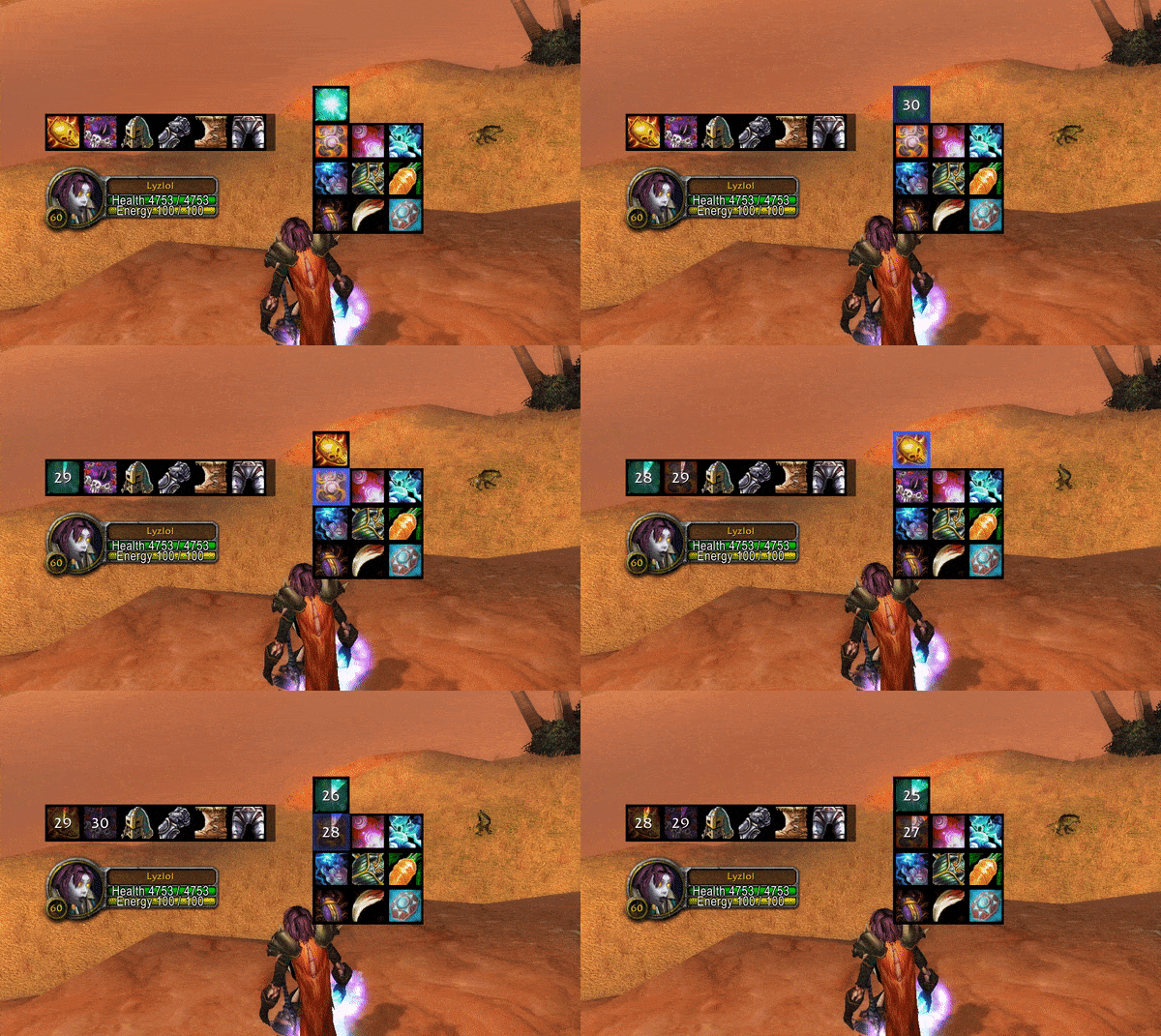
TrinketMenu allows the player to have all available trinkets and their status in view at all times. This makes it easier for the player to plan when to equip a trinket with a long cooldown. A left click will equip the trinket into the upper trinketslot and a right click will equip the item into the lower trinketslot.
With drag and drop enabled the TrinketMenu also works in both directions: a trinket can be dragged out of the TrinketMenu and dropped onto a character trinketslot or a GearSlot to equip it, and a worn trinket can be dragged back onto the TrinketMenu to unequip it into the bags.
Macro Support
If you prefer having certain items in your actionslots GearMenu can still be of use. By using the macro-bridge you get all the advantages of the combatQueue in a normal macro.
Add Item to CombatQueue
/run GM_AddToCombatQueue(itemId, enchantId, slotId)

# Example - Equip Hand of Justice into the lower trinket slot
/run GM_AddToCombatQueue(233734, 0, 14)
Note: The enchantId is optional. If you don't have multiple items with different enchantIds in your inventory, set it to 0.
Note: It is not recommended using this for weapons because addons cannot switch weapons during combat (GearMenu will put the item into the combatQueue). With a normal weaponswitch macro however this is still possible.
Clear Slot From CombatQueue
/run GM_RemoveFromCombatQueue(slotId)

# Example - Clear headSlot queue
/run GM_RemoveFromCombatQueue(1)
Finding itemId
Finding the id of a certain item is easiest with websites such as wowhead.
# Example:
https://classic.wowhead.com/item=11815/hand-of-justice
The number after item is the itemId we search for.
Finding slotId
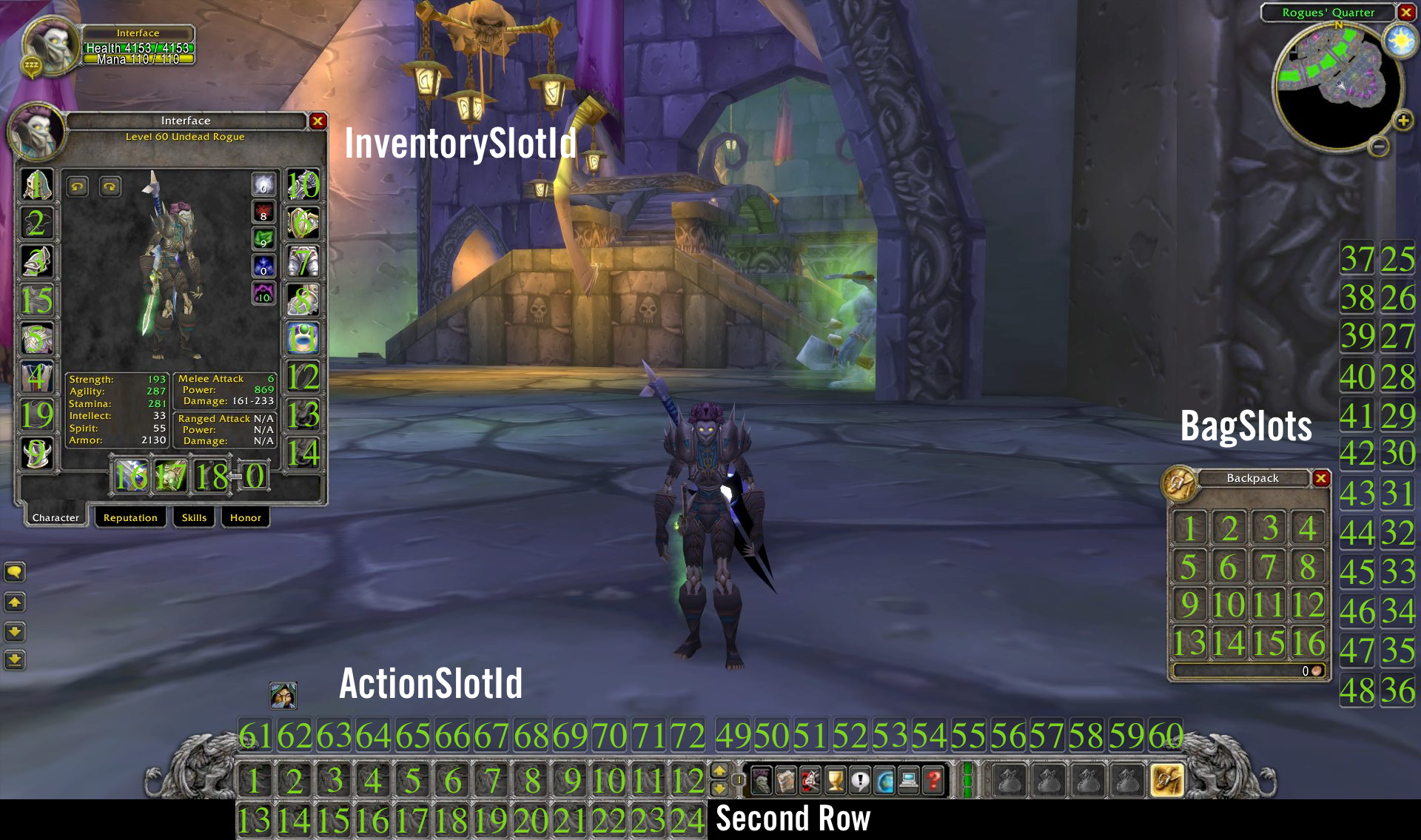
For finding the correct slotId refer to the image below. Only InventorySlotIds are valid targets for GearMenu
Swap Event Notifications for AddOn Authors
Third-party addons (or WeakAuras) can be notified about GearMenu's swap lifecycle. Like the macro-bridge globals above, this surface is part of GearMenu's public API contract.
local function MySwapListener(eventName, slotId, itemId)
  -- eventName is one of "queued", "unqueued" or "completed"
  print("GearMenu " .. eventName .. " item " .. itemId .. " in slot " .. slotId)
end

GM_RegisterSwapListener(MySwapListener)
-- and later, if no longer interested
GM_UnregisterSwapListener(MySwapListener)
The listener is invoked as callback(eventName, slotId, itemId):
| eventName | Fired when |
|---|---|
queued |
A swap was added to the combatQueue (combat, casting or loss of control) |
unqueued |
A queued swap was removed from the combatQueue - cleared by the user, aborted, or because the swap is about to execute |
completed |
A gear swap was executed |
Note: When a queued swap executes, unqueued fires directly before completed. A swap that never had to queue (executed immediately) fires completed only.
Note: Listener errors are isolated - a failing listener never breaks the swap itself. The error is logged instead.
Configurability
GearMenu is configurable. Don't need a certain slot? You can hide it.
To show the configuration screen use /rggm opt while in-game and /rggm for an overview of options or check the standard Blizzard addon options.
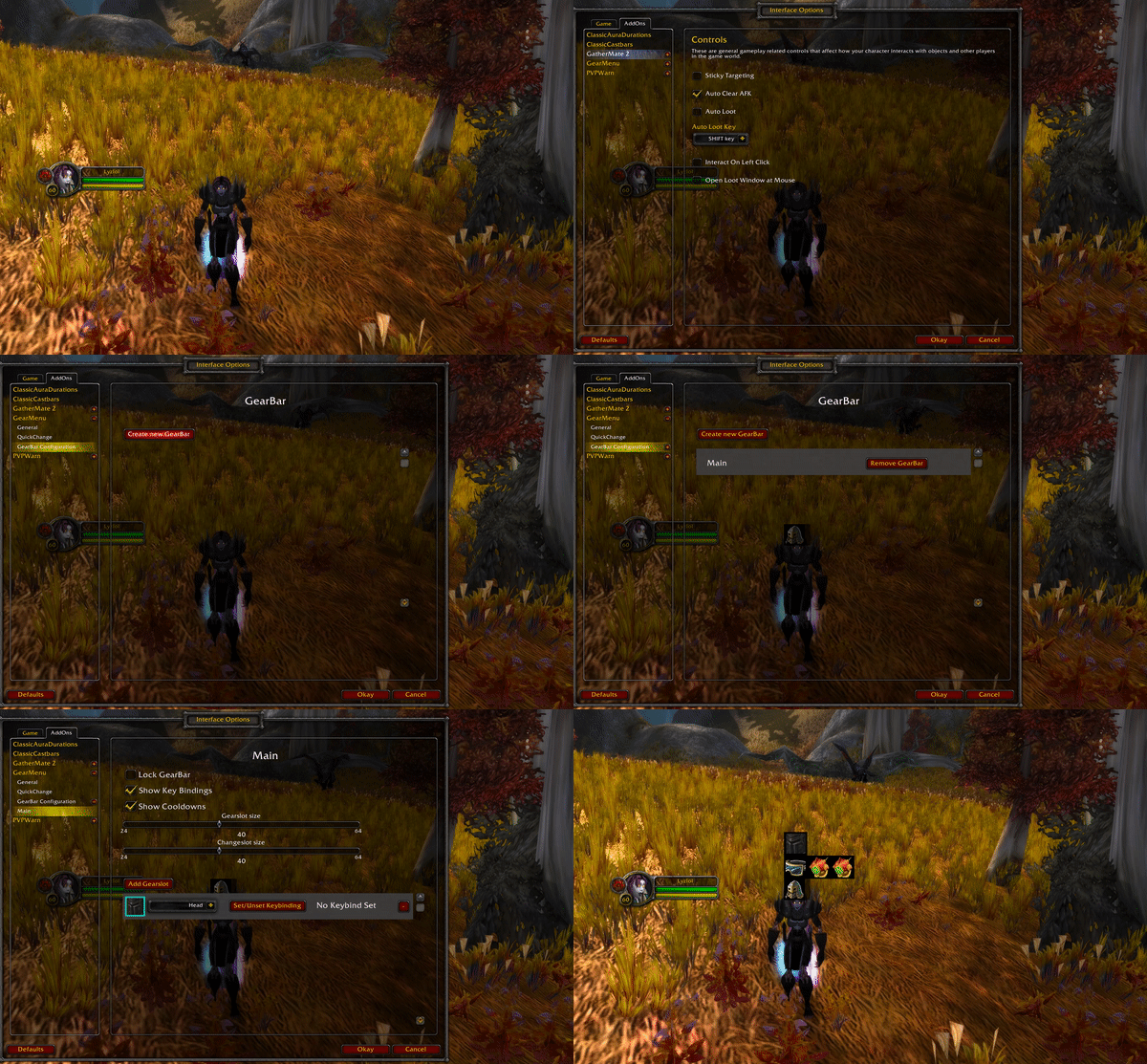
Creating a GearBar
With the latest release it is possible to create multiple GearBars that can act independently of each other.
Configure a GearBar
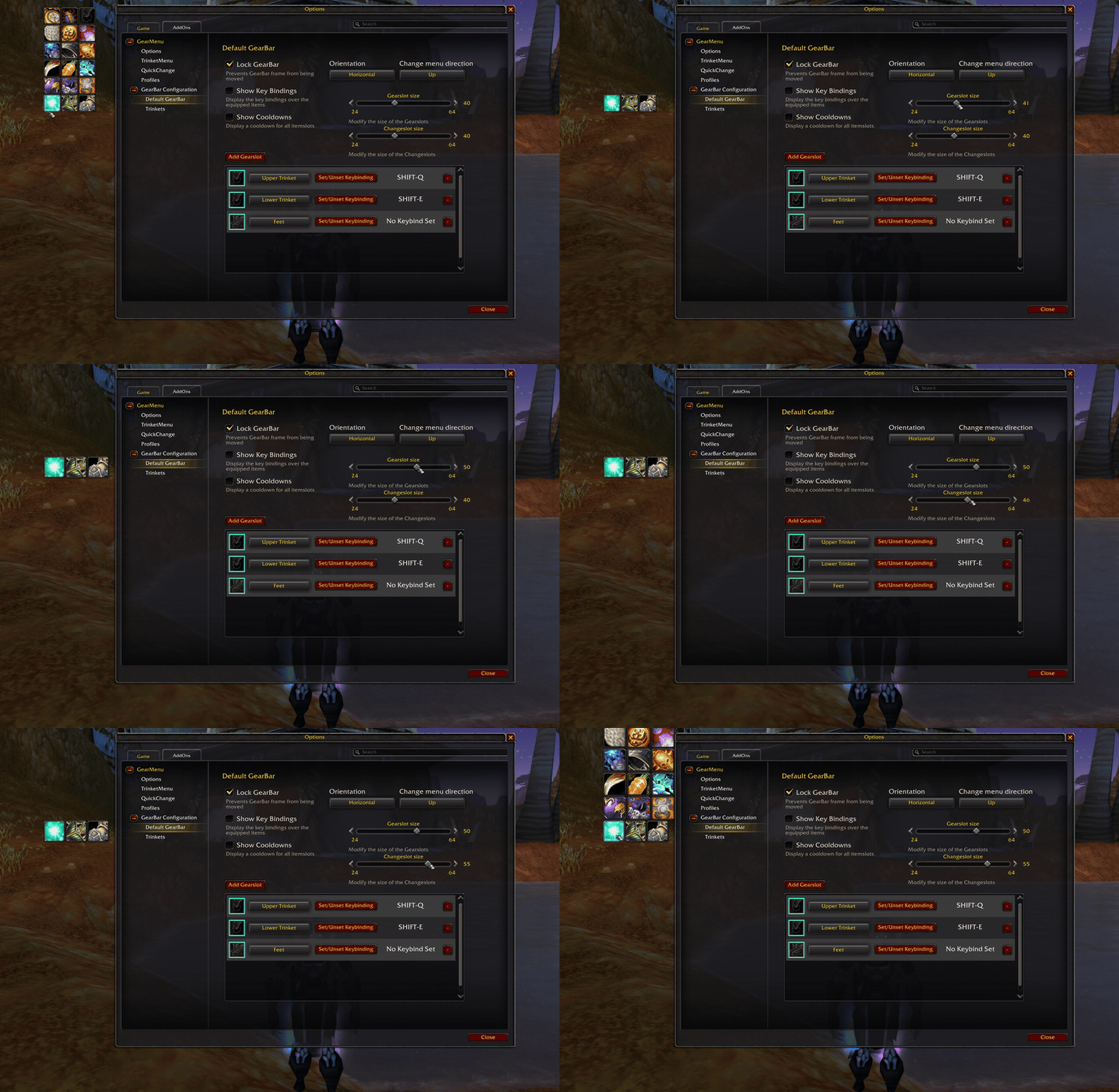
Each GearBar has some configurations that can be done individually for each GearBar. This includes various sizes of the GearBar, its locked or unlocked state and what GearSlots are configured for the GearBar.
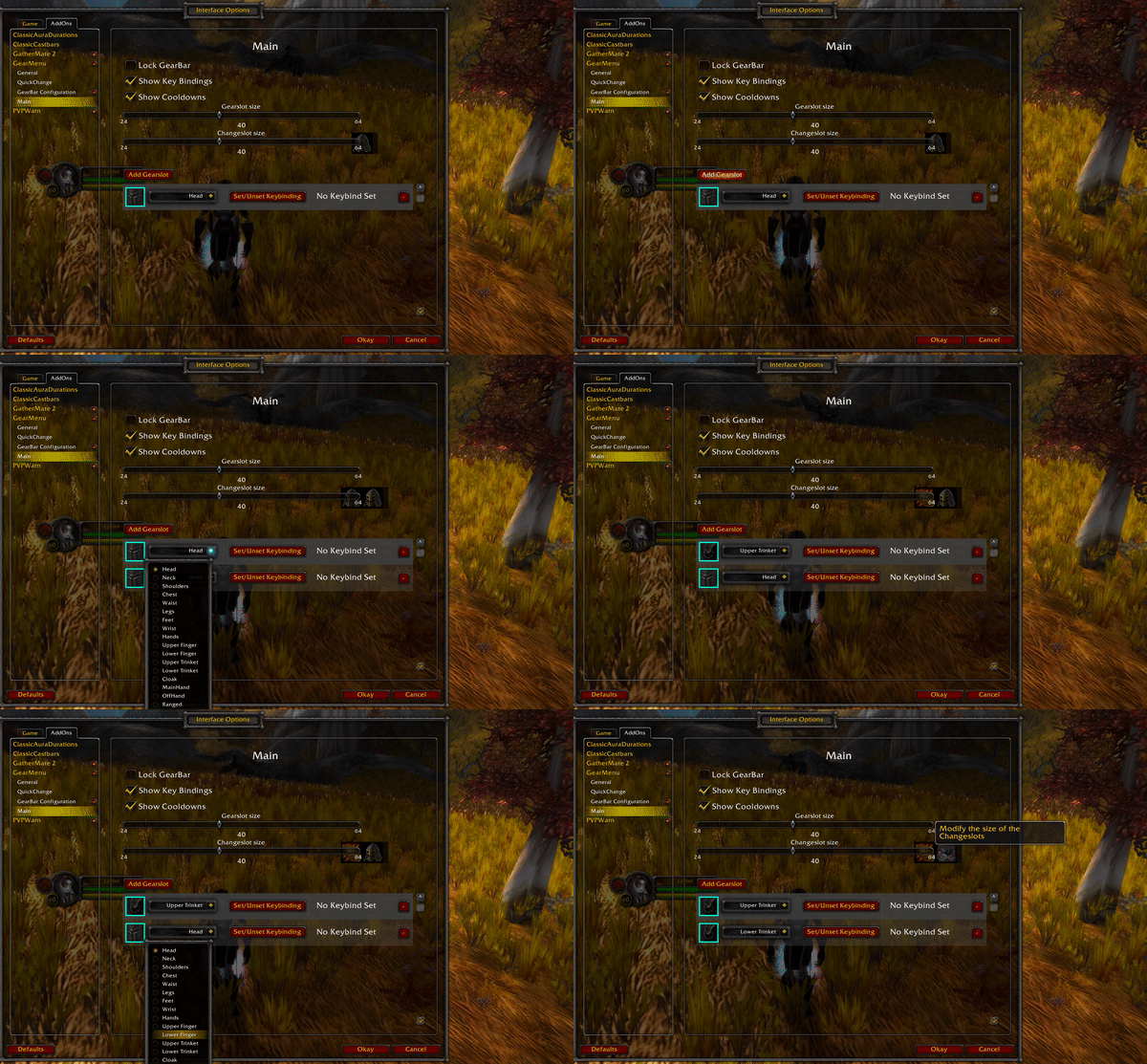
Individual GearBar Configuration
Hide/Show GearBar
Each GearBar can be shown or hidden individually without deleting it, so a situational bar keeps its GearSlots and keybindings while staying off-screen. Hiding is purely visual - the keybindings of a hidden GearBar keep working. Because GearSlots are protected buttons, the visibility of a GearBar cannot be changed while in combat.
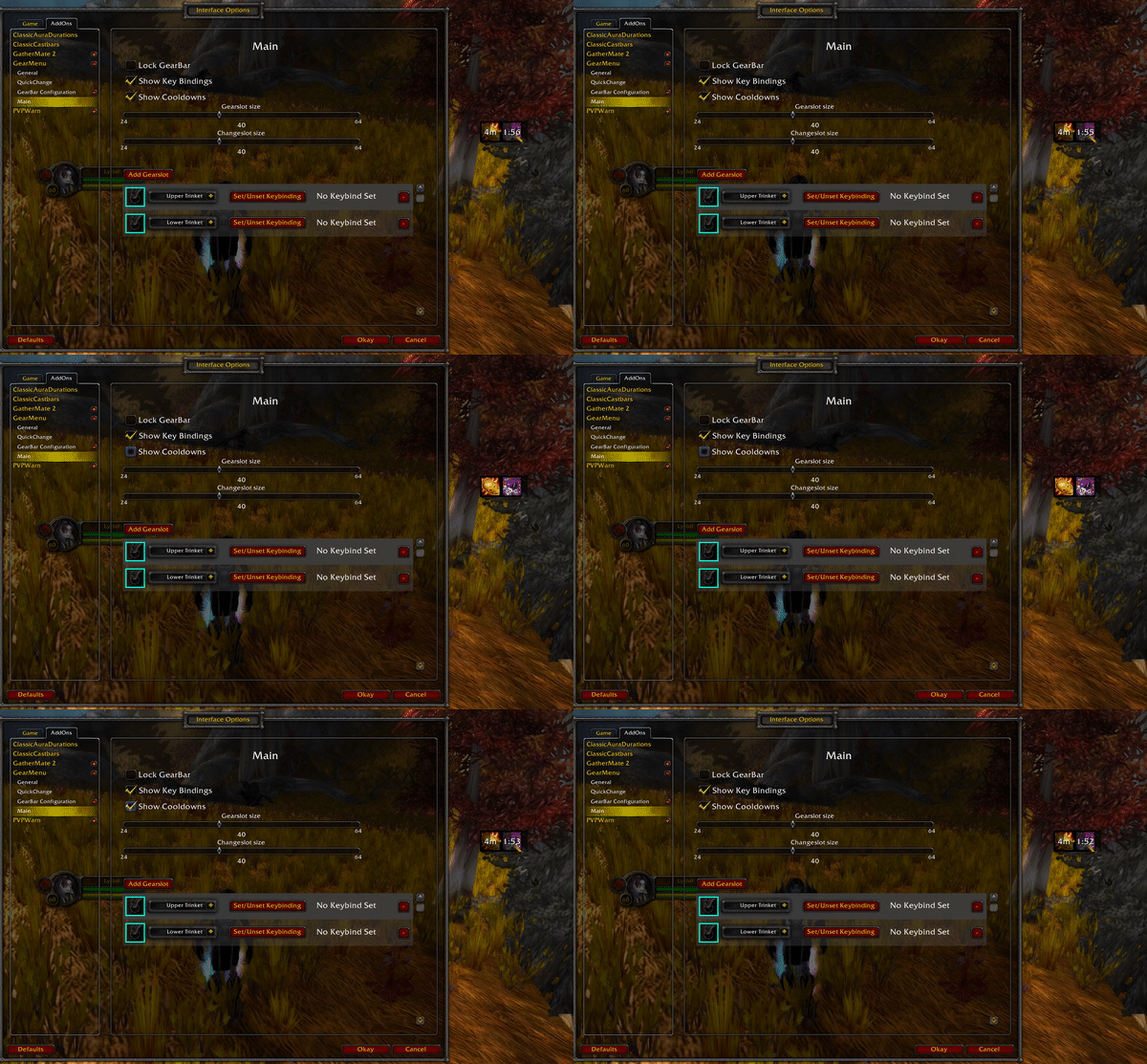
Hide/Show Cooldowns
Whether cooldowns should be shown or hidden can be configured individually for each GearBar.
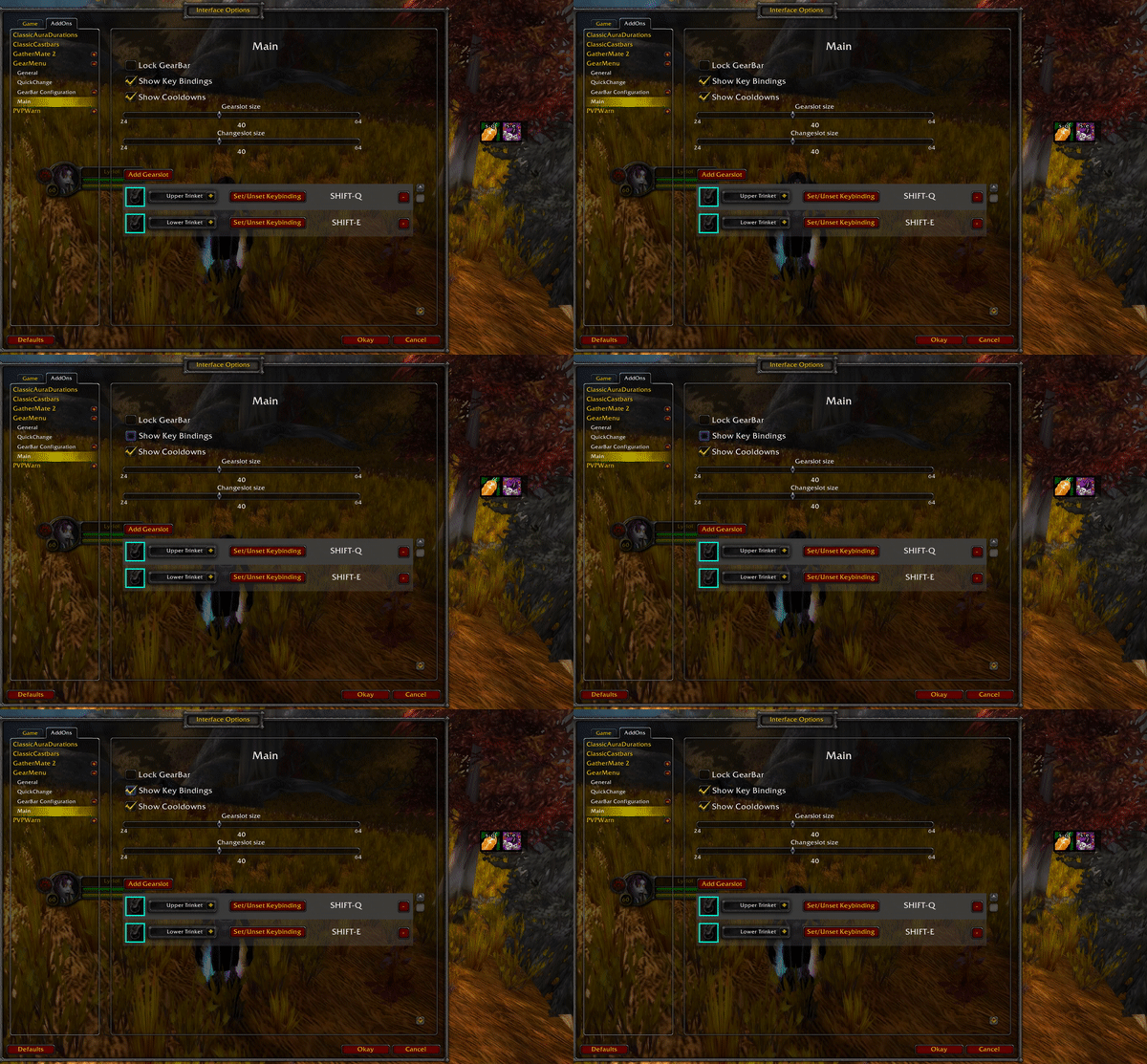
Hide/Show Keybindings
Whether keybindings should be shown or hidden can be configured individually for each GearBar.
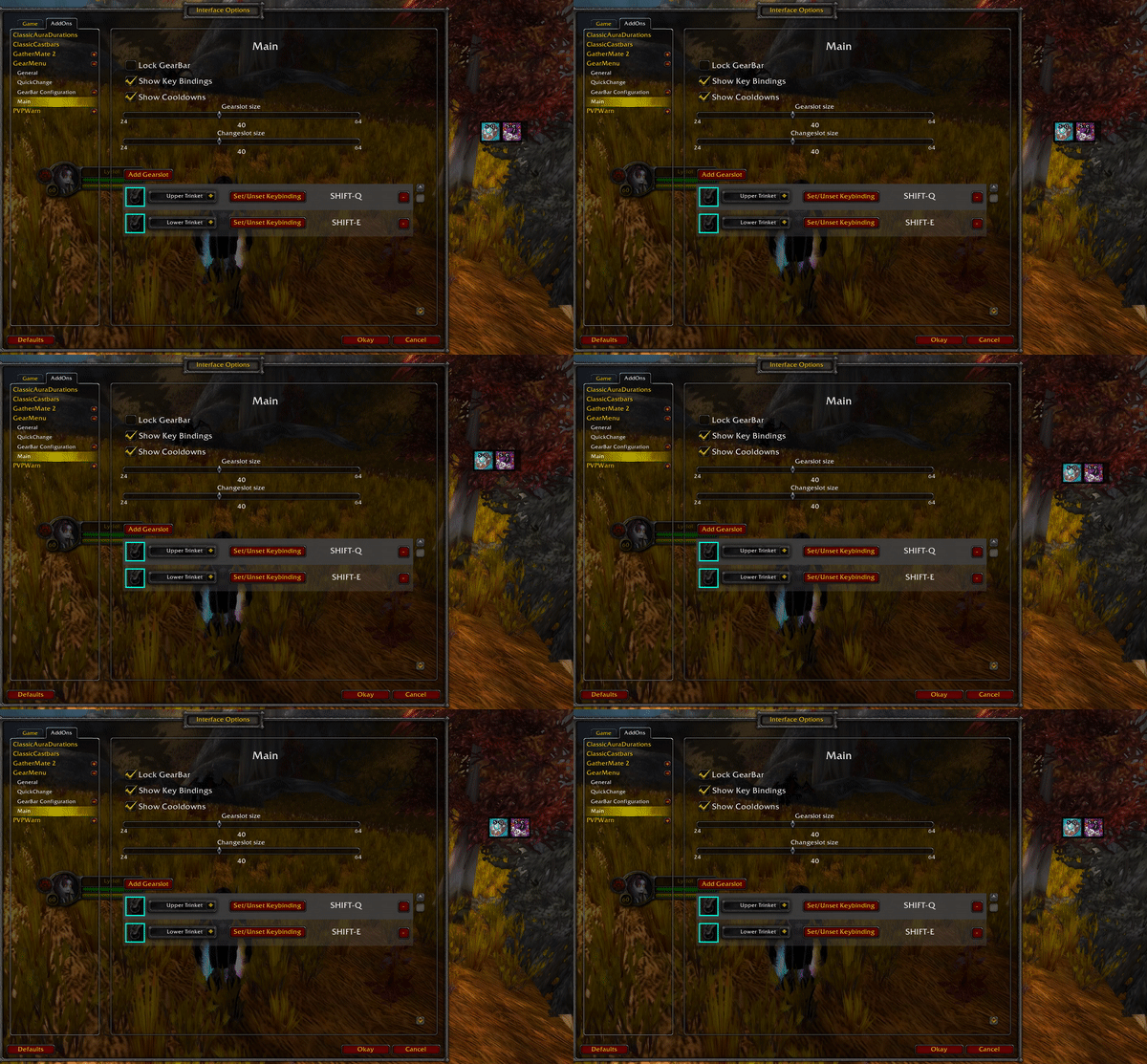
Lock/Unlock Window
Whether a GearBar should be freely movable or be locked in place can be configured individually for each GearBar.
GearSlot and ChangeMenu Size
Every GearBar can have a different size for its GearSlots. You could, for example, have a GearBar with very big trinkets and another with smaller slots for less important items. The size of the ChangeMenu can be configured independently of the GearSlot size.
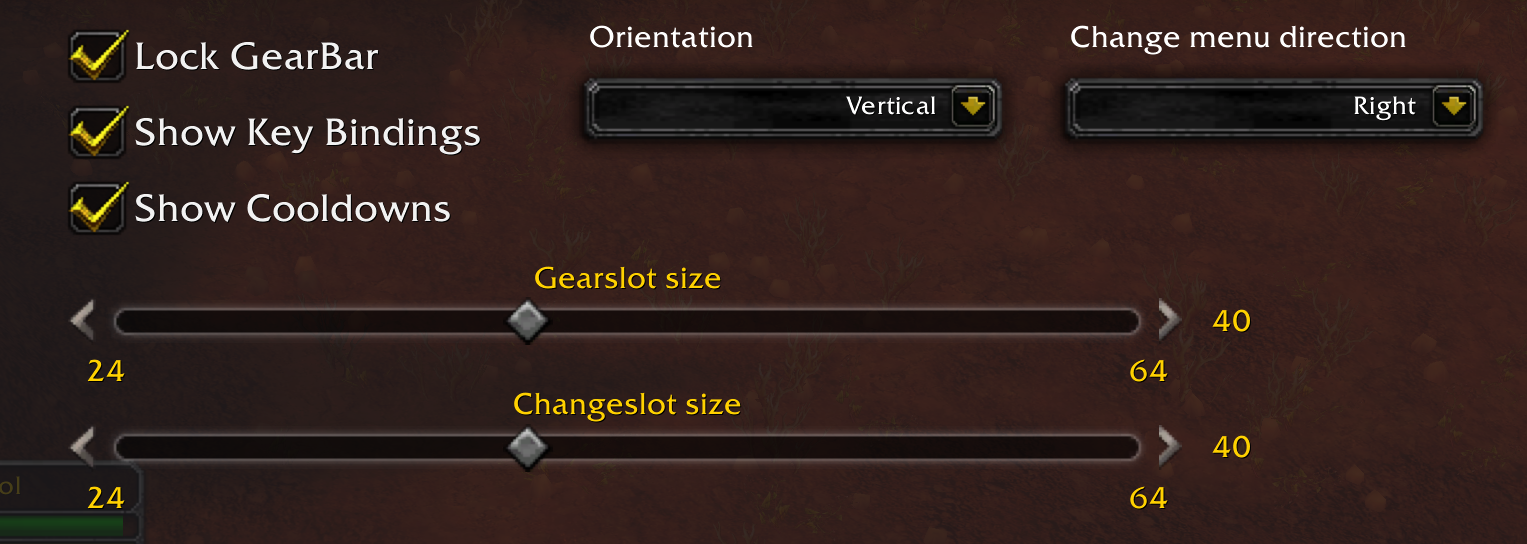
Orientation
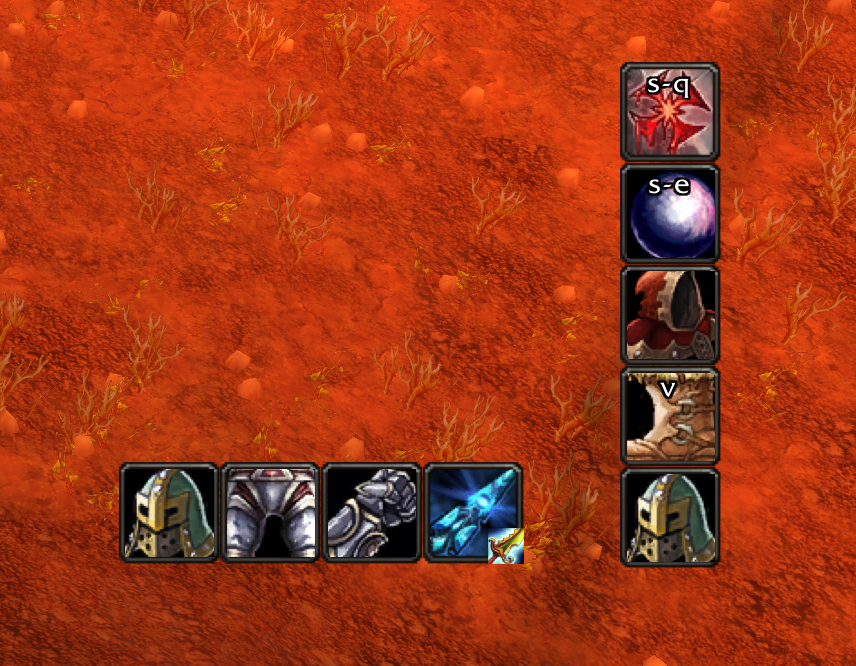
Each GearBar can lay out its GearSlots either horizontally or vertically. This makes it possible to place a vertical bar along the side of your screen while keeping another bar horizontal at the bottom.
When switching the orientation, you can also choose the direction in which the ChangeMenu opens relative to the hovered GearSlot. Horizontal GearBars open the ChangeMenu up or down, while vertical GearBars open it to the left or right so it does not overlap neighboring slots.
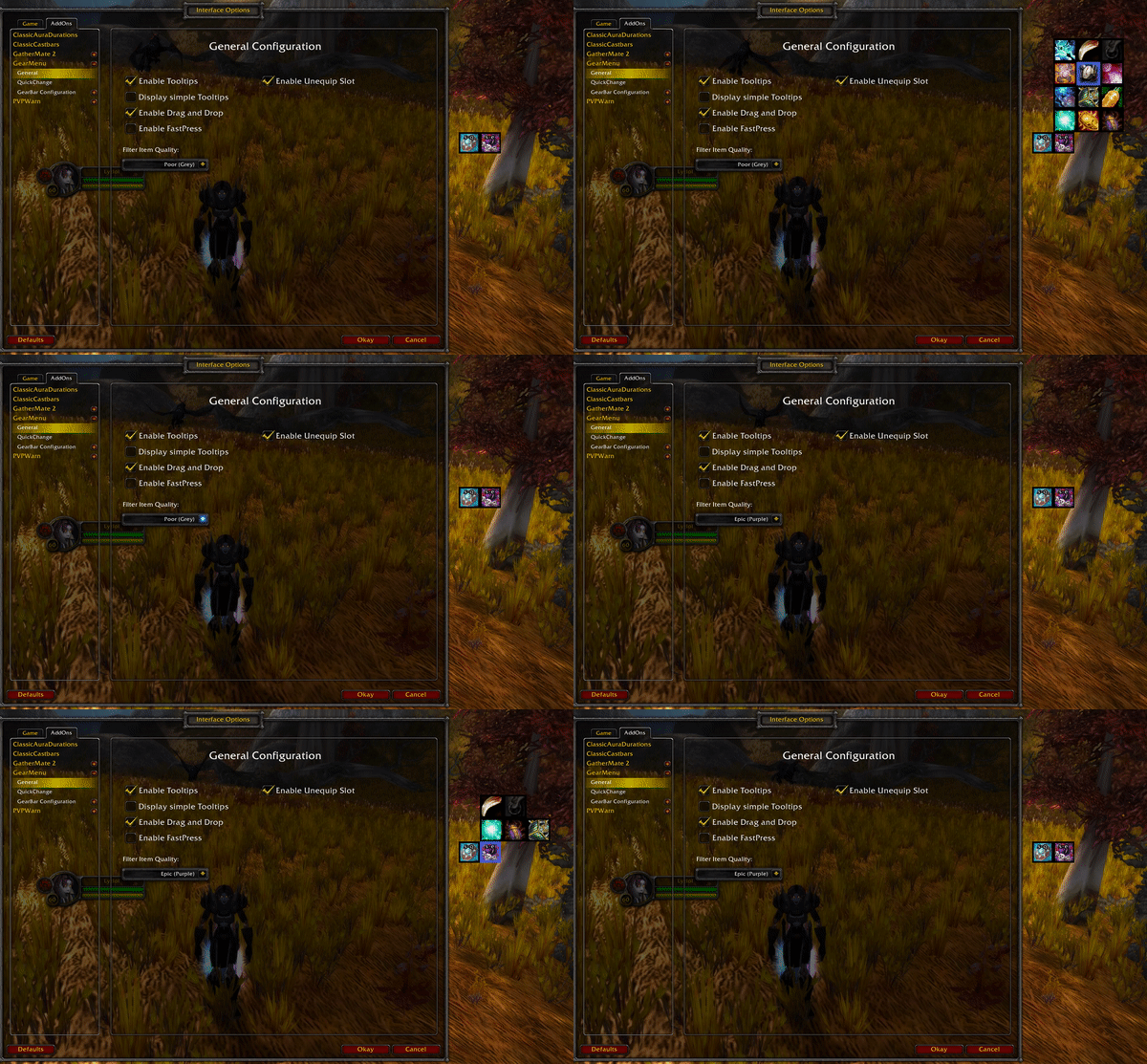
General Configuration
Tooltips
GearMenu can show item tooltips when hovering items in its slots and change menus. Tooltips can be turned off entirely, or set to a simple mode that only displays the item name instead of the full tooltip.
FastPress Support
Enable whether an item in a Gearslot should be used when the player presses the key down (keydown) or only after the key is released (keyup).
Filter Items by Quality
Not interested in seeing items with a quality level below a certain level? Filter them out and only items that meet your set level will be considered to be displayed in GearMenu.
TrinketMenu Configuration
TrinketMenu supports the following configuration features.
- Enabling/Disabling TrinketMenu completely
- Lock/Unlock the TrinketMenu
- Show or Hide trinket cooldowns
- Configure the number of columns of the TrinketMenu
- Adapt size of the TrinketMenu
Profiles
GearMenu lets you save your entire configuration as named profiles, so you can switch between different setups or carry your settings to another character. Profiles are managed under the Profiles tab of the configuration interface (/rggm opt).
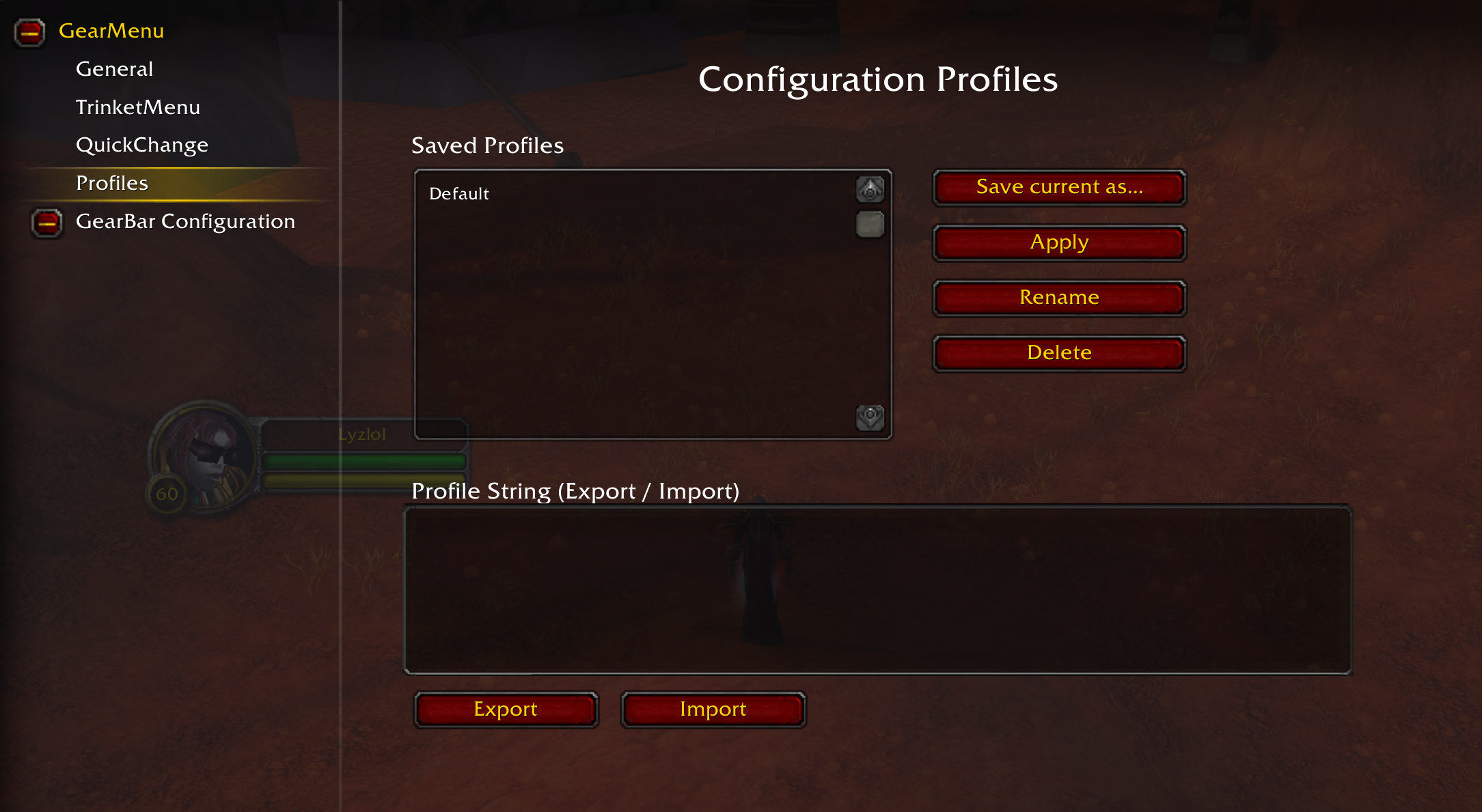
A profile captures your full GearMenu setup – all of your GearBars (their GearSlots, sizes, orientation, lock state and on-screen position), the TrinketMenu settings and the general options. One profile is always the active one, marked in gold as "Raid (active)" in the list: every change you make in the settings belongs to it, and it is saved automatically – when you switch profiles, log out or reload, export it, and at every login. There is nothing to remember to save.
- Create new Profile: Stores a copy of your current settings under a new name and makes it the active profile.
- Load: Switches to the selected profile and reloads the UI. The profile you are leaving keeps your settings as they are now.
- Rename / Delete: Manage the selected profile. Deleting the active profile switches you back to Default.
- Reset to defaults: Puts the active profile back to GearMenu's shipped settings – the general options, the TrinketMenu settings at their defaults, your GearBars replaced by the starter GearBar, exactly like a fresh install – then reloads the UI.
The Default Profile
Every character starts on a profile named Default. It is your editable home profile – created automatically, never deleted or renamed, otherwise a profile like any other. To get the factory settings back, use Reset to defaults; loading Default only brings back what you last had in it. The Rename and Delete buttons are greyed out while it is selected.
Sharing Profiles (Export / Import)
Profiles can be shared as portable strings, making it easy to copy a setup between characters or hand it to another player.
- Export: Generates a copy-pasteable profile string for the selected profile in the Profile String field. The active profile exports your settings as they are right now.
- Import: Paste a profile string into the field and import it as a new profile, stored without switching to it. Imported strings are validated, so an invalid, corrupted, or non-GearMenu string is rejected without changing any of your settings.
Note: Profiles are stored per character. Use export/import to move a profile to another character.
FAQ
I get a red error (Lua Error) on my screen. What is this?
This is what we call a Lua error, and it usually happens because of an oversight or error by the developer (in this case me). Take a screenshot off the error and create a GitHub Issue with it, and I will see if I can resolve it. It also helps if you can add any additional information of what you were doing at the time and what other addons you have active. Additionally, if you are able to reproduce the error make sure to check if it still happens if you disable all others addons.
A certain item is not showing up when I hover a slot. Why is that?
GearMenu by default filters out items that are below uncommon (green) quality. This can be changed in the addon configuration settings in the option "Filter Item Quality".
GearMenu failed to switch my item. What happened?
There are certain limitations that make it harder to switch an item even if the player is out of combat. One such example is that WoW prevents switching items while the player is casting a spell. GearMenu detects this and changes the item as soon as there is a pause between two spells or if a spell was cancelled. Just keep this in mind if you absolutely need the item switch to happen as soon as possible. Another factor can be a loss of control effect such as sap, iceblock and similar effects. In such circumstances it is not possible to switch an item. GearMenu is aware of such effects on the player and will switch the item as soon as possible.
If you still think you found an issue where GearMenu doesn't switch items as expected feel free to create an issue.
Why can't I switch Weapons during Combat?
This is a limitation that Blizzard puts on addons. It is not currently possible to switch to an arbitrary weapon while in combat. It is however possible to create weaponswitch macros because it is already known from which weapon to what weapon the player wants to switch. While it is not ideal, to work around this issue GearMenu puts weapons in the CombatQueue if a weaponswitch is done while the player is in combat. If he is not in combat the switch will happen immediately. This might be improved in a future release if there is a better workaround possible.
Note: It is also possible to switch a weapon by dragging and dropping the weapon in the standard Blizzard interfaces. This however is in no way connected to GearMenu
Why can't I create an Itemset?
This addon does not have the intention on supporting the functionality of switching between a PVE and a PVP set (or any other set). Its intention is to assist the player in switching single items fast and possibly during combat. It does not try to be the next Outfitter addon.
GearMenu - Forever Team

Owner