cooldownwatch_friendly_cooldowns.png
Description
CooldownWatch

CooldownWatch aims to track the cooldowns of enemy and friendly players and make them visible at a glance
Providers


Source/Issues


Wrong or missing spell data is the most common report and the most valuable one - the issue tracker has a dedicated Spell Data Report template for it.
What is CooldownWatch?
In PvP the fight is often decided by cooldowns - who still has their escape, their interrupt, their trinket. CooldownWatch watches the combat log for those spells and shows you when your target used one and when it comes back up, so you no longer have to keep that timer in your head.
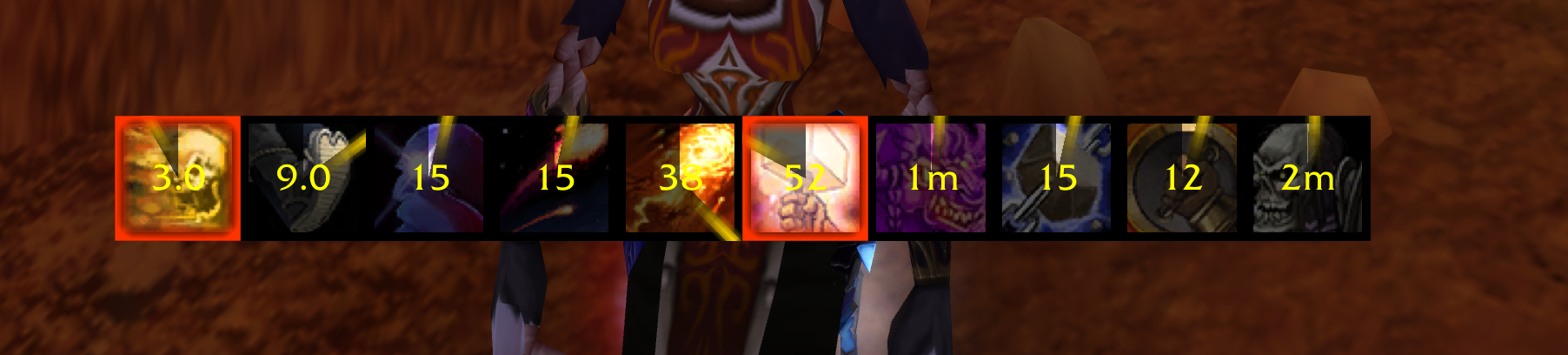
Everything is derived from the combat log, so there is nothing to configure before it works: CooldownWatch recognizes the spell, resolves the caster (including pets back to their owner), and starts counting down the cooldown on the Targetcooldownbar of that player. Switch targets and the bar follows, showing what that enemy has burned and what is still available to them.
CooldownWatch supports World of Warcraft Classic Era and TBC Anniversary, including Hardcore and Season of Discovery.
Features of CooldownWatch
- Tracks enemy cooldowns from the combat log.
- Per-target cooldown bar that follows your current target and can be placed anywhere on screen.
- Proximity cooldown window listing the active cooldowns of every enemy around you - not just your target.
- Friendly cooldown tracking (opt-in) that shows teammate cooldowns on the target bar and in a window of their own, scoped to your party or raid.
- A curated spell catalog covering all nine classes plus racials, items and miscellaneous cooldowns - every entry verified against Wowhead, including all ranks of a spell.
- Worst case handling for enemies with talents or gear that shorten a cooldown, globally or per spell.
- Manual cooldown overrides per spell when you want the exact number yourself.
- Pet cooldowns resolved back to their owner, so a pet ability counts against the player who owns it.
- Season aware - TBC Anniversary has its own spell data: reworked cooldowns, TBC-only spells and the new ranks. Season of Discovery is supported with the Classic catalog as the baseline; rune-specific spell data is still being added.
- Configuration profiles with export/import for moving a setup between characters or sharing it.
- Update notice - a one-time chat message when a party, raid or guild member runs a newer version of CooldownWatch.
Configuration
CooldownWatch can be configured through the in-game interface options. Access the configuration by:
- Opening the game menu (ESC key)
- Selecting "Options"
- Navigating to "AddOns"
- Finding "CooldownWatch" in the list
Alternatively, you can use the slash command:/cooldownwatch optor/rgcw opt
The full /rgcw (or /cooldownwatch) command surface:
/rgcw help- print the available commands (plain/rgcwdoes the same)/rgcw opt- open the options panel/rgcw conf enable|disable- show or hide the example Targetcooldownbar (configurealso works)/rgcw rl- reload the UI (reloadalso works)
Positioning the bar and windows
Every surface is positioned through its own button in the options: Position Bar on the Options panel for the Targetcooldownbar, Position Window on the Proximity Cooldowns and Friendly Cooldowns panels for the two windows. The button fills the surface with example cooldowns and makes it draggable - drag it where you want it and click Apply. Outside this mode nothing can be moved by accident, so there is no lock to manage. The Targetcooldownbar's size is adjusted with the Bar scale slider on the same Options panel.
For the Targetcooldownbar, /rgcw conf enable brings up the same example preview directly and /rgcw conf disable hides it again.
Choosing what to track
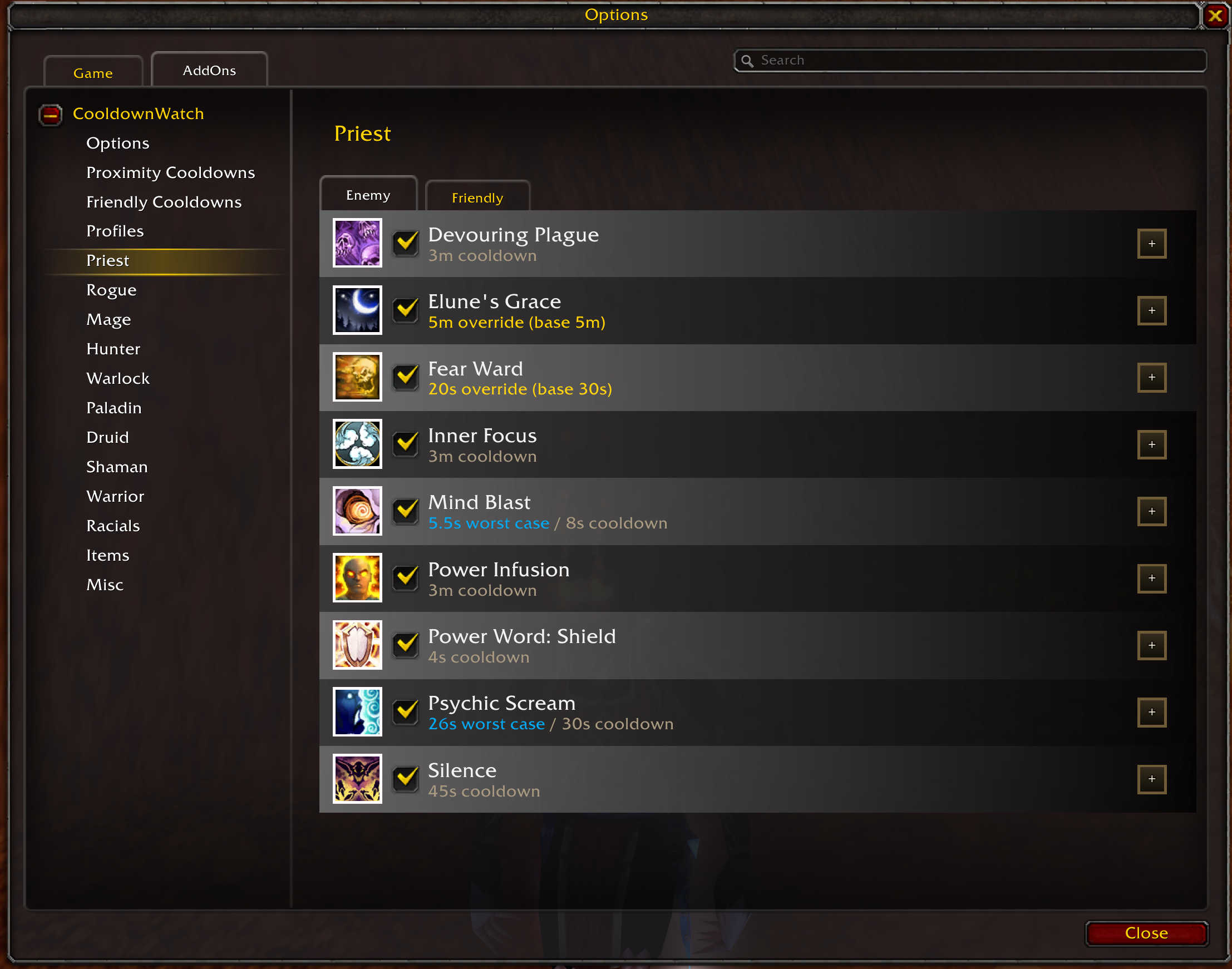
Tracked cooldowns are grouped into categories - one per class (Priest, Rogue, Mage, Hunter, Warlock, Paladin, Druid, Shaman, Warrior) plus Racials, Items and Misc. Every spell can be enabled or disabled on its own, so you can narrow tracking down to the handful of cooldowns that actually matter to you. Each category panel carries an Enemy and a Friendly tab - the same spell list, configured separately per side, so what you track on enemies is independent of what you track on teammates.
Each spell also carries two per-spell settings:
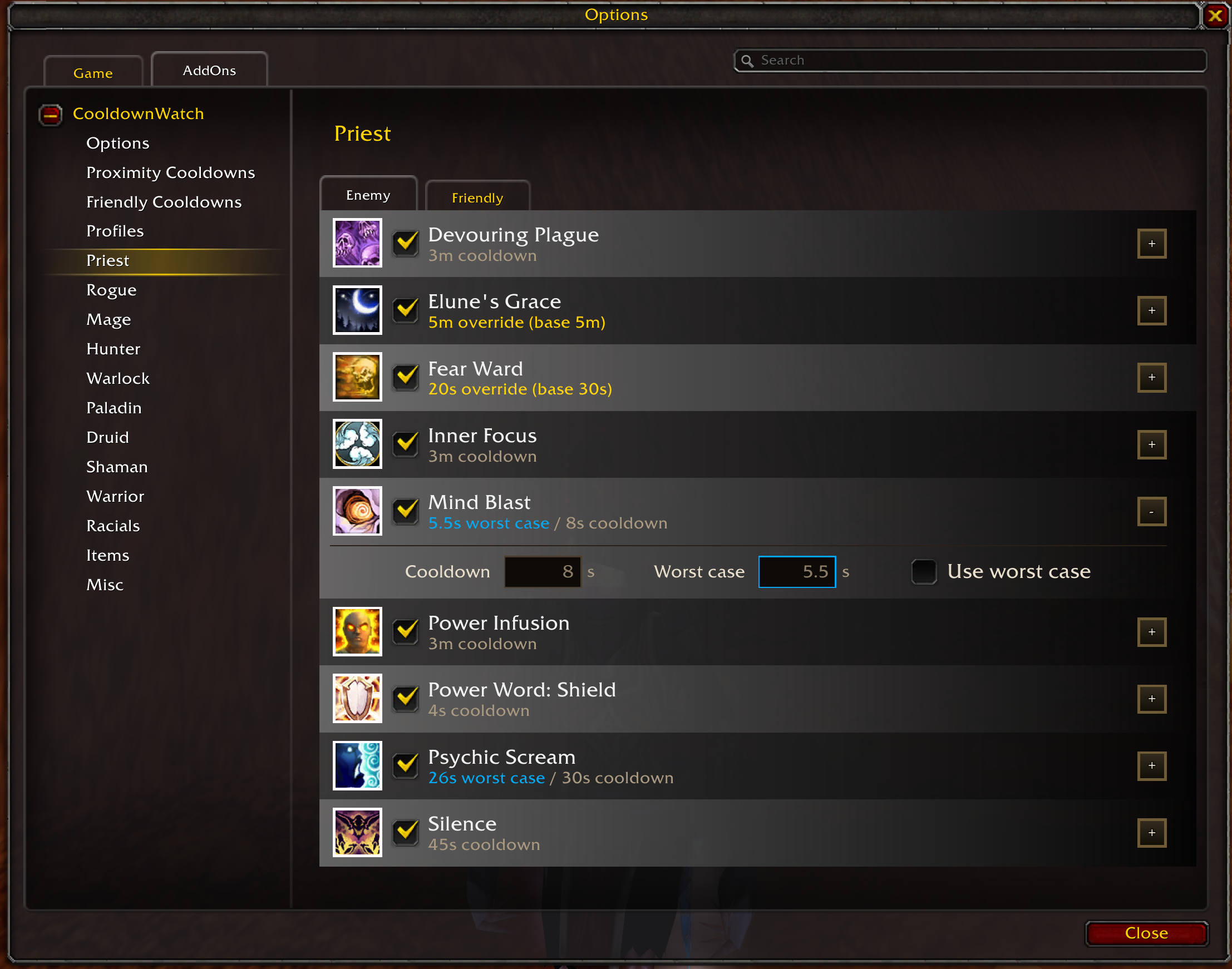
- Use worst case: assume the enemy has the talents or gear that shorten this cooldown. The bar then counts down the shortest realistic cooldown instead of the base value.
- Cooldown override: manually set the tracked cooldown in seconds. It takes precedence over all worst case settings and accepts any value up to 60 minutes - above the base cooldown too, for when you know the enemy's real cooldown better than the addon does.
Assume worst case for all cooldowns applies the worst case to everything at once. Worst case settings on individual cooldowns still take precedence.
Proximity Cooldowns
The Targetcooldownbar only ever shows your current target. The Proximity Cooldown Window lists the active cooldowns of every other enemy around you - one row per cooldown with the spell, the caster's name and the remaining time, newest on top. Your current target is excluded, since its cooldowns are already on the bar.
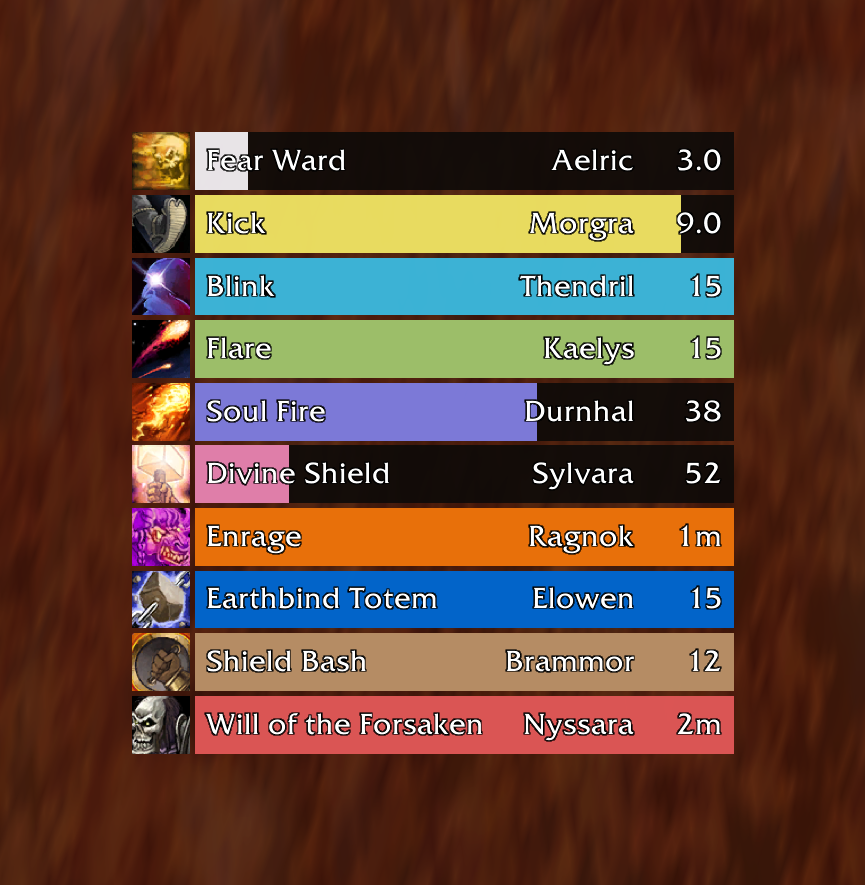
The window is opt-in and configured on the Proximity Cooldowns panel: Hide long cooldowns keeps cooldowns above 60 seconds out of the window (enabled by default - long cooldowns rarely decide the next engagement), the Window scale and Maximum displayed cooldowns sliders control its size, and Reset to Defaults restores every setting including the window position.
Friendly Cooldowns
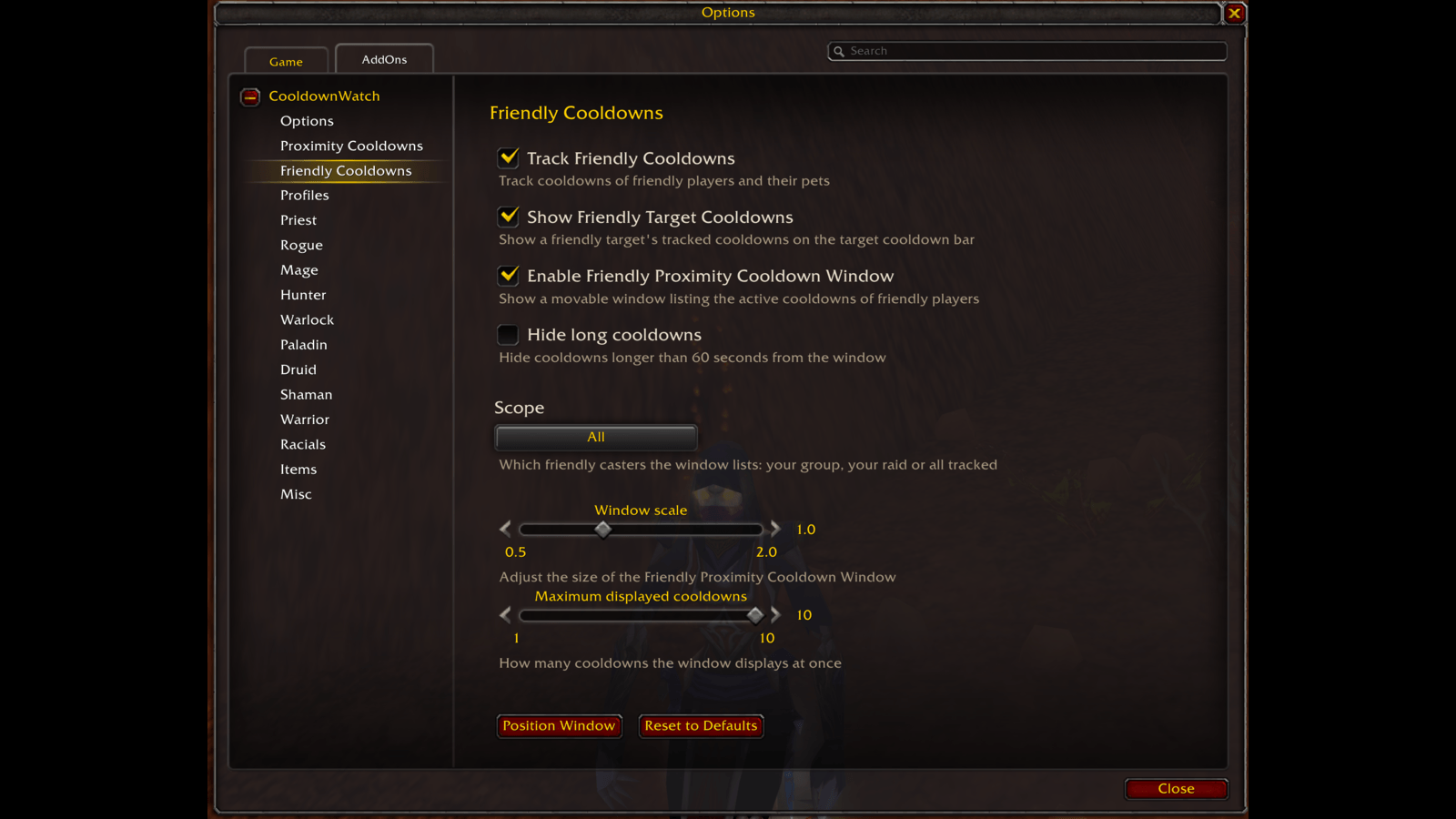
CooldownWatch can watch your own side too. Track Friendly Cooldowns tracks friendly players and their pets the same way enemies are tracked - your own cooldowns are excluded. Two displays build on it, each with its own toggle:
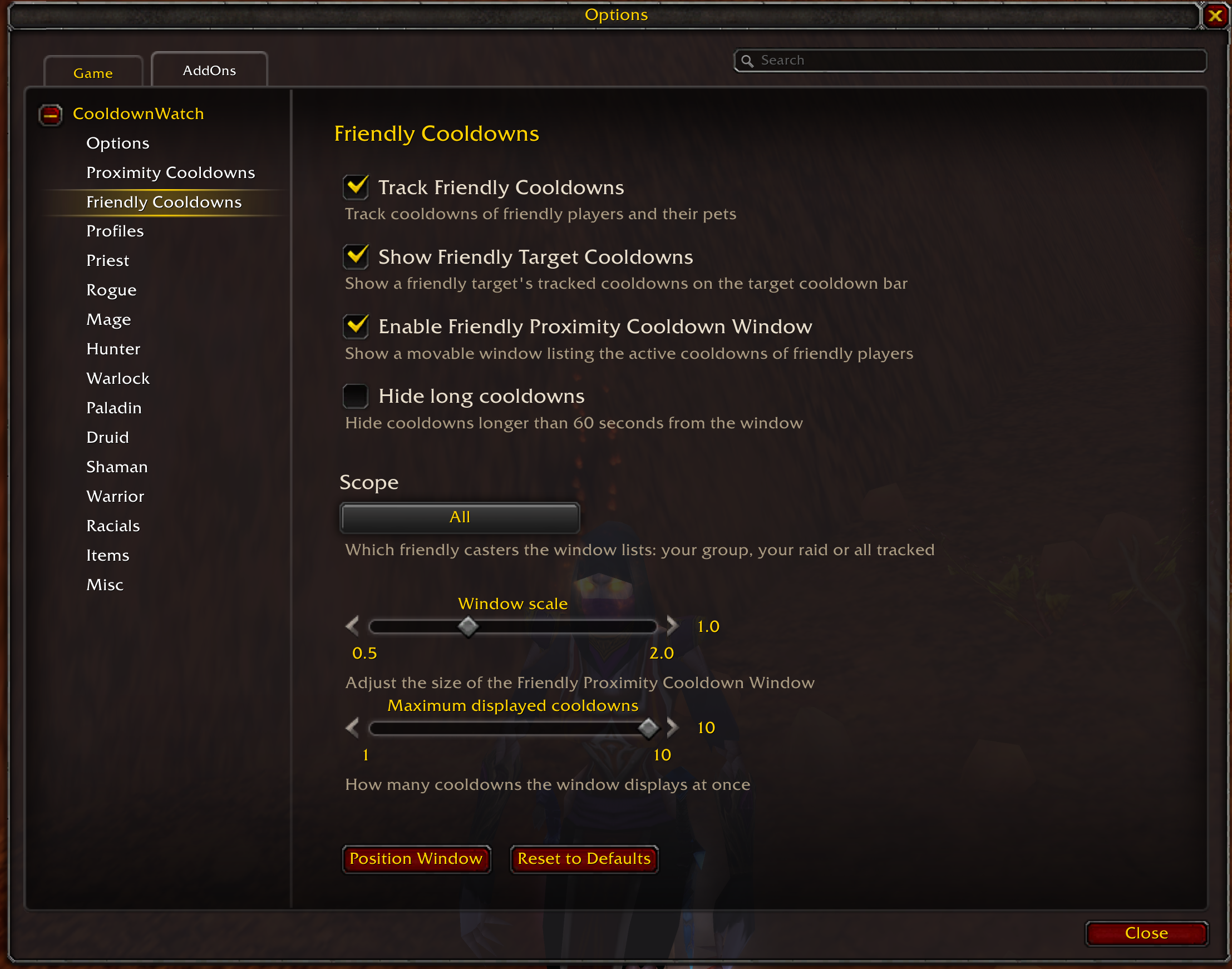
- Show Friendly Target Cooldowns shows a targeted teammate's tracked cooldowns on the Targetcooldownbar.
- Enable Friendly Proximity Cooldown Window opens a second proximity window for friendly cooldowns, with a Scope filter (your group, your raid, or all tracked players) and the same hide-long, scale and size options as the enemy window.
Which spells are tracked per side is chosen on the Friendly tab of each category panel.
Profiles
CooldownWatch lets you save your configuration as named profiles, so you can switch between different setups or carry your settings to another character. Profiles are managed under the Profiles tab of the configuration interface.
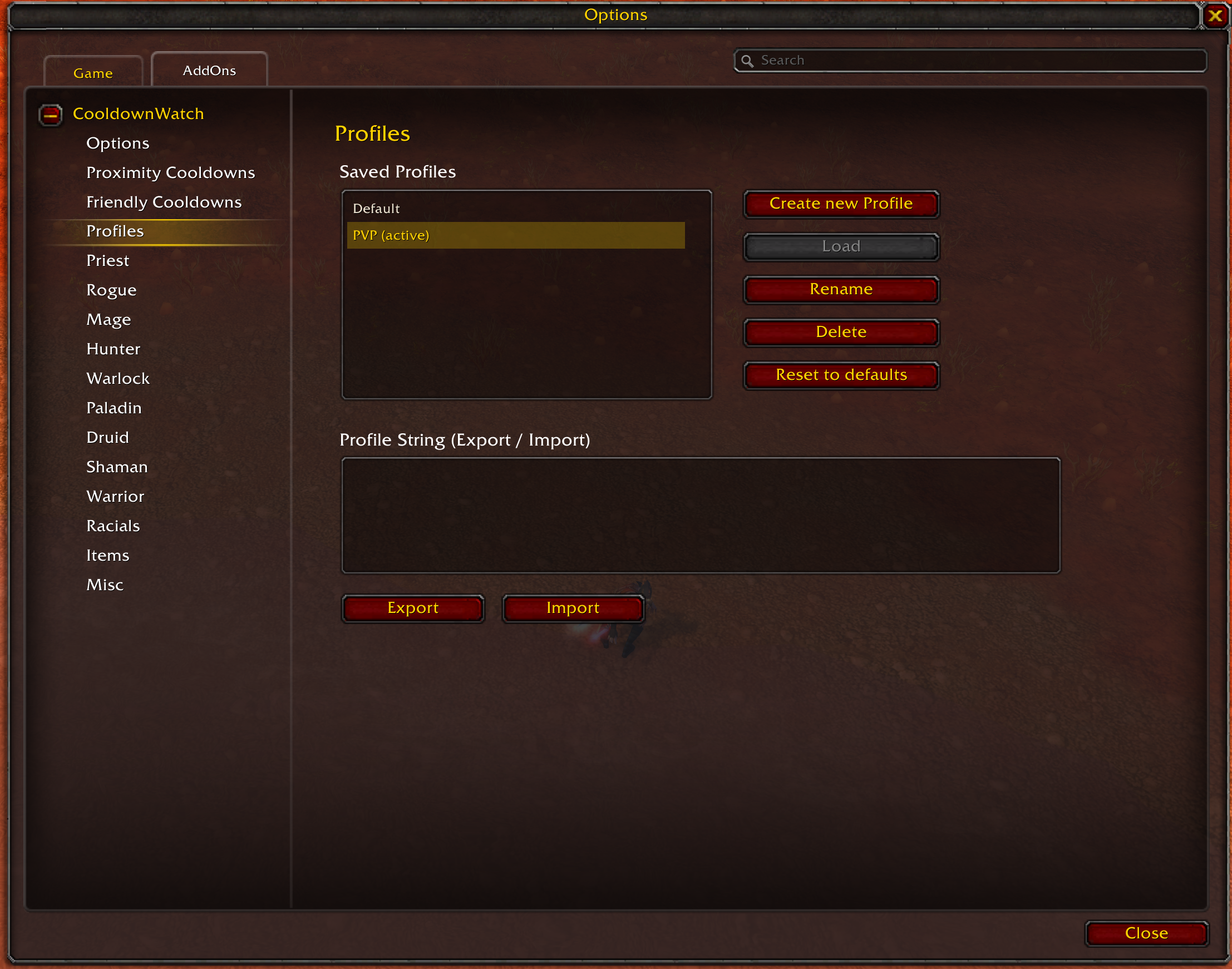
A profile captures all of your CooldownWatch settings - which cooldowns are tracked per category and side, the per-spell worst case and cooldown override values, the Assume worst case for all cooldowns default, the friendly tracking flags, the proximity window options, and the scale and on-screen position of every surface. One profile is always the active one, marked in gold as "Raid (active)" in the list: every change you make in the settings belongs to it, and it is saved automatically - when you switch profiles, log out or reload, export it, and at every login. There is nothing to remember to save.
- Create new Profile: Stores a copy of your current settings under a new name and makes it the active profile.
- Load: Switches to the selected profile and reloads the UI. The profile you are leaving keeps your settings as they are now.
- Rename / Delete: Manage the selected profile. Deleting the active profile switches you back to Default.
- Reset to defaults: Puts the active profile back to CooldownWatch's shipped settings - the curated set of tracked cooldowns, no overrides, the window options, scale and positions at their defaults - then reloads the UI.
The Default Profile
Every character starts on a profile named Default. It is your editable home profile - created automatically, never deleted or renamed, otherwise a profile like any other. To get the factory settings back, use Reset to defaults; loading Default only brings back what you last had in it. The Rename and Delete buttons are greyed out while it is selected.
Sharing Profiles (Export / Import)
Profiles can be shared as portable strings, making it easy to copy a setup between characters or hand it to another player.
- Export: Generates a copy-pasteable profile string for the selected profile in the Profile String field. The active profile exports your settings as they are right now.
- Import: Paste a profile string into the field and import it as a new profile, stored without switching to it. Imported strings are validated, so an invalid, corrupted, or non-CooldownWatch string is rejected without changing any of your settings.
Note: Profiles are stored per character. Use export/import to move a profile to another character.
FAQ
Does CooldownWatch work on TBC Anniversary?
Yes - TBC Anniversary uses its own spell data: cooldowns that TBC changed (such as Blind, Fear Ward or Spell Lock), spells that only exist in TBC (such as Icy Veins and Bloodlust/Heroism) and the new TBC ranks. A cooldown you miss or that counts down wrong on TBC is exactly what the Spell Data Report issue template is for.
A cooldown counts down with the wrong duration. What now?
CooldownWatch ships the base cooldown of every spell it knows. If the enemy has a talent or item that shortens it, enable Use worst case for that spell (or Assume worst case for all cooldowns globally). If the number is still wrong, it is a data issue - open a GitHub Issue with the Spell Data Report template and it will be corrected in the spell catalog.
I get a red error (Lua Error) on my screen. What is this?
This is what we call a Lua error, and it usually happens because of an oversight or error by the developer (in this case me). Take a screenshot of the error and create a GitHub Issue with it, and I will see if I can resolve it. It also helps if you can add any additional information of what you were doing at the time and what other addons you have active. Additionally, if you are able to reproduce the error make sure to check if it still happens if you disable all other addons.
The CooldownWatch - Classic Team

Owner