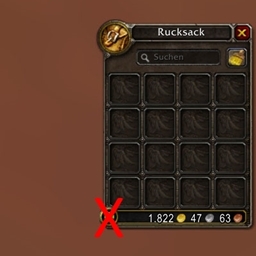
This library is designed for addon authors who wish to generate consistent screenshots for their image gallery.
Installation
- Requires LibStub
Just install this as a standalone addon from CurseForge or Wago. You don't need to embedded or package it into your project. A dependency link as a used tool is appreciated though. :)
Example
local gg = LibStub("GalleryGenerator")
gg:TakeScreenshots(
    {
        -- First screenshot with open character frame
        function(api)
            api:BackScreen() -- hide game world with black screen

            ToggleCharacter("PaperDollFrame") -- show character frame
        end,
        -- second screenshot with reputation frame
        function(api)
            api:BackScreen(0, 1, 0) -- green screen

            api:PointAndClick(CharacterFrameTab2)
        end,
        -- third screenshot toggles and traverses player menu
        function(api)
            api:Click(CharacterFrameTab1) -- back to tab 1

            -- open player menu
            UnitPopup_OpenMenu("SELF", { fromPlayerFrame = true, unit = "player", })

            -- wait for menu and point to raid markers
            api:WaitAndPointOnMenuElement(1, 2, function()
                --wait again and point to skull marker
                api:WaitAndPointOnMenuElement(2, 1)
            end)
        end,
    },
    -- cleanup and revert previous states
    function(api)
        ToggleCharacter("PaperDollFrame") -- hide character frame
    end
)
More practical examples can be found here:
API
The library itself has only one external method called TakeScreenshots.
- The first argument is a list of your preparation functions. A screenshot is triggered 1 Second after the end of each function.
- With a further optional function as second argument, you can revert your UI back into the initial state.
Each function is provided with an internal API as first argument.
api:Point(targetFrame[, offsetX[, offsetY]])
This places a virtual pointer icon central on the given frame. It also triggers script handlers for OnEnter and all parent frames. Subsequently, it also triggers OnLeave.
targetFrame table|FrameA frame to place the pointer ontooffsetX nil|numberOptional offset right of the center (negative for left)offsetY nil|numberOptional offset up of the center (negative for down)
Returns:
table|TextureBaseTexture instance of pointer icon for own further customization
api:Click(targetFrame[, button])
This triggers all cLick handlers on the given frame. (In
order: OnMouseDown, OnMouseUp, PreClick, OnClick, PostClick)
targetFrame table|FrameFrame to trigger a click onbutton nil|stringOptional mouse button identifier. Defaults to "LeftButton"
api:PointAndClick(targetFrame)
A simple function to subsequently call Point() and Click()
targetFrame table|FrameFrame to place the pointer on and trigger a LeftClick
Returns:
table|TextureBaseTexture instance of pointer icon for own further customization
api:Wait()
This interrupts the internal Screenshot timer, so you can wait longer for your UI to finish loading.
You HAVE TO call Continue() on your own to process further!
api:Continue()
This continues processing after a Wait() interruption.
api:BackScreen([red, green, blue])
This shows a back screen to hide the game world.
red nil|numberOptional red component [0.0 - 1.0]green nil|numberOptional green component [0.0 - 1.0]blue nil|numberOptional blue component [0.0 - 1.0]
api:GetOpenMenuElement(menuIndex, elementIndex)
This returns the n-th element frame of an open menu.
menuIndex numberIndex number of open Menu (1=start menu, 2=first submenu, 3=second submenu…)elementIndex numberIndex number of element from the top. Spacer and divider do count as well.
api:WaitAndPointOnMenuElement(menuIndex, elementIndex, onDone, xOffset, yOffset)
This interrupts the execution and waits for a menu element to be rendered. It also points onto the element.
You can chain WaitAndPointOnMenuElement in your onDone handler to traverse multiple submenus.
You need to Continue() in your own onDone function. If you don't provide a function, it continues automatically.
menuIndex numberIndex number of open Menu (1=start menu, 2=first submenu, 3=second submenu…)elementIndex numberIndex number of element from the top. Spacer and divider do count as well.onDone nil|functionOptional custom handling gets element frame as first parameter.offsetX nil|numberOptional offset right of the element center (negative for left)offsetY nil|numberOptional offset up of the element center (negative for down)
Tips & Tricks
- You should use the english game client to take screenshots. So they are readable by probably the most users. (You can use a PTR client for that. ;))
- Use the
:BackScreen()to hide the game world and to provide a nice background color for further processing. - You can add your script and images into your project repository, but you should ignore them in your .pkgmeta file. So it doesn't bloat the final zip unnecessarily.
- After you have taken some nice shots. You can automate copying and cropping the files a bit as well. Read further in the project wiki.
Gallery Generator Team

Owner