Forever Interface Frames
- By
Customizable unit frames for WoW Forever with 13 themes, click-casting, healer aura tracking, party cast bars, incoming heals and flexible layouts.
Screenshot_2026-10-11_004306.png
Screenshot_2026-10-11_004310.png
Screenshot_2026-10-11_004315.png
Screenshot_2026-10-11_004320.png
Screenshot_2026-10-11_004355.png
Description
Forever Interface Frames
Customizable unit frames with fantasy themes and tools for combat, healing, and group awareness.
Forever Interface Frames (FIF) is a standalone unit-frame addon designed for World of Warcraft: Forever. Build your preferred layout with independent frame sizes, readable text, configurable auras, and visual indicators for your party and raid.
Frame and layout customization
-
Player, target, focus, pet, target-of-target, party, and raid frames.
-
Separate width and height controls for every frame type.
-
Independent player-name and health-text sizes for each frame type.
-
Adjustable role text with Tank, Healer, and DPS labels.
-
Class-colored health bars, optional portraits, and power bars.
-
Adjustable overall scale and group spacing.
-
Drag-to-position Edit Layout mode with Save and Cancel.
-
Party and 10-/20-member raid previews.
-
Saved profiles, shared profiles across characters, and independent character-profile copies.
Party frames display your four teammates, keeping your own character in the separate player frame.
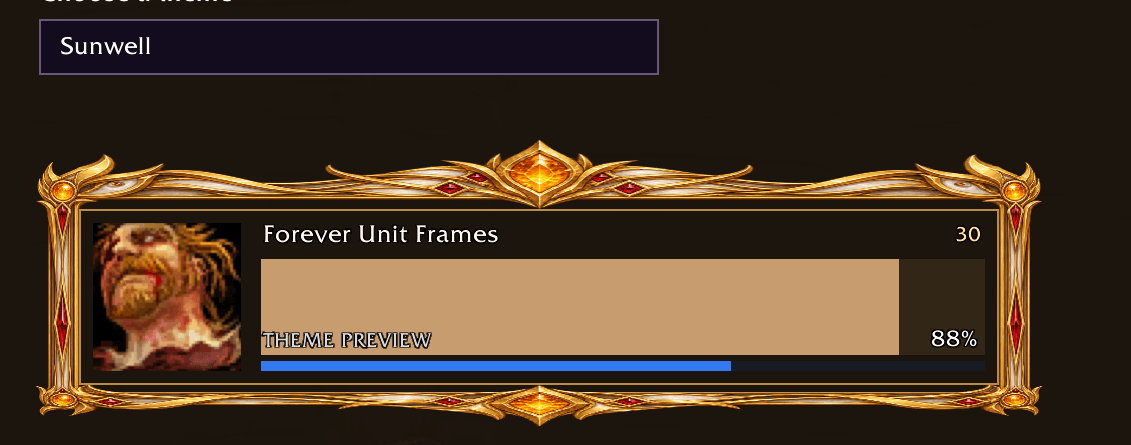
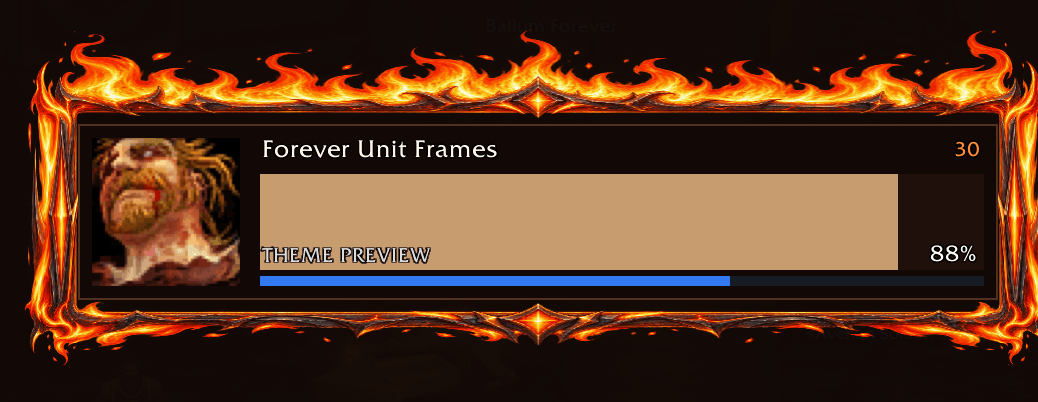
13 visual themes
Choose an understated layout or detailed fantasy borders:
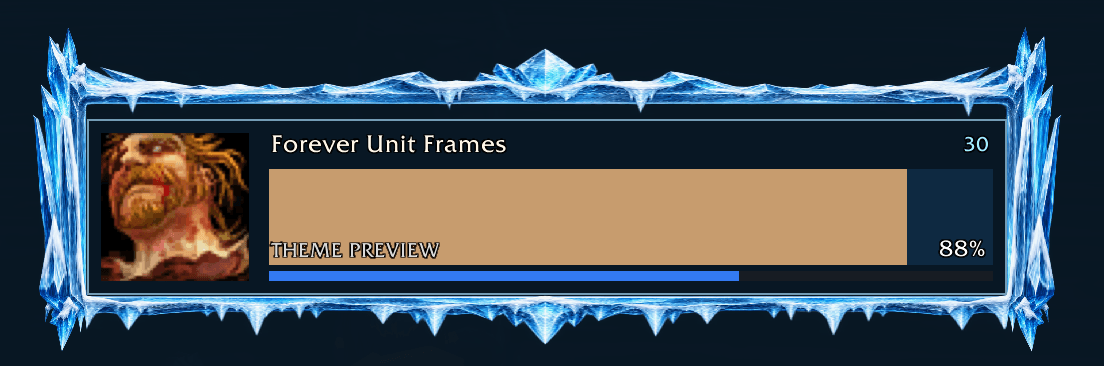
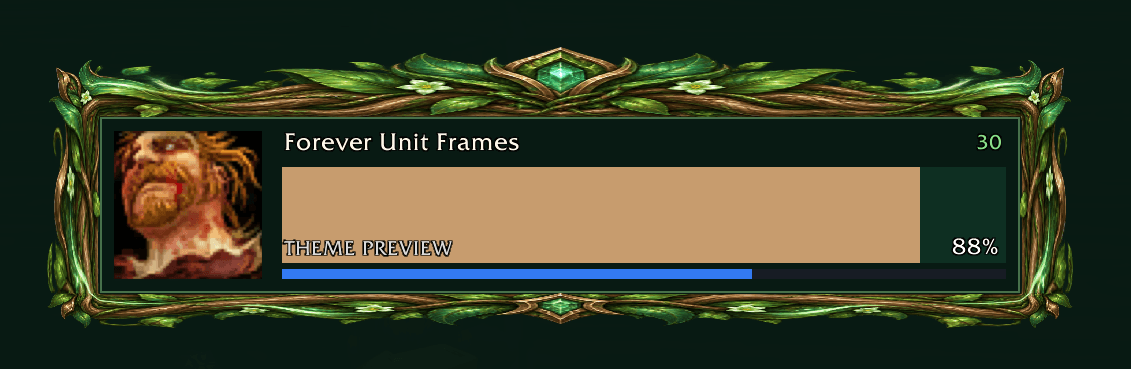
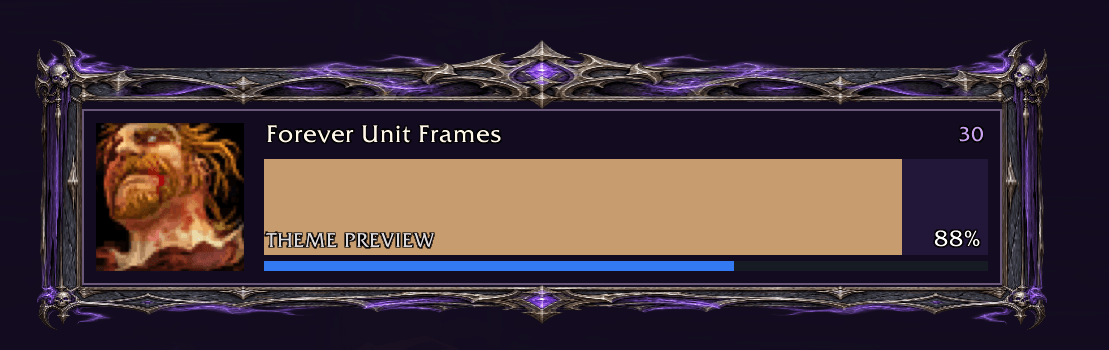
Midnight · Slate · Ember · Molten Core · Frozen Citadel · Emerald Dream · Sunwell · Blackrock · Shadow Crypt · Arcane Sanctum · Stormcaller · Bloodmoon · Ocean Depths
Themes include painted flames, lava, ice, foliage, gold trim, crystals, and other decorative details. Adjust theme intensity and optional glow animation to suit your style.
Buffs and debuffs
-
Optional buffs beneath your player frame.
-
Separate buff and debuff visibility controls for individual and group frames.
-
Adjustable icon sizes and maximum icon counts.
-
Stack counts, remaining-time text, and cooldown swipes.
-
An option to show only your target and focus debuffs.
-
Separate individual/group filters for All, My effects, and Short effects.
-
Dispellable filtering for debuffs your character can remove.
-
Optional sorting that places Blizzard-classified important effects first.
Blizzard’s top-right player buffs remain available. Buffs beneath your player frame are optional.
Dedicated healer aura tracking
Track your selected healing effects and shields beneath player, party, and raid frames.
-
Tracks effects applied by you.
-
Separate healing-effect icons, stack counts, timers, and cooldown swipes.
-
Independent icon-size, icon-count, and visibility controls.
-
Recommended selections for learned ranks of common effects such as Regrowth, Rejuvenation, Renew, and Power Word: Shield.
-
A spell selector for customizing your tracked effects.
The dedicated healing row works even when general group buffs are disabled. Direct heals without a lasting aura do not leave a tracked icon.
Click-casting and mouseover support
Assign learned friendly spells directly to unit-frame clicks.
-
Left, right, middle, and mouse buttons 4 and 5.
-
Shift, Ctrl, Alt, and combined modifier bindings.
-
Options for spell casting, targeting, opening the unit menu, or no action.
-
Bindings saved with your profile.
-
Default left-click targeting and right-click unit menus remain available.
-
Standard mouseover macros work on live unit frames.
Configure bindings outside combat. Normal spell requirements—including range, mana, and line of sight—still apply. Use one click-casting system at a time.
Target and party cast bars
See enemy casts and your teammates’ spells without needing to target each party member.
-
Cast and channel support.
-
Below-frame positioning by default, with an above-frame option.
-
Separate target and party width and height controls.
-
Independent spell-name and remaining-time text sizes.
-
Optional spell icons and countdown text.
-
Visual treatment for readable uninterruptible casts.
-
Sample cast bars in Edit Layout.
Combat and group awareness
-
Incoming heals: a health-bar extension with adjustable opacity.
-
Dispel highlights: visual indicators for debuffs your character can remove.
-
Range fading: dim out-of-range party and raid frames.
-
Two range modes: general group range or selected healing spells.
-
Multiple-spell range checks: keep a frame bright when any selected spell reports the unit in range.
-
Target and focus highlights: independently configurable group-frame outlines and colors.
-
Party threat outlines: orange for insecure aggro and red for secure aggro.
-
Group icons: leader, raid assistant, and raid target markers with adjustable sizing.
Range checks indicate reported spell range; they do not confirm line of sight or whether you have enough mana to cast.
Status indicators
Colored labels display:
-
Offline
-
Incoming resurrection
-
Ghost
-
Dead
-
AFK
-
DND
Each status has its own toggle, with a separate status-text size control. An active status temporarily replaces the role label while keeping health text separate.
Incoming resurrection indicates a pending resurrection reported by the client, rather than guaranteed completion.
Main commands
| Command | Action |
|---|---|
/fif or /fopen |
Open settings |
/fif help |
List commands |
/fedit |
Preview and arrange frames |
/flock |
Save layout edits and lock frames |
/fpreview or /ftest |
Open layout previews |
/ftheme |
Open the theme browser |
/ftheme Sunwell |
Select a theme directly |
/fprofile |
Manage profiles and character copies |
/fparty or /fraid |
Open group settings |
/fbuffs |
Open aura settings |
/fscale 0.8 |
Set overall scale; supported range is 0.6–1.6 |
/fstatus |
Show version, active profile, and aura backend |
/freset |
Open profile reset controls |
Short commands are registered when available. If another addon uses one, use the main namespace—for example, /fif edit or /fif profile.
Installation and compatibility
-
Install the ForeverInterfaceFrames folder into your Forever client’s
Interface\AddOnsdirectory. -
Disable other unit-frame replacements.
-
Open
/fifto configure the addon. -
Use
/feditto arrange your frames, then save your layout.
Layout, profile, and click-casting changes are configured outside combat. Aura configuration changes require /reload. Some indicators depend on information available through the client’s APIs.
Feedback
Forever Interface Frames is actively developed. When reporting an issue, please include your addon version, what you were doing, and the complete Lua error text or a screenshot.
Project Details
Author: Meangean
Official Title: Forever Interface Frames
Search Aliases: foreverinterfaceframes, forever-interface-frames, forever interface frames, foreverinterface, forever-interface, forever interface, foreverframes, forever-frames
Forever Interface Frames Team