Forever Combat Tracker
- By
Forever Combat Tracker displays Damage, Healing, Actions, Fight Anaylsis with Threat Plates and Threat Overview
Screenshot 2026-10-07 002059.png
Description
Forever Combat Tracker
Forever Combat Tracker brings threat monitoring, damage and healing meters, action tracking, and personal fight recording together in one customizable dashboard for World of Warcraft: Forever.
Use it while questing, fighting solo elites, running dungeons, or participating in raids.
Threat Monitoring
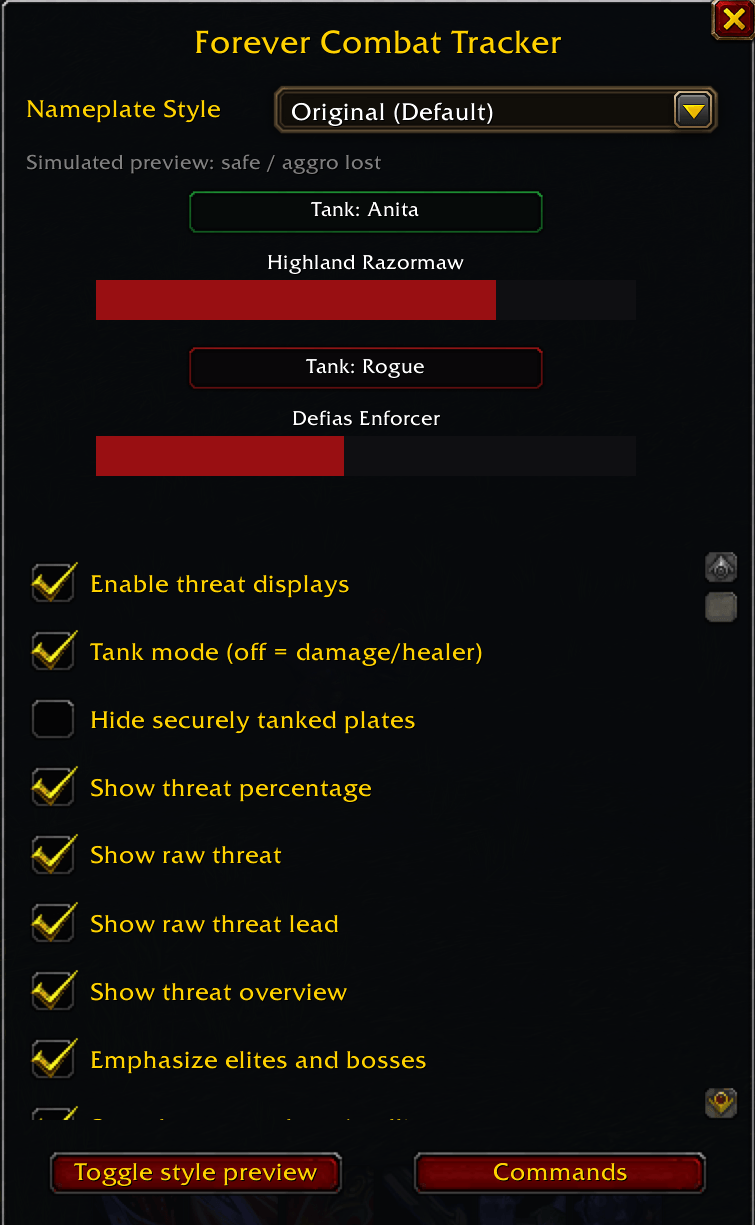
Monitor threat on visible enemies through compact displays above their nameplates and a dedicated Threat overview.
See who is tanking an enemy when threat information is available.
Receive warnings when approaching aggro, pulling threat, or losing aggro.
Choose tank mode or damage/healer mode.
Recognize assigned tanks and manually assign group members as tanks.
Filter displays to enemies engaged with your group, enemies you have engaged, or times when you are in combat.
Adjust nameplate display size and position.
Damage
Select a view from the metric dropdown:
Damage Done
DPS
Damage Taken
Avoidable Damage Taken
Enemy Damage Taken
Healing
Switch between Healing Done and HPS.
Actions
Track Interrupts, Dispels, and Deaths.
Damage, Healing, and Actions use Blizzard’s built-in damage-meter data. A fight dropdown lets you choose the current or last fight, overall totals, or an available recorded fight.
Fight Analysis
Record your successful ability casts and review their order and timing afterward.
View abilities, elapsed timestamps, and cast targets when available.
Start and stop recording with the Record Fight button.
Choose Auto Stop, which waits 10 seconds after combat ends. If combat resumes during the countdown, the same recording continues.
Choose Manual Stop to keep recording between pulls until you stop it.
Save up to 100 recordings, with up to 10,000 casts per recording.
Name or rename recordings for easier reference.
Select saved recordings from a dropdown.
Delete individual recordings or multiple selected recordings with confirmation.
Review long timelines with page controls.
Recording management stays within Fight Analysis, with a Back button to return to the timeline.
Customize Your Dashboard
Move and scale the overview to fit your UI.
Use compact rows to display more entries.
Choose interactive controls or a click-through display.
Use a custom background texture prepared with the optional desktop Background Helper.
Keep your settings and personal recordings between sessions.
The Background Helper is a separate desktop utility and is not included in the CurseForge add-on download.
Getting Started
Type /fct to open settings. Useful commands include:
/fct overview — Toggle the dashboard.
/fct threat — Open the Threat overview.
/fct damage — Open Damage.
/fct healing — Open Healing.
/fct actions — Open Actions.
/fct analysis — Open Fight Analysis.
/fct record — Start recording.
/fct record stop — Stop recording.
/fct tanktarget — Toggle tank assignment for your targeted group member.
/fct interactive on|off — Enable controls or make the dashboard click-through.
/fct os 0.75 — Set the overview to 75% scale.
orever Combat Tracker commands — 0.2.26
All commands support /fct or the legacy /ftp prefix. For example, /ftp analysis works like /fct analysis.
For commands showing on|off, choose either on or off.
Windows and interaction
| Command | Description |
|---|---|
/fct or /fct settings |
Open addon settings. |
/fct help or /fct commands |
Open the in-game command reference. |
/fct overview |
Show or hide the overview window. |
/fct threat |
Open the Threat view. |
/fct analysis |
Open Fight Analysis. |
/fct interactive on |
Enable clicking and interacting with the overview. |
/fct interactive off |
Make the overview click-through. |
Damage, healing, and actions
| Command | Description |
|---|---|
/fct damage |
Show Damage Done. |
/fct damage dps |
Show DPS. |
/fct damage taken |
Show Damage Taken. |
/fct damage avoidable |
Show Avoidable Damage Taken using Blizzard’s classification. |
/fct damage enemy |
Show Enemy Damage Taken. |
/fct healing |
Show Healing Done. |
/fct healing hps |
Show HPS. |
/fct actions |
Show Interrupts. |
/fct actions dispels |
Show Dispels. |
/fct actions deaths |
Show Deaths. |
Explicit forms also work: /fct damage damage, /fct healing healing, and /fct actions interrupts.
Fight recordings and meter history
| Command | Description |
|---|---|
/fct record or /fct record start |
Start a Fight Analysis recording. |
/fct record stop |
Stop recording. If stopped during combat, the spell summary waits until combat ends. |
/fct fights |
List available Blizzard meter fights and their IDs. |
/fct fight ID |
Select a meter fight—for example, /fct fight 8. |
/fct fight current or /fct fight last |
Select the current/last meter fight. |
/fct fight total |
Select overall meter totals. |
Meter fight commands select Blizzard’s meter history, not saved Fight Analysis recordings.
In Fight Analysis, use the window controls to select, rename, or delete recordings; choose Auto Stop: 10s or Manual Stop; and switch between Ability Timeline and Spell Summary.
Enemy nameplate styles
| Command | Description |
|---|---|
/fct nameplates original |
Use the default separate threat box. |
/fct nameplates integrated |
Display tank information within the enemy health bar. |
/fct nameplates twoline |
Display tank/status information below the health bar. |
Style aliases: box and off select Original; two-line selects Two-Line. /fct nameplates off selects Original—it does not disable threat displays.
Threat settings
| Command | Description | |
|---|---|---|
/fct on / /fct off |
Enable or disable threat displays. | |
| /fct tank on | off` | Choose Tank mode or damage/healer mode. |
| /fct group on | off` | Enable or disable the group-engagement filter. |
| /fct personal on | off` | Enable or disable the filter requiring your or your pet’s threat. |
| /fct combat on | off` | Enable or disable showing threat displays only while you are in combat. |
| `/fct unavailable on | off` | Show or hide displays with unavailable threat information. |
| /fct tanks on | off` | Enable or disable recognition of other tanks. |
/fct tanktarget |
Toggle manual tank assignment for your targeted party/raid member or yourself. | |
/fct cleartanks |
Clear manual tank assignments. | |
| /fct quiet on | off` | Hide or show safely tanked displays; brief aggro confirmations remain visible. |
/fct threshold early NUMBER |
Set the yellow warning threshold—for example, /fct threshold early 80. |
|
/fct threshold high NUMBER |
Set the orange warning threshold—for example, /fct threshold high 95. |
|
/fct threshold reset |
Restore the default yellow/orange thresholds of 75%/90%. |
Thresholds use percentage toward pulling aggro. Early must remain below High. Actual aggro changes and unstable tanking status can override percentage warnings.
Size and placement
| Command | Description |
|---|---|
/fct offset NUMBER |
Set the separate threat box’s vertical offset, from −100 to 100. |
/fct scale NUMBER |
Set separate threat box scale, from 0.5 to 2. |
/fct overviewscale NUMBER |
Set overview scale, from 0.5 to 1.5. |
/fct os NUMBER |
Short alias for overview scale—for example, /fct os 0.8. |
Optional diagnostics
| Command | Description |
|---|---|
/fct diag start |
Start live-event diagnostics for up to five minutes. |
/fct diag stop |
Stop live-event collection. |
/fct diag report |
Open the copyable diagnostic report. |
/fct diag clear |
Stop diagnostics and the display test, and clear diagnostic reports. Keeps normal fight recordings and settings. |
/fct diag display on |
Start the display-only target cast-name test. |
/fct diag display off |
Stop and hide the cast-name test. |
/fct diag meter |
Check readable spell breakdowns from the current built-in meter session after combat. |
diagnostic is an alias for diag. /fct diag on and /fct diag off are aliases for diagnostic start and stop. Diagnostics are off by default and do not resume after reloading.
Troubleshooting
| Command | Description |
|---|---|
/fct test |
Toggle simulated Threat overview data. |
/fct debug |
Print client/build information and selected API availability. |
/fct reset |
Restore default settings, position, and manual tank assignments. Preserves recordings and Blizzard meter history. |
Legacy meter equivalents
/fct meter sessions — same as /fct fights. /fct meter session ID — same as /fct fight ID. /fct meter fight — same as /fct fight current. /fct meter total — same as /fct fight total./fct meter reset displays instructions to reset history through Blizzard’s meter controls. /fct avoidable explains that avoidable damage uses Blizzard’s classification.
/fct help or commands — Brings up the list of commands
The list of commands can be found under the settings overview by clicking on the commands button.
Data Availability
Some combat information is restricted by the game client. Meter views depend on Blizzard’s built-in meter being available and enabled; avoidable damage uses Blizzard’s classification.
Fight Analysis records successful player spellcast events. It does not include auto-attacks, damage results, failed or interrupted casts, or other players’ rotations. Restricted information may be omitted, and unavailable targets are labeled accordingly.
Fight Analysis provides a timeline for personal review. It does not automatically score rotations, recommend abilities, or separate boss attempts.
Project Details
- Author: Meangean
- Official Title: Forever Combat Tracker
- Search Aliases: forevercombattracker, forever-combat-tracker, forever combat tracker, forevercombat, forever-combat, forever-tracker, forever tracker, forevertracker
Forever Combat Tracker Team