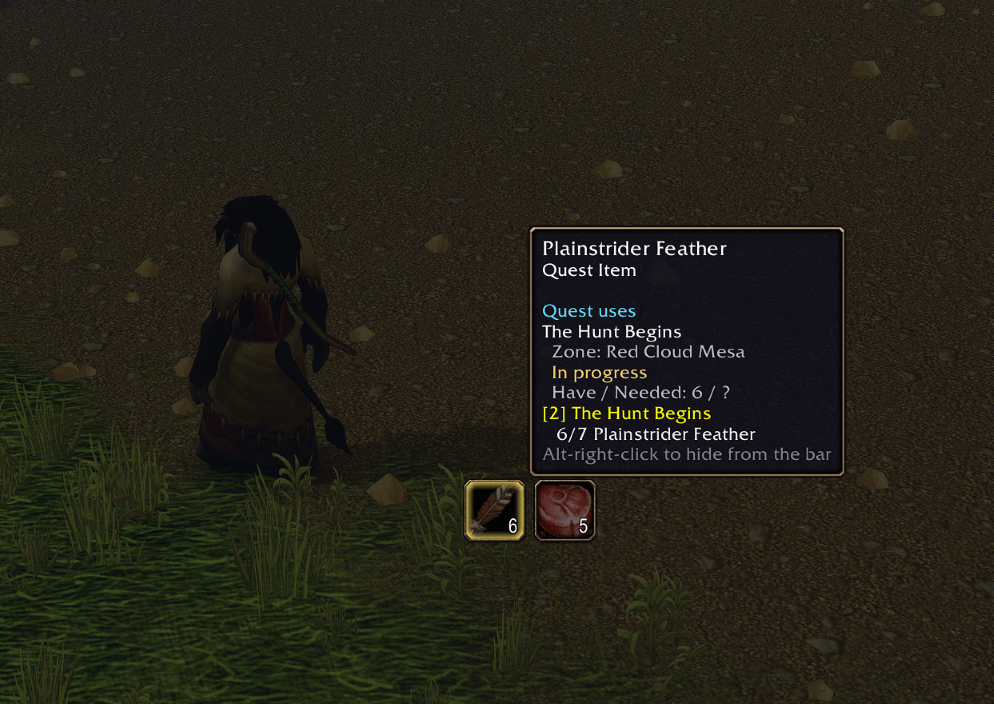
Screenshot 2026-11-07 001029.png
Description

An action bar for your quest items, made for WoW Forever.
Whenever you carry a quest item you can use (the bomb you plant, the totem you place, the letter that starts a quest), a button for it appears on a bar that looks and clicks like one of Blizzard's own action bars. When you have none, the bar is gone.
No more digging through bags mid-fight for the thing the quest wants you to click.
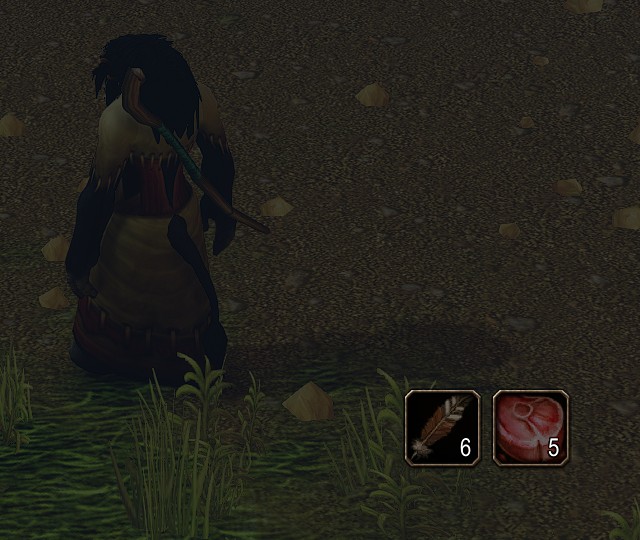
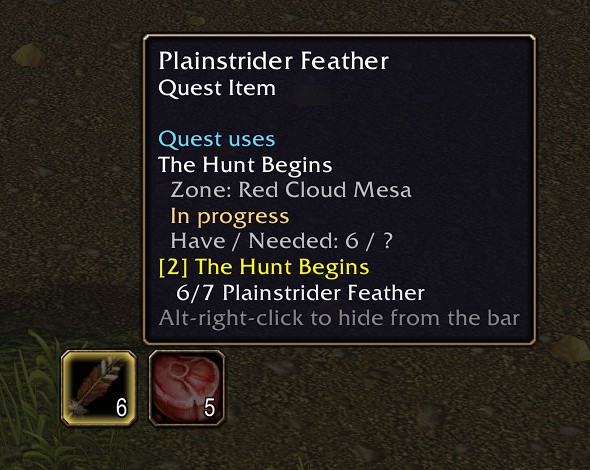
Shown with "Only usable items" turned off. The quest progress in the tooltip comes from Questie.
WoW Forever only (interface 16001). Not built for Retail, TBC Anniversary or Classic Era.
Features
- Automatic. One button per quest item in your bags and quest log. Loot one and its button appears; use the last one and it goes.
- Looks like an action bar. Blizzard's own button art, cooldown swipe, stack count, keybind text and range indicator. The keybind turns red when your target is out of range.
- Keybindable. Up to 12 buttons, each under Key Bindings > AddOns > Forever Quest Item Bar. Respects the Cast action keybinds on key down setting.
- Usable items only, by default. Collect-only drops (pelts, heads, trophies) are left off unless you turn the option off.
- Hide what you don't want. Alt-right-click a button to hide that item.
/fqib unhidebrings them back. - Chat links. Shift-click a button to link the item.
- Works in combat. Clicking and keybinds work in combat. A quest item looted mid-fight gets its button when the fight ends.
Getting started
The first time you log in, the bar is unlocked: a blue handle labelled Quest Item Bar sits below the middle of your screen.
- Drag the handle to where you want the bar.
- Type
/fqib lock. The handle disappears and the buttons become clickable. - Pick up a usable quest item. Its button appears.
Restart the game after installing. A /reload does not pick up a newly installed addon.
Controls
- Click a button: use the item
- Keybind: use the item in that slot (1 = leftmost)
- Shift-click: link the item in chat
- Alt-right-click: hide this item from the bar
- Drag the blue handle (unlocked): move the bar
- Right-click the blue handle: open settings
Slash commands
/fqib or /questbar
/fqib- open the settings/fqib lock- lock the bar so its buttons can be clicked/fqib unlock- show the drag handle so the bar can be moved/fqib reset- move the bar back to its default spot/fqib unhide- bring back every hidden item/fqib help- list the commands
Settings
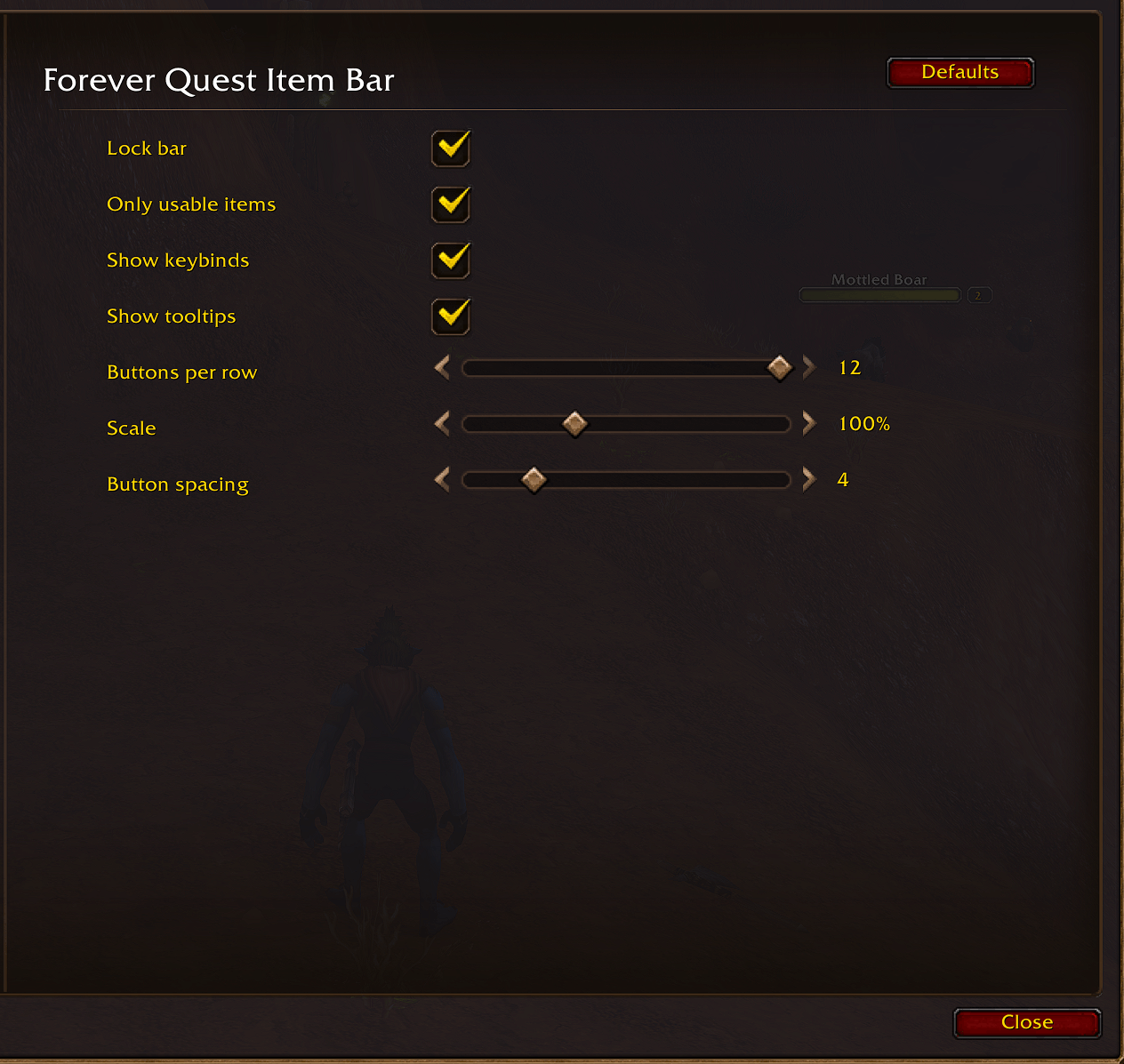
Esc > Options > AddOns > Forever Quest Item Bar, or /fqib.
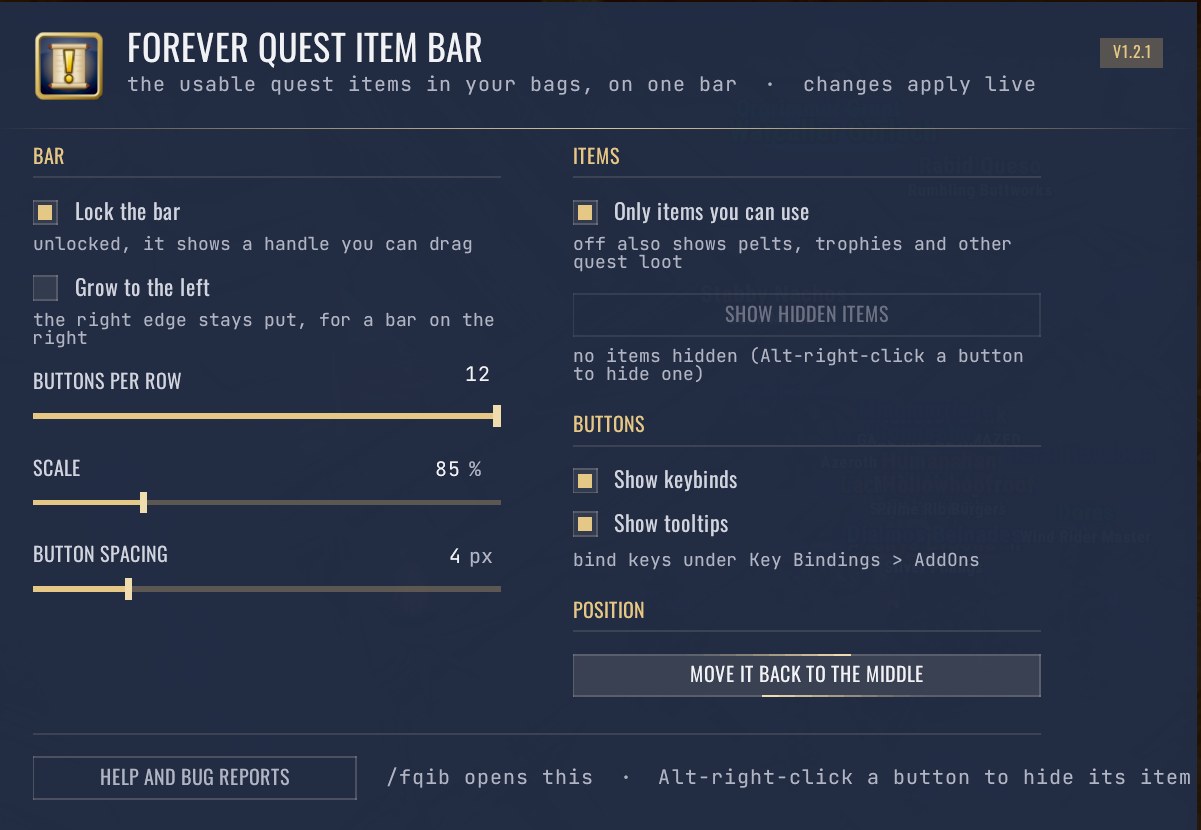
- Lock the bar - hide the drag handle so the buttons can be clicked
- Only items you can use (on) - only items with a Use: effect or that start a quest
- Show keybinds (on) - show each button's bound key
- Show tooltips (on) - item tooltip on mouseover
- Grow to the left (off) - keep the right edge in place and add buttons leftward
- Buttons per row (12) - wrap onto a new row after this many
- Scale (100%) - size of the whole bar, 50-200%
- Button spacing (4) - gap between buttons
The panel has the same look as the other Forever addons. Its header shows the installed version, Show hidden items and Move it back to the middle act on the saved state, and Help and bug reports at the bottom shows the GitHub link, ready to copy.
Troubleshooting
The bar never appears. It only shows when you carry a qualifying item, or while unlocked. Type /fqib unlock: if the blue handle appears, the addon is running and you have no usable quest items. Try turning off Only usable items.
A quest item is missing. It has no Use: effect (turn off Only usable items), you hid it (/fqib unhide), or you looted it in combat (it appears when combat ends). Otherwise, please open an issue with the item's name.
I can't click the buttons. The bar is unlocked. Type /fqib lock.
A button is greyed out. You used the last one in combat; it disappears when combat ends.
Source and issues
Full documentation, source and issue tracker: github.com/paradosi/ForeverQuestItemBar
Forever Quest Item Bar Team