Fogger
- By
Clears the fog in WoW Forever and strips away shadows, grass, rain, bloom, smoke and spell clutter: a clean, sharp picture and high FPS from one small panel.
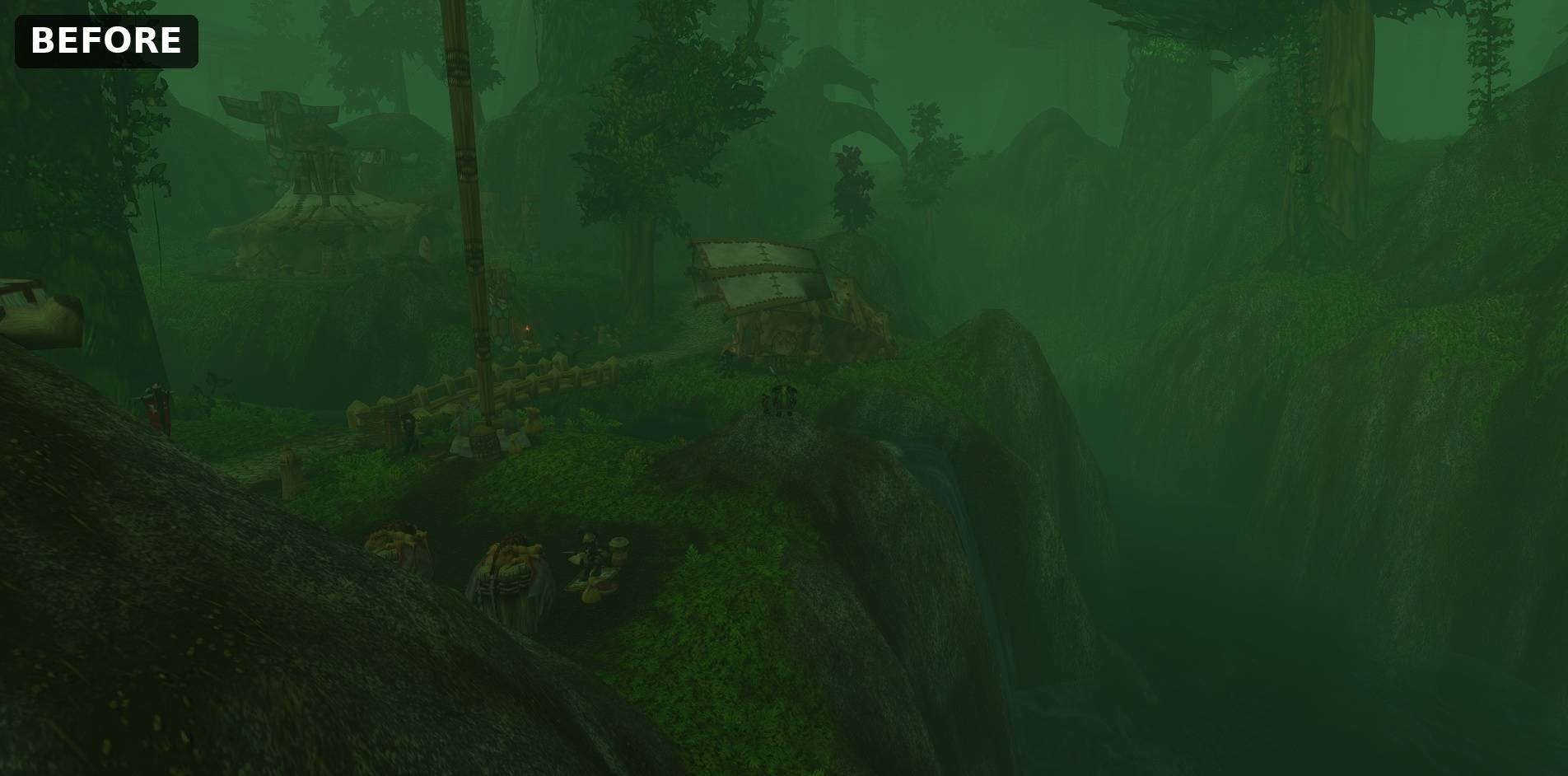
Without Fogger: every graphics setting maxed, the game's own fog.
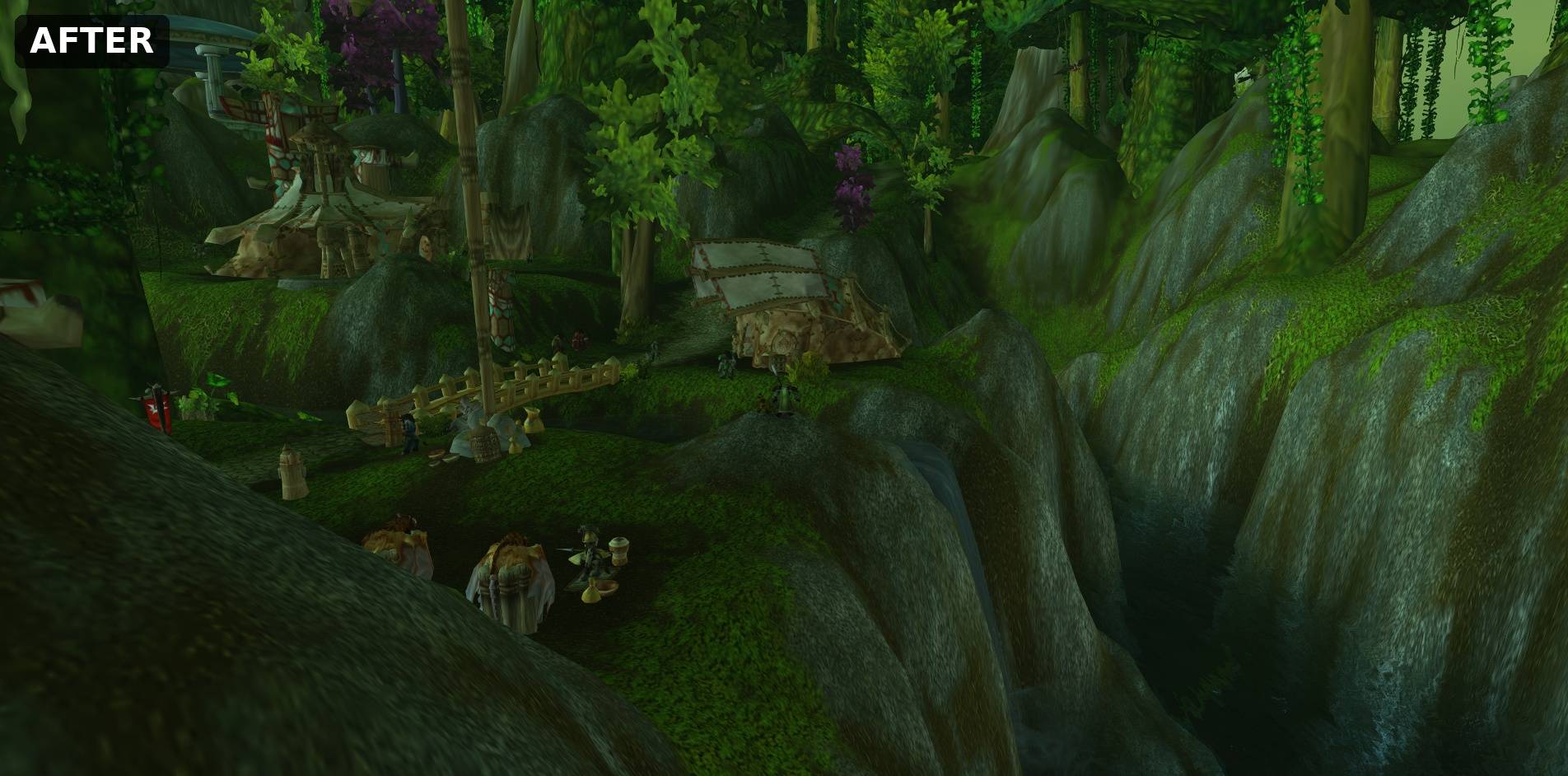
With Fogger: fog cleared, clean and sharp picture for high FPS.
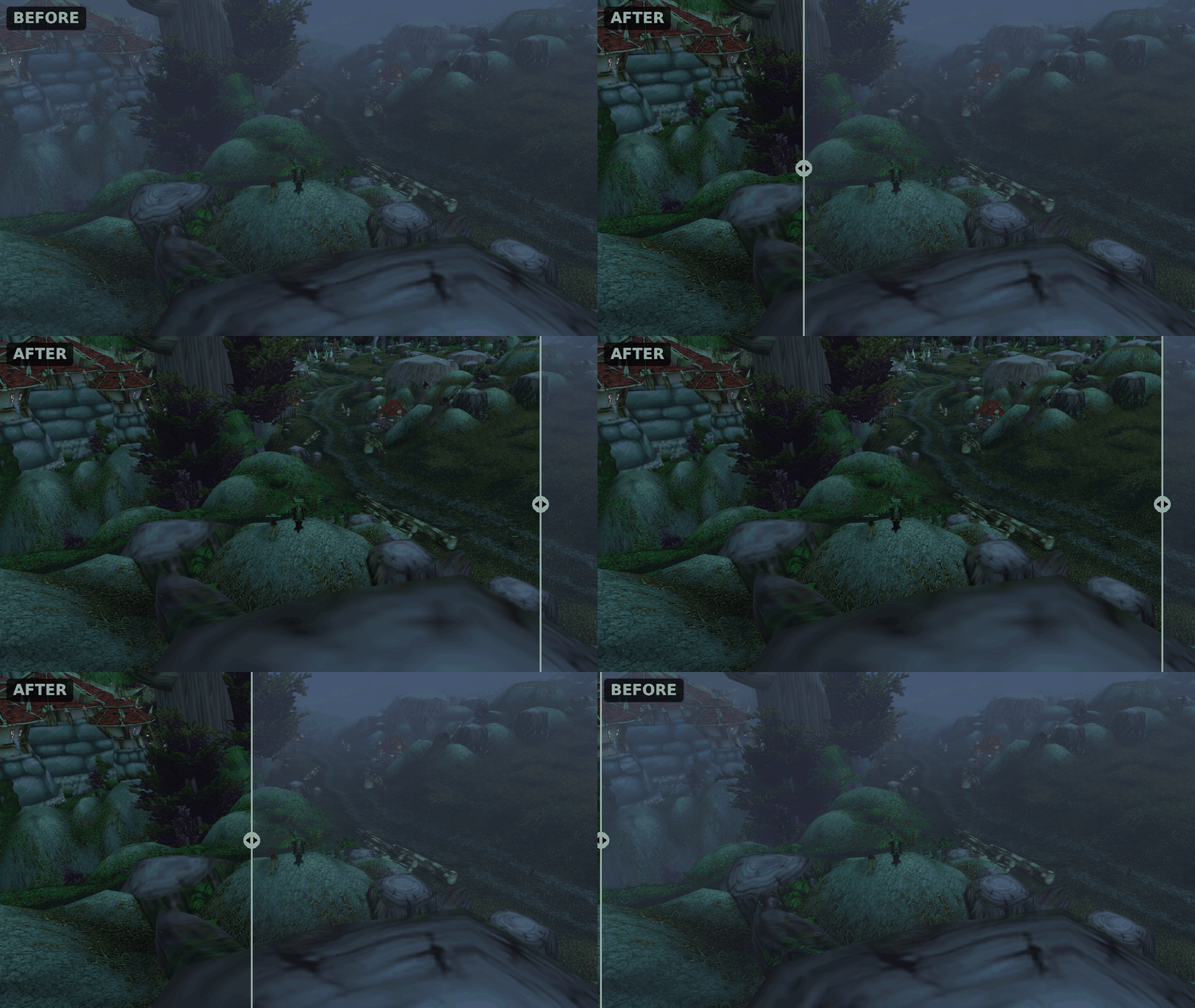
Max graphics with fog vs. Fogger.
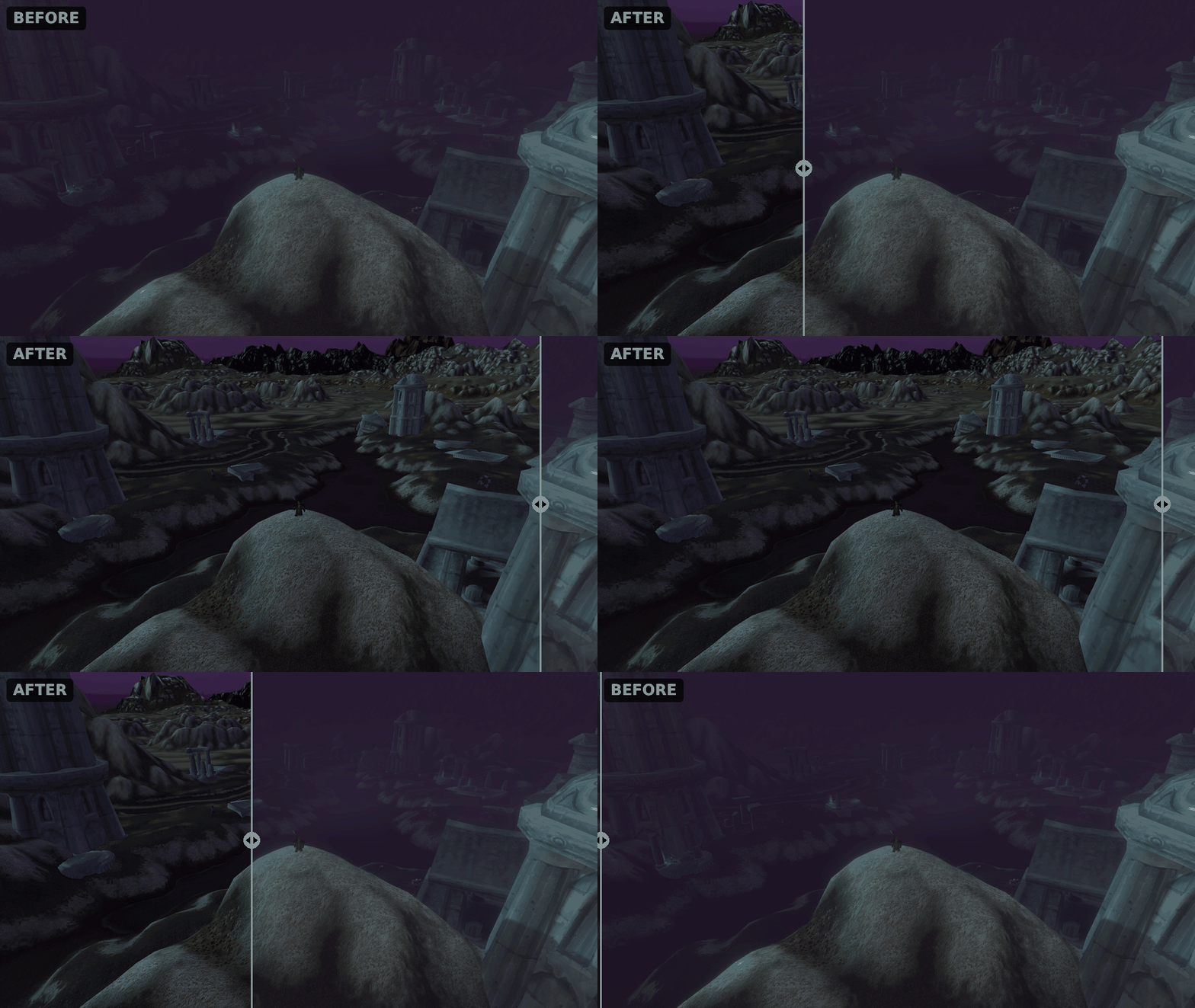
Max graphics with fog vs. Fogger.
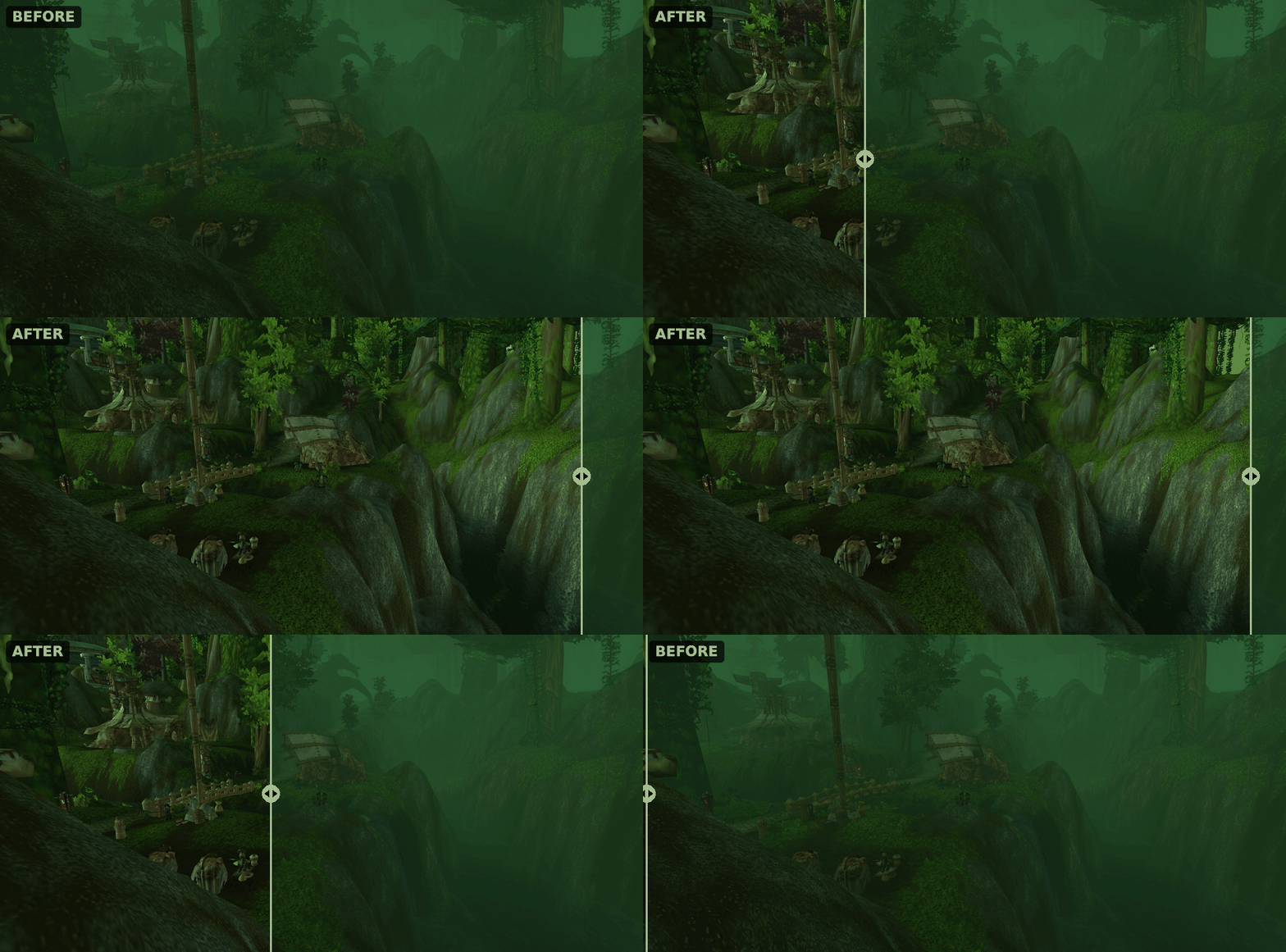
Max graphics with fog vs. Fogger.
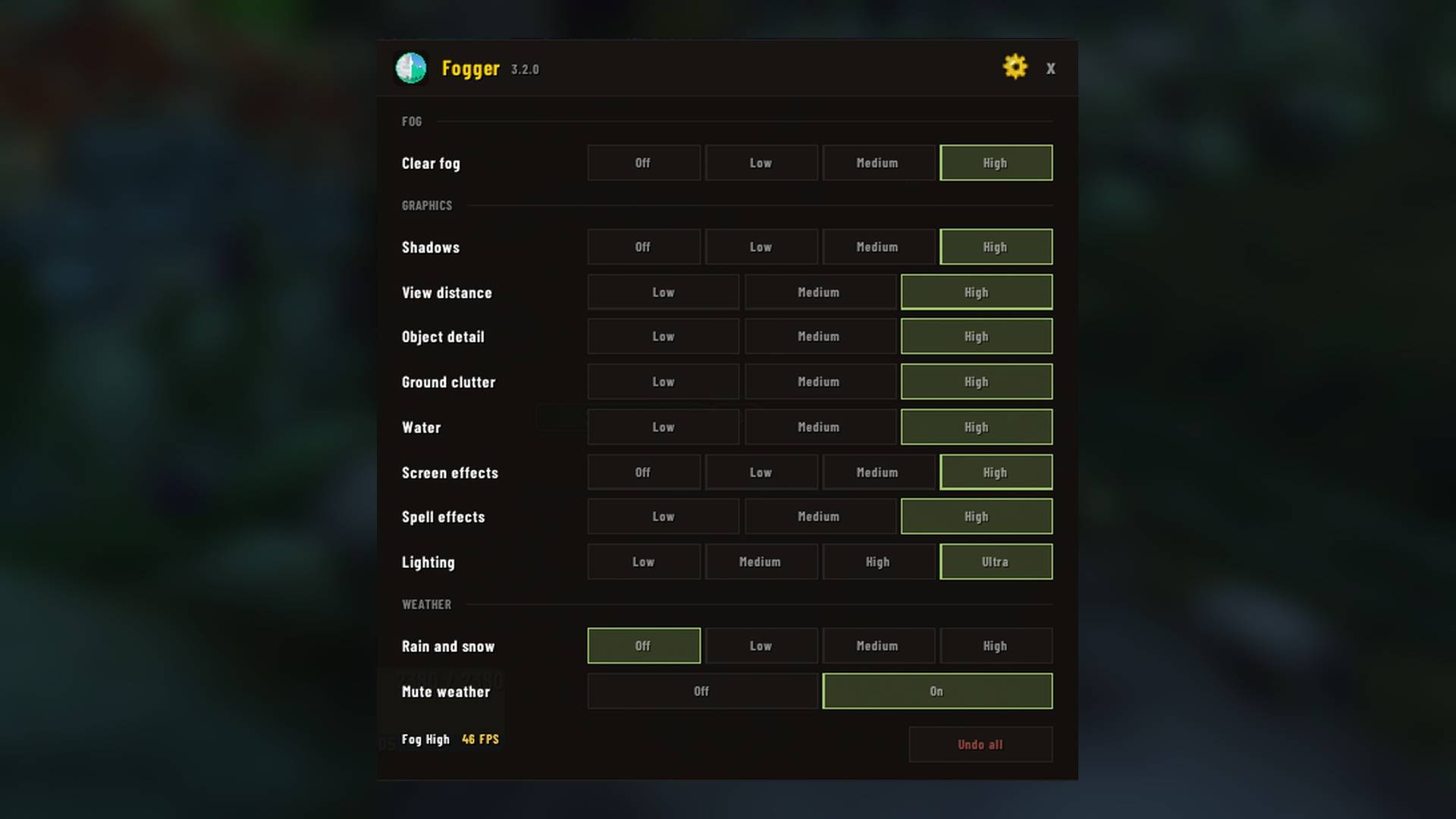
Fog, graphics and weather in one small panel. Type /fg or click the minimap button.
Description
Tired of the green soup in Tirisfal? Fogger clears the fog in WoW Forever and strips away the visual clutter: shadows, grass, rain, bloom, sun shafts, smoke, spell explosions. You get a clean, sharp picture and high FPS, all from one small panel.
Type /fg or click the minimap button. Hover over anything in the panel and it tells you what it does, including every game setting it changes.
Fog
There's no option for the volumetric fog in WoW Forever anymore, so Fogger wipes it every couple of frames before it builds up. That costs a bit of FPS, so you pick how hard it works:
- Off - the game's normal fog
- Low - most FPS, a light haze stays far away
- Medium - clear, small FPS cost
- High - clear and steady, no flicker
If you turn the camera really fast you might see a bit of fog at the edge of the screen for a split second. That's the game drawing the new part of the view; Fogger clears it a frame later.
After every loading screen, fog clearing waits 2 seconds before it starts, so the game can finish setting up its light first.
Graphics
- Shadows - Off / Low / Medium / High
- View distance - how far you see the land and mountains. One of the biggest FPS costs.
- Object detail - rocks, plants, trees and props
- Ground clutter - grass and small plants. An easy FPS win in forests and fields.
- Water - water detail and reflections
- Screen effects - Off turns off sun shafts, glow, bloom, blur, heat haze, ambient occlusion, smoke and flames, the glow of fires and torches on walls, dust in the air, footprints, camera shake, cloud detail and the full-screen colour washes. The cleanest, sharpest picture and the most FPS.
- Spell effects - Low / Medium / High, the game's Spell Density. Low clears up crowded fights, raids and cities.
- Lighting - Low / Medium / High / Ultra. Higher is brighter and more colourful, at almost no FPS cost.
Weather
- Rain and snow - Off / Low / Medium / High
- Mute weather - no rain, thunder, snow or sandstorm sounds
Options
Game Menu > Options > AddOns > Fogger, or the gear button in the panel:
- Panel style - Dark, a flat modern panel that takes EllesmereUI's accent colour when you use it, or WoW Classic, the game's own window frame with red buttons and gold text
- Panel size, opacity, font and text size
- Lock the panel, show or hide the minimap button
Game settings, one by one
For those who want full control: every game setting Fogger works with is on the options page under its own name, each with its own slider. sunShafts, maxLightDist, particleDensity, bloomEnable, graphicsSSAO, giQuality, ShakeStrengthCamera, weatherDensity and many more.
A setting you move there turns gold and stays as you set it, whatever the panel's buttons say. For example, Screen effects Off but sunShafts left on. Right-click it to hand it back to the panel.
Commands
- /fg - open or close the panel
- /fg toggle - fog clearing on or off (also right-click the minimap button, or set a key in Keybindings > AddOns > Fogger)
- /fg off, /fg low, /fg medium, /fg high - set fog clearing
- /fg options - open the options
- /fg help - list everything
Safe to remove
Fogger only touches the settings you pick. Every time you log out or reload, it puts your own game settings back, so you can disable or delete it at any time and the game is exactly as you left it. Undo all in the panel does the same right away.
Run only one fog or graphics addon at a time. Two of them fight over the same settings.
What's new in 3.2
- New logo
- Spell effects and Lighting settings
- Screen effects Off now also removes smoke, flames, firelight on walls, dust in the air, footprints, camera shake and cloud detail
- Two panel styles: Dark and WoW Classic
- Panel opacity, font and text size
- Every game setting on the options page, one by one, with sliders
- Tooltips list every game setting each switch changes
Fogger Team