FlyoutMacros
- By
Horizontal flyout menus for grouping spells, abilities, macros and items inside single action bar slot.
Description
FlyoutMacros
Version 1.7.2 · World of Warcraft Forever beta 1.60.1 · Interface 16001
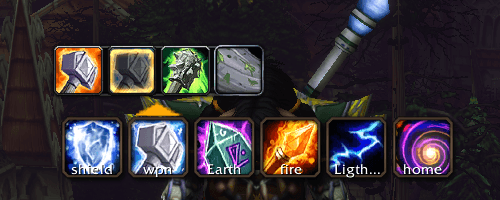
Turn a single action-bar button into a horizontal flyout of spells, spell ranks, and usable items. Choose an entry to make it the macro's active cast, then use your usual action-bar keybind to cast it.
Installation and updating
Extract the archive into the game's Interface/AddOns/ directory. The installed layout should be Interface/AddOns/FlyoutMacros/FlyoutMacros.toc, with the Lua files directly beside it. Replace the existing addon folder when updating, then reload the UI or restart the client. Existing FlyoutMacrosDB settings are retained; no saved-settings reset is required.
Getting started
- Open the macro dialog with
/mand create a macro with a unique name. The picker looks for the dialog as soon as the game loads, so it attaches whenever you first open/m, however long into the session that is. - Type
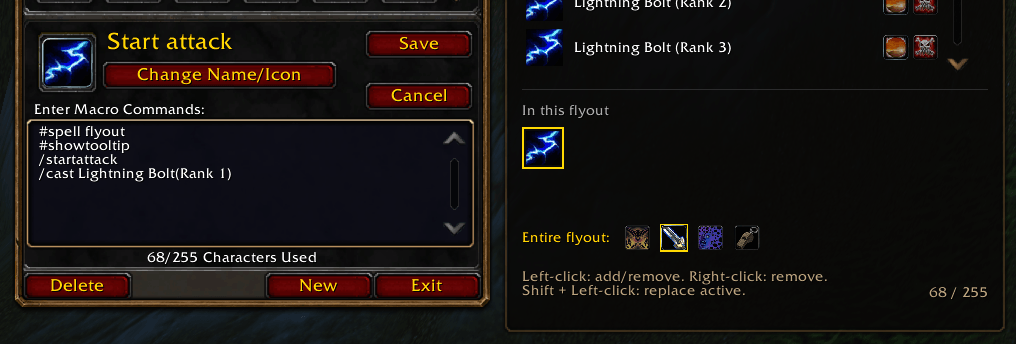
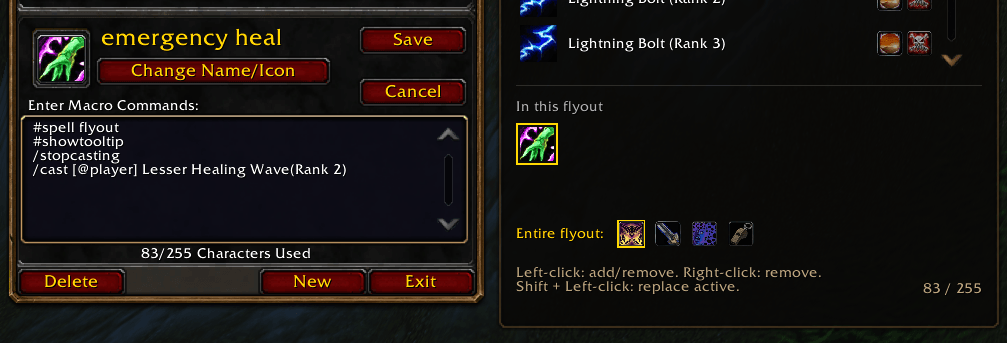
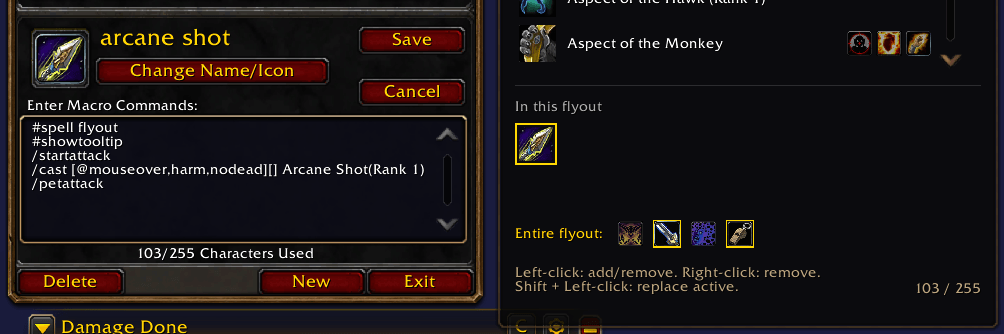
#spell flyouton its first line. The picker opens beside the dialog. - Search and click spells or items to build the flyout, or type cast lines manually.
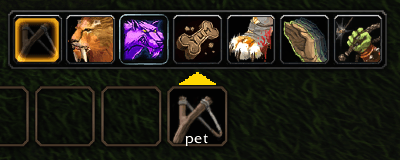
- Place the macro on an action bar. Hover its top edge to reveal the arrow; click the arrow to open the flyout.
- Choose an entry to change the active cast. Cast it with the action-bar button or its keybind. Clicking outside the flyout closes it.
#spell flyout
#showtooltip
/cast Stoneskin Totem
#/cast Strength of Earth Totem
#/cast Earth Shock(Rank 1)
#/cast Hearthstone
Bare #showtooltip follows the active cast. The active /cast entry is written first; alternatives use commented #/cast lines.
Macro picker
The compact panel shows six spell rows and two rows of selected-spell chips. It opens to the right of the macro dialog, or to the left when space is limited.
- Search: filter known spells, profession abilities, and usable items in your bags. Passive spells are omitted. Items appear once you start typing, so an empty search box shows spells only and a full set of bags does not bury them.
- Return with no match: adds whatever you typed, as long as the client recognises it as something castable. Useful for an item ID or an item you have banked rather than carried.
- Left-click a row: add the spell or item, or remove it if already included.
- Right-click a row: remove it.
- Shift + Left-click a spell row: replace the active spell while keeping the other alternatives. Choosing an existing alternative avoids duplicates. The old spell's targeting preset is cleared; shared commands remain. Doing this on an item row does nothing.
- Left-click a selected chip: make it the active cast, marked in gold.
- Right-click a selected chip: remove it. The last entry cannot be removed.
- Scroll: use the mouse wheel or scrollbar.
- Return: add the first search result, or the text you typed if nothing matched. Escape: clear the search, then release focus.
Ranked spells offer a bare-name maximum-rank entry and individual rank entries when the client supplies rank information. Individual ranks are written as Spell Name(Rank 1). Bare names let the client choose the highest learned rank.
Items
Food, drink, potions, Hearthstone and anything else the client reports as usable can be added to a flyout like any spell. /cast Hearthstone is an ordinary cast target, so items resolve their icons and tooltips in the flyout the same way.
Items come from your bags, so the list is what you are actually carrying. Each item appears once however many stacks you hold. Items the client reports as unusable are left out — but if that filter would leave you with nothing, it is ignored rather than believed, and everything in your bags is offered. An item the client cannot supply a name for is also left out, since a nameless row could not be found by searching; type its name into the search box and press Return to add it.
Items have no targeting modes — there is no spell to aim — so they carry no targeting icons, and Shift-clicking an item row does nothing.
Item names are longer than spell names and macros are limited to 255 bytes. The byte counter in the corner shows what a long flyout of items costs.
Targeting icons
Hover the small icons beside a spell for an explanation. Click one to apply its targeting mode and add the spell if needed. A gold outline marks the enabled mode; click it again to restore normal targeting. Each spell has one mode.
| Spell type | Available targeting modes |
|---|---|
| Helpful ranged spells | Friendly mouseover, self-cast, friendly target-of-target |
| Harmful ranged spells | Enemy mouseover, enemy focus |
| Helpful and harmful ranged spells | Both sets of choices |
| Recognized resurrection spells | Dead-friendly mouseover |
| Recognized ground-placement spells | At cursor, at your feet |
Mouseover and focus modes fall back to normal casting when their conditions do not match. A valid but out-of-range unit does not trigger fallback. Target-of-target has no normal-target fallback. Ground-placement modes skip the usual placement click. Profession UI spells and spells without applicable targeting have no preset icons. Modifier-key casting presets are not included.
Entire flyout options
The controls below the selected spells apply to every spell in this flyout:
- Stop casting first: interrupt the current cast before casting.
- Start attacking: start melee auto-attacks even if the spell cannot fire.
- Preserve channels: do nothing while channeling to prevent clipping.
- Pet attack: send the pet to attack the current target; it does not follow the spell's mouseover or focus target.
- Prevent toggle-off: add
!to prevent supported toggle abilities from switching off on repeated presses.
Stop casting and Preserve channels are mutually exclusive in the picker. Hand-written per-spell ! markers are preserved; switching the shared toggle off clears those markers throughout the flyout.
Saving and macro space
Changes save immediately. Targeting and shared commands are stored in the macro text and survive spell selection, reloads, and normal addon formatting. The byte counter turns amber near the 255-byte limit. Oversized generated macros are rejected; failed picker saves restore the saved state. Picker editing and flyout opening are unavailable during combat.
Action bars and settings
Standard action bars are detected automatically. For replacement bars, enable Find action bar addon buttons in /fm options, or run /fm scan on. This optional scan is off by default and remembered across reloads. It finds globally registered action buttons; entirely local buttons are not supported.
Arrows are also re-checked periodically, so one that goes missing for a reason no action bar event covers reappears on its own. A button that briefly stops reporting an action — which replacement bars do during drags and page changes — keeps its arrow rather than losing it.
/fm options opens the normal AddOns settings page. It contains the optional bar scan, its status, the login-reminder preference, and popup hover controls: animation, steady glow/backing, pulse minimum/maximum, and speed. Changes save automatically. Restore hover defaults leaves the scan preference intact.
Settings are account-wide in FlyoutMacrosDB. WoW writes them to the account's SavedVariables directory on normal logout or reload. Scan changes requested in combat save immediately and update arrows when combat ends.
Commands
| Command | Purpose |
|---|---|
/fm options |
Open AddOns settings for FlyoutMacros |
/fm scan on / /fm scan off |
Enable or disable replacement-bar scanning |
/fm scan |
Show saved scan choice and collection status |
/fm bars |
Report detected buttons, flyout macros, arrows, and any arrow lost and why |
/fm spells |
Report picker attachment, spell and item counts, ranks, and layout |
/fm dialog |
Report macro-dialog discovery and attachment failures |
/fm debug [cast target] |
Report spell/item icon resolution; omit the target to inspect flyouts |
/fm hover |
Show popup hover values |
/fm hover dim|low|high|dark|backlow|backhigh <0–1> |
Adjust glow/backing values |
/fm hover speed <0–6> |
Set pulse cycles per second |
/fm hover pulse on|off |
Toggle hover animation |
Several hover values can be set together, for example /fm hover low 0.2 high 0.9 speed 1.2. Values are clamped and pulse bands stay ordered.
Limitations and compatibility
- Targets Forever beta 1.60.1, not a blanket Retail or Classic compatibility claim.
- The picker rebuilds the macro body. It preserves supported targeting prefixes and the shared commands above; unrelated custom commands are not retained.
- Semicolon-based cast branches are excluded from automatic flyout detection and rewriting. The picker reports that they require manual editing.
- The picker lists known spells, profession abilities, and items in your bags. An item whose name matches a spell resolves to the spell's icon and tooltip, since the client's own name lookup cannot tell them apart. The
/castline still works as the game resolves it. - Resurrection and ground-placement recognition use a limited spell-ID list, matched by localized name to cover learned ranks. Unlisted spells may lack these icons.
- UI layout has received in-game user feedback. Lua syntax and focused mock checks cover saving and switching behavior, the arrow-removal paths, the self-heal, the picker waiting for the macro dialog indefinitely, the item source, and the typed-name fallback. The 1.7.0 changes were verified in game: item search, the picker attaching after a long session, and arrow hover all confirmed working. Actual targeting/casting, combat taint, and every replacement-bar combination remain unverified.
- The item list depends on the client exposing its containers and naming the items in them. On Forever 1.60.1 the containers return ids but no names, so names come from the item database; an item nothing can name is left out and counted rather than listed.
- That client also reports no usable-item flag, so the usable filter falls back to item class. This may include items that cannot actually be cast, which would show a question mark in the flyout and do nothing. If you hit one, it can still be removed like any other entry.
- The item list refreshes on
BAG_UPDATE, which is the bag event this client has. More specific bag events are asked for and quietly skipped if the client does not have them;/fm spellslists any it refused.
For a missing arrow, run /fm bars — it lists any arrow lost since login and why. For a picker that never appears beside /m, run /fm spells: it says whether the picker is still looking for the dialog or attached, and how many polls that took. /fm dialog reports macro-dialog discovery and any attachment failure.
For an empty picker, or items not appearing, run /fm spells with the macro dialog open: it reports how the bag walk went, including items found but not listed.
License
All Rights Reserved © 2026 Morpster
FlyoutMacros Team