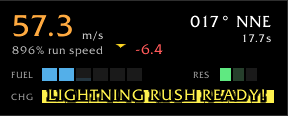
FlightTools Screenshot - Lightning Rush Ready!.png
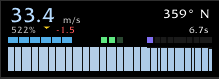
FlightTools Screenshot - Minimal Interface 01.png

FlightTools Screenshot - Minimal Interface 02.png
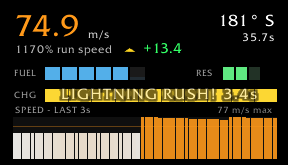
FlightTools Screenshot - Lightning Rush.png
FlightTools Screenshot 01a.png
Description
Hox FlightTools
Flight instruments for Skyriding.
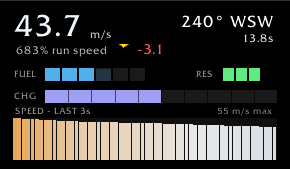
Hox FlightTools gives you a cockpit-style heads-up display while skyriding, replacing guesswork with real numbers. Every instrument updates 20 times per second and appears automatically when you launch into a glide no buttons to press, nothing to toggle. When you land, it fades away.
Airspeed
Your true skyriding speed, displayed as a large number in yards per second or meters per second. The readout shifts color as you fly: blue at low speeds, white through the midrange, and orange once you cross the momentum threshold where abilities like Thrill of the Skies activate. Below the speed, your current velocity is expressed as a percentage of base run speed, giving you an intuitive sense of scale 500% means you're covering ground five times faster than running.
A trend indicator sits alongside the speed, showing whether you're accelerating or decelerating and by how much. A green arrow with "+12.3" means a dive is paying off; a red arrow with "-4.1" means you're bleeding momentum. When speed is stable, it reads "steady." The trend is computed over a two-second rolling window, so it reflects what's actually happening rather than reacting to every micro-fluctuation.
Speed History Graph
A sparkline across the bottom of the HUD plots your speed over the last three seconds, sampled continuously. Each bar is color-coded using the same blue-to-orange scale as the main readout. A faint orange reference line marks the momentum threshold, so you can see exactly when a dive pushes you past it and how long you hold it. The graph auto-scales to your peak speed and labels the current maximum.
This is the instrument that makes dive-and-climb technique visible. You can watch the curve rise as you pitch down, see how high it peaks, and track exactly how quickly speed bleeds off as you climb back up. Over time, it trains your instincts you start to feel the rhythm of efficient porpoising before you consciously read the numbers.
Vertical Speed
A climb and sink rate indicator, derived from your real 3D position in the world. When you're gaining altitude, a green arrow shows your climb rate; when diving, an orange arrow shows your descent rate. When flying level, the indicator disappears (in minimal mode) or reads "level" (in full mode), keeping the display clean when there's nothing to report.
Heading
A compass readout showing your bearing in degrees plus a cardinal direction for example, "042° NE" or "177° S." Useful for maintaining a heading during long cross-zone flights, coordinating with party members, or simply orienting yourself after a disorienting dive sequence.
Flight Resources
Three resource trackers sit between the speed readout and the graph, giving you at-a-glance awareness of your skyriding economy without looking away from the world.
Fuel tracks your shared flight points for Surge Forward and Skyward Ascent, displayed as blue pips. When a charge is regenerating, the next pip fills progressively so you can time your next boost. The pip count adapts to your actual maximum rather than assuming a fixed number.
Reserves tracks Second Wind charges as green pips your emergency refuel. Knowing exactly how many you have left prevents the sinking feeling of hitting the button and finding it empty.
Charge tracks Static Charge stacks on a segmented bar that shifts from purple to electric blue as it builds toward ten. When it reaches full charge and Lightning Rush becomes available, the bar flashes gold and displays "LIGHTNING RUSH READY!" in pulsing text unmissable even in peripheral vision. While Lightning Rush is active, the bar switches to a white-hot flash with a live countdown of the remaining duration, so you know exactly how long your burst lasts.
Flight Debrief
When you land, a summary prints to chat: flight duration, total distance travelled, average speed, maximum speed, and that maximum expressed as a percentage of run speed. Hops under three seconds are ignored so you don't get spammed jumping around a quest hub.
Your all-time maximum flight speed is saved between sessions. The moment you exceed it mid-flight, a raid-warning-style banner appears at the top of your screen with the classic raid warning sound "NEW MAXIMUM FLIGHT SPEED!" and your landing summary notes the previous record you just broke. It's a small thing, but chasing your own record turns a commute into a game.
Minimal Interface
A compact mode that keeps every instrument live but shrinks the HUD to roughly half its footprint. The speed, run-speed percentage, trend, and heading share a single top line. Resources compress into a thin horizontal strip with no labels the colors are the labels at that point. The graph shortens to a slim sparkline. The "level" indicator disappears entirely; vertical speed only appears when you're actually climbing or diving.
Minimal mode is ideal for players who want the data without the real estate, for smaller monitors, or for pairing with the follow-player anchor that keeps the HUD near your character.
Configuration
Accessible from /hox config or the game's AddOns options panel. Every setting applies immediately, and a "Show Flight Tracker" checkbox holds the HUD open so you can see changes as you make them.
Display: toggle between minimal and full interface, metric or imperial units (meters/yards throughout the entire addon, including the chat summaries), and independently show or hide the speed graph and resource trackers. The HUD frame shrinks to fit whatever combination you choose.
Chat: toggle the landing flight summary and the speed record announcements independently. Records are still tracked silently even with announcements off.
Position & Size: lock or unlock the frame for dragging, follow-player anchoring (attaches near your character), position presets (Center High / Center / Center Low), HUD scale from 50% to 300% with a text box for exact values, and background opacity. Scale changes preserve the frame's center position rather than drifting toward an anchor point.
Part of the Hox Suite
Hox FlightTools integrates with HoxCore, the minimap launcher for the Hox addon family. When HoxCore is installed, FlightTools appears in the drawer and its options are one click away. FlightTools works perfectly standalone HoxCore is optional.
Commands
/hox config- open the options panel/hox lock/unlock- lock or unlock the frame for dragging/hox reset- reset position to default/hox demo- show the HUD for 10 seconds while on the ground/hox show/hide- enable or disable the HUD/hox record- view your saved max flight speed record/hox record reset- clear the record
The Flight Tools Team