Enhanced Widget Control for ElvUI
- By
EWC-Before-After-Comparison.jpg
EWC-Screenshot-Widget-Gallery-Under-2MB.jpg
EWC-Screenshot-Selected-Widgets.png
EWC-Screenshot-Global-Style.png
EWC-Before-Under-2MB.jpg
EWC-After-Under-2MB.jpg
EnhancedWidgetControl-Banner.png
EnhancedWidgetControl-Icon.png
Description
Enhanced Widget Control for ElvUI
Enhanced Widget Control is an ElvUI plugin that gives you extensive control over Blizzard widget status bars, including widgets displayed on nameplates and in other supported Blizzard widget containers.
Create one consistent global appearance for all supported widgets, then use optional per-widget overrides whenever a specific widget needs a different size, position, font, texture, color, or layout.
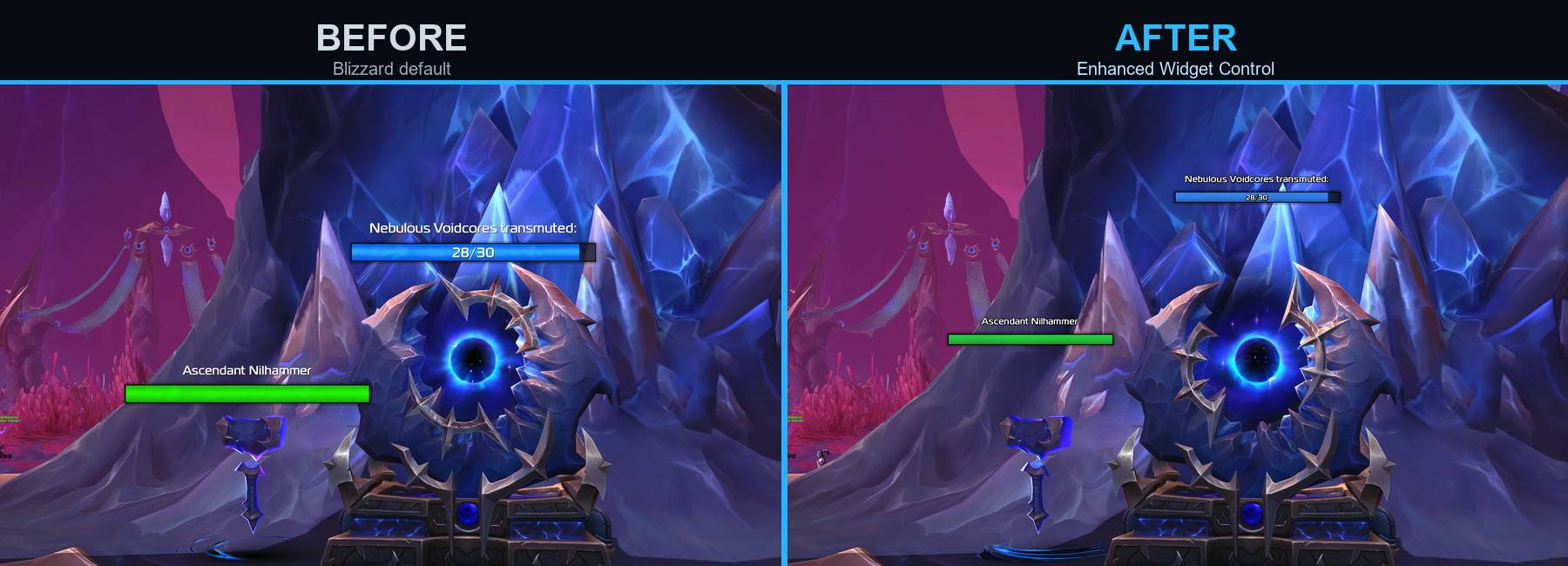
Before and After
Enhanced Widget Control lets you transform ElvUI's default widget appearance into a layout that better matches your personal interface.
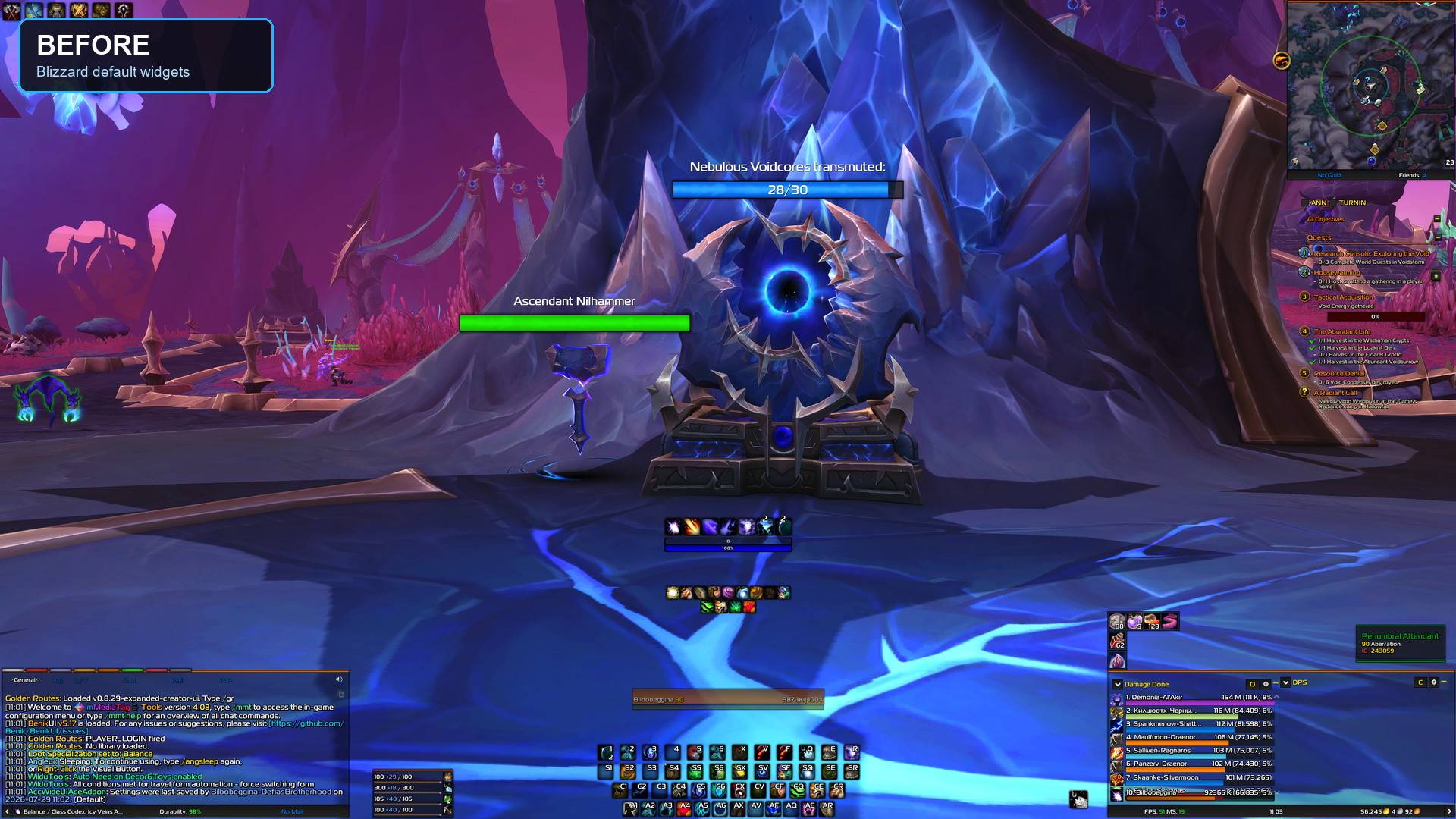
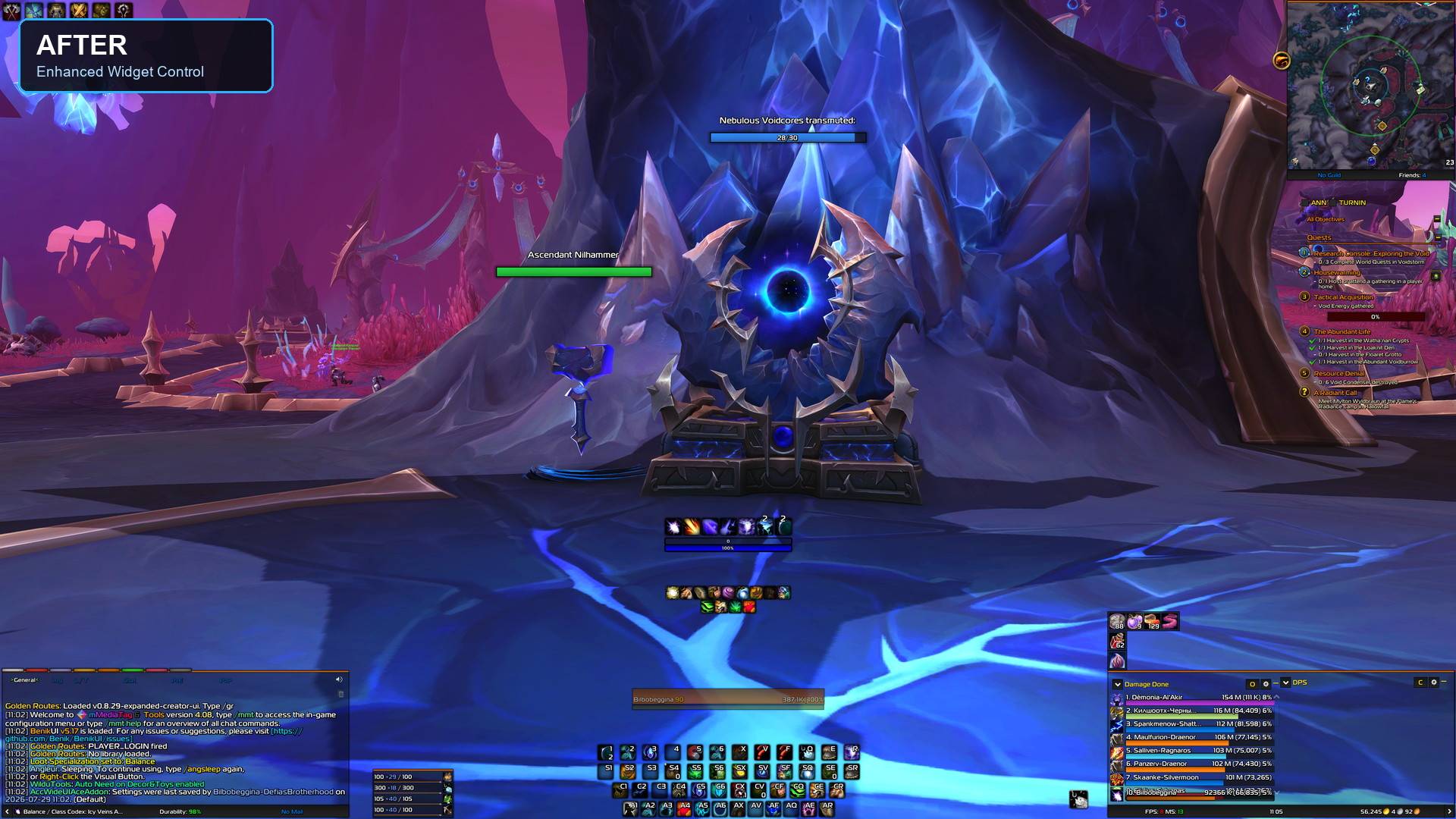
The example below uses the included EWC Default preset. The widgets have been resized and repositioned, with adjusted bar dimensions, typography, texture, and spacing.
The final appearance is fully customizable—you are not limited to the style shown here.
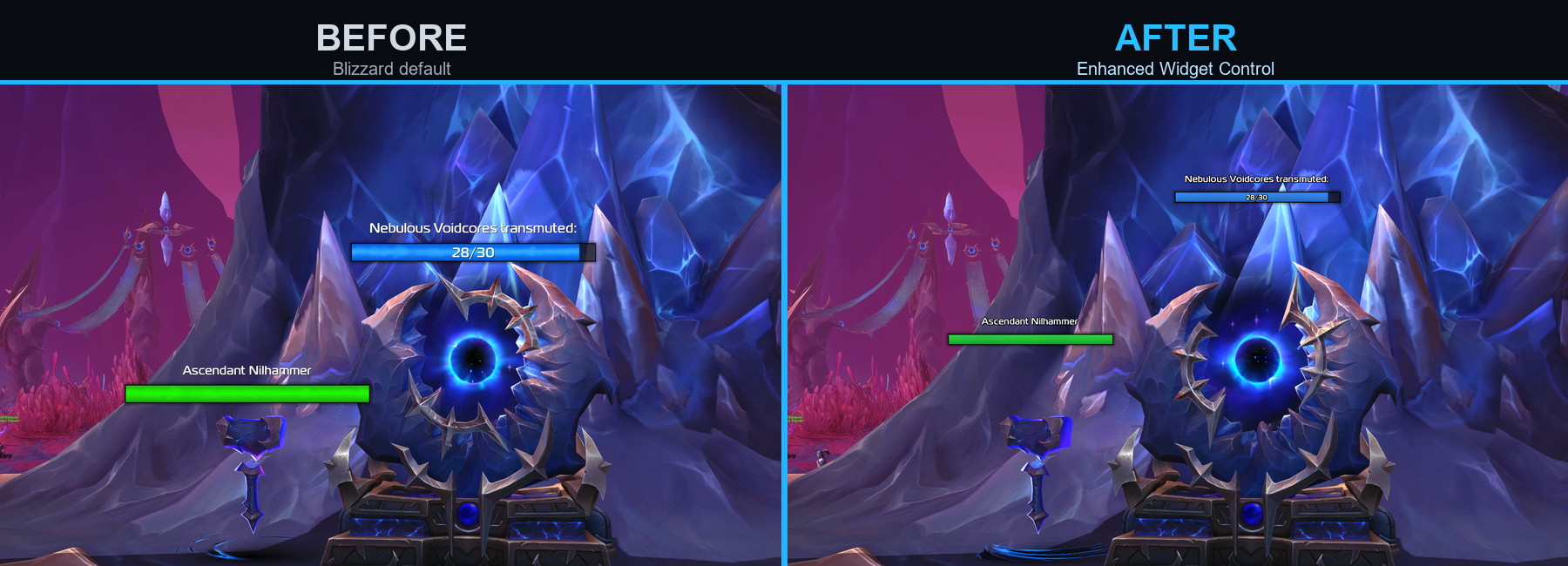
Before: ElvUI's default widget appearance
After: Widgets customized with the included EWC Default preset
Features
- Integrated directly into the ElvUI settings
- Automatic detection of supported Blizzard widgets
- Global styling applied to all widgets by default
- Optional per-widget overrides
- Adjustable bar width, height, and scale
- Custom status-bar textures with visual texture previews
- Optional custom bar, text, background, and border colors
- Preserves Blizzard's original widget colors when custom bar color is disabled
- Adjustable font, font size, outline, and text color
- Optional independent styling of value text
- Independent positioning of the complete widget, bar, title text, and value text
- Anchor selection with X/Y offsets
- Adjustable opacity, backgrounds, and borders
- Draggable 1:1 widget gallery preview
- Built-in and personal presets
- Copy settings between detected widgets
- Search, favorites, custom names, and widget categories
- Separate import and export tools for globals, presets, and widgets
- Automatic backups before imports
- Cleanup and ignore tools for unused widgets
- Combat-safe position updates
Global Styling
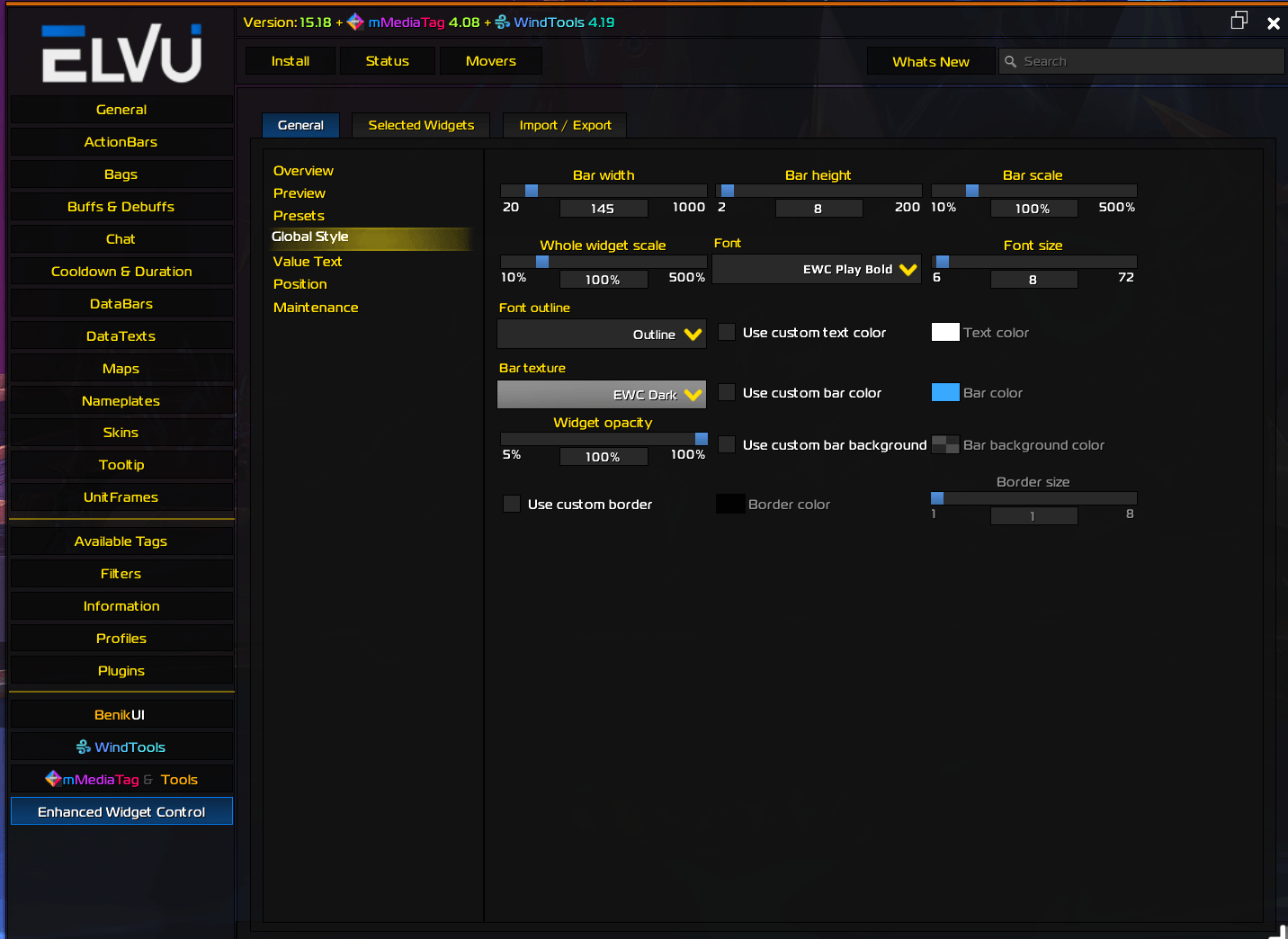
Configure the appearance shared by every supported widget from one place. This includes bar dimensions, scale, font, texture, colors, opacity, background, border, and positioning.
Individual widgets continue using these global settings unless their personal override is explicitly enabled.
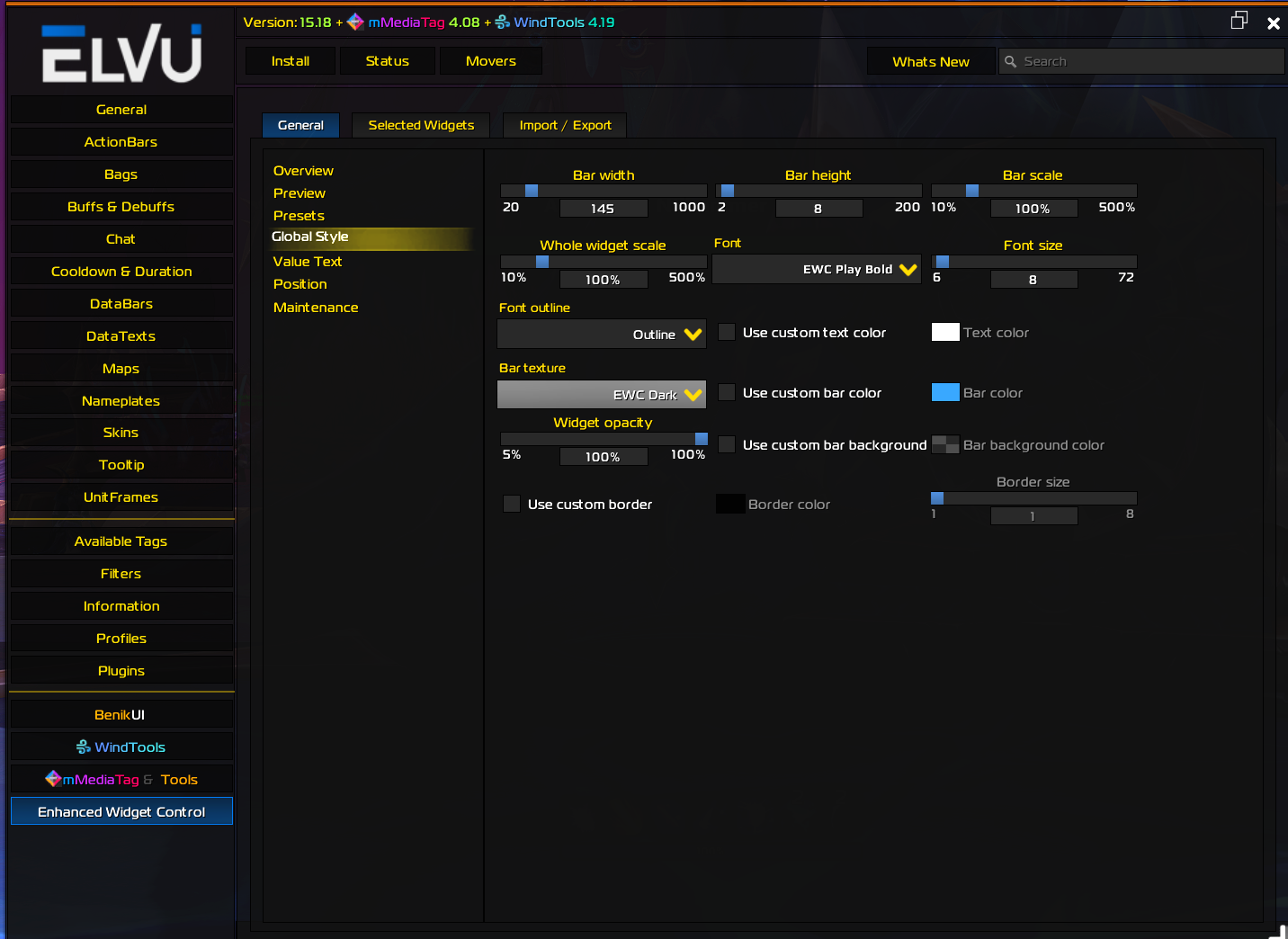
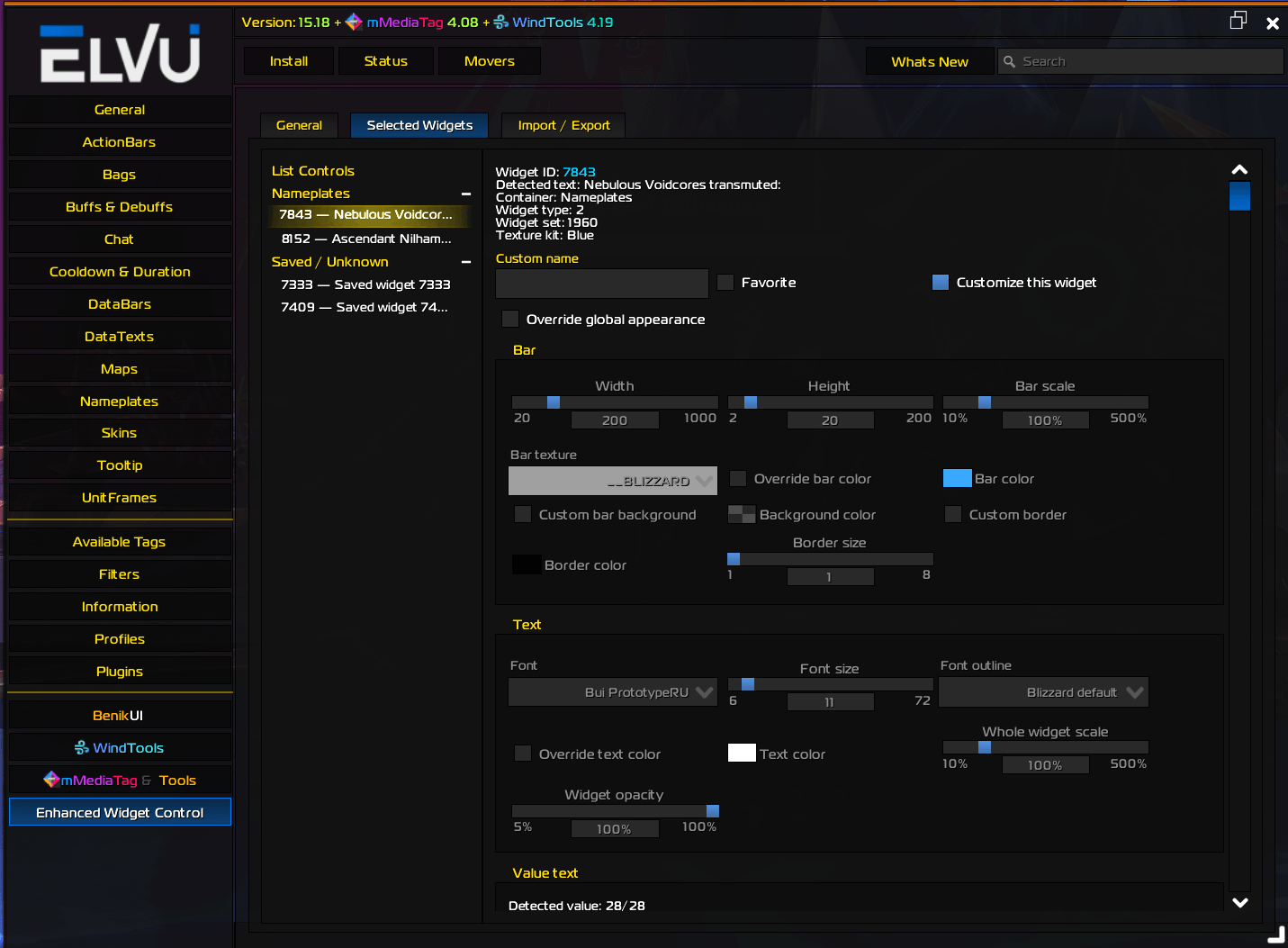
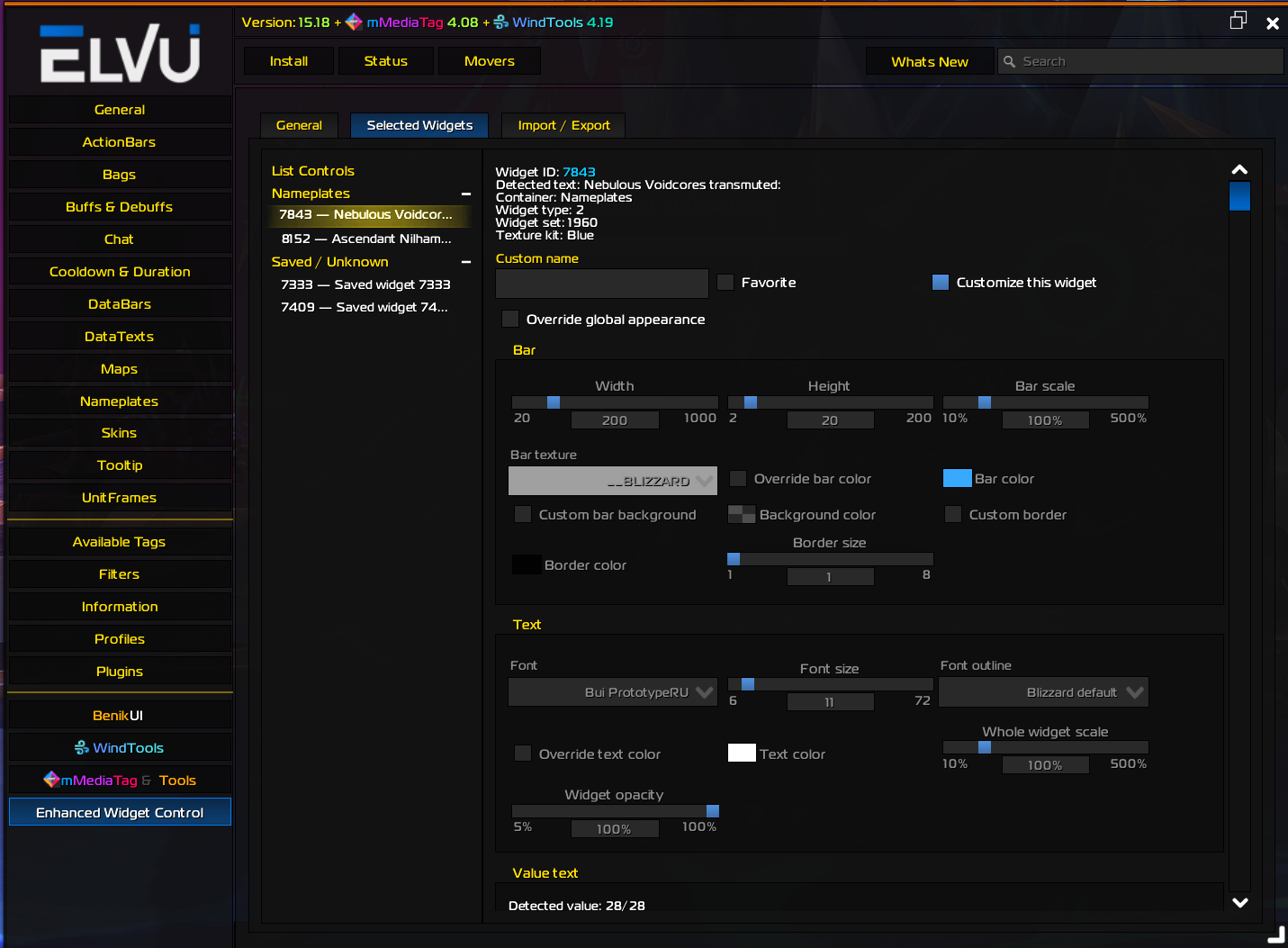
Selected Widgets
Widgets are automatically added to the Selected Widgets list after Blizzard creates and displays them in the game.
The list can be searched and organized using categories, favorites, and custom names. Detected information includes the widget ID, container, widget type, widget set, texture kit, and currently displayed values.
Enable Customize This Widget and the relevant override options only when a particular widget should look or behave differently from the global style.
Disabling an override immediately returns the widget to its inherited global or Blizzard appearance. Your custom values remain saved, allowing the override to be enabled again without rebuilding its configuration.
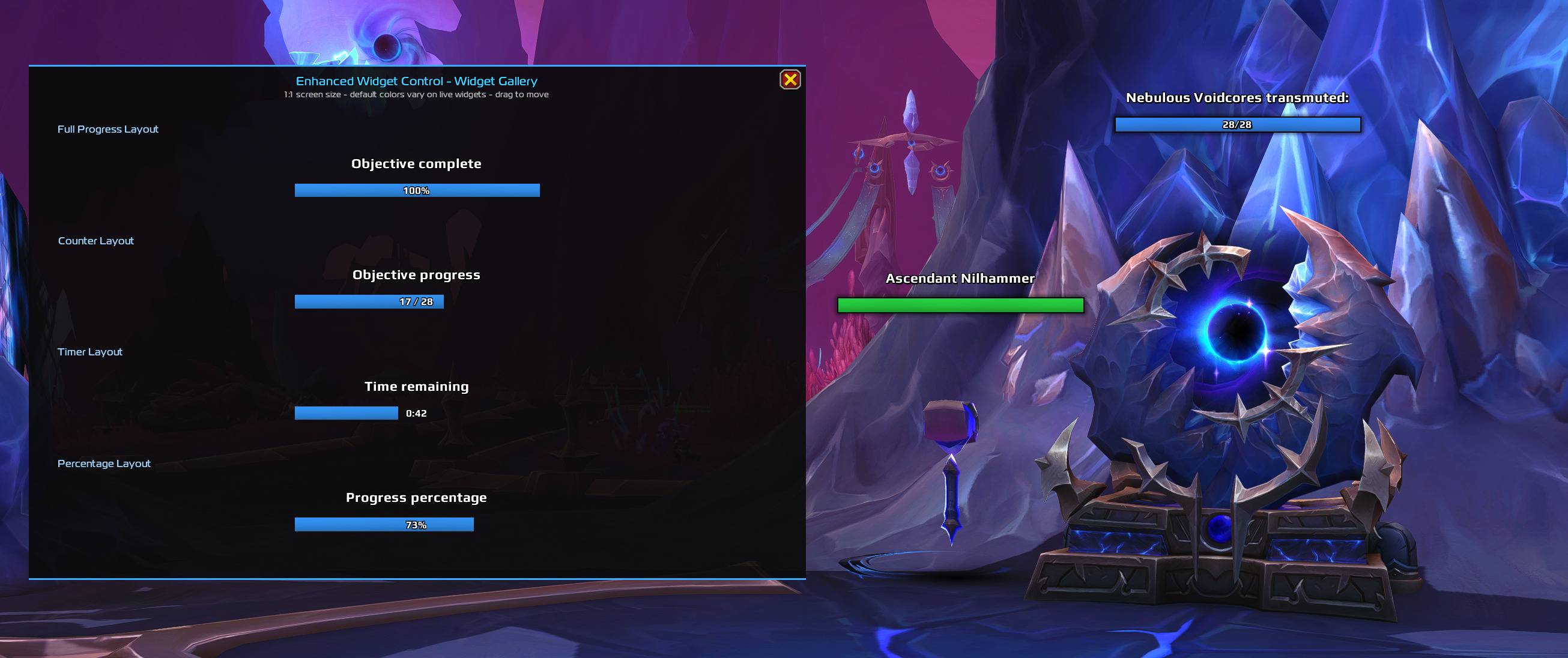
Widget Gallery Preview
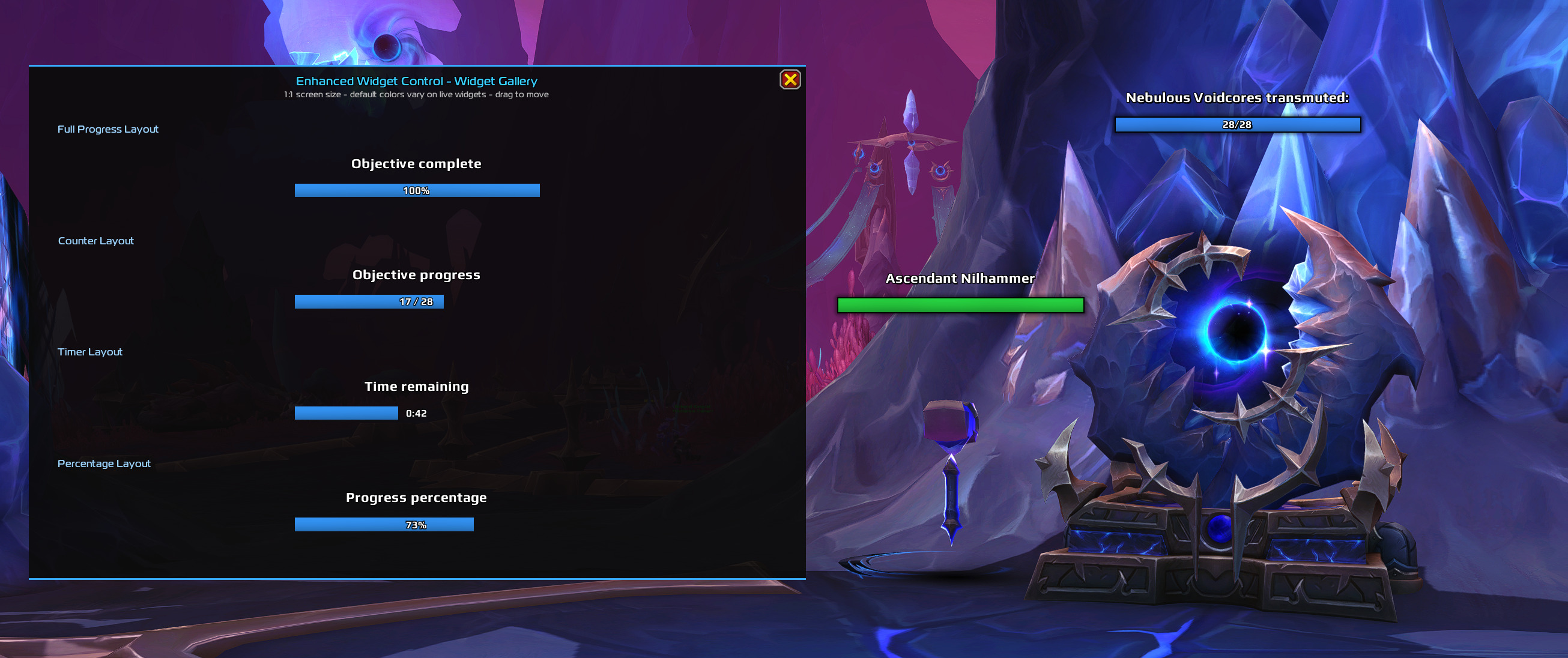
The draggable Widget Gallery displays common full-progress, counter, timer, and percentage layouts using your current global configuration.
The preview uses the configured widget, bar, and text dimensions to provide an accurate representation of how the different layout types will appear. Live Blizzard widgets may use different colors when custom bar colors are disabled.
Presets
Enhanced Widget Control includes a built-in EWC Default preset representing the addon's intended visual style.
You can also:
- Create your own named presets
- Save the current global configuration as a preset
- Apply presets globally
- Apply presets to individual widgets
- Import and export presets
- Copy settings between widgets
Built-in presets cannot be accidentally overwritten or deleted.
Import, Export, and Backups
Import and export tools are separated into dedicated sections for:
- Global settings
- Presets
- Individual widgets
- Backups
Import strings are validated before being applied. Enhanced Widget Control automatically creates a backup before an import and retains the five most recent backups.
Original Blizzard Colors
When Use Custom Bar Color is disabled, Enhanced Widget Control preserves the color assigned by the live Blizzard widget.
A custom texture can therefore be used without forcing the bar to become grey, black, or another fixed color. Different live widgets may still have different colors because those colors are controlled by Blizzard.
Preview colors are illustrative when the live widget's original color is unavailable.
Getting Started
- Install both ElvUI and Enhanced Widget Control.
- Log in or reload the interface.
- Open the ElvUI settings with
/ec. - Select Enhanced Widget Control from the left menu.
- Open General → Presets.
- Select EWC Default or another preset.
- Apply the preset globally.
- Open General → Preview to inspect the configured layouts.
- Use Selected Widgets if a specific detected widget needs its own override.
Requirements
- World of Warcraft Retail
- ElvUI 15.18 or newer
No additional SharedMedia packages or ElvUI plugins are required. Enhanced Widget Control includes its own font, status-bar texture, and addon artwork.
If ElvUI is unavailable or incompatible, Enhanced Widget Control disables itself safely and displays an explanatory message.
Included Media
Enhanced Widget Control includes:
- EWC Play Bold font
- EWC Dark status-bar texture
- Original EWC icon and artwork
The addon source and original EWC media are released under the MIT License. The bundled Play Bold font is distributed under the SIL Open Font License 1.1.
Known Limitations
- A widget must appear in the game before its widget ID can be detected.
- Only supported Blizzard status-bar widget layouts can be styled.
- Position changes requested during combat are delayed until combat ends.
- Blizzard may recreate widget frames. Enhanced Widget Control automatically reapplies the relevant settings when they are detected again.
- Live Blizzard colors cannot always be reproduced exactly inside a simulated preview.
Installation
Install Enhanced Widget Control using the CurseForge App or Wago App, then restart World of Warcraft or reload the interface.
Make sure both ElvUI and Enhanced Widget Control are enabled in the in-game AddOns menu.
Type /ec to open ElvUI, then select Enhanced Widget Control from the left menu.
Manual installation is also supported by extracting the addon into your Retail Interface/AddOns folder.
Feedback and Bug Reports
If you encounter a Lua error or a widget that is not styled correctly, please create a report on GitHub and include:
- The complete Lua error
- The widget ID, if available
- Where the widget appeared
- Steps required to reproduce the issue
- A screenshot, if relevant
Support Development
Enhanced Widget Control is free and will remain free. If you enjoy the addon and would like to support its continued development, you can buy me a coffee.

Support is completely optional and never required to use any addon feature.
License
Enhanced Widget Control is available under the MIT License.
The Enhanced Widget Control for ElvUI Team