1.png
3.png
4.png
Untitled.jpg
Description
NEW FEATURE
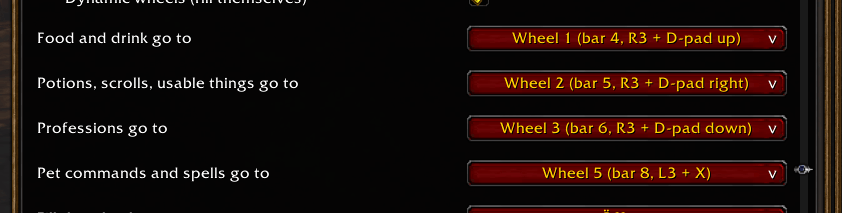
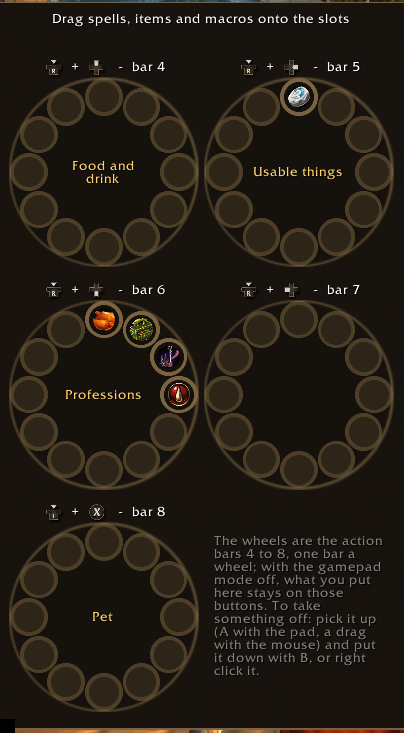
Radial menus.
Opened with keyboard or gamepad shortcut.

Dynamic lists
ClassicConsoleGamepadUI
Gamepad support for WoW Forever, with the classic look and feel.
I wanted Gamepad mode but with support for both keyboard-and-mouse UI on screen. The game's own controller controls stay as they are. Simple settings, not much to configure.
Version 0.1.0-alpha.79. Alpha: expect bugs as blizzard i still activly changes behaviour of gamepad mode.
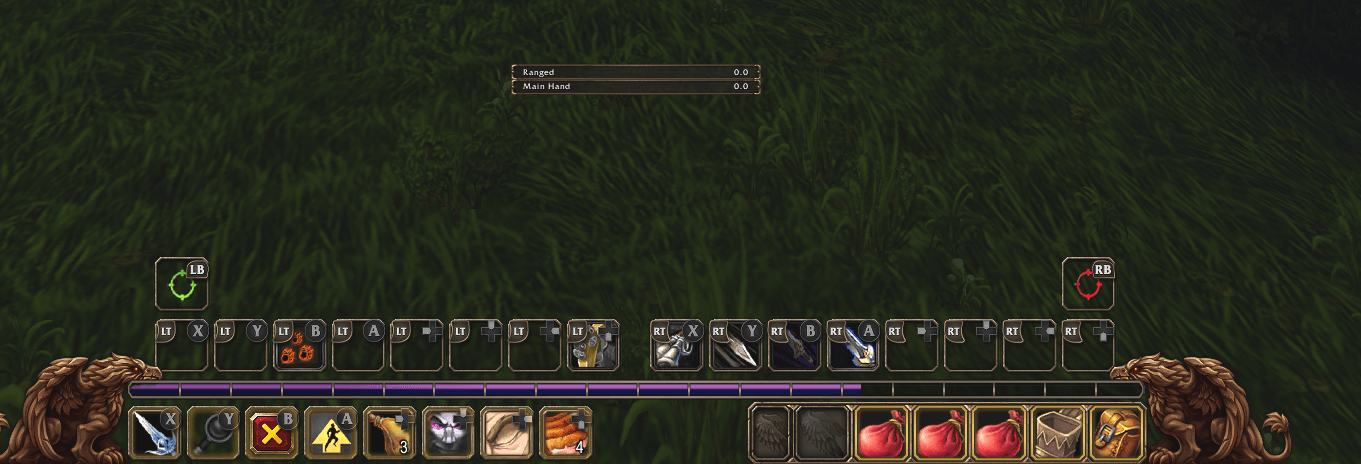
Compact mode (best for Xbox gamepad)
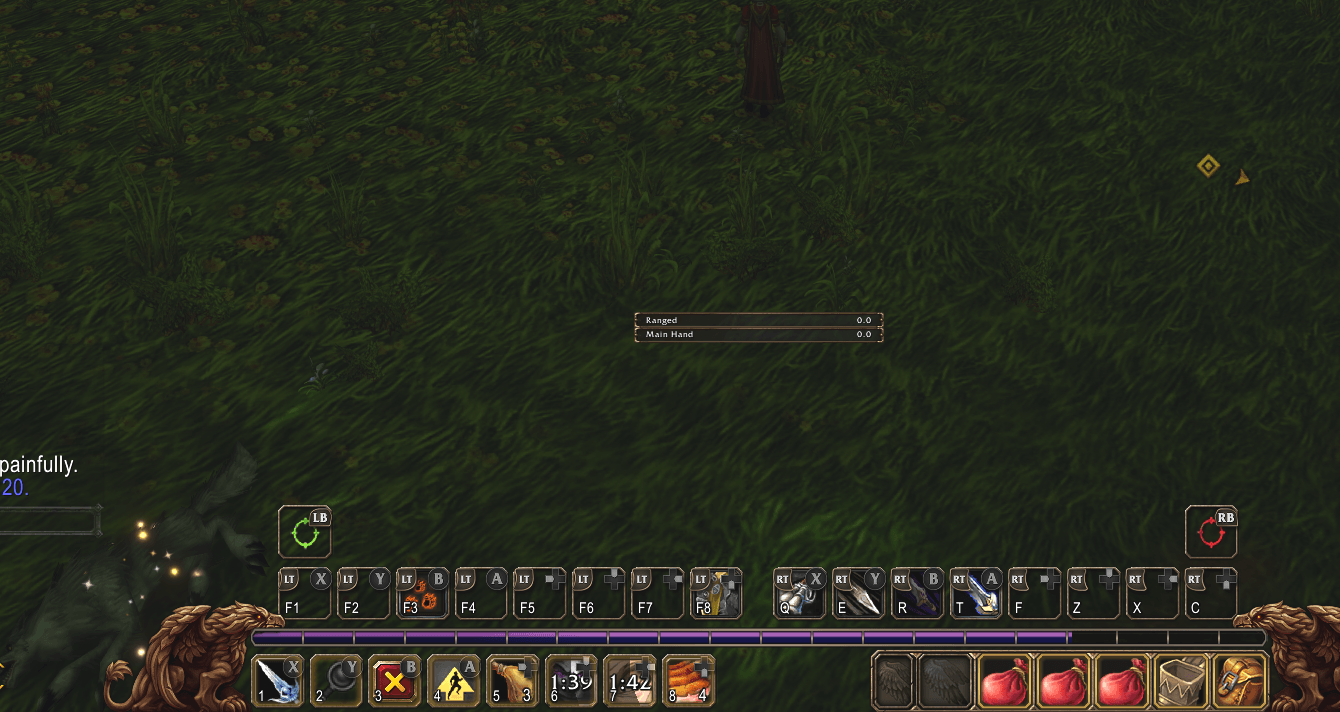
Classic mode
https://github.com/user-attachments/assets/981190c8-374b-48dc-9a8c-b1337b2b1fcb
What it does
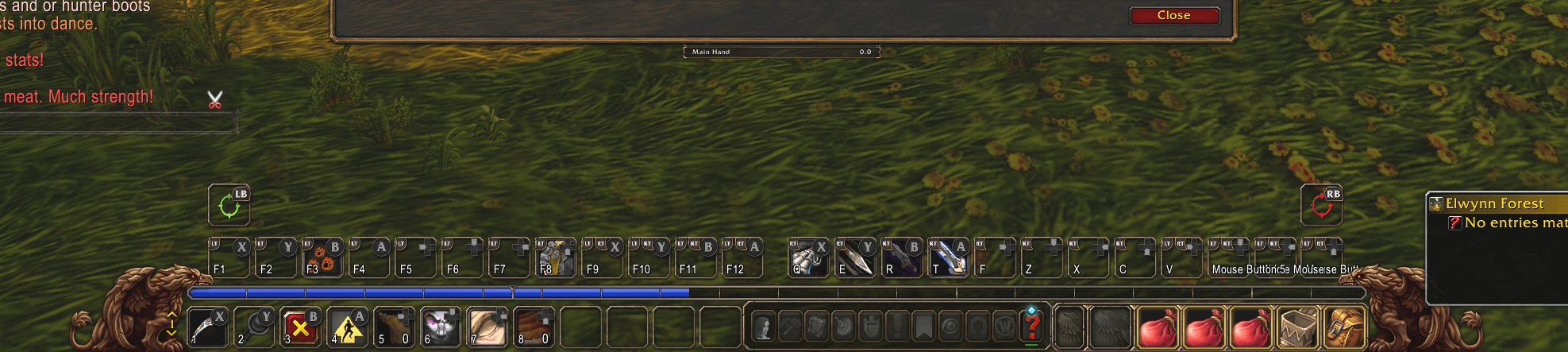
- Classic action bars with the controller buttons shown on the slots (X, Y, B, A, LT, RT layers).
- Compact bars (8 slots) or full bars (12 slots).
- Mouse clicks, drag and drop and keyboard keys work on the bars.
- Optional: the controller buttons use your keyboard action bars ("Keyboard bars on the controller"), so a spell sits in the same slot with the keyboard and the controller. Macros work on the bars.
- A keyboard layout window (
/cgp keys): click a key, then a bar slot, and the slot uses that key. It shows which controller button each slot is on, and works with the controller too. - Classic micro menu, bags, unit frames and experience bar.
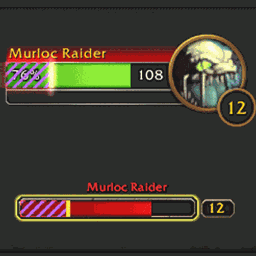
- Move the player, target and focus frames in Edit Mode. The addon remembers where you put them.
- Move the classic action bars in Edit Mode: they get a selection box of their own there.
- Make the classic bars bigger or smaller (50% to 150%).
- Show or hide the left and right gryphons, in the settings or in Edit Mode.
- Move the gamepad legend (the button hints) in Edit Mode, and choose whether it has a frame and how dark it is.
- Party portraits (and the pet, assist target and focus) on the targeting bar you open with L1 and the D-pad.
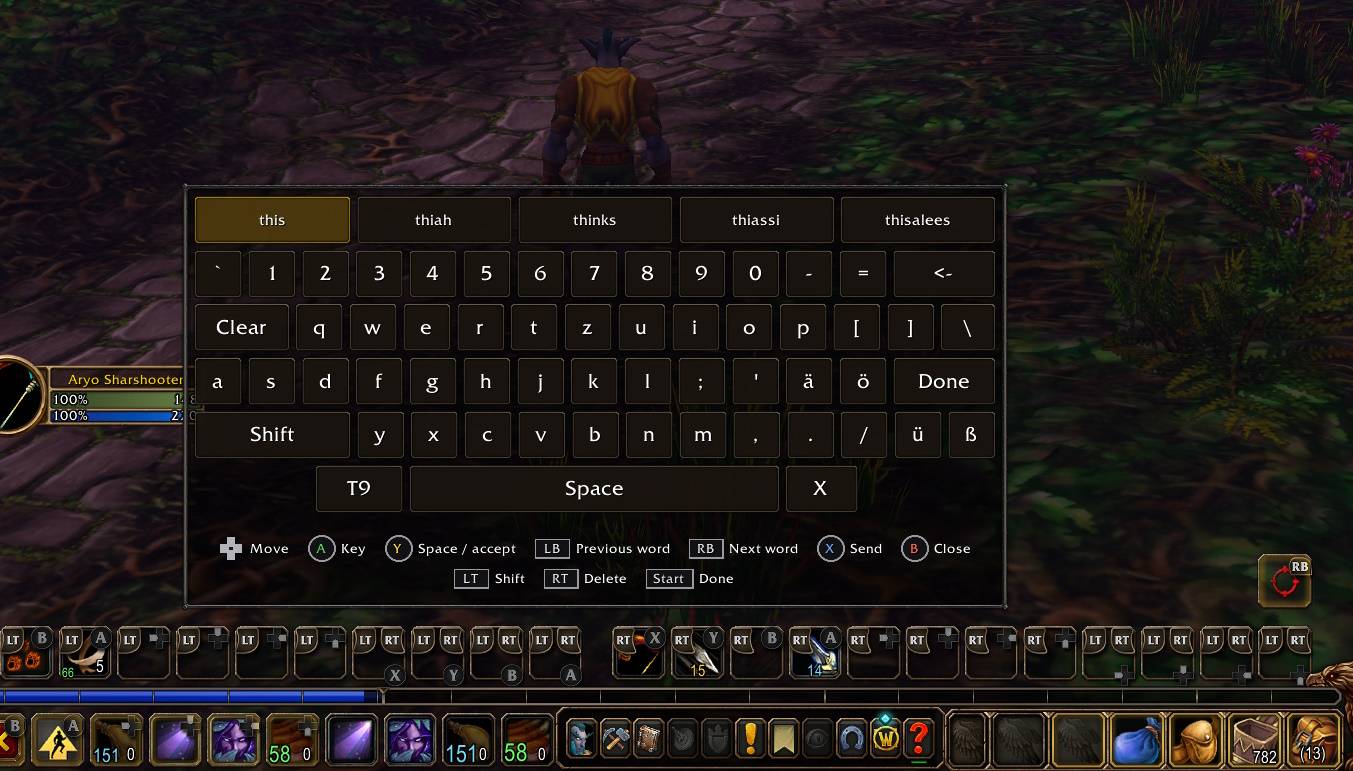
- On-screen keyboard for chat, for the controller and the mouse: a normal keyboard or a phone-style T9 keypad, both with word suggestions. English, German, Polish, French, Spanish, Italian and Portuguese.
- Settings window with tabs, also usable with the controller.
- Settings, hints and keyboard in English, German, Polish, French, Spanish, Italian or Portuguese. You choose the language, English is the default.
- Controller button hints in micro menu tooltips.
- Easy item deletion: X, X, A, A.
- Chat, controller legend and micro menu position options, or hide the micro menu.
- Every frame the addon places (micro menu, bags, experience bars, totem bar) has its own switch, so you can place it yourself in Edit Mode.
- Text that other addons put on action buttons (like damage numbers) shows on the classic bars.
- The classic bars stay visible in the game's action editor and when you pick a stance, form or aura from the radial menu.
- The Shaman's totem bar is placed above the bars instead of on top of them.
- "Reset all settings" on the Tools tab.
- Turning Gamepad Mode off brings back the normal UI.
On-screen keyboard
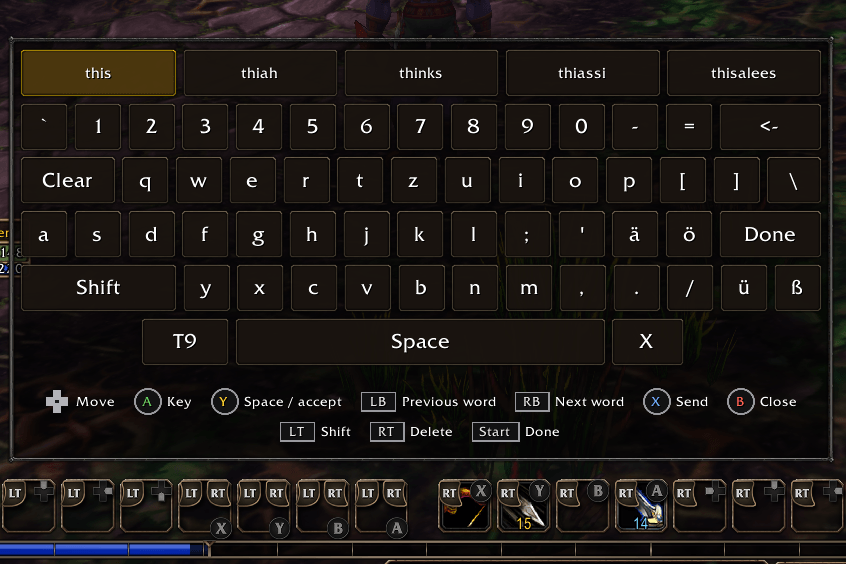
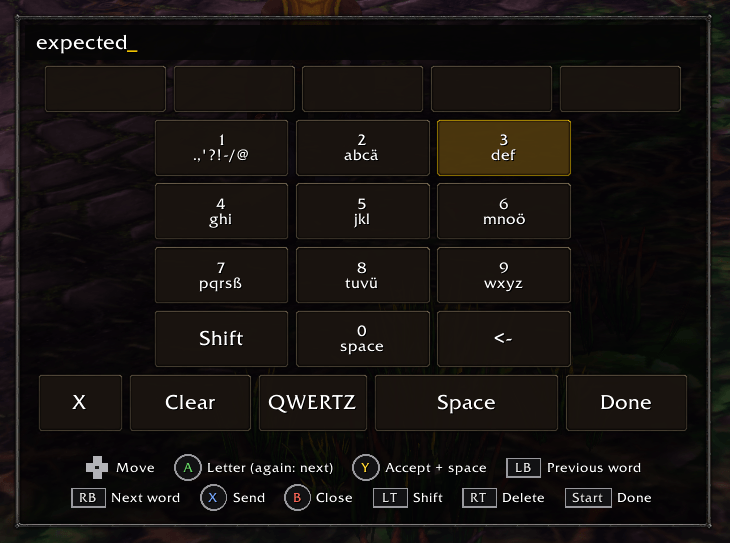
The game has no on-screen keyboard of its own, so the addon has one. Open the chat line as usual and type with the controller or the mouse. The keyboard closes when the chat line closes.
- A normal keyboard, or a phone-style T9 keypad. Choose in the Keyboard tab, or with the key next to Clear on the keyboard.
- T9 has three modes: Tap (press a key again for the next letter), Smart (press each key once and pick the word from the suggestions) and Hybrid (tap the letters and the suggestions finish the word, the default).
- A space key and Y end a word with a space, so you can type whole sentences.
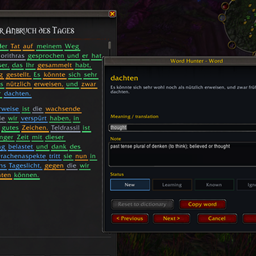
- The suggestions learn the words you write, so they get better the longer you use the keyboard (a button in the Keyboard tab resets what was learned). They also learn from the chat you read and from quest texts. If English Quest Panel or a WordHunterWoW dictionary is installed, its words are suggested too.
- Languages: English, German, Polish, French, Spanish, Italian, Portuguese.
/cgp keyboardshows or hides it. A setting opens it automatically when you start typing in chat, and another one makes it see-through.- If you do not want it, a setting in the Keyboard tab turns the keyboard off completely.
Moving frames
Open the game's Edit Mode in Gamepad Mode, drag the player, target or focus frame and save the layout. The addon remembers the place. /cgp resetframes puts them back.
The classic action bars show up in Edit Mode too, as "Classic Action Bars". Drag the box, or click it and nudge the bars with the arrows of its panel (Shift: 10 points). The place is kept at once, for every Edit Mode layout; the panel's "Reset position" button or /cgp resetbars puts the bars back. The gamepad legend can be moved the same way.
Settings
/cgp opens the settings window. It is also under Options > AddOns > ClassicConsoleGamepadUI. The defaults should be fine.
Commands: /cgp (or /classicconsolegamepadui)
/cgp on,/cgp off: turn the classic look on or off./cgp native,/cgp classic: switch the action bars for this session./cgp keyboard: show or hide the on-screen keyboard./cgp keys: the keyboard layout window for the bar slots./cgp language: the language of the settings and hints (en,de,pl,fr,es,it,ptorauto)./cgp resetframes: put the player, target and focus frames back at their classic places./cgp resetbars: put the classic action bars back at their default place./cgp resetlegend: put the gamepad legend back at its default place./cgp bindings,/cgp edit: how to open the key bindings and the action editor./cgp status: current state and the last problem found.
Steam Deck
The game sees the Deck as a controller in Gamepad Mode. Use 8-slot bars, or 12 slots if you map the back buttons to keys.
Install
Extract the ZIP into Interface/AddOns so you get Interface/AddOns/ClassicConsoleGamepadUI. Remove the old ClassicGamepad folder if you have it. It does not work together with ControllerForever or ConsolePort.
Problems
Report them on GitHub. /cgp taint lists what the addon changed in the game's controller code, which helps with "action blocked" errors.
It is also worth using BugSack or another bug-catching addon that can export error data from the game for further analysis.
License: All Rights Reserved, see LICENSE.
ClassicConsoleGamepadUI Team

Owner