BagSmuggler
- By
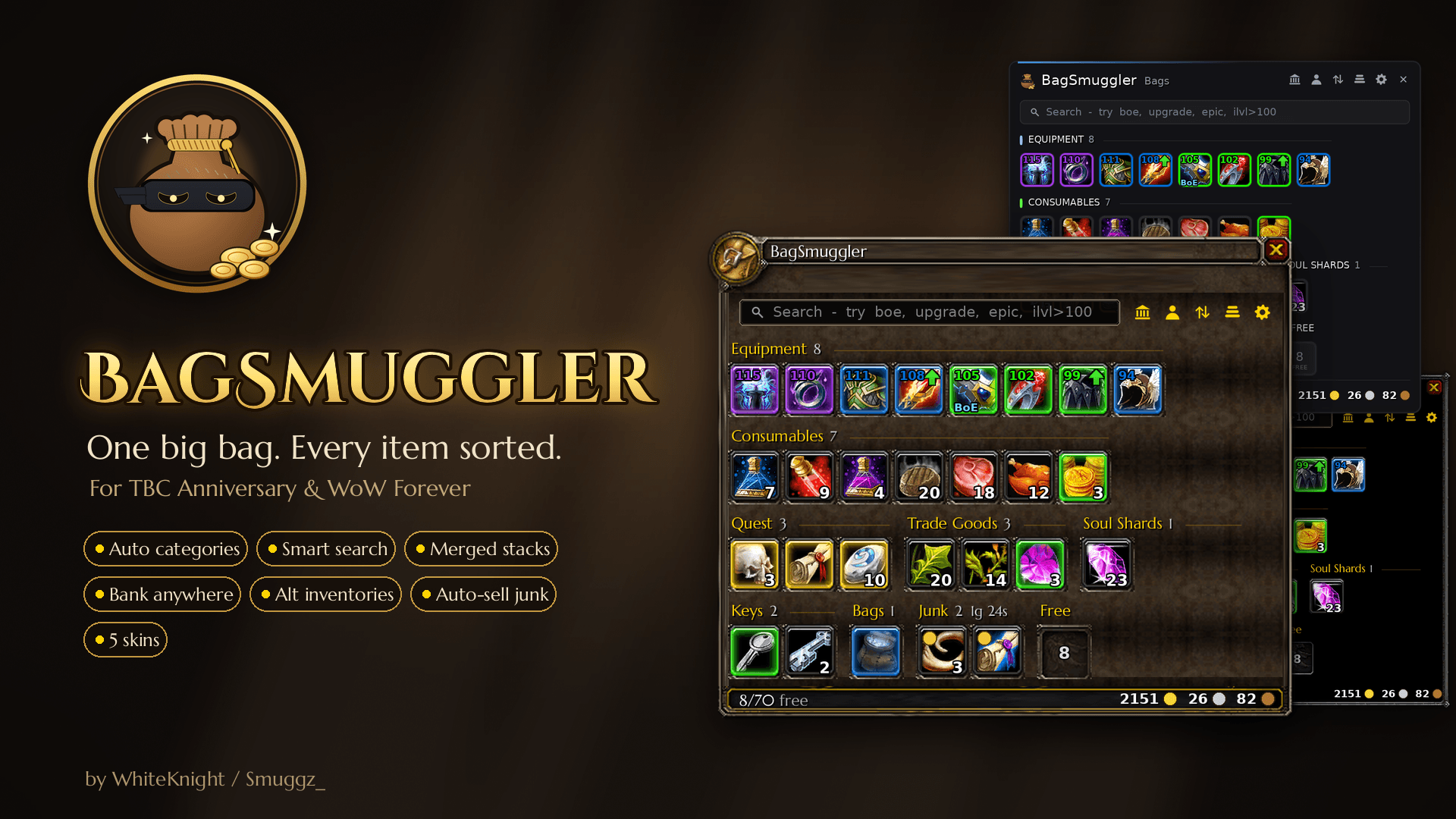
One big bag that looks like the default Blizzard bags. Auto categories, smart search, merged stacks, bank anywhere, alt inventories, auto-sell junk and 5 skins.
caac01cf-5b3b-439e-87ed-8cd65fe873ba.png
4a26fd87-45ae-4f0a-a6e7-297c93c8a4d5.png
c6410d9e-6545-49fe-a9cb-53b60451f244.png
2f02fd20-d4fb-409c-85e1-c82fe4467483.png
c6410d9e-6545-49fe-a9cb-53b60451f244.png
Description
BagSmuggler
One bag. Every item sorted.
BagSmuggler replaces your separate bag windows with a single, organised inventory that looks just like the default Blizzard bags. Items are sorted into categories automatically, stacks are merged, and your bank and alts are always one click away.
Supported clients: TBC Classic Anniversary · WoW Forever
At a Glance
| Auto Categories | Items are sorted into clear groups, with collapsible headers |
| Merged Stacks | One tile per item, showing the total count |
| Smart Search | Search by name, type, quality, item level and more |
| Gear Insights | Item level, upgrade arrows, BoE tags and quality borders |
| Bank Anywhere | View your bank from anywhere in the world |
| Alt Inventories | Browse every character's bags, bank and gold |
| Junk Handling | Auto-sells grey items, with custom junk marking |
| Five Skins | Default Bags, Blizzard Dialog, Sleek, Glass and Onyx |
Features
Automatic Categories
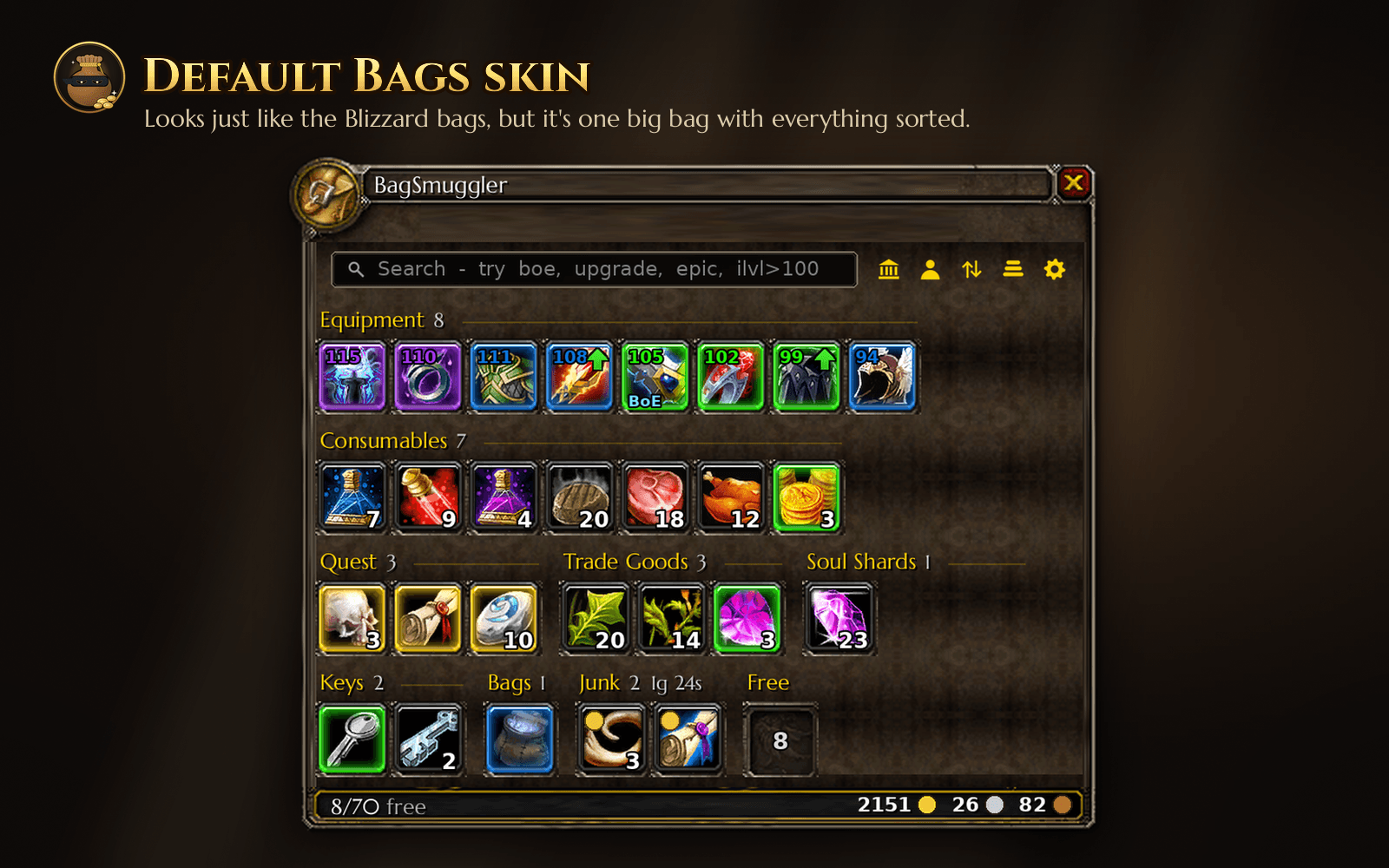
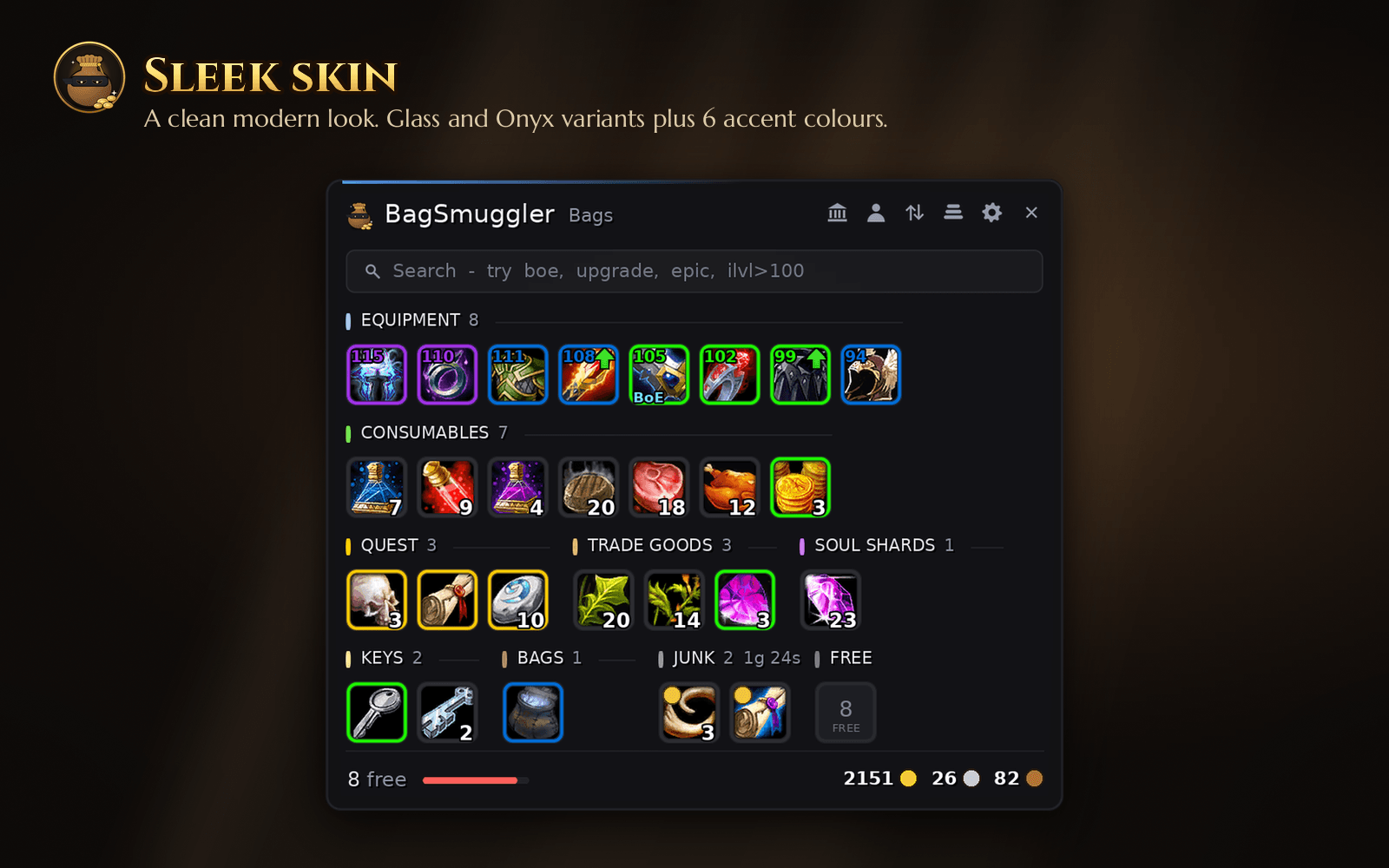
Your inventory is sorted into Equipment, Consumables, Quest, Trade Goods, Recipes, Soul Shards, Ammo, Keys, Bags, Miscellaneous and Junk, with a free-slot counter at the end. Click any category header to collapse it, or turn categories off entirely in the settings.
Merged Stacks
Identical items share a single tile with their combined count, so 27 Soul Shards take up one slot on screen instead of a whole row. Clicking a merged tile uses the smallest stack first.
Smart Search
Find anything instantly by name, item type or category, or narrow it down with filters:
| Filter | Shows |
|---|---|
boe / bop |
Bind-on-equip or soulbound items |
upgrade |
Gear better than what you have equipped |
new |
Recently looted items |
junk |
Items marked for selling |
epic, blue, green … |
Items of that quality |
ilvl>100, i<=60 |
Gear within an item-level range |
Filters can be combined, such as epic boe. Use quotes for exact phrases.
Gear Insights
- Item level shown on every piece of gear
- Upgrade arrows on gear that beats what you're wearing. They're class-aware and check level requirements.
- BoE tags on unbound bind-on-equip items
- Quality borders, with quest items highlighted in gold
- New item glow on fresh loot
Bank Anywhere
A merged bank window replaces the default one. Your bank contents are saved, so you can view them from anywhere in the world. The original Blizzard bank is still one click away for swapping bags or buying bank slots.
Alt Inventories
Browse the bags and bank of any character on your account without logging over. Item tooltips show how many of that item each character holds, and hovering your gold shows every character's gold plus the realm total.
Junk Handling
Grey items are sold automatically when you open a vendor. Alt + Right-click any item to mark or unmark it as junk. The Junk category header shows the total vendor value.
Restack & Sort
Combine partial stacks with a single click to free up space, and sort each category by quality, item level, name or type.
Built for Combat
Item positions are locked during combat, so consumables never move under your cursor. The layout refreshes automatically as soon as combat ends.
Skins
| Skin | Style |
|---|---|
| Default Bags | Built from the game's own bag art, so it looks just like the Blizzard bags, only bigger |
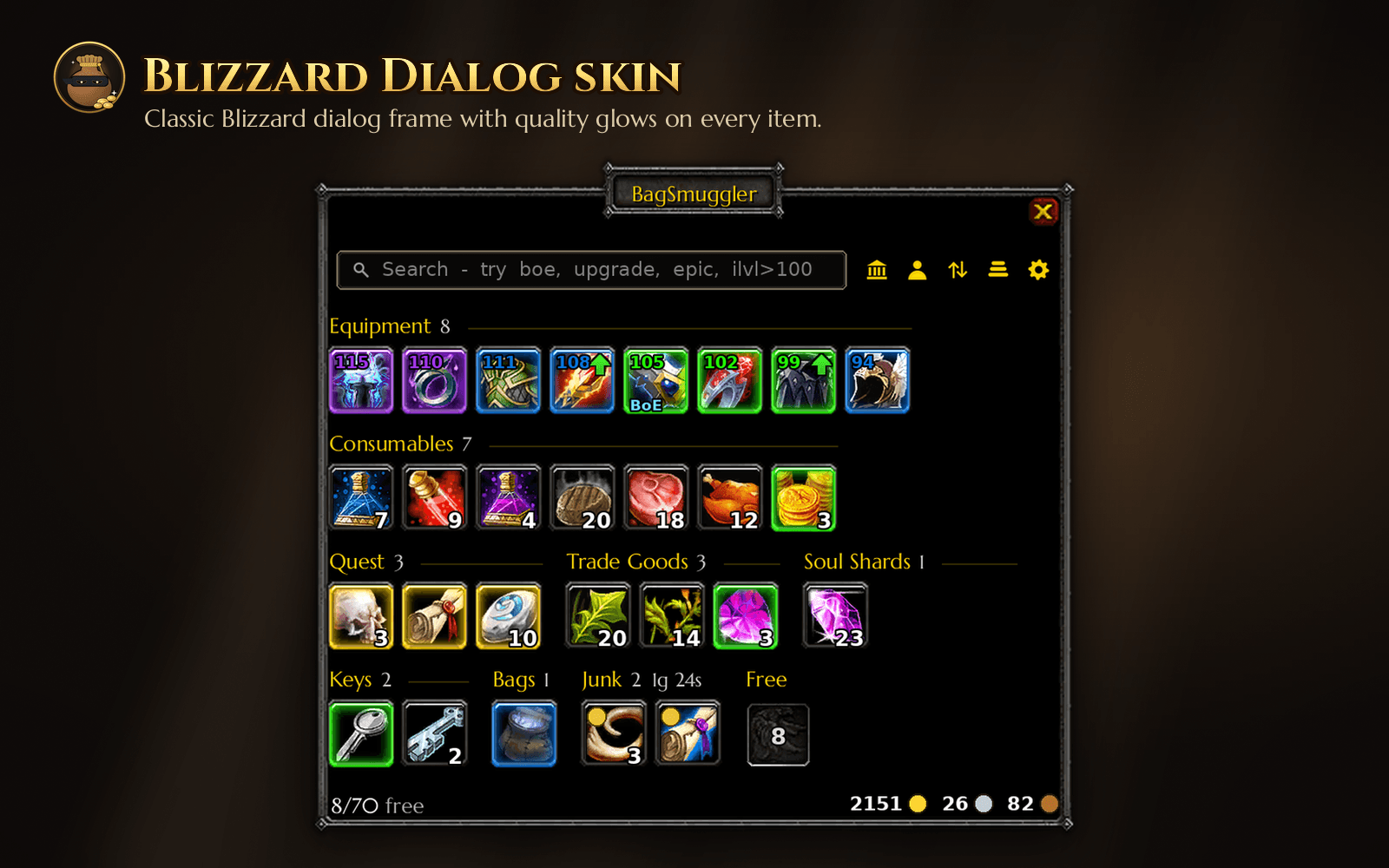
| Blizzard Dialog | The classic Blizzard dialog frame with quality glows |
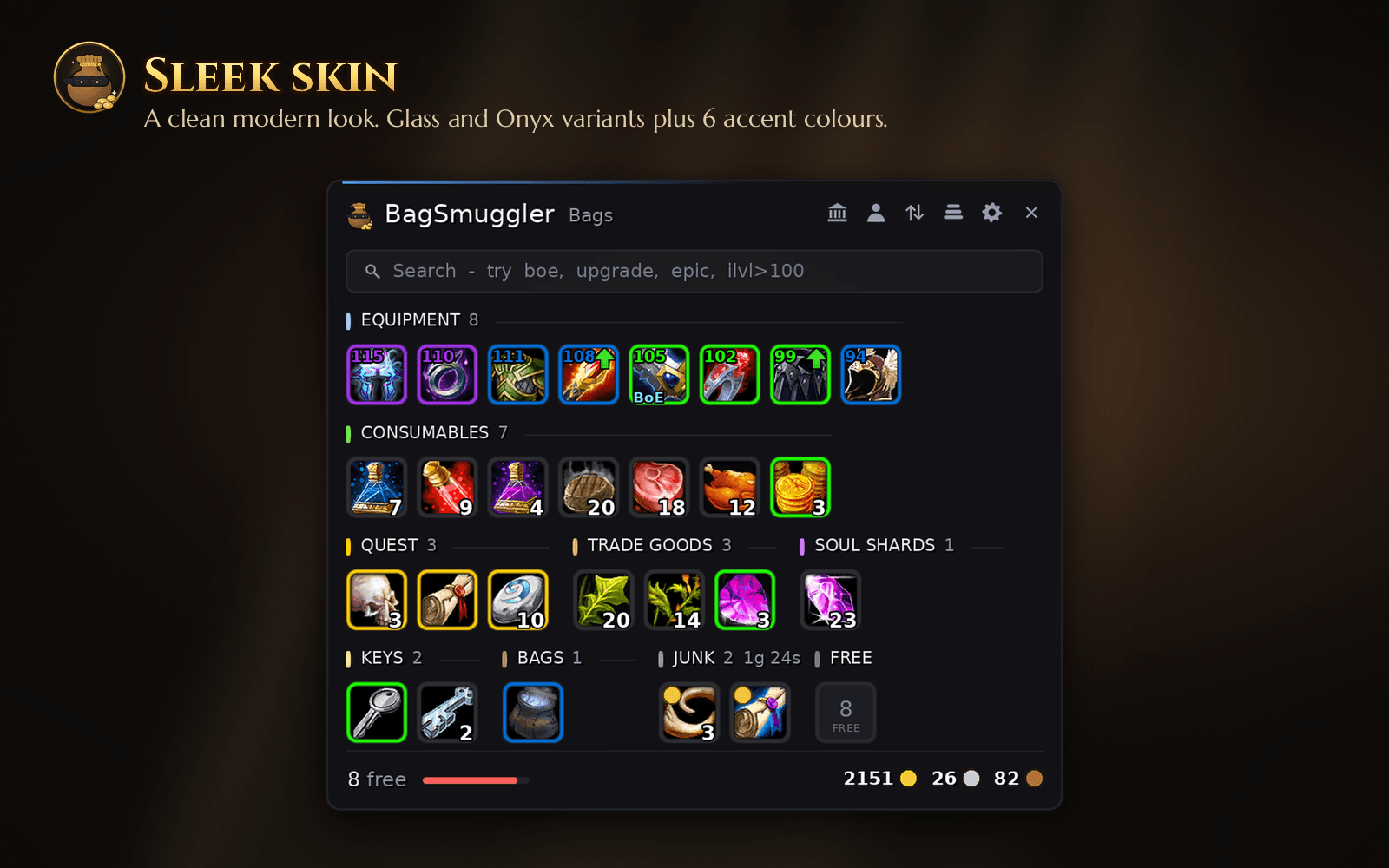
| Sleek | A clean, modern dark theme |
| Glass | A translucent modern theme |
| Onyx | A deep black, minimal theme |
The modern skins support six accent colours, including class colour. Scale, columns, icon size, spacing and opacity are all adjustable.
Commands
| Command | Description |
|---|---|
/bsm |
Toggle your bags |
/bsm bank |
View your bank from anywhere |
/bsm config |
Open the settings window |
/bsm restack |
Combine partial stacks |
/bsm sell |
Sell junk at an open vendor |
/bsm reset |
Reset window positions |
Getting Started
- Install BagSmuggler and log in. Your bags will open with BagSmuggler automatically.
- Visit a banker once on each character so its bank is saved for offline viewing.
- Open the settings with
/bsm configor the gear icon to choose a skin and adjust the layout.
FAQ
Will it sell anything I want to keep? No. Only grey items and items you have marked as junk are sold automatically. You can turn auto-selling off in the settings.
Why is another character's bank empty? Each character needs to visit a banker once so their bank contents can be saved.
Can I go back to the default bags? Yes. Disable BagSmuggler in the AddOns list and the Blizzard bags return immediately.
Support & Feedback
Bug reports and suggestions are always welcome. Discord: whiteknight3187
Created by WhiteKnight / Smuggz_
BagSmuggler Team