Auction Goblin
- By
Wow Forever addon that replaces the base Auction house function and helps provide insight on what to do with items
AH Scan 1.png
Auction Sniping 2.png
Background - Alliance.png
Effects and Stats.png
Description
Auction Goblin is an in-game Auction House and trading planner for WoW Forever. Browse auctions, scan your market, compare prices and decide what to buy, sell, vendor, craft or disenchant—all inside the game.
Browse and buy
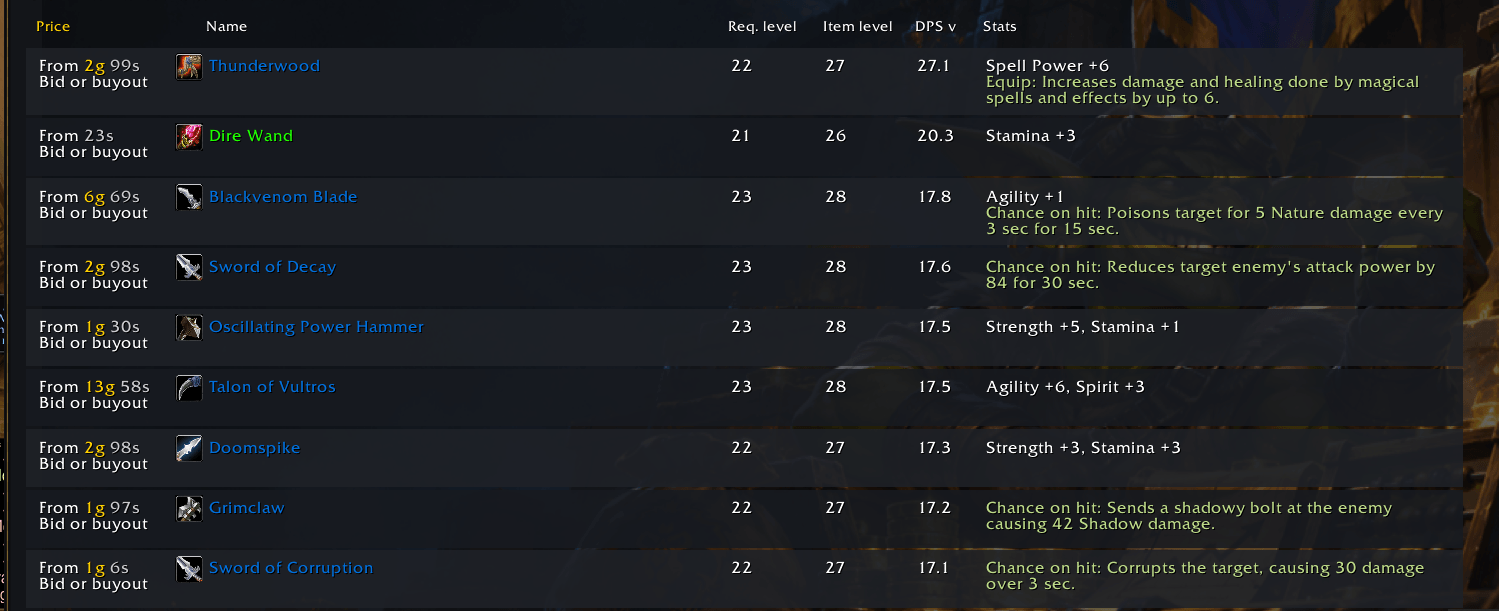
- Search by name, category, rarity, required level and gear stats. Sort by price, required level, item level or DPS. Select multiple stats with separate minimum values.
- Set a maximum price using gold, silver and copper. See bids and buyouts separately, inspect item tooltips and hold Shift to compare equipment.
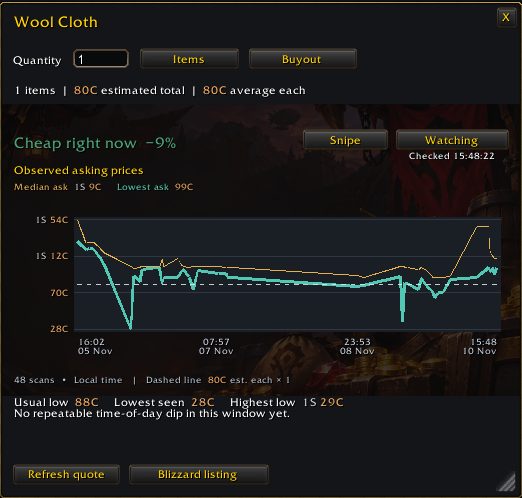
- Open an item for its live quote and price-history chart. For commodities, choose items or stacks and review the quantity and total before buying.
- Away from an auctioneer, use Browse to search your last saved scan. Recorded prices are labelled with their scan time; live purchases require an open Auction House.
Flips: watch, snipe and relist
- Find suggested flips from your scan history, or search for a product you want to watch. Your Strategy controls the minimum estimated return and other trading assumptions.
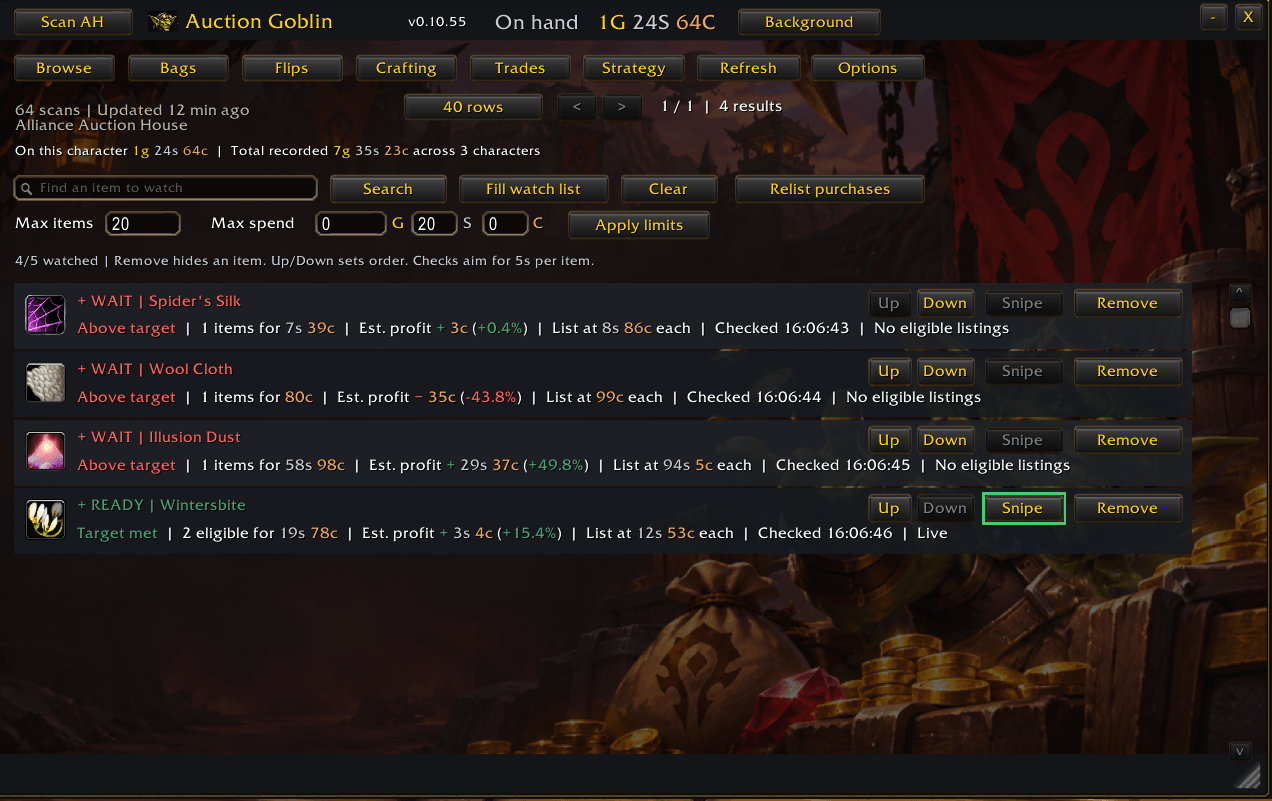
- Build a live watch list of up to five products. Search and Add watch keep existing watches in place. Fill watch list uses the remaining slots, Up/Down changes the order, and Remove hides an unwanted product until you search for it again.
- Each watched product aims for a price check about every five seconds. Requests run one at a time; Auction House throttling and delayed replies can extend that interval. Watching pauses during other Auction House work.
- Set Max items and Max spend in gold, silver and copper, then Apply limits. These are ceilings per purchase. Snipe also checks your current character’s gold and the maximum unit price allowed by the estimated profit target.
- A fresh eligible offer turns the row green, pulses the Snipe button and can play a sound. The row shows the eligible quantity, total cost, estimated profit and suggested resale price. It also explains what limits the quantity.
- Click Snipe to attempt the eligible purchase. Commodity purchases can include several price tiers, provided every purchased unit stays within the price ceiling and the total stays within your caps. Individual auction listings are handled separately and may require the game’s confirmation. No purchases happen without your click.
- Confirmed flip purchases save their suggested resale price and listing duration. Collect the items from your mailbox, return to the Auction House and open Flips → Relist purchases. Choose List items, then List at target. List next submits the next ready flip lot.
- Matching tracked flip stock can also use List at target from Bags. Ordinary bag listings follow the normal bag advice; tracked flip listings retain their saved target.
Decide what to do with your bags
- Bags and item tooltips compare selling on the Auction House, vendoring and disenchanting, using consistent colours and currency formatting.
- See how much the alternatives give up compared with the recommended action, plus an estimated total for the bag plan.
- Choose exact item quantities or bag stacks before listing. Eligible items have a Disenchant action when your current character can disenchant them.
Crafting and purchase records
- Crafting compares recorded recipes with the value of selling the ingredients in your current character’s bags, including estimated costs for missing ingredients where prices are known. Character names identify who knows a recipe.
- Open profession windows on your characters to record recipes. The new buy-materials crafting-opportunity view is being developed for a later release.
- Trades automatically records confirmed addon purchases. It distinguishes ordinary purchases from tracked flips. Actual realised profit is not inferred simply because an auction was listed.
Price history and market separation
- Charts show the lowest and median asking prices over time. These are observed listings, not confirmed sale prices or guaranteed future values.
- Flip profit estimates allow for the Auction House cut and a deposit reserve. A deposit is money needed to list an auction; it is normally returned on a successful sale. Items must still sell at the planned price for the projected profit to happen.
- Your scans are saved locally. The included starter history is used only for its matching market; realm, faction and neutral Auction House pools remain separate. Shared live scan data is not required to use this release.
Make it yours
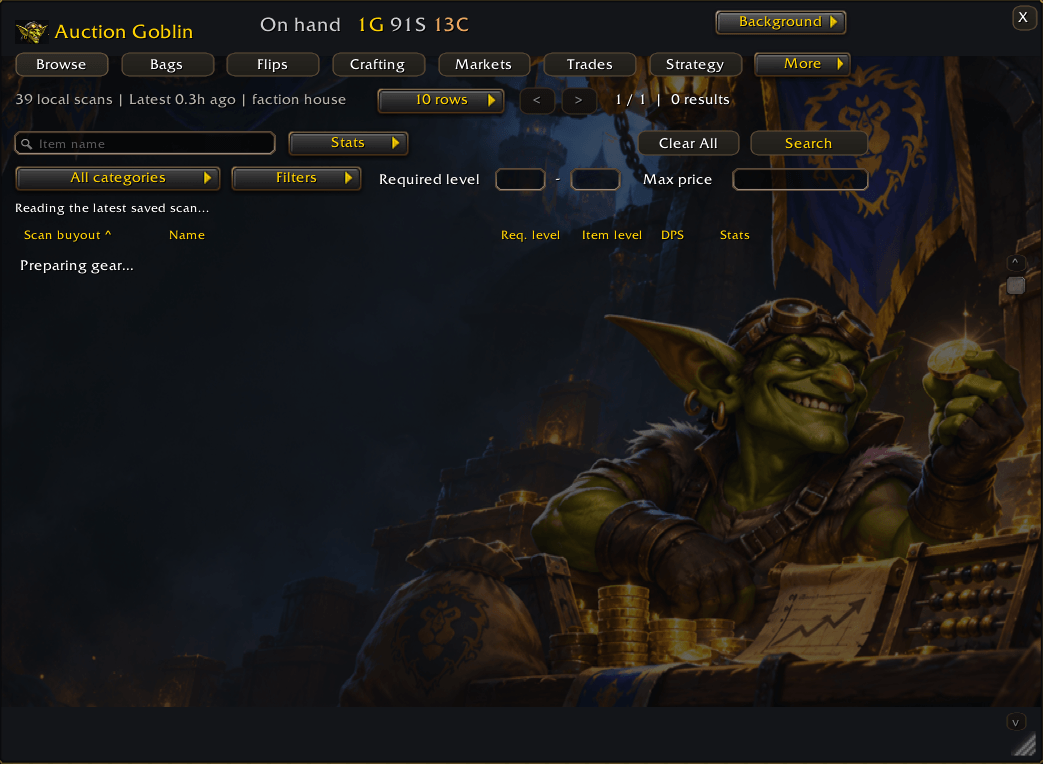
- Move, resize or minimise the window, choose a background, sort results and select a page size.
- Open Options on the top bar for audio settings. Toggle recorded button messages, profit alerts and scan-complete notifications independently. Recording volume runs from 0% to 200%, with a Test voice button; WoW Master Volume still applies.
- Recorded voices play for supported buttons. The Snipe recording announces a reached profit target; Great Decision plays on the final Confirm buyout click.
Quick start
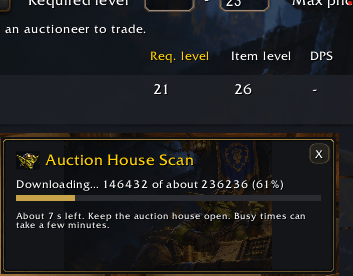
- Visit an auctioneer, open Auction Goblin and click Scan AH. Keep the Auction House open until the scan finishes.
- Open Strategy and choose your minimum estimated return. In Flips, set Max items and Max spend, then Apply limits.
- Search for a product and Add watch, or use Fill watch list. Wait for a fresh green offer and review its quantity, total and estimated return.
- Click Snipe when you want to buy. A confirmed purchase prints its quantity and cost in chat.
- Collect your mail, return to the Auction House and use Flips → Relist purchases → List at target. The saved target is a listing plan, not a guaranteed sale.
Opening Auction Goblin
Click the Goblin minimap icon or use /goblin planner. Opening an Auction House brings up Goblin’s Auction House view.
/goblin gear— Browse, including the last saved scan away from an auctioneer./goblin flips— Open Flips./goblin sell— Open Bags./goblin scan— Start a scan at the Auction House when the client is ready./goblin options— Open settings./goblin status— Show the current market’s scan status.
Auction Goblin Team