
AmbushAlert
- By
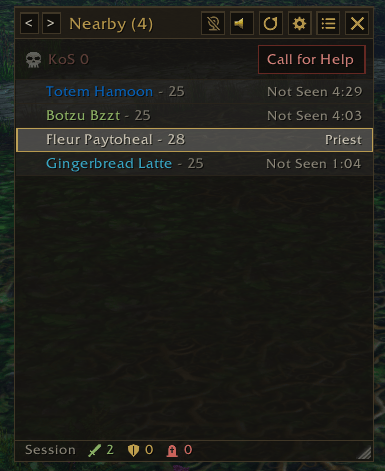
The AmbushAlert window lists enemies near you, coloured by class with their level. Anyone out of sight shows how long since they were seen. The arrows switch lists, Call for Help asks for backup and the footer shows this session’s kills and deaths.
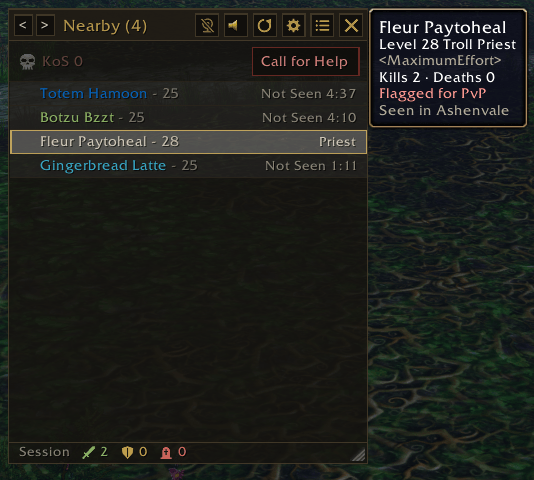
Hover over anyone in the AmbushAlert window to see their level, race, class and guild, your kills and deaths against them, whether they’re flagged for PvP and where they were seen.
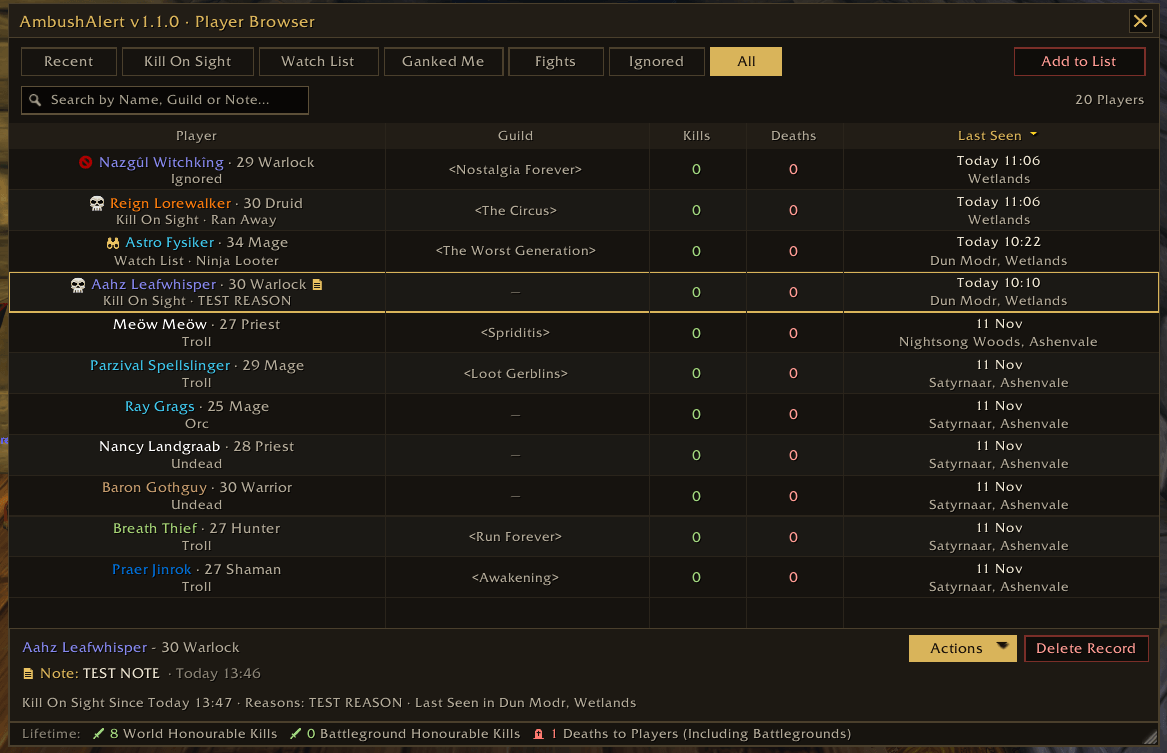
The Player Browser lists everyone you’ve seen. Icons show Kill On Sight (skull), Ignored (red circle), Watch List (binoculars) and players with notes (notepad). Select a player to see their details at the bottom.
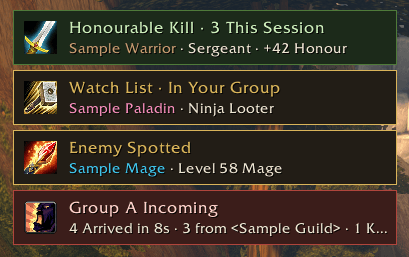
Pop-up alerts and sounds tell you the moment something happens: enemies spotted, Kill On Sight and Watch List players, groups arriving, stealthers, anyone targeting you and your honourable kills. Show them as boxes or as text at the top of the screen.
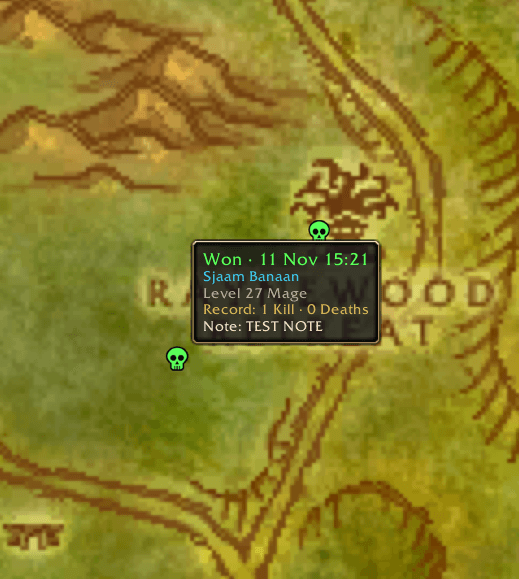
Fight markers on the world map and minimap show where you won or lost a fight. Right-click one to add, edit or remove a note, delete the marker, add the player who killed you (or who you killed) to a list or view them in the Player Browser.
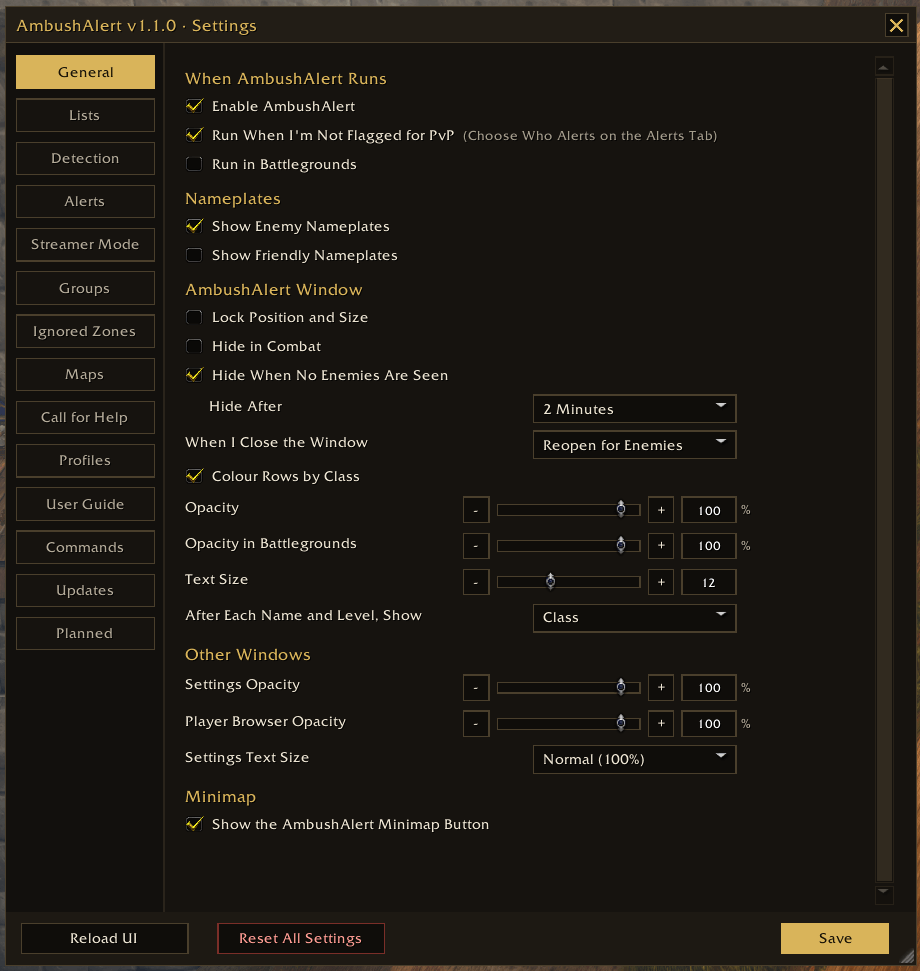
Settings let you choose how AmbushAlert works: what it detects, which alerts and sounds play, who triggers them, how the window looks and when it hides. Each tab explains its options, with Reset All Settings at the bottom.
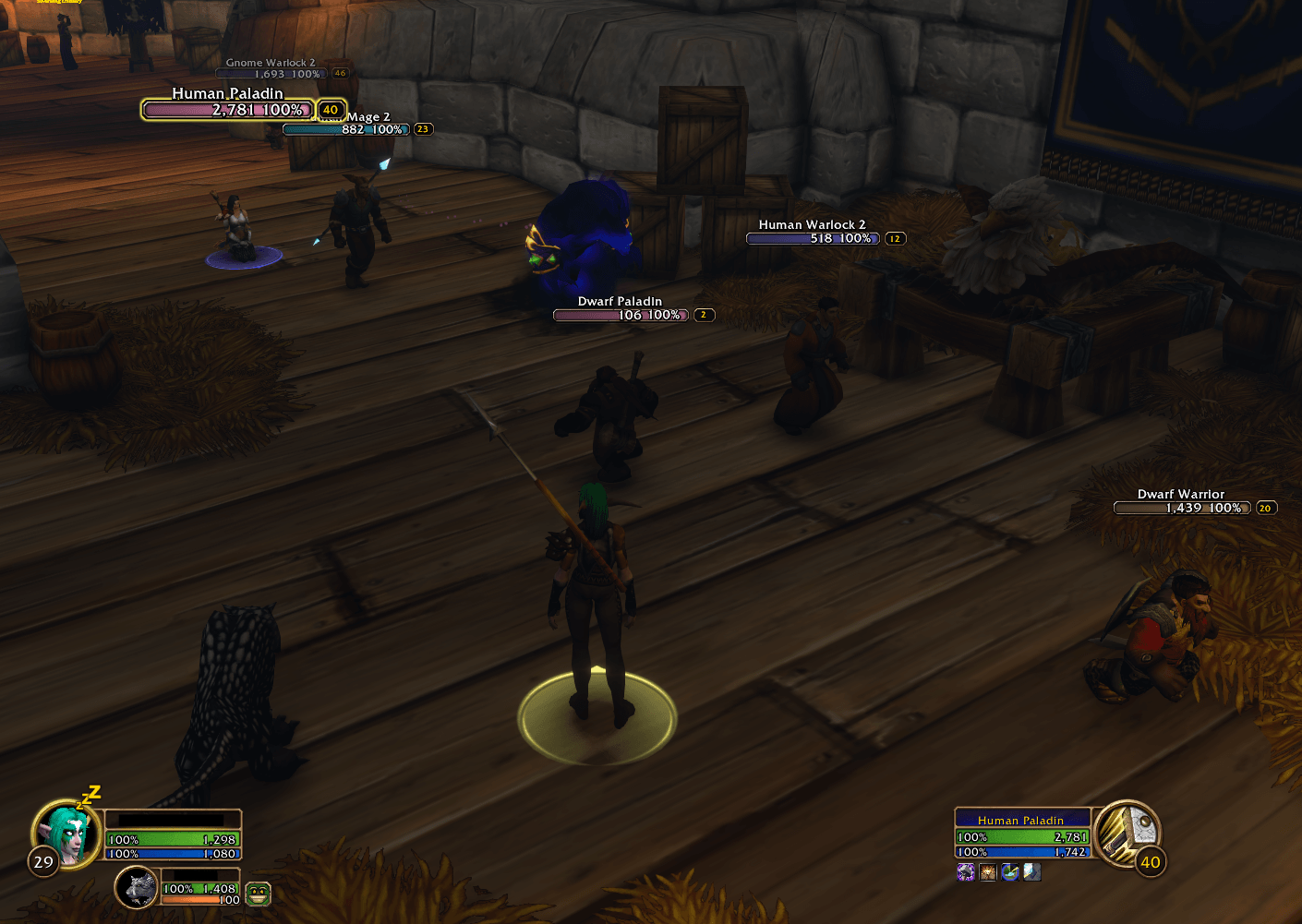
Streamer Mode hides player names so they stay off stream. Friendly and enemy players are shown by race and class instead, e.g. Human Warlock, Human Warlock 2. It covers AmbushAlert plus the game’s unit frames, tooltips and nameplates.