Alts Forever
- By
alt-overview.png
item-tracking.png
professions.png
Description
Alts Forever
⚠️ Important: read the WoW Forever beta fix first
Because of a Blizzard bug in the WoW Forever beta, Alts Forever (like every addon) forgets your other characters when you restart the game, unless you do a one-time, one-minute fix.
👉 See "WoW Forever beta: keeping your alts between restarts" further down this page.
Keep track of all your alts in WoW Forever: items, gold, professions, gear and time played, without logging in to each one.
Alts Forever quietly records what each of your characters has, then shows it where you need it: in item tooltips, and in one overview window. It's built to be light: no libraries, no constant background work, and only what it needs stored per character (item counts, a few stats, equipped items and known recipes).
Features
📦 Item counts in every tooltip
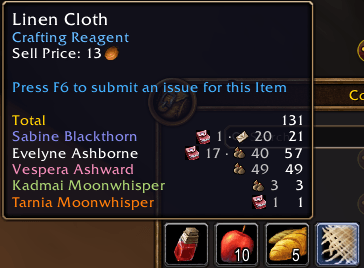
Hover any item to see how many you own across all your characters, and where:
- Bags (including the reagent bag and keyring), bank, mail and equipped items
- Your current character first, then everyone else sorted by count
- Items you mail to your own alts show up on them straight away, before they log in
🔨 Can craft
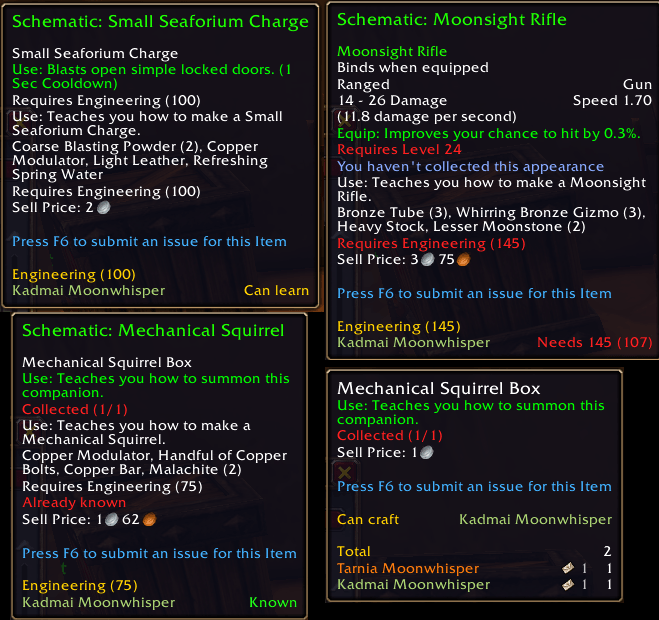
Hover any item to see which of your characters know how to make it, listed under Can craft.
📜 Recipe tooltips
Hover a pattern, schematic, formula or recipe to see which of your characters with that profession:
- Known: already learned it
- Can learn: has the skill to learn it now
- Needs skill: shows the skill required and their current skill
- Not scanned: open that profession's window once on the character so Alts Forever knows their recipes
🗂️ Overview window: /af
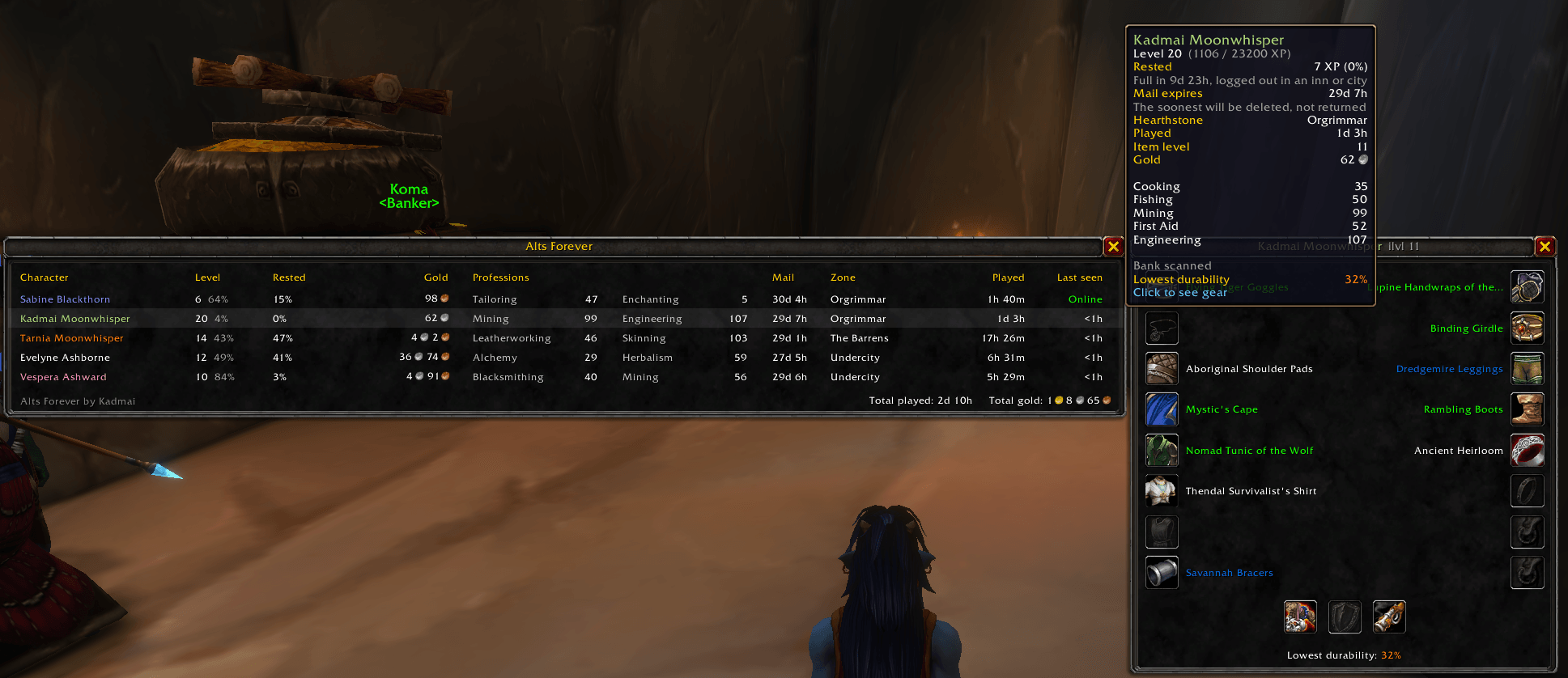
Every character at a glance:
- Level and XP
- Rested XP, including what's built up while logged out (estimated)
- Gold, with a total across all characters
- Main professions and skill levels
- Mail expiry
- Current zone
- Time played, with a total across all characters
- When you last played them
Hover a row for more (hearthstone, item level, time played, time until rested is full). Click a row to see that character's gear.
🛡️ Gear panel
See what any alt is wearing, laid out like the character panel:
- Hover an item for its full tooltip, including suffixes and enchants
- Shift-click to link it in chat
- Nearly broken items are highlighted, with lowest durability shown
✉️ Mail expiry warnings
When you log in, you'll get a chat warning if any character has mail with items or gold expiring within 3 days. It also says whether the mail will be returned or deleted.
💰 Gold across characters
Hover the gold in your bags or bank for every character's gold and the total.
Getting started
- Install and log in. Each character is recorded the first time you log in on it.
- On each character, open the bank, mailbox and each profession window once, so their contents and recipes are recorded.
- Type
/afto open the overview.
Commands
| Command | What it does |
|---|---|
/af |
Open or close the overview |
/af mail |
List every character's soonest mail expiry |
/af list |
List recorded characters |
/af delete Full Name |
Forget a character, e.g. /af delete Thessa Oakenbrook |
/af mem |
Show the addon's memory use |
⚠️ WoW Forever beta: keeping your alts between restarts
The WoW Forever beta has a Blizzard bug: addons' saved data isn't loaded when the game starts. It affects every addon. Without a fix, Alts Forever works during a play session but forgets your other characters when you restart the game.
Alts Forever tells you when this happens: a few seconds after you log in, a chat message says no saved data was loaded. On your very first login that's expected; you can ignore it.
There are two ways to fix it. You only need one.
Option 1 (easiest): ForeverSVFix
ForeverSVFix is a free community tool that fixes this bug for all your addons at once, not just Alts Forever. Download it from its GitHub page and follow the instructions there. If you use it, skip Option 2.
Option 2: fix just Alts Forever by hand (Windows, takes a minute)
Alts Forever has a workaround built in. It only needs one folder link, created once.
- Close the game.
- Find your account folder. Open
World of Warcraft\_classic_beta_\WTF\Account\. Inside is a folder named after your account, e.g.123456#1. Note its name. - Open Command Prompt: press Start, type
cmd, press Enter. It doesn't need to be run as administrator. - Paste this command, changing the two paths to match your install and your account folder:
mklink /J "C:\Program Files (x86)\World of Warcraft\_classic_beta_\Interface\AddOns\AltsForever\SavedData" "C:\Program Files (x86)\World of Warcraft\_classic_beta_\WTF\Account\123456#1\SavedVariables"You should see "Junction created for …".
- Start the game. From now on, your alts are remembered between restarts.
Notes on Option 2:
- Redo step 4 after each Alts Forever update. Updating replaces the addon folder, which removes the link.
- If you see the "no saved data" message after setting this up, the link is missing (usually after an update). Redo step 4 before you log out: logging out saves only the current character over your data. If that already happened, the game keeps the previous save as
AltsForever.lua.bakin the sameSavedVariablesfolder. With the game closed, rename it toAltsForever.luato get it back. - Once Blizzard fixes the bug, you can delete the
SavedDatafolder insideAltsForever. Deleting the link doesn't delete your saved data.
Made by Kadmai. Feedback and bug reports are welcome in the comments.
The Alts Forever Team