Forever Hub
- By
Open your Forever addons, manage large faction-themed launcher icons and get official download links for missing addons.
Forever Hub
Feature illustration: schematic example, not an in-game screenshot.
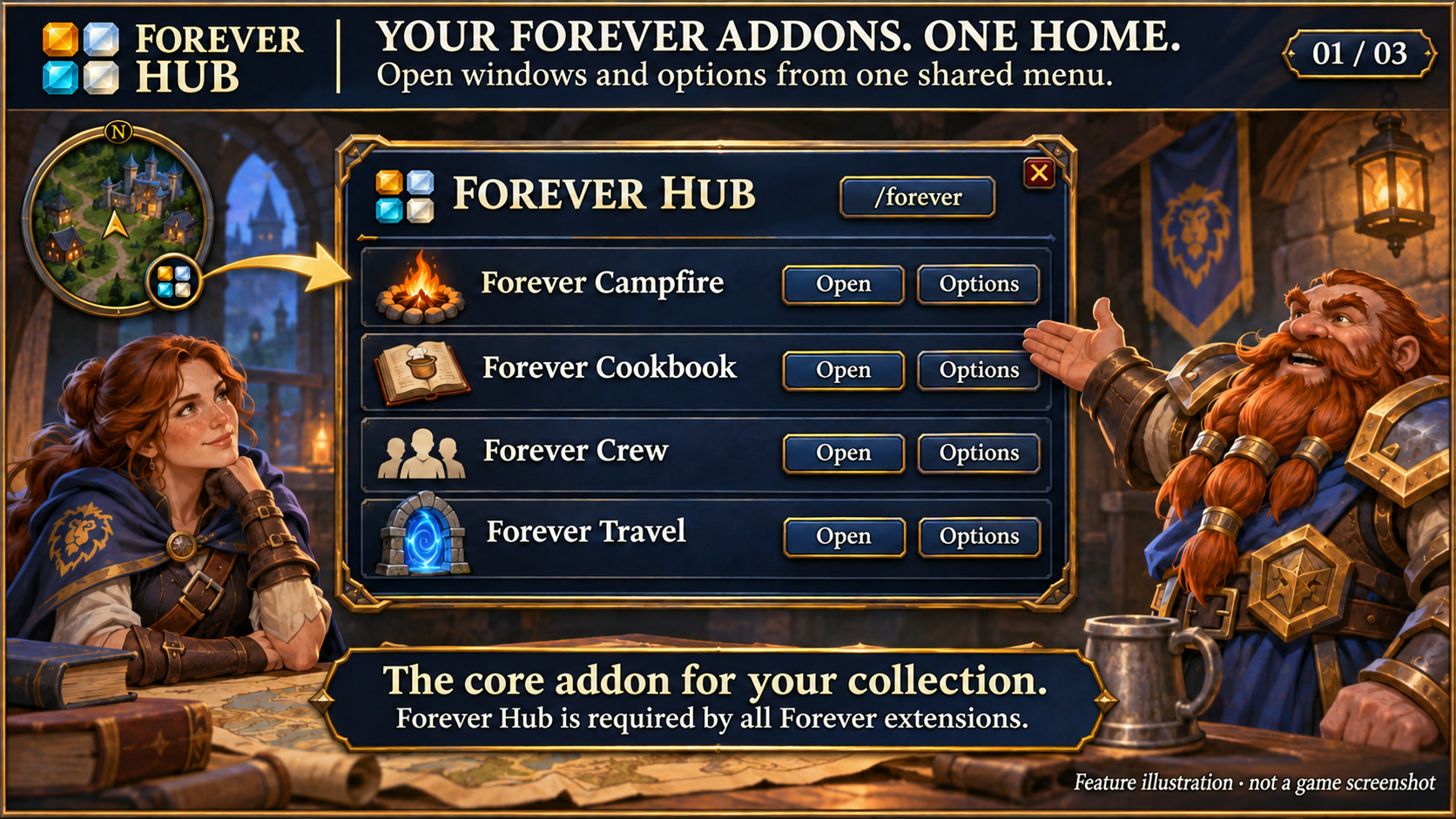
Menus use the shared Forever Hub presentation: dark textured panels, subtle metal borders and clear selection states. Compact action menus stay compact; the Forever launcher icons stay frameless. Update Forever Hub to 1.10.1 or later for this appearance.
Language (from version 1.11.0): follows the WoW client by default. Each addon has a Language dropdown; select a language and click Reload UI. Available translation coverage varies by addon and language; missing labels fall back to English. Game-provided names stay in the client language. Update Forever Hub to 1.11.0 or later.
Forever Hub is required by all other addons in this collection. Hub itself has no required dependencies.
Open your Forever addons, manage their large launchers and find the official download links for missing addons.
Boss references and dungeon position
Hub 1.11.17 includes all 29 collection entries. Open Forever Boss Tactics for dungeon boss references and raid preparation. Forever Dungeon Position adds an approximate player marker to the separately installed third-party DungeonJournal map; its project and version 0.3.1 are approved on CurseForge. A collection entry does not prove that an addon is installed or that its first public download is available.
Fishing Atlas is now in the collection
From 1.11.13, find Forever Fishing Atlas under Professions and Collections. Open its fishing-water atlas, personal catch journal or options; selecting it again closes its window. Install the atlas separately. Missing installations receive its official CurseForge project link; first downloads depend on moderation.
Ready for Questlog and Heal
The collection recognizes Forever Questlog under Quests and Dungeons & Raids, and Forever Heal under group/combat categories. Both also require Forever Flex UI. Entries distinguish installed, disabled and missing addons; project downloads awaiting approval stay unavailable.
Features
From 1.11.8, the collection links to Forever Roleplay Tales, Forever Roleplay Noticeboard and Forever Roleplay Keepsakes on CurseForge. First public downloads depend on moderation. Noticeboard requires visiting and greeting a local innkeeper.
- Open addon windows and options from one collection menu, using the large Hub launcher, the round minimap button, /forever or /fhub.
- Distinguish installed, disabled and not-yet-loaded addons. A Download button for a missing addon shows its official CurseForge URL for copying and opening in your browser.
- Set launcher size from 24 to 64 pixels; the shared bar and cooldown badges scale with it.
- Manage large icons under Large launcher icons or /ficons. Restore hidden icons and attach or detach them from the shared dock.
- The dock defaults to Alliance blue/gold or Horde red/gold according to your character; a manual choice is saved per character.
- Minimap position, size and Runic Seal, Minimal, Tactical or Signal designs remain configurable. Existing settings are preserved.
Supported collection
Forever Crew, Forever PvP, Keep, Loot Bag, Travel, Campfire, Finds, Cookbook and WarriorLab. Each extension has a separate package and requires Forever Hub; additional dependencies are listed on each project. The collection also includes Forever Storage, Forever Companions, Forever Gather Highlight, Forever Contacts Book, Forever Flex UI (Adlerwacht), Forever Graphic Tune, Forever Hunter and Forever Dungeon Search, Forever Doctor, Forever Heal, Forever Questlog, Forever Trusted Mates, Forever Fishing Atlas, Forever Roleplay Bonds, Forever Roleplay Tales, Forever Roleplay Noticeboard, Forever Roleplay Keepsakes, Forever Boss Tactics and Forever Dungeon Position.
Getting started and scope
Click the Hub icon or type /forever. Open addon windows and change layout outside combat. The Hub does not install or download files inside the game; the Download button provides a link to use in your browser. Fully restart WoW after installing an addon or adding new Lua files.
WoW Forever 1.60.1 / interface 16001. No required libraries or external data transmission. Automated launcher, availability, icon and faction-style checks passed; launcher scaling and timers were also confirmed in game; not every locale or addon combination has been visually reviewed.
Large launcher icons and faction dock
Left-click the large launcher to open the addon. Right-click hides that launcher; use /ficons and enable its checkbox to restore it. Shift-right-click opens options where available. Alt-drag moves the launcher or the shared dock. Existing visibility and position settings are preserved.
The dock defaults to your character's faction: blue/gold for Alliance, red/gold for Horde. Use /ficons > Bar style to choose Automatic, Alliance or Horde manually; the choice is stored per character. When Forever Flex UI manages the dock, its Adlerwacht appearance is used. Forever Hub includes a Large launcher icons manager.
Changelog and version history
Each file has its own Changelog on CurseForge. The complete version history is also available at kowarek.de – ForeverHub changelog. New release notes are added to that website automatically.
Compact collection menu
The minimap menu lists addons alphabetically on pages of up to seven entries. Use the previous/next buttons or mouse wheel. Category view groups addons under headings and offers a category filter. View and filter persist per character. Missing or disabled addons remain greyed out with their status.
Shared menu styling keeps checkbox ticks, hover and selected states distinct across the Forever addons. Language choices take effect after /reload; the client language and game-provided names are unchanged.
Forever Boss Tactics: dungeon abilities, counterplay, loot, preparation and private notes.
Deutsch
Hub 1.11.17 führt alle 29 Sammlungseinträge, einschließlich Boss Tactics, Dungeon Position und Trusted Mates. Boss Tactics bietet Instanztaktiken und Raid-Vorbereitung. Dungeon Position zeigt die ungefähre eigene Position auf Karten des separat installierten Drittanbieter-Addons DungeonJournal; das Projekt und Version 0.3.1 sind bei CurseForge freigegeben.
Ab 1.11.13 steht Forever Fishing Atlas unter Berufe und Sammlungen bereit. Der Hub öffnet Atlas und Optionen; ein erneuter Klick schließt das Fenster. Das Addon wird separat installiert. Fehlende Installationen erhalten den offiziellen CurseForge-Projektlink; erste Downloads hängen von der Moderationsfreigabe ab.
Das Sammlungsmenü erkennt das separate Forever Heal und dessen Gruppen-/Kampfkategorien. Fehlende Addons bleiben inaktiv; Heal ist separat auf CurseForge erhältlich und benötigt außerdem Forever Flex UI.
Der Hub öffnet die Forever-Addons und ihre Optionen. Fehlende Addons erhalten einen Download-Button mit dem offiziellen CurseForge-Link; deaktivierte oder noch nicht geladene Addons werden gesondert angezeigt. Unter Große Starticons oder /ficons blendest du Icons wieder ein und heftest sie an die gemeinsame Leiste.
Die Fraktion des Charakters bestimmt standardmäßig Blau/Gold für die Allianz oder Rot/Gold für die Horde. Eine manuelle Auswahl bleibt pro Charakter gespeichert. Die übrigen Addons werden separat installiert; der Hub installiert keine Dateien im laufenden Spiel.
Starticons und Fraktionsfarben
Linksklick öffnet das Addon, Rechtsklick blendet sein großes Starticon aus. /ficons und das Häkchen beim Addon holen es zurück. Shift+Rechtsklick öffnet die verfügbaren Optionen. Die Leiste startet passend zur Charakterfraktion in Blau/Gold (Allianz) oder Rot/Gold (Horde); unter Leistenstil ist eine manuelle Auswahl möglich.
Sprache: standardmäßig automatisch nach WoW-Client. Die Sprachwahl in jedem Addon greift nach /reload; benötigt Forever Hub ab 1.11.0. Fehlende Übersetzungen erscheinen auf Englisch. Namen aus dem Spiel bleiben in der Clientsprache. Die erfassten Oberflächentexte sind übersetzt; neue fehlende Einträge nutzen Englisch.
Das Minimap-Menü zeigt maximal sieben Addons pro Seite, alphabetisch nach Namen. Mit Kategorienansicht werden Überschriften und ein Kategorienfilter aktiv. Mehrfachzuordnungen helfen beim Finden: Keep steht beispielsweise unter Inventar, Quests und Berufe. Die große Starticon-Leiste behält ihre bisherige Reihenfolge.
Forever Hub Team