LuaWorkbench
- By
Write, run and debug Lua in WoW with IntelliSense, reusable helpers, API documentation, a frame inspector and live variable inspection.
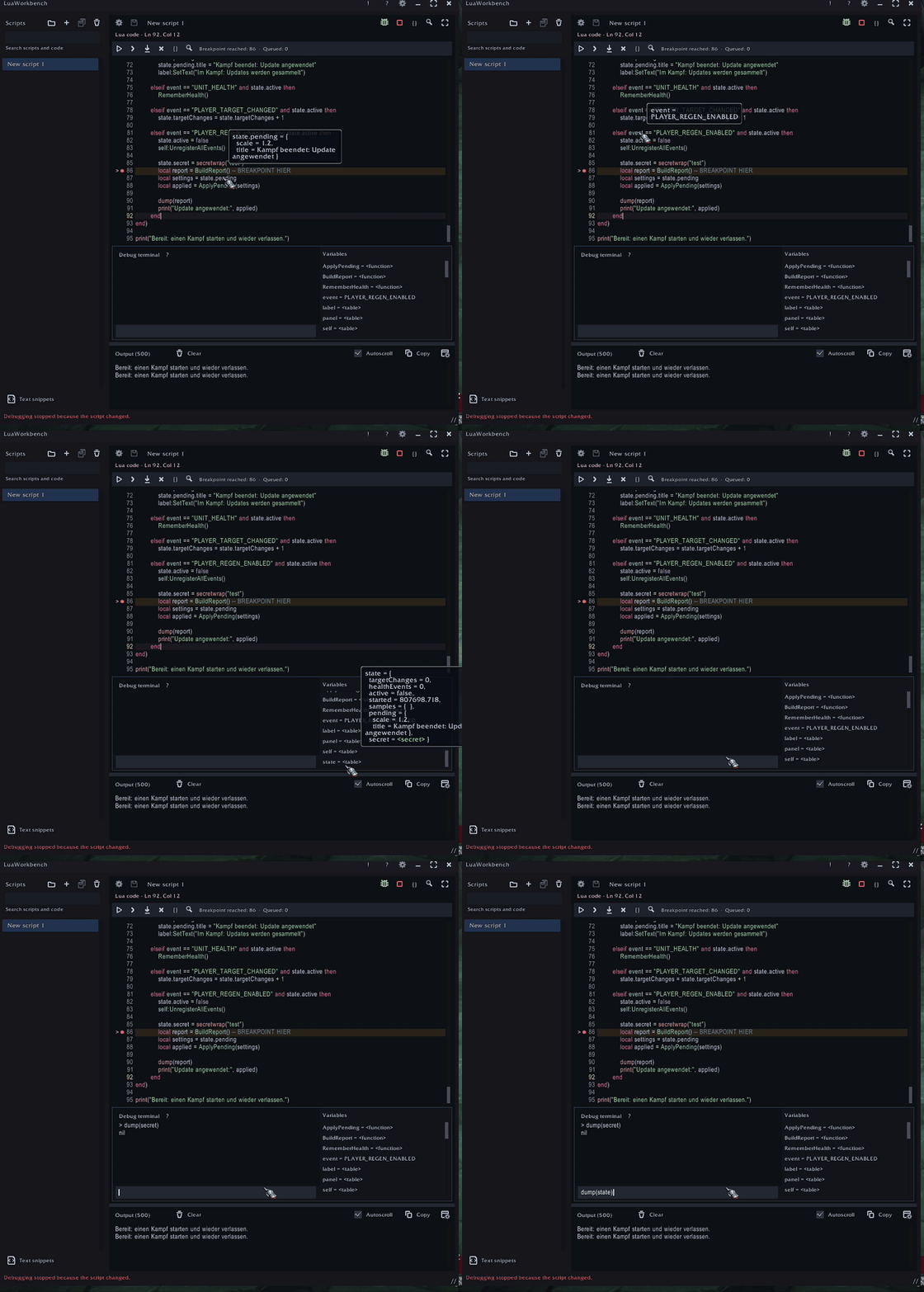
Animated preview of breakpoints, live variable inspection and the integrated debug terminal.
Description
LuaWorkbench
LuaWorkbench lets you write, run and debug Lua scripts in WoW. It combines an in-game code editor with IntelliSense, saved scripts, reusable helpers, API documentation and tools for inspecting UI elements. It works on its own and does not require another addon.
Open it with /lua, /le, /luaeditor or /luaworkbench. Supports Retail, Forever and TBC, with translations for all 11 WoW languages.
IntelliSense and code editing
Optional IntelliSense suggests documented Blizzard APIs and enums, local variables, table members and functions. It also understands namespace aliases such as local CA = C_AddOns and statically declared members from saved requireHelper modules. Parameter hints stay visible while you enter function arguments.
Use Up/Down to select a suggestion, Enter or Tab to insert it, Escape to dismiss it and Ctrl+Space to request suggestions. Normal cursor navigation does not keep reopening suggestions. IntelliSense can be disabled in Options.
The editor includes customizable syntax highlighting, code formatting, configurable indentation and automatic quote and bracket completion. Typing a closing character that the editor inserted advances over it instead of adding a duplicate. Large scripts use efficient syntax rendering, and buffered paste greatly reduces freezes when inserting large amounts of text.
Move lines or selected blocks with Alt+Up/Down, or duplicate them with Alt+Shift+Up/Down. Native copy and cut shortcuts work on the current line when nothing is selected. On macOS, use Command for saving, running and clipboard actions, and Option for word navigation and line actions; hold Shift to extend a selection.
Organize and reuse code
Organize saved scripts in folders, search within a script or across your scripts, and insert reusable text snippets. Use F12 to jump to definitions and Shift+F12 to return. Save scripts individually or with Save All, with draft recovery for unfinished work.
Move shared functions and data into named helper modules. Save a helper that returns a Lua table, then load it in another script with requireHelper("MyHelper").
Scripts can also run automatically at startup, login or on selected WoW events. Automatic execution is off by default and uses saved code, not unsaved edits.
Explore APIs and UI elements
Search the Knowledge Base for documented functions, methods, objects, structures, enums and events. Follow type references and view signatures, arguments, return values and documented restrictions in code hover tooltips.
Use the frame picker and Object Inspector to explore UI elements under the mouse. Browse fields and nested tables, search expanded entries, navigate to parent objects and back, copy access paths or insert references into your code. Debugger variables can also be opened in the inspector. Supported secret values use native hover display paths.
Debug scripts and event handlers
Set breakpoints beside the line numbers to pause execution while WoW keeps running. Step over statements or into supported script and helper calls. The debugger supports saved helper modules and supported inline OnEvent handlers; supported incoming events are queued while execution is paused.
Inspect variables in the side panel or hover over code to explore nested tables. Use the debug terminal to evaluate expressions, print values, change accessible locals and update table contents before continuing. Previous terminal commands are available with Alt+Up/Down.
Use F5 to continue, F10 to step over, F11 to step into supported calls and Shift+F5 to stop debugging. Breakpoints are saved across reloads and move with your code as you edit. A breakpoint notice lets you return to paused code when the editor is minimized.
Inspect output and arrange your workspace
A dedicated panel collects print, dump, return values and errors. Dumped arguments are numbered and nil positions are preserved, making event payloads easier to inspect.
Keep output inside the editor, detach it into a resizable window or dock it beside your code. Copy or clear output, toggle autoscroll and configure output limits. Session error history and minimized multiline previews keep results available.
Resizable windows, fullscreen mode, saved placement and optional screen clamping let you adjust the workspace to your screen.
Getting started
Create a script and run it with Play, F5 or Ctrl+Enter (Command+Enter on macOS). Save with Ctrl+S (Command+S on macOS), use the bug button to start debugging, and open ? for help and keyboard shortcuts.
Execution and debugger scope
The debugger supports your scripts, helpers and supported event callbacks. It cannot step through arbitrary Blizzard or other addon internals, or pause callbacks that must return synchronously to native code. WoW restrictions on secret values still apply.
Scripts run with normal addon permissions, so only run code you trust. An infinite loop can freeze the client; the debugger Stop button cannot interrupt arbitrary blocking code.
LuaWorkbench is MIT-licensed. Bundled libraries retain their original licenses and notices.
LuaWorkbench Team

Owner