Loot Pro
- By
An ultra-lightweight (~350KB) replacement for WoW's floating combat and loot text, clean, movable feeds for loot, money, XP, honor and rep, plus a session recap, and rare-drop alerts For Midnight (12.1), Classic (Era, TBC, MoP) and Forever Beta
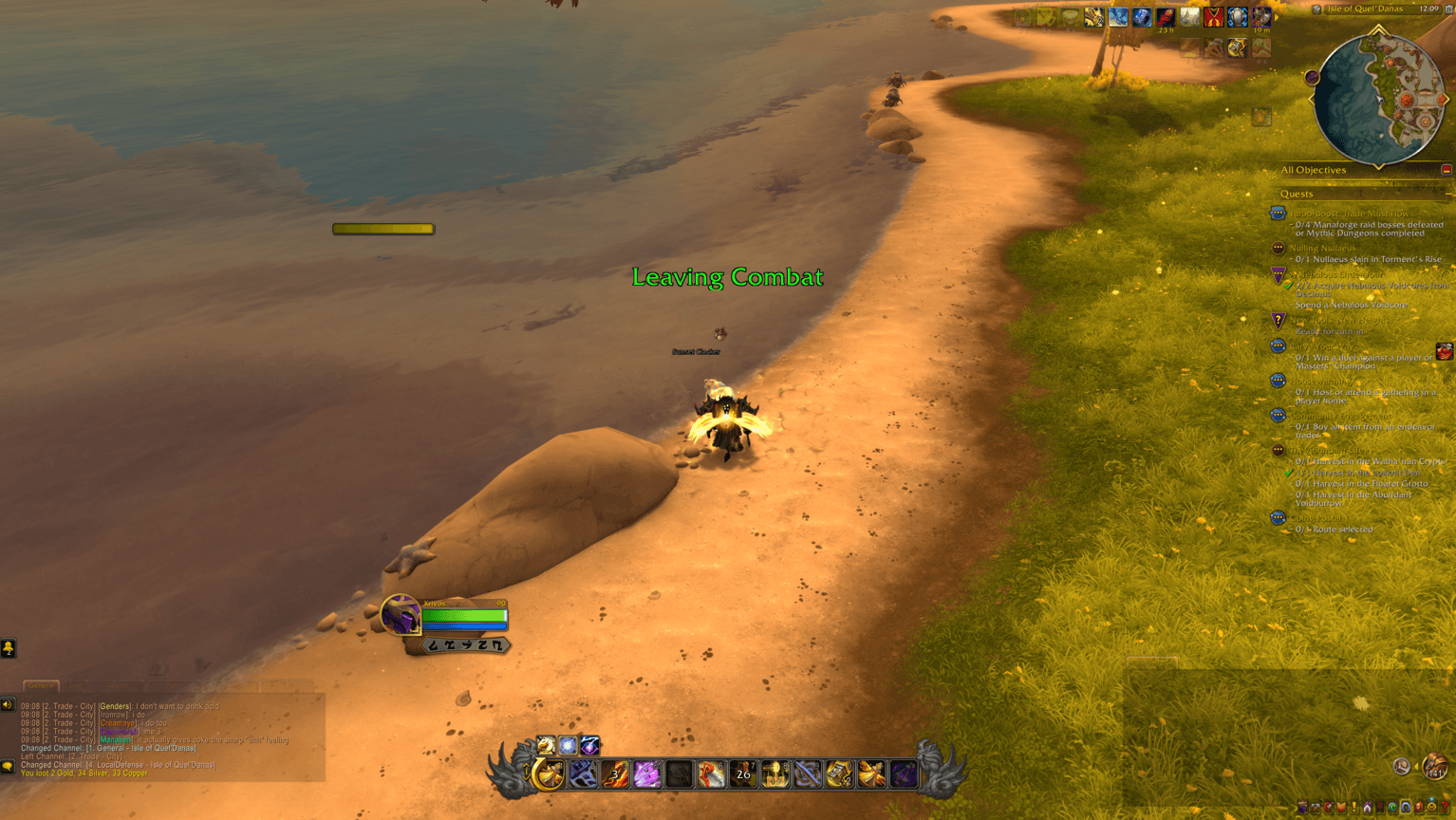
This is what it looks like when you leave aggro
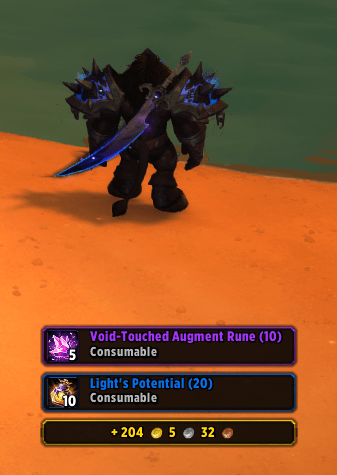
The new framed loot pop up option
Description
Loot Pro
A clean replacement for World of Warcraft's scrolling loot and combat text. Loot Pro gives you two feeds you can place anywhere, one for loot and money and one for combat, experience, and reputation, with a color and an on and off switch for every kind of message. On top of that it adds the loot tools the default UI never had: a session recap with gold per hour, alerts for the items you are hunting, gear markers, a block list, and automatic gray selling. It works the moment you install it, and every extra stays off until you turn it on, apart from a loot spec reminder that only speaks up when something is wrong.







Contents
- What it does
- Quick start
- General: looting, the minimap button, and updates
- Layout: placing and styling the two feeds
- Notifications: what shows up, and in what color
- Recap: your session at a glance
- Watch: alerts for items you name
- Rare Drops: alerts, gear markers, and loot spec
- Block: hiding loot by name
- Vendor: selling grays
- About
- Item tooltips
- Slash commands
- Minimap button
- Flavor differences
- Reset All Settings
- Dependencies
- Gallery
- Found a bug
What it does
Loot Pro replaces the default scrolling combat and loot text with two feeds you control.
The combat feed shows combat start and end, experience, skill gains, honor, reputation, and Delve companion experience.
The loot feed shows money, currency, and item loot.
Each feed has its own size, fade time, maximum line count, font, and outline, and its own text alignment, position, and line order. Every kind of message has its own color and its own on and off switch. Out of the box you get clean text with inline item icons and a running total of how many of each item you own.
Everything past that is optional and off by default, so you turn on only what you want. The one exception is the loot spec reminder, which is on from the start because it only speaks up when your loot spec does not match the spec you are playing.
Loot Pro never equips, trades, or destroys anything. Two features do act for you once you turn them on, and both are off by default: Speedy AutoLoot takes items from a corpse on your behalf, and automatic gray selling on the Vendor page sells gray items while a merchant window is open.
Quick start
- Install and log in. Your loot and combat text is already running through Loot Pro.
- Type
/lp, or left-click the minimap button, to open the settings. - Go to the Layout page, tick Unlock Windows at the bottom left, drag the two feeds where you want them, then untick it. Closing the settings window locks them again as well.
- Click Start Test Mode at the bottom right to fill both feeds with sample lines while you pick fonts, sizes, and colors. The samples follow your current settings, so you see each change as you make it. The button turns into Stop Test Mode while they run, and closing the window stops it too.
If the settings window is in the way, drag it aside by its title bar, or make it smaller with Scale on the General page.
That is enough to use it. Everything below is optional.
The settings window has nine pages, listed down its left side: General, Layout, Notifications, Recap, Watch, Rare Drops, Block, Vendor, and About. It opens on the page you used last. Unlock Windows and Start Test Mode sit at the bottom of both the Layout and Notifications pages, so you can drag a feed or watch your changes land without leaving the page you are tuning. A setting that does nothing while another one is off is dimmed until that one is on, and every slider takes a typed value if you click its number.
Where an option below is marked Retail only, the Classic versions leave it out. WoW Forever runs on the Retail client and keeps it, see Flavor differences.
General: looting, the minimap button, and updates
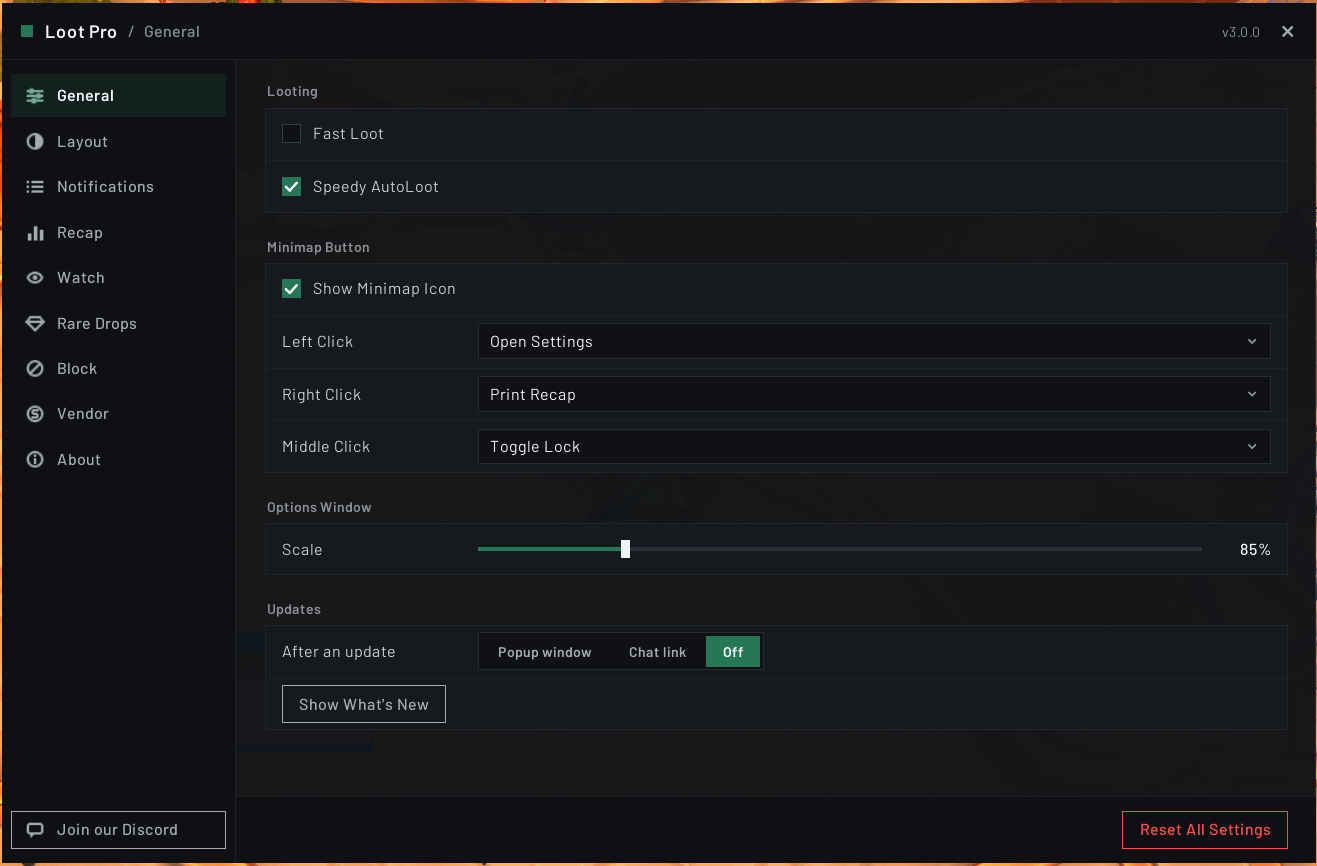
Options > General. Four cards.
Looting
Fast Loot is Blizzard's own Auto Loot setting, shown here so you do not have to go looking for it. It grabs everything from a corpse in one click instead of opening the loot window. Because it is the game's setting and not Loot Pro's, Reset All Settings does not touch it.
Speedy AutoLoot (off) is Loot Pro's own, and it works even with Fast Loot off. When loot becomes available it takes every slot automatically, about thirty per second, so the loot window never opens. Hold your auto-loot modifier key (Shift by default) as you loot and it stands aside so you can open the window by hand.
Minimap Button
Show Minimap Icon (on) shows or hides the minimap button.
Left Click, Right Click, and Middle Click set what each click does. Each offers Open Settings, Print Recap, Toggle Lock, and Nothing, and the defaults are Open Settings, Print Recap, and Toggle Lock. The clicks also work from a data broker display such as Titan Panel, even with the minimap icon hidden.
Options Window
Scale (50% to 125%, default 100%) resizes the settings window and nothing else. Your feeds, the minimap icon, and the alert banner are unaffected. To resize a feed, use Frame Scale on the Layout page. The percentage updates as you drag and the new size applies when you let go. It stops at the largest size that fits your screen.
To move the settings window, drag it by its title bar. It can hang partly off the left, right, or bottom edge of your screen, so it stays out of the way while you set up your feeds, and its title bar always stays on screen so you can drag it back. It opens wherever you left it, even after a /reload, and Reset All Settings puts it back in the middle.
Updates
After an update chooses how Loot Pro tells you about a new version: a Popup window (the default), a quiet clickable Chat link in your chat, or Off.
What's New only appears for releases that bring new features. A release with only fixes stays quiet, and the next feature release lists it too, so nothing is missed. If you have been away for several versions, it lists everything since you last looked. The popup has a Don't show these again box that turns the notices off, and Show What's New reopens the notes any time.
On a brand new install you get a short welcome with an Open Settings button instead of What's New.
Reset All Settings sits at the bottom of this page, see Reset All Settings.
Layout: placing and styling the two feeds
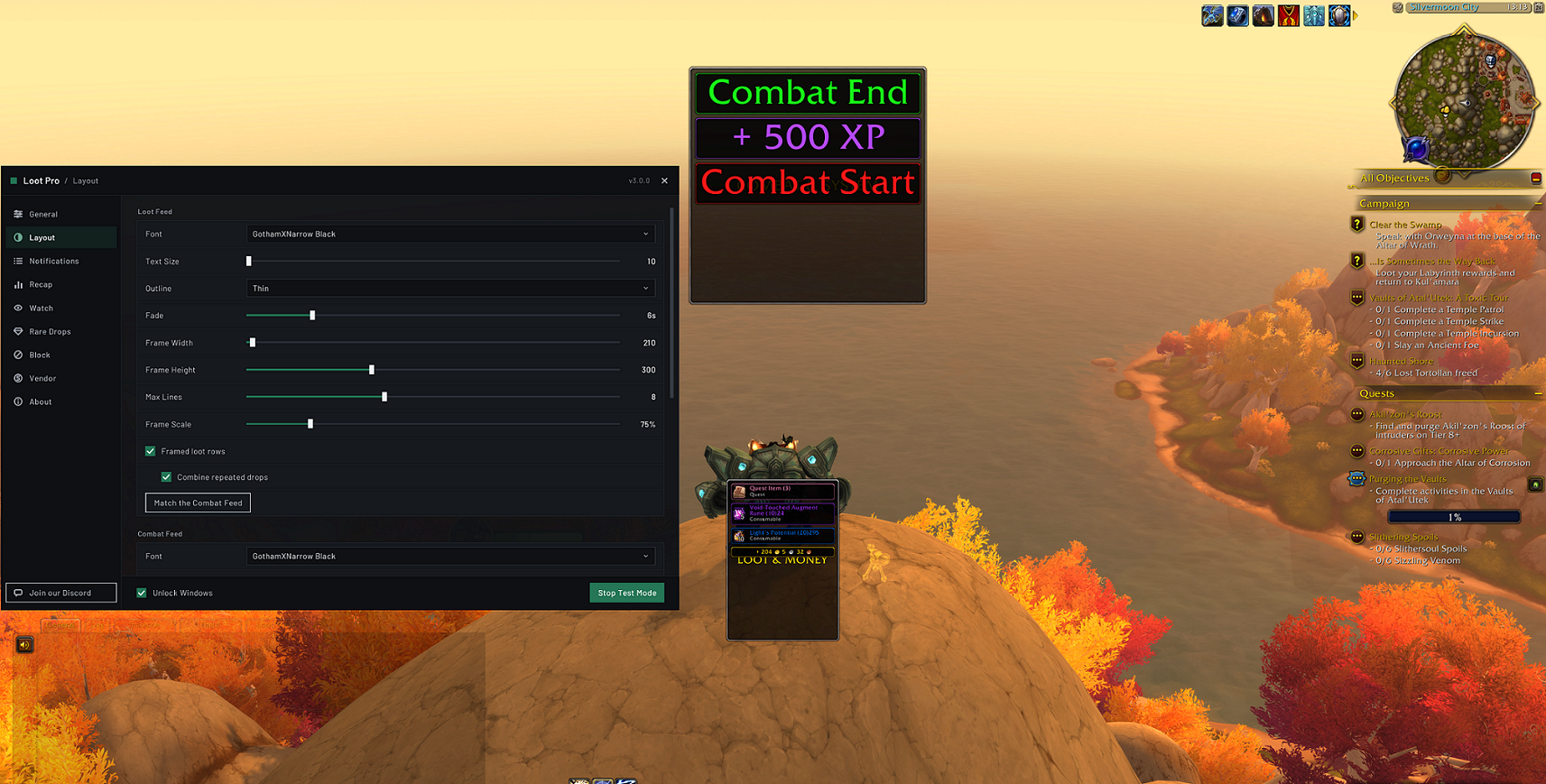
Options > Layout. Three cards. Loot Feed and Combat Feed hold the same settings, each for its own feed, and Both Feeds holds the ones that cover both.
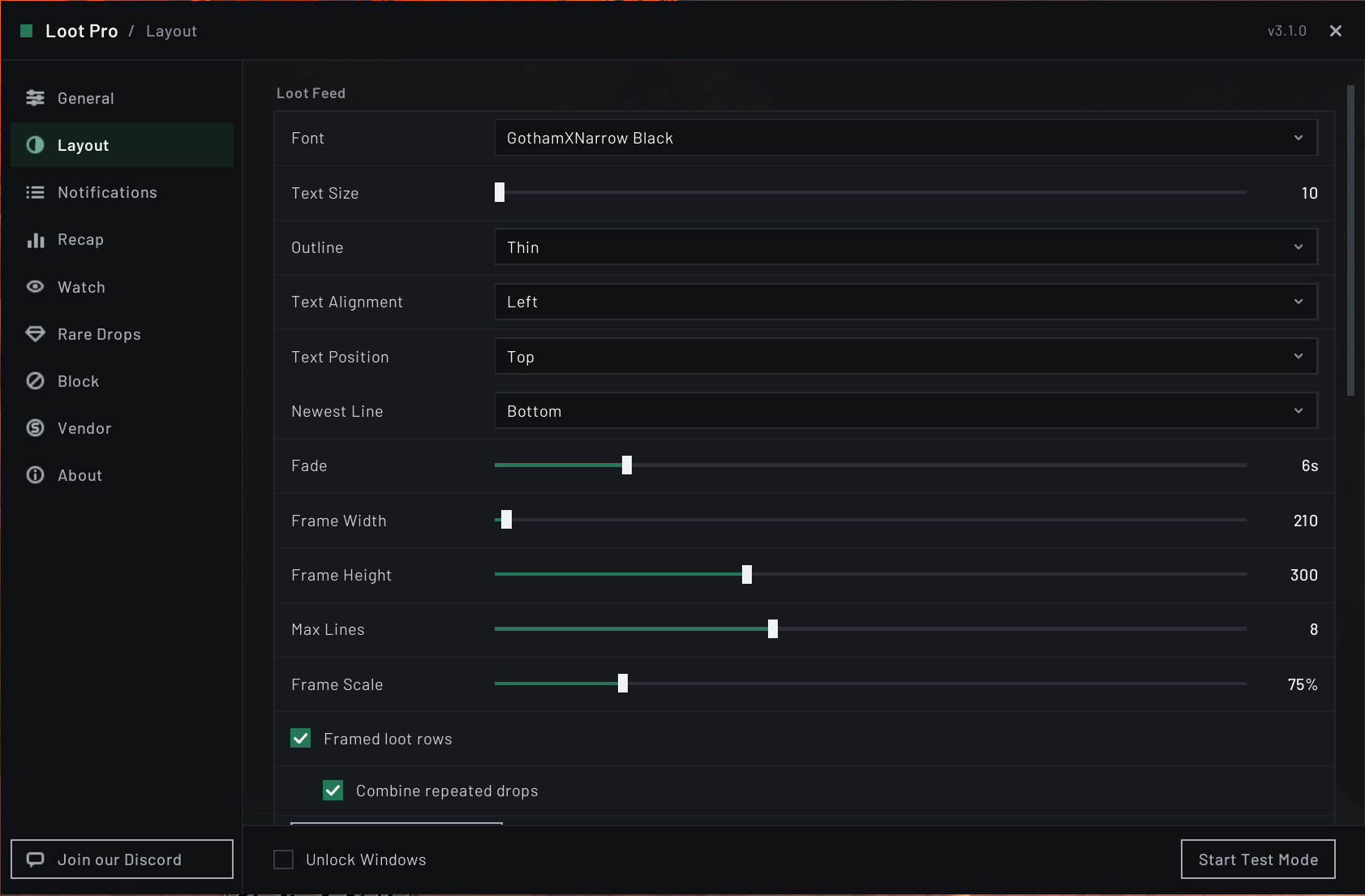
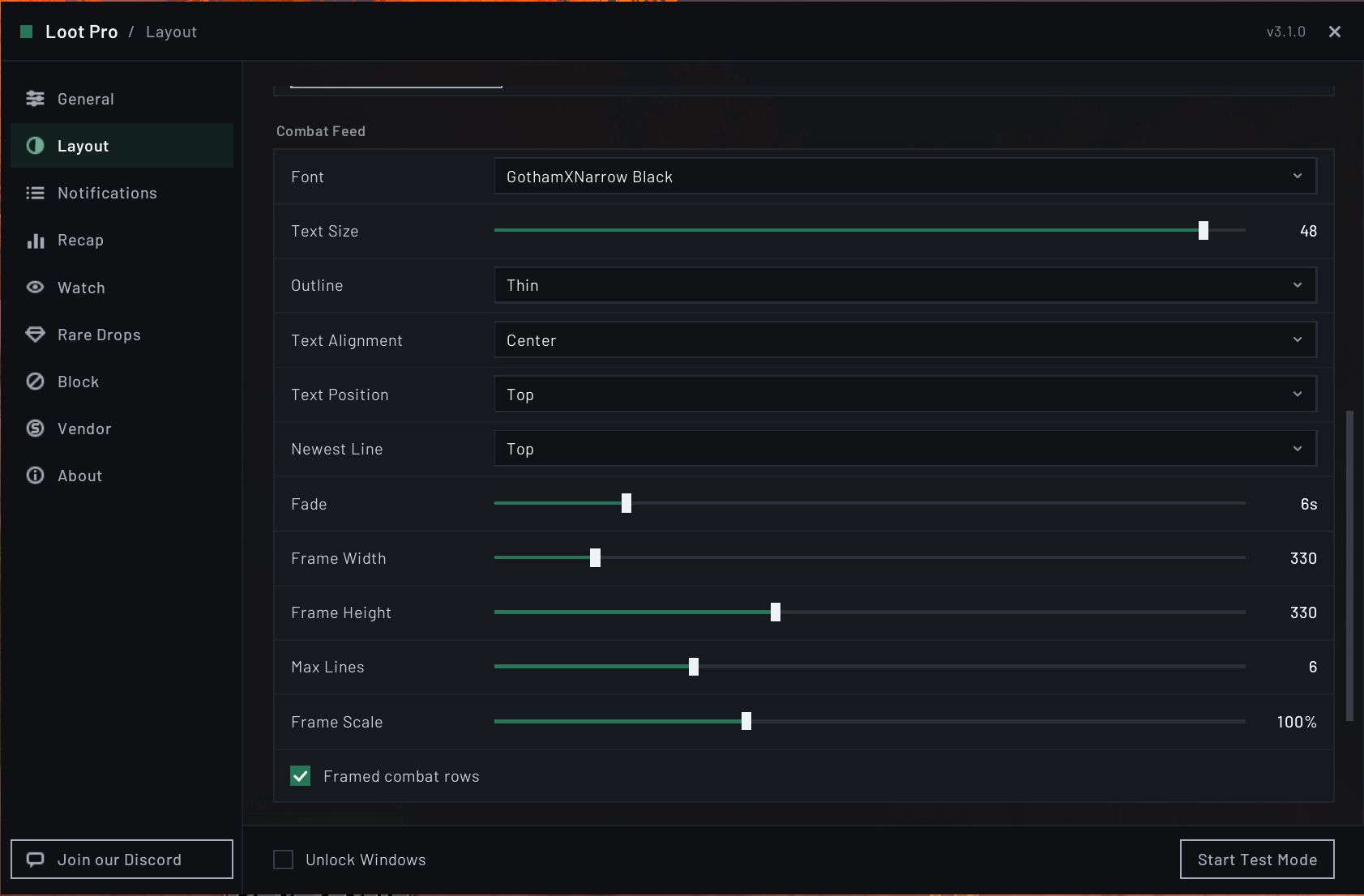
| Setting | Choices | Default | What it does |
|---|---|---|---|
| Font | Every font registered with LibSharedMedia-3.0 | Friz Quadrata TT | Each font is listed in its own face, so you can see it before you pick it |
| Text Size | 10 to 50 | 22 loot, 20 combat | Font size of the feed |
| Outline | None, Thin, Thick, Pixel | Thin | None adds a soft drop shadow instead, so text stays readable on a light background |
| Text Alignment | Left, Center, Right | Center | Lines the text up with the left edge, the center, or the right edge of the feed |
| Text Position | Top, Middle, Bottom | Bottom | Where the lines sit when they do not fill the feed's area |
| Newest Line | Top, Bottom | Bottom | Whether a new line appears above the others or below them |
| Fade | 1 to 30 seconds | 6 | How long a line stays before it fades |
| Frame Width | 200 to 1200 | 200 | The width of the feed's area |
| Frame Height | 50 to 800 | 200 | The height of the feed's area |
| Max Lines | 1 to 20 | 4 | How many lines can be on screen at once. A new line pushes the oldest one out |
| Frame Scale | 50% to 200% | 100% | Makes the whole feed bigger or smaller |
Text Alignment, Text Position, and Newest Line decide how the lines sit inside a feed's area, and you can mix them freely. A few combinations that work well:
- A feed near the bottom of your screen: Text Position and Newest Line both at Bottom. New lines push the older ones upward, the way chat does.
- A feed hanging below the minimap: both at Top, so the newest line stays pinned to the top edge.
- Middle keeps the block of lines centered in the area and re-centers it as lines arrive and fade.
- Left or Right lines a feed up against the side of your screen.
All three work in plain text and in framed rows, and the loot feed and combat feed each keep their own.
Frame Width and Frame Height set the area a feed occupies, which decides where long lines wrap and how much room Text Position has to work with. Tick Unlock Windows to see the area and drag the feed.
Text Size changes only the font. Frame Scale grows or shrinks everything in the feed together, including icons, framed row borders, and spacing, and the feed stays where you placed it while it scales.
Framed rows
By default both feeds are scrolling text. Framed rows draw each line as its own bordered row instead.
Framed loot rows (off, Loot Feed card) gives every drop a row with the item icon, the name, your running total, and the item category. The border and the name are colored by item quality. Shift-click a row to link the item in chat, control-click it for the dressing room, or hover it for the normal item tooltip.
Combine repeated drops (on) makes repeats of the same item stack into one growing row with a rolling count, collapses gray junk into a single Junk Items row, and merges rapid money pickups into one running total. This is what keeps the feed readable during an AoE pull. It only does anything while Framed loot rows is on.
Framed combat rows (off, Combat Feed card) does the same for combat, skill, and reputation lines, with the border colored to match the line.
In framed rows, lines without an icon, such as money and combat lines, follow all three alignments. Item rows keep their icon on the left with the name beside it under Left and Center, and Right mirrors them, with the icon on the right edge and the name lined up beside it.
If you have Masque installed, the icons on framed loot rows take your chosen Masque skin.
Match the Combat Feed
A button at the bottom of the Loot Feed card. It gives your loot feed the combat feed's font, text size, outline, text alignment, text position, newest line, fade, frame size, max lines, and frame scale in one click. It only copies from combat to loot, and it overwrites whatever the loot feed had, so set up the combat feed first if you plan to use it. It leaves the framed row boxes alone.
Both Feeds
Click through locked rows (off) fixes one trade-off. A framed row has to receive your click for shift-click linking to work, so a visible row keeps catching clicks even while the feed is locked. Turn this on and clicks pass through to whatever is behind the feed, at the cost of shift-click linking. It is dimmed unless one of the framed row boxes is on.
Pause fade while hovering the feed (off) freezes fading while your cursor rests on a feed, so you can actually read a busy one. Clicks still pass through to whatever is behind it.
Keep busy feeds up longer (off) stretches how long lines stay visible when many arrive at once, adding time for each extra line and easing back to your normal fade setting as the feed clears.
Notifications: what shows up, and in what color
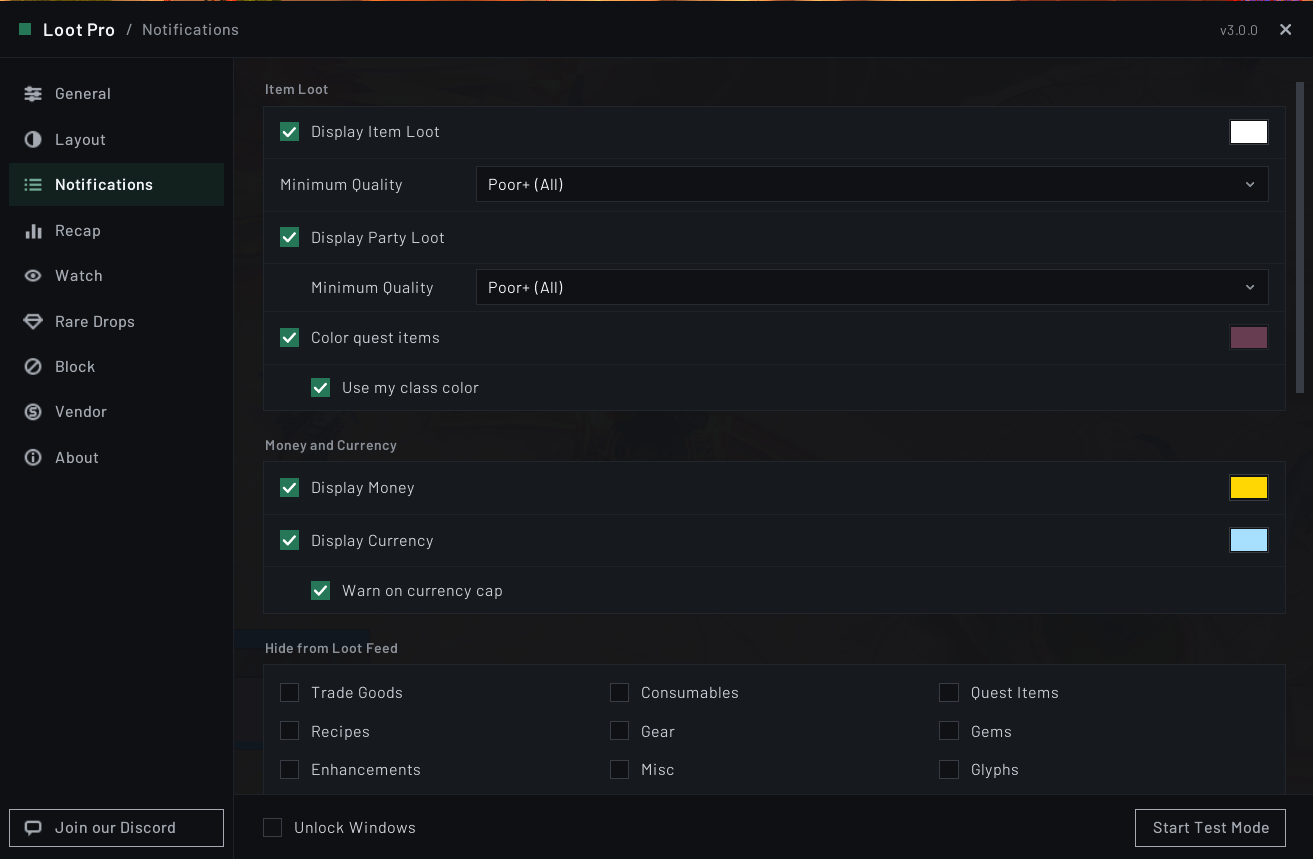
Options > Notifications. This page decides which messages reach a feed, how much of each item drop you see, and what color each kind of message is. Every message's color swatch sits at the right end of its own switch. Click a swatch to open the standard color picker. Turn on Start Test Mode first and the real feeds fill with sample lines that recolor as you pick.
Item Loot
Display Item Loot (on, Loot color) shows the items you loot in the loot feed. Everything else on this card works through it. Items you craft and items a merchant refunds show as your own lines too, but since you did not loot them, they stay out of the session recap and the alerts.
Minimum Quality hides your own drops below a quality you choose: Poor+ (All), Common+, Uncommon+, Rare+, Epic+, or Legendary+. The default, Poor+ (All), hides nothing. If the game has not loaded an item's details yet, Loot Pro shows the line rather than risk hiding something you wanted.
Display Party Loot (on) also shows what the rest of your group loots, in the Loot color. It has its own Minimum Quality under it, so you can watch every scrap you loot while only hearing about the group's rares.
Color quest items (off, Quest Items color) paints your own quest drops in the Quest Items color instead of their item quality color, so they stand out in a busy feed. Framed rows take the color on the item name and the border, plain text lines take it on the whole line.
It covers more than the items tagged Quest. When an active quest asks you to collect ordinary cloth, meat, or ore, those count too, which is the half that is easy to miss because the game does not flag them as quest items at all. Since most of them are white or gray, they are shown even when they fall below your Minimum Quality, as otherwise the feature would do nothing on a filtered feed. Your Hide from Loot Feed categories and your block list still hide anything they are set to hide. A gray quest item also keeps its own framed row instead of collapsing into the combined Junk Items row.
Use my class color (off) paints them in your class color and ignores the Quest Items swatch. It picks up a class color addon's palette when one is installed.
Money and Currency
Display Money and Display Currency (both on, each with its own color).
Warn on currency cap (on) tags a currency line with a red (capped) or an orange (weekly cap) once you have hit its maximum, so you can see at a glance that further gains are being wasted. It is a tag on the line, not a popup or a sound.
Hide from Loot Feed
Nine boxes that hide whole categories of item, yours and your group's, all off by default: Trade Goods, Consumables, Quest Items, Recipes, Gear, Gems, Enhancements, Misc, and Glyphs. Gear covers weapons and armor together.
Hidden items still count toward the session recap, and watch and rare drop alerts still fire on them. Only the line in the feed is hidden, so your totals stay honest no matter how much you filter.
Loot Feed
Enable Clean Mode (on) strips the game's wrapper text, so "You receive loot: [Linen Cloth]" becomes just the item with its icon. Turn it off to see the original message.
Show Item Totals (on) adds how many you now own in parentheses after the item, as in Linen Cloth (14). The total counts your bags and your bank, plus your warband bank on Retail and WoW Forever. It needs Clean Mode.
Use Coin Icons (on) shows looted money as gold, silver, and copper coin icons instead of plain 12g 50s 20c. It applies while Clean Mode is on, and always on framed loot rows that combine repeated drops.
Hide Blizzard's loot toasts (off) stops the popups Blizzard shows when you loot something, since the loot feed already lists the same drops. It covers item drops, along with the money, currency, and honor that share the same popup, won loot rolls, and item upgrades. Legendary items, new mounts, pets, and toys, achievements, and quest rewards still get their popups. Untick it and the popups come straight back. It appears on Retail and WoW Forever only, since the Classic versions have no loot toasts to hide.
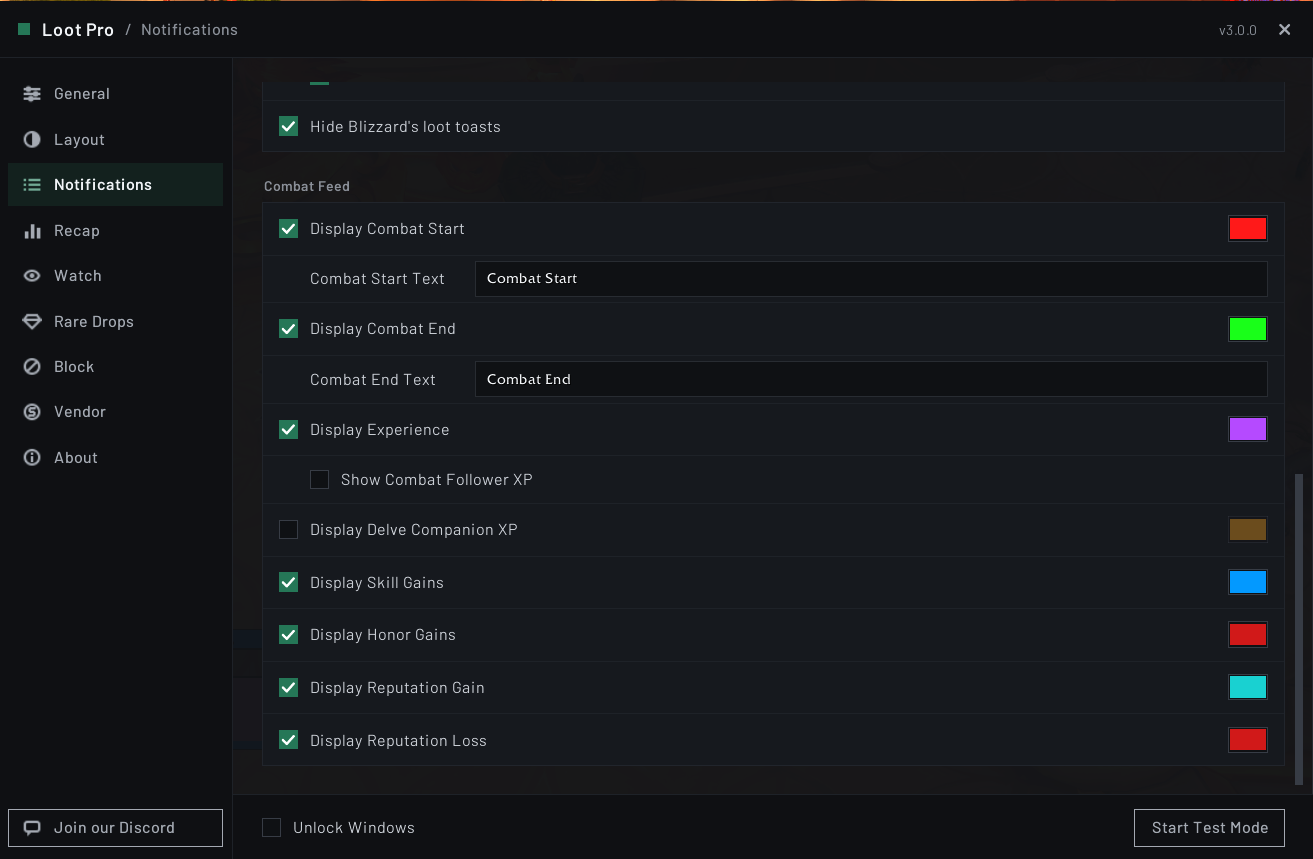
Combat Feed
Display Combat Start and Display Combat End (both on) show a line as you enter and leave combat. Under each, Combat Start Text and Combat End Text set the words. Press Enter or click away to keep a change, or Escape to undo it.
Display Experience (on) shows the experience you earn. Show Combat Follower XP (off) under it adds experience earned by your pet, battle pet, or follower.
Display Delve Companion XP (off), Display Skill Gains, Display Honor Gains, Display Reputation Gain, and Display Reputation Loss (all on) round out the combat feed.
Recap: your session at a glance
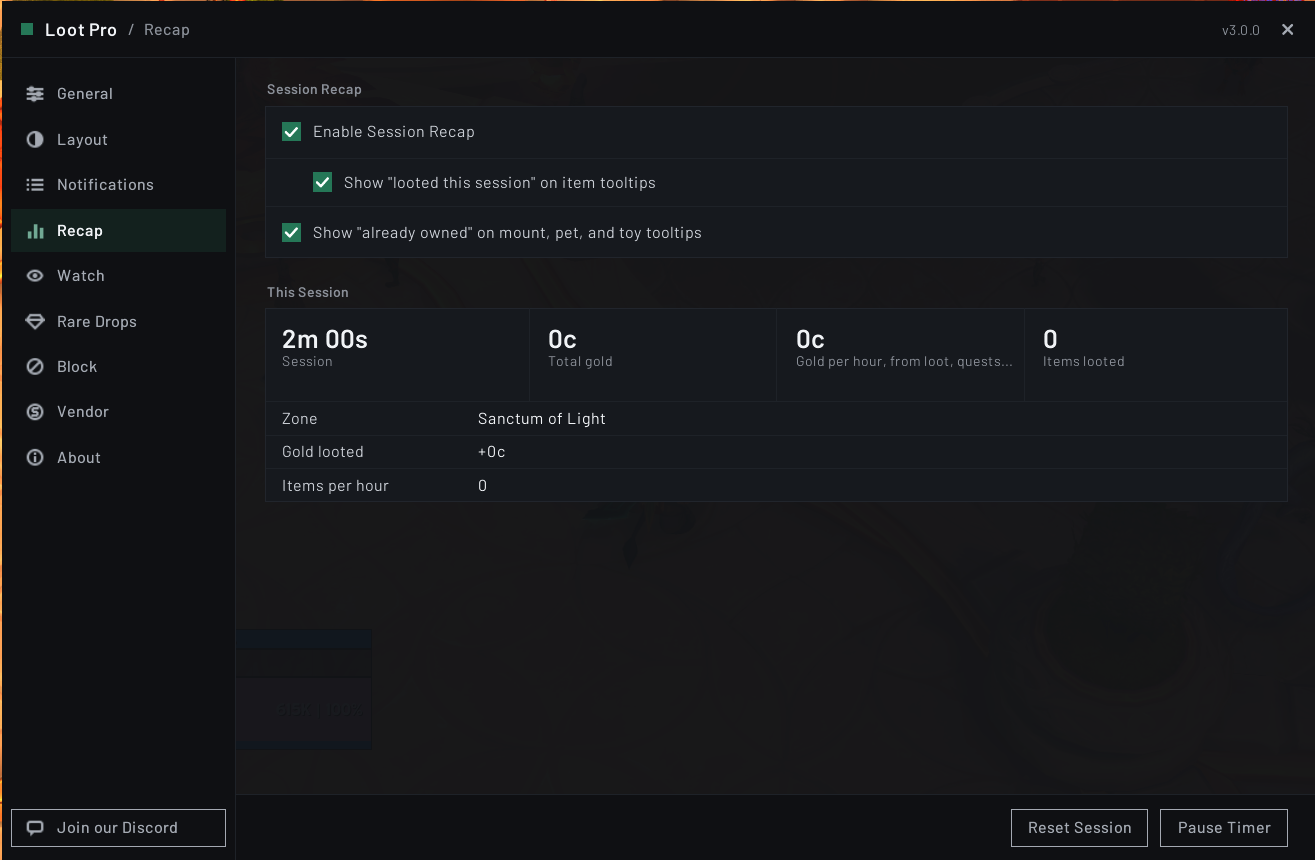
Options > Recap. Off by default. Tick Enable Session Recap to start tracking. Turning it on or off starts a fresh session.
Once on, the This Session card shows four figures across the top: how long the session has run, your total gold, your gold per hour, and the number of items looted. Gold per hour reads "-" until a minute has passed. Below them are your current zone, your gold broken down by where it came from, items per hour, and your loot broken down by rarity. A Currencies card lists every currency you have earned, and a Notable Drops card lists up to ten of your most recent Epic-or-better drops, newest first. Hover one for its tooltip, or shift-click it to link it in chat. Each card appears once it has something to show.
Gold is split into Gold looted, Quest rewards, Vendor income, Mailbox, and Trade, and each source appears once it has paid out. Vendor income is everything merchants paid you, not only for grays, and spending never counts against any of them. Gold per hour counts looted gold, quest rewards, and vendor income only. Mailbox and trade gold, such as auction sales or gold sent from an alt, show in the total but stay out of the hourly rate, so one big payout cannot inflate it.
Reset Session at the bottom of the page starts a fresh session. Pause Timer beside it stops the clock without stopping the tracking, so a trip to the mailbox or a long queue does not drag your per-hour numbers down. Loot is still counted while paused, the clock shows a paused tag, and the button turns into Resume Timer. The pause survives a /reload.
The session lives in memory. A /reload keeps it and logging out clears it, so it never bloats your saved variables.
You can print the same summary to chat at any time with /lp recap, which is handy for pasting into a group chat.
Watch: alerts for items you name
Options > Watch.
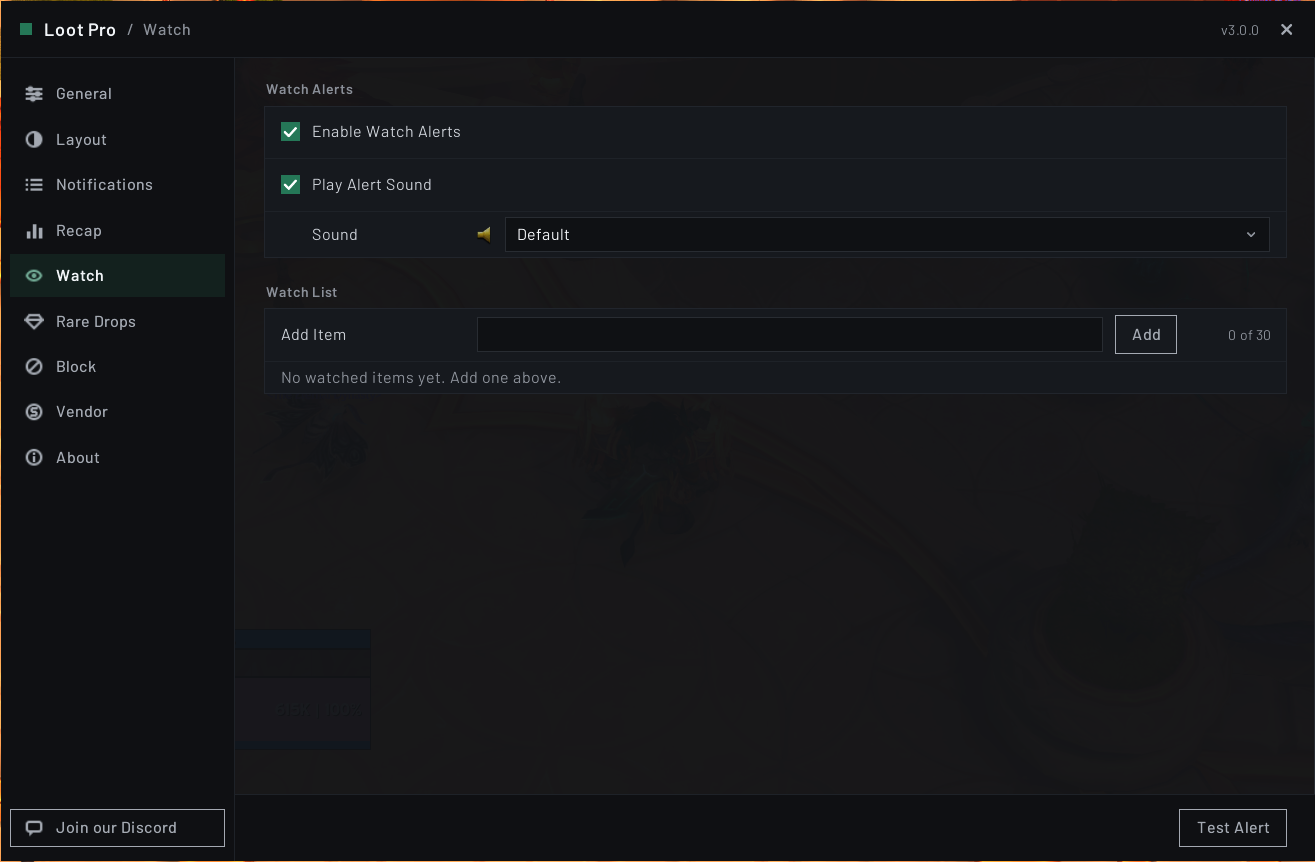
Tick Enable Watch Alerts (off by default) and build a list of items you do not want to miss. When one drops, Loot Pro shows a banner in the center of your screen and plays a sound. Alerts fire only for items you loot, not the group's.
Add an item in the Add Item box by typing its name or item ID and pressing Enter or Add, or by shift-clicking the item straight into the box. A name matches any item containing that text, so Ore catches every ore, and its entry carries a "contains" tag. A link or an ID matches that one item exactly and shows the item's icon and its name in its quality color. Currencies cannot be watched, and the box tells you so if you shift-click one in. The count beside the box shows how full the list is, up to thirty entries, and it tells you when the list is full or an entry is already on it. Click the X on an entry to remove it.
Play Alert Sound (on) controls the sound, and the Sound box under it picks which one plays: Default (a raid warning horn), one of eight built-in Blizzard sounds, or any sound a media addon such as SharedMedia, BigWigs, or ElvUI has registered. Picking a sound plays it once, and the speaker beside the box plays it again. Alert sounds play on the Master channel, so you still hear them with sound effects muted. If you remove the media addon a sound came from, the alert falls back to Default instead of going quiet.
Test Alert at the bottom of the page fires a sample banner so you can check where it appears.
Rare Drops: alerts, gear markers, and loot spec
Options > Rare Drops. Four cards. The last, Loot Spec, only appears on game versions that have loot specializations.
Rare Drop Alerts
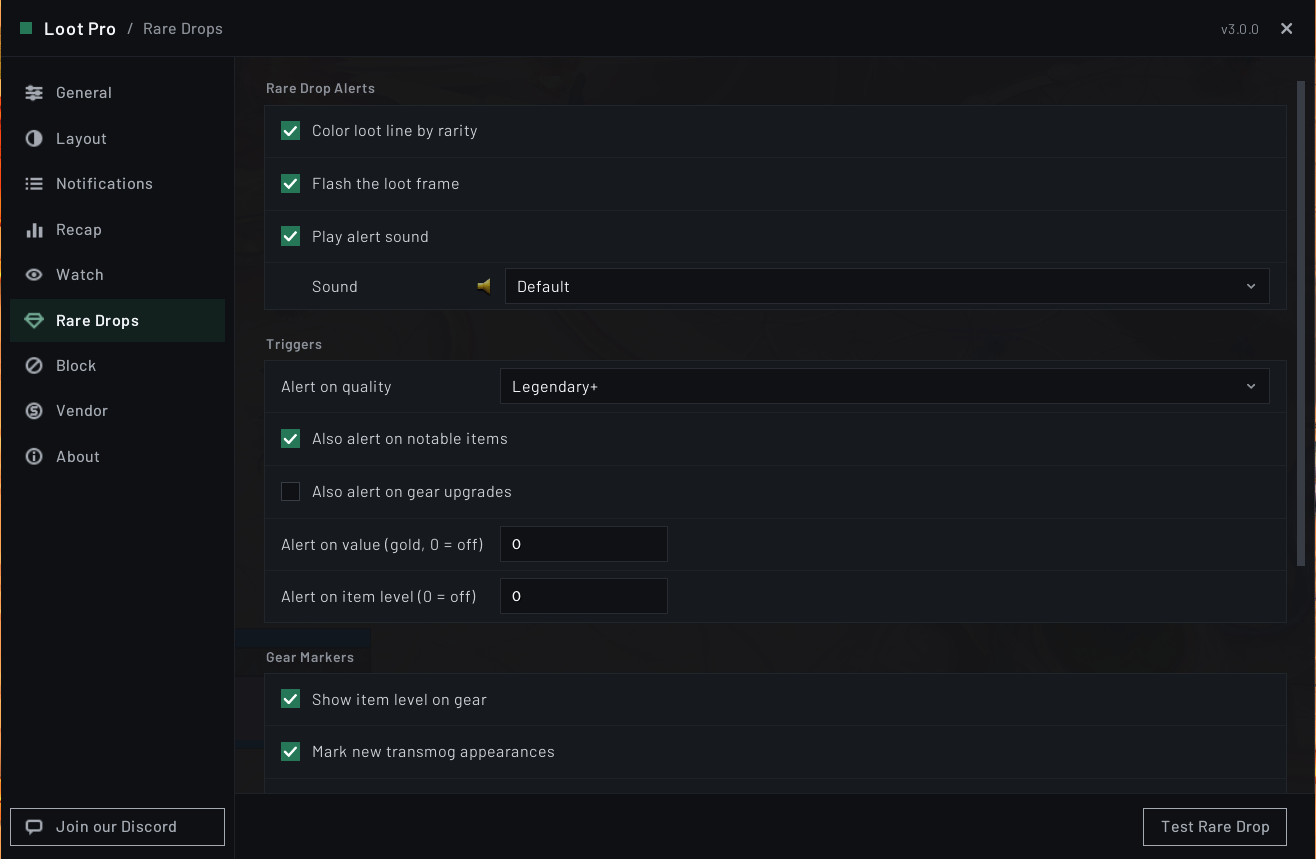
A separate alert for anything valuable, whether or not it is on your watch list. It fires on your own loot. This card holds the three effects, all off by default: Color loot line by rarity, Flash the loot frame, and Play alert sound. The sound has its own picker under its checkbox, with the same choices as the watch list, and its Default is the epic loot fanfare. Coloring by rarity is part of the alert rather than a general setting, so it applies to lines that trip one of the triggers below, not to every drop.
Triggers
What makes a drop alert. Any one of them is enough, and you can mix them freely. They stay dimmed until at least one of the three effects above is on, since a trigger with no way to show itself does nothing.
Alert on quality sets the rarity that fires the alert. It offers Uncommon+, Rare+, Epic+, and Legendary+, and defaults to Legendary+.
Also alert on notable items (off) fires for mounts, pets, and toys even when they fall below that quality bar, so an uncommon mount still gets your attention. On Retail and WoW Forever this only counts collectibles you do not already own.
Also alert on gear upgrades (off, Retail only) fires when you loot a weapon or armor piece with a higher item level than what you have equipped in that slot, whatever its quality. It uses the same check as the Mark gear upgrades marker below, but works whether or not the marker is turned on.
Alert on value (gold, 0 = off) fires when a single drop is worth at least the number of gold you enter. This catches the expensive trade goods that never reach epic quality. Worth knowing: the figure used is the item's vendor sell price multiplied by the stack, not its auction house value, so a soulbound item with no sell price can never trigger it.
Alert on item level (0 = off) fires when a weapon or armor piece you loot is at least the item level you enter, whatever its quality. Shirts, tabards, and cosmetic armor never count.
Test Rare Drop at the bottom of the page flashes the loot feed as a rare drop would, and plays the alert sound if it is on, so you can judge them without waiting for a real drop.
Gear Markers
Tags added to the end of a loot line so you can judge a drop without opening its tooltip. All are off by default.
| Marker | Looks like | What it means |
|---|---|---|
| Show item level on gear | [485] in gold |
The item level of any looted weapon or armor. This one applies to the group's drops as well as your own, and works on every game version. Shirts, tabards, and cosmetic armor are skipped, since their item level is meaningless. |
| Mark new transmog appearances | (new look) in blue |
You have not collected this appearance from any source yet, so it is not safe to vendor. Retail only. |
| Mark gear upgrades | (upgrade) in green |
Higher item level than what you have equipped in that slot. It only fires when the drop is the same armor or weapon type you already wear, and when the primary stat matches, so an Intellect piece is never flagged for an Agility character. Retail only. |
| Mark gear with a tertiary stat | (Leech) in teal |
The piece rolled a bonus tertiary stat, named on the line: Leech, Avoidance, Speed, or Indestructible. Retail only. |
| Show upgrade track on gear | (Hero 4/6) in lavender |
The piece's upgrade track and how far it has been upgraded. The track decides how high the piece can go. Gear that cannot be upgraded gets no tag. Retail only. |
The Retail-only markers appear on your own drops. The item level tag also applies to loot the group picks up, and so does the upgrade track when you tick Include the group's loot under it.
Loot Spec
Warn when my loot spec isn't my current spec (on) catches the classic mistake of running a dungeon with your loot specialization still set for another spec. When you enter a dungeon, a raid, or on Retail a delve, and your loot spec is set to a different spec than the one you are playing, Loot Pro shows a banner in the middle of your screen and prints a chat line naming both specs. It checks again if you change spec or loot spec while inside, and it warns once per mismatch rather than every few seconds.
A loot spec set to follow your current spec never triggers it. Loot Pro never changes your loot spec for you. Right-click your character portrait to change it.
This card only appears on game versions that have loot specializations, which means Retail and Mists of Pandaria Classic.
Block: hiding loot by name
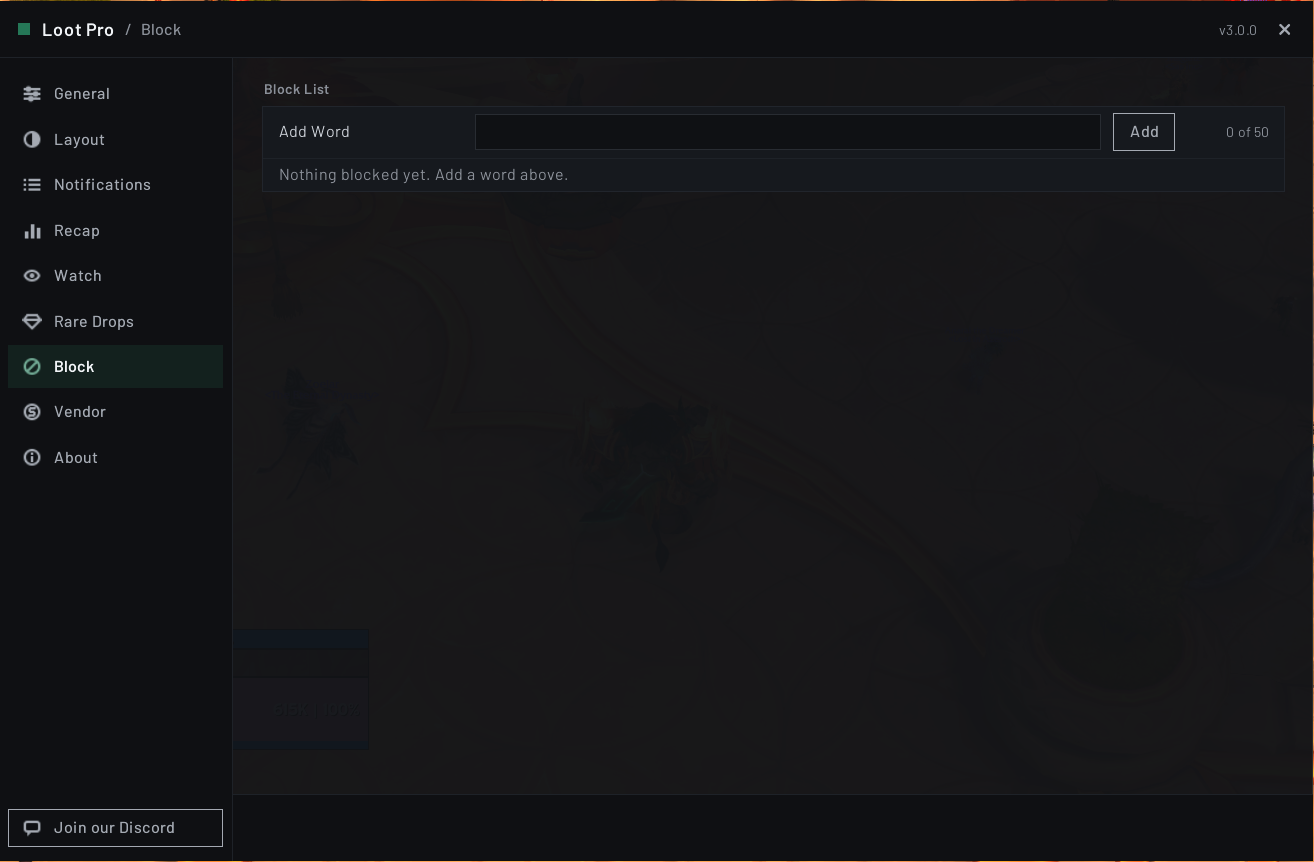
Options > Block. A list of words. Any drop whose name contains one of them never reaches the loot feed, yours or your group's.
Matching ignores capital letters and catches partial names, so Tattered hides every tattered thing. Add an entry in the Add Word box by typing it and pressing Enter or Add, or by shift-clicking an item into the box. The count beside the box shows how full the list is, up to fifty entries, and each entry has an X to remove it.
This is the tool for the specific junk that slips past a quality or category filter. As with every other filter, blocked items still count in the session recap, and watch and rare drop alerts still fire on them.
Vendor: selling grays
Options > Vendor. Off by default.
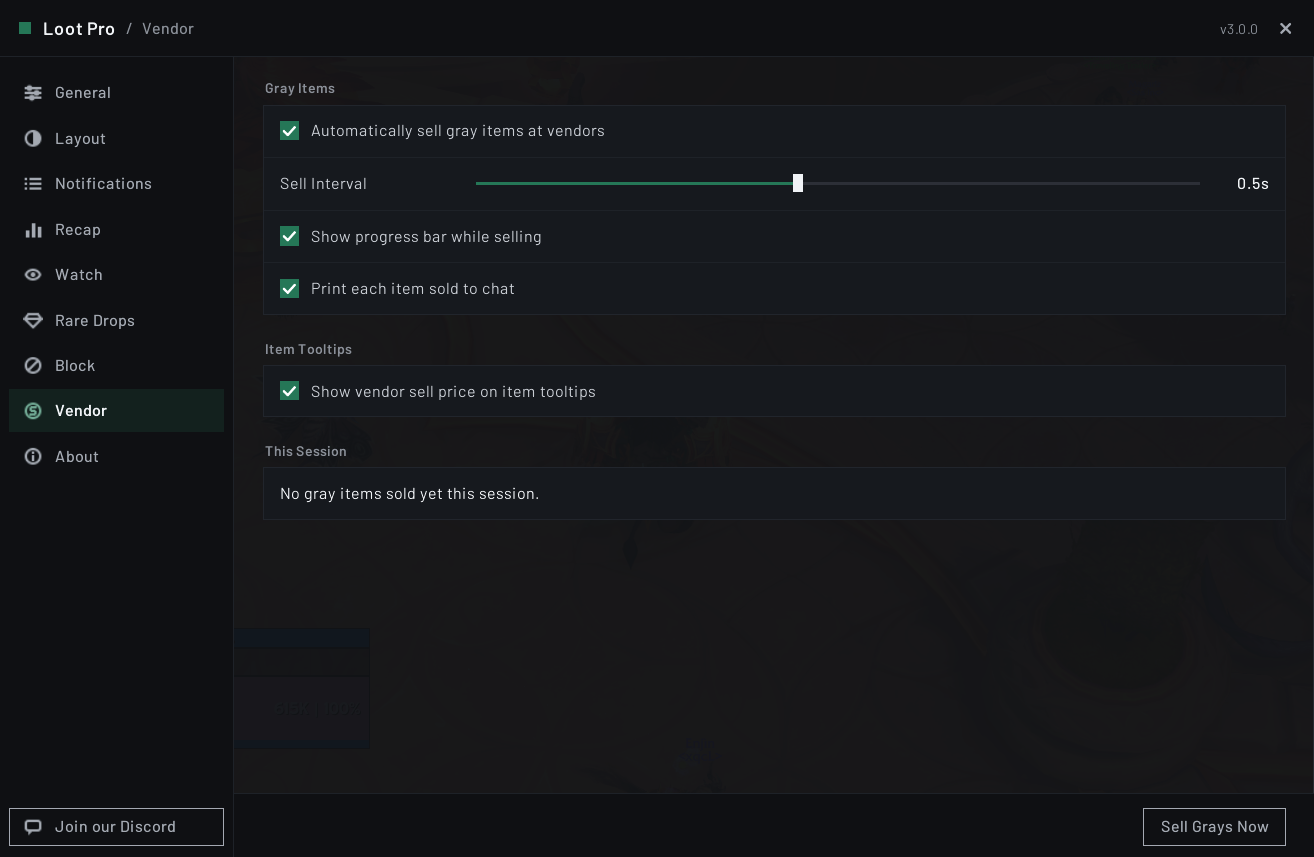
Automatically sell gray items at vendors (off) sells every poor-quality item in your bags as soon as you open a merchant. Quest items and items with no sell value are never sold, and each bag slot is checked again in the instant before it sells, so an item you moved mid-sale is never vendored by mistake. While you are holding an item on your cursor, selling pauses and picks up again once you put it down.
To skip it for one visit, hold your auto-loot modifier key (Shift by default, the same key Speedy AutoLoot uses) as you open the merchant. A chat line confirms how many grays were left alone, and Sell Grays Now still works if you change your mind. If ElvUI's own Vendor Grays option is also on, ElvUI sells them anyway, because its seller ignores that key. The Vendor page shows a red warning while both are on, so turn one of them off.
Sell Interval (0.1 to 1.0 seconds, default 0.2) is the delay between each item. A longer interval is gentler on the server and makes the progress bar easier to follow.
Show progress bar while selling (on) shows a small on-screen bar counting through the run.
Print each item sold to chat (off) lists every item and what it sold for.
Sell Grays Now at the bottom of the page runs a pass on demand, even with automatic selling turned off. Hover it to see what your current grays are worth before you commit. It needs an open merchant window.
The This Session card shows how many grays you have sold and for how much. It covers both automatic and manual sales, and clears when the session recap does.
The merchant's own Sell All Junk button already sells everything at once. What this adds is doing it automatically, at a pace you can watch, with a running total.
About
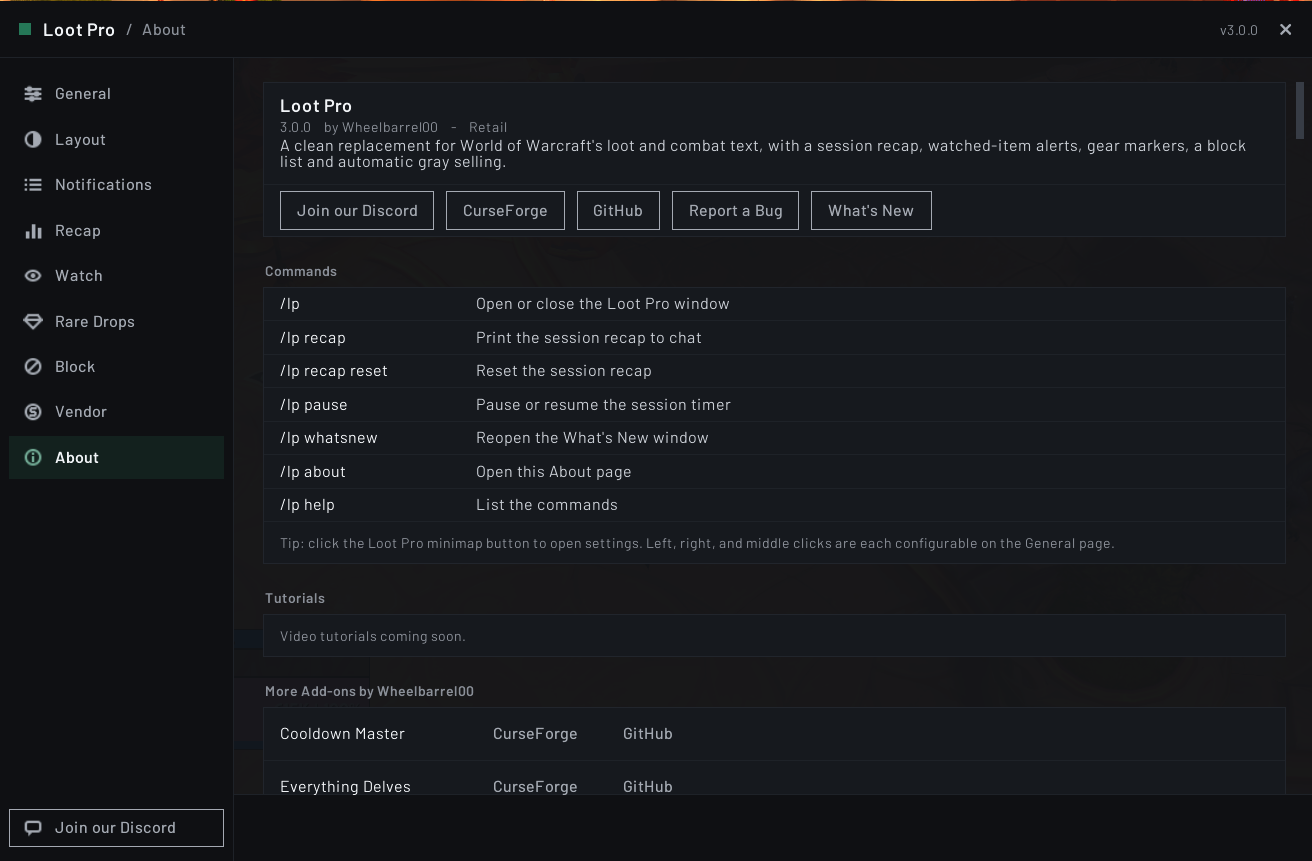
Options > About. Your version and the game client you are on, buttons for Discord, CurseForge, GitHub, Report a Bug, and What's New, every slash command, the other addons I make, and the whole changelog. Links open in a copy box, since the game cannot open a browser. The Discord button also sits at the bottom of the sidebar on every page.
Item tooltips
Three optional lines that Loot Pro can add to item tooltips. They are spread across two pages because each belongs with the feature that feeds it.
Show "looted this session" on item tooltips (Recap page, on by default) adds how many of that item you have looted this session. It needs the session recap turned on to show anything.
Show "already owned" on mount, pet, and toy tooltips (Recap page, off) tells you that you already have the mount, pet, or toy, so a duplicate is safe to sell or pass on without opening a journal to check. Retail only, since the Classic versions have no shared collection journals.
Show vendor sell price on item tooltips (Vendor page, off) adds the sell price, plus the value of the whole stack when you hover a stack in your bags.
Slash commands
| Command | What it does |
|---|---|
/lp |
Open or close the settings window |
/lp recap |
Print the session recap to chat |
/lp recap reset |
Start a fresh recap session |
/lp pause |
Pause or resume the session timer |
/lp about |
Open the About page and the in-game changelog |
/lp whatsnew |
Open the What's New window again |
/lp whatsnew reset |
Count the newest release as unread again, so What's New shows it at your next login |
/lp test |
Run a self-check that posts one of every message type and reports pass or fail |
/lp help |
List the commands |
Minimap button
A LibDataBroker launcher with a LibDBIcon minimap button, so Titan Panel, ChocolateBar, Bazooka, and similar display addons pick it up automatically.
| Click | Default action |
|---|---|
| Left | Open Settings |
| Right | Print Recap |
| Middle | Toggle Lock |
All three are configurable on the General page, and each can be set to Nothing. Hovering the icon shows the version, a reminder of what your three clicks currently do, and on game versions with loot specializations your current loot spec, in red when it does not match the spec you are playing. The button itself can be hidden from the General page.
Flavor differences
Loot Pro runs on Midnight (12.1), Classic Era (1.15.9), Burning Crusade Classic (2.5.6), Mists of Pandaria Classic (5.5.4), and WoW Forever (1.60.1). One download covers them all, with nothing extra to install. The differences all come down to features a game version does not have.
| Feature | Retail (Midnight) | Classic | WoW Forever |
|---|---|---|---|
| Item level on gear | Yes | Yes | Yes |
| Quest item coloring | Yes | Yes | Yes |
| New transmog appearance marker | Yes | Not available, no appearance collection | Present, but a Vanilla ruleset has no appearances to collect |
| Gear upgrade marker and alert | Yes | Not available | Present, and works from item level and primary stat as on Retail |
| Tertiary stat marker | Yes | Not available, no tertiary stats | Present, but Vanilla gear carries no tertiary stats |
| Upgrade track marker | Yes | Not available, no upgrade tracks | Present, but a Vanilla ruleset has no upgrade tracks |
| Loot spec reminder and tooltip line | Yes | Mists of Pandaria Classic only, Era and TBC have no loot specializations | Not available, Forever has no loot specializations |
| Hide Blizzard's loot toasts | Yes | Not available, Classic has no loot toasts | Yes, the same toasts as Retail |
| Warband bank in item totals | Yes | Not available, no warband bank | Yes |
| "Already owned" collectible tooltips | Yes | Not available, no shared journals | Present, with only what Forever's own journals hold |
| Notable-item alerts for uncollected mounts, pets, and toys | Yes | Fires for all mounts, pets, and toys | As Retail |
| Everything else | Yes | Yes | Yes |
On the Classic versions, options that do not apply are simply left out of the settings window rather than shown and broken. WoW Forever plays by the original game's rules on the modern Midnight client, so Loot Pro treats it as Retail and keeps the Retail-only options, even where a Vanilla ruleset gives them nothing to find. The loot spec reminder is the one option it leaves out.
Reset All Settings
A red button at the bottom of the General page. It asks you to confirm first, because it clears more than it might sound like: every color, every toggle, every slider, your window positions, the settings window's position and scale, and both your watch list and your block list. It cannot be undone.
Two things it leaves alone. Your current recap session keeps running, and Fast Loot is Blizzard's own setting, so it stays as you had it.
Dependencies
Required: none. Loot Pro is standalone. LibStub, LibDataBroker-1.1, CallbackHandler-1.0, LibDBIcon-1.0, and LibSharedMedia-3.0 all ship inside it, so there is nothing to install alongside it.
Plays well with, but does not need:
- A font pack such as SharedMedia. Loot Pro already bundles LibSharedMedia-3.0, so any font pack you install shows up in the two font pickers on its own.
- Masque skins the item icons on framed loot rows. Without it, the icons keep a clean built-in border.
Manual install
Download the latest release, then extract the LootPro folder into World of Warcraft/_retail_/Interface/AddOns/. For the other versions use the matching folder instead of _retail_: _classic_era_ for Classic Era, _anniversary_ for Burning Crusade Classic, _classic_ for Mists of Pandaria Classic, or _forever_ for WoW Forever.
Gallery
Found a bug or have an idea?
Report it on the GitHub Issues page. Include the error text if you can grab it, since BugSack and BugGrabber make that easy, and what you were doing when it happened.
Made with care for Midnight, WoW Classic, and WoW Forever. Got a question or want to hear about updates? Join the Discord If you like this one, check out my other addons: Cooldown Master, Everything Quests, Everything Delves, and EQ Objective Tracker. Released under the MIT License.
Loot Pro Team

Owner