Visual VNDialog Edit
- By
Visual VNDialog Edit (VVNDE) is an add-on mod for VNDialog. It provides an in-game GUI that allows players to conveniently edit dialogue.
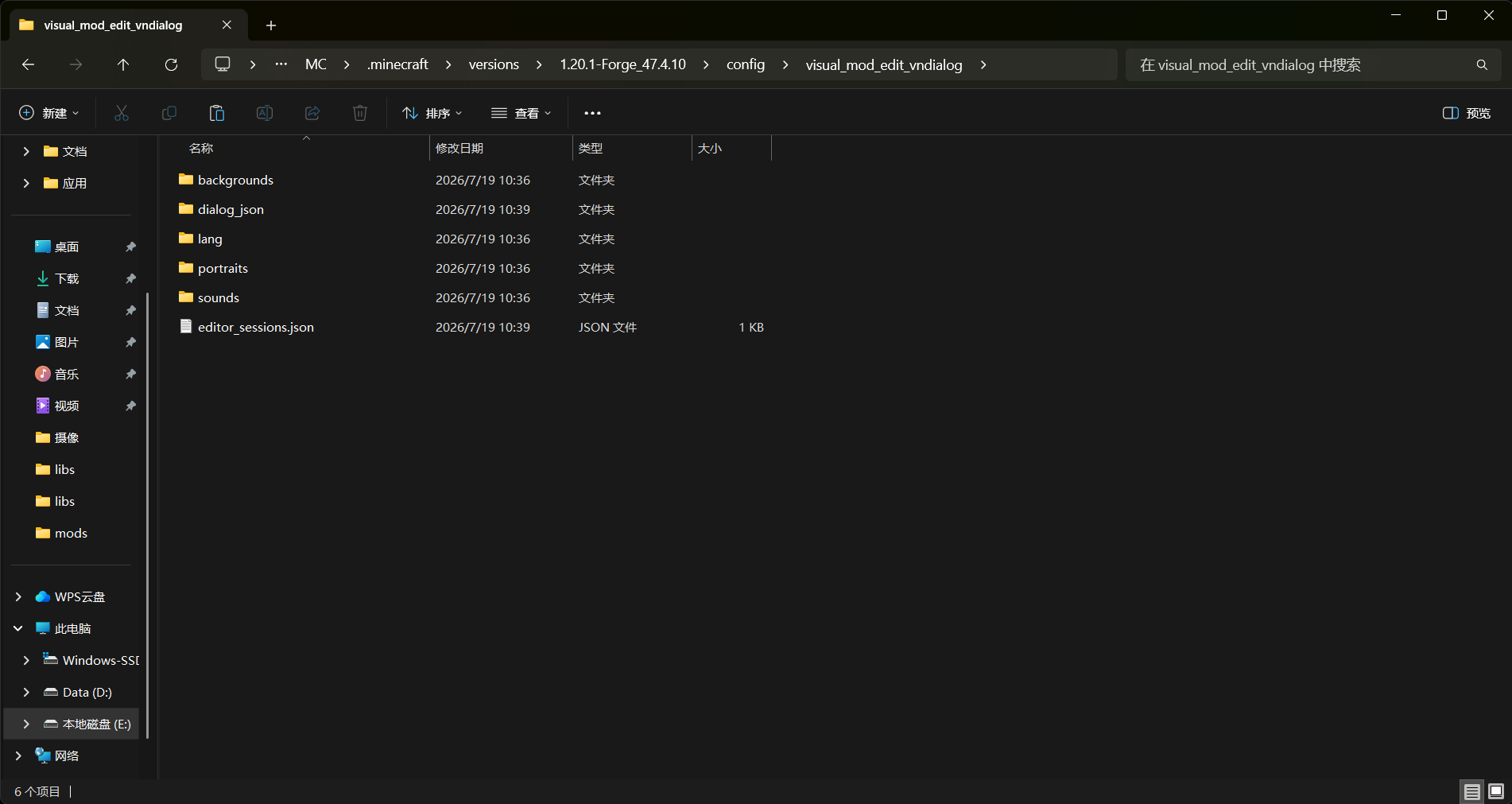
1.20.1-Forge_47.4.10 - æ件èµæºç®¡çå¨ 2026_7_19 10_39_39.png
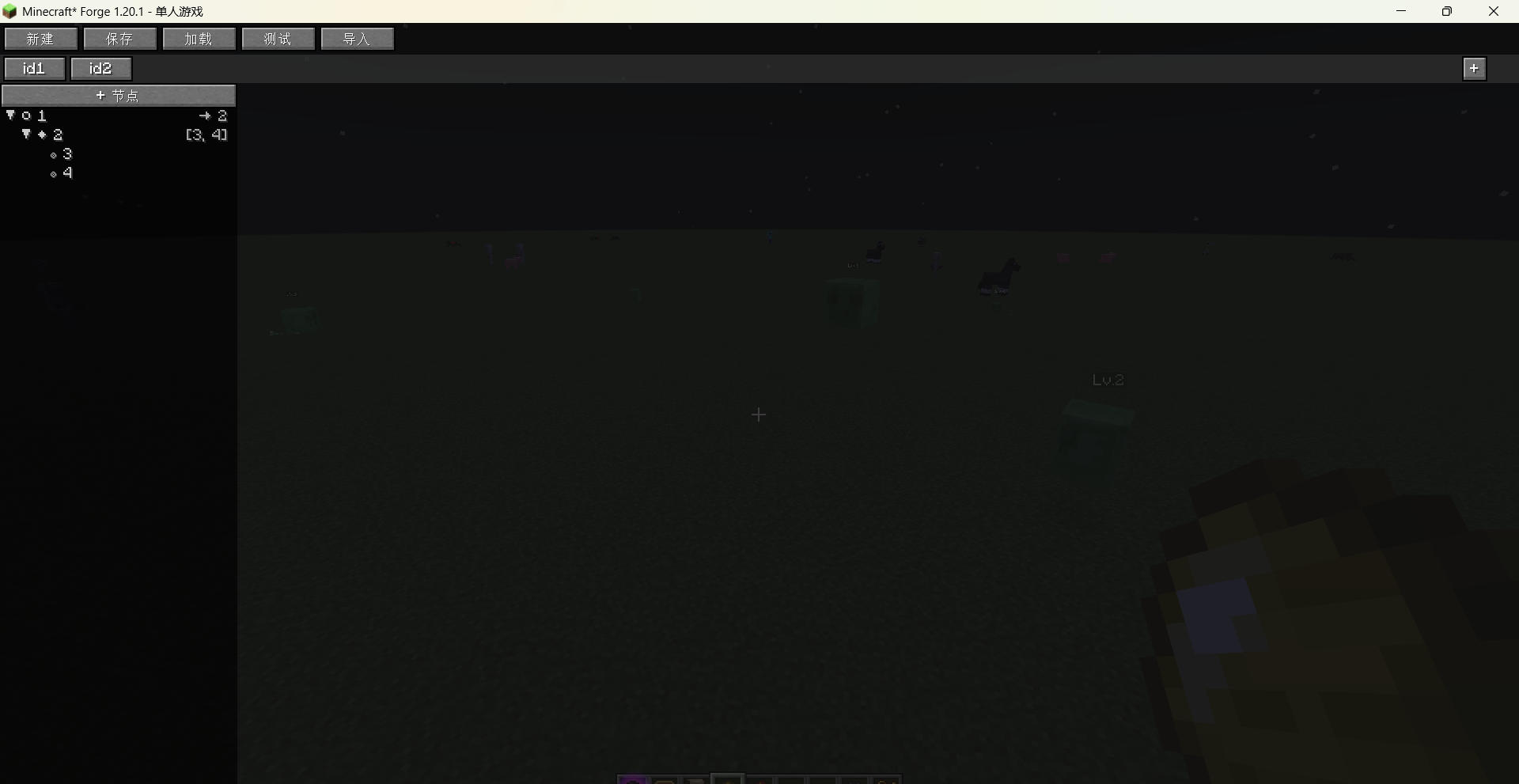
Minecraft_ Forge 1.20.1 2026_7_19 10_29_45.png
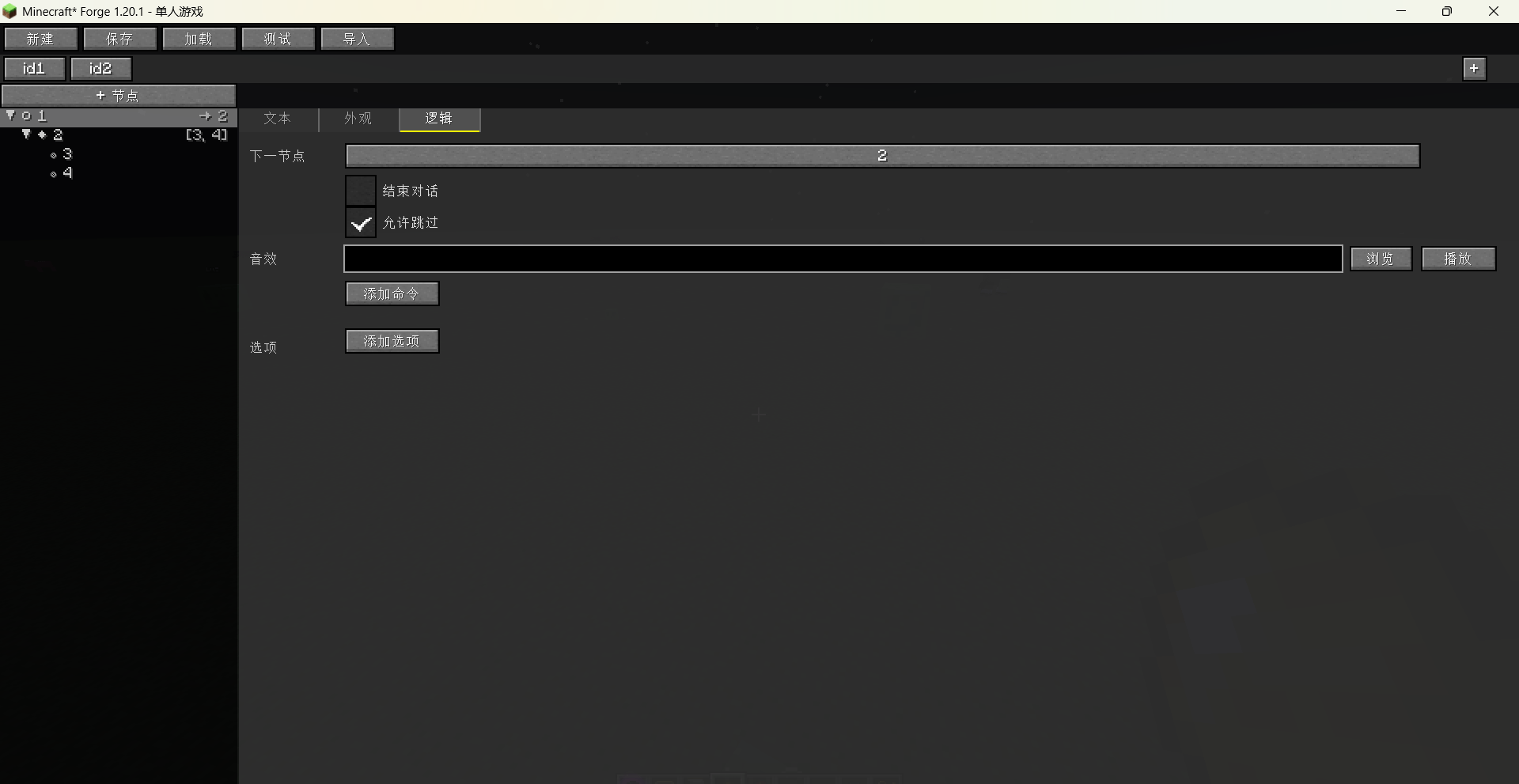
Minecraft_ Forge 1.20.1 2026_7_19 10_30_12.png
Minecraft_ Forge 1.20.1 2026_7_19 10_30_06.png
Minecraft_ Forge 1.20.1 2026_7_19 10_30_00.png
Description
Overview:
Visual Mod Edit-VNDialog (Visual VND Editor) is an add-on mod for VNDialog. It provides an in-game GUI that allows players to conveniently edit dialogue.
Details
1. Command: /vme vndialog gui opens the GUI.
2. GUI Basic Buttons
a. "New" at the top and the "+" on the right are used to create new dialogues.
b. "+ Node": Used to create dialogue nodes.
c. "Save": Saves the current dialogue edits. You can also use Ctrl+S to save.
d. "Load": Reads files from the dialog_json folder and allows you to select and import them into the GUI.
e. "Import": Reads JSON files from the game's loaded datapacks under data/<namespace>/dialogs/ and allows you to select and import them into the GUI.
f. "Test": Click to load and preview the current edits. It is recommended to save first before testing.
3. Editing Pages:
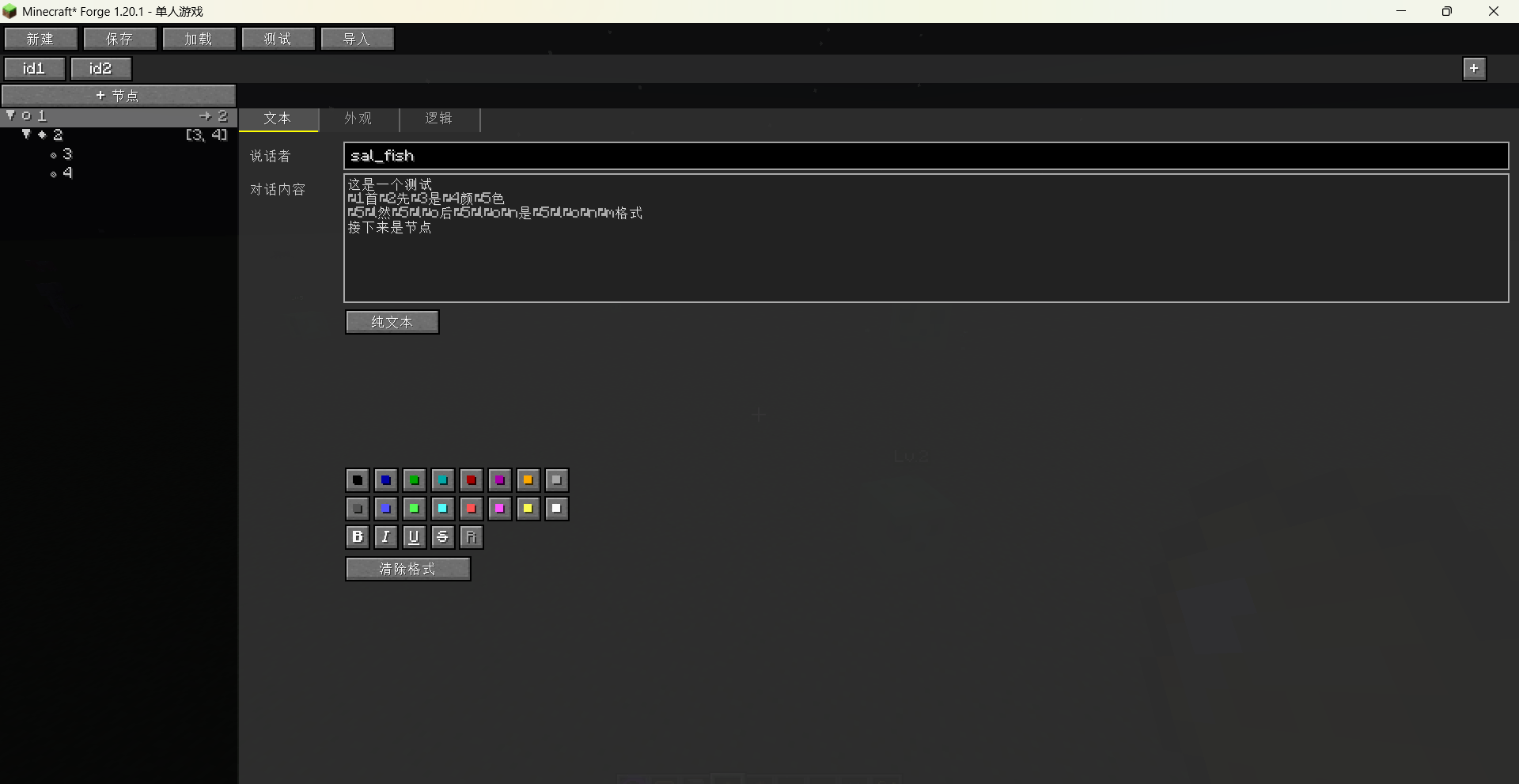
a. "Text": Edit the speaker's name and dialogue content. It has two modes: "Plain Text" and "Translation Key", which can be switched by clicking the button. In Plain Text mode, you just need to input the dialogue content and it supports color and font formatting. In Translation Key mode, you need to input the key name, Chinese, and English. After filling them in, clicking "Save Translation Key" will generate en_us.json and zh_cn.json files in the config/visual_mod_edit_vndialog/lang/ directory.
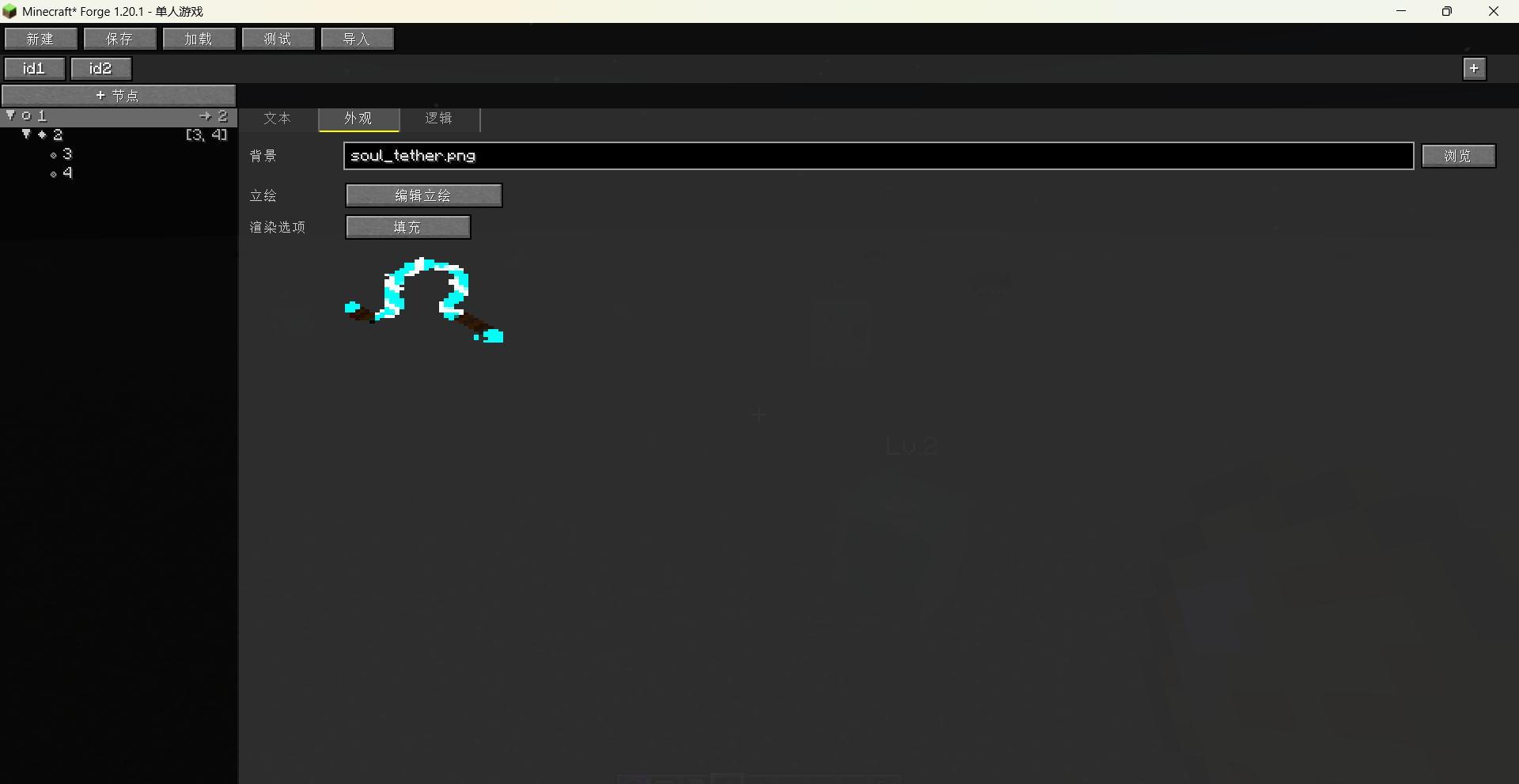
b. "Appearance": Edit background and portraits.
c. "Logic": Edit node connections, add options and their node connections, select and play sounds, and determine whether the node's dialogue ends the conversation and whether skipping is allowed.
4. Node Symbol Descriptions:
⊗: End Dialogue
This node has "End Dialogue" checked (endDialog = true). When the dialogue flow reaches this node, the dialogue interface will close.
◆: Option Node
This node has dialogue options configured (at least one option). After reading this node, the player can choose one of the options to continue the dialogue.
○: Normal Node
Neither an end node nor has options configured. It usually automatically progresses to the next node or follows the nextId connection.
⚠: Orphan Node
This node is not referenced by any other node via nextId or an option's targetId. It may be a backup node not connected to the main flow, or a node whose connections are lost.
*: Multiple Reference Marker
This node is referenced by multiple parent nodes (reference count > 1). For example, when two different options both lead to the same node, this node will show the * mark.
5. File Descriptions:
dialog_json: Stores edited dialogues. Each JSON file corresponds to one dialogue.
portraits: Stores portrait images. When setting portraits in the editor, files from this folder can be selected.
backgrounds: Stores background images. When setting backgrounds in the editor, files from this folder can be selected.
sounds: Stores sound effect files (currently supports WAV and OGG formats). When setting sounds in the editor, files from this folder can be selected.
lang: Stores translation language files. The Translation Key mode in the editor writes translations to this file, and it is injected into the game via Mixin so that the dialogue can directly display the translated text.
editor_sessions.json: Helps the editor GUI restore dialogue tabs.
Notes:
1. The portraits, backgrounds, and sounds folders do not come with any resources; players need to put their own files in them. Sounds only support WAV and OGG formats. File names in these folders should preferably use lowercase letters and numbers.
2. Edits are globally effective.
The Visual VNDialog Edit Team



![[VSE]Visual Set Edit project image](https://media.forgecdn.net/avatars/thumbnails/1801/154/256/256/639140205969226065.jpg)