TerraShift
- By
Gradually transform biomes with themed blocks, plants, and catalysts, using steampunk goggles to reveal boundaries and track progress.
2026-11-04_14.05.14.png
2026-11-04_14.06.01.png
2026-11-04_14.06.36.png
Description
TerraShift — Shape the Biomes Around You
Turn a spruce garden into a true taiga, cultivate a mushroom sanctuary, or build a tropical habitat around your base. TerraShift lets you gradually change real Minecraft biomes through the blocks, plants, and objects you place in the world.
Your surroundings provide the biome’s influence, a placed Biome Catalyst permits the transformation, and Naturalist’s Goggles help you inspect the result. Build the habitat you want and watch its biome follow.
Your World Stays Yours
TerraShift never changes a biome without a placed catalyst covering the area.
Natural forests, rivers, oceans, mountains, and caves stay where they are. Planting trees, mining stone, decorating your base, or scanning an area cannot trigger a transformation on its own.
A catalyst does not need an essence to permit changes. A blank catalyst works at ×1; essences provide optional bonuses.
Keep it placed until the transformation finishes. Afterwards, you can remove it and the new biome will remain. To change that area again after removing its catalyst, place another one.
Removing the last catalyst covering an area stops further biome changes, including unfinished transformations and queued soil changes. Cells already transformed retain their new biome. A catalyst left in place continues to permit changes as the surrounding materials change.
Getting Started
-
Craft Naturalist’s Goggles. Combine one Copper Ingot, one Amethyst Shard, and one Emerald in a shapeless recipe.
-
Wear them in your head slot. Right-click the goggles to equip them, or move them into the slot manually. Holding them in your hand does not activate the display.
-
Inspect your building area. The bright outer outline marks a 16×16×16 section. The finer grid shows Minecraft’s 4×4×4 biome cells.
-
Craft and place a Biome Catalyst. Use the crafting-table recipe below.
-
Build a habitat. Add materials associated with your desired biome. For a taiga, try spruce trees, podzol, ferns, and sweet berry bushes.
-
Scan and adjust. Press R to inspect the section under your crosshair. The goggles show its leading biome candidate, weight, and transformation status.
-
Optionally apply a bonus. Open the catalyst to see which essence gives your chosen biome a ×2 bonus. Add an Echo Shard to upgrade that bonus to ×3.
-
Let the biome settle. Leave the catalyst in place while the section transforms. Use B to inspect the actual biome boundaries in solid colors.
Biome Catalyst Recipe
Use five Copper Ingots, three Amethyst Shards, and one Emerald in this pattern:
| Left | Center | Right |
|---|---|---|
| Copper Ingot | Amethyst Shard | Copper Ingot |
| Amethyst Shard | Emerald | Amethyst Shard |
| Copper Ingot | Copper Ingot | Copper Ingot |
How Biome Influence Works
TerraShift measures the themed materials inside each 16×16×16 section. Materials contribute different amounts of biome weight: common terrain provides a foundation, while characteristic blocks, plants, and special objects provide stronger influence.
For example, sand contributes to a desert habitat, while cacti provide stronger desert influence. Mycelium and mushroom blocks favor Mushroom Fields; spruce materials, podzol, and ferns favor Taiga.
With the default settings, a candidate needs:
-
2,868 total weight points.
-
At least 100 distinctive points from characteristic materials and qualifying framed items.
-
A 15% advantage over the current biome’s score when that biome also has influence.
-
A placed catalyst covering the section.
Weight is a points system, rather than a requirement to fill 70% of the section with solid blocks. Ordinary terrain materials with a base weight of 1 contribute at most 35% of the threshold per biome profile, so widespread stone, dirt, or water cannot dominate on their own. Leaves are excluded from this terrain cap.
Air, items stored in containers, and dropped item entities do not count. Some special items can contribute when displayed in item frames: a Heart of the Sea in a normal or glow item frame provides 50 Warm Ocean points. It still requires a catalyst to permit transformation.
Naturalist’s Goggles
These wearable copper steampunk goggles keep your hands free while showing the information you need to shape a habitat.
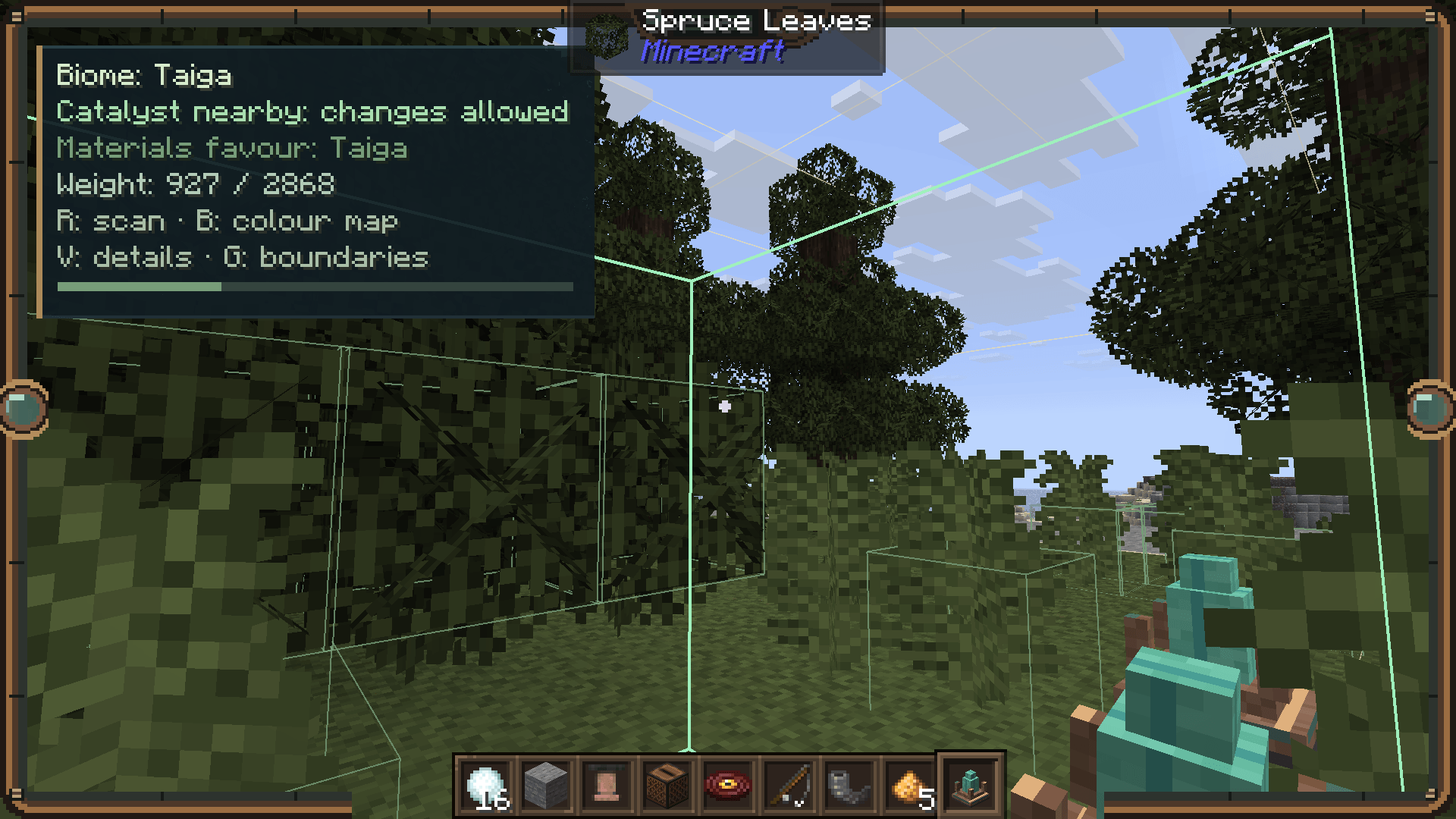
The compact display shows your actual current biome, whether a catalyst permits changes in the inspected section, its leading candidate, and its measured weight. During assimilation, progress reflects the proportion of biome cells already transformed. Expanded details explain what is holding a transformation back and show section coordinates and the strongest contributing material.
Controls
| Default key | Function |
|---|---|
| R | Scan the targeted section and briefly highlight nearby contributing blocks. With no block targeted, inspect your own section. |
| V | Toggle expanded survey details. |
| G | Toggle section boundaries and the finer biome-cell grid. |
| B | Toggle the solid-color biome map. |
All keys can be rebound in Minecraft’s controls. Section boundaries are enabled by default; expanded details and the color map start disabled.
The thick outer outline is gold when permission is absent and green when the server confirms catalyst permission. The finer grid distinguishes the individual biome cells inside the section. The decorative goggles frame leaves room for the hotbar and off-hand slot.
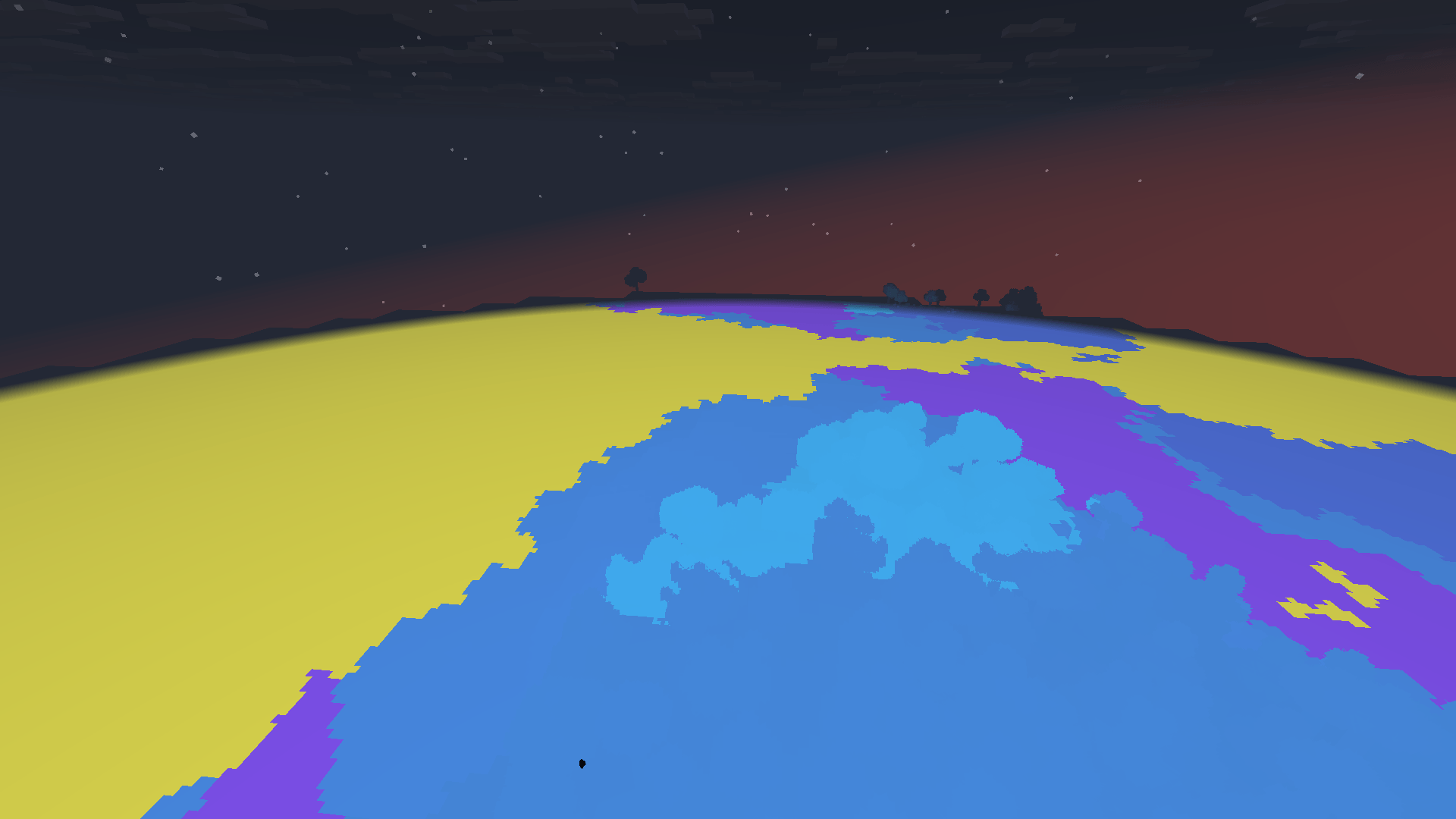
Solid-Color Biome Map
Press B while wearing the goggles to replace terrain, vegetation, and fluid textures with distinct biome colors.
Blocks in the same actual biome receive the same color, making borders easy to spot across hillsides, tree canopies, rivers, and underground areas. The palette includes registered biomes that do not have a terraforming profile. Separately rendered blocks, such as chests, also receive their biome’s color.
This is a visual inspection mode: it does not edit blocks or biome data. The sky, creatures, and held items keep their normal appearance. Press B again, or remove the goggles, to restore the ordinary view. The map resets when you change worlds or dimensions.
Catalyst Bonuses and Menu
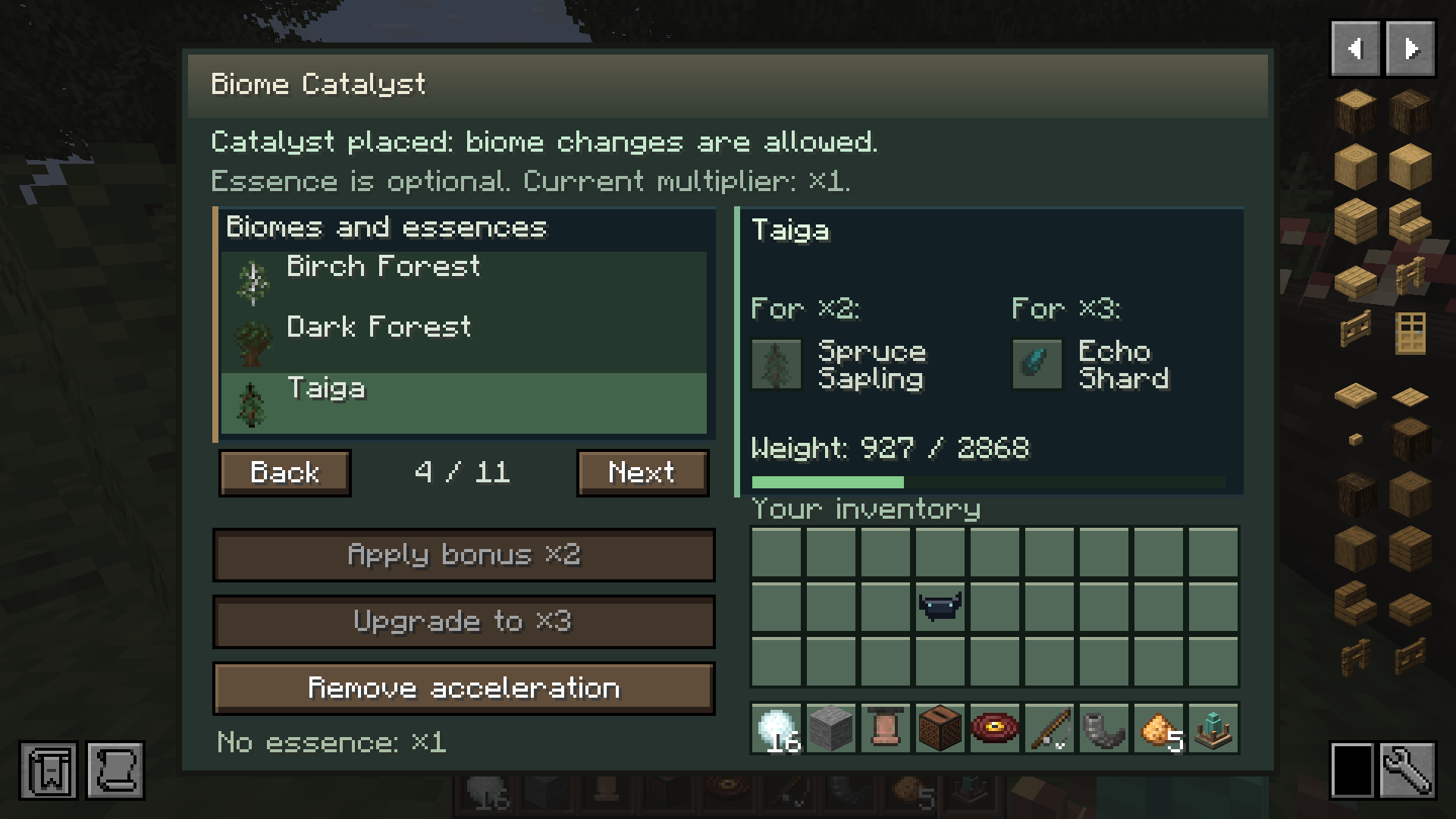
Right-click a catalyst to open its menu. Browse the named biome catalogue, inspect the required essence, and check the selected biome’s weight against the transformation threshold.
-
Blank catalyst — ×1: already permits changes, without consuming an essence.
-
Apply bonus ×2: place the matching essence in the first input slot and apply the bonus. One essence is consumed.
-
Upgrade to ×3: after applying ×2, place an Echo Shard in the second input slot and upgrade. One shard is consumed.
-
Remove acceleration: clears the bonus and returns to ×1. The catalyst still permits biome changes.
The selected essence boosts one biome profile. The surrounding materials determine which biome actually wins. Choosing a catalogue entry is a preview, not an instant biome replacement.
Unused inputs return when you close the menu. Consumed essences and upgrades are not refunded; a Lava Bucket leaves an empty bucket. Changing the attunement removes the ×3 upgrade. Breaking the block drops a blank catalyst, while its spent essence and upgrade are lost.
For quick interaction, sneak-right-click with an essence to attune a catalyst, or sneak-right-click with an empty hand to clear its bonus.
Catalyst Coverage
By default, a catalyst permits changes in its own section and in sections whose centers are within 20 blocks of it.
Its multiplier affects matching materials inside the actual 20-block-radius sphere. Overlapping bonuses use the highest applicable multiplier; they do not multiply together. Other catalysts can keep an area authorized after one is removed.
Available Biomes and Essences
TerraShift includes 31 default terraforming profiles:
| Target biome | Essence for the ×2 bonus |
|---|---|
| Plains | Wheat |
| Desert | Cactus |
| Snowy Plains | Snowball |
| Jungle | Jungle Sapling |
| Bamboo Jungle | Bamboo |
| Mushroom Fields | Red Mushroom |
| Swamp | Slimeball |
| Mangrove Swamp | Mangrove Propagule |
| Forest | Oak Sapling |
| Birch Forest | Birch Sapling |
| Dark Forest | Dark Oak Sapling |
| Taiga | Spruce Sapling |
| Savanna | Acacia Sapling |
| Badlands | Terracotta |
| Flower Forest | Honeycomb |
| Cherry Grove | Cherry Sapling |
| Pale Garden | Pale Oak Sapling |
| Ocean | Kelp |
| Warm Ocean | Heart of the Sea |
| Frozen Ocean | Blue Ice |
| Lush Caves | Glow Berries |
| Deep Dark | Echo Shard |
| Nether Wastes | Lava Bucket |
| Crimson Forest | Crimson Fungus |
| Warped Forest | Warped Fungus |
| Soul Sand Valley | Soul Sand |
| Basalt Deltas | Magma Block |
| The End | Chorus Fruit |
| Stony Peaks | Calcite |
| River | Clay Ball |
| Frozen River | Ice |
For River habitats, build with water, clay, gravel, sand, sugar cane, and seagrass. Frozen River habitats use water, snow, gravel, ice, and related materials. You build the riverbed and place the water yourself; changing the biome does not excavate terrain.
Gradual Changes with Real Effects
With catalyst permission, a habitat approaching the threshold develops themed particles and subtle color pulses. When assimilation begins, an ambient sound accompanies the shift while grass, foliage, water, sky, and fog transition toward the new biome’s appearance.
The default main transformation takes approximately 20 seconds, with additional time possible when many sections are changing together.
Changes affect real 3D biome cells. TerraShift also reaches into the soil immediately below a transformed section, helping tree habitats affect the ground beneath them. Minecraft stores biomes in four-block cells, so the default two-block ground reach occupies the adjacent four-block storage layer. Deeper layers and the section above are preserved.
The resulting biome uses vanilla precipitation and natural spawning rules. Deserts suppress precipitation, and suitably cold biomes produce snow during the normal weather cycle. Mobs still need suitable terrain, lighting, space, and available spawning capacity; changing a biome does not instantly create its creatures.
Results survive world reloads. Nether and End profiles change biome rules and colors without changing the dimension type, generating structures, or creating portals.
Configuration and Performance
Server owners and modpack creators can adjust config/terrashift.json to change thresholds, material weights, catalyst radius and bonuses, transformation timing, soil reach, and processing budgets. Custom profiles can reference registered blocks and biomes from other mods.
Changes are queued, repeated block updates are combined, and work is spread across server ticks. Background rescans and manual scans share processing limits. TerraShift operates on loaded chunks without generating or keeping extra chunks loaded.
The placed-catalyst requirement remains mandatory. When upgrading an older world, previously transformed biomes are retained rather than automatically reconstructed.
Requirements and Compatibility
-
Minecraft Java Edition 26.3
-
Fabric Loader 0.20.1 or newer
-
Fabric API 0.165.0+26.3
-
Java 25 or newer
-
Install matching TerraShift versions on both the server and every client.
English, Russian, and Ukrainian interface translations are included.
Sodium is optional. The biome map has been tested with standard Fabric rendering, Sodium 0.9.2, and Sodium 0.9.3 beta.1 for Minecraft 26.3. Iris shader packs and other replacement renderers have not been separately validated.
TerraShift Team