SimpleVoiceChat Discord Channel Sync
- By
Connect your Minecraft Simple Voice Chat groups to Discord voice channels. Speak in either game or Discord, see Discord participants in the normal SVC group list, and use native speaking indicators and individual volume controls.
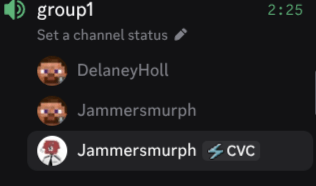
The "discord users" with the same profile picture area actually just discord bots relaying my main and alt acount, which are in a normal simple voice chat group in game.
JammersmurphCF | SimpleVoiceChat D...
Create your game server with 

Description
SVC-DVC-Link
Minecraft-first bridge between Simple Voice Chat and Discord for Minecraft 1.21.1 / NeoForge 21.1.x.
Latest stable: 0.1.0. Server-side installation only: Simple Voice Chat plus this mod. No separate service or companion client mod is required.
Configure it in-game: operators can manage most settings with /svcdvc
commands—Discord server/category IDs, bot capacity, display options, bot invites,
and more. Changes apply without restarting Minecraft. Only bot tokens need
private handling; editing the server's secrets file is recommended.
New here? Follow the step-by-step setup guide to create your Discord bots, connect the server, and expand your bot pool.
Current release
Version 0.1.0 provides:
- Simple Voice Chat group join/leave observation.
- Local Discord bot token, guild and category configuration.
- JDA 6.7.0 gateway startup with DAVE voice encryption (Java 21-compatible JNI implementation).
- Automatic Discord voice-channel synchronization when SVC group membership changes, with
/svcdvc syncretained for repair. - Persistent mappings for channels owned by the mod.
- One Discord bot identity per online Minecraft player, with each bot joining its player's SVC group channel.
- Minecraft-to-Discord forwarding using existing Opus frames, plus human-only Discord-to-Minecraft audio.
- Matching group/channel names and temporary, guild-local player nicknames for leased bots.
- SVC and Discord group retention while human Discord participants remain in the call.
- Unit tests for identity leasing and channel lifecycle planning.
- Operator bot/configuration commands, including clickable Discord invite links.
- Human Discord participants shown as
[Discord] Nameentries in SVC's normal group list. - Native speaking rings and individual volume controls through per-person Discord audio streams.
- Optional group-local chat/action-bar presence and
/svcdvc participantsfor players.
Verified on the test server: creating an SVC group creates a Discord voice channel, speech works in both directions, Discord channel names match SVC group names, and bots adopt player nicknames after Change Nickname permission is granted. Groups stay available in Minecraft after Minecraft members leave if a human remains in Discord. Human Discord participants also appear in the normal SVC group-member screen on an unmodified SVC client. Group creation is tracked separately from joining an existing group, as required by the SVC API.
The native-speaking candidate has also passed live client testing.
Limitations: default heads only. Retention is for the current server session; non-persistent SVC groups are not reconstructed across restarts. The tested runtime is Linux x86-64 with SVC 2.6.27. See release notes for compatibility and installation details. The earlier beta notes describe Beta 1 only.
Runtime and build
- Java 21
- Minecraft 1.21.1
- NeoForge 21.1.256
- Simple Voice Chat API 2.6.x (server mod required)
- Group retention uses a server-side persistence accessor tested with Simple Voice Chat 2.6.27; no companion client mod is required.
- JDA 6.7.0, packaged with NeoForge Jar-in-Jar
- libdave-jvm 0.2.0 JNI adapter and platform native libraries for Discord's required DAVE encryption
Build from the repository's Minecraft project:
cd minecraft
gradle build
The mod artifact is produced under minecraft/build/libs/.
The build also checks the packaged runtime and loads its native libraries;
see packaging and server verification.
In-game configuration
Most configuration can be managed directly in Minecraft by an operator (permission level 3), without editing files or restarting the server.
| Command | What it does |
|---|---|
/svcdvc config show |
Show non-secret settings. |
/svcdvc config enabled false / true |
Disable or enable the bridge. |
/svcdvc config guild <serverId> |
Set the Discord server. Disable the bridge first. |
/svcdvc config category <categoryId> |
Set the voice-channel category. Disable the bridge first. |
/svcdvc config maxBots <1–30> |
Set active bot capacity. |
/svcdvc config presenceActionBar false |
Hide action-bar text while keeping native indicators. |
/svcdvc config presenceMessages false |
Hide Discord join/leave chat notices. |
/svcdvc config presenceGroupList true |
Show Discord participants in SVC's native group list. |
/svcdvc bot list |
Check configured bot slots and readiness, without revealing tokens. |
/svcdvc bot invite <slot> |
Get a clickable invite for a configured bot. |
/svcdvc bot remove <slot> |
Remove a bot from the configured pool. |
/svcdvc reload |
Apply private JSON file edits and reconnect gateways. |
/svcdvc status |
Check bridge status. |
/svcdvc sync |
Manually repair channel synchronization if needed. |
Players can use /svcdvc participants to see their group's Discord participants.
In the server console, omit the leading /.
Security: never enter bot tokens in Minecraft chat. Add them to the private
config/svcdvclink-discord.json file, then reload. Changing the Discord destination
requires cleaning up existing owned channels first; replacing the mod JAR still
requires a server restart.
Setup walkthrough
1. Install on your Minecraft server
Stop your NeoForge 1.21.1 server, back up its configuration, and place the release
JAR in mods/ alongside Simple Voice Chat. Start the server once to generate
config/svcdvclink-discord.json. Players only need normal Simple Voice Chat.
2. Create a Discord application
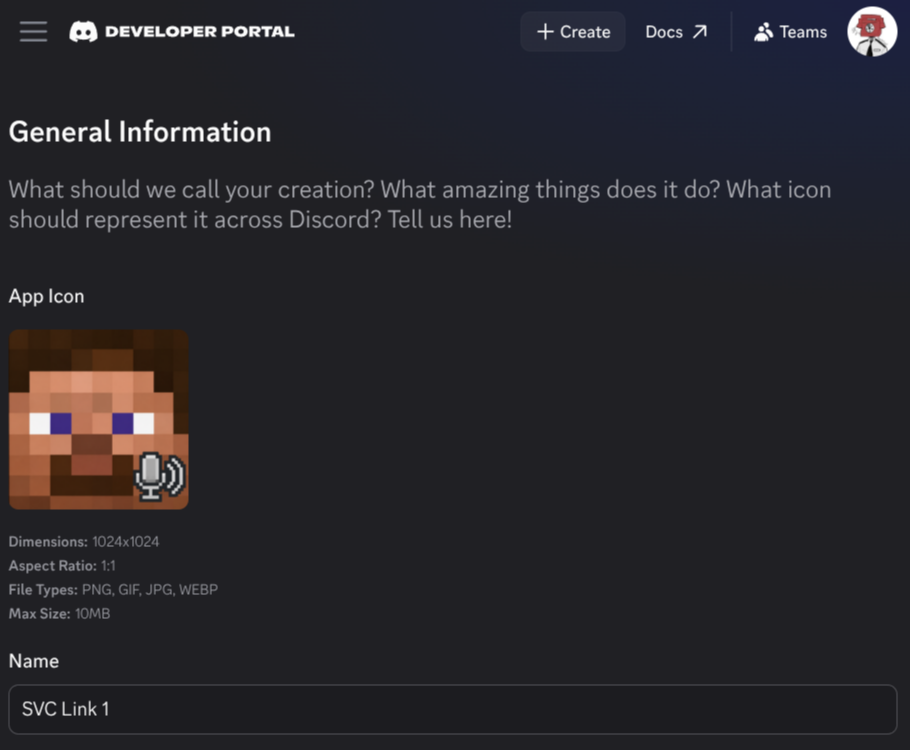
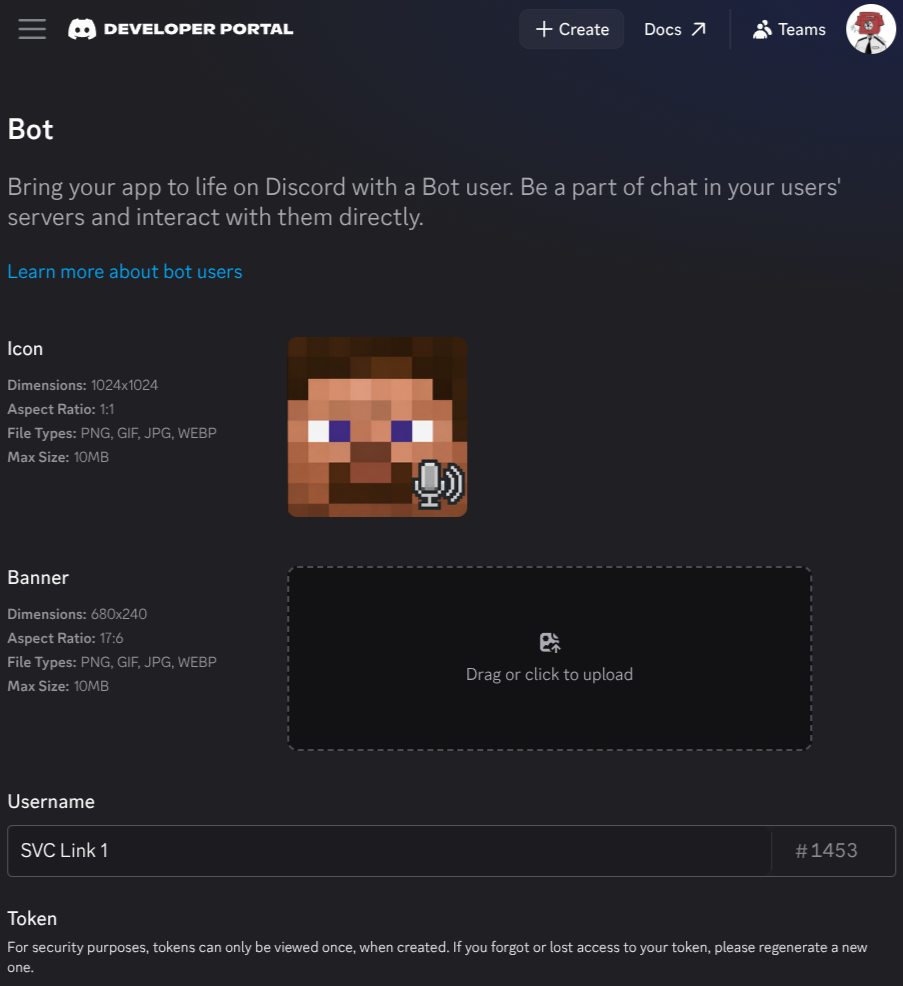
Open the Discord Developer Portal, choose Create / New Application, and name it something like SVC Link 1. An application icon is optional.
3. Open the Bot page
Select Bot in the sidebar. If Discord offers an Add Bot button, use it.
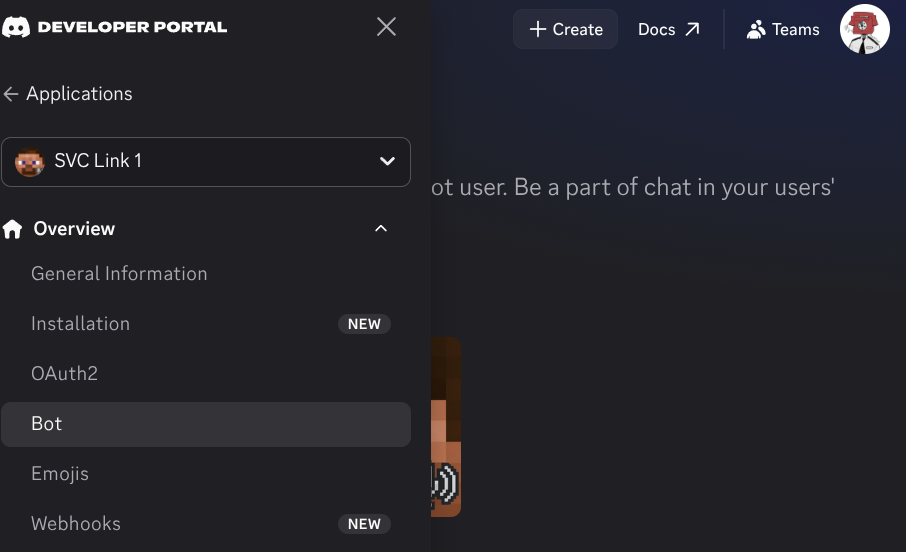
Set the bot's username and icon if you like. A banner is not required.
4. Copy the bot token privately
Under Token, use Reset Token if needed, then copy the token somewhere private. Resetting it invalidates the previous token.

Treat tokens like passwords. Never put them in Minecraft chat, screenshots, GitHub, or support messages. Server panels may also log console commands, so enter tokens in the private configuration file instead.
5. Enable Server Members Intent
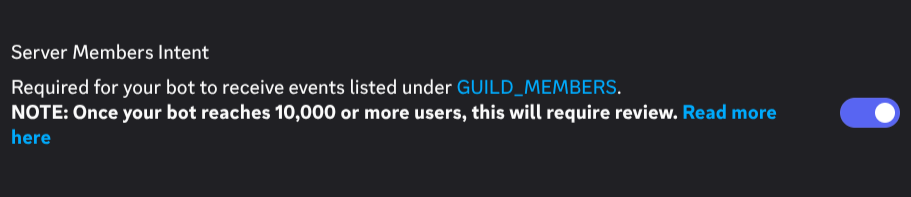
On the same Bot page, scroll to Privileged Gateway Intents, enable
Server Members Intent, and save. Do this for every bot. Missing this step
causes 4014 DISALLOWED_INTENTS and blocks automatic synchronization.
6. Configure and invite your bot
- Create a Discord category for generated voice channels and set its human role permissions.
- Enable Discord User Settings → Advanced → Developer Mode. Copy your server ID and the category ID using their right-click menus.
- Run
/svcdvc config enabled false, then set the IDs in-game with/svcdvc config guild <serverId>followed by/svcdvc config category <categoryId>. - Add your token to
botTokensin the privateconfig/svcdvclink-discord.jsonfile. Preserve the other settings andchannelMappings; the mod manages channel ownership. - Run
/svcdvc bot invite 1, open its link, and invite the bot to your Discord server. - Approve View Channels, Manage Channels, Manage Permissions / Manage Roles, Connect, Speak, and Change Nickname. Administrator is not required.
See the full setup guide for the JSON example.
7. Enable and test
For a one-bot setup, run these as an operator:
/svcdvc config maxBots 1
/svcdvc config enabled true
/svcdvc bot list
/svcdvc status
Wait for the bot to become ready. Create or join an SVC group in Minecraft: a Discord voice channel with the group's name should appear automatically. Join it with a human Discord account and test speech in both directions. Open SVC's group screen to see Discord participants and native speaking indicators.
8. Expand when you need more capacity
One bot represents one Minecraft player at a time, not one group. Bots are shared across groups and reassigned automatically. Human Discord participants do not each need a bot.
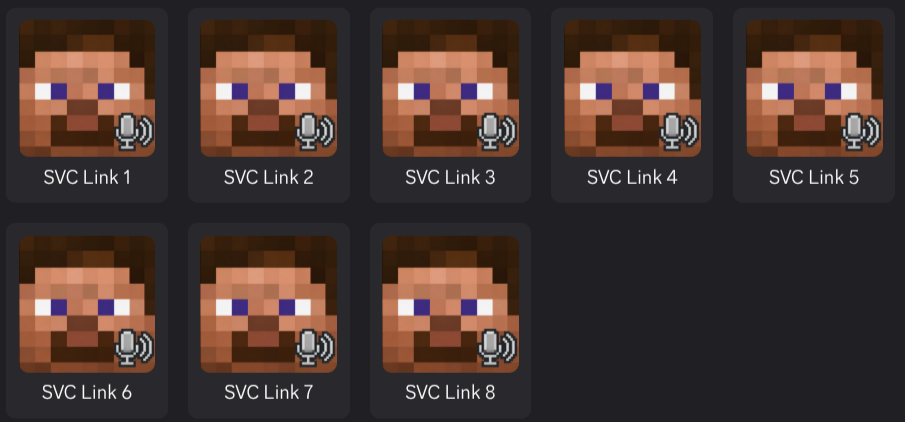
Create a bot → add it → invite it → repeat. Each additional bot adds capacity for one more simultaneous Minecraft player, whether in the same group or another group.
- Repeat the Developer Portal steps above for a new bot, including Server Members Intent.
- In the Minecraft server console only, run:
svcdvc bot add <token>This validates and saves the token, assigns a slot, prints an invite link, and reloads the bot gateways. Never run token commands in player chat.
- Open the printed invite and approve it. You can also retrieve it in-game with
/svcdvc bot invite <slot>—for example,/svcdvc bot invite 2for the second bot. - Repeat for bot 3, bot 4, and so on. Increase
/svcdvc config maxBots <count>to match the pool you want active, then run/svcdvc reloadafter approving invites. - Check
/svcdvc bot list: every active bot must be ready for automatic sync.
Token safety: console panels such as AMP may record command input. Editing
botTokens in the private JSON file and running /svcdvc reload is the safer alternative.
You can start with one bot and expand up to 30. Configuration changes do not require a Minecraft restart; replacing the mod JAR does.
Configuration and security
The bot tokens live in config/svcdvclink-discord.json on the Minecraft server and must never be committed or sent to clients. The mod attempts owner-only POSIX file permissions. See Discord configuration.
Human Discord channel access inherits from the configured category. Bot identity overrides are managed automatically. Never manually add channel mappings for channels the mod does not own. SVC group passwords are never copied into Discord or stored by this mod.
Project layout
minecraft/— Java 21 NeoForge mod.discord/— retained TypeScript protocol/experimental harness; not required for production runtime.protocol/— shared protocol definitions.docs/— architecture and operational documentation.
SimpleVoiceChat Discord Channel Sync Team