Structura Building
- By
Structura is a precision building mod. It adds seven tools for shaping builds, copying structures, repainting surfaces, mirroring work, hovering in place, storing bulk materials, and undoing large edits without leaving survival play.
Structura
Structura is a precision building mod. It adds seven tools for shaping builds, copying structures, repainting surfaces, mirroring work, hovering in place, storing bulk materials, and undoing large edits without leaving survival play.
What Structura Does
Structura is built for players who want large-scale construction tools without switching to creative mode. In creative, the tools place blocks for free. In survival, every build uses real materials pulled from your Singular Core first and your normal inventory second.
You can use Structura to:
- lay out spheres, cylinders, wedges, pyramids, and cubes
- copy finished sections and paste them elsewhere
- swap visible blocks on a surface without digging into the structure
- mirror builds across a plane for fast symmetry
- freeze yourself mid-air while detailing
- undo the last large Structura action and recover the blocks
Installation
- Install NeoForge for Minecraft 26.1.2.
- Download the Structura jar for the same version.
- Put the jar in your Minecraft
modsfolder. - Start the game using your NeoForge profile.
For servers, put the same jar in the server mods folder and make sure connecting players also
have Structura installed on their client.
Getting the Tools
All seven items appear in the Structura creative tab.
All seven items also have survival crafting recipes using vanilla materials.
Crafting Recipes
| Tool | Recipe summary |
|---|---|
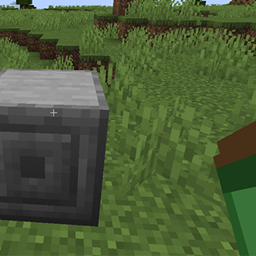
| Singular Core | Obsidian ring with a chest in the center and ender pearls on the cross |
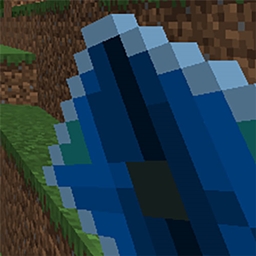
| Kinetic Blueprint | Iron corners, paper on the vertical axis, lapis on the horizontal axis, compass in the center |
| Echo Lattice | Slime corners, redstone on the vertical axis, quartz on the horizontal axis, chest in the center |
| Transmutation Matrix | Amethyst corners, gold on the vertical axis, quartz on the horizontal axis, copper ingot in the center |
| Gravity Tether | Phantom membrane corners, string on the vertical axis, feathers on the horizontal axis, ender pearl in the center |
| Eraser Glyph | Ink sac corners, quartz on the vertical axis, redstone on the horizontal axis, paper in the center |
| Symmetry Focal | Glass pane corners, amethyst on the vertical axis, quartz on the horizontal axis, compass in the center |
Recipe layouts:
Singular Core
O E O
E C E
O E O

O = Obsidian
E = Ender Pearl
C = Chest
Kinetic Blueprint
I P I
L C L
I P I

I = Iron Ingot
P = Paper
L = Lapis Lazuli
C = Compass
Echo Lattice
S R S
Q C Q
S R S

S = Slime Ball
R = Redstone
Q = Quartz
C = Chest
Transmutation Matrix
A G A
Q C Q
A G A

A = Amethyst Shard
G = Gold Ingot
Q = Quartz
C = Copper Ingot
Gravity Tether
P S P
F E F
P S P

P = Phantom Membrane
S = String
F = Feather
E = Ender Pearl
Eraser Glyph
I Q I
R P R
I Q I

I = Ink Sac
Q = Quartz
R = Redstone
P = Paper
Symmetry Focal
G A G
Q C Q
G A G

G = Glass Pane
A = Amethyst Shard
Q = Quartz
C = Compass
Quick Start
If you only want the shortest path to building:
- Grab a Singular Core and feed it blocks from a chest or shulker.
- Grab a Kinetic Blueprint and hold the block you want to place in your off-hand.
- Set two anchor points, rotate the ghost if needed, choose a shape, and build.
- Use Gravity Tether when working in the air.
- Keep an Eraser Glyph nearby so mistakes are reversible.
Tools
Kinetic Blueprint
Creates geometric shapes using the block in your off-hand.
- Right-click one block to set Anchor A.
- Right-click a second block to set Anchor B.
- After both anchors are set, a live ghost shows the planned shape in the world.
- Sneak and right-click air to cycle shapes, or press G to open the radial selector.
- Press H in the radial menu to toggle hollow or solid mode.
- Press X, Y, or Z to rotate the preview by 90 degrees around that axis.
- Right-click air, or press the build hotkey, to place the shape.
Available shapes:
- Cube
- Sphere
- Cylinder
- Pyramid
- Wedge
While holding the blueprint, hold V for the Vector Guide:
- Scroll to expand the current selection.
- Hold Shift while scrolling to push or resize toward a face.
- Left-click a face to shift the whole selection by one block.
- Sneak and left-click a face to nudge Anchor B.
- Press R to lock the camera while adjusting.
Echo Lattice
Copies one region and pastes it somewhere else.
- Left-click a block to set Selection A.
- Right-click a block to set Selection B.
- Sneak and left-click, or use the copy hotkey, to capture all non-air blocks in the region.
- After a copy is stored, aiming at a block shows a ghost of the paste result.
- Press X, Y, or Z while the ghost is active to rotate the paste preview.
- Right-click a block with a charged lattice, or press the paste hotkey, to paste at that origin.
- Sneak and right-click air to toggle whether the paste can replace existing blocks.
The tooltip shows copied dimensions and block count after the lattice is charged.
Transmutation Matrix
Replaces connected exposed blocks without tearing apart the structure.
- Sneak and right-click while holding a block in your off-hand to set the replacement material.
- Right-click a block to replace connected matching blocks that are exposed to air or water.
- Each use can replace up to 128 connected exposed blocks.
This is best for reskinning walls, floors, paths, roofs, and other visible surfaces.
Singular Core
Stores construction materials and feeds the other Structura tools.
- Sneak and right-click a container to pull valid block items into the core.
- Right-click in the air to view a storage summary.
- Structura tools consume from the core before your inventory.
If you plan to build in survival, this is the item you should set up first.
Gravity Tether
Locks you in place while airborne.
- Right-click in mid-air to anchor yourself.
- Right-click again to release.
While tethered, gravity and fall damage are suppressed, which makes ceiling work and tower detailing much easier.
Eraser Glyph
Reverts the last major Structura action.
- Right-click to undo the most recent Structura build, paste, or replacement.
- Sneak and right-click to preview the pending undo before committing to it.
Recovered blocks are returned to your Singular Core first, then to your inventory.
Symmetry Focal
Mirrors placements from the other Structura tools.
- Right-click a block to set the symmetry origin and activate the focal.
- Sneak and right-click air to cycle the mirror plane: X, Z, or Diagonal.
- Right-click air while active to turn it off.
- While active, the current mirror plane is highlighted in the world so you can see exactly where the reflection happens.
As long as the focal is active and in your inventory, mirrored placements happen automatically. Those mirrored blocks still cost real materials in survival.
Default Controls
All controls can be rebound under Options -> Controls -> Structura.
| Key | Action | Use |
|---|---|---|
| G | Open Blueprint Radial | Choose the current Kinetic Blueprint shape |
| V | Hold Vector Guide | Fine-tune a blueprint selection |
| R | Toggle Camera Lock | Freeze camera movement while adjusting the blueprint |
| J | Set Point A | Sets Anchor A or Selection A |
| K | Set Point B | Sets Anchor B or Selection B |
| C | Copy | Copies the current Echo Lattice region |
| B | Paste / Build | Pastes a lattice or builds a blueprint |
| X | Rotate Preview X | Rotates an active blueprint or paste ghost around the X axis |
| Y | Rotate Preview Y | Rotates an active blueprint or paste ghost around the Y axis |
| Z | Rotate Preview Z | Rotates an active blueprint or paste ghost around the Z axis |
The J, K, C, and B keys act on the Structura tool you are currently holding.
Practical Tips
- Fill the Singular Core before starting a large survival build.
- Use hollow blueprint shapes when you want rooms, domes, arches, or shells instead of solids.
- Pair Symmetry Focal with Kinetic Blueprint or Echo Lattice for mirrored builds.
- Keep Gravity Tether and Eraser Glyph on your hotbar for safer high-altitude work.
- If a paste refuses to happen, check whether the lattice is allowed to replace blocking blocks.
For Server Owners and Pack Authors
Structura is best used when the tools are intentionally integrated into progression.
- The bundled recipes are fully vanilla-material based, so you can leave them enabled or override them in your pack if you want a stricter progression path.
- Install the mod on both the server and every client.
- Consider giving players a Singular Core early, because the rest of the toolset is built around bulk material storage.
Structura Building Team