Storage Screen
- By
A centralized storage terminal that lets you view, organize, store, withdraw, and craft items from all connected chests, barrels, and inventories without any internal storage.
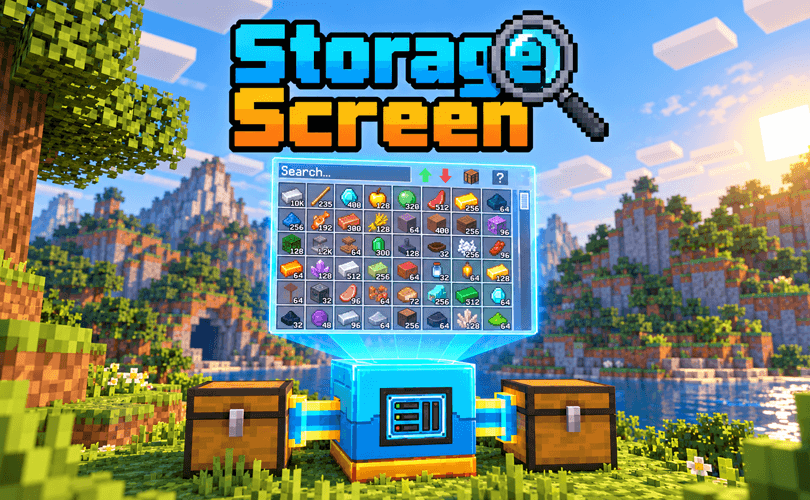
Storage Screen
The Storage Screen is a centralized system for viewing, organizing, storing, withdrawing, and crafting items using the inventories connected to the network.
Unlike systems that use disks or digital cards, the Storage Screen has no internal storage. Items remain physically stored in chests, barrels, drawers, boxes, and other storage blocks connected to the network.
Compatibility with other mods
The system was designed to work with Minecraft inventories and also with storage blocks added by other mods, as long as they use the item system compatible with NeoForge.
Blocks that may work include:
Chests and double chests, Barrels, Storage boxes, Drawers, Cabinets, Machines that have an item inventory, Storages that allow more than 64 items per slot, Other blocks that provide a compatible inventory.
The network can also use the mod’s own Storage Cable or item transfer cables from other mods, such as conduits, tubes, pipes, ducts, connectors, and compatible transporters.
Compatibility depends on the other mod exposing its cables and inventories through the systems recognized by NeoForge.
Language support
Portuguese (Brazil)
English
Russian
Spanish
Setting up a network
-
Place the Storage Terminal in the desired position.
-
Connect the Storage Cable or a compatible item transfer cable from another mod to the back of the Terminal.
-
Run the cables to the chests, barrels, boxes, drawers, machines, or other storage blocks.
-
You can create branches in the cables to connect several different storages to the same network.
-
Right-click the Storage Terminal to open the interface.
The Terminal searches for inventories starting from its back side and follows the connected cables and storages. The network can check up to 512 connected blocks
Items are not teleported into the Terminal. They remain stored in their original blocks and are accessed through the interface.
Storage Terminal interface
The interface groups identical items from different inventories and displays them as a single total.
For example, if there are 32 iron ingots in one chest and 64 in another, the Terminal will show a single icon with a total of 96 iron ingots.
Search
Use the top bar to search for an item by name.
The search uses the language selected in Minecraft. Item names change automatically according to the language chosen by the player.
Item organization
The green arrow sorts from highest to lowest quantity.
The red arrow sorts from lowest to highest quantity.
The side bar allows you to navigate when there are more items than the screen can display.
Quantities appear over the icons in a compact format to make them easier to read.
Withdrawing items
Left-click an item: withdraws up to a full stack.
Right-click: withdraws only one unit.
Shift + click: sends the stack directly to the player’s inventory.
Even if the network has thousands of units, each withdrawal respects the maximum stack size of that item.
Storing items
Pick up an item with the cursor and click inside the storage area:
Left-click: tries to store the entire held stack.
Right-click: stores only one unit.
The Storage Terminal automatically looks for space in the connected inventories. If there isn’t enough space, the remaining items stay with the player.
You can also use compatible cables and automation systems to insert or extract items directly from the connected chests. Changes appear automatically in the Terminal.
Information panel
Click the ? button to view:
Total quantity of stored items
Number of filled or used slots
Number of empty slots
Remaining available space in the network
The calculation takes into account the real capacity of each inventory. If a storage from another mod allows more than 64 items in a single slot, that extra capacity is also considered.
Integrated crafting
Click the button with the crafting table to open the 3×3 crafting grid.
You can place the ingredients manually or use the JEI integration:
-
Open the desired recipe in JEI.
-
Click the + button on the recipe.
-
The Terminal searches for the ingredients in the connected storages.
-
The found items are taken from the network and placed automatically in the grid.
-
Withdraw the result normally.
-
After crafting, the Terminal tries to refill the ingredients to repeat the same recipe.
-
Click the X to clear the recipe and return the ingredients to the network.
If the interface is closed with ingredients in the grid, the Terminal tries to return them to the storages. If there isn’t enough space, they are returned to the player’s inventory.
Storage Screen Team