Starting Point Buy
Build your starting character before the adventure begins. Spend a limited pool of points on professions, talents and attributes, or take drawbacks to gain more room for other choices.
The main mod does not include professions, talents or starting plans. Follow your modpack's installation instructions, or add a compatible data pack when installing it yourself. Without a plan, no selection screen opens automatically.
Choose your start
- Join a world. Plans configured to open automatically appear after login; your modpack or server may provide other ways to open them.
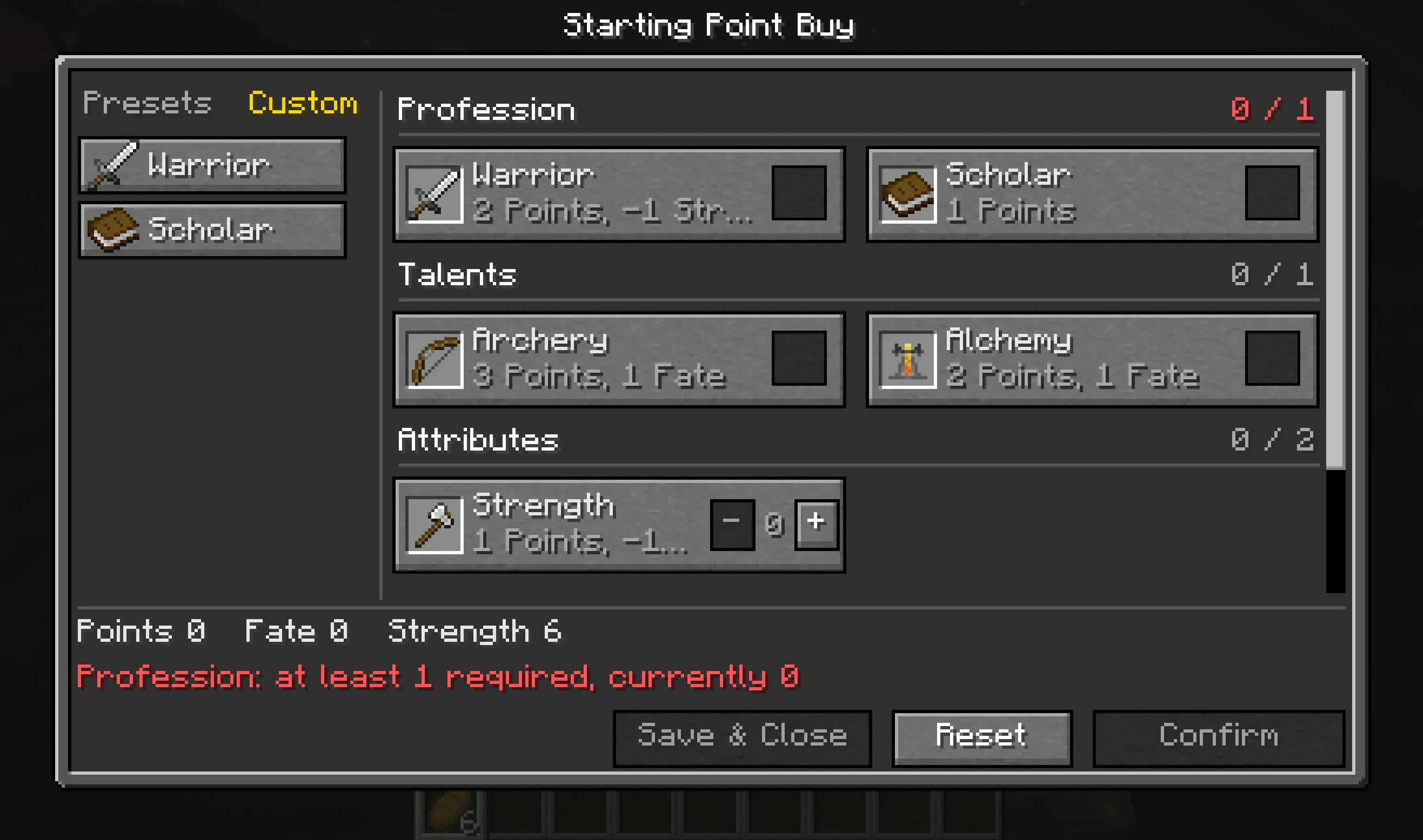
- Pick a preset on the left, or choose options on the right. In a narrow window, use the Presets button to open the list.
- Check the resource balances and completion messages at the bottom. Adjust your choices until you meet every requirement.
- Click Confirm. After the server accepts your selection, the screen closes and your abilities and starting rewards are applied. Some rewards may arrive after a delay.
Applying a preset replaces your entire current selection. You can then adjust it freely; the screen shows Custom when your choices no longer match a preset.
Points and prices
The numbers on a card are its price: positive numbers are costs, and negative numbers are refunds. Their signs are the opposite of the actual resource changes caused by selecting the option.
| Price shown on the card | Actual resource change | Usually mean |
|---|---|---|
1 Points |
Lose 1 point | Benefit |
-2 Points |
Gain 2 points | Shortcoming |
1 Fate, -2 Points |
Lose 1 fate and gain 2 points | Exchange |
An unselected card shows the price per copy. A selected card shows the total price for its current quantity. Costs appear before refunds. Hover over a card to see the full prices, per-copy and total values, description and selection limits.
The bottom bar shows the resource balances for your current choices. Each plan defines its own completion rules: you may need to spend every point, keep a reserve, or bring a resource within a particular range. Follow the requirements shown on screen.
Choices can affect one another
- Single choice: selecting another option replaces the previous choice in that group, such as when switching professions.
- Choice limits: groups can allow one, two or more choices, and the limit can change with other selections. An option may also allow multiple copies.
- Multiple choices and quantities: select several options together, and use
− / quantity / +for repeatable options. - Changing requirements: one choice can change another option's price, availability, visibility or quantity limit.
A change may leave an existing selection above its new limit. The screen keeps the selection and explains the problem, so you can reduce its quantity or remove it before confirming. Selected options that become hidden or unavailable appear under Selections that need attention so you can remove them.
Controls
| Action | Control |
|---|---|
| Select or remove an option | Click its card or checkbox |
| Adjust a repeatable option | Click + / − |
| Read descriptions and limits | Hover over a card |
| Preview a quantity change | Hover over an available + / − button |
| Apply a preset | Click it, or press number keys 1–9 on the main keyboard |
| Move option focus | Arrow keys |
| Toggle the focused option | Enter / Space |
| Scroll the options | Page Up / Page Down |
| Confirm your start | Click Confirm, or press Ctrl + Enter |
The mouse wheel scrolls only the area under the pointer. Presets and options scroll independently.
Common questions
How to add a profession, talent or starting plan?
See the documentation for details.
Why didn't the screen open?
Check that your modpack includes a starting plan and how that plan is opened. Completed plans do not automatically grant another start. Installing only this mod, without a plan data pack, does not provide any choices.
Why can't I confirm?
Read the messages at the bottom and hover over the affected cards. Besides resource balances, a plan may require a profession, a minimum quantity or other conditions. Check for selections above their limits after switching professions.
What does “refresh required” mean?
Click Refresh without closing the screen. Refreshing uses your current actual resources; it does not refill your points to their original values.
What if saving or applying rewards fails?
Share the message with your server administrator. The mod stops the affected reward process for administrator review.
Open a plan and check your status
If your modpack allows manual opening, use the commands below. Your modpack or server provides the <plan_id>; omit the
angle brackets when typing it. You can also press Tab to see suggestions.
| Command | Purpose |
|---|---|
/starting_point_buy open <plan_id> |
Open the specified plan, or resume its current draft |
/starting_point_buy status |
View your current allocation status |
/starting_point_buy refresh |
Refresh an uncommitted draft using current resources |
Starting Point Buy Team

Owner