Screenshotting Overhaul
A modern screenshot suite: gallery, full editor (text, shapes, arrows, blur, stickers), 360° panoramas, timed/region/window/clean captures and one-click uploads.
Description
ScreenShoting Overhaul
Oneconfig required https://modrinth.com/mod/oneconfig
Screenshots, done properly. Press F2 like always, and get a clean popup, a real gallery, and an editor that feels like a modern design app. Everything runs inside Minecraft, floating over your game, and follows your OneConfig theme.
🖼️ Gallery
Press G anywhere in-game, or use the button on the title and pause screens.
- Browse every screenshot and panorama in a floating window that follows your theme.
- Search by name and by where a shot was taken: world, server, dimension, biome.
- Sort by newest, oldest, largest, smallest or name. Filter to favourites, edited shots, screenshots or panoramas.
- Full-screen viewer: flip through with ←/→ or the filmstrip.
- Per-screenshot actions: favourite ⭐, rename, duplicate, copy the image, download as PNG or JPG, show the info panel, and delete.
- Select several at once with Ctrl/Cmd-click or Shift-click, then favourite, export, move or delete them together.
- Deleted files go to your system Trash (or the Recycle Bin on Windows), so you can restore them.
✏️ Editor
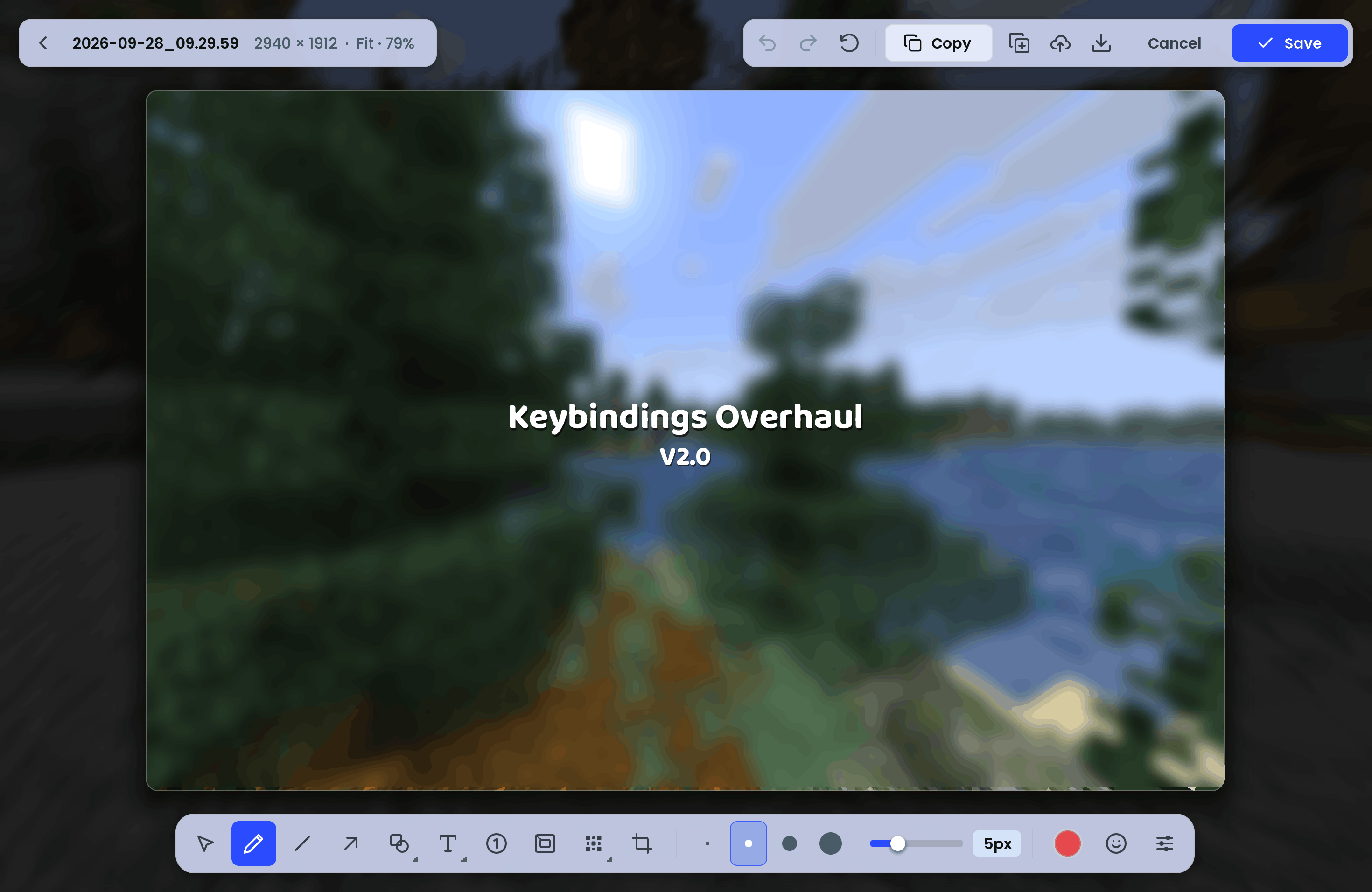
A full annotation editor, where everything you draw stays a movable object, even after you save and reopen the screenshot.
- Drawing tools: pencil, line, arrow, and shapes: rectangle, rounded rectangle, ellipse, triangle, diamond, pentagon, hexagon, star, heart and plus. Shapes can be outlined or filled.
- Text: plain, boxed or speech-bubble labels. Use any font installed on your computer, pick a background colour, and add an outline.
- Numbered steps, stickers and emoji (including Minecraft items), and highlight (spotlight) boxes.
- Effects: dashed lines, and arrow styles (classic, open, double-headed, dot tail).
- Blur: soft blur, mosaic, or automatic text hiding. Automatic text hiding finds text using your operating system's built-in text recognition and pixelates it.
- Adjusting objects: move, resize and rotate anything. Objects snap to edges, centres and each other, with guide lines (hold Alt to turn snapping off). Change the layer order, and copy and paste objects, even between screenshots.
- Properties panel: edit position, size, rotation, colours, stroke, text and more with scrubbable number fields.
- Also: crop, filters and adjustments, zoom and pan, and undo/redo.
- Saving: save, save as a copy, copy to the clipboard, export to PNG or JPG, or revert to the original at any time.
📸 Capture modes
| Key | What it does |
|---|---|
| F2 | Normal screenshot, with a preview popup in the corner |
| F6 | 360° panorama from where you're standing |
| F7 | Region capture: drag a box to capture just that part |
| F8 | Clean capture: hides the HUD, hand and chat for the shot |
| F9 | Window capture: just the open inventory or container |
| F10 | Timed screenshot: a 3/5/10 second countdown with an on-screen timer |
| G | Open the gallery |
All keys can be changed in Controls.
- High-resolution screenshots: F2 can render the world at 2×, 3× or 4× your window size.
- After-capture actions: show the popup, copy to the clipboard, hide text automatically, open the editor, or upload.
- Capture info: each screenshot can store where and when it was taken (world, server, coordinates, dimension, biome), with privacy switches.
🌐 360° panoramas
- Capture a panorama from anywhere, preview it spinning exactly as it would on the title screen, and apply filters.
- Set it as your title screen background with one click, or reset to vanilla.
- Choose the title screen's rotation speed and starting angle.
- Works with PolyPlus's custom menus.
☁️ Upload & copy link
Share in one click, ShareX-style. The link is copied to your clipboard straight away.
- Imgur (with your own Client ID)
- Discord webhook: post into a channel
- Your own image host: any host that accepts a standard form upload, with a custom header and a JSON path for where the link is in the reply
Upload from the editor (edits included), the viewer, or the gallery's right-click menu, or turn on upload after capture. Nothing is ever uploaded unless you ask for it.
🎨 OneConfig integration (optional)
With OneConfig installed:
- Every option is on a OneConfig settings page.
- The whole UI matches your theme: PolyGlass Dark or Light, Minecraft Dark or Light, and your accent colour.
- The screenshot timer shows up as a movable HUD element.
Without OneConfig the mod works fine using sensible defaults. Uploading, though, is set up in OneConfig.
Requirements
- Minecraft 26.3, Fabric Loader 0.19.5 or newer, and Fabric API
- Java 25
- OneConfig (settings, themes, timer HUD) and PolyPlus (menu integration)
- Client-side only: works on any server.
Notes
- Automatic text hiding uses Apple Vision on macOS and Windows OCR on Windows. On Linux, install
tesseract. - Discord image links stop working after about a day when opened outside Discord. For links that last, use Imgur or your own host.
- Where files are kept: edited screenshots keep their original in
screenshots/.originals/(so you can revert) and their editable objects inscreenshots/.edits/. The PNG itself always contains the finished image, so it works in any other app.
Screenshotting Overhaul Team