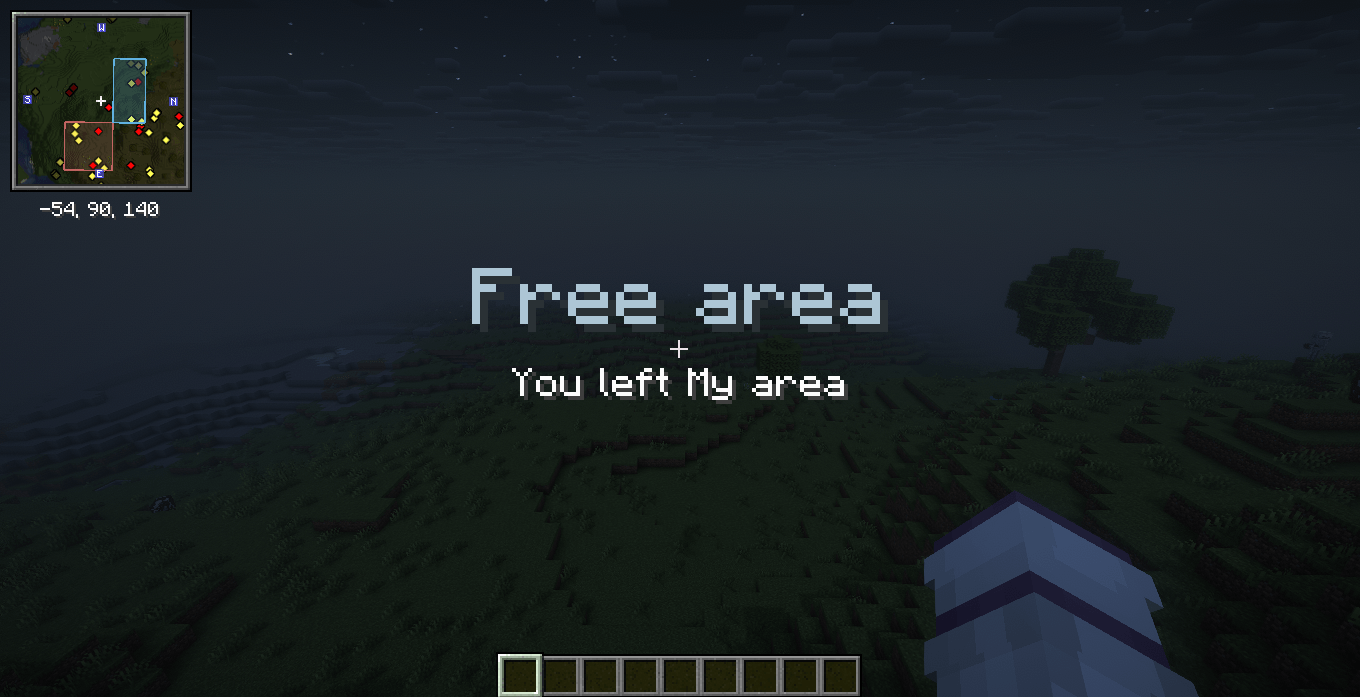
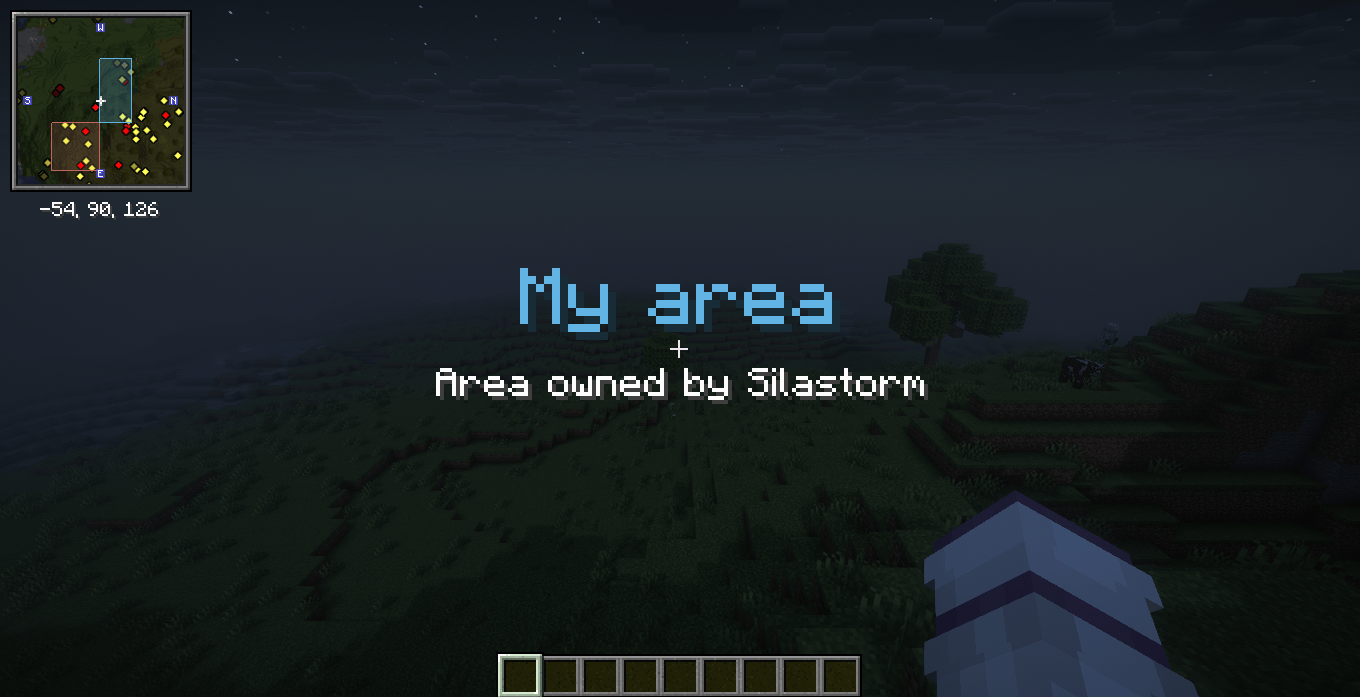
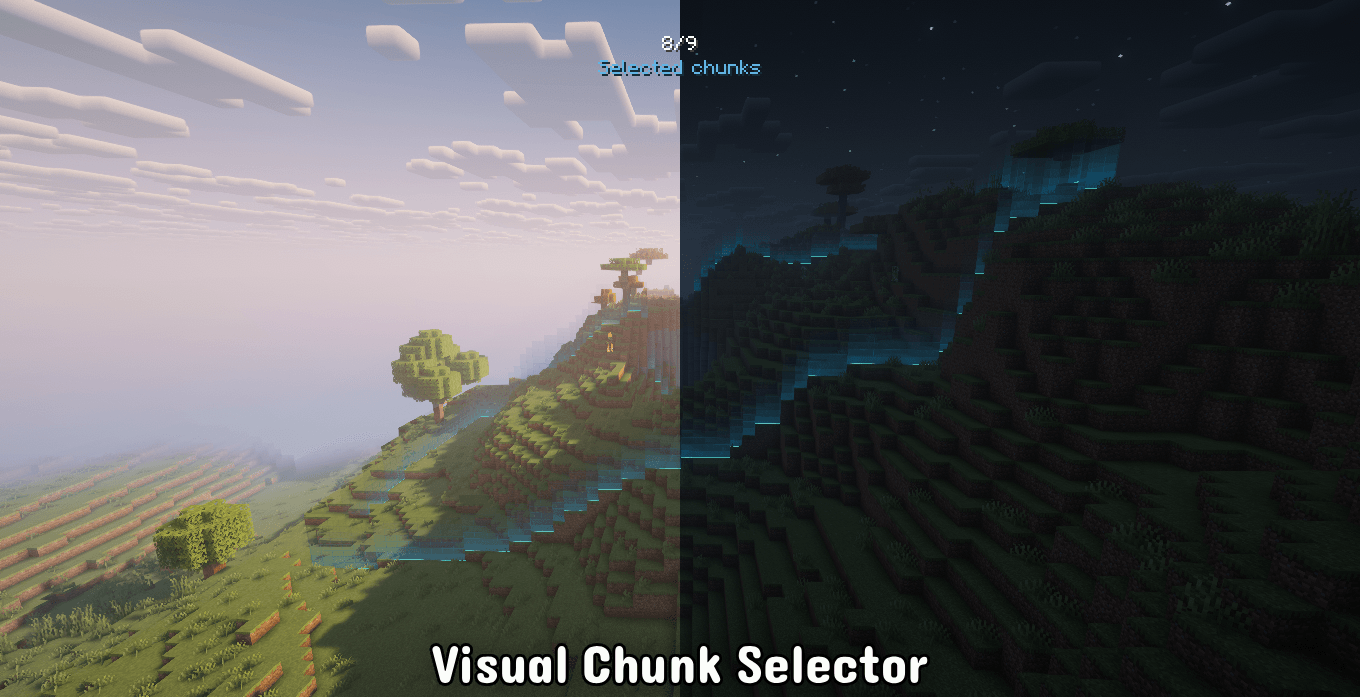
Description
SClaims
SClaims is a chunk-based land protection and management mod for Minecraft.
It provides a complete claim system with individual player permissions, server-owned protected areas, configurable limits, persistent chunk loading, an interactive chunk map, automatic language support, and in-game management menus.
Every claim is independent. The owner decides who can access it and what each added player is allowed to do.
Requirements
| Requirement | Version |
|---|---|
| Minecraft | 1.20.1 & 1.21.1 |
| Mod Loader | Fabric |
| Fabric Loader | 0.18.4 or newer |
| Fabric API | Required |
| Java | Java 17/21 |
| Installation | Client and Server |
SClaims must be installed on both the Minecraft client and the server.
The same mod JAR is used on both sides.
Main Features
Chunk-Based Claims
Claims are created using Minecraft chunks instead of manually selecting individual block coordinates.
Players can:
- Create multiple claims
- Select multiple connected chunks
- Name their claims
- Choose a claim color
- Delete their own claims
- Add players directly to individual claims
- Configure permissions separately for each player
- Keep selected chunks permanently loaded
Claims cannot overlap other claims.
Selected chunks must remain connected to the same claim.
Claim Creation
Creating a claim uses a simple two-step process.
Step 1: Select Chunks
When claim creation starts, the player receives a temporary selection stick.
The interface displays instructions similar to:
Step 1/2 - Select your Chunks
You will receive a STICK to select the Chunks. It will be removed when the configuration is finished.
[Right Click] Adds the targeted Chunk.
[Left Click] Removes the targeted Chunk.
The progress menu shows how many chunks have already been selected and the maximum amount available to the player.
Example:
3 / 12 Chunks Selected
Only connected chunks can be added to the same claim.
The configured SClaims keybind or /claim can be used at any time to return to the current creation screen.
Step 2: Claim Identity
After selecting the chunks, the player configures the claim identity.
This includes:
- Claim name
- Claim color
- Final confirmation
The temporary selection item is removed when the process ends.
Temporary Selection Item Protection
The selection stick is managed by SClaims and cannot be accidentally lost during configuration.
The player can move it between inventory slots normally.
It cannot be dropped using:
- Q
- Ctrl + Q
- Dropping it outside the inventory
- Inventory interactions that would normally throw the item
If the inventory is full, SClaims can temporarily use the selected slot while preserving the item that was previously stored there.
The displaced item is restored when the selection process finishes.
If the player disconnects while creating a claim, the unfinished creation is cancelled.
Old temporary selectors are also cleaned up after server restarts.
Smart Menu Return
The main commands and keybind are context-aware.
If nothing is currently being configured, they open the main Claims Menu.
If the player is currently creating a claim, they return directly to the claim creation screen.
If the player is currently configuring selected permissions, they return directly to that configuration.
This applies to:
/claim
/claims
and the SClaims keybind.
The default keybind is:
CThe player can change this key in the normal Minecraft Controls menu.
SClaims detects the player's configured key when displaying instructions.
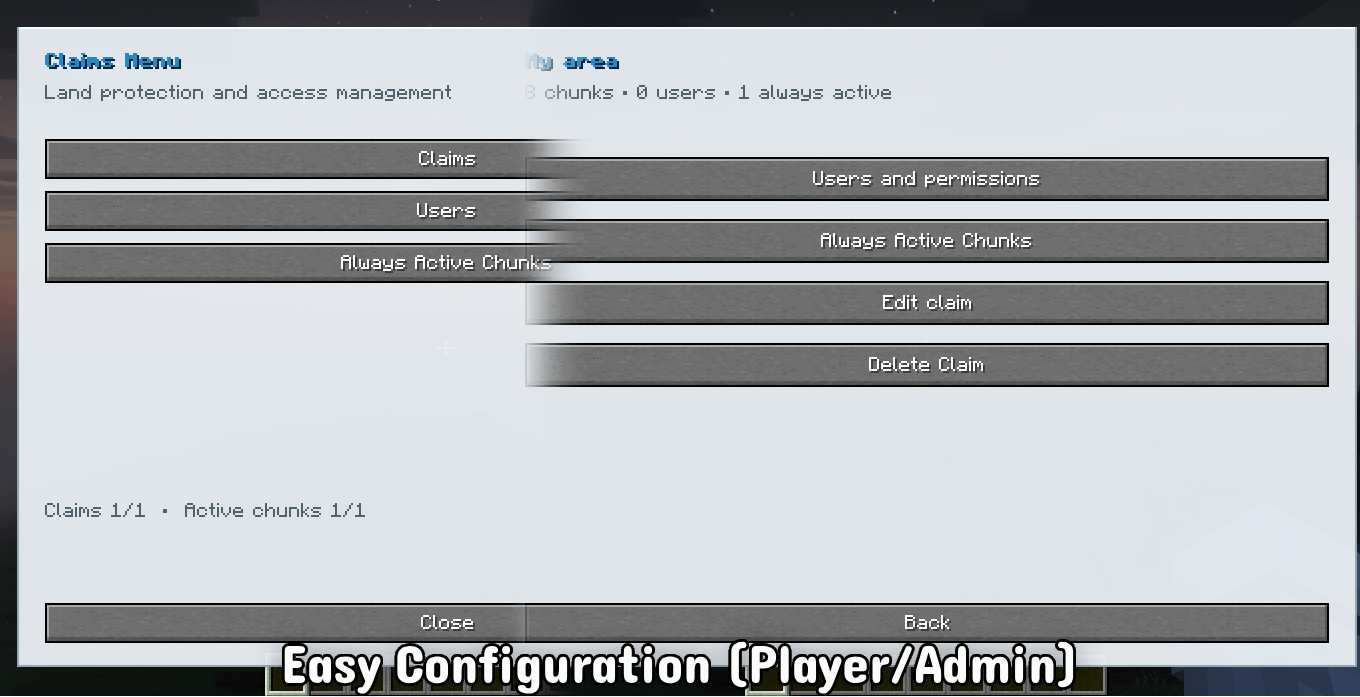
Claims Menu
The main interface provides access to the major player systems.
Claims
View, create, configure, and delete your claims.
Users
Manage players that have access to your claims and configure their individual permissions.
Always Active Chunks
Choose which chunks from your claims should remain loaded even when no player is nearby.
Server operators with permission level 2 or higher also receive administrative options.
Server Claims
Create and manage protected areas owned by the server.
Claim Settings
Configure global claim limits and individual player overrides.
Permissions
SClaims uses six primary permission categories.
| Permission | Description |
|---|---|
| Place Blocks | Controls block placement |
| Break Blocks | Controls block breaking |
| PvP | Controls player versus player combat |
| Entities | Controls interaction with entities |
| Redstone | Controls redstone-related interaction |
| Interactables | Controls containers, crafting stations, doors, gates, buttons, and other interactive blocks |
The system intentionally keeps related interactions together instead of exposing dozens of small permission options.
For example, chests, barrels, crafting tables, furnaces, doors, gates, and similar blocks are handled by the Interactables category.
Permission Modes
Each permission uses one compact state selector.
There are three available modes.
Allow
The player can interact with everything covered by that permission category.
Example:
Interactables: AllowThis allows interaction with all supported interactive blocks.
Block
The player cannot interact with anything covered by that category.
Example:
Interactables: BlockThis prevents interaction with all supported interactive blocks.
Select
Only specifically selected targets are allowed.
Example:
Interactables: SelectChanging a permission to Select does not immediately start world selection.
Instead, an additional button appears below the permission:
Select Allowed TargetsThe player must click this button before receiving the temporary permission selector.
This prevents the selector from unexpectedly appearing while simply cycling through permission modes.
Selecting Allowed Blocks and Entities
When a permission uses Select, SClaims provides a temporary selector that can be used directly in the world.
During selection:
Right Click adds the targeted block or entity type to the allowed list.
Left Click removes the targeted block or entity type from the allowed list.
The normal interaction with the target is cancelled while selection mode is active.
For example, selecting a chest will not open the chest.
Selecting an entity will not attack or normally interact with that entity.
The configuration screen displays the selected targets and allows the selection to be saved or cancelled.
This system can be used for both claim permissions and Server Claim permissions.
Individual Player Permissions
Players are added directly to claims.
There is no team system.
Each added player can have their own permission configuration.
For example, one player could be allowed to:
- Open containers
- Use doors
- Activate redstone
while another player could only:
- Open selected containers
- Use selected interactable blocks
Permissions are configured independently for each claim.
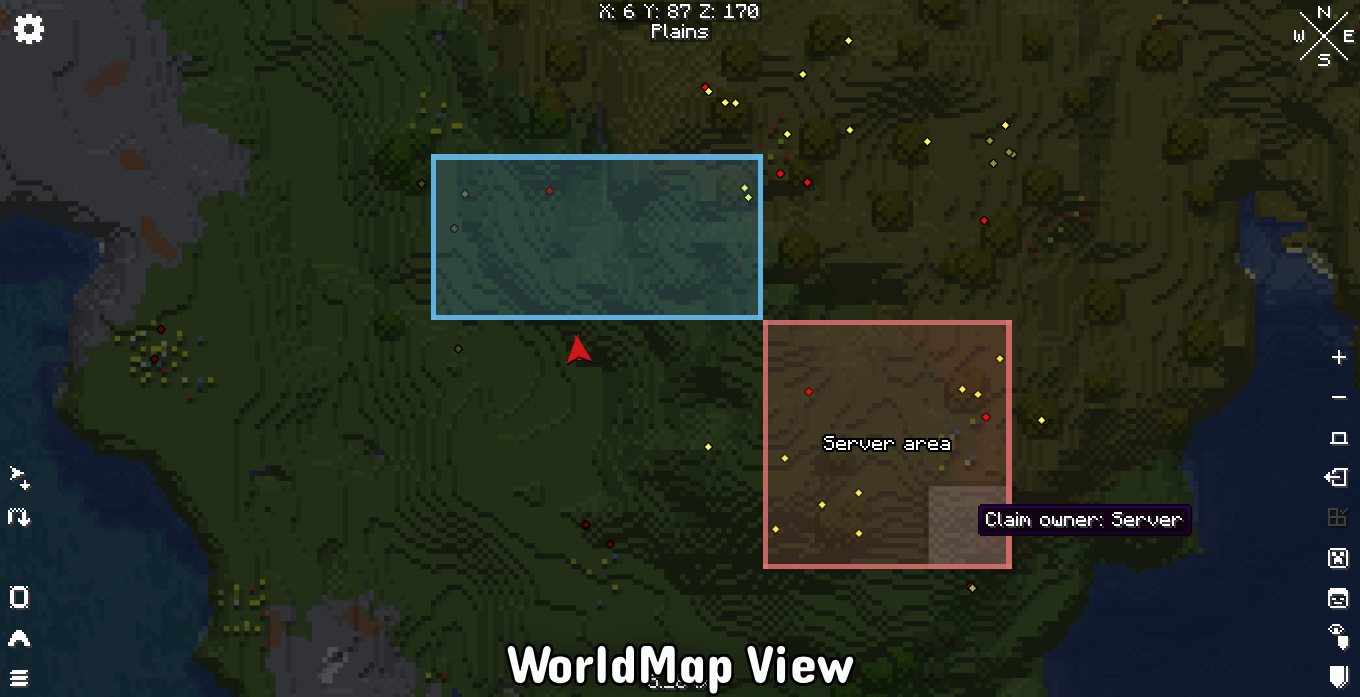
Server Claims
Server Claims are protected regions controlled by server administrators.
They use the same chunk-based protection system but do not require adding individual members like normal player claims.
Instead, administrators configure what regular players are allowed to do inside the Server Claim.
Server Claims use the same primary permission categories:
Place Blocks
Break Blocks
PvP
Entities
Redstone
Interactables
Each category supports:
Allow
Block
Select
This allows administrators to create areas such as:
- Spawn regions
- Markets
- Public buildings
- Event areas
- Protected structures
- Public farms
- Community locations
A Server Claim could, for example, block all block breaking while still allowing doors, crafting stations, and selected containers.
Global Claim Settings
Administrators can configure default limits that apply to the entire server.
Global settings apply to every player, including operators.
Available limits include:
| Setting | Description |
|---|---|
| Maximum Claims | Maximum number of claims a player can own |
| Maximum Chunks Per Claim | Maximum size of an individual claim |
| Always Active Chunks | Maximum permanently loaded chunks available to the player |
| Maximum Claim Users | Maximum number of players that can be added to a claim |
These settings are available through the administrative Claim Settings interface.
Per-Player Settings
SClaims also supports individual player overrides.
An administrator can configure custom limits for a specific player.
When an individual configuration exists, it overrides the global limits for that player.
This makes it possible to give specific players different limits without changing the configuration for the rest of the server.
For example:
Global Maximum Claims: 3

Player A: 10 Claims
Player B: Uses Global Settings
Player C: 5 Claims
Removing the player's custom configuration makes them use the global settings again.
Always Active Chunks
SClaims includes a persistent chunk loading system.
Players can choose specific chunks inside their own claims and keep them active even when no player is nearby.
The system can be useful for:
- Farms
- Machines
- Redstone systems
- Automated bases
- Modded machinery
- Areas that require continuous chunk ticking
The amount of Always Active Chunks available to each player is controlled by the server configuration.
Individual player overrides are also supported.
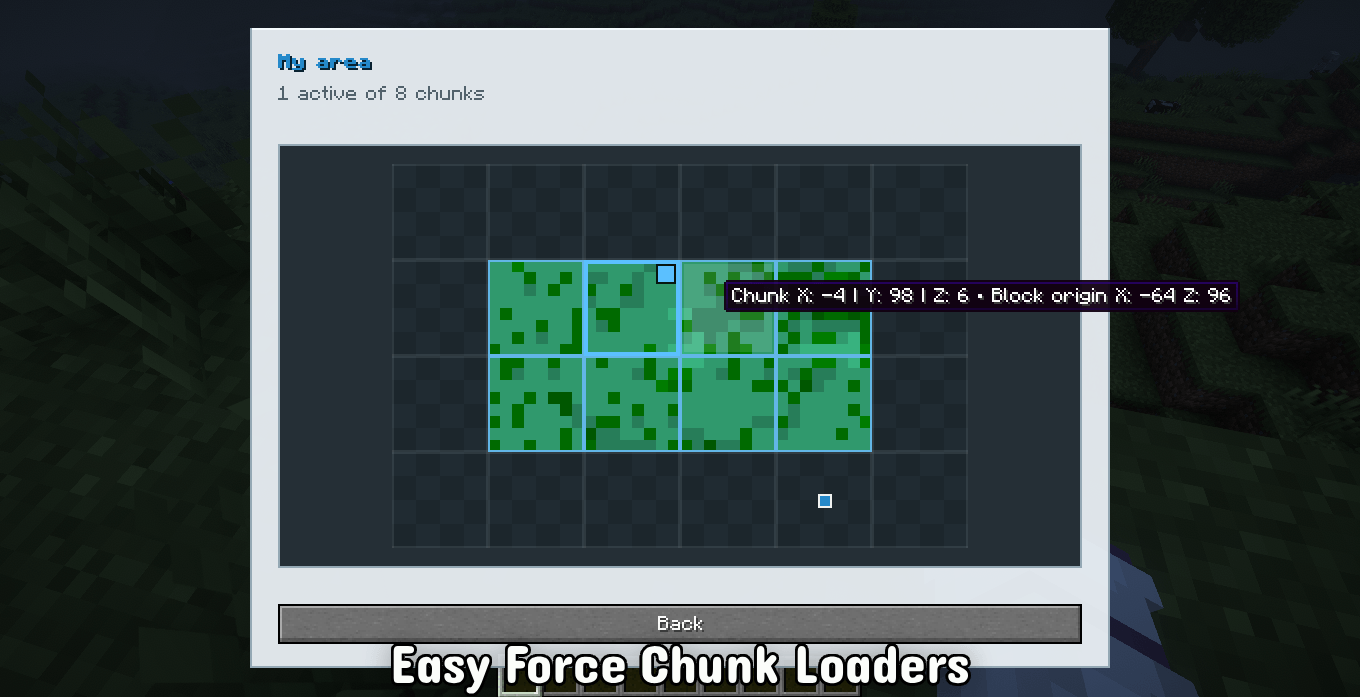
Interactive Chunk Map
Always Active Chunks are managed through an interactive map.
Instead of navigating through chunks using previous and next buttons, SClaims displays the claim as a grid-based map.
Each claim chunk appears in its real relative position.
The map can display a server-generated top-down representation of the terrain using the blocks found inside each chunk.
The preview uses a 16x16 representation for each chunk, allowing terrain details such as grass, water, sand, stone, snow, structures, and other surface materials to be visually represented.
The map can be dragged when the claim is larger than the visible menu area.
Hovering a chunk displays its coordinates.
Chunk Controls
Left Click
Marks the selected claim chunk as Always Active.
Right Click
Removes the selected chunk from the Always Active list.
The interaction is explicit.
Left Click only activates.
Right Click only deactivates.
Clicking an already active chunk with Left Click will not disable it.
The server validates the player's available Always Active Chunk limit before activating another chunk.
Persistent Chunk Loading
Always Active Chunks are saved by the server.
They are restored when the server restarts.
The server validates:
- Claim ownership
- Chunk membership
- Player limits
- Individual overrides
- Existing Always Active Chunk count
A player cannot use the chunk loader to keep arbitrary chunks outside their own claims loaded.
Commands
/claim
Opens the Claims Menu.
If the player currently has a claim creation or permission selection in progress, this command returns directly to that configuration.
/claim/claims
Alias for /claim.
/claims/claim menu
Opens the smart Claims Menu.
/claim menu/claim delete
Deletes the claim containing the chunk where the player is currently standing.
/claim delete/claim add <player>
Adds a player to the claim containing the current chunk.
/claim add <player>Example:
/claim add Steve/claim chunkload
Changes the Always Active state of the current claim chunk using the command-based system.
/claim chunkloadFor normal use, the interactive Always Active Chunks map provides more precise chunk management.
/sclaims
Opens the SClaims interface.
Like /claim, it automatically returns to an active configuration session when necessary.
/sclaims/serverclaim
Opens the Server Claims administration interface.
Requires operator permission level 2 or higher.
/serverclaimAdministrative Commands
Administrative limit commands require operator permission level 2 or higher.
Maximum Claims
Sets the maximum number of claims available to a specific player.
/sclaims admin limits <player> claims <amount>Example:
/sclaims admin limits Steve claims 10Maximum Chunks Per Claim
Sets the maximum number of chunks allowed inside each claim for a specific player.
/sclaims admin limits <player> size <amount>Example:
/sclaims admin limits Steve size 25Always Active Chunk Limit
Sets the maximum number of Always Active Chunks available to a specific player.
/sclaims admin limits <player> chunkloads <amount>Example:
/sclaims admin limits Steve chunkloads 5Maximum Users Per Claim
Sets how many players can be added to each claim owned by the target player.
/sclaims admin limits <player> users <amount>Example:
/sclaims admin limits Steve users 8Command Reference
| Command | Permission | Function |
|---|---|---|
/claim |
Player | Opens the smart Claims Menu |
/claims |
Player | Alias for /claim |
/claim menu |
Player | Opens the smart Claims Menu |
/claim add <player> |
Player | Adds a player to the current claim |
/claim delete |
Player | Deletes the current claim |
/claim chunkload |
Player | Changes chunk loading for the current claim chunk |
/sclaims |
Player | Opens SClaims |
/serverclaim |
OP Level 2+ | Opens Server Claims |
/sclaims admin limits <player> claims <amount> |
OP Level 2+ | Overrides maximum claims |
/sclaims admin limits <player> size <amount> |
OP Level 2+ | Overrides maximum claim size |
/sclaims admin limits <player> chunkloads <amount> |
OP Level 2+ | Overrides Always Active Chunk limit |
/sclaims admin limits <player> users <amount> |
OP Level 2+ | Overrides maximum users per claim |
Automatic Language Detection
SClaims automatically uses the language selected by each player in Minecraft.
There is no separate language setting inside the mod.
Currently included languages:
| Language | Minecraft Code |
|---|---|
| English | en_us |
| Portuguese, Brazil | pt_br |
| Spanish | es_es |
| Japanese | ja_jp |
| Simplified Chinese | zh_cn |
| Hindi | hi_in |
| Arabic | ar_sa |
Different players connected to the same server can use different languages at the same time.
User Interface
SClaims uses custom Minecraft menus designed to remain simple and easy to navigate.
The interface includes:
- Responsive menus
- Claim lists
- User management
- Individual permission configuration
- Server Claim management
- Global configuration
- Per-player configuration
- Interactive chunk maps
- Claim colors
- Pagination for larger lists
- Automatic return to active configuration sessions
Menu titles use the SClaims interface name rather than displaying the technical mod ID.
For example:
Claims MenuPortuguese players automatically receive the translated interface.
Menu de TerrenosServer Protection
All important claim operations are validated server-side.
The client interface does not have authority to bypass claim rules.
The server validates actions such as:
- Creating claims
- Adding chunks
- Removing chunks
- Deleting claims
- Adding users
- Changing permissions
- Selecting allowed targets
- Activating Always Active Chunks
- Deactivating Always Active Chunks
- Administrative configuration
This prevents normal client-side manipulation from directly overriding server claim data.
Data Persistence
SClaims persists the important claim configuration across server restarts.
Stored information includes:
- Claims
- Claim chunks
- Claim names
- Claim colors
- Claim owners
- Added users
- User permissions
- Selected permission targets
- Server Claims
- Server Claim permissions
- Global limits
- Individual player limits
- Always Active Chunks
Mod Compatibility
SClaims includes compatibility considerations for other mods that use interactive blocks or entities.
Optional compatibility targets currently include:
Xaero's Minimap
Xaero's World Map
Waystones
SCorpse
These mods are not required dependencies unless separately required by your modpack.
Fabric API is the required gameplay dependency.
Installation
Client
- Install Minecraft 1.21.1.
- Install Fabric Loader.
- Install Fabric API.
- Place the SClaims JAR inside the
modsfolder. - Start Minecraft.
Server
- Install a Fabric 1.21.1 server.
- Install Fabric API.
- Place the same SClaims JAR inside the server
modsfolder. - Start the server.
- Configure claim limits through the administrative menu.
SClaims is designed to run with the same mod installed on both client and server.
Project Information
Mod: SClaims
Author: Silas T.
Minecraft: 1.20.1 / 1.21.1
Loader: Fabric
Java: 17/21
License: All Rights Reserved
SClaims Team