Description
SAdmin
SAdmin is a lightweight and secure administration mode for Minecraft Fabric servers.
It provides a clean staff mode with protected inventories, persistent admin sessions, enhanced hidden administrator visibility, protected admin tools, player teleportation, gamemode controls, support for extra equipment inventories, and multilingual support.
Client and Server Support
SAdmin can be installed only on the server.
Players do not need SAdmin installed on their Minecraft client to join the server or interact normally.
The same JAR can also be installed on the client when:
- SAdmin is included in a modpack
- A player hosts a LAN world
- The owner prefers to keep the same mod set on both sides
Installation Options
Server-Side Only
Server: SAdmin-1.0.1.jar
Client: Not required
Client + Server
Server: SAdmin-1.0.1.jar
Client: SAdmin-1.0.1.jar
The same JAR is used in both cases.
Requirements
| Requirement | Version |
|---|---|
| Minecraft | 1.20.1 & 1.21.1 |
| Mod Loader | Fabric |
| Fabric Loader | 0.18.4 or newer |
| Fabric API | Required |
| Java | Java 17/21 |
| Installation | Server Only or Client + Server |
Main Features
- Dedicated admin mode
- Automatic inventory backup
- Safe inventory restoration
- Persistent admin sessions across reconnects
- Hidden administrator mode
- Enhanced vanish protection
- Admin-to-admin visibility
- Hidden movement sound suppression
- Hidden movement particle suppression
- Protected admin hotbar tools
- Immediate protected-slot synchronization
- Safe building while in admin mode
- Online player management menu
- Cross-dimension teleportation
- Gamemode controls
- Extra inventory protection
- Trinkets compatibility
- Accessories compatibility
- Artifact/equipment slot protection
- Safe recovery after interrupted sessions
- Multiplayer support
- Seven included languages
- Server-side-only installation support
- Optional client installation for LAN and modpacks
Admin Mode
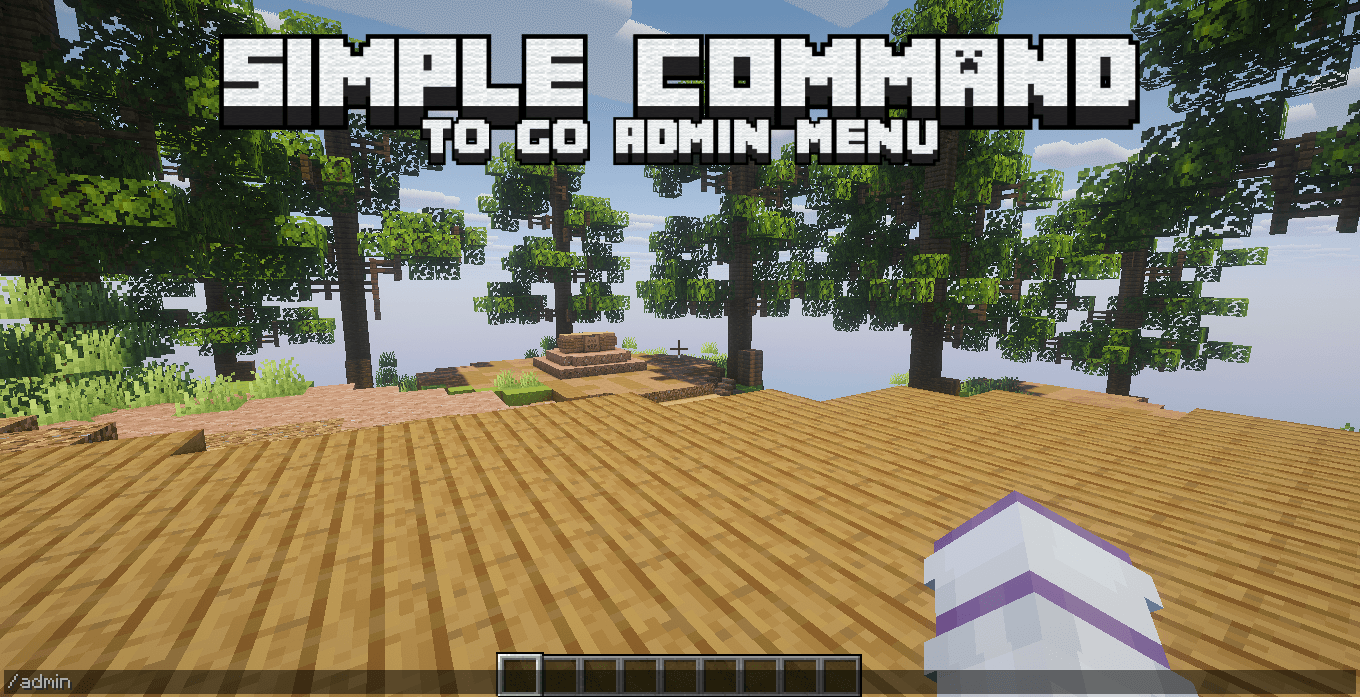
Administrators can toggle staff mode using:
/admin
The command requires operator permission level 2 or higher.
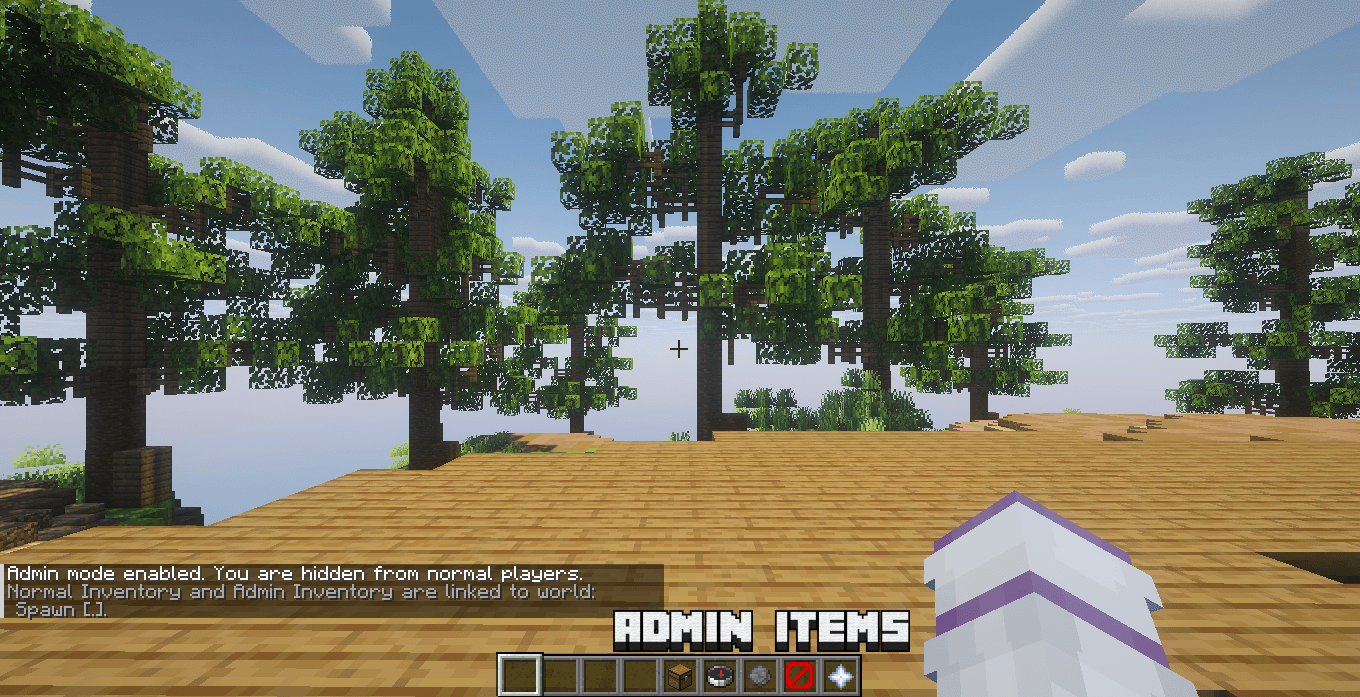
When admin mode is enabled:
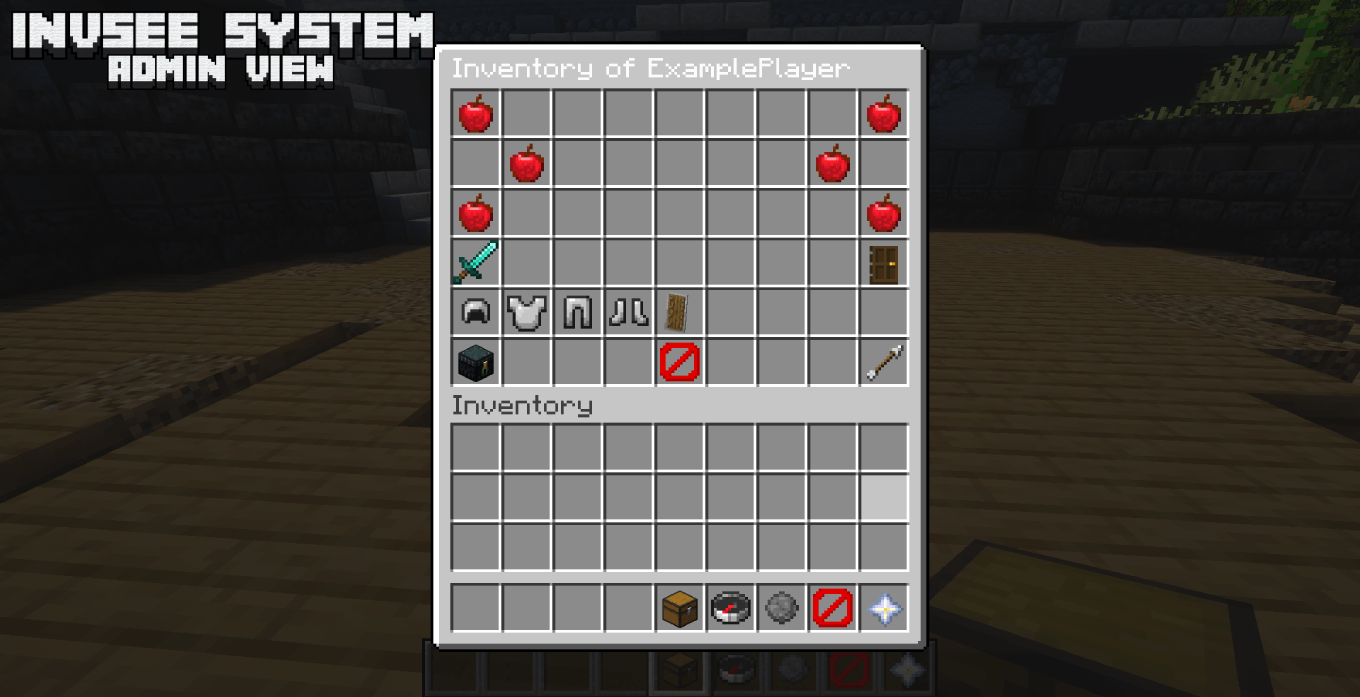
- The player's normal inventory is safely backed up
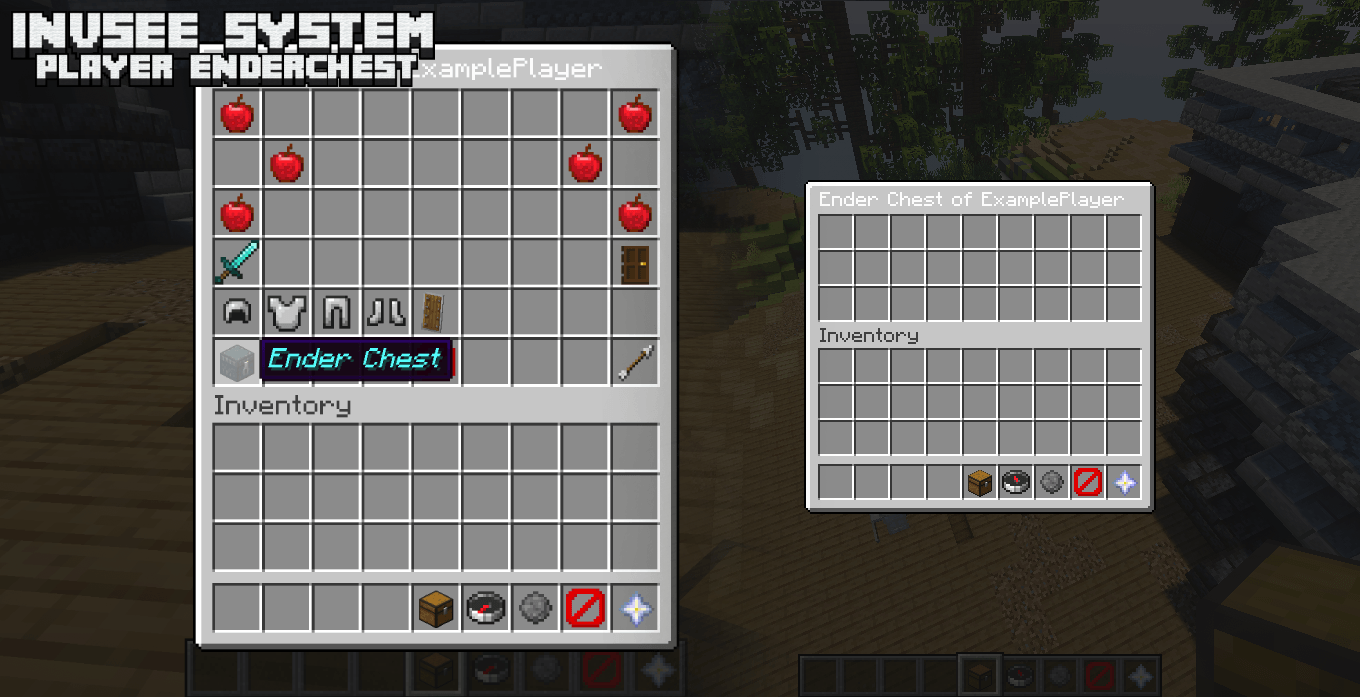
- Supported extra equipment inventories are also protected
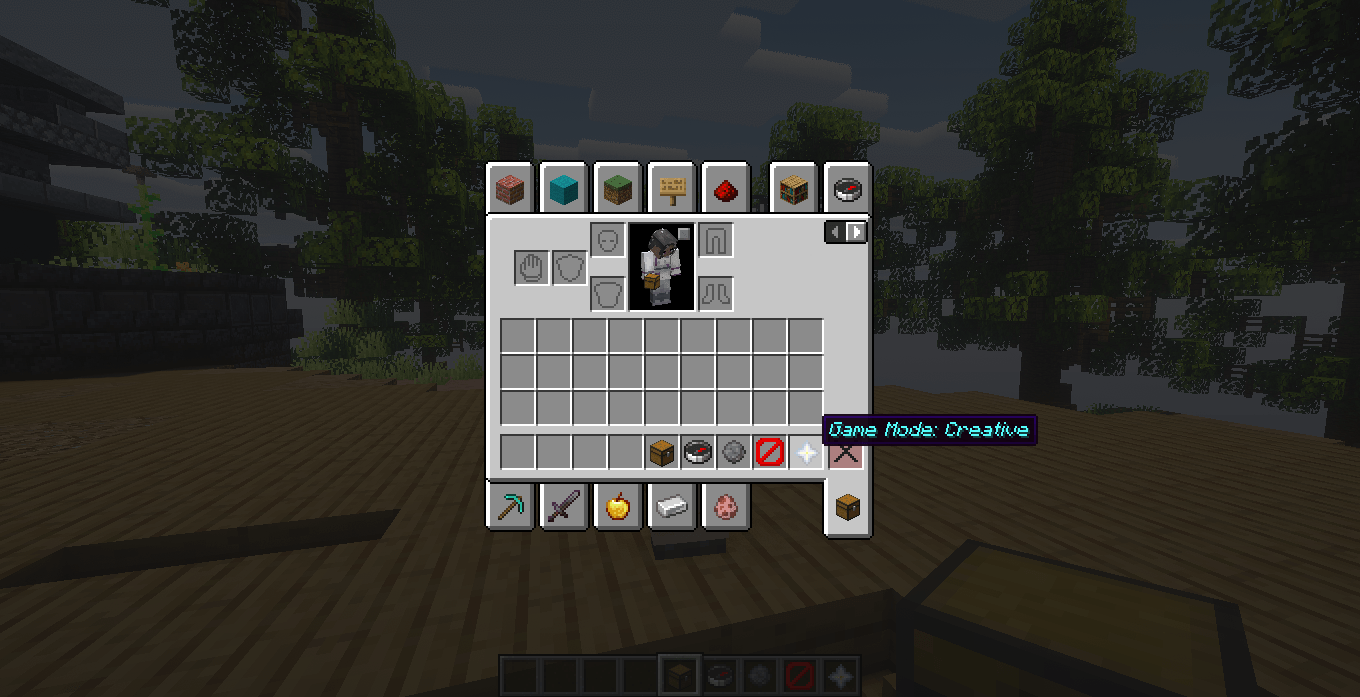
- The administrator enters Creative mode by default
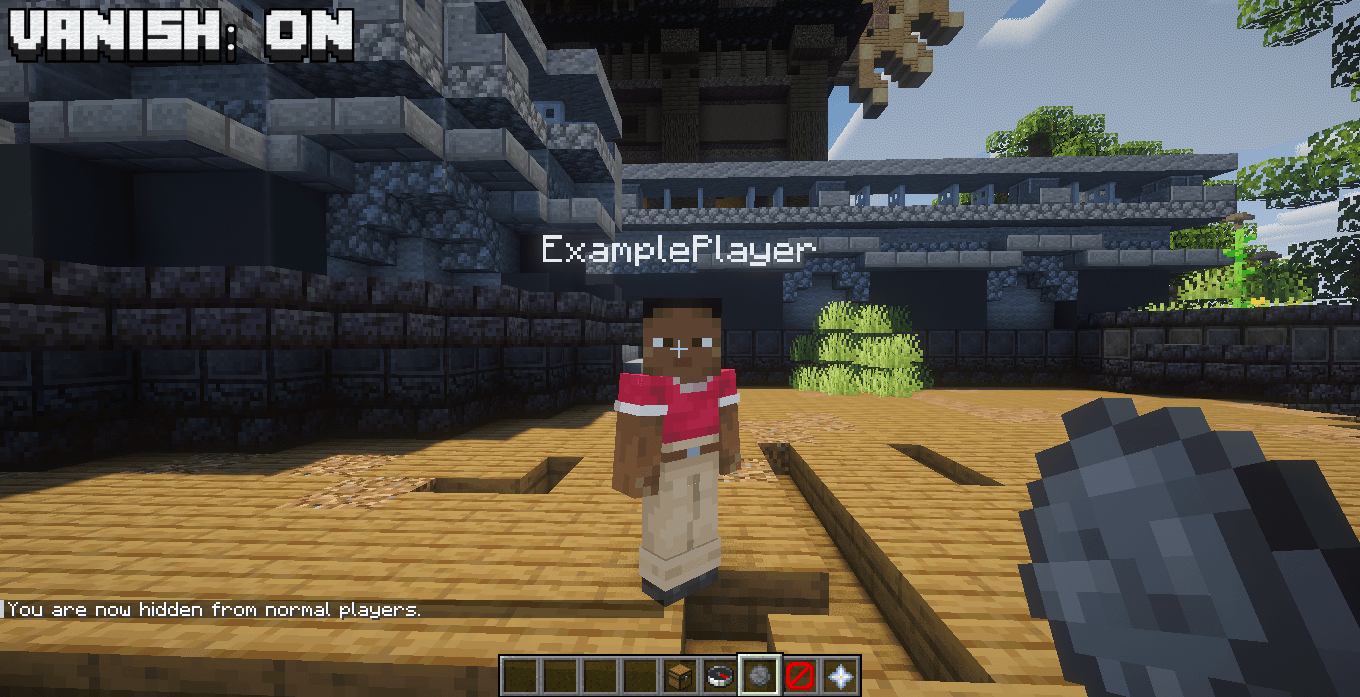
- The administrator starts hidden from normal players
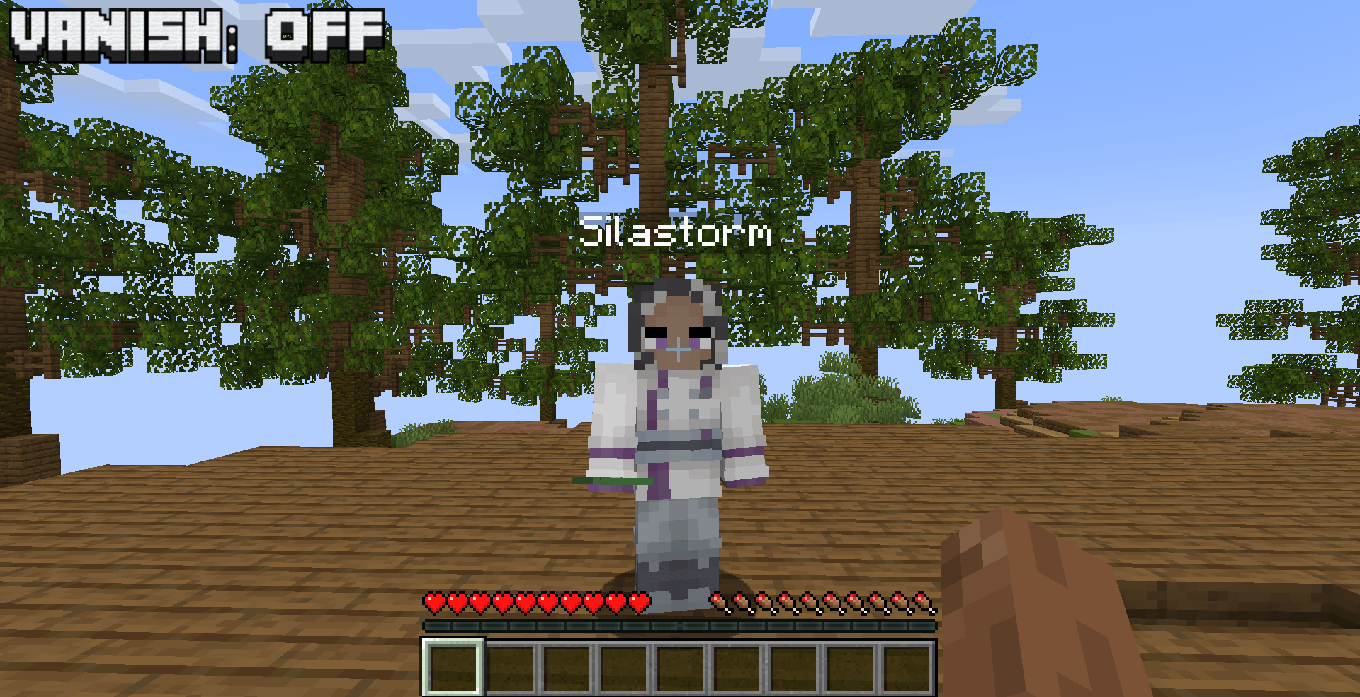
- Other administrators using admin mode can still see them
- Normal players cannot attack the hidden administrator
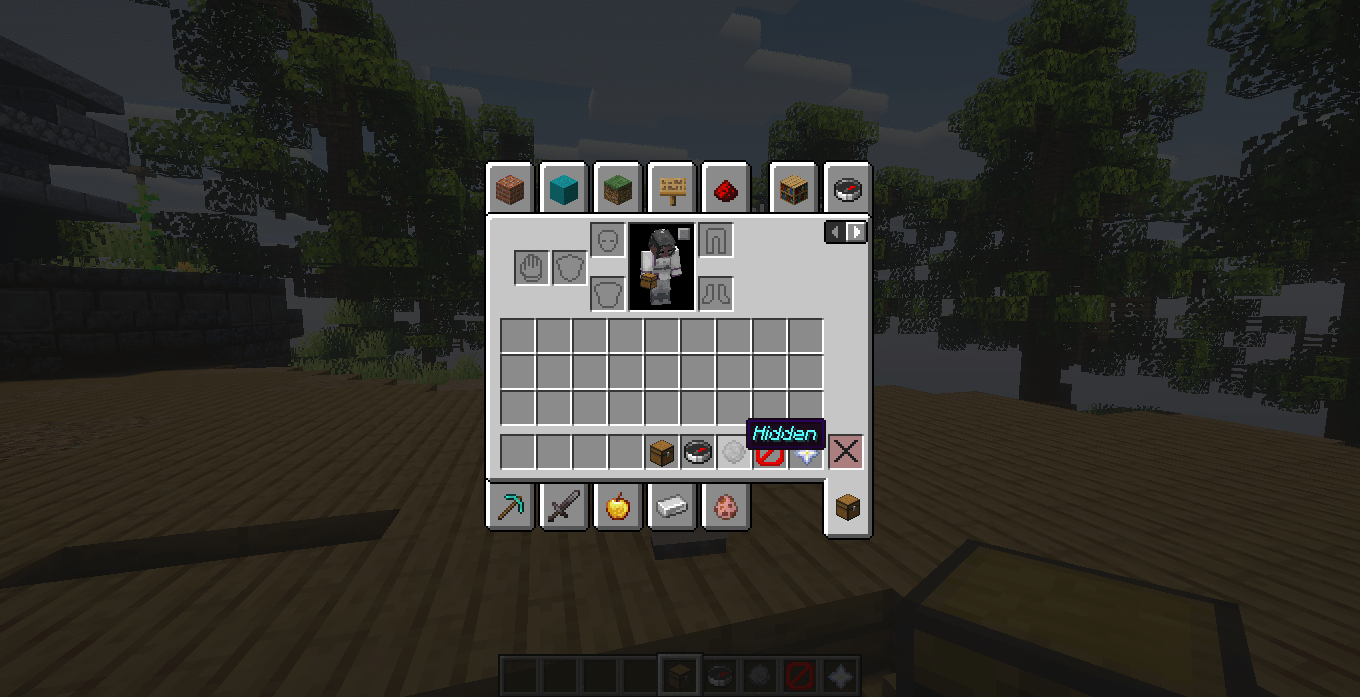
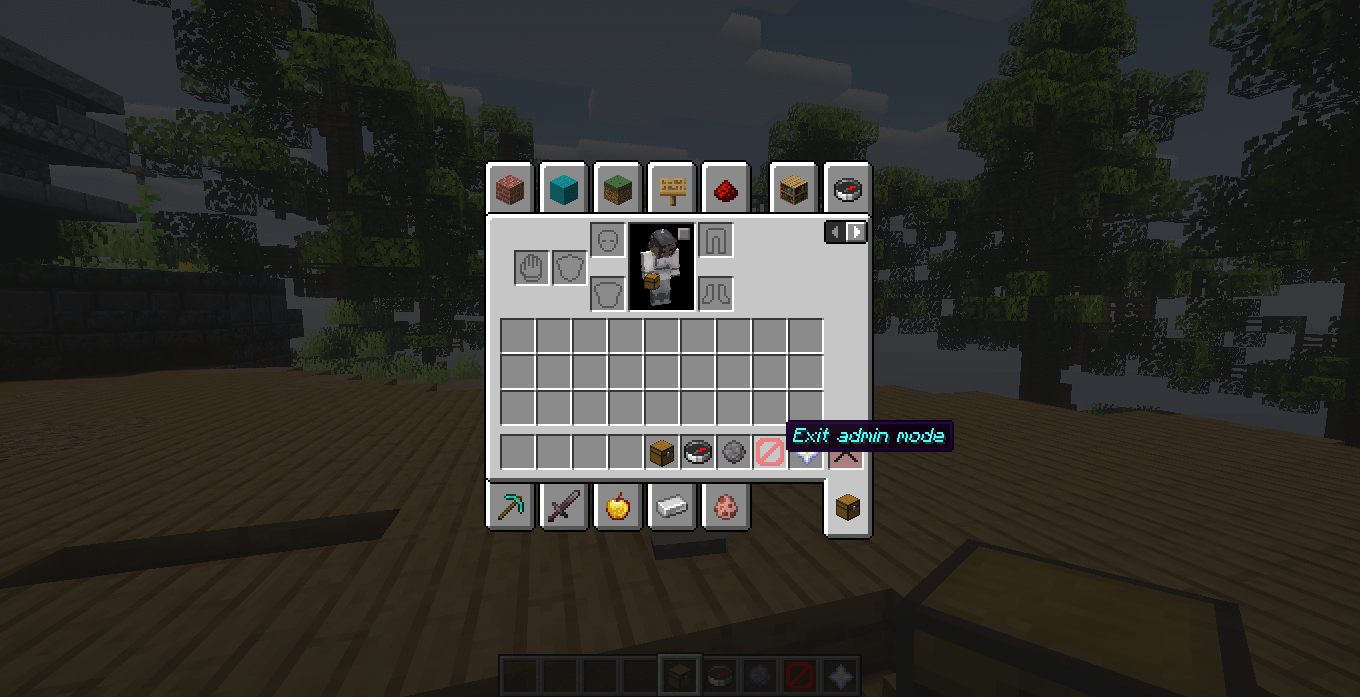
- Special admin tools are placed in protected hotbar slots
Running /admin again exits admin mode and restores the player's original inventories.
Persistent Admin Sessions
SAdmin remembers when an administrator disconnects while still using Admin Mode.
For example:
Player enters Admin Mode
↓
Player becomes Hidden
↓
Player disconnects
↓
Player reconnects
↓
Admin Mode is restored
The administrator does not automatically return to their normal state simply because they left the server.
SAdmin preserves the administrative session so the player can continue working after reconnecting.
Session information can include:
- Admin Mode state
- Hidden / Visible state
- Administrative gamemode
- Selected hotbar slot
The player's original inventory remains protected until Admin Mode is properly exited.
Inventory Protection
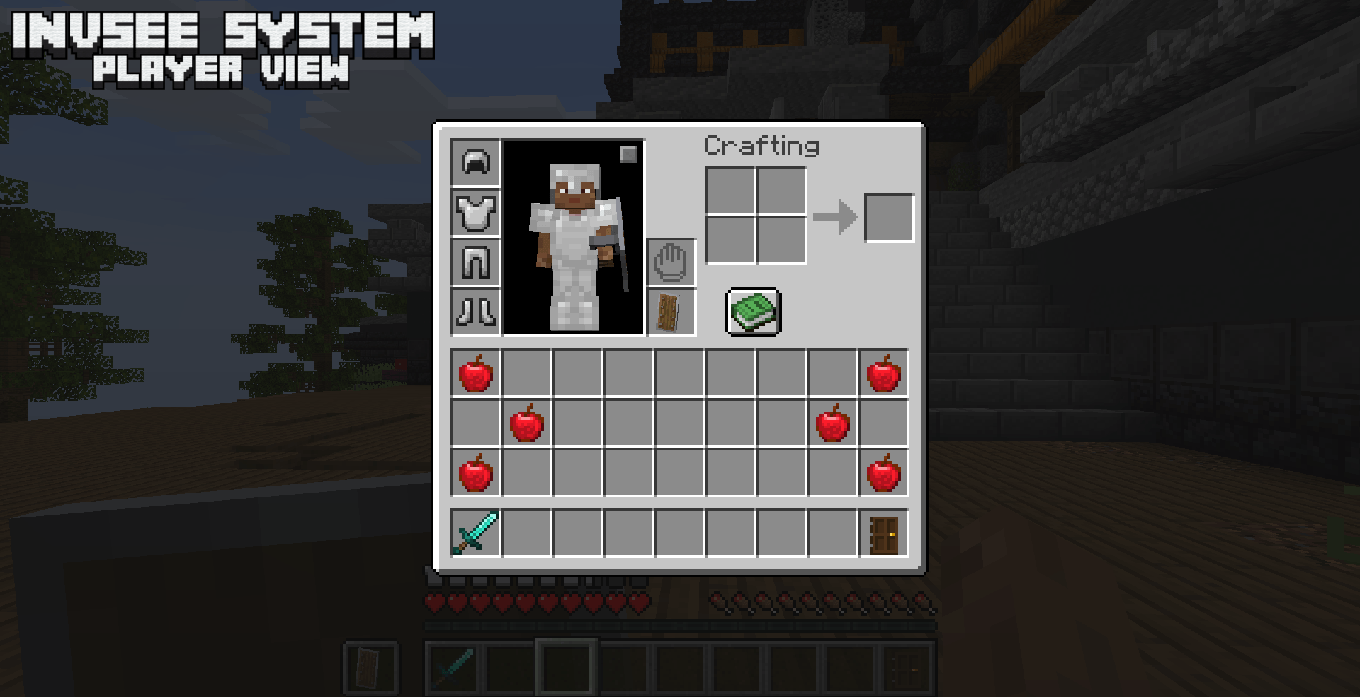
Before entering Admin Mode, SAdmin creates a protected backup of the administrator's normal Minecraft inventory.
This includes the player's standard:
- Main inventory
- Hotbar
- Armor
- Offhand
The backup is stored server-side and remains protected while the administrative session is active.
SAdmin never intentionally replaces the original backup with the temporary Admin Mode inventory.
When Admin Mode is exited successfully, the original inventory is restored.
Logout Safety
SAdmin includes additional protection for administrators who disconnect while still using Admin Mode.
During a normal logout, the player's real inventory can be restored to Minecraft's player data while SAdmin keeps its own protected backup and remembers that the Admin Mode session is still active.
When the administrator reconnects, SAdmin detects the saved Admin Mode session and reconstructs the temporary administrative inventory.
This provides an additional safety layer for the player's real items.
If the session state cannot be recovered safely, SAdmin prioritizes restoring the original inventory instead of risking item loss.
Extra Inventory Protection
SAdmin can also protect compatible external equipment inventories.
These inventories are treated similarly to a second protected inventory while Admin Mode is active.
Supported systems include optional compatibility with:
- Trinkets
- Accessories
- Mods using compatible equipment slot systems
This can include slots used by mods for:
- Artifacts
- Charms
- Rings
- Necklaces
- Belts
- Additional equipment
- Other accessory items
How It Works
When entering Admin Mode:
Normal Inventory
↓
Saved and temporarily replaced
Extra Equipment Inventory
↓
Saved and temporarily cleared
While Admin Mode is active, the administrator can use the extra equipment slots for testing without modifying their original equipment setup.
When Admin Mode is exited:
Temporary Admin equipment
↓
Removed
Original equipment
↓
Restored to its previous slots
This allows administrators to test artifacts or accessories during staff mode and then return to their original equipment afterward.
Items placed in protected extra slots during Admin Mode should therefore be considered temporary administrative equipment.
Optional Compatibility
Trinkets and Accessories are not required dependencies for SAdmin.
If these systems are not installed, SAdmin continues working normally with the vanilla inventory.
SAdmin only interacts with compatible extra inventories when their corresponding system is detected.
The protection system is designed to avoid modifying unknown external inventories when they cannot be handled safely.
Protected Admin Tools
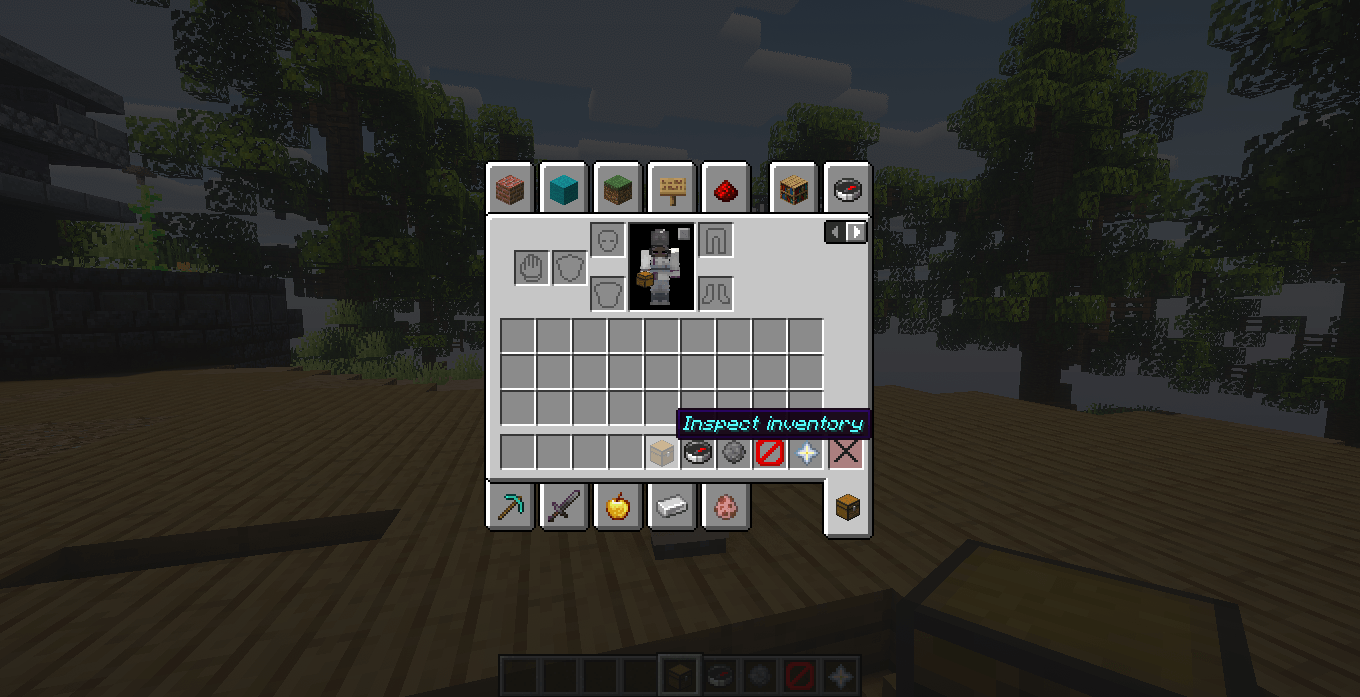
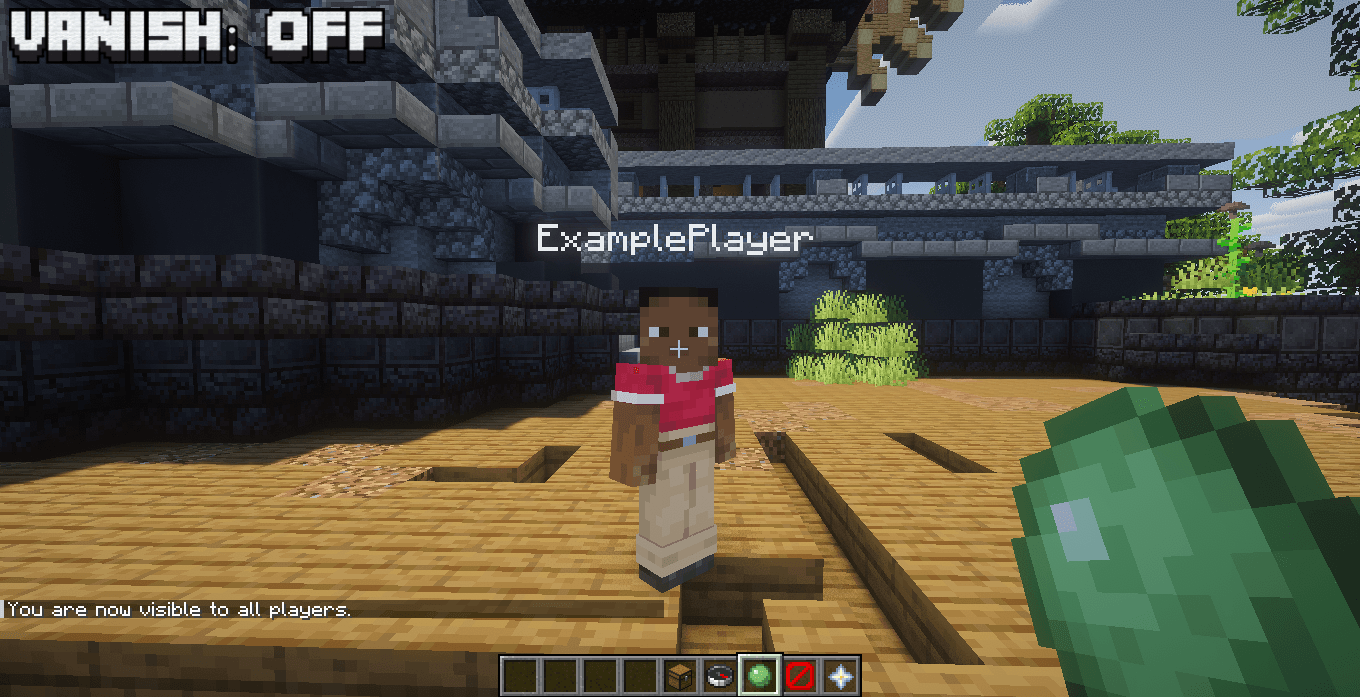
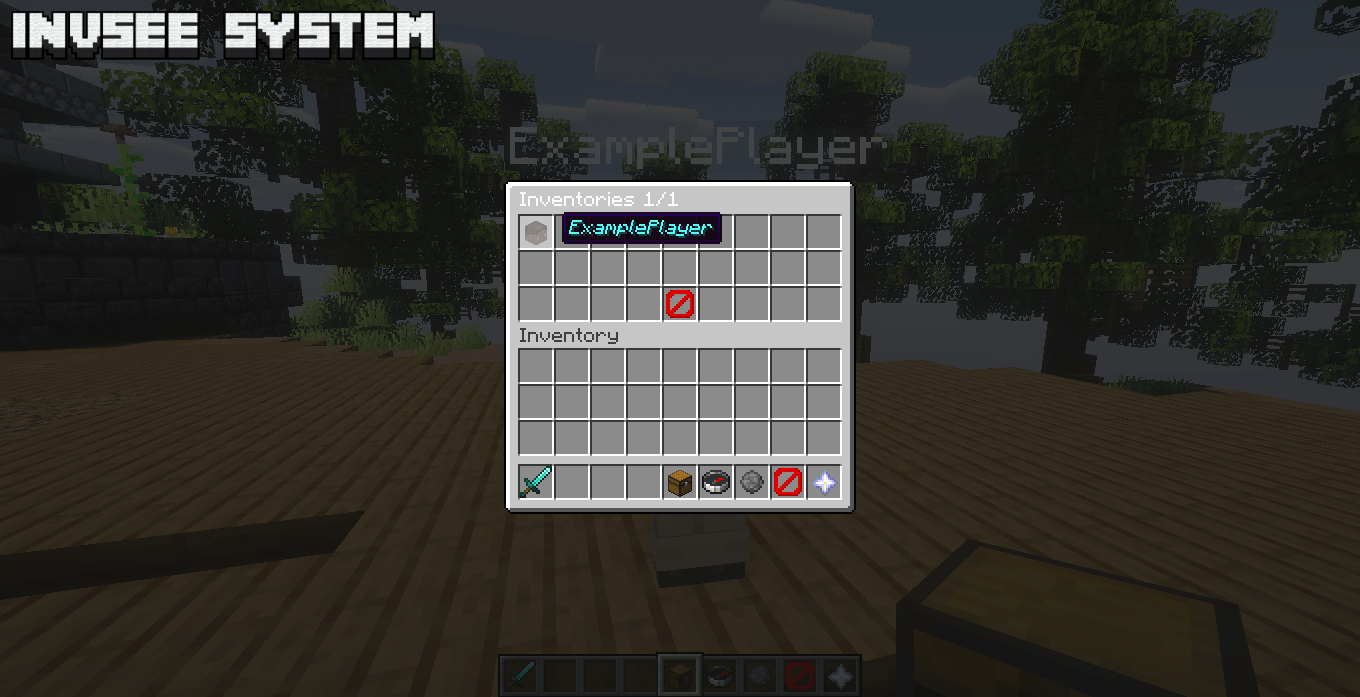
While Admin Mode is active, protected hotbar slots contain administration tools.
These tools provide quick access to functions such as:
- Player Menu
- Hidden / Visible Toggle
- Exit Admin Mode
- Gamemode Selector
Admin tools are protected against actions such as:
- Dropping
- Moving
- Replacing
- Cloning
- Accidental placement
- Inventory desynchronization
If a protected tool is accidentally dropped or changed client-side, SAdmin quickly synchronizes the correct item back into the expected slot.
This prevents the temporary visual disappearance that can normally occur after a canceled item drop.
Safe Building in Admin Mode
Administrators can continue building normally while using Admin Mode.
Protected admin tools are identified using their specific item data and reserved slots.
SAdmin does not treat an ordinary block interaction as an Admin Tool action.
This prevents situations where placing or interacting with blocks could accidentally open the Player Menu or another administrative interface.
Normal building interactions remain available while using free inventory slots.
Hidden Mode
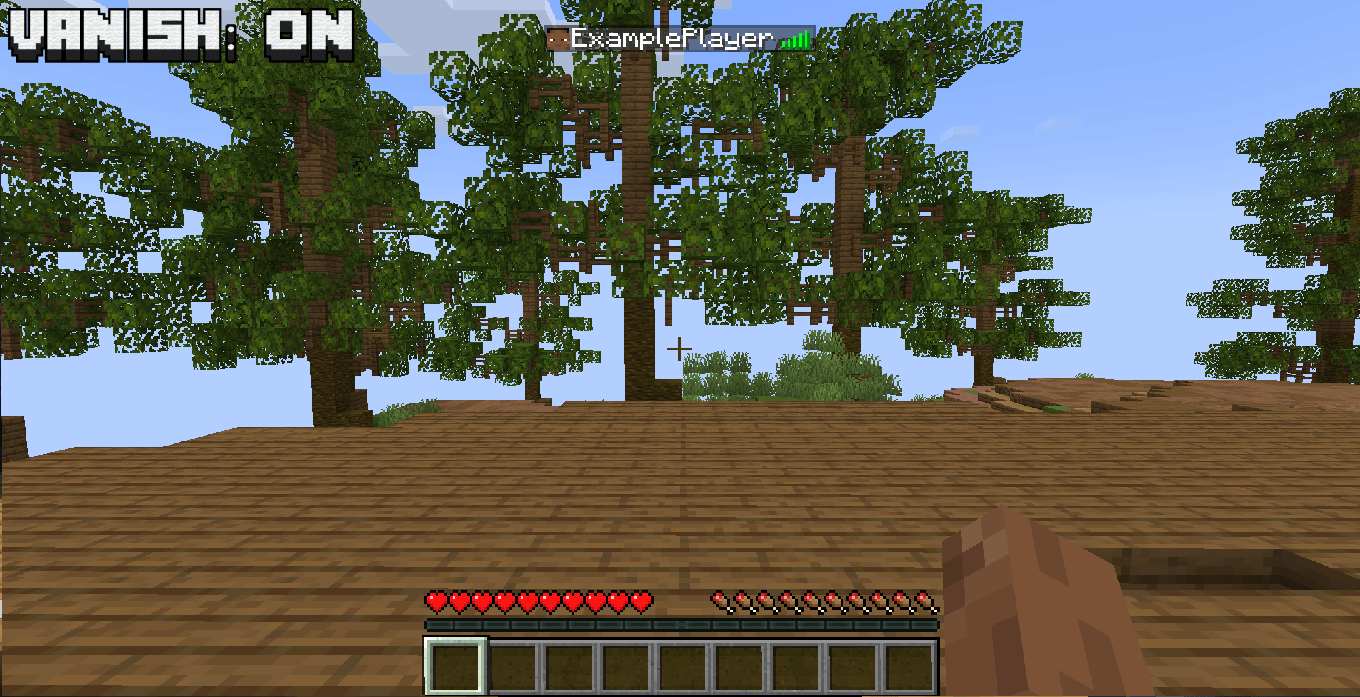
Administrators enter Admin Mode hidden by default.
While hidden:
- Normal players cannot normally see the administrator
- Normal players cannot attack the hidden administrator
- Other administrators using Admin Mode can still see them
- The administrator is removed from normal player tracking where supported
- The administrator is hidden from the normal player list for regular players
- Movement sounds are suppressed
- Sprint and movement particles are suppressed
The visibility tool allows the administrator to switch between Hidden and Visible mode when needed.
Enhanced Vanish Protection
SAdmin's Hidden Mode goes beyond normal invisibility.
Instead of only applying a visual invisibility effect, SAdmin also attempts to prevent the hidden administrator from being exposed through normal server tracking information.
This helps reduce visibility in:
- Player lists
- Entity tracking
- Radar-style interfaces
- Some minimap player detection systems
Because third-party minimap and radar mods can implement their own detection methods, behavior can vary between mods.
SAdmin focuses on removing the normal server information those systems commonly use to identify players.
Silent Hidden Movement
Hidden administrators are designed to leave fewer visible or audible traces.
While hidden, SAdmin suppresses movement-related information such as:
- Walking sounds
- Running sounds
- Sprint particles
- Block movement particles
This makes Hidden Mode more appropriate for observing players without unnecessarily revealing the administrator's position.
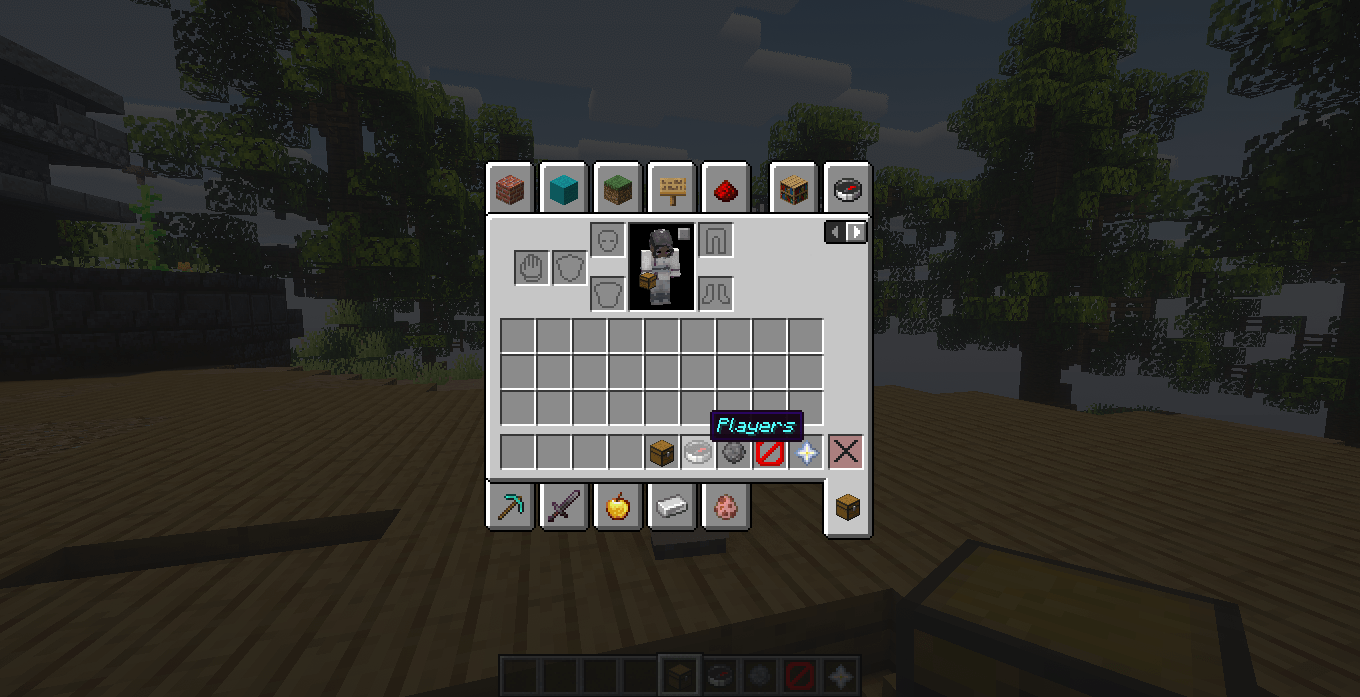
Player Menu
The Player Menu displays currently online players.
The interface supports pagination for larger servers.
Selecting a player teleports the administrator directly to that player.
Teleportation also works across dimensions, allowing staff to quickly move between players in:
- Overworld
- Nether
- End
- Compatible modded dimensions
Gamemode Controls
Administrators can change their administrative gamemode.
Survival
/admin gm survival
Creative
/admin gm creative
Spectator
/admin gm spectator
The selected administrative gamemode can remain part of the persistent Admin Mode session when reconnecting.
Command syntax is kept in English for consistency.
Command Reference
| Command | Description |
|---|---|
/admin |
Enables or disables Admin Mode |
/admin gm survival |
Changes the administrative gamemode to Survival |
/admin gm creative |
Changes the administrative gamemode to Creative |
/admin gm spectator |
Changes the administrative gamemode to Spectator |
Administrative commands require the appropriate server operator permission.
Item Safety
SAdmin separates the player's real inventory from temporary administrative equipment.
The basic protection model is:
REAL PLAYER INVENTORY
↓
Protected backup
ADMIN MODE INVENTORY
↓
Temporary tools/items
EXIT ADMIN MODE
↓
Temporary items removed
↓
Original inventory restored
Compatible extra equipment inventories follow the same concept.
This prevents administrative tools and temporary test equipment from becoming mixed with the player's normal items.
Recovery Protection
SAdmin includes recovery logic designed to prioritize the player's real inventory.
The original backup is only removed after restoration is considered successful.
If an abnormal or incomplete administrative session is detected, SAdmin prefers recovering the player's saved inventory rather than continuing with an unsafe temporary state.
Multilingual Support
SAdmin automatically uses the language reported by each player's Minecraft client.
Translation is handled by the server, which means players do not need SAdmin installed locally to receive translated messages.
Currently included languages:
| Language | Minecraft Code |
|---|---|
| English | en_us |
| Portuguese, Brazil | pt_br |
| Spanish | es_es |
| Japanese | ja_jp |
| Simplified Chinese | zh_cn |
| Hindi | hi_in |
| Arabic | ar_sa |
Player-facing messages, menu labels, and admin tool names are localized.
Command syntax remains in English regardless of the selected language.
Server-Side Friendly
SAdmin is designed to work as a server-side mod.
Server owners can simply install:
SAdmin-1.0.1.jar
inside the Fabric server.
Regular players do not need to install SAdmin locally.
For LAN worlds or complete modpacks, the same JAR can also be installed on the client.
Installation
Server Only
- Install a Fabric server for Minecraft 1.20.1 or 1.21.1.
- Install Fabric API.
- Place
SAdmin-1.0.1.jarinside the servermodsfolder. - Start the server.
- Give administrators the required operator permission.
- Use
/adminto enter Admin Mode.
Players do not need SAdmin installed on their clients.
Client + Server
For modpacks or LAN worlds:
- Install Minecraft 1.20.1 or 1.21.1.
- Install Fabric Loader.
- Install Fabric API.
- Place
SAdmin-1.0.1.jarinside the clientmodsfolder. - Place the same JAR inside the server
modsfolder.
The same JAR works on both sides.
Project Information
Mod: SAdmin
Version: 1.0.0 >
Author: Silas T.
Minecraft: 1.20.1 / 1.21.1
Loader: Fabric
Fabric Loader: 0.18.4+
Java: 17/21
License: All Rights Reserved