MP4 Player
- By
This mod lets you watch movies and videos synced in both single-player and on servers, with no prerequisite plugins required!
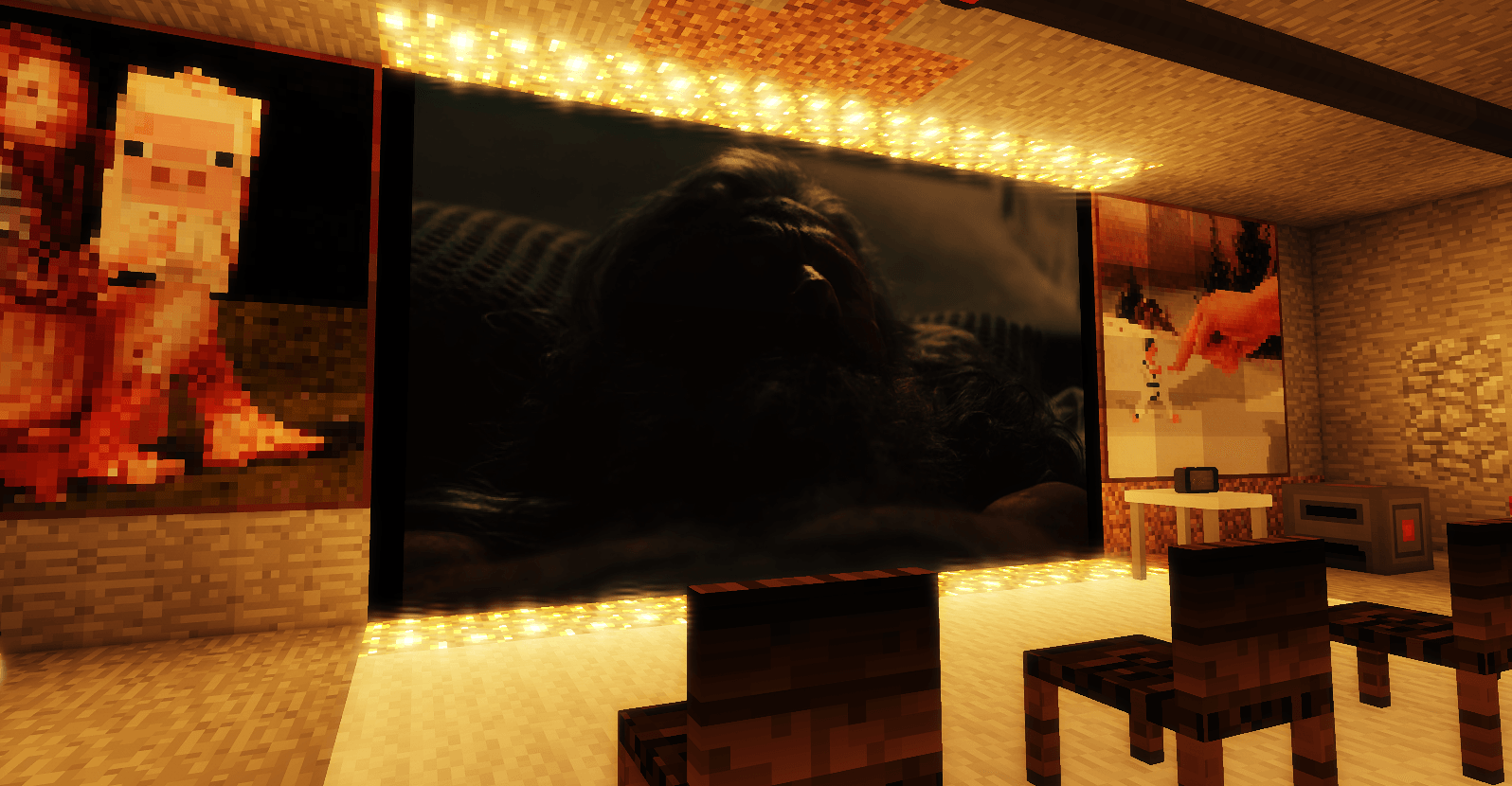
1.png
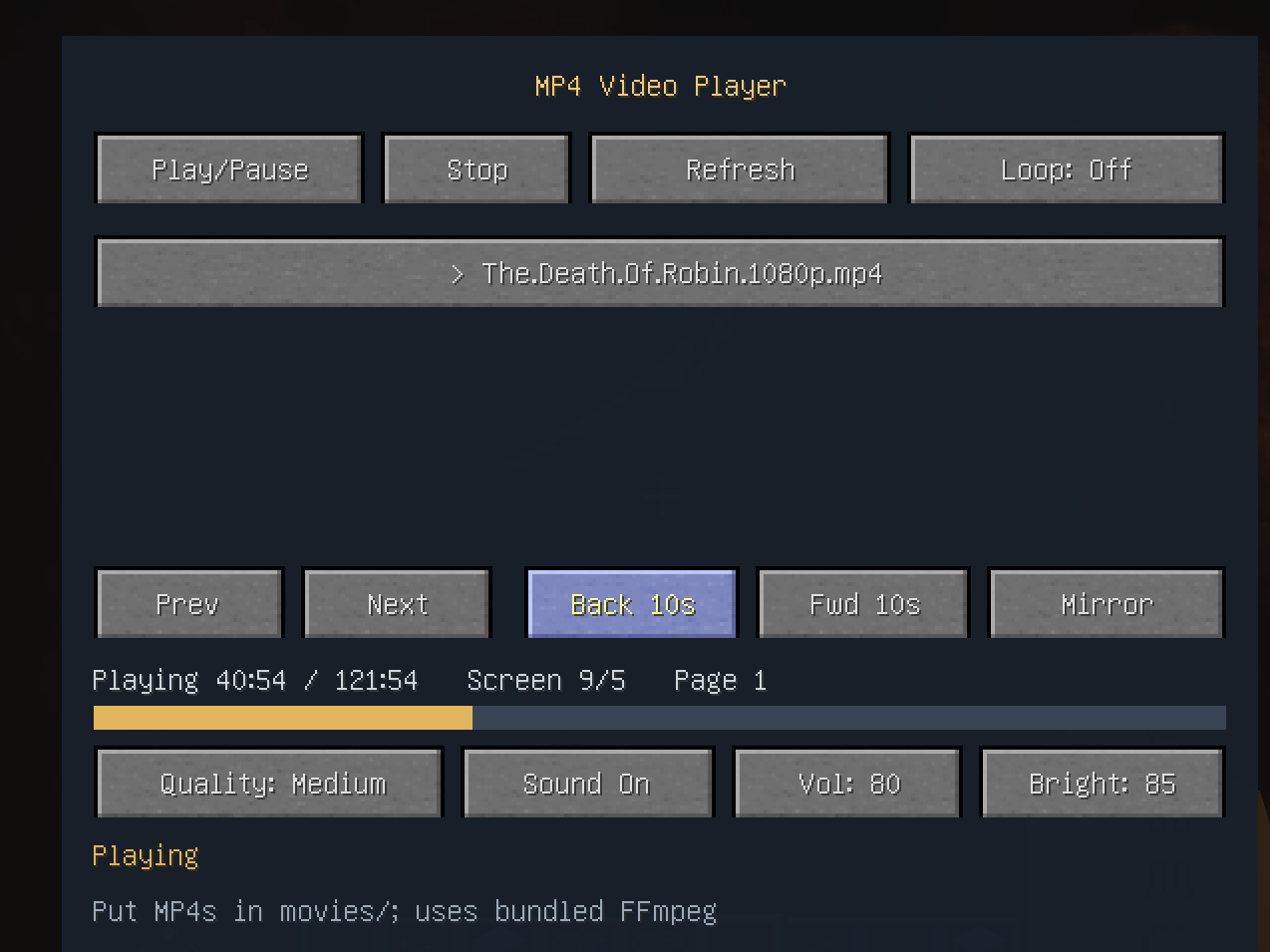
2.png
Description
MP4 Video Player
Play your own MP4 videos on cinema screens you build in Minecraft. Multi-block screens, full playback controls, and synchronised viewing for everyone on the server.
About
MP4 Video Player adds a Cinema Screen block that plays real mp4 video files inside your world. Build a screen out of as many blocks as you like, drop your videos into a folder, and press play.
A decoder (FFmpeg) is bundled with the mod, so there is nothing extra to install or configure. It works out of the box on Windows.
Features
- Cinema Screen block: place it, right-click it, control it.
- Multi-block screens: put screens next to each other and they merge into one large display, up to 144 blocks (for example 12 by 12).
- Your own videos: plays mp4 files from a local folder, including files inside sub-folders.
- Full playback controls: play and pause, stop, skip back or forward 10 seconds, loop (off, single, list), mirror, quality (low, medium, high), volume and brightness.
- Built-in decoder: FFmpeg is bundled, no separate install.
- Multiplayer sync: the server keeps everyone's playback in step.
- Permissions: only the player who placed the screen, or a server operator, can control it.
Requirements
Minecraft: 1.12.2
Mod loader: Minecraft Forge for 1.12.2
Java: Java 8
Operating system: Windows for the bundled decoder, see "Playing on a server" below
Installation
1. Install Minecraft Forge for 1.12.2.
2. Put mp4player-1.0.0.jar into your mods folder.
3. Launch the game.
Step 1: Add your videos
On first launch the mod creates a folder called movies, next to your config folder:
.minecraft/movies/
Put your mp4 files there. You can organise them into sub-folders, and those are scanned too.
For a file to show up in the playlist it must meet these rules:
- The name ends in .mp4, upper or lower case is fine.
- Sub-folders are scanned up to 8 levels deep.
- Up to 256 videos in total.
- The path inside movies must be 256 characters or shorter.
Note: if your launcher uses version isolation (PCL2, MultiMC and similar), the movies folder sits next to the config folder of that instance, not in the shared .minecraft folder.
Step 2: Using it in single player
1. Open the creative inventory and find the MP4 Video Player tab. Take the Cinema Screen block.
2. Place the block on a wall. For a bigger screen, place several blocks in a flat rectangle, all facing the same way, and they merge automatically. The control panel shows the resulting size, for example Screen 3x2.
3. Right-click any block of the screen to open the control panel.
4. Press Refresh to load your video list.
5. Click a video in the list on the left to select it.
6. Press Play/Pause to start.
What the buttons do
Play/Pause: start or pause playback
Stop: stop and rewind to the beginning
Refresh: re-scan the movies folder
Loop: Off / Single / List: no repeat, repeat one video, repeat the whole list
Prev / Next: previous or next video in the list
Back 10s / Fwd 10s: jump 10 seconds
Mirror: flip the picture horizontally
Quality: Low / Medium / High: decoding quality
Audio: mute or unmute
Vol and Bright: adjust volume and screen brightness
Page buttons: move through the video list
Step 3: Playing on a server
The mod must be installed on both the server and every client.
The one thing you must understand
Video files are never sent over the network.
The server synchronises only the playback state, meaning which video is selected, the position, and whether it is playing or paused. The actual mp4 file is read from each machine's own movies folder. So:
- The server needs the mp4 files, because the server builds the playlist that everyone sees.
- Every player needs the same mp4 files in their own movies folder.
If a player is missing a file, they will see a black screen and the message "Video missing from local movies folder", while everybody else watches normally. This is the most common problem on servers.
Server setup
1. Install the mod on the server and put the mp4 files into the server's movies folder.
2. Install the same mod version on every client, and give every player the same mp4 files in their own movies folder.
3. Build the screen. Whoever places the first block owns the screen, and server operators can control any screen.
4. Press Refresh on the panel after adding or removing video files.
Notes for server admins
The server does not decode video and does not need FFmpeg. Only clients decode.
The server scans its own movies folder, broadcasts the list, and keeps the playback clock.
Screens are owned by the player who placed them. Breaking and re-placing a screen transfers ownership.
The screen and its data are normal world content and are saved with the world.
Troubleshooting
The video list is empty
Cause: there are no mp4 files in the movies folder, or you did not press Refresh.
Fix: add mp4 files, then press Refresh.
Message "Video missing from local movies folder"
Cause: this machine does not have that file in its own movies folder.
Fix: copy the file into the local movies folder.
Only one player sees a black screen
Cause: as above, that player is missing the file locally.
Message "Bundled FFmpeg resource unavailable"
Cause: the bundled decoder is Windows only.
Fix: on Linux or macOS you must supply your own FFmpeg under cinema-bin for your platform.
Message "Bundled FFmpeg checksum mismatch"
Cause: the decoder file was modified or corrupted.
Fix: delete the cinema-bin folder and restart the game, it will be extracted again.
Message "Only the placer or a server operator can control this screen"
Cause: you are not the owner of the screen.
Fix: ask an operator, or break and re-place the screen.
The screen size is not what you intended
Cause: screens merge with every connected screen block in the same plane.
Fix: separate them by at least one block, or put a different block between them.
Known limitations
Windows only, as shipped. The bundled decoder is a Windows x86-64 build, so Linux and macOS users must provide their own FFmpeg.
Each client needs the video files. There is no streaming or on-demand download.
mp4 only. Other formats such as mkv, webm and avi are not listed by the playlist.
Exact frame sync is not guaranteed. Clients keep themselves in step from a shared clock, so a small drift is possible on a slow connection.
Credits
Bundled decoder: FFmpeg 8.1.2 (GPLv3), Windows build by gyan.dev, https://www.gyan.dev/ffmpeg/builds/
FFmpeg source: https://ffmpeg.org/download.html
The MP4 Player Team