


Litematica MaterialShare
- By
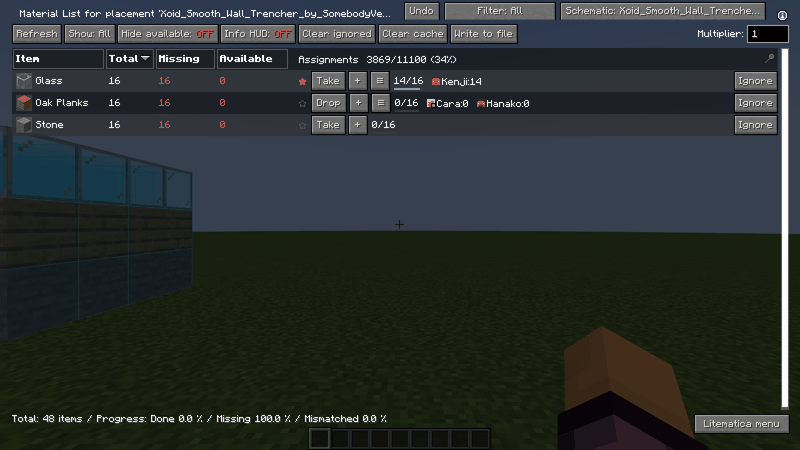
Every row of Litematica's material list shows who takes the item and how much is collected. Press Take to claim an item, + to assign somebody else, and the list button to see everybody. A star marks a priority item.
Description
Litematica MaterialShare
English | 日本語はこの下にあります (Japanese below)
Overview video (7 min) / 紹介動画(7分)
See how it works on real game screens. Click an image to open it on YouTube. / 使い方を、実際の画面で見られます。画像を押すと、YouTube で開きます。
- English: https://youtu.be/9dLOSU39rR4
- 日本語: https://youtu.be/CjAb168fg5U
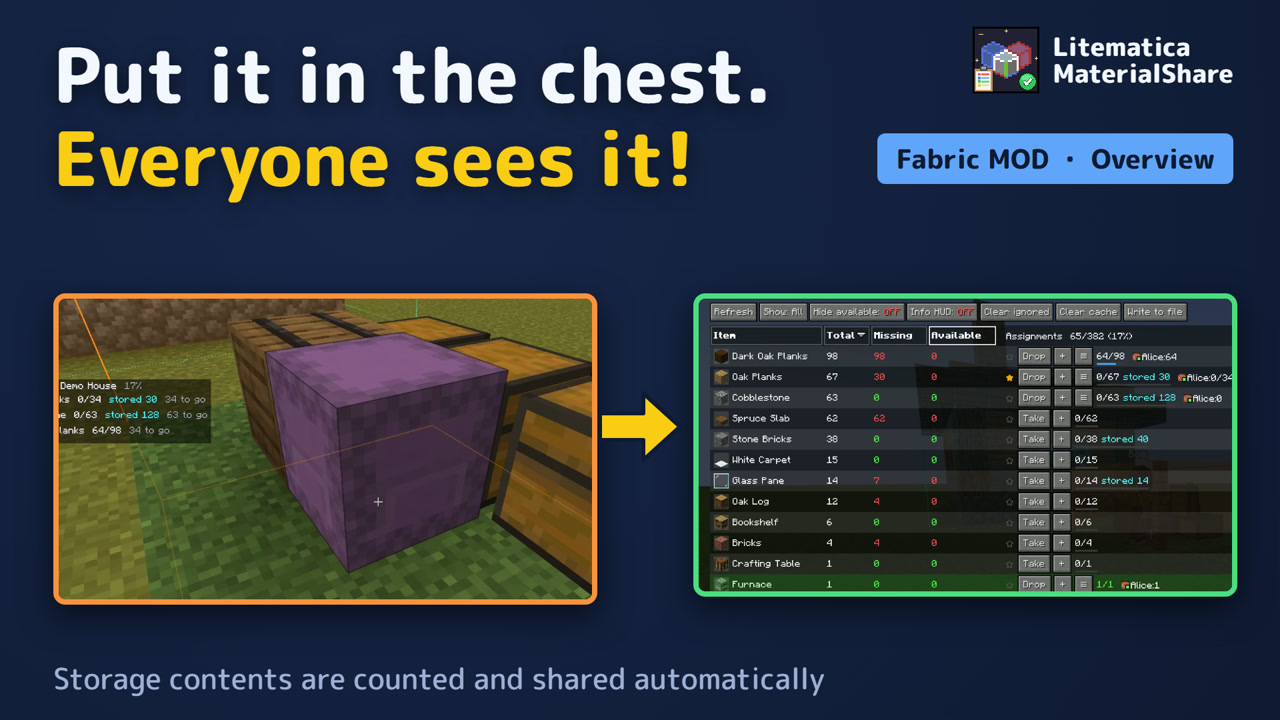
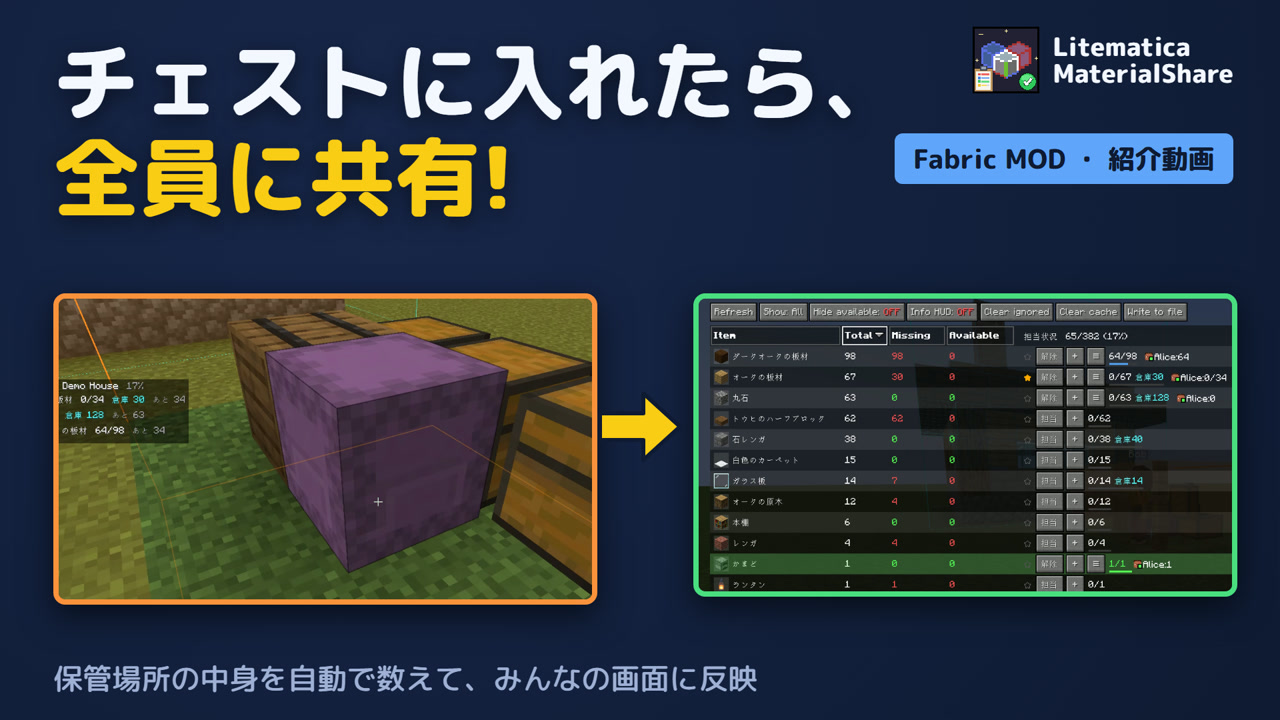
An unofficial add-on for Litematica, not affiliated with its authors. Fabric, Minecraft 1.16 to 1.21.11 and 26.1 to 26.3 (not 1.20).
English
Shows who collects which material, and how many, right in Litematica's material list, the same for everybody on the server.
When you build together, somebody always asks "who takes the redstone?" and "how many oak logs are still missing?". This add-on puts the answer into every row of the material list, and keeps it in step for all players.
Features
Press the [↓] next to a feature to jump to its description and pictures.
| Feature | In short |
|---|---|
| Getting started | What this add-on does and what you need |
| Sharing a schematic | Making a schematic, or parts of it, trackable by everybody |
| Taking items | The Take button and the + button |
| Recording amounts | The wheel, clicks, and importing what you carry |
| Filtering rows | Mine, nobody, unfinished and more |
| Splitting an item | Giving each person a target amount |
| Bulk assignment | Handing out everything nobody takes yet |
| The tools screen | Everything else, sorted into four tabs |
| Missing items | What is not collected yet, and what nobody takes |
| My totals | Everything you still have to collect, added up |
| Storage boxes | Registering chest areas; contents and who handed in |
| Zones (collect layer by layer) | Split the schematic by height and show only the chosen zone's items |
| Stats and history | Who collected how much, and who did what |
| Item settings | Priority, substitute notes, split and removal |
| Spare items | Telling the others about items you have too many of |
| Raw materials | Following the recipes down to the raw materials |
| Archive, trash and copies | Tucking away, restoring, duplicating, renaming |
| Settings and hotkeys | Making the display and the notices fit you |
| Chat commands | A quick look from the chat |
Feature details
Getting started
What this add-on does and what you need
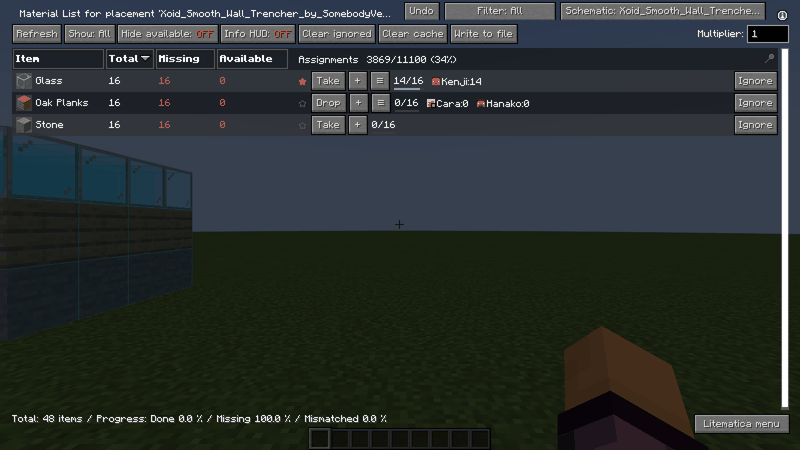
- Litematica MaterialShare shows, in every row of Litematica's material list, who takes which material and how much they have collected, the same for everybody on the server.
- Put the same jar on the server and on every client. Clients also need Litematica, malilib and Syncmatica.
- Share the schematic with Syncmatica and open its material list in Litematica: a column with the assignments appears at the right of every row. The button at the top right ("Start sharing" or "Schematic: …") starts the tracking.
- You can open this guide at any time from Litematica's main menu ("How to use"), from the material list under Tools > View > "How to use", or with a hotkey from the settings.
- Every action is kept in the history, and the buttons never overlap, even on a small screen.
Sharing a schematic
Making a schematic, or parts of it, trackable by everybody
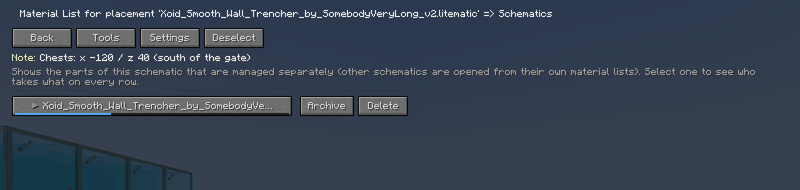
- The button at the top right of the material list opens the schematic screen. There you share the whole schematic, or some of its parts (sub-regions).
- Tick the parts and press "Share chosen parts", or press "Share all parts not shared yet". A shared part is named "schematic name / part name" and has its own assignments.
- A shared schematic can be tucked away with "Archive" or put in the trash with "Delete" (both can be undone later).
- When two schematics have the same name, tell them apart with "Share as…" in the tools. You can also write a note (chest coordinates and so on) that everybody sees.
Taking items
The Take button and the + button
- A column with the assignments appears at the right of every row. "Take" makes the item yours (press again to "Drop" it).
- "+" assigns somebody else. Offline players can be found by part of their name; if somebody is not listed, type the exact name and it is looked up.
- When a row has more people than fit, the rest shows as "+number". "≡" opens everybody who takes the item, and you can remove people one by one.
- The ★ at the left of a row means "collect this first"; click it to set or clear it. When somebody assigns you to an item or takes you off one, a notice appears in the corner of the screen.
Recording amounts
The wheel, clicks, and importing what you carry
- Turn the mouse wheel over a name to change the collected amount (Shift for bigger steps; a setting can require Ctrl so that scrolling never changes a number by accident).
- Left click a name to type a number ("3s" means 3 stacks). Shift + left click imports what you carry. Right click takes you off the item.
- Ctrl + click opens the details of the item (split and hand-in). When the needed amount is reached the row turns green and says "Done!".
- With "Update my collected counts automatically" turned on in the settings, your counts follow what you carry even while no screen is open (they never go down).
Filtering rows
Mine, nobody, unfinished and more
- Every press of the filter button above the material list changes the rows shown: All / Mine / Unclaimed / Incomplete / Priority / Others' / Needs people / One person.
- "One person" opens a picker, and then only the rows that person takes are shown.
- A hotkey in the settings does the same.
Splitting an item
Giving each person a target amount
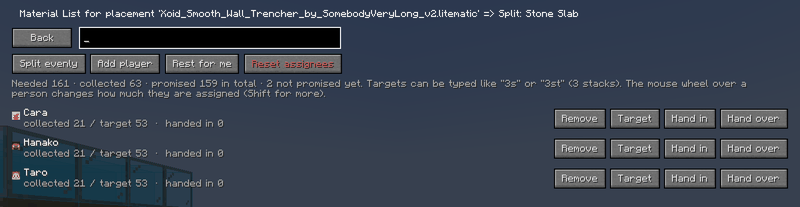
- In the item details (Ctrl + click, or "Item settings" in the tools) you can give each person who takes the item a target amount.
- "Split evenly" shares it equally among the people. "Add player" adds somebody, and "Rest for me" makes the unassigned amount your target. "Remove" takes one person off.
- The mouse wheel changes the amount of the person under it (Shift for bigger steps). Targets can be typed like "3s" (3 stacks).
- How much of what was collected has gone into the storage can be recorded separately as "handed in".
Bulk assignment
Handing out everything nobody takes yet
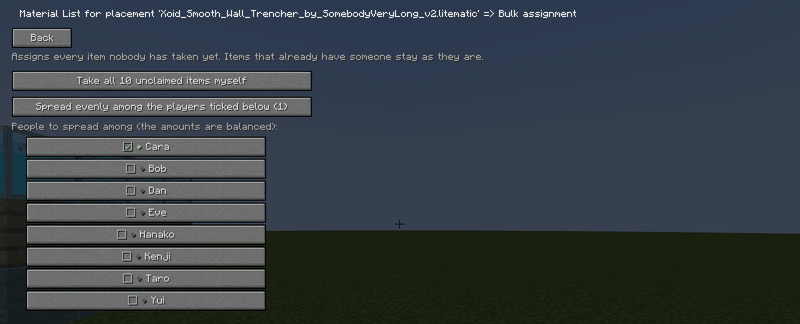
- "Bulk assign" in the tools hands out every item nobody takes yet to the people you pick, balanced by amount and by kind. Items that already have somebody stay as they are.
- You can also take all of them yourself. To start over, use "Reset all assignments" or "Reset one person's assignments" in the tools (they ask first).
- Undo in the material list (also available as a hotkey) takes back your last action.
The tools screen
Everything else, sorted into four tabs
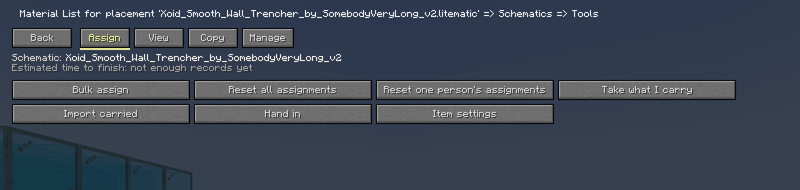
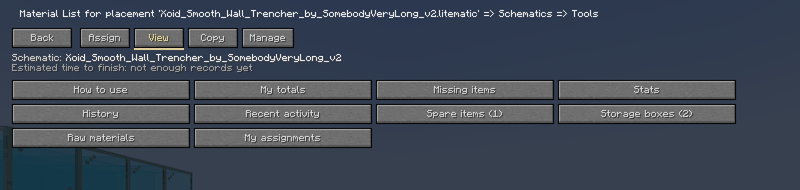
- "Tools" in the material list holds the features in four tabs.
- [Assign] bulk assign, resets, take what I carry, import carried, hand in, item settings.
- [View] my totals, missing items, stats, history, recent activity, spare items, storage boxes, zones, raw materials, my assignments, how to use.
- [Copy] copy the progress as text, copy for Discord, copy the unassigned items as a call for help, for Discord (all, in parts), save as CSV, back up the schematic. The CSV goes to materialshare/exports in the game folder and the backup to materialshare/backups, named with the date; the chat says where.
- [Manage] note, update from schematic, duplicate, rename, archive, trash, share as…, settings.
Missing items
What is not collected yet, and what nobody takes
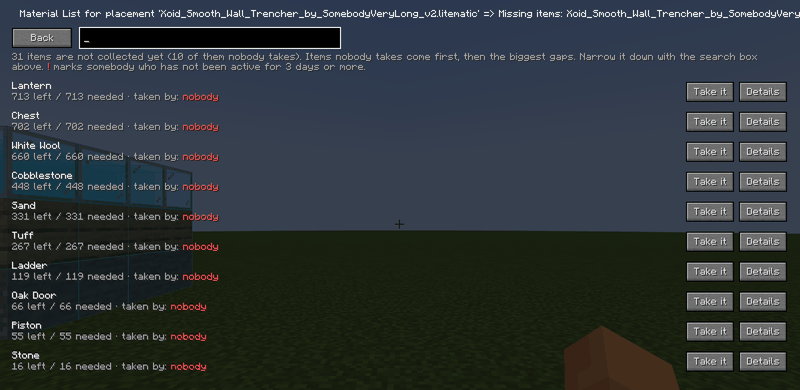
- "Missing items" in the tools lists what is not collected yet: the items nobody takes come first, then the biggest gaps.
- "Take it" makes an item yours right there, and "Details" opens its screen. A red "!" after a name marks somebody who has not done anything for 3 days or more.
- Narrow the list down with the search box above.
My totals
Everything you still have to collect, added up
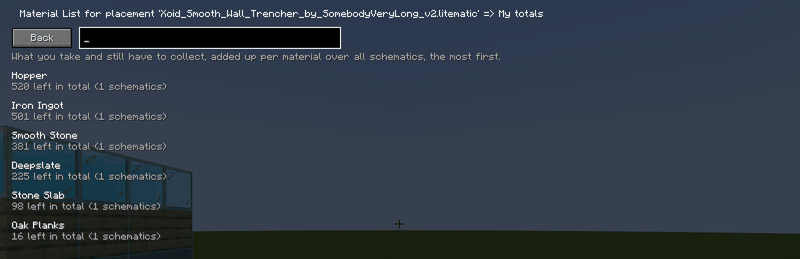
- "My totals" in the tools adds up what you still have to collect over all schematics, per material, so you know what to bring back from one trip to the mine.
- "My assignments" shows your assignments schematic by schematic (priority ★ items first).
- What you still have to collect is also shown at the bottom right of the game screen (it can be turned off, dragged to any place with "Set the HUD place" in the settings, and shortened). Each material shows collected/needed, what you handed in, what lies in the storage, and how many are left.
Storage boxes
Registering chest areas; contents and who handed in
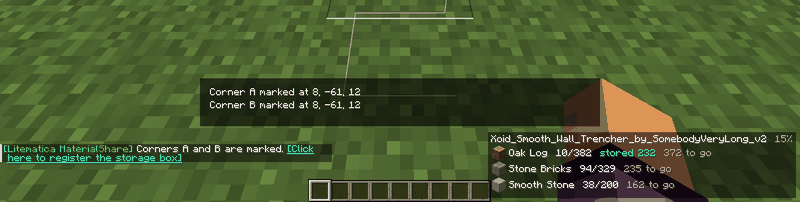
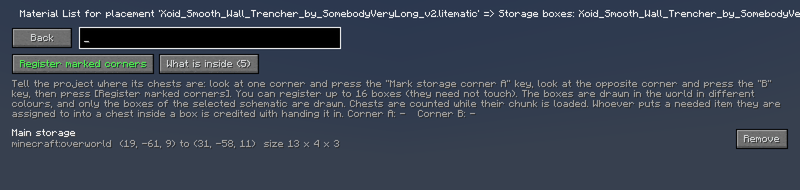
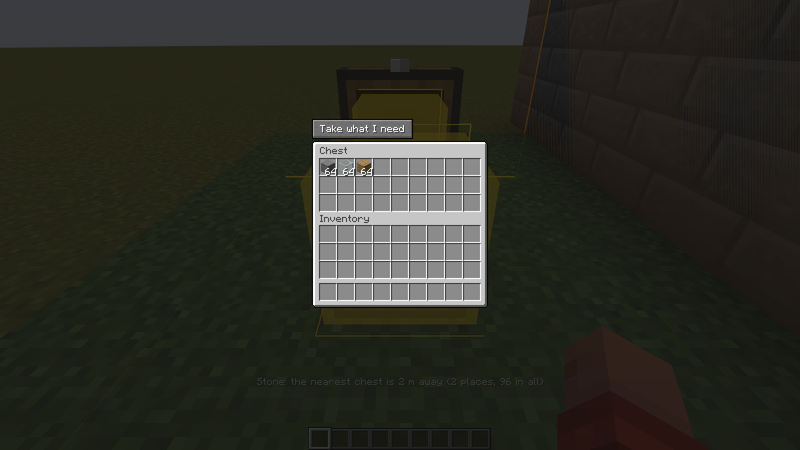
- You can tell the project where its chests are. Up to 16 areas can be registered, and they need not touch.
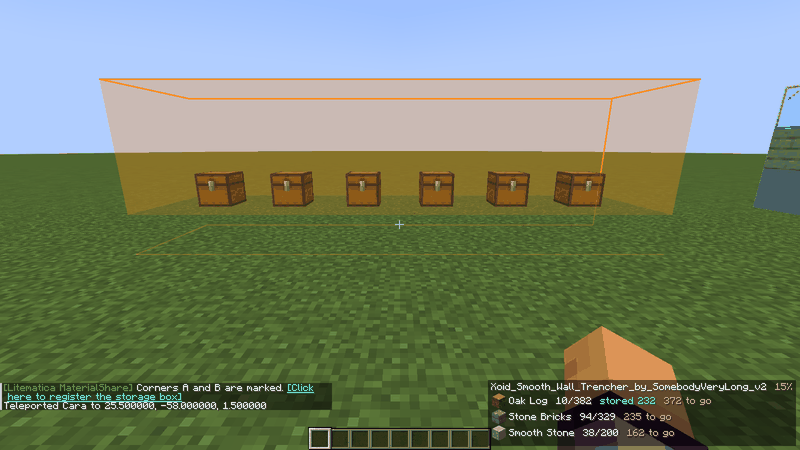
- Look at one corner of the area and press the "Mark storage corner A" key, then look at the opposite corner and press the "B" key (set the keys under Hotkeys in the settings).
- Once both corners are marked, a chat line "[Click here to register the storage box]" appears. Click it to open the registration screen, press [Register marked corners] and give the area a name (the same screen is under Tools > [View] > "Storage boxes"). If you marked a corner by mistake, clear the marks with [Clear marks] on that screen, with the hotkey, or with /materialshare storage clear; registering clears them automatically.
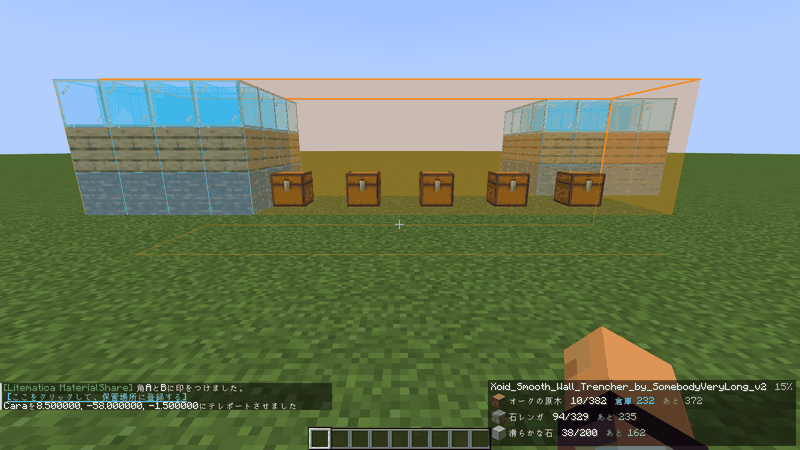
- The registered areas are drawn in the world as coloured boxes. Only the areas of the selected schematic are drawn, and they switch when you select another schematic (this can be turned off in the settings).
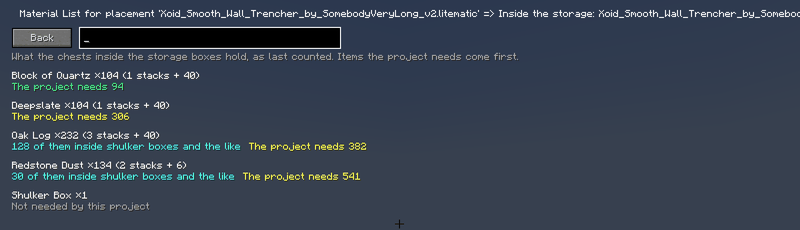
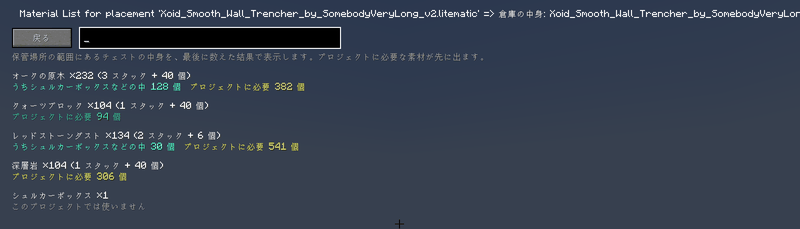
- Chests that already hold materials when they are put into an area are counted too. What lies inside shulker boxes is counted as well, and [What is inside] also writes the amount as stacks, for example "Stone ×200 (3 stacks + 8)".
- When you put an item you are assigned to into a chest inside an area, it is recorded as "handed in" while the chest is open, and taking it out lowers it again. A shulker box put in counts by its contents. The list in the corner of the screen and the "stored N" in each row of the material list follow at once. Moves that no player makes, such as hoppers, only change the contents count.
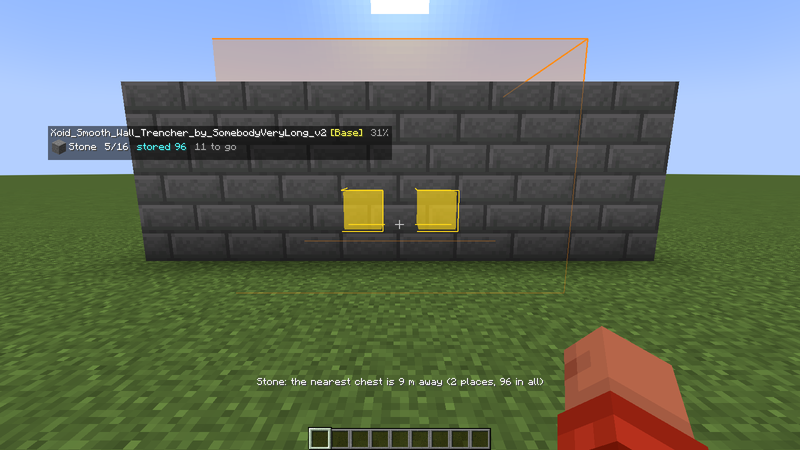
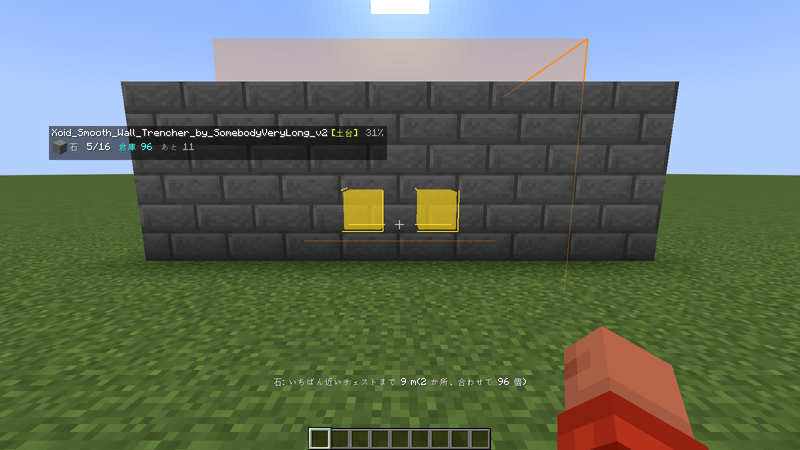
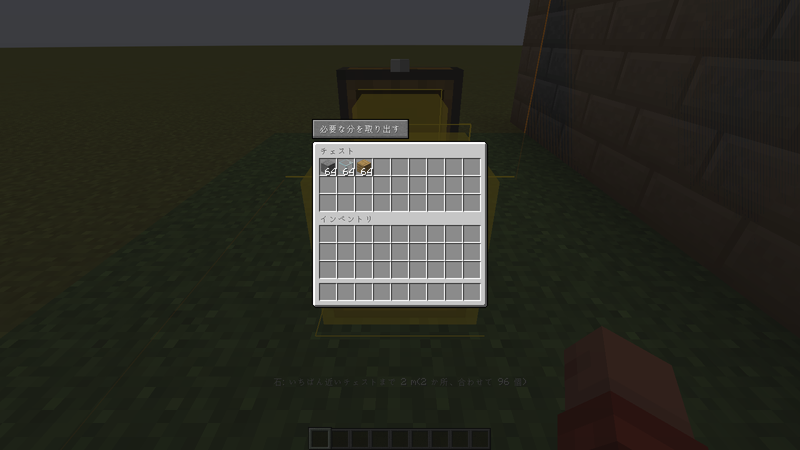
- Finding a material: in the material list, click the total of an item that lies in the storage (where "stored N" shows). The chests that hold it light up in gold through walls, and the distance to the nearest one shows above the hotbar; click again to stop. When you open a chest inside a storage box, [Take what I need] shows above it: it moves into your inventory what the schematic still misses in the world, minus what you carry (only the chosen zone's items when a zone is chosen).
- The blocks that count are chests, trapped chests, barrels, shulker boxes, hoppers, droppers, dispensers, brewing stands, lecterns (the book on them) and jukeboxes (the disc inside). Enchanting tables and cauldrons are not counted because they hold no items. Ender chests hold a player's items, not a place's, so they are not part of a box. Instead, what lies in your own ender chest (shulker boxes inside included) counts as what you have: the tooltip of an item's row shows "In your ender chest: N", and it is added to the automatic collected counts and to [Take what I carry] (turn it off with the setting "Count my ender chest too").
Zones (collect layer by layer)
Split the schematic by height and show only the chosen zone's items
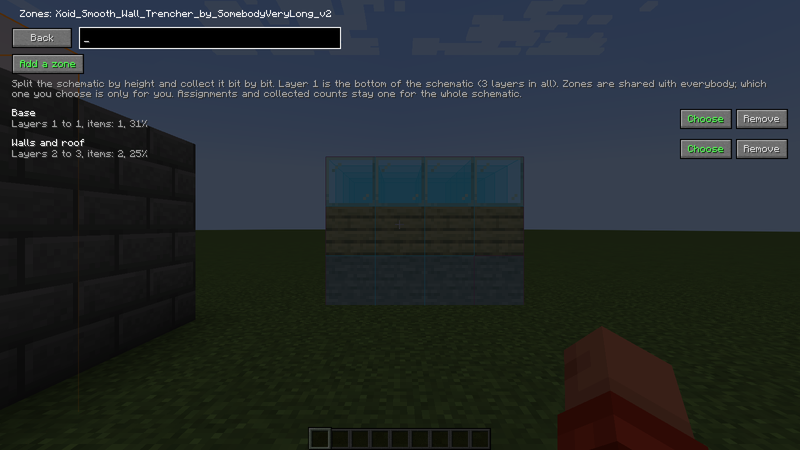
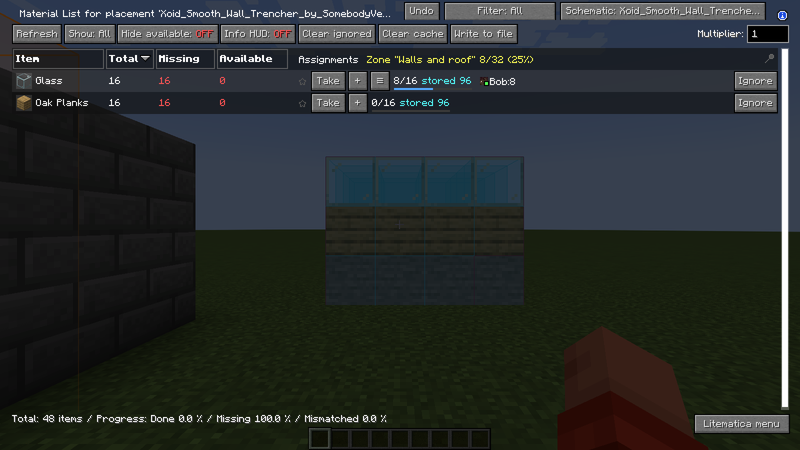
- Split a big schematic by height (layers) and collect it bit by bit, for example "tonight only the base, layers 1 to 10".
- In the material list of a placed schematic, open [Tools], press [Zones (0)] on the "View" tab, then press [Add a zone].
- Enter the layers and a name, for example "1-10 Base". Layer 1 is the bottom of the schematic (the height where it is placed does not matter). What those layers need is counted from the schematic and shared with everybody on the server.
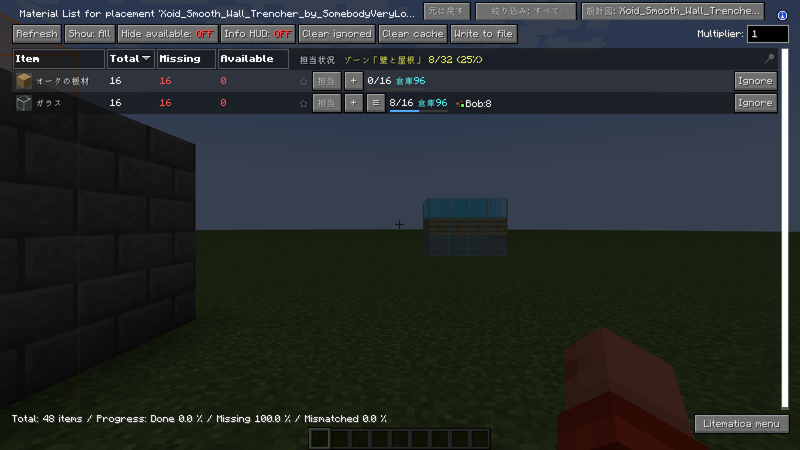
- Press [Choose] on a zone: the material list and the HUD (remaining items) then show only what that zone needs. The HUD title shows the zone's name and progress, and an item's tooltip shows "Zone \"Base\": collected/needed". Which zone you choose is only for you. [Show everything] goes back to the whole schematic.
- Assignments and collected counts are not split by zone; they stay one for the whole schematic. A zone's progress adds up, per item, what is collected (up to what the zone needs). A schematic can have up to 16 zones; [Remove] removes one for everybody.
Stats and history
Who collected how much, and who did what
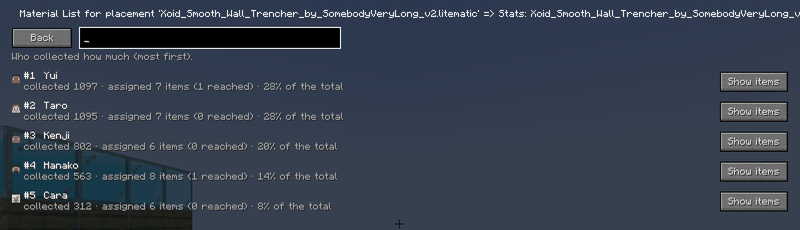
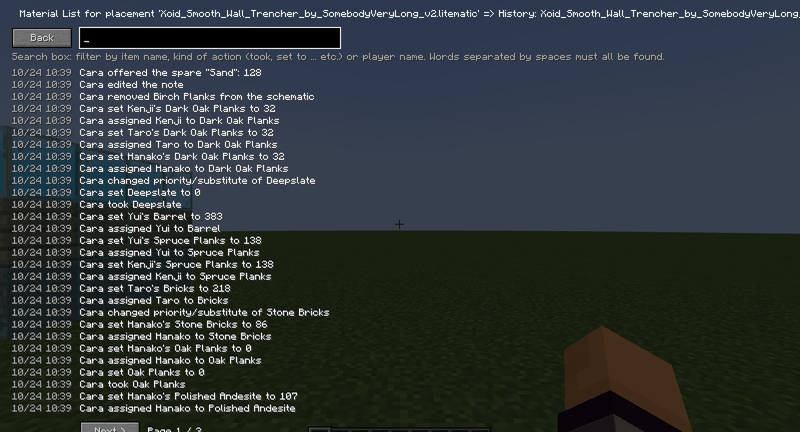
- "Stats" lists who collected how much, most first (somebody who has been away for 3 days or more is marked "not active for N days").
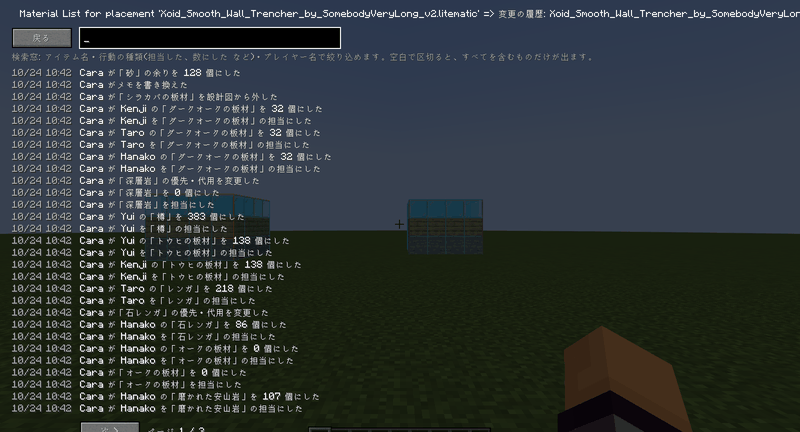
- "History" is the record of who did what and when. The search box narrows it down by item name, kind of action or player.
- "Recent activity" shows the latest changes of every schematic, newest first.
- A notice appears in the corner when materials or a whole schematic are complete (a setting also writes it into the chat).
Item settings
Priority, substitute notes, split and removal
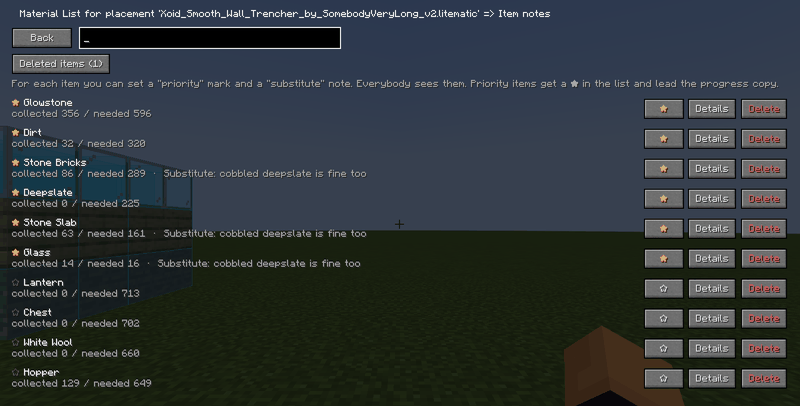
- "Item settings" in the tools sets a priority mark (★) and a substitute note per item. Everybody sees them. Priority items get a ★ in the list and lead the progress copy.
- "Details" opens the split and hand-in screens. Items can be deleted, and deleted items come back with their assignments and counts from "Deleted items".
- When the schematic changed, "Update from schematic" in the tools adds new items and adjusts the required amounts (items no longer needed are kept).
Spare items
Telling the others about items you have too many of
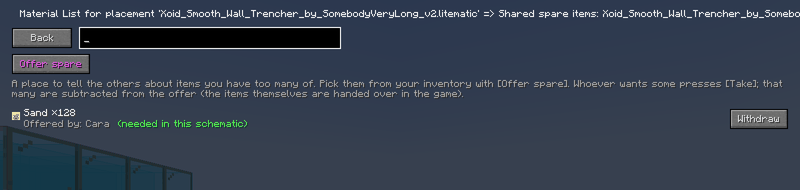
- "Spare items" in the tools is a place to tell the others about items you have too many of. Pick them from your inventory with [Offer spare] and enter how many you give away (0 takes the offer back).
- Whoever wants some presses [Take], and that many are subtracted from the offer. The items themselves are handed over in the game. Items the schematic needs are marked.
Raw materials
Following the recipes down to the raw materials
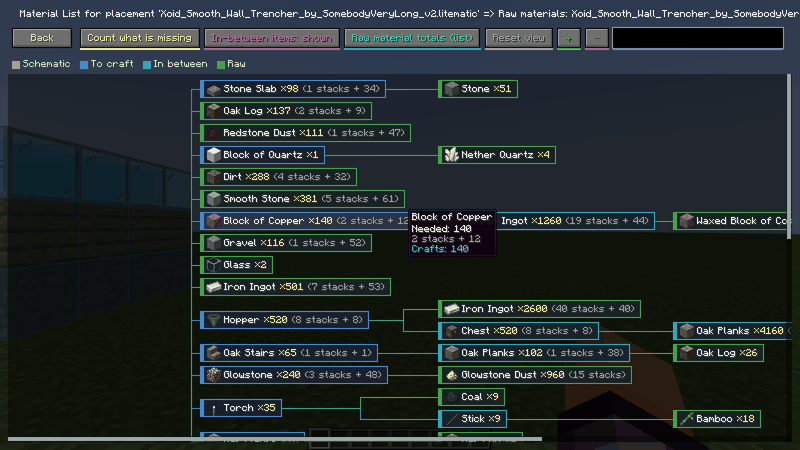
- "Raw materials" in the tools follows the crafting recipes and works out the raw materials needed. A colour-coded map shows schematic > crafted items > intermediate items > raw materials.
- Switch between "remaining" and "everything", or open the plain list of raw materials. Things that are smelted or found stop the chain. A hotkey opens it directly.
⚠️ Note for some versions: From Minecraft 1.21.2 on, the server no longer sends the recipes to the players. The breakdown works in single player and for the player who opened the world to LAN, but may stay empty on a multiplayer server.
Archive, trash and copies
Tucking away, restoring, duplicating, renaming
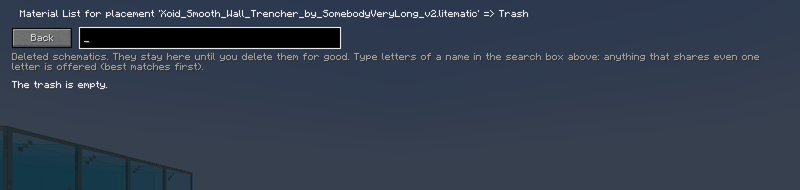
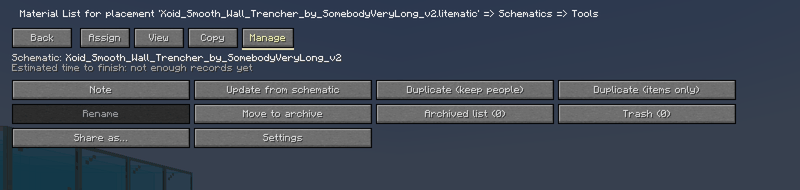
- A finished schematic can be tucked away with "Move to archive" (nothing is lost, and it can be brought back). A deleted schematic goes to the "Trash", where you can restore it or delete it for good.
- "Duplicate" makes a new schematic with the same items (keeping the people, or items only). "Rename" changes the ◯◯ of "schematic name / ◯◯".
- Each of these is recorded in the history.
Settings and hotkeys
Making the display and the notices fit you
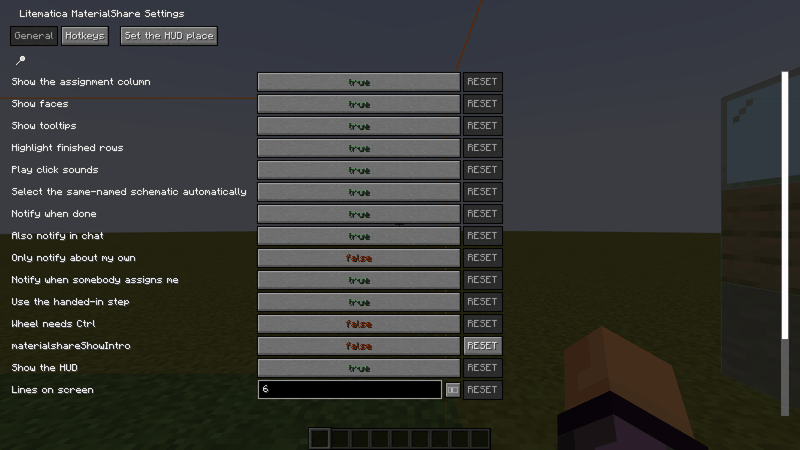
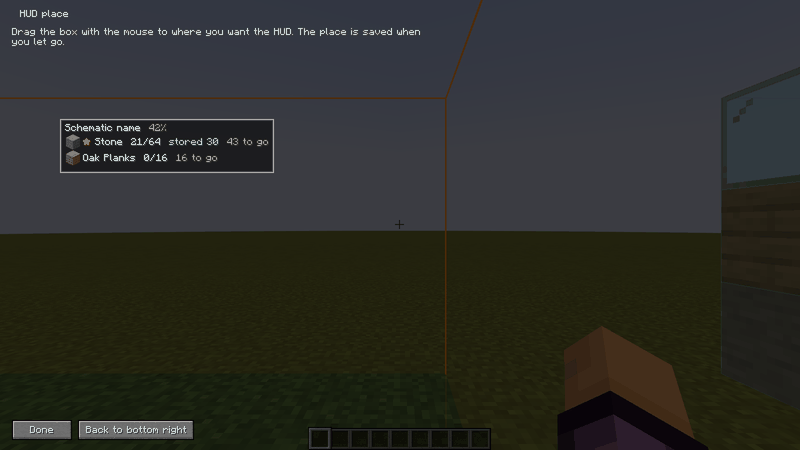
- The settings open from "MaterialShare settings" in Litematica's main menu, from [Settings] on the schematic screen, and from Mod Menu.
- You can change the assignment column and faces, tooltips, completion and assignment notices, the wheel steps, whether the hand-in step is used, the HUD (remaining items) and its place, the storage boxes in the world, whether your ender chest is counted, and more.
- The "Hotkeys" tab sets keys for the settings screen, the schematic screen, raw materials, toggling the column, toggling the corner list, taking the item you hold, undo, cycling the filter, storage corners A and B, clearing the corner marks, and this guide.
Chat commands
A quick look from the chat
/materialshare help— the list of commands/materialshare progress— how far the selected schematic is/materialshare mine— your unfinished assignments/materialshare surplus— the spare items offered/materialshare storage— opens the storage boxes screen/materialshare storage clear— clears the corner marks/materialshare projects— the shared schematics and how far they are/materialshare select <name>— picks a schematic- The commands are for a quick look. Everything else is done in the material list screen.
Requirements
| Where | What you need |
|---|---|
| Server | Fabric Loader 0.14.21+, Fabric API 0.76.0+, malilib, Syncmatica, this mod (Litematica is not needed) |
| Client | The same, plus Litematica (versions: see the table below) |
Supported versions (one jar per Minecraft version; use the jar that matches your game):
| Minecraft | Litematica | malilib | Jar |
|---|---|---|---|
| 1.16 | the dev build for 1.16 (tested: 0.0.0-dev.20200627.000333) | 0.10.0-dev.21 (tested: 0.10.0-dev.21+beta.2) | ...-0.11.0+1.16.jar |
| 1.16.1 | the dev build for 1.16.1 (tested: 0.0.0-dev.20200720.162317) | 0.10.0-dev.21 (tested: 0.10.0-dev.21+arne.2) | ...-0.11.0+1.16.1.jar |
| 1.16.2 | the dev build for 1.16.2 (tested: 0.0.0-dev.20200912.201012) | 0.10.0-dev.21 (tested: 0.10.0-dev.21+arne.2) | ...-0.11.0+1.16.2.jar |
| 1.16.3 | the dev build for 1.16.3 (tested: 0.0.0-dev.20200920.161640) | 0.10.0-dev.21 (tested: 0.10.0-dev.21+arne.1) | ...-0.11.0+1.16.3.jar |
| 1.16.4 | the dev build for 1.16.4 (tested: 0.0.0-dev.20210716.154721) | 0.10.0-dev.21 (tested: 0.10.0-dev.21+arne.8) | ...-0.11.0+1.16.4.jar |
| 1.16.5 | the dev build for 1.16.5 (tested: 0.0.0-dev.20210917.192300) | 0.10.0-dev.21 (tested: 0.10.0-dev.21+arne.8) | ...-0.11.0+1.16.5.jar |
| 1.17 | the dev build for 1.17 (tested: 0.0.0-dev.20210703.150412) | 0.10.0-dev.22 (tested: 0.10.0-dev.22+beta.1) | ...-0.11.0+1.17.jar |
| 1.17.1 | 0.9.x (tested: 0.9.0) | 0.10.x (tested: 0.10.0-dev.26) | ...-0.11.0+1.17.1.jar |
| 1.18 | 0.9.x (tested: 0.9.1) | 0.10.x (tested: 0.10.0-dev.26) | ...-0.11.0+1.18.jar |
| 1.18.1 | 0.10.x (tested: 0.10.4) | 0.11.x (tested: 0.11.8) | ...-0.11.0+1.18.1.jar |
| 1.18.2 | 0.11.x (tested: 0.11.7) | 0.12.x (tested: 0.12.1) | ...-0.11.0+1.18.2.jar |
| 1.19 | 0.12.x (tested: 0.12.2) | 0.13.x (tested: 0.13.0) | ...-0.11.0+1.19.jar |
| 1.19.1 | 0.12.x (tested: 0.12.3) | 0.13.x (tested: 0.13.0) | ...-0.11.0+1.19.1.jar |
| 1.19.2 | 0.12.x (tested: 0.12.7) | 0.13.x (tested: 0.13.0) | ...-0.11.0+1.19.2.jar |
| 1.19.3 | 0.13.x (tested: 0.13.2) | 0.14.x (tested: 0.14.0) | ...-0.11.0+1.19.3.jar |
| 1.19.4 | 0.14.2 or newer, older than 0.15.0 (tested: 0.14.7) | 0.15.2 or newer, older than 0.16.0 (tested: 0.15.4) | ...-0.11.0+1.19.4.jar |
| 1.20.1 | 0.15.x (tested: 0.15.4) | 0.16.x (tested: 0.16.3) | ...-0.11.0+1.20.1.jar |
| 1.20.2 | 0.16.x (tested: 0.16.1) | 0.17.x (tested: 0.17.0) | ...-0.11.0+1.20.2.jar |
| 1.20.3 | 0.17.x (tested: 0.17.4) | 0.18.x (tested: 0.18.3) | ...-0.11.0+1.20.3.jar |
| 1.20.4 | 0.17.x (tested: 0.17.4) | 0.18.x (tested: 0.18.3) | ...-0.11.0+1.20.4.jar |
| 1.20.5 | 0.18.x (tested: 0.18.3) | 0.19.x (tested: 0.19.2) | ...-0.11.0+1.20.5.jar |
| 1.20.6 | 0.18.x (tested: 0.18.3) | 0.19.x (tested: 0.19.2) | ...-0.11.0+1.20.6.jar |
| 1.21 | 0.19.x (tested: 0.19.61) | 0.21.x (tested: 0.21.10) | ...-0.11.0+1.21.jar |
| 1.21.1 | 0.19.x (tested: 0.19.61) | 0.21.x (tested: 0.21.10) | ...-0.11.0+1.21.1.jar |
| 1.21.2 | 0.20.x (tested: 0.20.9) | 0.22.x (tested: 0.22.8) | ...-0.11.0+1.21.2.jar |
| 1.21.3 | 0.20.x (tested: 0.20.9) | 0.22.x (tested: 0.22.8) | ...-0.11.0+1.21.3.jar |
| 1.21.4 | 0.21.x (tested: 0.21.7) | 0.23.x (tested: 0.23.5) | ...-0.11.0+1.21.4.jar |
| 1.21.5 | 0.22.x (tested: 0.22.5) | 0.24.x (tested: 0.24.3) | ...-0.11.0+1.21.5.jar |
| 1.21.6 | 0.23.x (tested: 0.23.7) | 0.25.x (tested: 0.25.7) | ...-0.11.0+1.21.6.jar |
| 1.21.7 | 0.23.x (tested: 0.23.7) | 0.25.x (tested: 0.25.7) | ...-0.11.0+1.21.7.jar |
| 1.21.8 | 0.23.x (tested: 0.23.7) | 0.25.x (tested: 0.25.7) | ...-0.11.0+1.21.8.jar |
| 1.21.9 | 0.24.x (tested: 0.24.9) | 0.26.x (tested: 0.26.8) | ...-0.11.0+1.21.9.jar |
| 1.21.10 | 0.24.x (tested: 0.24.9) | 0.26.x (tested: 0.26.8) | ...-0.11.0+1.21.10.jar |
| 1.21.11 | 0.26.x (tested: 0.26.16) | 0.27.x (tested: 0.27.20) | ...-0.11.0+1.21.11.jar |
| 26.1 | 0.27.x (tested: 0.27.14) | 0.28.x (tested: 0.28.12) | ...-0.11.0+26.1.jar |
| 26.1.1 | 0.27.x (tested: 0.27.14) | 0.28.x (tested: 0.28.12) | ...-0.11.0+26.1.1.jar |
| 26.1.2 | 0.27.x (tested: 0.27.14) | 0.28.x (tested: 0.28.12) | ...-0.11.0+26.1.2.jar |
| 26.2 | 0.28.x (tested: 0.28.8) | 0.29.x (tested: 0.29.6) | ...-0.11.0+26.2.jar |
| 26.3 | 0.29.x (tested: 0.29.1) | 0.30.x (tested: 0.30.2) | ...-0.11.0+26.3.jar |
Syncmatica: any version. Fabric API: 0.76.0 or newer (1.19 and 1.19.1: 0.58.0 or newer; 1.18 and 1.18.1: 0.44.0 or newer).
Fabric API for 1.20.x: 1.20.1 0.92.2 or newer, 1.20.2 0.91.6, 1.20.3 0.91.1, 1.20.4 0.97.2, 1.20.5 0.97.8, 1.20.6 0.100.8 (each or newer). Minecraft 1.20.5 and 1.20.6 need Java 21. There is no jar for Minecraft 1.20 itself, because Litematica has no build for it (use 1.20.1).
Fabric API for 1.16 to 1.17.1, 1.21.x and 26.x: 1.16 0.13.1 or newer, 1.16.1 0.18.0, 1.16.2 to 1.16.5 0.42.0 (on 1.16.2 to 1.16.4 too, install 0.42.0+1.16, the one for 1.16.5; the Fabric API made for those versions does not work), 1.17 0.36.0, 1.17.1 0.46.1, 1.21 0.102.0, 1.21.1 0.116.17, 1.21.2 0.106.1, 1.21.3 0.114.1, 1.21.4 0.119.4, 1.21.5 0.128.2, 1.21.6 0.128.2, 1.21.7 0.129.0, 1.21.8 0.136.1, 1.21.9 0.134.1, 1.21.10 0.138.4, 1.21.11 0.141.6, 26.1 / 26.1.1 / 26.1.2 0.155.3, 26.2 0.161.0, 26.3 0.165.0 (each or newer). Start Minecraft 1.16 to 1.16.5 with Java 17 (the default Java 8 of the launcher does not work). 1.17 and 1.17.1 need Java 16 or newer, 1.21 to 1.21.11 Java 21, 26.1 to 26.3 Java 25. With Syncmatica for 1.21 and later (tested: 0.3.14 for 1.21 to 1.21.5, 0.3.15 for 1.21.6 to 1.21.8, 0.3.16 for 1.21.9 and 1.21.10, 0.3.20 for 1.21.11 and 26.1 to 26.3), also install the Fabric Permissions API (at least on the server). Syncmatica for 1.16 to 1.17 was tested with 0.3.8. malilib for 1.17 exists only as a beta.
- Put the same version of the jar on the server and on every client. If the versions differ, the reason is shown when joining.
- A schematic must be shared with Syncmatica to be tracked. Open its material list and tracking starts by itself.
- Optional: Mod Menu (opens the settings). The settings are also in Litematica's main menu.
- From 1.21.2 on, the server no longer sends the recipes to the players: the material breakdown may stay empty on a multiplayer server (it works in single player and for the player who opened the world to LAN).
How to use
- Share the schematic with Syncmatica and open its material list in Litematica.
- Start tracking with the button at the top right ("Start sharing" or "Schematic: …").
- Decide who takes what in the right-hand column of each row. "Tools" has bulk assigning, missing items, storage boxes, stats, history and more. The how-to screen explains every feature.
For server owners
config/litematica_materialshare_server.json is created on the first start. maxProjects (1-64, default 64) sets how many schematics can be shared at once. The data is stored in the world. Everybody with the mod sees all schematics and can edit them; every action is in the history.
Compatibility
Litematica and malilib screens are only extended with mixin injections, and nothing of other mods is overwritten. The buttons do not overlap at any GUI scale. Tested together with Sodium, Sodium Extra, Reese's Sodium Options and about 80 other mods on the server side (no conflicts found).
日本語
「誰が、どの素材を、いくつ集めるか」を、Litematica のマテリアルリストの各行に表示して、サーバーの全員で同じ内容を見られるようにするアドオンです。
みんなで建築をしていると、「その素材は誰が集めるの?」「オークの原木はあと何個足りない?」を、何度も確認することになります。このアドオンは、その答えをマテリアルリストの各行に出して、全員の画面でそろえます。
機能の一覧
機能の名前の横の [↓] を押すと、その機能の説明と写真へ移ります。
| 機能 | ひとこと |
|---|---|
| はじめに | 何ができるアドオンか、必要なもの |
| 設計図を共有する | 設計図やその一部を、みんなで管理できるようにする |
| 担当を決める | 「担当」ボタンと「+」ボタン |
| 集めた数を記録する | ホイール、クリック、持ち物の取り込み |
| 行を絞り込む | 自分の担当、担当なしなど |
| 分担を決める | 人ごとの目標の数を決める |
| 一括で割り当てる | 担当のいない素材をまとめて振り分ける |
| ツールの画面 | 4つのタブにまとまった機能の一覧 |
| 足りない素材 | まだ集まっていない素材、担当のいないもの |
| 自分の合計 | 自分の担当を素材ごとに合計 |
| 保管場所と納品 | チェストの範囲を登録し、中身と納品者を記録する |
| ゾーン(段ごとに集める) | 設計図を高さで区切り、選んだゾーンの素材だけを出す |
| 統計と履歴 | 誰がどれだけ集めたか、誰が何をしたか |
| 素材の設定 | 優先、代用のメモ、分担、削除 |
| 余りを共有する | 持て余している素材を、みんなに知らせる |
| 原材料の分解図 | 素材を作るのに必要な材料をたどる |
| 整理と復元 | アーカイブ、ゴミ箱、複製、名前の変更 |
| 設定とホットキー | 表示や通知を好みに合わせる |
| チャットコマンド | /materialshare で手早く確認 |
機能の説明
はじめに
何ができるアドオンか、必要なもの
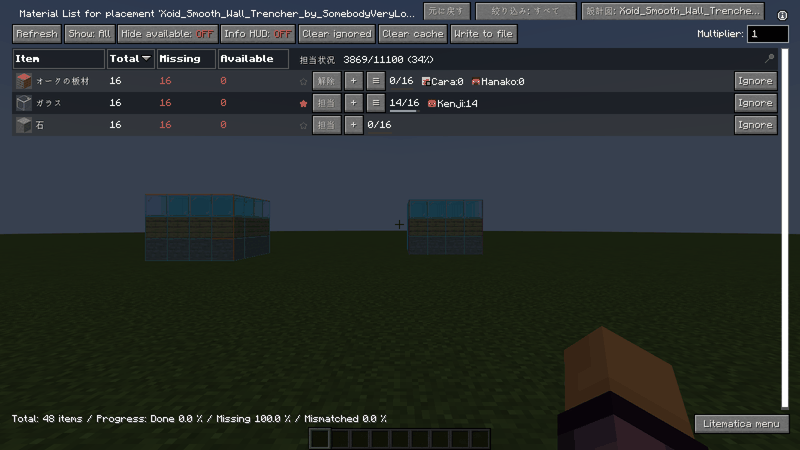
- Litematica MaterialShare は、Litematica のマテリアルリストの各行に「誰が・どの素材を・いくつ集めるか」を表示して、サーバーの全員で同じ内容を見られるようにするアドオンです。
- 使うには、サーバーと全員のクライアントに同じ jar を入れます。クライアントには Litematica、malilib、Syncmatica も必要です。
- 設計図を Syncmatica で共有し、Litematica でその設計図のマテリアルリストを開くと、各行の右側に担当の列が出ます。右上のボタン(「共有を開始」または「設計図: …」)で担当管理を始めます。
- この使い方は、Litematica のメインメニューの「使い方」、マテリアルリストの「ツール」→[表示]→「使い方」、設定のホットキーからいつでも開けます。
- 操作はすべて履歴に残り、画面が小さくてもボタンが重ならないように作られています。
設計図を共有する
設計図やその一部を、みんなで管理できるようにする
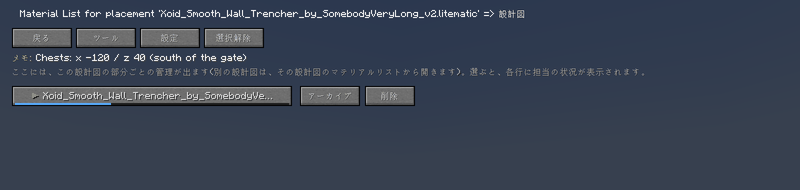
- マテリアルリスト右上のボタンで、設計図の画面が開きます。ここで設計図全体、または複数の部分(サブリージョン)を選んで共有します。
- 部分ごとにチェックを入れて「選んだ部分を共有」、まだの部分は「未共有の部分をすべて共有」で、まとめて作れます。共有した部分は「設計図名 / 部分名」という名前になり、部分ごとに担当を管理できます。
- 共有した設計図は、「アーカイブ」でしまっておくことも、「削除」でゴミ箱に入れることもできます(どちらもあとで戻せます)。
- 同じ名前の設計図が2つあるときは、ツールの「別名で共有」で区別します。メモ(チェストの座標など)も書き込めて、全員に見えます。
担当を決める
「担当」ボタンと「+」ボタン
- 各行の右側に担当の列が出ます。「担当」を押すと、その素材があなたの担当になります(もう一度押すと「解除」)。
- 「+」を押すと、ほかの人を担当にできます。オフラインの人も、名前の一部を入力して探せます。一覧にいない人は、正確な名前を入力すると探してくれます。
- 担当者が多い行は、入りきらない分が「+数」になります。「≡」を押すと、その素材を担当する全員の一覧が開き、1人ずつ外せます。
- 行の左の★は「先に集めたい」の印で、クリックで付け外しできます。ほかの人があなたを担当にしたり、あなたを外したりすると、画面の隅に知らせが出ます。
集めた数を記録する
ホイール、クリック、持ち物の取り込み
- 担当者の名前の上でマウスホイールを回すと、集めた数が増減します(Shift で大きく。設定で、Ctrl を押しているときだけ変わるようにもできます)。
- 名前を左クリックすると、数を入力できます(「3s」と書くと3スタック)。Shift + 左クリックは、いま持っている数の取り込みです。右クリックで、その素材の担当から外れます。
- Ctrl + クリックで、その素材の詳細(分担や納品)の画面が開きます。必要な数に届くと、行が緑になって「Done!」と出ます。
- 設定の「集めた数を自動で更新する」をオンにすると、画面を開いていなくても、持ち物に合わせて集めた数が増えます(減りません)。
行を絞り込む
自分の担当、担当なしなど
- マテリアルリストの上にある絞り込みボタンを押すたびに、表示する行が切り替わります: すべて / 自分の担当 / 担当なし / 未完了 / 優先 / 自分以外 / 担当不足 / 特定の人。
- 「特定の人」を選ぶと人を選ぶ画面が開き、その人が担当している行だけが出ます。
- 設定のホットキーでも切り替えられます。
分担を決める
人ごとの目標の数を決める
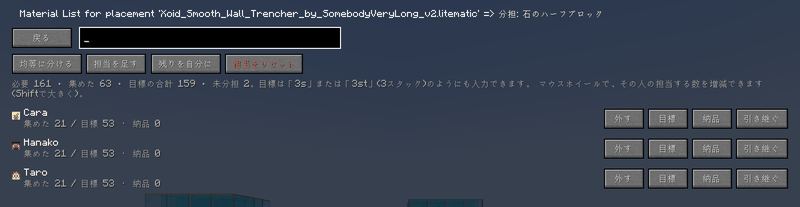
- 素材の詳細画面(Ctrl + クリック、またはツールの「素材の設定」)で、その素材を担当する人ごとに「目標」の数を決められます。
- 「均等に分ける」で担当者に同じ数ずつ割り振れます。「担当を足す」で人を増やし、「残りを自分に」で未分担を自分の目標にします。人ごとの「外す」で担当から外せます。
- マウスホイールで、その人の担当する数を増減できます(Shift で大きく)。目標は「3s」(3スタック)のように入力できます。
- 集めた数のうち倉庫に入れた分は「納品」として別に記録できます。
一括で割り当てる
担当のいない素材をまとめて振り分ける
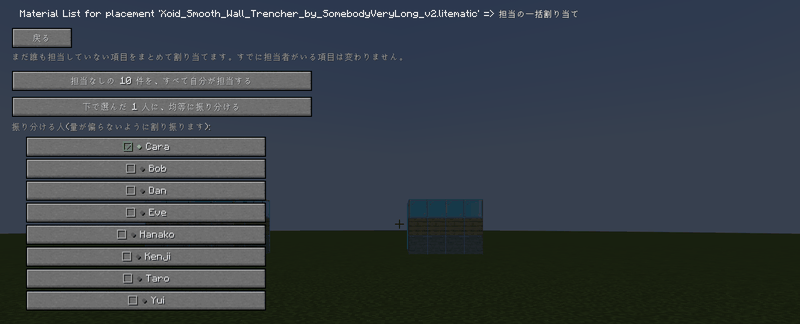
- ツールの「一括割り当て」は、まだ誰も担当していない素材を、選んだ人たちにまとめて振り分けます。量だけでなく種類も考えて、偏らないように割り振ります。すでに担当のいる素材は変わりません。
- 「担当なしの○件を、すべて自分が担当する」で、全部を自分の担当にもできます。やり直しは、ツールの「全員の担当をリセット」、「1人の担当をリセット」でできます(確認が出ます)。
- マテリアルリストの「元に戻す」(ホットキーも可)で、直前の操作を取り消せます。
ツールの画面
4つのタブにまとまった機能の一覧
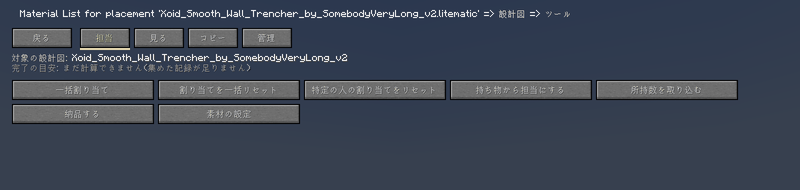
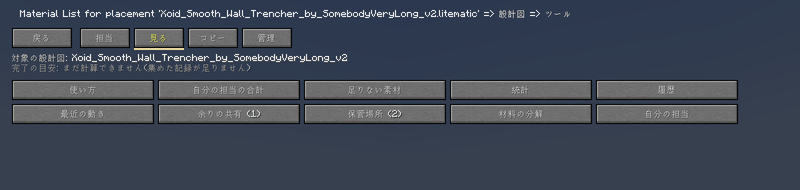
- マテリアルリストの「ツール」には、機能が4つのタブに分かれて入っています。
- 【担当】一括割り当て、担当のリセット、持ち物から担当にする、持ち物の取り込み、納品、素材の設定。
- 【表示】自分の合計、足りない素材、統計、履歴、最近の動き、余り、保管場所、ゾーン、原材料、自分の担当一覧、使い方。
- 【コピー】進み具合を文章でコピー、Discord 用にコピー、足りない素材を「手伝って」の形でコピー、Discord 用(全部、分けて)、CSV に書き出す、設計図のバックアップ。CSV は、ゲームのフォルダの materialshare/exports に、バックアップは materialshare/backups に、日付つきの名前で保存され、場所がチャットに出ます。
- 【管理】メモ、設計図から更新、複製、名前の変更、アーカイブ、ゴミ箱、別名で共有、設定。
足りない素材
まだ集まっていない素材、担当のいないもの
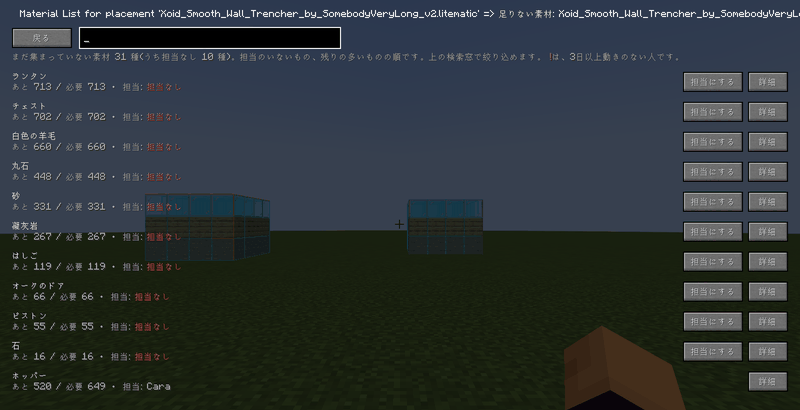
- ツールの「足りない素材」は、まだ集まっていない素材の一覧です。担当のいない素材が先に、次に残りの多い素材が並びます。
- 「担当にする」でそのまま自分の担当にでき、「詳細」でその素材の画面が開きます。担当者の名前に赤い「!」が付いているのは、3日以上なにも操作していない人です。
- 上の検索窓で絞り込めます。
自分の合計
自分の担当を素材ごとに合計
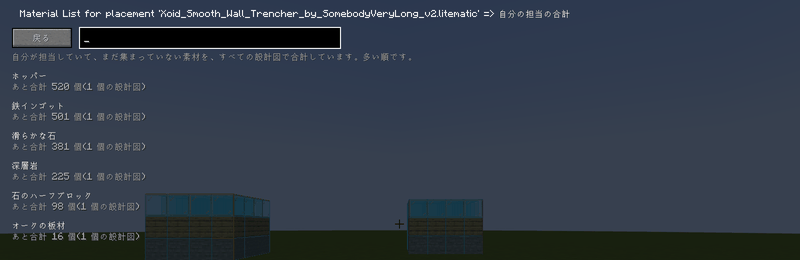
- ツールの「自分の合計」は、あなたが担当してまだ集めていない数を、すべての設計図にわたって素材ごとに足し合わせます。1回の採掘で何を持ち帰ればいいかが、一目でわかります。
- 「自分の担当一覧」では、設計図ごとの担当をそのまま見られます(優先の★のものが先です)。
- 集める素材の残りは、ゲーム画面の右下にも常に出ます(設定でオフにでき、「HUDの位置を設定」でドラッグして好きな場所に置けます。行数も変えられます)。素材ごとに、集めた数/必要数、自分の納品の数、倉庫に入っている数、あと何個かが並びます。
保管場所と納品
チェストの範囲を登録し、中身と納品者を記録する
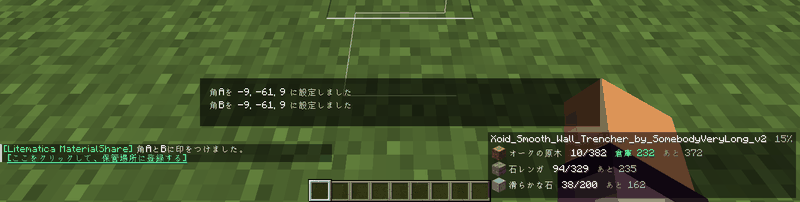
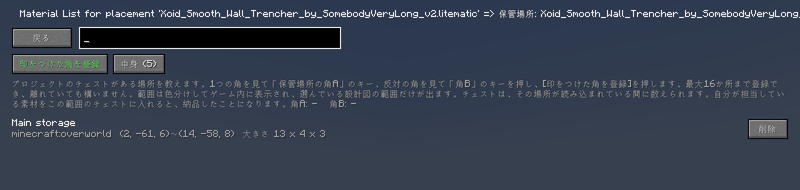
- チェストを置いてある場所を、プロジェクトに教えられます。範囲は最大16か所まで登録でき、離れていても構いません。
- 範囲の一つの角を見て「保管場所の角A」のキー、反対の角を見て「角B」のキーを押します(キーは設定のホットキーで決めます)。
- 2つの角に印をつけると、チャットに「[ここをクリックして、保管場所に登録する]」と出ます。クリックすると登録の画面が開くので、[印をつけた角を登録]を押して名前をつけます(ツールの[表示]→「保管場所」からも開けます)。印を間違えてつけたときは、その画面の[印を消す]、設定のホットキー、または /materialshare storage clear で消せます。登録すると印は自動で消えます。
- 登録した範囲は、ゲーム内に色つきの枠で表示されます。選んでいる設計図の範囲だけが出て、設計図を切り替えると表示も切り替わります(設定でオフにできます)。
- すでに素材が入っているチェストを範囲に入れた場合も、その中身が数えられます。シュルカーボックスの中の素材も数えられ、「中身」の画面には「石 ×200 (3スタック + 8個)」のように、スタックでも表示されます。
- 自分が担当している素材を範囲の中のチェストに入れると、チェストを開いているあいだに「納品」として記録され、出すと減ります。シュルカーボックスごと入れた場合も、中身が納品になります。ゲーム画面の隅の残り表示と、マテリアルリストの各行(「倉庫 N」)の数も、すぐに更新されます。ホッパーなど、人の操作でない出し入れは、中身の数にだけ反映されます。
- 素材を探すとき: マテリアルリストで、倉庫にある素材の行の合計(「倉庫 N」のところ)をクリックすると、その素材が入ったチェストが、壁越しに金色に光り、いちばん近いチェストまでの距離がホットバーの上に出ます。もう一度クリックすると消えます。保管場所の中でチェストを開くと、上に[必要な分を取り出す]が出ます。押すと、設計図にまだ置かれていない分から、持っている分を引いた数だけ、そのチェストから持ち物に移ります(ゾーンを選んでいるときは、そのゾーンの分だけ)。
- 対象のブロックは、チェスト、トラップチェスト、樽、シュルカーボックス、ホッパー、ドロッパー、ディスペンサー、醸造台、書見台(置いた本)、ジュークボックス(入れたディスク)です。エンチャントテーブルと大釜はアイテムを持たないので、対象外です。エンダーチェストは場所ではなく持ち主の収納なので、範囲には入りません。そのかわり、自分のエンダーチェストの中身(中のシュルカーボックスも)は「持っている数」に入ります。素材の行のツールチップに「エンダーチェストに N 個」と出て、集めた数の自動更新と[持ち物から担当にする]にも足されます(設定「エンダーチェストも数える」でオフにできます)。
ゾーン(段ごとに集める)
設計図を高さで区切り、選んだゾーンの素材だけを出す
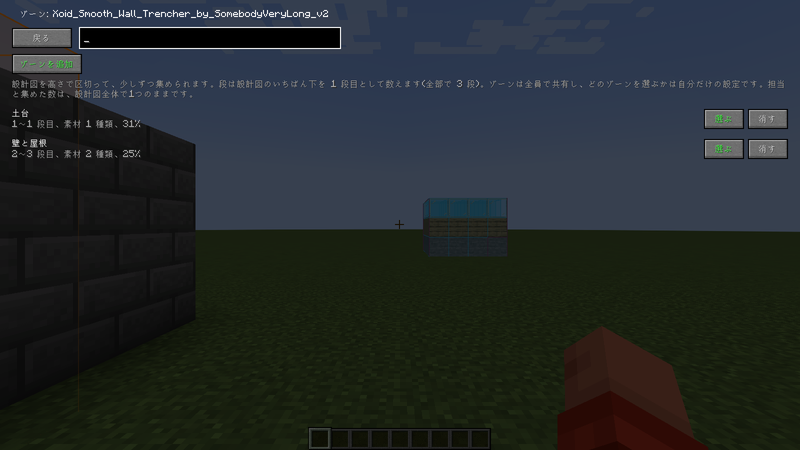
- 大きな設計図を、高さ(段)で区切って、少しずつ集められます。「今夜は 1〜10 段目の土台だけ」のように使います。
- 設置した設計図のマテリアルリストで[ツール]を開き、「見る」のタブの[ゾーン (0)]を押して、[ゾーンを追加]を押します。
- 「1-10 土台」のように、段の範囲と名前を入れます。段は、設計図のいちばん下を 1 段目として数えます(置いた場所の高さは関係ありません)。その段に要る素材が設計図から数えられ、サーバーの全員と共有されます。
- ゾーンの[選ぶ]を押すと、マテリアルリストと HUD(残り表示)が、そのゾーンに要る素材だけになります。HUD の題名にゾーンの名前と進み具合が出て、素材の行のツールチップに「ゾーン「土台」: 集めた数/必要数」が出ます。どのゾーンを選ぶかは、自分だけの設定です。[絞り込みをやめる]で全体に戻ります。
- 担当と集めた数は、ゾーンに分かれず、設計図全体で1つのままです。ゾーンの進み具合は、素材ごとに「集めた数(ゾーンの必要数まで)」を足して出します。ゾーンは1つの設計図に16個まで作れ、[消す]で全員から消えます。
統計と履歴
誰がどれだけ集めたか、誰が何をしたか
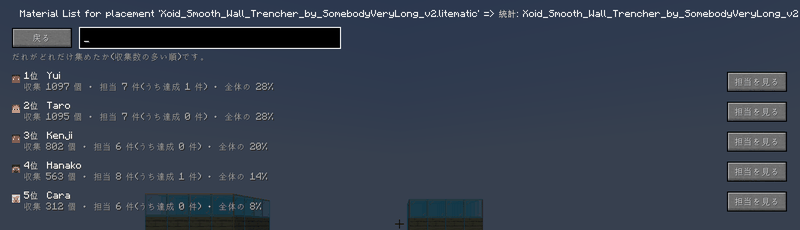
- 「統計」は、誰がどれだけ集めたかを多い順に並べます(3日以上動きのない人には「○日動いていません」と出ます)。
- 「履歴」は、いつ・誰が・何をしたかの記録です。検索窓で、素材名・操作の種類・人の名前から絞り込めます。
- 「最近の動き」は、すべての設計図の最近の変更を新しい順に並べます。
- 素材が揃ったときや設計図が完成したときは、画面の隅に知らせが出ます(チャットにも出す設定があります)。
素材の設定
優先、代用のメモ、分担、削除
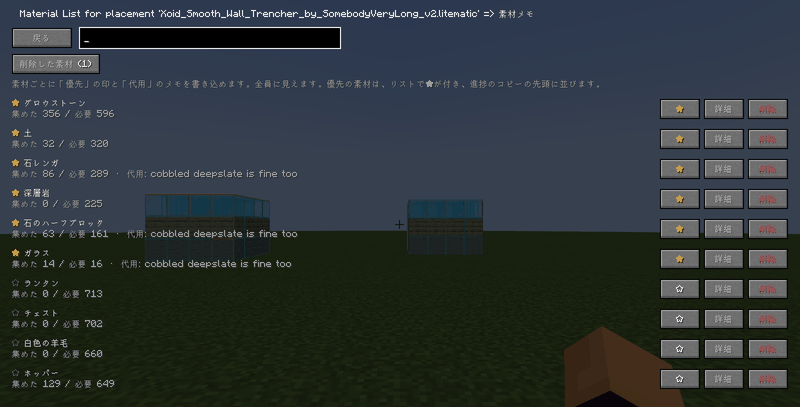
- ツールの「素材の設定」では、素材ごとに「優先」の印(★)と「代用」のメモを書き込めます。全員に見えます。優先の素材は一覧で★が付き、進み具合のコピーの先頭に並びます。
- 「詳細」から分担と納品の画面を開けます。素材は削除することもでき、削除した素材は担当や数ごと「削除した素材」から戻せます。
- 設計図を作り直したときは、ツールの「設計図から更新」で、新しい素材を加え、必要な数を合わせます(いらなくなった素材は残ります)。
余りを共有する
持て余している素材を、みんなに知らせる
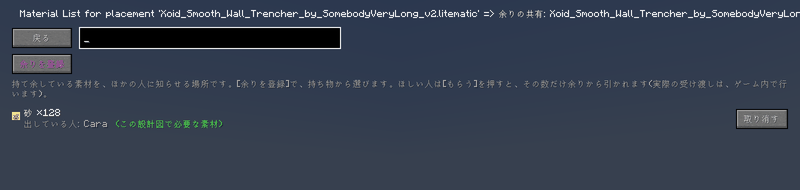
- ツールの「余り」は、持て余している素材をほかの人に知らせる場所です。[余りを登録]で持ち物から選び、出す数を入力します(0で取り消し)。
- ほしい人は[もらう]を押すと、その数だけ余りから引かれます。実際の受け渡しは、ゲーム内で行います。その設計図で必要な素材には印が付きます。
原材料の分解図
素材を作るのに必要な材料をたどる
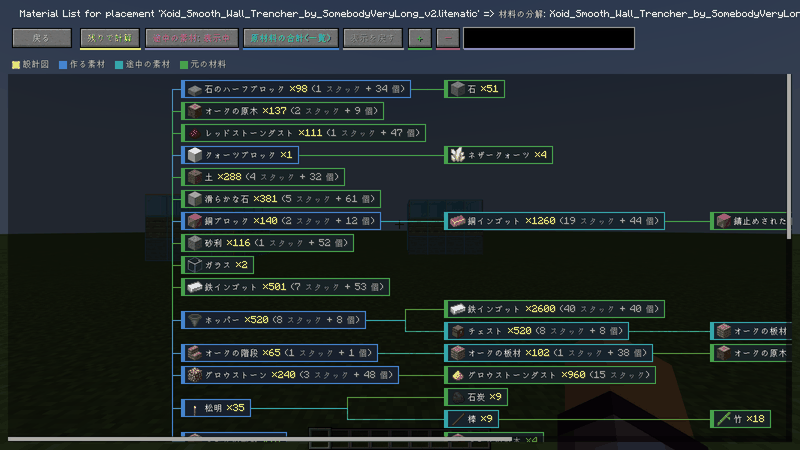
- ツールの「原材料」は、クラフトのレシピをたどって、必要な素材を作るための元の材料の数を計算します。色分けしたマップで、設計図 → 作る素材 → 途中の素材 → 元の材料 の流れを見られます。
- 「残りで計算」と「全体で計算」を切り替えられ、「原材料の合計(一覧)」で元の材料だけの一覧も見られます。かまどで焼くものや拾うものは、そこで止まります。ホットキーで直接開くこともできます。
⚠️ ver ごとの注意: Minecraft 1.21.2 以降は、サーバーがレシピをプレイヤーに送りません。原材料の分解図は、1人用と、LAN に公開した人では使えますが、マルチのサーバーでは空になることがあります。
整理と復元
アーカイブ、ゴミ箱、複製、名前の変更
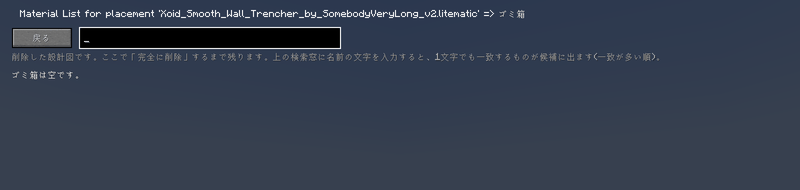
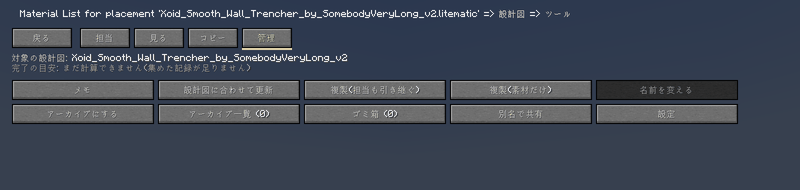
- 終わった設計図は「アーカイブへ移動」でしまっておけます(データは残り、いつでも戻せます)。削除した設計図は「ゴミ箱」に入り、そこから復元するか、完全に削除できます。
- 「複製」は、同じ素材の新しい設計図を作ります(人を残す / 素材だけ、の2通り)。「名前の変更」は、「設計図名 / ○○」の○○を変えます。
- どれも、誰が操作したかが履歴に残ります。
設定とホットキー
表示や通知を好みに合わせる
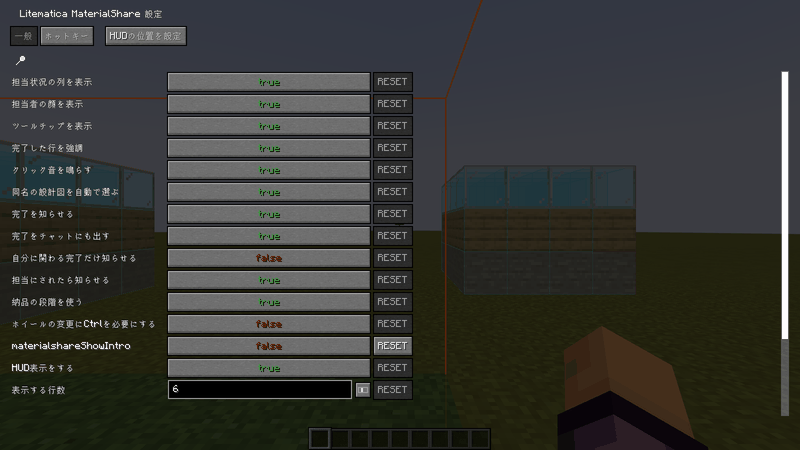
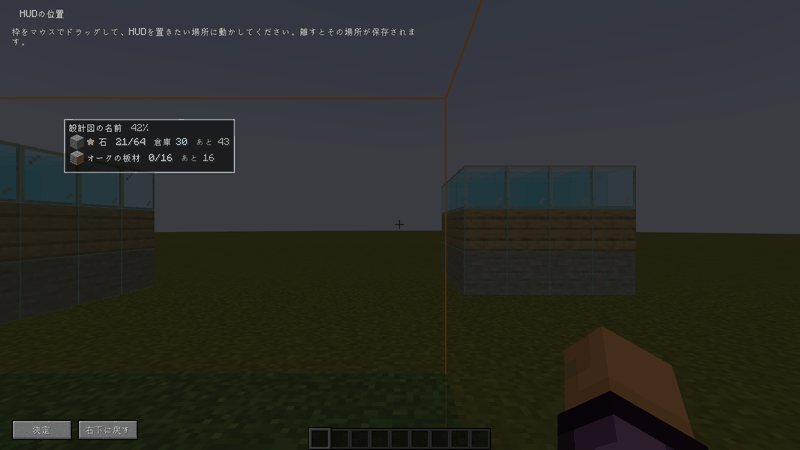
- 設定は、Litematica のメインメニューの「MaterialShare 設定」、設計図の画面の[設定]、Mod Menu から開けます。
- 担当の列や顔の表示、ツールチップ、完了や割り当ての通知、ホイールの増減量、納品の段階を使うか、HUD(残り表示)とその位置、保管場所の表示、エンダーチェストも数えるか、などを変えられます。
- 「ホットキー」のタブでは、設定画面、設計図画面、原材料、担当列の切り替え、残り表示の切り替え、持っているアイテムを担当にする、元に戻す、絞り込みの切り替え、保管場所の角A・B、角の印を消す、使い方、のキーを決められます。
チャットコマンド
/materialshare で手早く確認
/materialshare help— コマンドの一覧/materialshare progress— 選んでいる設計図の進み具合/materialshare mine— 自分の未完了の担当/materialshare surplus— 出されている余り/materialshare storage— 保管場所の画面を開く/materialshare storage clear— 角の印を消す/materialshare projects— 共有している設計図と進み具合/materialshare select <名前>— 設計図を選ぶ- コマンドは手早く見るためのものです。ほかの操作は、マテリアルリストの画面で行います。
必要なもの
| 場所 | 必要なもの |
|---|---|
| サーバー | Fabric Loader 0.14.21 以上、Fabric API 0.76.0 以上、malilib、Syncmatica、本MOD(Litematica は不要) |
| クライアント | 上に加えて、Litematica(verは下の表を見てください) |
対応するver(Minecraft のverごとに jar が別です。遊んでいるverに合う jar を使ってください):
| Minecraft | Litematica | malilib | jar |
|---|---|---|---|
| 1.16 | 1.16 用の dev build(確認: 0.0.0-dev.20200627.000333) | 0.10.0-dev.21(確認: 0.10.0-dev.21+beta.2) | ...-0.11.0+1.16.jar |
| 1.16.1 | 1.16.1 用の dev build(確認: 0.0.0-dev.20200720.162317) | 0.10.0-dev.21(確認: 0.10.0-dev.21+arne.2) | ...-0.11.0+1.16.1.jar |
| 1.16.2 | 1.16.2 用の dev build(確認: 0.0.0-dev.20200912.201012) | 0.10.0-dev.21(確認: 0.10.0-dev.21+arne.2) | ...-0.11.0+1.16.2.jar |
| 1.16.3 | 1.16.3 用の dev build(確認: 0.0.0-dev.20200920.161640) | 0.10.0-dev.21(確認: 0.10.0-dev.21+arne.1) | ...-0.11.0+1.16.3.jar |
| 1.16.4 | 1.16.4 用の dev build(確認: 0.0.0-dev.20210716.154721) | 0.10.0-dev.21(確認: 0.10.0-dev.21+arne.8) | ...-0.11.0+1.16.4.jar |
| 1.16.5 | 1.16.5 用の dev build(確認: 0.0.0-dev.20210917.192300) | 0.10.0-dev.21(確認: 0.10.0-dev.21+arne.8) | ...-0.11.0+1.16.5.jar |
| 1.17 | 1.17 用の dev build(確認: 0.0.0-dev.20210703.150412) | 0.10.0-dev.22(確認: 0.10.0-dev.22+beta.1) | ...-0.11.0+1.17.jar |
| 1.17.1 | 0.9.x(確認: 0.9.0) | 0.10.x(確認: 0.10.0-dev.26) | ...-0.11.0+1.17.1.jar |
| 1.18 | 0.9.x(確認: 0.9.1) | 0.10.x(確認: 0.10.0-dev.26) | ...-0.11.0+1.18.jar |
| 1.18.1 | 0.10.x(確認: 0.10.4) | 0.11.x(確認: 0.11.8) | ...-0.11.0+1.18.1.jar |
| 1.18.2 | 0.11.x(確認: 0.11.7) | 0.12.x(確認: 0.12.1) | ...-0.11.0+1.18.2.jar |
| 1.19 | 0.12.x(確認: 0.12.2) | 0.13.x(確認: 0.13.0) | ...-0.11.0+1.19.jar |
| 1.19.1 | 0.12.x(確認: 0.12.3) | 0.13.x(確認: 0.13.0) | ...-0.11.0+1.19.1.jar |
| 1.19.2 | 0.12.x(確認: 0.12.7) | 0.13.x(確認: 0.13.0) | ...-0.11.0+1.19.2.jar |
| 1.19.3 | 0.13.x(確認: 0.13.2) | 0.14.x(確認: 0.14.0) | ...-0.11.0+1.19.3.jar |
| 1.19.4 | 0.14.2 以上 0.15.0 未満(確認: 0.14.7) | 0.15.2 以上 0.16.0 未満(確認: 0.15.4) | ...-0.11.0+1.19.4.jar |
| 1.20.1 | 0.15.x(確認: 0.15.4) | 0.16.x(確認: 0.16.3) | ...-0.11.0+1.20.1.jar |
| 1.20.2 | 0.16.x(確認: 0.16.1) | 0.17.x(確認: 0.17.0) | ...-0.11.0+1.20.2.jar |
| 1.20.3 | 0.17.x(確認: 0.17.4) | 0.18.x(確認: 0.18.3) | ...-0.11.0+1.20.3.jar |
| 1.20.4 | 0.17.x(確認: 0.17.4) | 0.18.x(確認: 0.18.3) | ...-0.11.0+1.20.4.jar |
| 1.20.5 | 0.18.x(確認: 0.18.3) | 0.19.x(確認: 0.19.2) | ...-0.11.0+1.20.5.jar |
| 1.20.6 | 0.18.x(確認: 0.18.3) | 0.19.x(確認: 0.19.2) | ...-0.11.0+1.20.6.jar |
| 1.21 | 0.19.x(確認: 0.19.61) | 0.21.x(確認: 0.21.10) | ...-0.11.0+1.21.jar |
| 1.21.1 | 0.19.x(確認: 0.19.61) | 0.21.x(確認: 0.21.10) | ...-0.11.0+1.21.1.jar |
| 1.21.2 | 0.20.x(確認: 0.20.9) | 0.22.x(確認: 0.22.8) | ...-0.11.0+1.21.2.jar |
| 1.21.3 | 0.20.x(確認: 0.20.9) | 0.22.x(確認: 0.22.8) | ...-0.11.0+1.21.3.jar |
| 1.21.4 | 0.21.x(確認: 0.21.7) | 0.23.x(確認: 0.23.5) | ...-0.11.0+1.21.4.jar |
| 1.21.5 | 0.22.x(確認: 0.22.5) | 0.24.x(確認: 0.24.3) | ...-0.11.0+1.21.5.jar |
| 1.21.6 | 0.23.x(確認: 0.23.7) | 0.25.x(確認: 0.25.7) | ...-0.11.0+1.21.6.jar |
| 1.21.7 | 0.23.x(確認: 0.23.7) | 0.25.x(確認: 0.25.7) | ...-0.11.0+1.21.7.jar |
| 1.21.8 | 0.23.x(確認: 0.23.7) | 0.25.x(確認: 0.25.7) | ...-0.11.0+1.21.8.jar |
| 1.21.9 | 0.24.x(確認: 0.24.9) | 0.26.x(確認: 0.26.8) | ...-0.11.0+1.21.9.jar |
| 1.21.10 | 0.24.x(確認: 0.24.9) | 0.26.x(確認: 0.26.8) | ...-0.11.0+1.21.10.jar |
| 1.21.11 | 0.26.x(確認: 0.26.16) | 0.27.x(確認: 0.27.20) | ...-0.11.0+1.21.11.jar |
| 26.1 | 0.27.x(確認: 0.27.14) | 0.28.x(確認: 0.28.12) | ...-0.11.0+26.1.jar |
| 26.1.1 | 0.27.x(確認: 0.27.14) | 0.28.x(確認: 0.28.12) | ...-0.11.0+26.1.1.jar |
| 26.1.2 | 0.27.x(確認: 0.27.14) | 0.28.x(確認: 0.28.12) | ...-0.11.0+26.1.2.jar |
| 26.2 | 0.28.x(確認: 0.28.8) | 0.29.x(確認: 0.29.6) | ...-0.11.0+26.2.jar |
| 26.3 | 0.29.x(確認: 0.29.1) | 0.30.x(確認: 0.30.2) | ...-0.11.0+26.3.jar |
Syncmatica はどのverでも可。Fabric API は 0.76.0 以上(1.19 と 1.19.1 は 0.58.0 以上、1.18 と 1.18.1 は 0.44.0 以上)。
1.20.x の Fabric API: 1.20.1 は 0.92.2 以上、1.20.2 は 0.91.6 以上、1.20.3 は 0.91.1 以上、1.20.4 は 0.97.2 以上、1.20.5 は 0.97.8 以上、1.20.6 は 0.100.8 以上。Minecraft 1.20.5 と 1.20.6 は Java 21 が必要です。Minecraft 1.20 そのものの jar はありません(Litematica に 1.20 用の build が無いため。1.20.1 を使ってください)。
1.16〜1.17.1、1.21 系、26.x の Fabric API: 1.16 は 0.13.1 以上、1.16.1 は 0.18.0 以上、1.16.2〜1.16.5 は 0.42.0 以上(1.16.2〜1.16.4 でも、1.16.5 用の 0.42.0+1.16 を入れてください。その ver 用の Fabric API では動きません)、1.17 は 0.36.0 以上、1.17.1 は 0.46.1 以上、1.21 は 0.102.0 以上、1.21.1 は 0.116.17 以上、1.21.2 は 0.106.1 以上、1.21.3 は 0.114.1 以上、1.21.4 は 0.119.4 以上、1.21.5 は 0.128.2 以上、1.21.6 は 0.128.2 以上、1.21.7 は 0.129.0 以上、1.21.8 は 0.136.1 以上、1.21.9 は 0.134.1 以上、1.21.10 は 0.138.4 以上、1.21.11 は 0.141.6 以上、26.1・26.1.1・26.1.2 は 0.155.3 以上、26.2 は 0.161.0 以上、26.3 は 0.165.0 以上。Minecraft 1.16〜1.16.5 は Java 17 で起動してください(ランチャーの初期設定の Java 8 では動きません)。1.17 と 1.17.1 は Java 16 以上、1.21〜1.21.11 は Java 21、26.1〜26.3 は Java 25。1.21 以降の Syncmatica(確認: 1.21〜1.21.5 は 0.3.14、1.21.6〜1.21.8 は 0.3.15、1.21.9 と 1.21.10 は 0.3.16、1.21.11 と 26.1〜26.3 は 0.3.20)には、Fabric Permissions API も入れてください(少なくともサーバーに)。1.16〜1.17 の Syncmatica は 0.3.8 で確認しました。1.17 の malilib は beta のみです。
- サーバーと全員のクライアントに、同じverの jar を入れてください。verが違うと、参加するときに理由が表示されます。
- 担当管理を始めるには、設計図が Syncmatica で共有されている必要があります。マテリアルリストを開くと、自動で始まります。
- 任意: Mod Menu(設定画面を開けます)。設定画面は、Litematica のメインメニューからも開けます。
- 1.21.2 以降は、サーバーがレシピをプレイヤーに送りません。原材料の分解図は、マルチのサーバーでは空になることがあります(1人用と、LAN に公開した人では使えます)。
使い方
- Syncmatica で設計図を共有して、Litematica でマテリアルリストを開きます。
- 右上のボタン(「共有を開始」または「設計図: …」)で担当管理を始めます。
- 各行の右側で、担当を決めます。「ツール」に、一括割り当て、足りない素材、保管場所、統計、履歴などがあります。すべての機能は、使い方の画面で説明しています。
サーバー管理者向け
初回の起動で config/litematica_materialshare_server.json が作られます。maxProjects(1〜64、初期値 64)で、同時に共有できる設計図の数を決められます。データはサーバーのワールドに保存されます。MODを入れた全員が全プロジェクトを見られ、誰でも編集できます(操作は履歴に残ります)。
互換性
Litematica と malilib の画面には mixin の注入だけで機能を足しており、ほかのMODの処理は上書きしません。画面の大きさ(GUI 設定)を変えても、ボタンが重ならないように作っています。Sodium、Sodium Extra、Reese's Sodium Options、サーバー側ではほかの約80個のMODと一緒に動くことを確認しています(競合は見つかっていません)。
Litematica MaterialShare Team
