Hullspark Coordinate HUD
- By
Always see where you are and how far you are from spawn. One line at the top of the screen, no minimap, no F3.
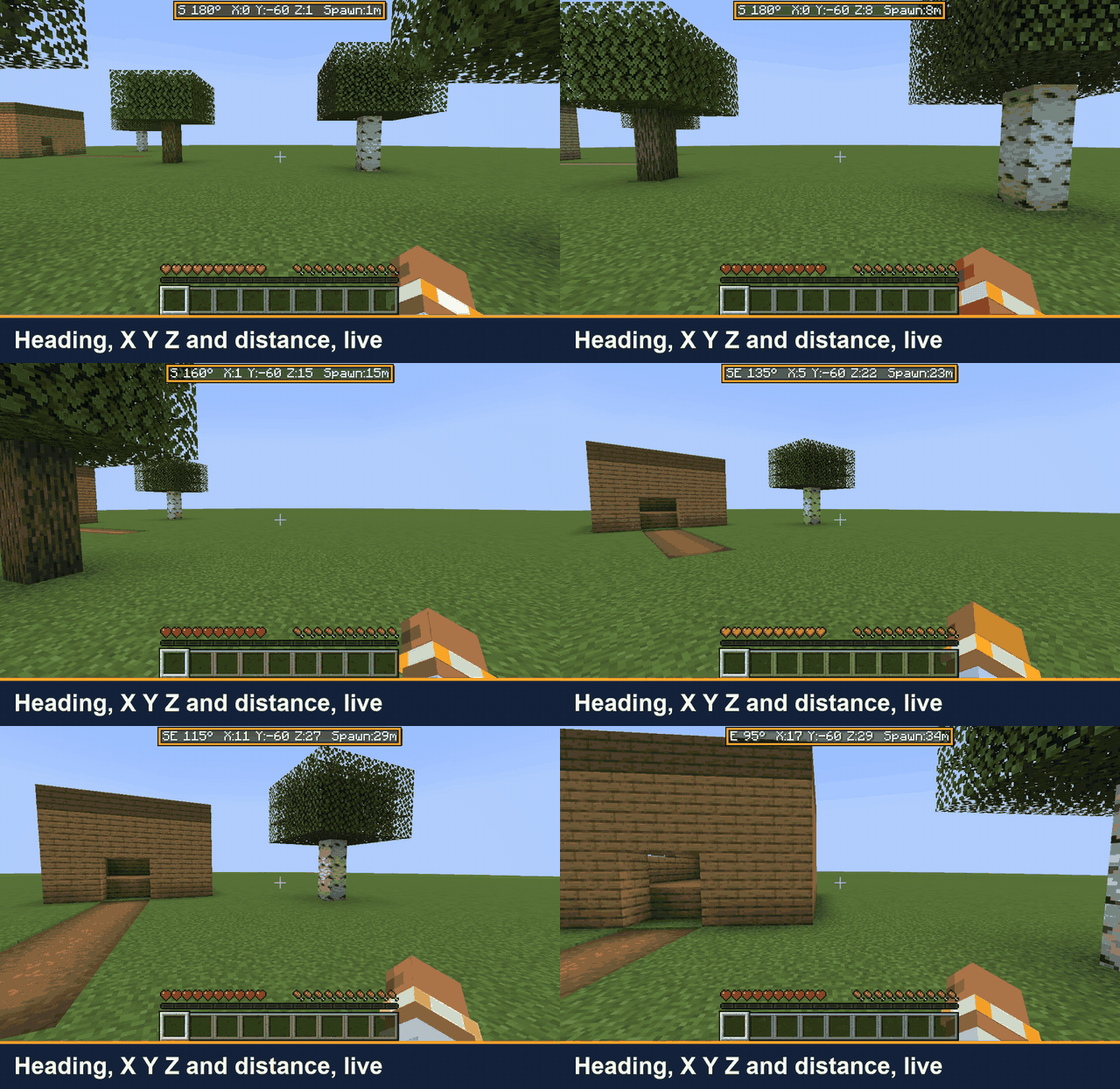
Walk and turn: the compass direction and bearing change as you turn, and the coordinates change as you walk.
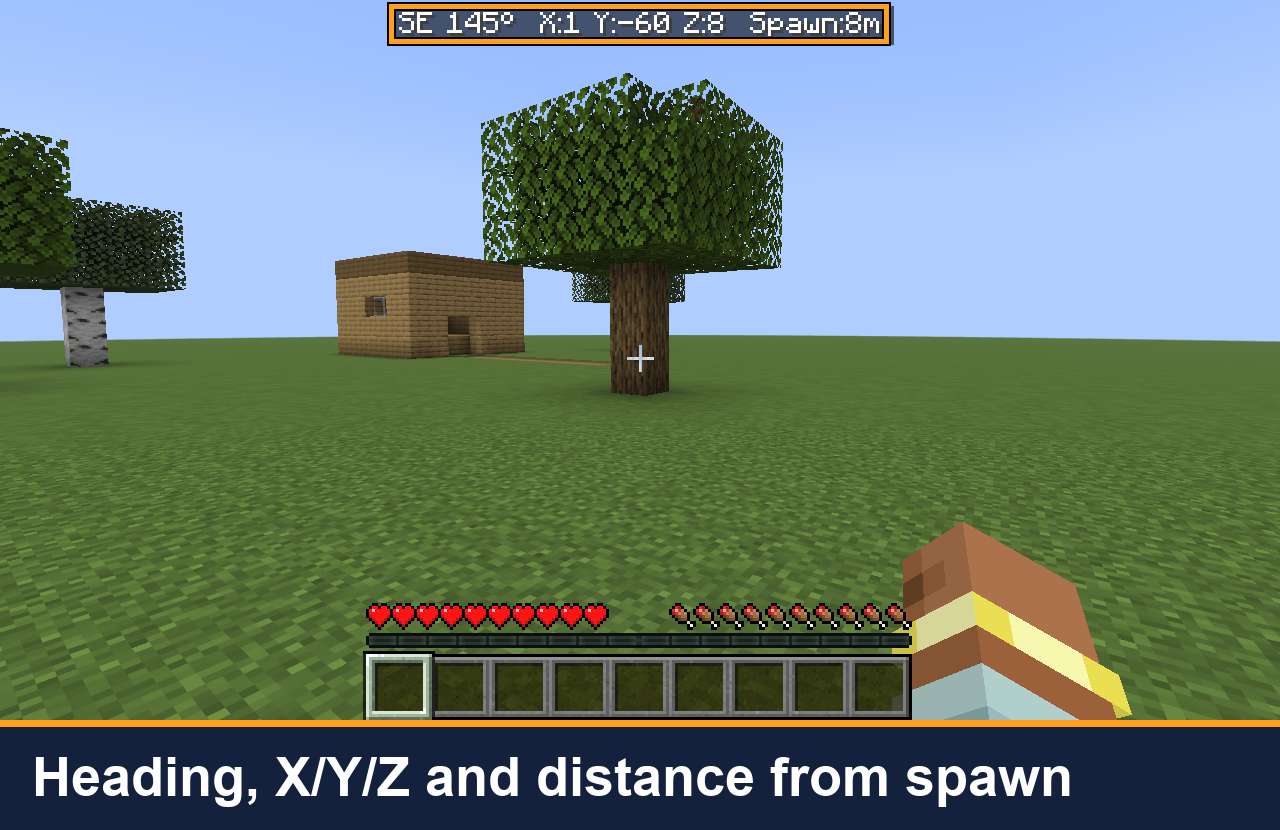
The whole line: direction and bearing, X Y Z, and the ground distance to spawn.
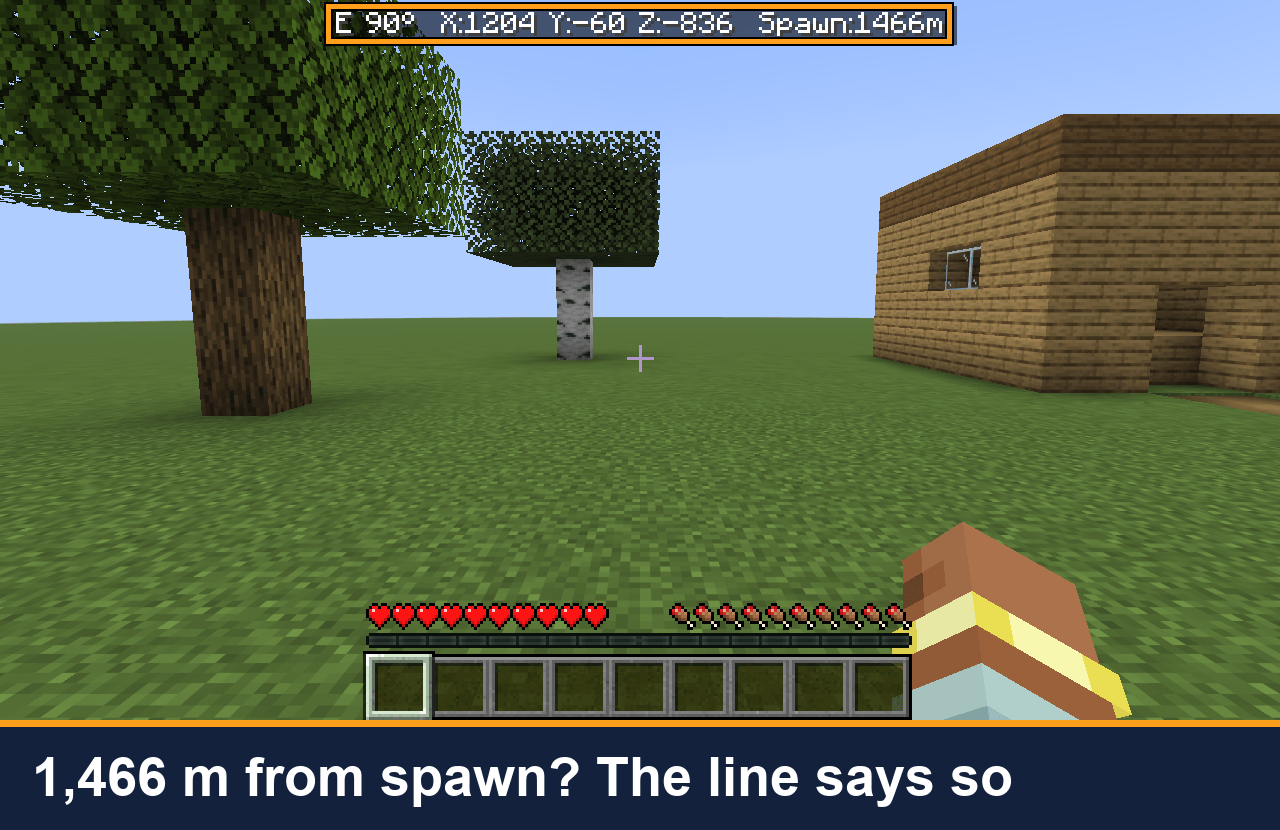
Far from home: at X:1204 Z:-836 the line reads Spawn:1466m, the walking distance back along the ground.
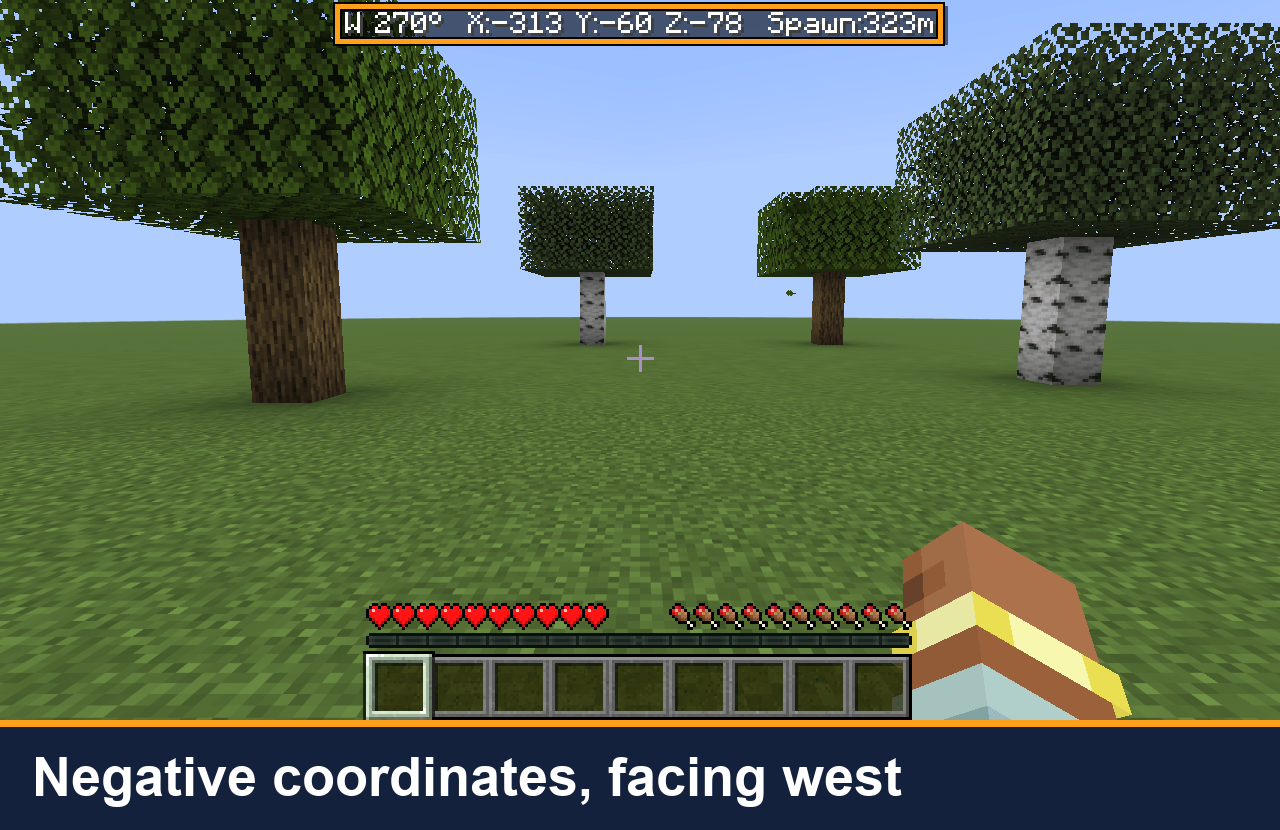
West of the origin the X value goes negative, and the direction reads W (270°).
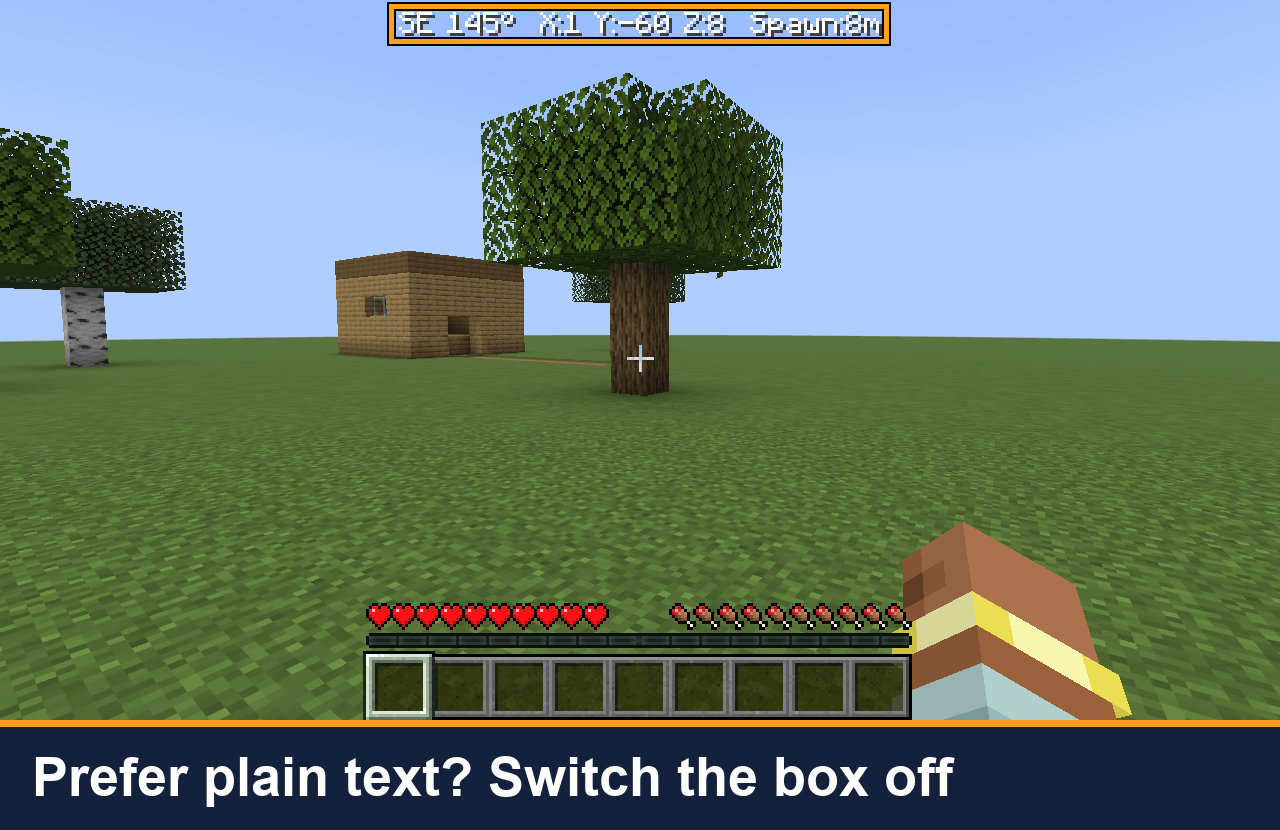
Optional: turn the dark box off with background=false in the settings file (Minecraft 26.3).
Description
You are far from home, you open F3 to check your coordinates, and half the screen turns into debug text. Then you forget the numbers before you can write them down.
Coordinate HUD puts one line at the top of the screen instead:
N 90° X:120 Y:64 Z:-35 Spawn:312m
Where to look
- Left: the direction you are facing (8-point compass) and the bearing in degrees. 0° is north, 90° is east.
- Middle: your block coordinates, X Y Z.
- Right: how far you are from the world spawn, measured on the ground (height is not counted), so you can tell how far you would have to walk. In the Nether or the End it shows "Spawn:--" because the spawn is in another dimension.
What it does for you
- You can read your position while you walk, build or explore. No F3, no minimap, no map mod needed.
- It moves below boss bars so it does not cover the boss names.
- It hides when you open a chest, the inventory, the death screen or a menu, and with F1. It stays visible while you type in chat, so you can tell a friend where you are.
- Client-side only: install it on your own game, nothing to install on the server. It sends nothing over the network.
Copy your position (version 0.1.5, Minecraft 1.21.11 and 26.3)
Set a key in Options > Controls > Key Binds > Coordinate HUD > "Copy coordinates" (no default key). One press puts your position on the clipboard as "120 64 -35" and shows "Copied coordinates: …" above the hotbar. Paste it into chat, a note, or /tp.
Show / hide and settings (Minecraft 26.3)
- "Toggle coordinate line" key (no default key): turns the line on or off, and remembers your choice.
- config/coordinate-hud.properties, read when the game starts: background (the dark box behind the text, default true), hideWithDebugScreen (hide the line while F3 is open, default false), visible.
- If a server turns on reducedDebugInfo (the setting that hides coordinates in F3), the line hides too.
- The 1.21.11 build has no settings file and no toggle key.
Requirements
Fabric Loader 0.19.5+ and Fabric API. Minecraft 26.3 (needs Java 25) and 1.21.11. Pick the file for your version.
Source: https://github.com/hullspark/fabric-mods
Disclosure: this mod was developed with AI assistance (Claude) and reviewed by the author. It does not reuse code or assets from other mods. It does not collect or transmit any data.
Hullspark Coordinate HUD Team