Epic Fight Through Your Eyes
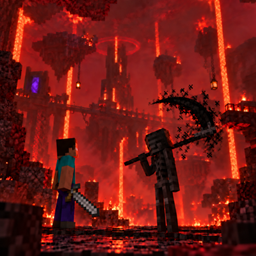
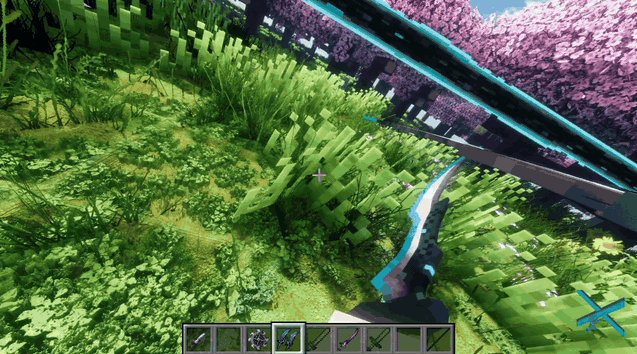
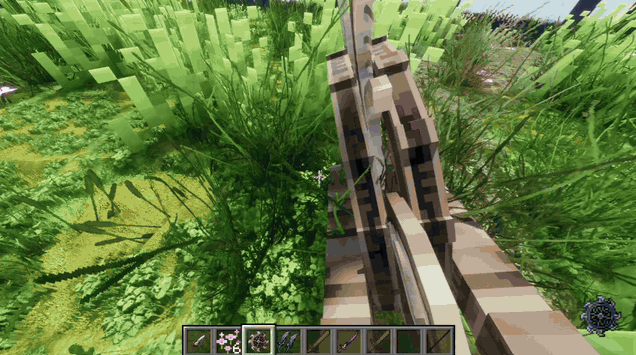
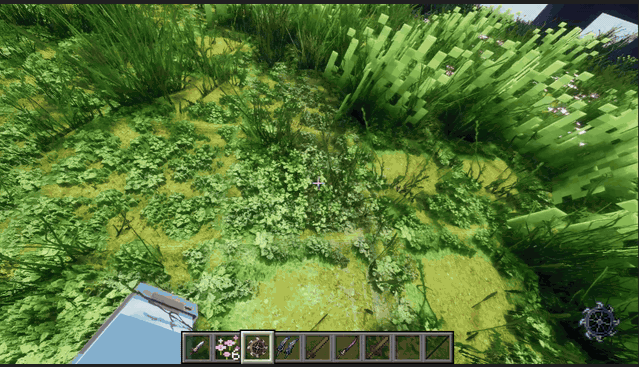
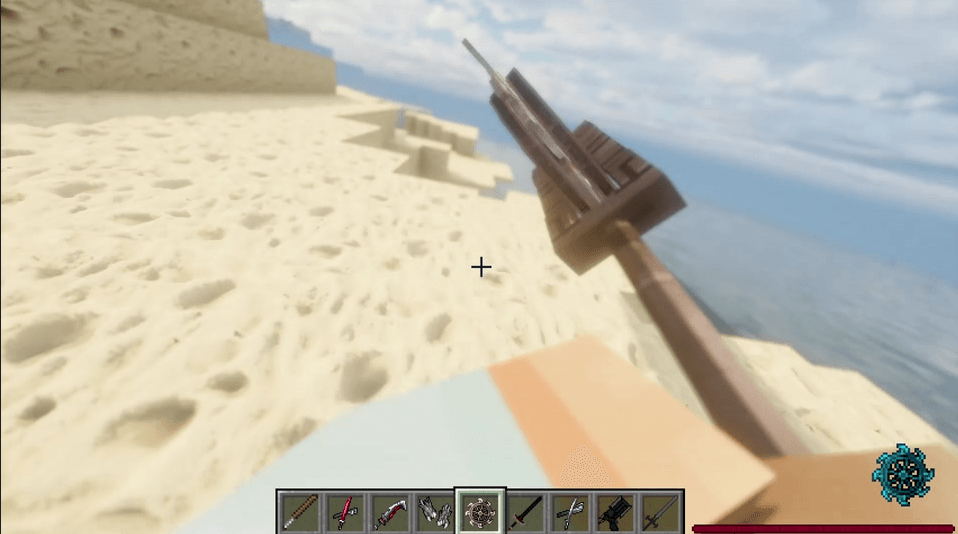
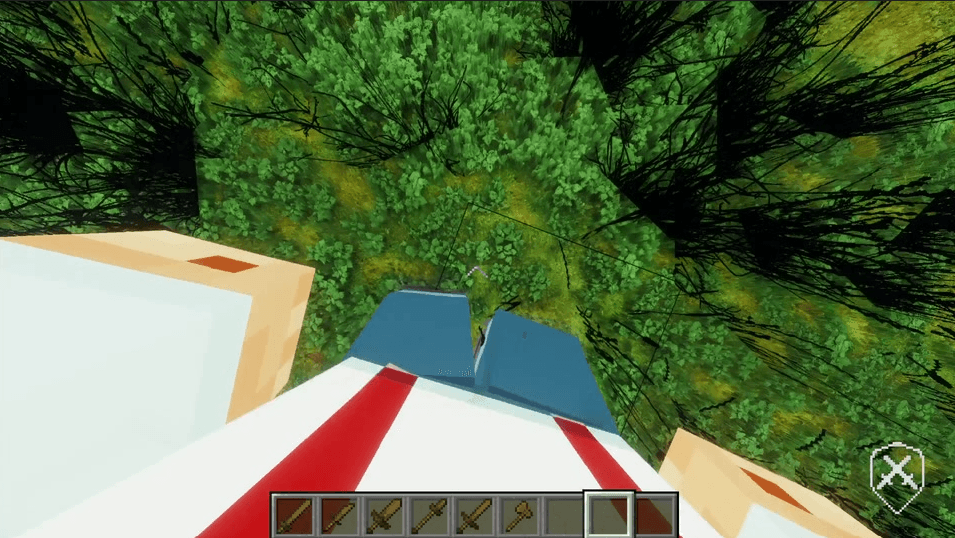
Experience Epic Fight through your own eyes, with a visible first person body and camera movement that follows the animations.
Screenshot 2026-09-14 100532.png
Screenshot 2026-09-14 100639.png
Screenshot 2026-09-14 100654.png
Screenshot 2026-09-14 100727.png
Screenshot 2026-09-14 100737.png
Description
Epic Fight Through Your Eyes brings Epic Fight’s animations straight into your point of view. Instead of fighting through a stiff first person camera, your view can lean, turn, roll, spin, bob, and move with your character while your body, armor, and weapons stay visible around you. The mod also comes with a ton of settings, so you can make the camera feel calm and realistic, wild and fully animated, or anything in between. With the camera moving naturally alongside your attacks, combat will now feel like you’re actually leaning into each motion and swinging the sword yourself.
You can keep the full spins, tone them down, or keep your view facing forward. There are also settings for body turning during attacks, hit reactions, and individual skills, so you can change the parts that bother you without turning everything off.
Camera Modes
Motion Sickness Protection
Keeps the camera immersive while reducing only the most extreme spins, flips, and disorienting movement.
Unhinged
Lets the camera follow Epic Fight animations much more aggressively for players who want the full experience.
Custom
Lets you tune the camera yourself and decide exactly how calm, realistic, or intense you want it to feel.
Switch between the modes whenever you want, or use Custom to tweak the settings yourself.
Live Mouse Control
Your camera follows the animation, but you can still look around while it’s playing. You’re not stuck waiting for an attack to finish before moving your view.
Look to the side, look up, look down. The animation keeps going while you choose where to look. That’s a big part of what makes this feel like you’re actually in the fight instead of just watching it.
Your mouse movement and the animation movement are handled separately too. Comfort settings and smoothing work on the animated part of the camera, so moving your mouse fast does not get mistaken for some crazy animation that needs to be calmed down. None of this changes attack speed, hit frames, combo timing, or the actual animation clock.
Features
- Visible First Person Body. See your torso, arms, legs, armor, weapons, and Epic Fight poses while playing in first person.
- Custom Camera Mode. Fine tune how calm, smooth, realistic, or aggressive you want your camera to feel.
- Extensive Camera Settings. Adjust attack movement, smoothing, walking and running motion, side to side tilt, skill behavior, camera freedom, and more.
- Motion Sickness Protection. Keeps cinematic movement while automatically calming down extremely fast or disorienting spins and flips.
- Unhinged Mode. Experience Epic Fight animations with their full camera movement, including aggressive spins, rolls, flips, and other intense motion.
- Per Skill Camera Controls. Choose how individual Epic Fight and Nightfall skills affect your camera. Choose Default, Follow Animation, or Stabilized.
- Per Skill Body Visibility. Choose whether your first person body is visible or hidden during individual skills.
- Roll & Skill Camera Options. Keep highly rotational skills more stable or let your camera fully follow their animations.
- Realistic Walking & Running Camera. Adds configurable bobbing, movement, and side to side leaning outside of combat.
- Camera Freedom / Extended Look. Gives you optional extra camera freedom for a less restricted first person experience.
- Anti Clipping Protection. Helps prevent your camera from clipping into your body, armor, arms, or weapons during extreme movement.
- Broad Epic Fight Addon Support. Designed to naturally work with Epic Fight animations from addons such as Weapons of Miracles, Nightfall, and more.
- Shader Support. Designed to work alongside modern Minecraft rendering setups, including Iris and Sodium, with Derivative explicitly tested.
- Lowered Shield View. Keeps shields visible without having them take up as much of your screen.
- Quick F8 Toggle. Quickly switch back to the standard camera without opening the settings menu.
- Animation Driven First Person. Your camera moves with Epic Fight animations, including leaning, turning, pitching, rolling, spinning, and full body movement.
- Full 360° and 720° Spin Tracking. Clean full turns stay readable instead of disappearing just because the animation starts and ends facing the same direction.
- Spin Reduction Options. Reduce spins inside longer combos or keep detected full spins facing forward if that is more comfortable for you. Both are off by default.
- Downward View Assist. Motion Sickness Protection can lift the animated view during eligible attacks that would otherwise point you way too far into the ground.
- Cleaner Recovery. Camera corrections are released through animation endings, interruptions, replacements, and chained attacks so old movement does not get stuck on your view.
- Weapon Stance Calibration. Different idle poses can use their own neutral reference so a weapon stance does not automatically leave you staring at the floor.
- Crouch Calibration. The camera still lowers with the body while keeping a useful forward view and normal mouse freedom.
- Physical Body & Armor Clearance. The local body can use small presentation adjustments around the eye instead of relying on ordinary body fading or deleting nearby pieces.
- Body & Camera Alignment. Comfort corrections are paired with the local body presentation so the fighter and camera stay in the same first person reference frame.
- Hit Reaction Camera. Choose a stabilized hurt reaction or let valid hurt animations follow through the normal camera pipeline.
- Attack Turning. Choose Locked, Limited, or Free body turning during attacks without restarting the attack animation.
- Smart Committed Attack Interruption. An optional server controlled combat rule lets eligible committed attacks trade through ordinary hits while stronger reactions, knockdowns, death, and disabling states still win.
- F9 Settings Shortcut. Open the camera settings directly without going through Mod Menu every time.
Spins, Motion Comfort & Recovery
Spins are supposed to look like spins, so I didn’t want Motion Sickness Protection to just flatten every big turn until nothing is left. Epic Fight Through Your Eyes follows the whole rotation, which means clean 360° and 720° turns can stay readable even when the animation ends facing the same direction it started.
For really violent repeated spin bursts, protection can calm the extra repetitions while still keeping one readable turn and returning smoothly to the animation’s real ending pose. It looks at the motion itself, not the weapon name or which addon it came from.
- Reduce Combo Spins. Reduces detected turns that are buried inside longer combos. Standalone spin moves still stay rotational. Off by default.
- Keep Spin View Forward. Replaces detected full spins with a smooth path between the valid start and end directions while protection is enabled. Off by default.
- Downward View Assist. Helps keep forward visibility when an eligible non spin attack drives the animated view too far toward the ground.
The recovery system also handles animation endings, interruptions, replacements, and chained attacks. If you move your mouse during all of that, the camera recovers around where you are looking now, not where you were facing before the attack started.
Body Alignment, Clearance & Crouching
Epic Fight Through Your Eyes keeps your body lined up with your view, even when comfort settings calm down the camera movement. Your body follows those adjustments too, so your arms, armor, and weapons stay where they should.
Your torso and arms can shift a little to make room around the camera, with armor thickness taken into account too. You should still be able to see your body without having it get in your face. Your head stays hidden so you aren't looking through the inside of it.
Crouching lowers your view with your body without making you stare at the ground. You can still look around normally. The camera height offset defaults to +0.157 blocks, and you can adjust it from +0.001 to +0.200.
Your torso, arms, and legs stay visible when you use a weapon. If you choose to hide your body for a particular skill, that setting still applies.
Combat Control & Reactions
Looking around and turning your body have separate settings. You can keep looking around normally while Attack Turning decides how much your fighter is allowed to turn during the attack.
- Locked. Keeps Epic Fight’s normal turning control.
- Limited. Lets the body turn with a configurable speed limit.
- Free. Lets your body follow where you turn your mouse. This is the default.
Hit Reaction Camera is separate too. Stabilized keeps valid hurt animations calmer, while Follow Animation lets the reaction go through the normal camera pipeline.
Smart Committed Attack Interruption
This one is a combat option, not a camera effect. With Smart enabled on the server or host, an ordinary eligible hit does not always cancel an attack that is already inside a valid committed strike window. Damage still applies, and repeated hits can build pressure until the target is overwhelmed.
Strong reactions, knockdowns, death, and real disabling states still take priority. It does not increase damage, make hitboxes bigger, speed attacks up, or create extra damage windows. If you want normal Epic Fight behavior, set it back to Epic Fight Default.
Settings & Customization
Epic Fight Through Your Eyes is built to be heavily customizable, so you’re not forced into one specific kind of first person experience. You can keep things subtle and realistic, turn the animation movement way up, or create your own mix somewhere in between.
Press F9 to open your settings, or use Mod Menu. Open Mod Menu, select Epic Fight Through Your Eyes, and open Configure to customize these settings.
- Attack Camera Strength. Control how strongly attacks move your camera.
- Camera Smoothing. Adjust how smooth or immediate camera movement feels.
- Walking & Running Bobbing. Choose how much movement you feel during normal gameplay.
- Side to Side Tilt. Control how much your view leans while moving left and right.
- Roll & Skill Behavior. Decide whether rotational skills stay stabilized or follow their animations.
- Per Skill Camera Settings. Set individual Epic Fight and Nightfall skills to Default, Follow Animation, or Stabilized.
- Per Skill Body Visibility. Choose whether your first person body is visible or hidden during individual skills.
- Camera Freedom. Adjust how much extra freedom your first person camera has.
- Motion Sickness Protection. Keep the immersive movement while reducing the most extreme motion.
- Unhinged Settings. Push the camera toward the full intensity of the original animations.
- Reduce Combo Spins. Reduce detected spins inside longer attack combos.
- Keep Spin View Forward. Keep detected full spins on a smoother start to end view path while protection is active.
- Extreme Motion Controls. Tune the protection threshold, damping strength, maximum animation rotation speed, roll comfort speed, and cumulative spin sensitivity.
- Idle Stance Calibration. Use the registered weapon or stance idle pose as the neutral camera reference, with a separate neutral pitch trim.
- Camera Height. Fine tune the local eye height from +0.001 to +0.200 blocks. The default is +0.157.
- Roll View Position. Choose Animated or Eye Level positioning for recognized roll behavior.
- Hit Reaction Camera. Choose Stabilized or Follow Animation for valid hurt reactions.
- Attack Turning. Choose Locked, Limited, or Free turning, plus response time and limited turn speed controls.
- Animation Follow Strength. Adjust how much animated rotation contributes to the camera.
- Roll Strength. Adjust roll contribution separately.
- Position Follow & Smoothness. Tune positional movement independently from camera orientation.
- Landing & Impact Strength. Adjust how much landing movement comes through during normal locomotion.
- Headwear & Hair. Control supported hair, hats, and head equipment. The core head stays hidden.
- Embedded Arrow Visibility. Show or hide arrows embedded in your local body. Hidden by default.
Set it up however you like. Have the movement subtle, let every swing and spin come through, or mess with the settings until it feels right for you.
Walking and sprinting still have their own movement system too, so vertical steps, side sway, walking roll, sprint intensity, locomotion smoothing, and landing impact can all be tuned without weakening your attack camera.
Epic Fight Addon Compatibility
Epic Fight Through Your Eyes is designed for broad compatibility with Epic Fight addons without needing a separate camera patch for every weapon or animation.
Instead of checking for specific weapons, the camera reacts to the Epic Fight animation that is actually playing. If an addon introduces new attacks, spins, rolls, flips, skills, or other animated movement through Epic Fight, your first person camera can naturally react to that movement too.
Addons I Have Used
- Weapons of Miracles
- EpicFight Nightfall
- Advanced Movesets
Additional addons planned for compatibility testing
- Epic Fight Battle Arts
- EpicFight Extra
- Ascended Arts for Epic Fight
- Epic Fight Dawn Day
Because the camera follows Epic Fight’s animation system rather than hardcoding individual weapon names, it’s also designed to naturally work with many other Epic Fight addons and future addons, as long as they use compatible Epic Fight animation behavior.
Controls
F8 Standard Camera Toggle
Press F8 at any time to quickly switch between the immersive first person camera and the standard camera.
This gives you a fast way to return to a normal first person view without changing your main camera setup.
F9 Open Camera Settings
Press F9 to open the camera settings directly.
Mod Menu Camera Settings
Every configurable setting in the mod is accessed through Mod Menu (NeoForge Edition).
Open Mod Menu, select Epic Fight Through Your Eyes, then choose Configure.
This gives you access to your camera modes, attack movement, walking and running movement, skill behavior, body visibility, camera freedom, Motion Sickness settings, and more.
No manual config file editing is needed.
Installation
Epic Fight Through Your Eyes is for Minecraft Java Edition 1.21.1 on NeoForge 21.1.235 or newer and uses Java 21.
- Install NeoForge for Minecraft 1.21.1, version 21.1.235 or newer within the supported setup.
- Make sure you are using Java 21.
- Install Epic Fight if you want the Epic Fight animation camera and combat features.
- Install Mod Menu (NeoForge Edition) 1.0.2 or newer on the client.
- Download Epic Fight Through Your Eyes.
- Place the mod
.jarinside your Minecraft profile’s mods folder. - Launch Minecraft using your NeoForge profile.
- Open Mod Menu, select Epic Fight Through Your Eyes, then choose Configure, or just press F9.
- Enter first person and start playing.
Epic Fight addons can be installed normally alongside the mod. The camera is designed to react to their Epic Fight animations without requiring you to manually configure each weapon.
Known Issues
I haven't tried every armor model, shader, or addon combination, so let me know if something looks off with your setup.
If something clips, disappears, snaps, or just feels wrong, send a clip and tell me which weapon, skill, camera mode, shader, armor, or addon you were using. Pressing F8 is still the quick way to get back to the default camera if you need it.
FAQ
Does this work without Epic Fight?
The mod can load without Epic Fight, but the whole animated Epic Fight camera and combat side obviously needs Epic Fight. If you just want a general camera mod without Epic Fight, just go to Real Camera.
Does it work with shaders?
Yes, I’ve tested it with Derivative. I haven’t tested every shader, though, so let me know which one you’re using if anything looks weird.
Can I keep the walking movement without all the intense attack motion?
Just turn down Attack Camera Strength and set the walking and running bobbing how you like. They have separate settings, so you don’t have to keep all the spins just to get the movement.
Can I hide my body during certain skills?
Yes, you can hide it for certain skills and leave it on for the others. Look for the per skill body visibility settings in Mod Menu.
Will addons that aren’t listed here work?
They may work even if they’re not listed here since the camera follows Epic Fight’s animations, not specific weapons. I haven’t tested all of them, though. Check the list above for what I’ve actually tried, and let me know how yours works.
How do I open the settings?
Press F9 and it’ll open them directly. You can still go through Mod Menu, select Epic Fight Through Your Eyes, then press Configure too. There’s no need to manually edit config files for normal camera setup.
Can I turn it off quickly?
Just press F8. It’ll switch you back to the default camera mode.
What version is this for?
Right now it’s for Minecraft Java Edition 1.21.1 on NeoForge 21.1.235 or newer within the supported 1.21.1 setup, using Java 21. The mod isn’t for Fabric or Forge.
Does this add a whole new first person animation pack?
Not yet. I’m releasing the camera first to see how people like it. If it gets enough interest, I’d like to make a version with new first person animations too.
Does Smart committed attack interruption make attacks stronger?
No. It doesn’t increase weapon damage, make hitboxes bigger, speed attacks up, or add extra damage windows. It only changes when an eligible committed attack can keep going through an ordinary hit. The server or host controls that setting.
Can I still keep spins if I use Motion Sickness Protection?
Yes. Clean spins are supposed to stay spins. Motion Sickness Protection can preserve readable 360° and 720° turns while calming down the really excessive repeated stuff. If you want even less spinning, Reduce Combo Spins and Keep Spin View Forward are there too.
Can I change how my body turns during attacks?
Yes. Attack Turning has Locked, Limited, and Free options. Free is the default, so your body can follow your mouse while the attack keeps playing normally.
Credits
Big credit to the Epic Fight team for the combat and animation system this mod is built around, and to the creators of Weapons of Miracles and EpicFight Nightfall for the addons used with the mod.
Thanks to the creators of Mod Menu (NeoForge Edition) too, and everyone who helps test, sends clips, or points out something that needs fixing.
The attacks shown here come from Epic Fight and the installed addons. This mod changes how you experience them through the camera. I’m not claiming those animations as my own.
Support / Bug Reports
Found something weird? Leave a comment on this page and tell me what happened. A quick clip helps a lot, especially if it only happens with one weapon or skill.
Include your Minecraft, NeoForge, Epic Fight, and camera mod versions, the weapon or skill you were using, your camera mode, and any addons or shaders involved. Let me know how to trigger it again and whether switching the camera off with F8 changes anything.
If it crashes, include the relevant crash report too. Check it for personal information before sharing it.
If the problem is with Smart committed attack interruption in multiplayer, mention whether you’re the host/server owner and which combat policy the server is using too.
Enjoy the mod
That’s pretty much it. Pick your settings, get into first person, and enjoy actually being in the fight. If anything looks off, let me know.
The Epic Fight Through Your Eyes Team