


Action Menu
2026-09-01_11.02.12.png
2026-09-01_11.02.23.png
Description
Action Menu
Action Menu
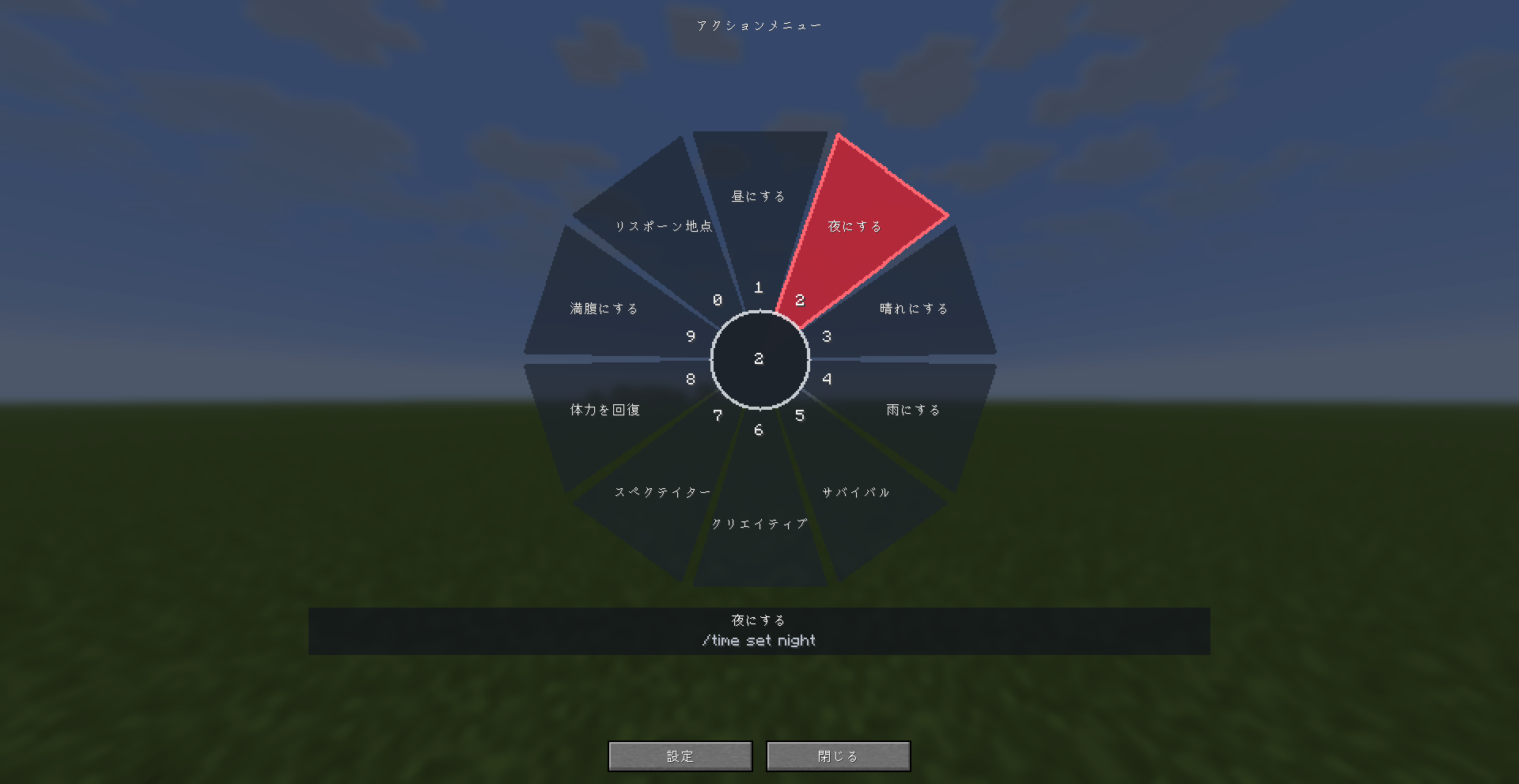
Action Menu puts your favorite Minecraft commands in a customizable radial menu. Give each action a name and a command, then use it without typing the command into chat every time.
Choose 1–20 buttons, with 10 by default. The default wheel keeps its translucent appearance and red selection highlight, while offering extensive appearance customization.
Two ways to use the menu
-
Click Mode — default: Press R to open the wheel. Left-click an action to run it, or press R again to close the menu. You can also press Enter to run the highlighted action, or use 1–9 and 0 to run the first ten visible actions.
-
Hold Mode — optional: Hold R to open the wheel, choose an action, and release R to execute it once. Scroll or use 1–9 and 0 to change the selection. Press Esc, or release with no action selected, to cancel.
Both modes use your configured menu key or mouse button. Opening settings or an editor cancels the pending Hold Mode action. After opening an editor, release the menu key to begin typing; holding it will not fill the text fields with repeated characters.
Set up your shortcuts
-
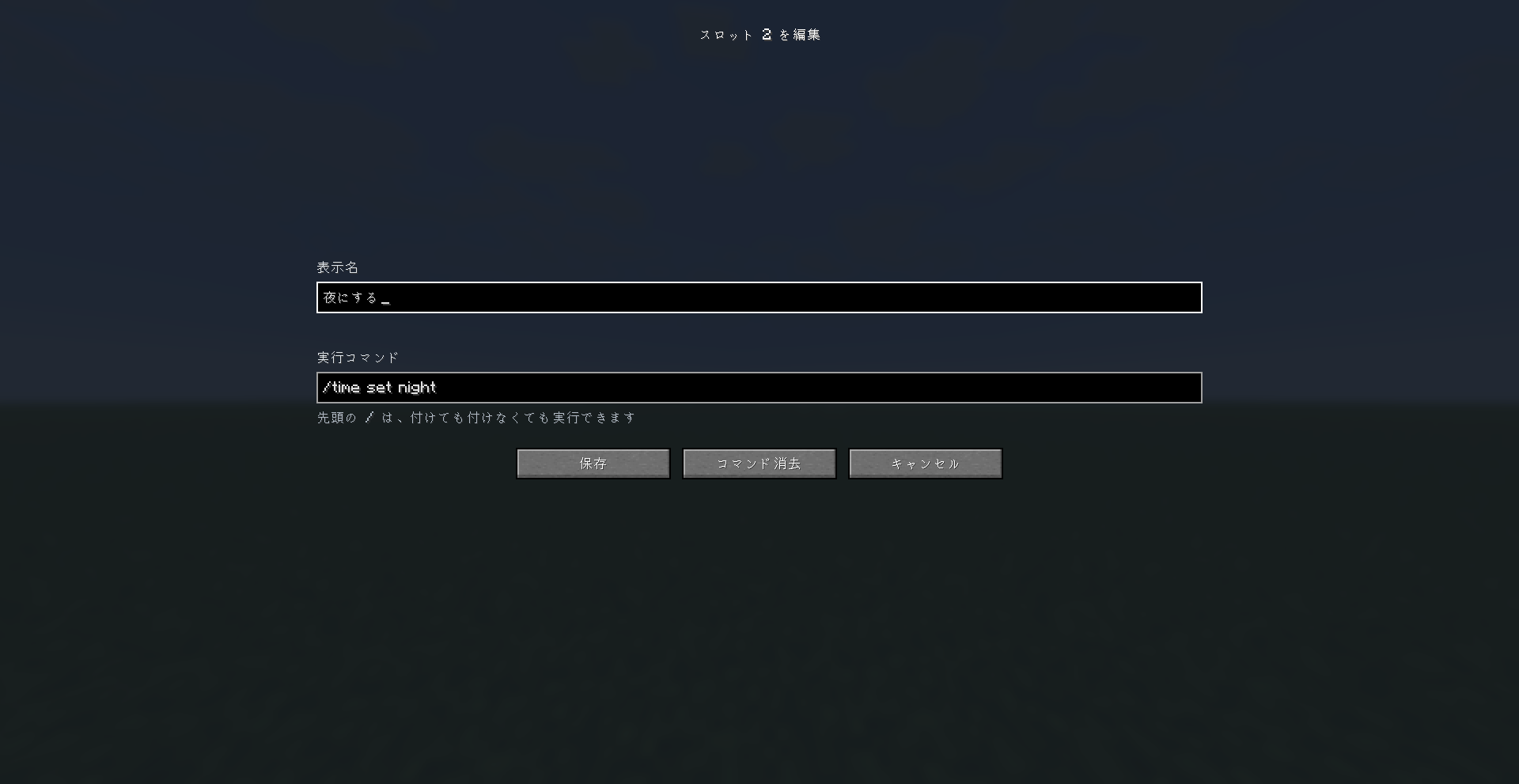
Right-click any action to edit its display name and command. The leading
/is optional. -
Scroll through actions in either direction, with wraparound. The scroll selection remains active until the pointer moves.
-
Select actions by direction, even beyond the visible edge of the wheel.
-
Open Settings → Menu Preferences to change the button count, control mode, and menu binding. Keyboard keys, the middle mouse button, and mouse side buttons are supported, with conflict feedback and Reset to R.
-
Reduce the visible button count without losing hidden names and commands. Increase it again to restore those actions, up to 20 visible buttons.
-
Use compact numbered labels for larger wheels, with the selected action’s details displayed below.
-
Use the English or Japanese interface. Settings are stored locally in
config/actionmenu.json.
Customize the appearance
Open Settings → Appearance to adjust:
-
Colors: Set a global button color, individual button colors, and an independent highlight color. All three color controls offer the same six presets and accept color codes. Individual colors can be reset to use the global color.
-
Wheel opacity: 0–100%, with 65 preserving the original translucency.
-
Wheel size: 50–150%, fitted to the available screen area.
-
Wheel text size: 50–200%, with compact labels when needed to avoid overlap.
-
Background images: Use a local PNG or JPEG, with independent 0–100% opacity.
Preview your changes without executing commands. Save applies them, Cancel discards them, and Defaults restores the original appearance as a pending change without resetting commands or controls.
Import a background by dropping a file onto the Appearance screen or entering its path and selecting Import image. Reuse previous imports through Background → Saved images: browse the previews, select Use this image, then Save. Selecting an existing image does not create another copy.
Images keep their aspect ratio. Imports are limited to 16 MiB, 16,384 pixels per edge, and 64 megapixels in total, and are resized to a maximum edge of 2,048 pixels. Imported copies are stored in config/actionmenu-backgrounds without the original image metadata or filename. Images are processed locally and are not uploaded. Removing a background from the menu does not delete the imported file.
Installation
Install the JAR in your client’s mods folder with Fabric API.
-
Minecraft Java Edition 26.2
-
Fabric Loader 0.19.3 or newer
-
Fabric API 0.158.0+26.2 or newer for Minecraft 26.2
-
Java 25 or newer
No server installation is required. Commands follow the normal permissions of your world or server.
Upgrading from 1.1.0 preserves saved names, commands, and the menu binding. Existing Tab bindings remain unchanged; new installations use R. Click Mode remains the default.
Action Menu Team
