Kaidaz18's World Logger
- By
RECOMENDED FOR SERVER OWNERS! This addon Logs player actions, items, and anything the player interacts with for server owners to see! This is kind of the same addon as the Ledger mod for Java but this one is for Bedrock Edition!
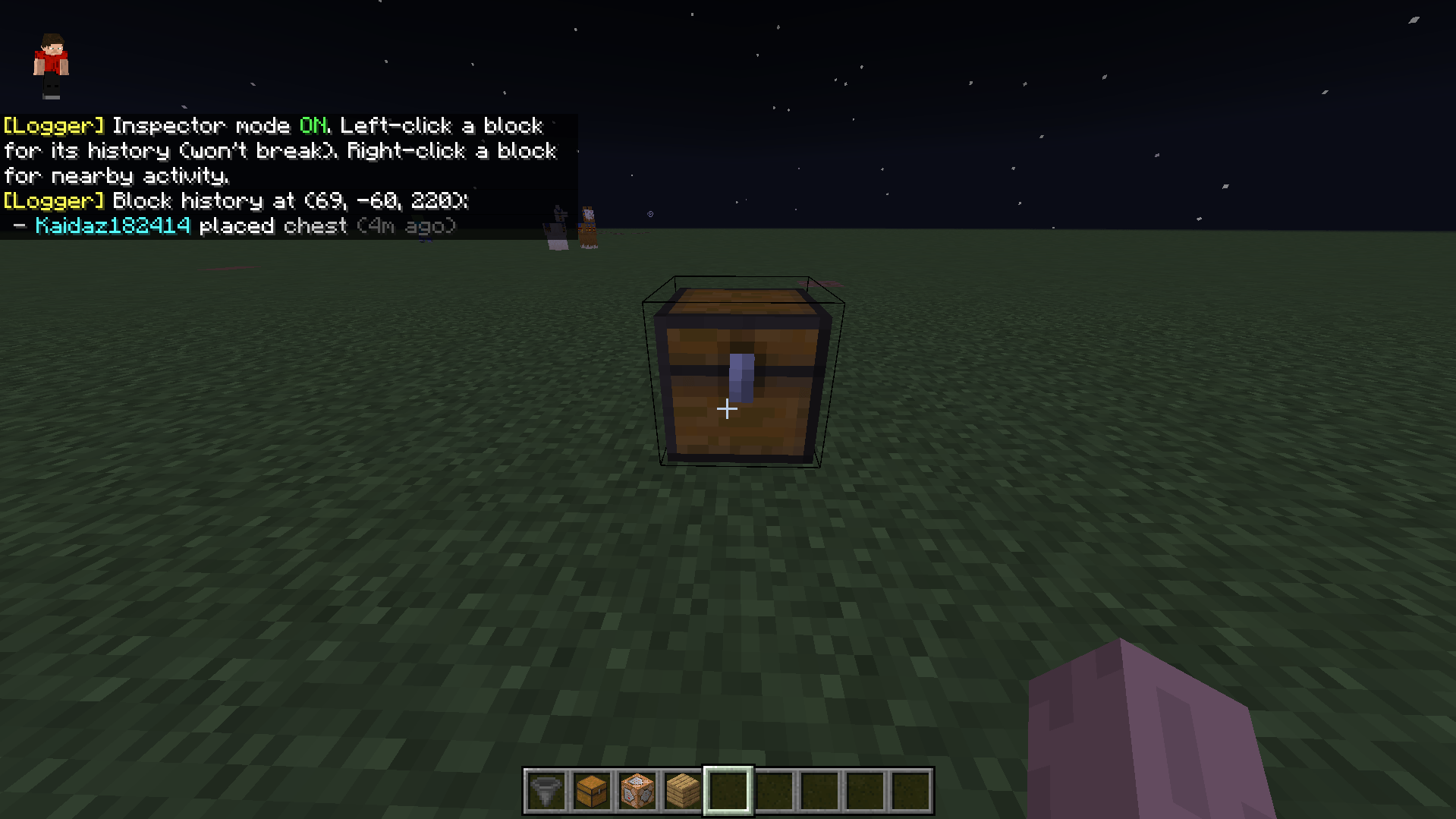
Inspect Blocks which have been interacted with
Description
Kaidaz18's World Logger
A comprehensive server activity logger for Minecraft: Bedrock Edition. World Logger silently tracks what happens on your server: block breaks and placements, container deposits and withdrawals, item drops and pickups, chat, entity kills, player deaths, joins/leaves, explosions, and fire spread, and gives you powerful in-game tools to search through that history whenever you need it. On top of the log, it also includes an area rollback system so you can snapshot builds and restore them if something goes wrong.
If you've used Ledger on Java Edition, this will feel immediately familiar: World Logger is essentially the Bedrock equivalent of the Ledger mod, built from the ground up for Bedrock's scripting API since Ledger itself isn't available on this platform. Same core idea, a searchable action log for catching griefers, rolling back damage, and settling "who broke my stuff" disputes, just built for Bedrock servers and worlds.
Made by Kaidaz18.
Issues? Email me here: kaidaz18yt@gmail.com
Website: kaidaz18yt.github.io
YouTube Channel: https://www.youtube.com/@Kaidaz18
Features
- Full activity logging: blocks, containers, items, chat, entities, players, explosions, and fire
- Powerful search command with filters for action type, dimension, item/block, source, range, and time window
- Dedicated chat search for finding messages by keyword or player
- Inspector Mode: left-click a block to see its history, right-click for nearby activity. No commands needed
- Graphical UI menu for browsing players and items without typing search syntax
- Area Rollback system: mark a region, save snapshots of it over time, and restore it (or undo a restore) with a single command
- Configurable settings: toggle debug mode, set your timezone so timestamps match your local time
- Efficient storage: chunked dynamic-property storage that automatically trims itself to stay performant on long-running worlds
Installation
- Download the .mcpack file.
- Open it with Minecraft Bedrock installed and it will import both packs automatically.
- In your world settings, enable the Behavior Pack for Kaidaz18's World Logger.
- Make sure the world has cheats/permissions enabled for whoever runs the commands, they require Game Directors permission level.
Using the Graphical UI
Prefer menus over typing search syntax? Run /logger:ui to open the main menu:
- Players: browse known players and view their recent activity at a glance
- Items: search for placement, break, or pickup history of a specific item/block
- Rollback: create areas from your selection, save/restore snapshots, and manage auto-save intervals without typing commands
- Settings: see log size and known player count, toggle Inspector Mode, toggle Debug Mode, set your timezone, or wipe the log
Settings Menu
- Inspector Mode toggle: same as
/logger:inspect - Debug Mode toggle: off by default; turn it on if you want live chat feedback while containers are being watched (useful when troubleshooting, noisy for normal play)
- Set Timezone: type your UTC offset as a whole or half number (e.g.
+10,-5,+5.5) so every logged timestamp displays in your local time instead of UTC - Clear All Logs: wipes everything with a confirmation prompt
Inspector Mode
Toggle it with /logger:inspect or /logger:i. While active:
- Left-click a block to see its logged history without breaking it
- Right-click a block to see recent activity in a radius around it
- Containers won't open while Inspector Mode is active, so remember to toggle it off afterward
Notes
- Container tracking (deposits/withdrawals) only covers chests, trapped chests, barrels, shulker boxes, and furnaces/blast furnaces/smokers, containers you actually open and interact with. Hoppers, dispensers, and droppers are intentionally not tracked, since they move items automatically and there's no reliable way to attribute that movement to a player.
- Storage is capped and self trimming, so extremely long running worlds won't run into performance issues from an ever growing log, but it's still a good habit to clear old logs via
/logger:ui→ Settings once you no longer need them. - All commands require Game Directors permission level by default.
Command Reference
All commands use the logger: namespace.
| Command | Description |
|---|---|
/logger:help |
Shows the full in-game command list |
/logger:search "<params>" |
Search the action log (see Search Syntax below) |
/logger:chatsearch "<keyword or player>" |
Search chat history |
/logger:inspect (or /logger:i) |
Toggle Inspector Mode |
/logger:ui |
Open the graphical menu |
/logger:stats |
Show how many actions are currently logged |
/logger:clear confirm |
Permanently wipes the entire log |
Rollback Commands
| Command | Description |
|---|---|
/logger:rollbackpos1 [fullHeight] |
Set the first corner of your selection at your position. Set fullHeight to true to save from bedrock/world bottom up to build height instead of just your Y level |
/logger:rollbackpos2 [fullHeight] |
Set the second corner, same options as pos1 |
/logger:rollbacksave <name> |
Create a new rollback area from your pos1/pos2 selection, or save a fresh snapshot of an area that already exists |
/logger:rollbackdo <name> <time> [radius] |
Roll an area back to the snapshot closest to <time> ago (e.g. 1h, 30m) |
/logger:rollbackrevert <name> |
Undo the last rollback applied to that area |
/logger:rollbackinterval <name> <day> <hour> <minute> |
Set an auto-snapshot interval for an area, or disable it by passing all zeros |
/logger:rollbackdelete <name> |
Delete an area's most recent snapshot |
/logger:rollbackdeletearea <name> |
Delete a rollback area entirely, including all its snapshots |
/logger:rollbacklist |
List all rollback areas |
⚠️Selections are capped at 64x384x64 blocks (an engine limit on structure size). If your pos1/pos2 exceed that, the saved area is automatically clamped down to fit. Using fullHeight on a wide selection can cover a huge number of blocks, and the addon will warn you if it does, since saving or restoring that much at once can noticeably lag the server. Keep full height selections narrow on X/Z. ⚠️
Search Syntax (Search Parameters)
/logger:search takes a single quoted string of key:value parameters, space separated:
| Parameter | Example | Notes |
|---|---|---|
action: |
action:container-deposit |
Filter by action type (see list below) |
world: / dimension: |
world:overworld |
Filter by dimension |
object: / item: / block: |
item:diamond |
item:/block: auto-prefix minecraft: for you |
source: |
source:Kaidaz182414 |
Filter by the player who did it |
range: |
range:20 |
Only results within N blocks of you |
before: / after: |
before:1h |
Relative time filters, supports s, m, h, d, w |
page: |
page:2 |
Paginate through results (8 per page) |
Prefix any value with ! or - to exclude it instead of matching it, and you can repeat a key to match multiple values.
Available actions: block-break, block-place, block-interact, container-deposit, container-withdraw, item-drop, item-pickup, entity-kill, player-death, player-join, player-leave, explosion, fire-spread
Example:
/logger:search "action:container-deposit item:command_block"
/logger:search "action:block-break source:Griefer123 after:2h range:30"
Using the Graphical UI
Prefer menus over typing search syntax? Run /logger:ui to open the main menu:
- Players — browse known players and view their recent activity at a glance
- Items — search for placement, break, or pickup history of a specific item/block
- Rollback — create areas from your selection, save/restore snapshots, and manage auto-save intervals without typing commands
- Settings — see log size and known player count, toggle Inspector Mode, toggle Debug Mode, set your timezone, or wipe the log
Why does it say team? I am by myself 😭
The Kaidaz18's World Logger Team