Animated Nametags
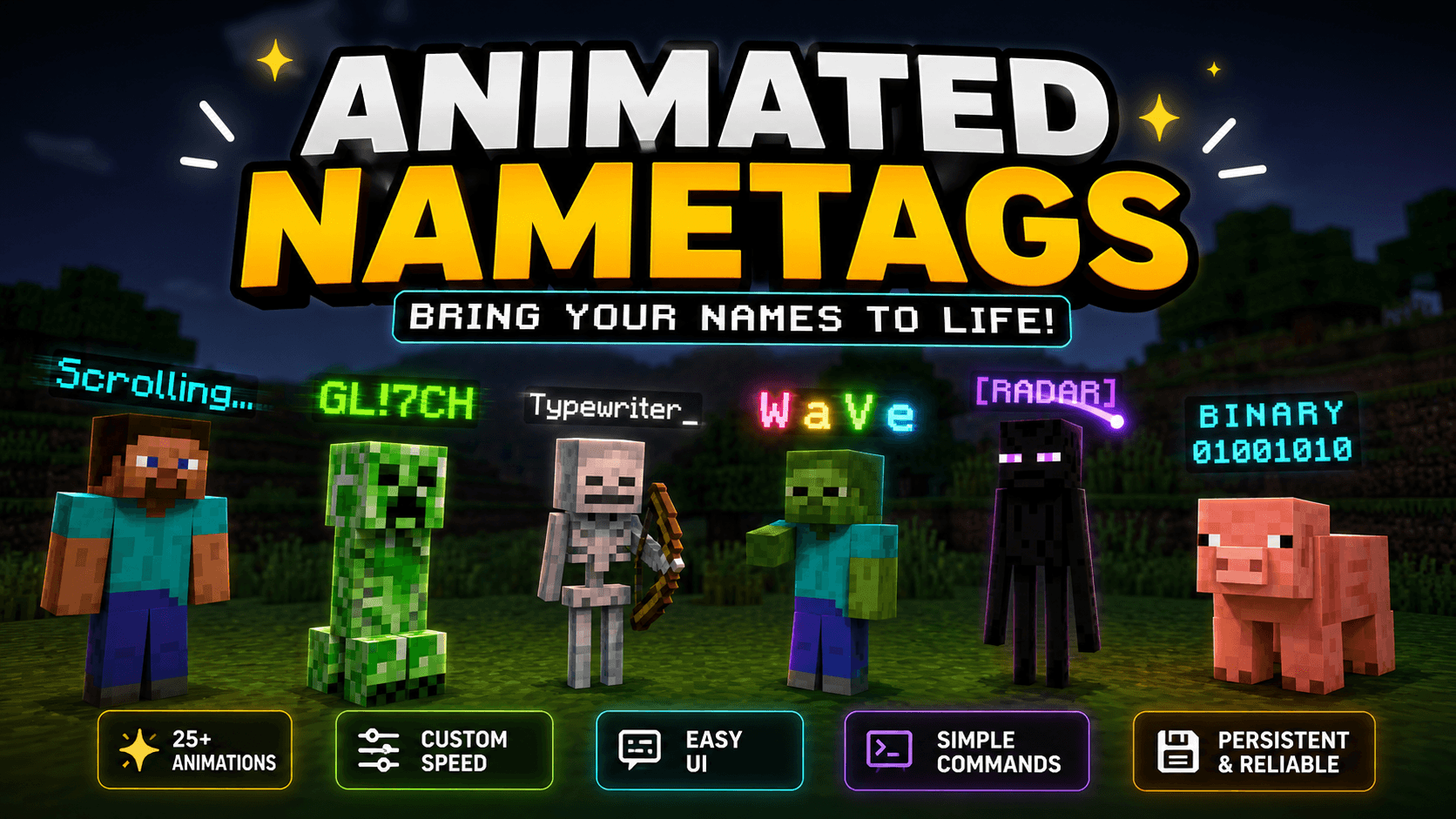
Give any entity a living, breathing nametag
Tired of boring static nametags? This addon lets you slap 100+ animations onto any entity or player, from smooth rainbow color flows and fire effects, to glitch, typewriter, galaxy sweeps, and way more. Everything is configured in-game through a clean UI — no JSON editing, no resource packs, no hassle. Whether you're building an RPG server, a minigame world, or just want your mob farm to have some personality, this one's for you.
Feature List
- 100+ built-in animations across three categories — text movement, color effects, and hybrid (movement + color simultaneously)
- Works on any entity — players, mobs, armor stands, anything with a nametag
- In-game configuration UI — name, animation, and speed all adjustable without leaving the game
- Custom commands /an:set_animation and /an:remove_animation with entity selector support
- Animations persist across relogs, server restarts, and chunk reloads via dynamic properties
- Speed control per entity — each animation can run at its own pace
- Multi-entity support — target multiple entities at once with a single selector
- Command block compatible — fully automatable via block commands
- No resource pack required — pure behavior pack, works on any world
- Uses only stable Bedrock Script API — no experimental toggles needed (beyond scripting)
How to Use — Animated Nametags
There are three ways to set animations: the nametag item (easiest), commands (flexible), and command blocks (automation). All three are covered below.
Method 1 — Nametag Item (In-Game UI)
This is the easiest method. No commands needed.
Step 1 — Get a name tag
Craft or obtain a regular Minecraft name tag item.
Step 2 — Rename it to $an
Open an anvil, place the name tag in, and rename it exactly to:
$an
This is the special trigger name the addon listens for.
Step 3 — Use it on any entity
Hold the $an name tag and right-click / interact with any mob or entity (not a player).
A configuration screen will open with three options:
| Field |
What it does |
| Name |
The text that will be animated on the entity's nametag |
| Name Effect |
A dropdown of all 100+ animations to choose from |
| Effect Speed |
A slider controlling how fast the animation runs (in ticks per frame) |
Fill in your choices and confirm — the animation starts immediately.
Step 4 — Remove an animation
Hold the $an name tag, sneak (crouch) + right-click the entity.
The animation stops and the entity's original name is restored.
Note: In Survival mode, using the name tag consumes one item, just like a regular name tag. In Creative mode it is not consumed.
Method 2 — Commands
Commands give you full control and work on any entity including players.
Permission required
You must have Game Director permission level (operator) [and cheats turned on due to a bug] to run these commands.
/an:set_animation — Set an animation
Full syntax:
/an:set_animation [entity] [nametag] [animation] [speed]
All parameters are optional depending on how you run it.
Run with no arguments (opens UI for yourself):
/an:set_animation
Opens the same configuration screen as the nametag item, targeting yourself.
Open UI targeting specific entities:
/an:set_animation @e[type=cow]
Opens the UI and applies whatever you choose to all matched cows.
Set a full animation directly (no UI):
/an:set_animation @e[type=cow] "Bessie" RainbowRoll 5
| Argument |
Example |
Notes |
entity |
@e[type=cow] |
Any valid entity selector |
nametag |
"Bessie" |
The display name — use quotes if it has spaces |
animation |
RainbowRoll |
Must match an animation name exactly (case-sensitive) |
speed |
5 |
Ticks per frame — lower = faster. Recommended range: 1–20 |
More examples:
/an:set_animation @a "Steve" FireTypewriter 3
Sets the FireTypewriter animation at speed 3 on all players.
/an:set_animation @e[name=Boss] "BOSS" GalaxyShift 8
Sets GalaxyShift on the entity named "Boss".
/an:set_animation @s "" PrestigeGlow 4
Sets PrestigeGlow on yourself with no custom name (uses your current name).
/an:remove_animation — Remove an animation
Full syntax:
/an:remove_animation [entity]
Remove from yourself:
/an:remove_animation
Remove from specific entities:
/an:remove_animation @e[type=cow]
/an:remove_animation @a
/an:remove_animation @e[name=Boss]
The entity's animation stops and their original name is restored.
Method 3 — Command Blocks
Command blocks let you automate animations without a player running commands manually. Useful for adventure maps, spawn areas, event triggers, and more.
Important rules for command blocks
When a command runs from a command block (not a player), all arguments must be provided explicitly — the UI cannot open from a command block. The format is:
an:set_animation <entity> <nametag> <animation> <speed>
Do not include the / prefix inside a command block — just start with an:set_animation.
Examples
Animate a specific nearby mob:
an:set_animation @e[type=zombie,r=5] "ZOMBIE" GlitchText 4
Animate all players entering a zone:
an:set_animation @a[r=10] "" RainbowRoll 5
(Empty string for nametag uses each player's existing name.)
Remove animation when a player leaves a zone:
an:remove_animation @a[r=10]
Set a boss animation on world load (use a one-time pulse command block):
an:set_animation @e[type=wither,r=50] "THE WITHER" GrimReaper 6
Recommended command block setup for a spawn area
Use a Repeat + Always Active command block for continuous effect, or an Impulse block triggered by a pressure plate or button for on-demand use.
Type:    Repeat
Mode:    Always Active
Command: an:set_animation @e[type=armor_stand,name=Spawn_Display] "Welcome!" PrestigeGlow 5
This keeps the animation running even if the chunk reloads, since the addon also auto-restores saved animations on entity load.
Speed Reference
| Speed value |
Ticks per frame |
Approximate real time |
1 |
1 tick |
0.05 seconds (very fast) |
3 |
3 ticks |
0.15 seconds (fast) |
5 |
5 ticks |
0.25 seconds (default, smooth) |
10 |
10 ticks |
0.5 seconds (slow) |
20 |
20 ticks |
1 second (very slow) |
Most animations look best between 3 and 8. Very fast speeds (1–2) work well for glitch and flicker effects. Very slow speeds (15+) work well for subtle color pulses.
Tips
- Animations persist — they survive chunk unloads, world restarts, and player relogs. You only need to set them once.
- You can target multiple entities at once using selectors like
@e[type=cow] or @a.
- The nametag item method is the most convenient for one-off customization in survival or creative mode.
- Command blocks are the best choice for permanent map features that need to work without a player being present.
- If an entity has no custom name set, the animation will use the entity's current nametag or fall back to a space — always provide a name for best results.