TC Xray
- By
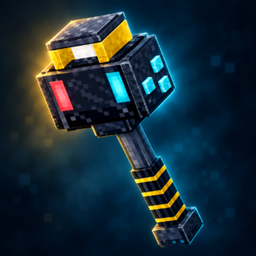
A powerful and highly customizable X-Ray add-on featuring pulsing block highlights, granular ore filtering, and multiple activation modes.
MCPEDL1
Screenshot 2026-08-07 234700.png
Screenshot 2026-08-08 002159.png
Description
TC X-Ray
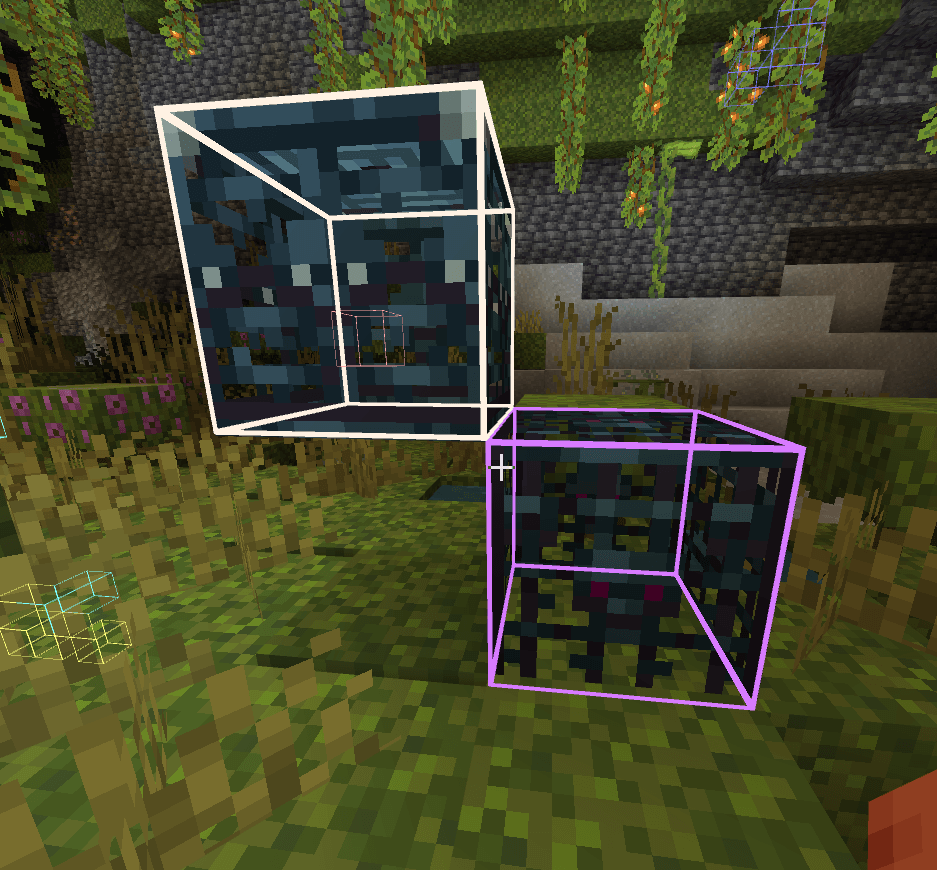
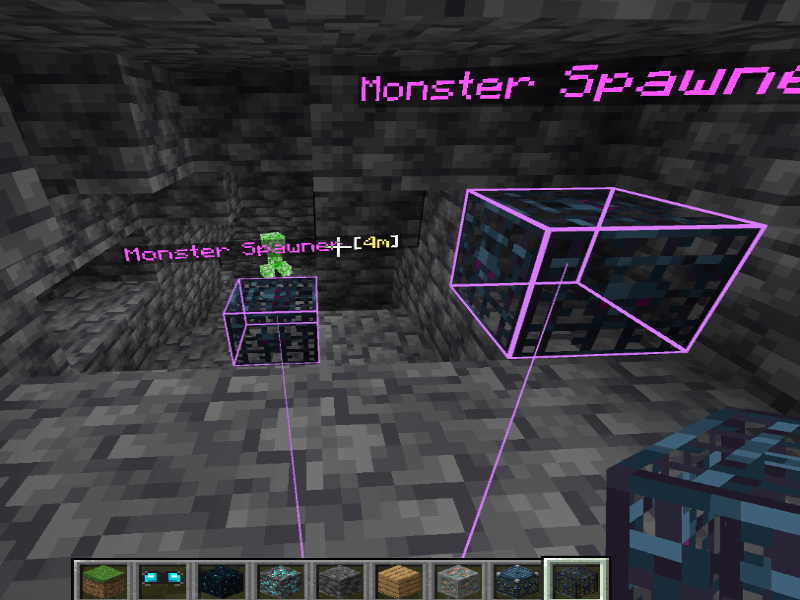
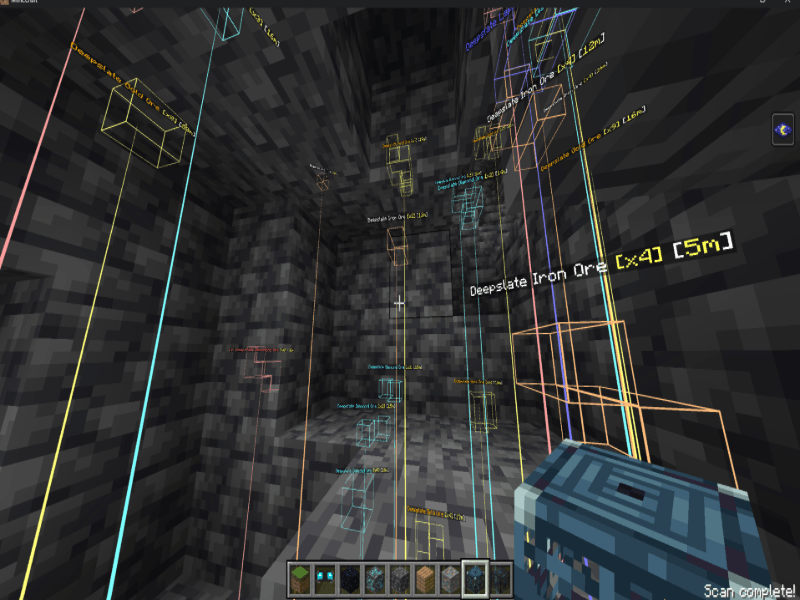
TC X-Ray is an advanced survival-friendly X-Ray vision radar addon for Minecraft Bedrock Edition. It reveals concealed ores, hidden dungeons, monster spawners, trial chambers, and buried treasure vaults through solid terrain using customizable 3D highlight wireframes, directional laser beams, and distance holograms.
Video Showcase and Preview
Watch the showcase video:
Crafting Recipes and Items
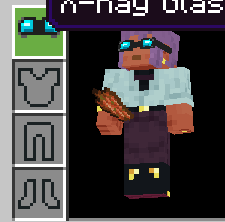
1. Basic X-Ray Glasses
A lightweight early-game visor that highlights a single connected ore vein cluster through walls.
Crafting Grid (3x3):
| Top Left | Top Center | Top Right |
|---|---|---|
| Copper Ingot | (Empty) | Copper Ingot |
| Amethyst Shard | Copper Ingot | Amethyst Shard |
| (Empty) | (Empty) | (Empty) |
How to Use:
- Right-click (or tap interact on mobile) while holding the item to equip it onto your head.
- While equipped on your head, press [Sneak + Jump] to open the Ore Sacrifice Menu.
- Sacrifice 1 target ore to reveal and highlight that nearest ore vein cluster for 5 minutes.
2. Ore Compass
An intelligent directional locator projecting a 3D laser guide beam through solid blocks directly to hidden ores.
Crafting Grid (3x3):
| Top Left | Top Center | Top Right |
|---|---|---|
| (Empty) | Copper Ingot | (Empty) |
| Amethyst Shard | Compass | Amethyst Shard |
| (Empty) | Copper Ingot | (Empty) |
How to Use:
- Right-click (or tap interact on mobile) while holding the Ore Compass to open its tracking dashboard.
- Sacrifice 1 target ore to begin a 5-minute tracking session.
- A luminous laser beam connects from the hidden ore directly to your feet, staying active even while you mine with your pickaxe.
- Synchronized Targeting: When using both the Ore Compass and Basic Glasses on the same ore type, both tools automatically synchronize and guide you to the exact same vein.
3. Endgame X-Ray Glasses
The ultimate mining headset with full 360-degree multi-ore radar, customizable filters, and anti-lag culling.
Crafting Grid (3x3):
| Top Left | Top Center | Top Right |
|---|---|---|
| Diamond | Echo Shard | Diamond |
| (Empty) | Basic X-Ray Glasses | (Empty) |
| (Empty) | Nether Star | (Empty) |
How to Use:
- Right-click (or tap interact on mobile) while holding the item to equip it onto your head.
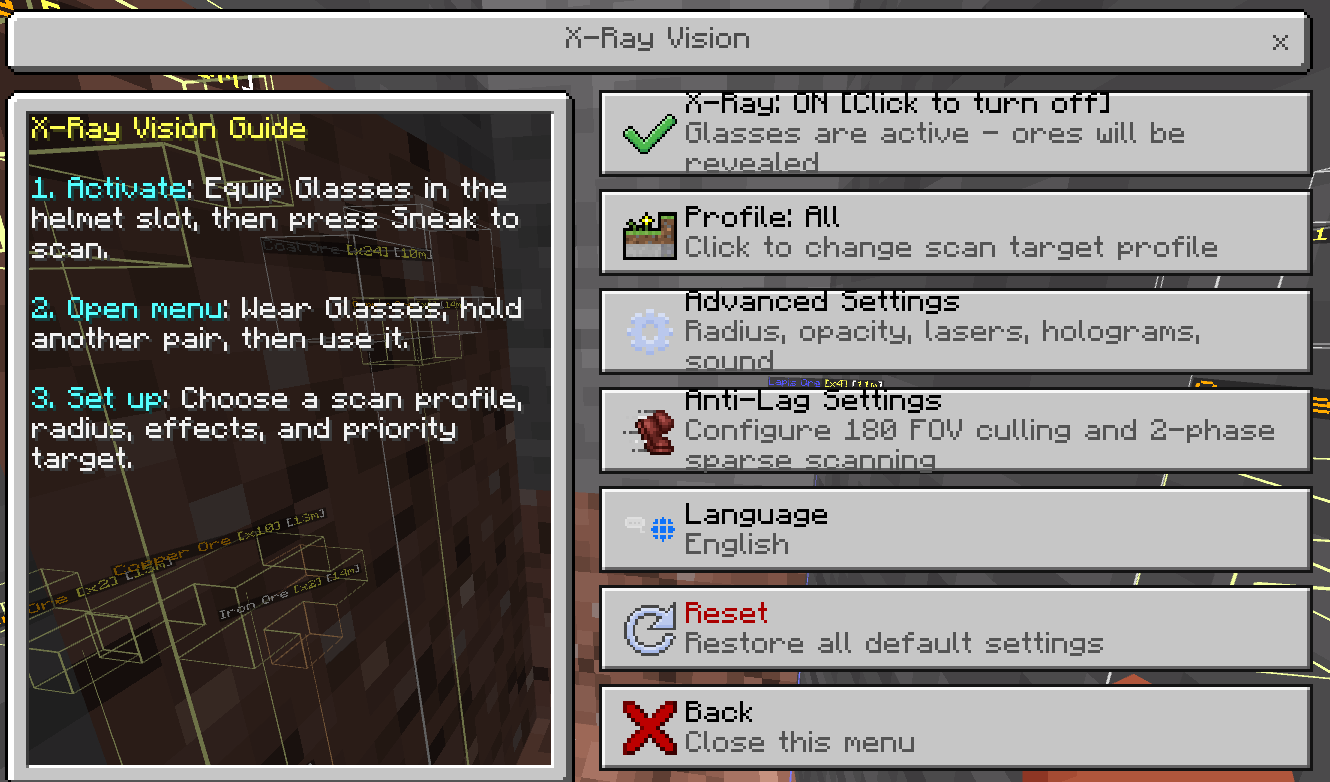
- While equipped on your head, press [Sneak + Jump] to open the full X-Ray Configuration Dashboard.
- Toggle X-Ray vision ON or OFF directly via the main menu toggle button.
4. Mob Tracker
An advanced bio-locator instrument projecting a real-time 3D laser guide beam directly through terrain to any designated mob.
Crafting Grid (3x3):
| Top Left | Top Center | Top Right |
|---|---|---|
| (Empty) | Ender Eye | (Empty) |
| Diamond | Compass | Diamond |
| (Empty) | Gold Ingot | (Empty) |
How to Use:
- Right-click (or tap interact on mobile) while holding the Mob Tracker to open the search modal.
- Enter any mob name/ID in the text box or choose quickly from over 75 categorized Minecraft mobs.
- Consumes 1 Diamond only when a matching mob is successfully located in your render distance (1024 blocks). If no matching mob is found, your Diamond is preserved.
- Projects a real-time laser beam tracking the mob's exact location through solid blocks for 10 minutes.
- Auto-Retargeting: When the targeted mob is eliminated or despawns, the tracker automatically locks onto the next nearest mob of the same type.
- Hand-Free Navigation: Keeps tracking actively even when switching items to weapons or tools.
How to Access the Menu and Controls
You can open the configuration dashboard and choose your scanning profiles in two different ways:
Method 1: Using In-Game Items (No Chat Required)
- Basic Glasses: Equip on head, then press [Sneak + Jump].
- Ore Compass: Right-click / interact while holding the item.
- Endgame Glasses: Equip on head, then press [Sneak + Jump].
- Mob Tracker: Right-click / interact while holding the item.
Method 2: Using Commands
Type the custom command in chat:
- /tc:xray: Opens the main settings dashboard.
- /tc:xray toggle: Quickly toggles the radar ON or OFF without opening the menu.
- /tc:xray unequip: Instantly unequips the glasses and returns them to your inventory.
- /tc:xray reset: Restores radar settings to default configurations.
How to Take Off or Swap Glasses
- Quick Helmet Swap: Hold any armor helmet (Netherite, Diamond, Iron, etc.) in your hand and right-click (or tap interact) to automatically equip the helmet and move the X-Ray Glasses back to your inventory.
- Take Off via Menu: Open the X-Ray Settings or Basic Glasses menu and click the [Take off Glasses] button.
- Command Shortcut: Run /tc:xray unequip to take off the glasses instantly.
Key Features
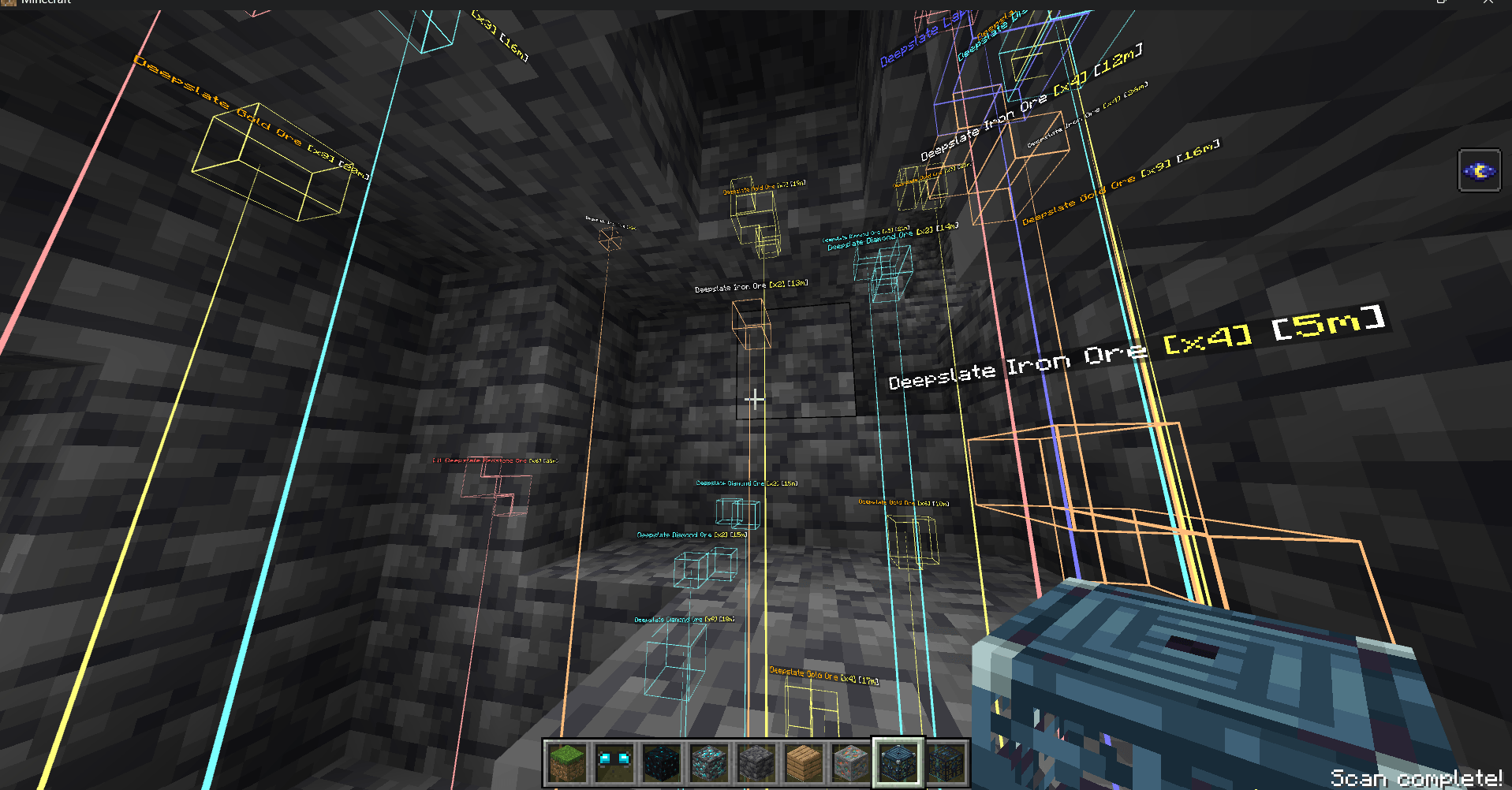
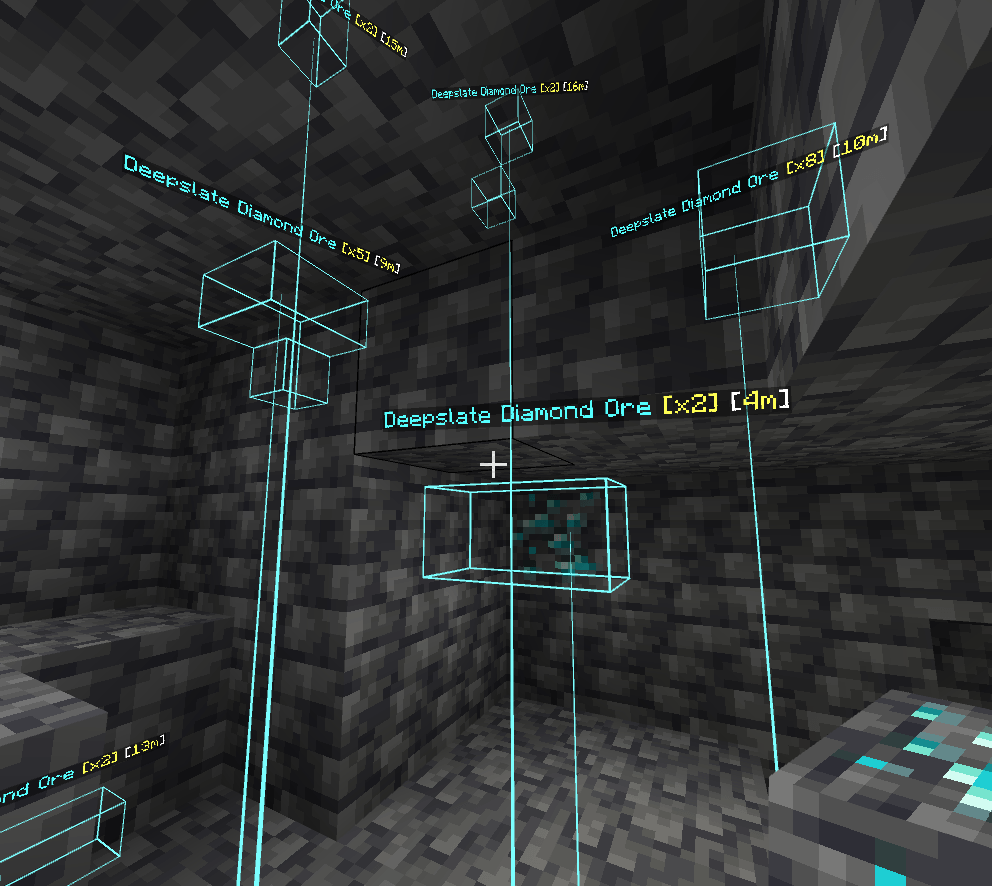
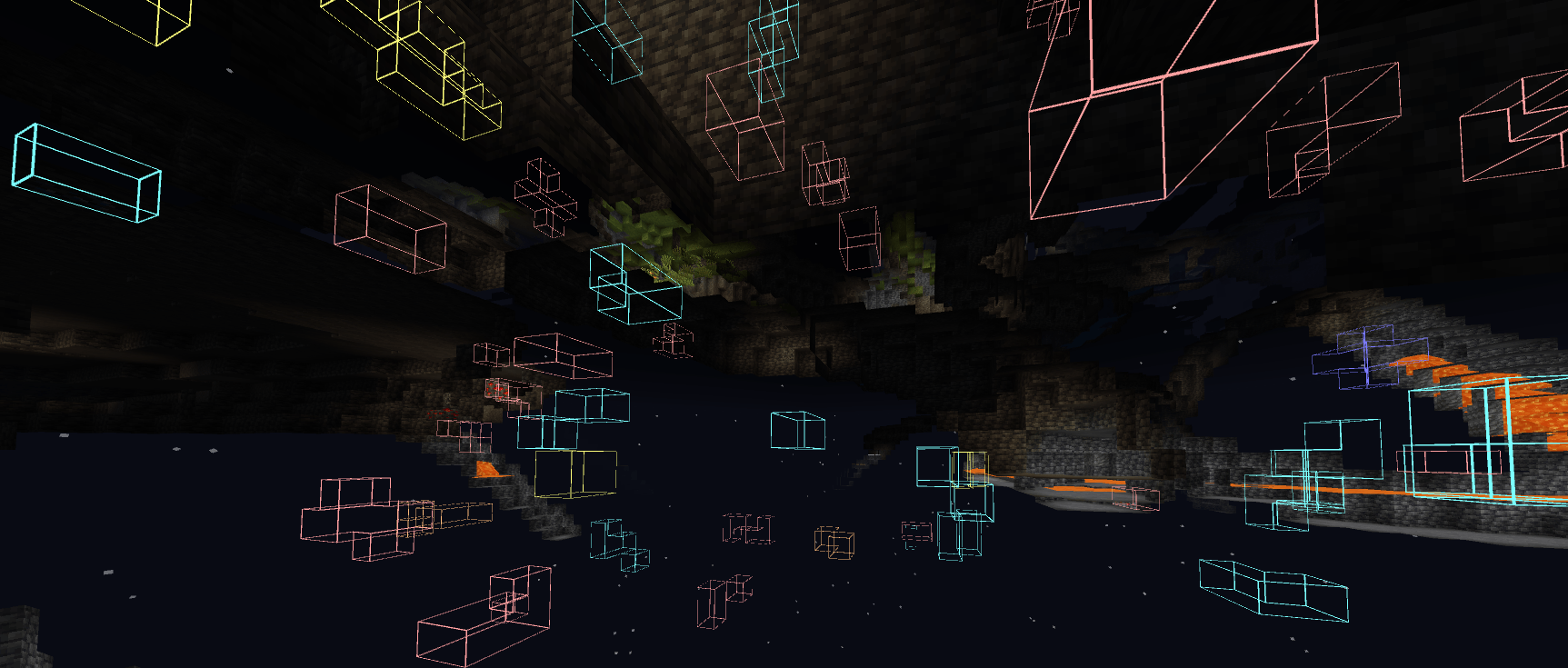
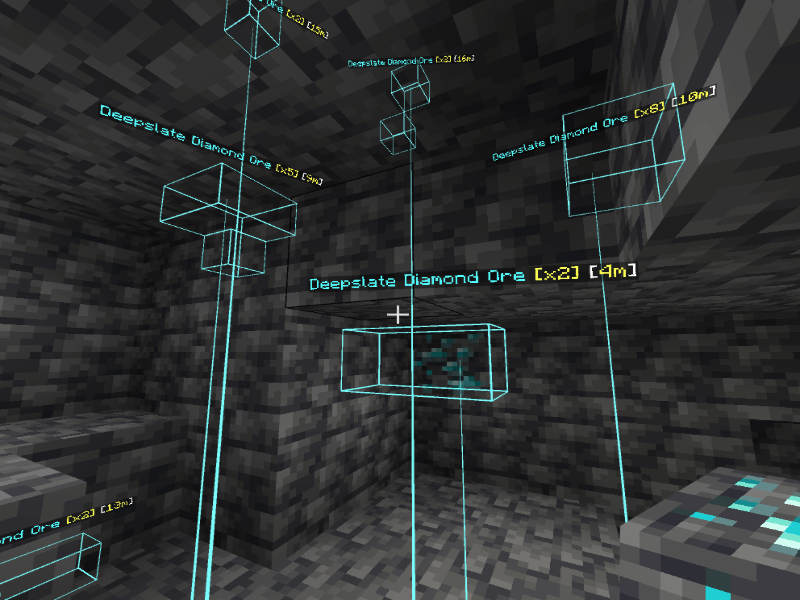
- Pulsing Highlight Outlines: Smooth glowing 3D wireframe boxes around detected blocks through walls with adjustable opacity (10% to 100%).
- 3D Laser Tracer Beams: Directional colored laser lines projecting from your line of sight directly to ore veins and loot containers.
- Floating Distance Holograms: 3D floating markers displaying target name, exact distance in meters, and vein cluster size (e.g. Diamond: 4.2m [3 blocks]).
- Search by Block Name: An in-game text search modal allowing you to filter for any specific block keyword (e.g. diamond, spawner, debris, chest, vault, gold).
- Real-Time Held Item Tracking (Hand Mode): Hold any ore or block in your hand to instantly restrict radar tracking to that specific block type.
- Anti-Lag Performance Engine: Built-in 180 FOV Culling, 2-Phase Sparse BFS scanning, and budget time-slicing to maintain a locked 20.0 TPS and smooth frame rates even at 64m radius.
In-Game Menu Navigation
The main dashboard provides access to 5 dedicated modules:
[ TC X-RAY MAIN DASHBOARD ]
 |-- 1. [Toggle Radar] -------- Turn X-Ray scanning ON / OFF
 |-- 2. [Scan Presets] -------- Select from 7 intelligent filtering modes
 |-- 3. [Display Settings] ---- Adjust Radius, Opacity, Lasers, Tags & Audio
 |-- 4. [Anti-Lag Suite] ------ Configure 180 FOV & 2-Phase BFS optimization
 \-- 5. [Reset Settings] ------ Restore all options to default values
1. Scan Profile Presets
Select your scanning profile with a single click:
- All Targets (Default): Scans all standard ores, mineral blocks, amethyst geodes, and underground structures.
- Held Item (Hand): Automatically locks radar onto whichever ore or block you hold in your main hand.
- Search by Name: Enter any search keyword (diamond, debris, spawner, chest, vault, gold) to isolate specific targets.
- Miner Mode: Targets essential Overworld mining resources (Diamond, Ancient Debris, Gold, Iron, Copper, Coal).
- Nether Mode: Focuses specifically on Ancient Debris, Nether Gold, and Nether Quartz.
- Explorer Mode: Targets Spawners, Trial Spawners, Vaults, Chests, Barrels, and End Portals.
- Custom Filter: Manually toggle individual block categories ON or OFF according to your preference.
2. Display and Visual Settings
- Scan Radius: Slider adjustment from 8 blocks up to 64 blocks.
- Outline Opacity: Transparency slider from 10% to 100%.
- Highlight Outlines: Toggle 3D wireframe boxes.
- Laser Tracer Beams: Toggle directional tracer lines.
- Distance Holograms: Toggle 3D floating text markers showing distance and vein block count.
- Sound Effects: Toggle audio feedback for radar activations and menu navigation.
3. Anti-Lag Performance Settings
- 180 Field of View (FOV) Culling:
- ON: Only renders outlines and text tags within your forward 180 view cone. Blocks behind your back are culled to maximize framerate.
- OFF: Full 360 sphere rendering around the player.
- 2-Phase Sparse BFS Scanning:
- ON: Step-2 subsampling scan with 6-direction BFS vein expansion, reducing engine queries by up to 87.5% for high framerates at maximum radius.
- OFF: Dense 1x1x1 exhaustive scan.
Block Color Classifications
Standard Ores and Minerals
| Block Name | Glow Color |
|---|---|
| Diamond Ore / Deepslate Diamond | Cyan / Light Blue |
| Ancient Debris (Netherite) | Orange-Brown |
| Gold Ore / Deepslate Gold / Nether Gold | Golden Yellow |
| Iron Ore / Deepslate Iron / Raw Iron | Rust Orange |
| Copper Ore / Deepslate Copper | Turquoise Green |
| Emerald Ore / Deepslate Emerald | Dark Green |
| Lapis Lazuli Ore | Deep Royal Blue |
| Redstone Ore / Deepslate Redstone | Bright Crimson Red |
| Coal Ore / Deepslate Coal | Dark Charcoal Gray |
| Nether Quartz Ore | Purple-White |
Structures, Geodes and Containers
| Block Name | Category | Glow Color |
|---|---|---|
| Monster Spawner | Dungeon | Purple |
| Trial Spawner | Trial Chamber | Bronze Orange |
| Ominous / Standard Vault | Trial Chamber | Steel Blue |
| Amethyst Cluster and Buds | Geode | Magenta Purple |
| Chest / Trapped Chest / Barrel | Storage | Warm Wood Brown |
| Ender Chest | Special Storage | Dark Purple |
| End Portal Frame | Stronghold | Turquoise Green |
| Beacon / Conduit | Utility Wonder | Light Aqua |
| Lodestone / Respawn Anchor | Navigation | Violet and Gold |
| Gilded Blackstone | Bastion | Deep Gold |
| Mineral Blocks (Diamond / Netherite / Gold / Iron) | Storage Block | Pure Material Tint |
Installation and Requirements
- Download the addon package file.
- Open the file to import the pack into Minecraft Bedrock Edition.
- Apply the Behavior Pack and Resource Pack to your world.
Important Notes
- No Experimental Toggles Required: This addon operates completely on official stable Bedrock Script APIs. You do not need to enable Beta APIs or any experimental switches.
- Achievement / Trophy Friendly: Cheats are not required and will remain enabled.
Support and Links
- Ko-fi: https://ko-fi.com/toancao
- YouTube: https://www.youtube.com/@toancaomc
- Discord: https://discord.gg/9rch87H9yM
- CurseForge: https://www.curseforge.com/members/toancao/projects
The TC Xray Team

Owner