Skin Changer – Player Disguises & Armor Stands
Disguise yourself as another player in your world, complete with their skin, name tag, and chat name, or display a player’s skin on an armor stand.
Description
Pick a friend who’s in your world and try on their skin. Other players see their name above your head and beside the messages you send in chat. If your friend picks you too, the two of you look like you’ve switched places. Your accounts stay the same.
Playing solo? Use your own name to put your skin on a vanilla armor stand. You can pose it, give it equipment, or display just your head.
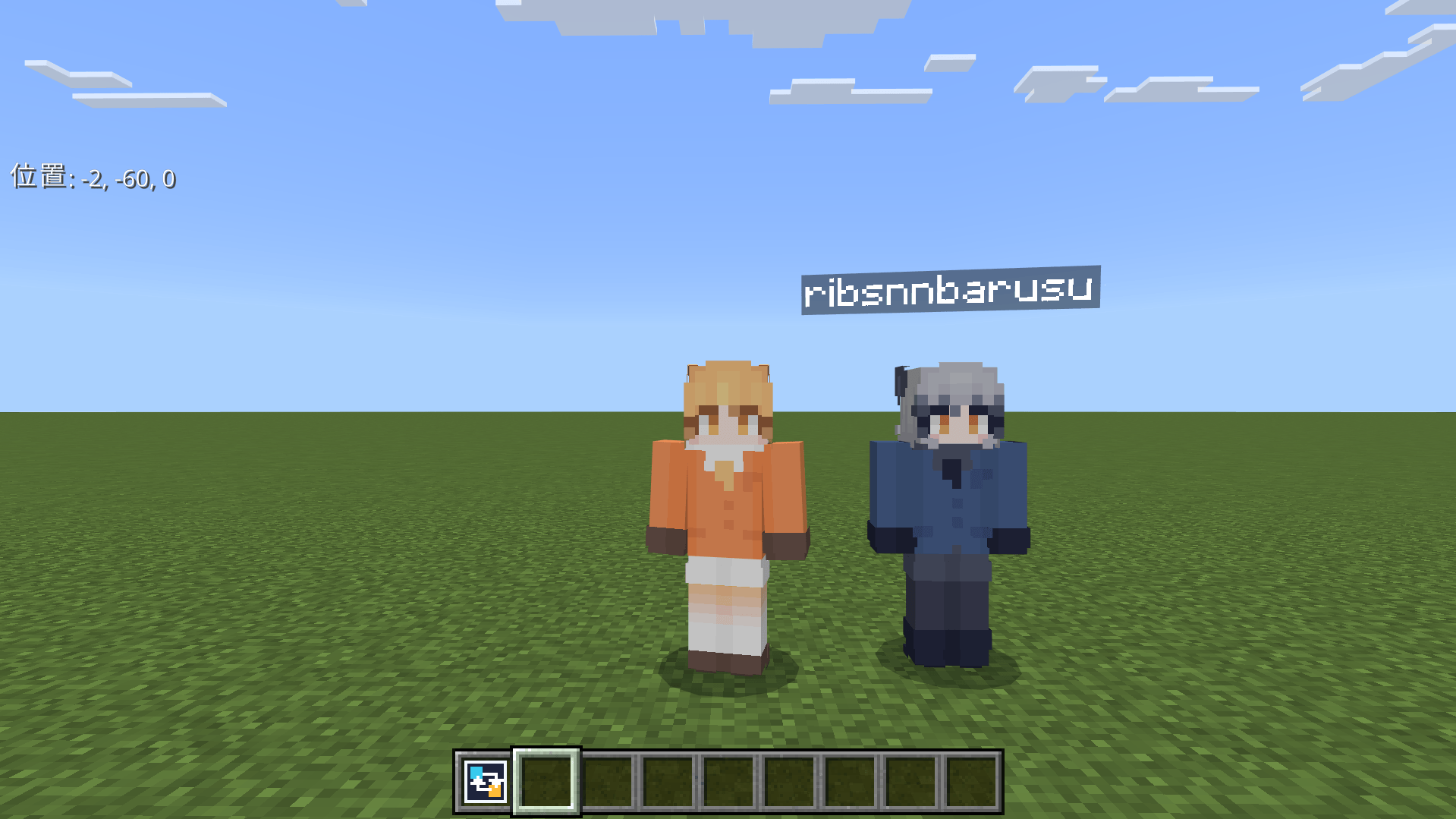 Before either player chooses a disguise.
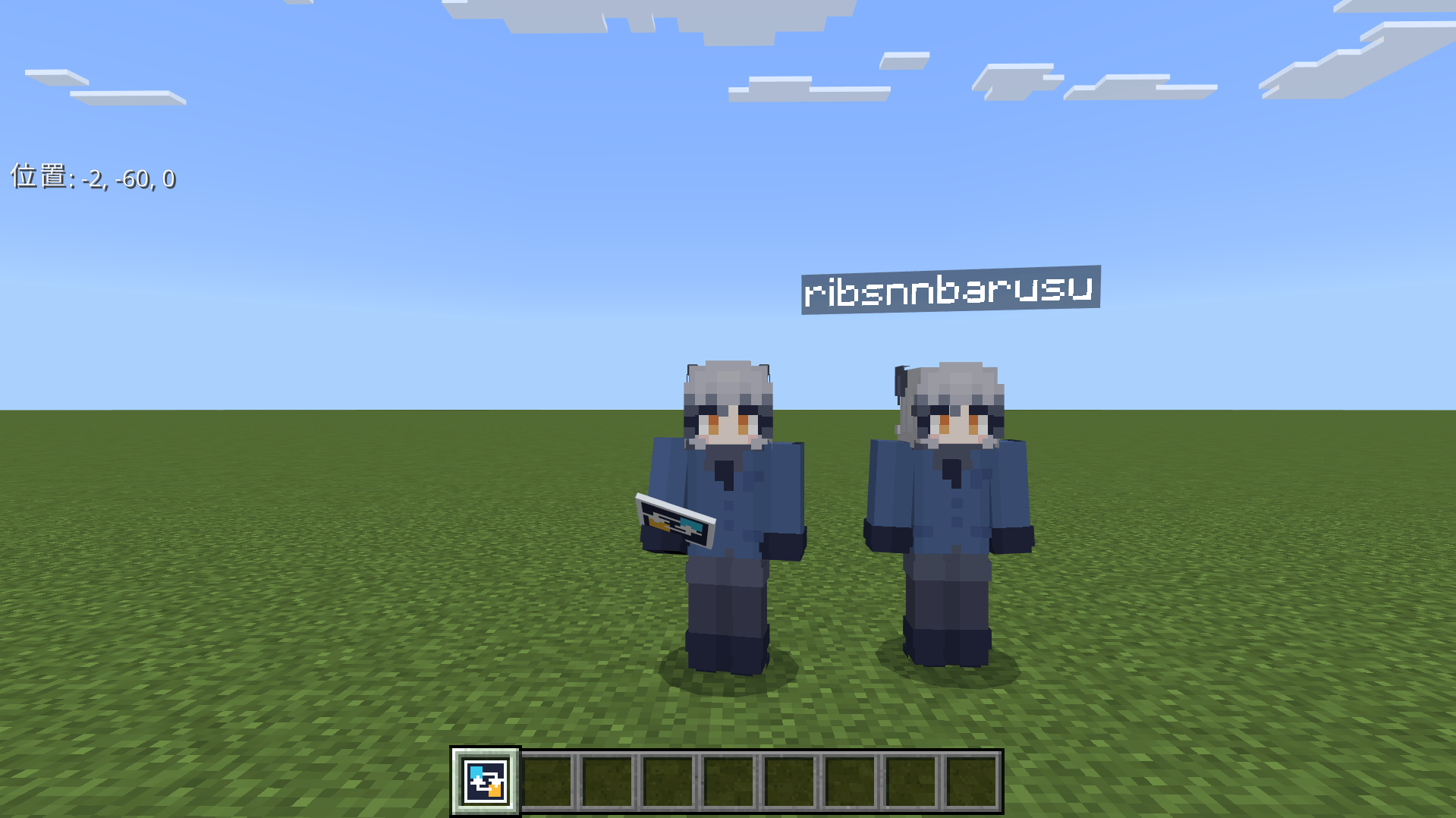 The player on the left chooses the player on the right. Now they match.
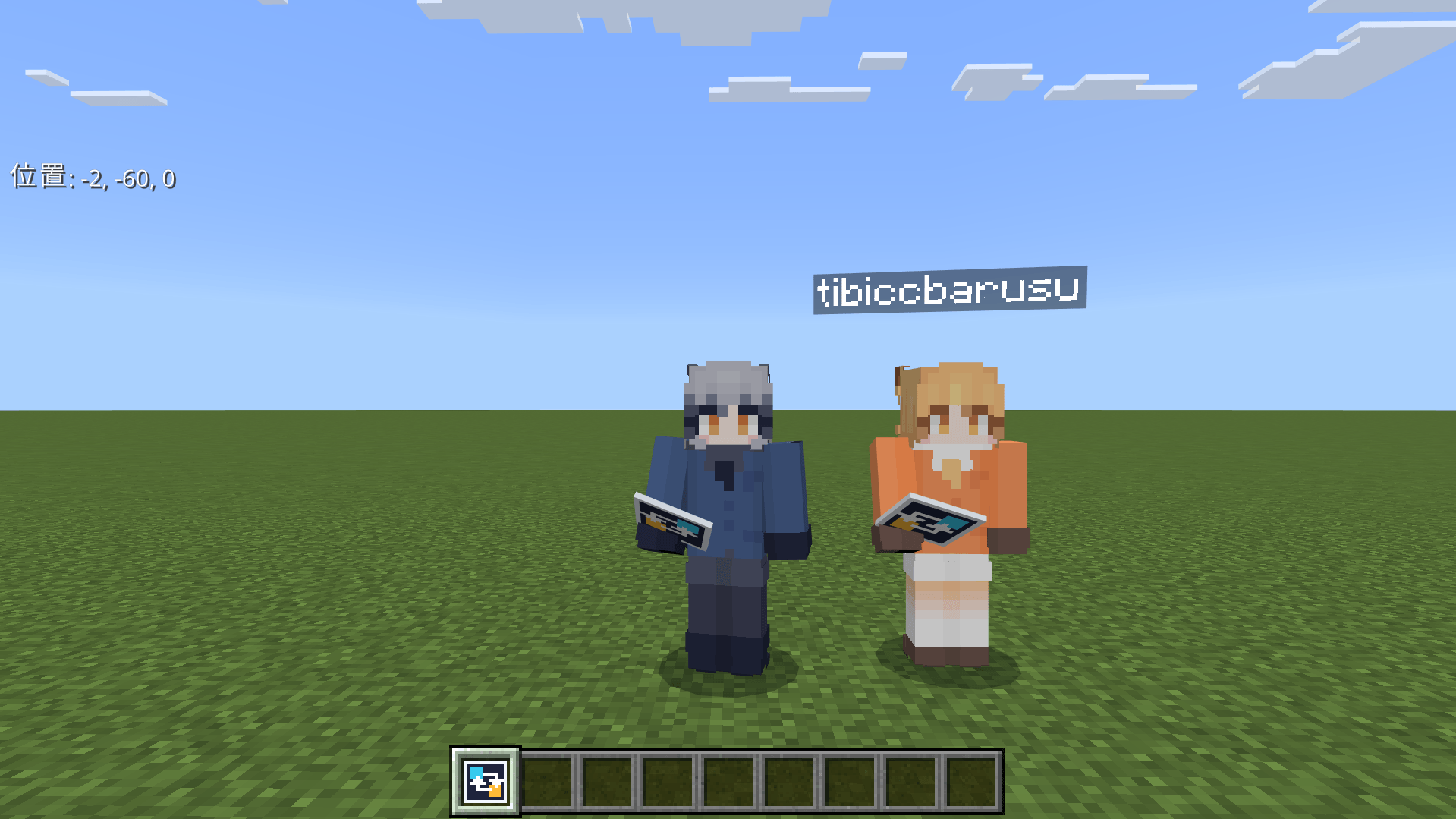 The second player chooses the first. Their appearances are now swapped.
Set up your world
- Open the
.mcaddonfile with Minecraft. Create a world or open its settings. If you’re trying the add-on in a world you want to keep, use a copy for the first test. - Enable Cheats, Immediate Respawn, and Multiplayer Game. The default respawn radius is fine. You can use the armor stand feature on your own.
- Under Multiplayer, set Player Waypoints to Off. The locator bar can otherwise give away a disguised player’s identity.
- Activate Skin Changer | Behavior and Skin Changer | Resources. Under Resource Packs, also turn on Shared Packs so joining players use the same resources.
- Under Experiments, enable Beta APIs, then enter the world. If an existing world doesn’t offer the experiment, create a new one to try the add-on.
For world hosts. By default, the pack hides death messages, command feedback, and command block output for the whole world. To see the current settings, run /skin:skin rules_status. To restore the saved settings and turn off automatic suppression, run /skin:skin rules_restore while the pack is still active.
Try your first disguise
- Pick up the Skin Changer item from the Creative inventory, or type
/skin:item @sin chat to give yourself one. - Use the item and select the name of a player in the world. Switch to third-person view to see your disguise. Your first-person hands and inventory preview still show your own skin.
- Send a message and ask your friend to check the name beside it. Your disguise stays on after you respawn. To switch back, choose Restore my skin in the item menu or type
/skin:reset @s.
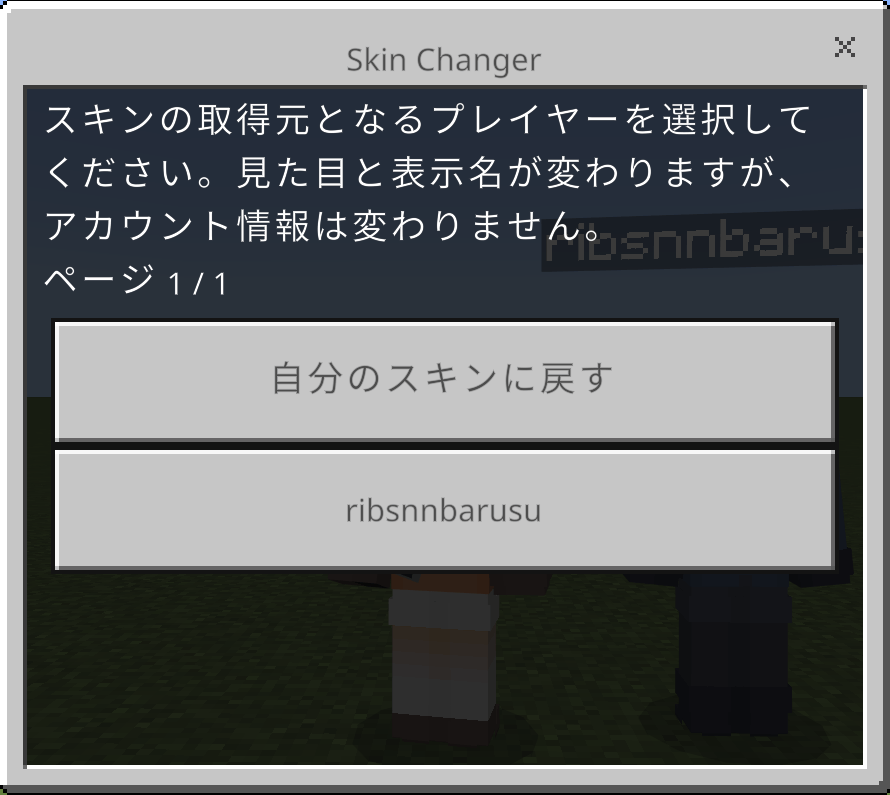 The first button restores your skin. Choose a player’s name to use their appearance.
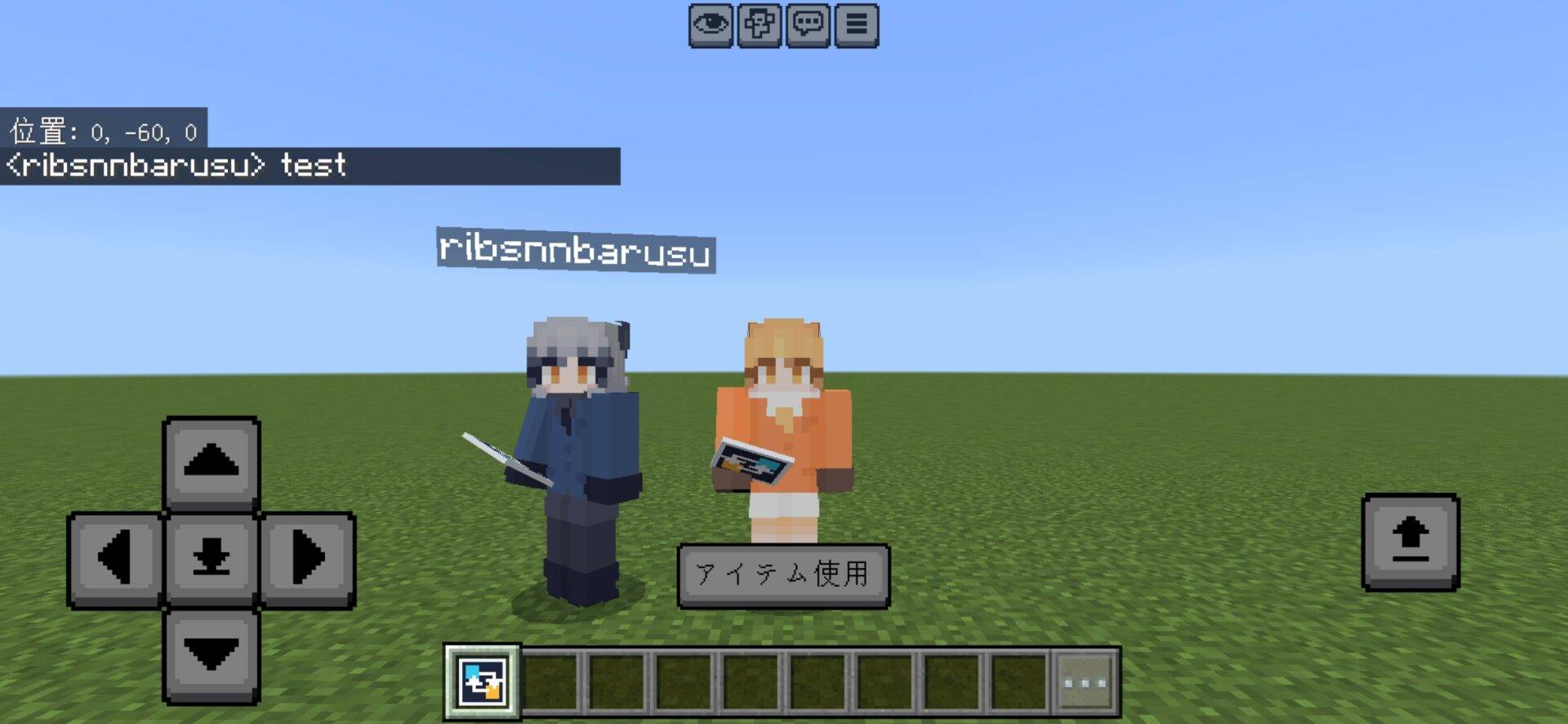 The other player sees the disguise name beside the chat message.
Display a player on an armor stand
- Rename a name tag in an anvil using the exact name of a player currently in the world. Match the spelling, spaces, and capitalization. For example, if your own player name is
Alex, useAlex. - Use the name tag on a vanilla armor stand. It takes on that player’s skin and still supports armor, held equipment, and armor stand poses.
- For a head-only display, rename a tag
Alex_headand use it on a stand. You can try both versions offline with your own name in a solo world.
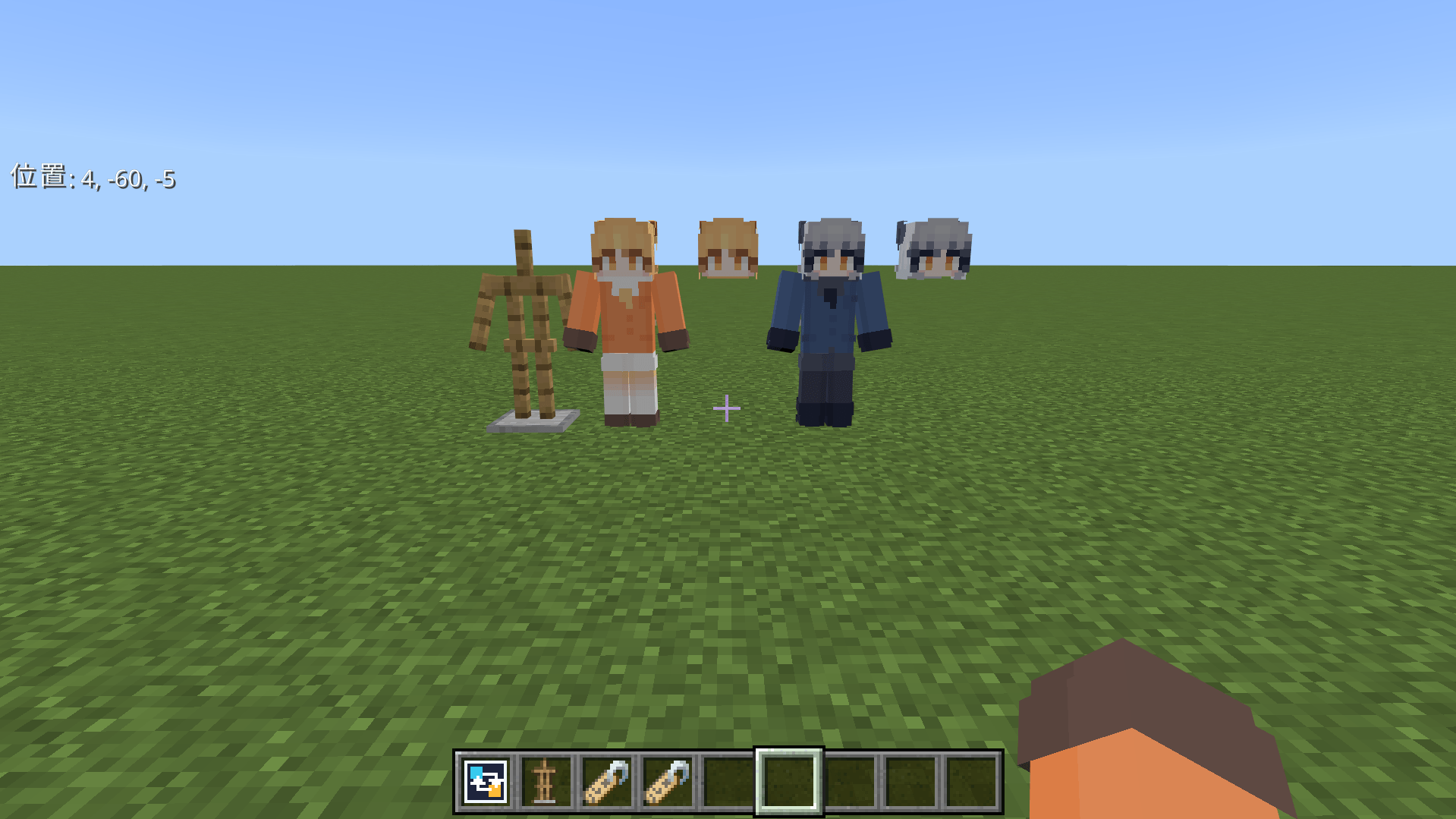 One name tag gives you a full-body display. Add _head to display just the head.
Commands for map makers
These commands work in chat and command blocks with permission to run them. In the examples, Alex is a player currently in the world. Use @s when typing as a player. In a command block, use a player name or a selector such as @p for the recipient.
/skin:item @s— Give yourself the menu item./skin:item @agives one to everyone. In player chat,/skin:itemalso gives one to you./skin:change @s Alex— Give yourself Alex’s appearance. The first argument selects who changes. The second selects exactly one player whose skin to use./skin:random @a— Choose a random skin for each player. A player can get their own skin./skin:random @a true— Exclude each player’s own skin. In a two-player world, the two players take each other’s appearance. With only one player, there is no other skin to choose./skin:reset @a— Restore everyone’s original appearance. Use/skin:reset @sto restore only yours.
Compatibility and troubleshooting
- Skins. The add-on references a player’s skin while they’re in the world. If the player you chose leaves, your disguise resets. The add-on doesn’t save their skin image. Free and paid Marketplace skins and 4D skins are unsupported.
- Player count. Designed for up to 100 players. I tested it with two accounts, one on PC and one on mobile. Larger groups haven’t been tested.
- Rendering and packs. The original skin can flash briefly if the game lags. If the disguise is missing or looks wrong, check it in third person, confirm that both packs are active, and try a world with only Skin Changer enabled.
- Versions and bug reports. Minecraft updates can change the Beta APIs this add-on relies on. When reporting a bug, include your Minecraft version, add-on version, device, and the relevant Content Log message. You can find the add-on version under the resource pack’s Technical Details.
Using Skin Changer in your own projects
Use disguises in games where everyone has agreed to them, such as a roleplay session or a hidden-identity minigame. Give operator permissions and Creative access only to players you trust.
You’re welcome to use Skin Changer in videos, streams, and downloadable worlds. You can modify and redistribute my work under the included zlib License. Keep the license and third-party notices with redistributed copies and identify modified versions. I’d love to see what you make.
More from tibiccbarusu
You can find more of my Bedrock projects on my creator page. I also write in Japanese about custom backgrounds for Bedrock’s Classic UI, designing JSON UI with AI, and playing your own videos on a screen inside Minecraft.
Skin Changer – Player Disguises & Armor Stands Team