Player Action Replay
Record yourself or a friend, then watch, pause, or rewind an in-world replay that follows the player's movements and wears their skin and gear.
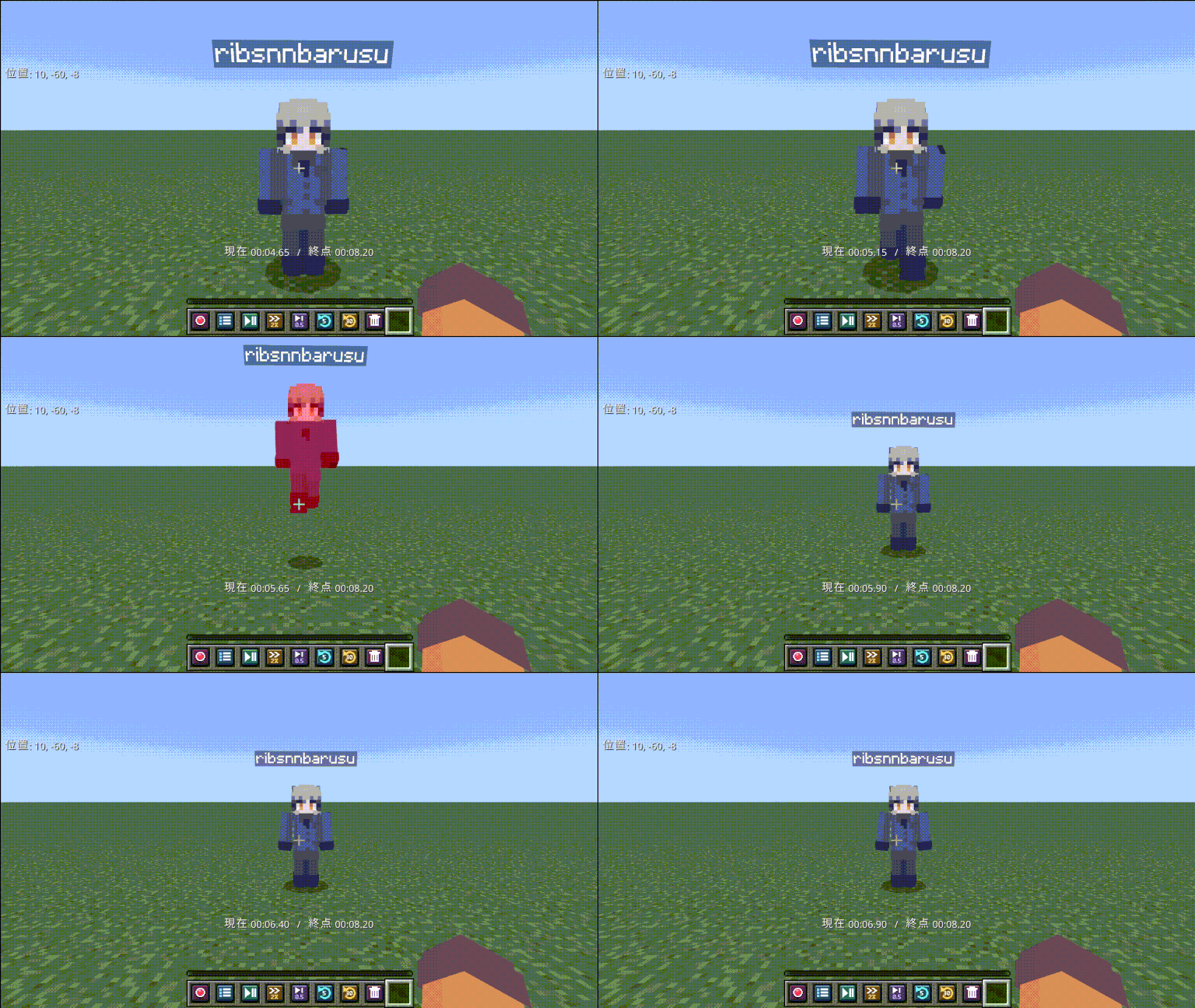
S_damage.gif
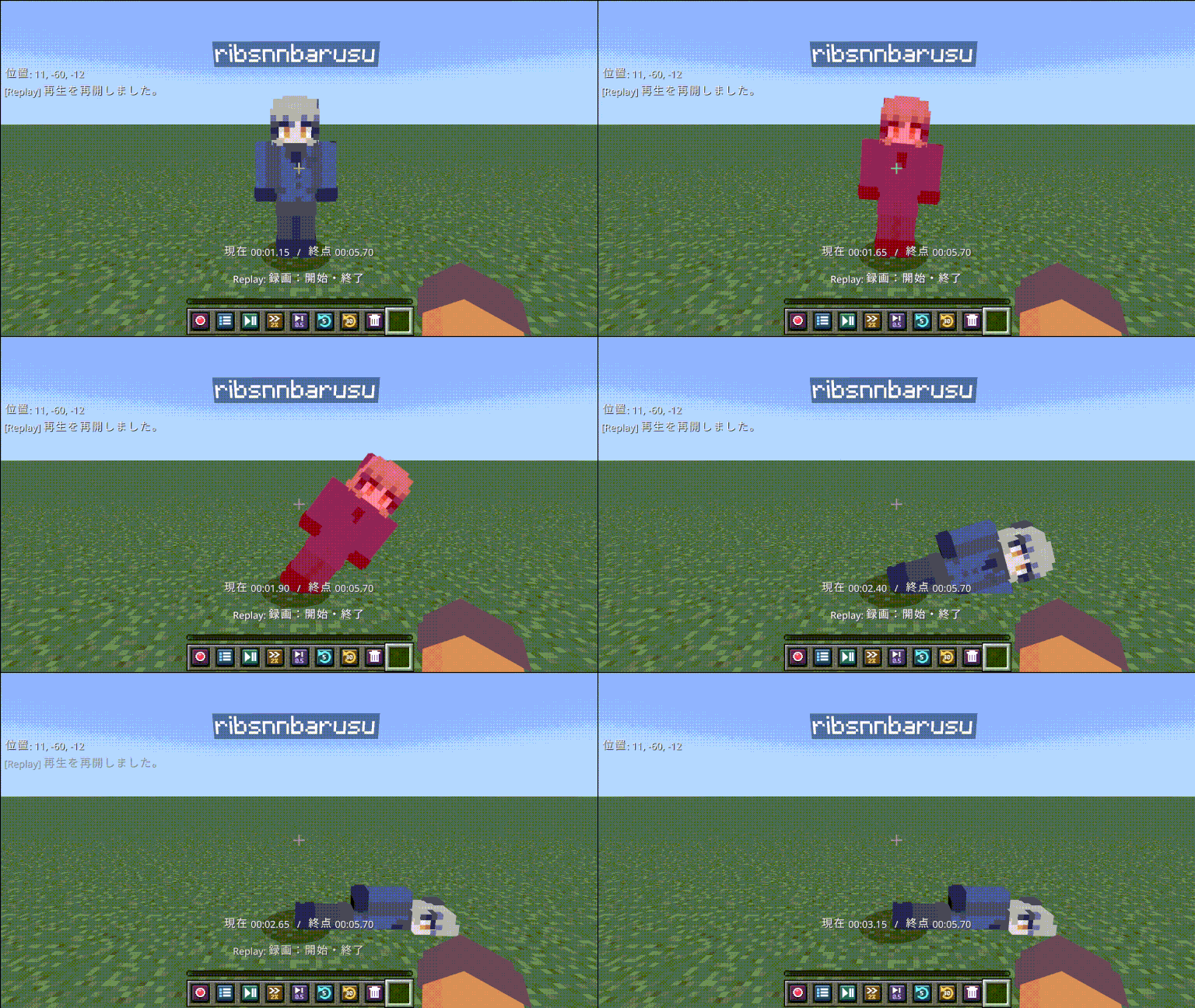
T_despawn.gif
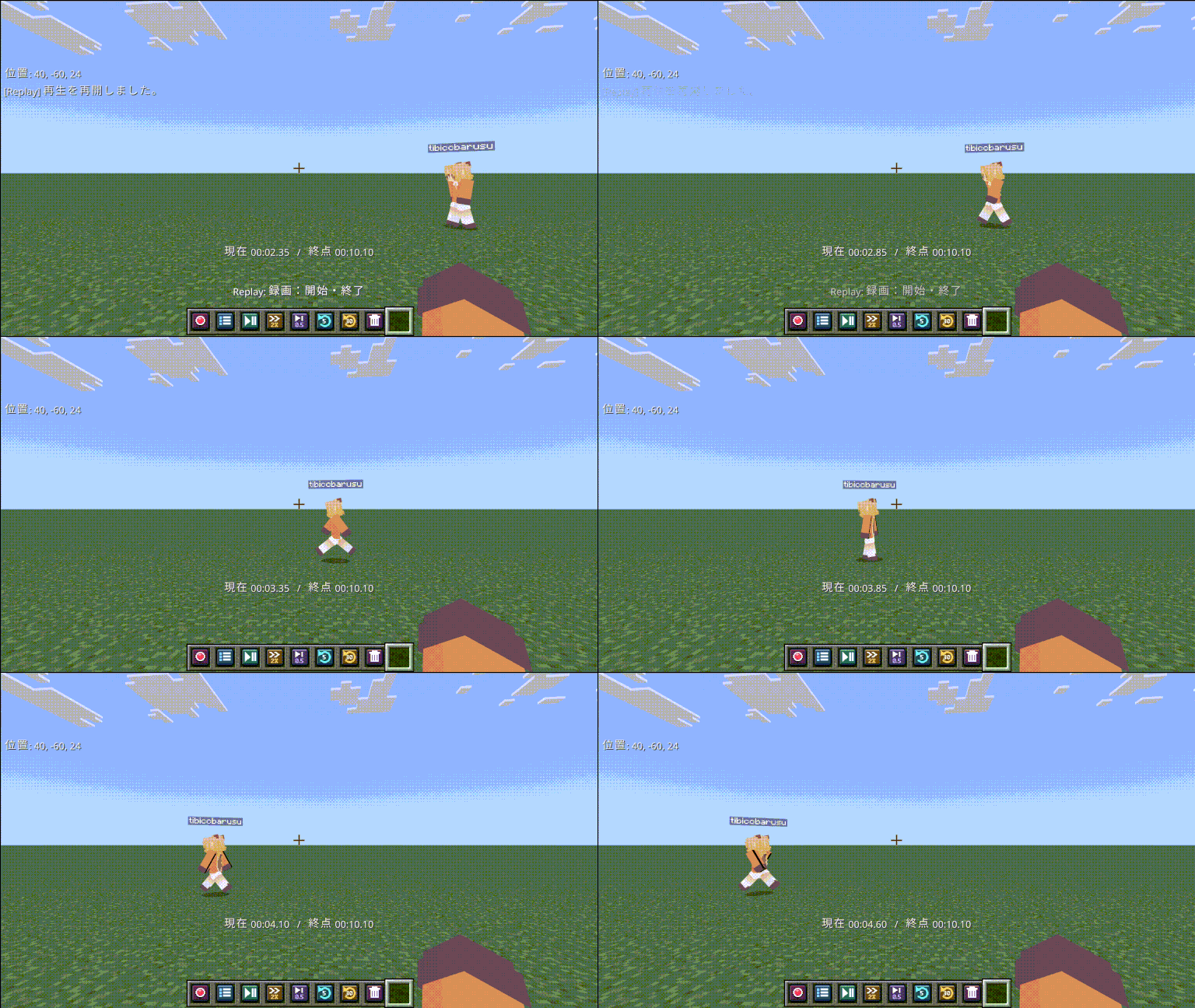
B_walking.gif
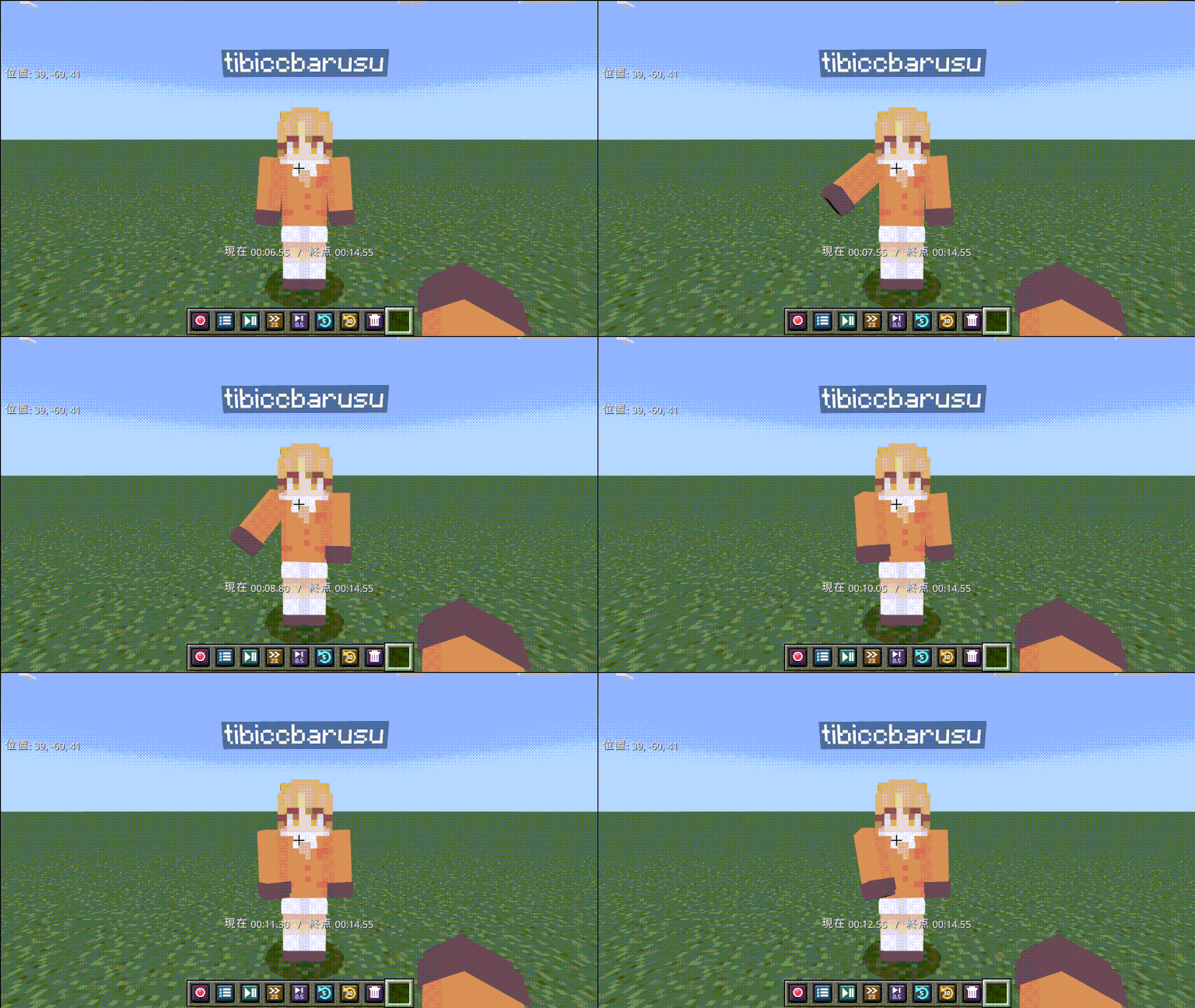
C_arm_swing.gif
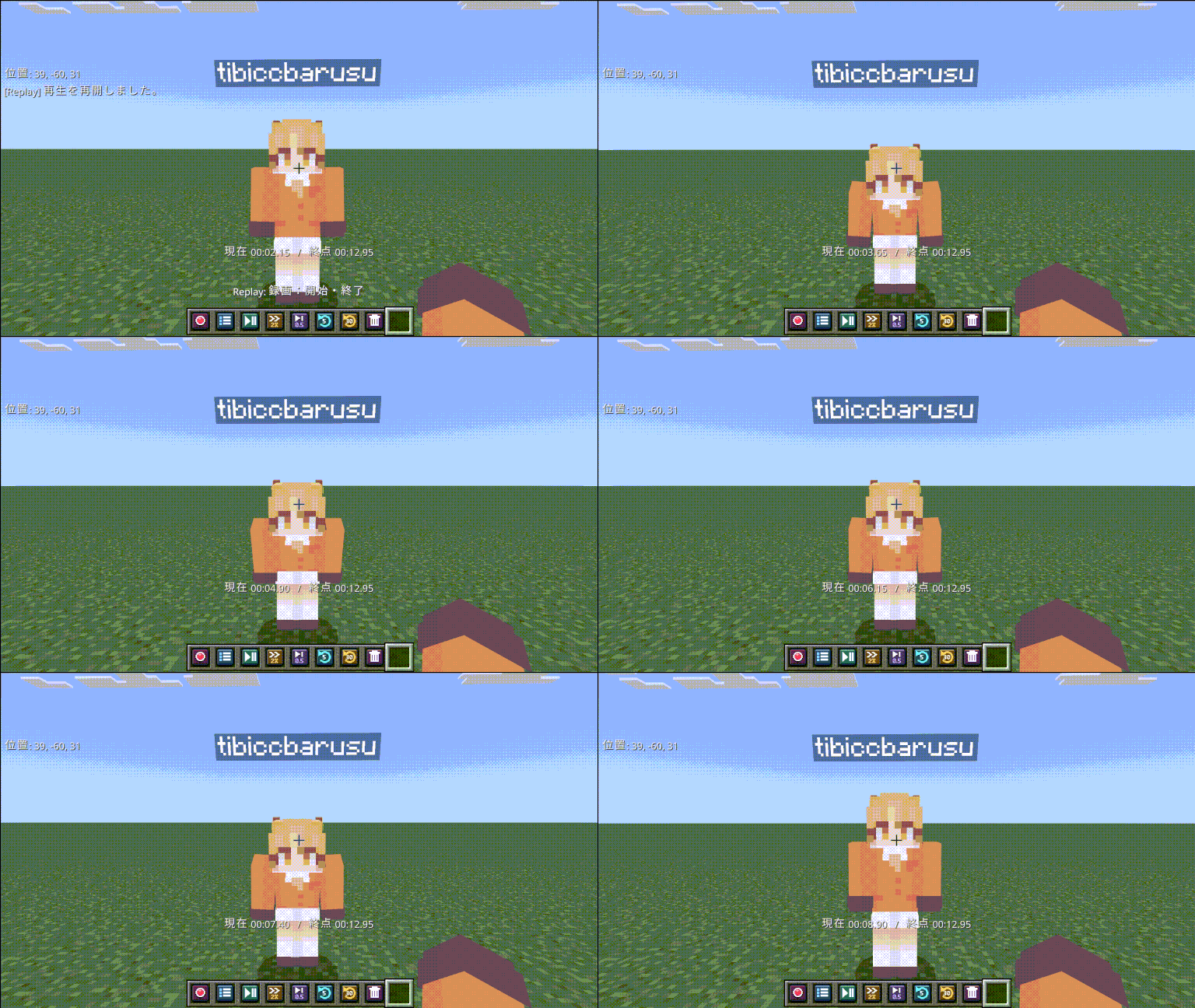
D_crouching.gif
Description
Want to film yourself from the sidelines? Record a short take, then stand wherever you like and watch a replay actor follow your movements in the world. It can wear your skin or a friend's, and everyone in the world can watch. Save a take and it will still be there the next time you open the world.
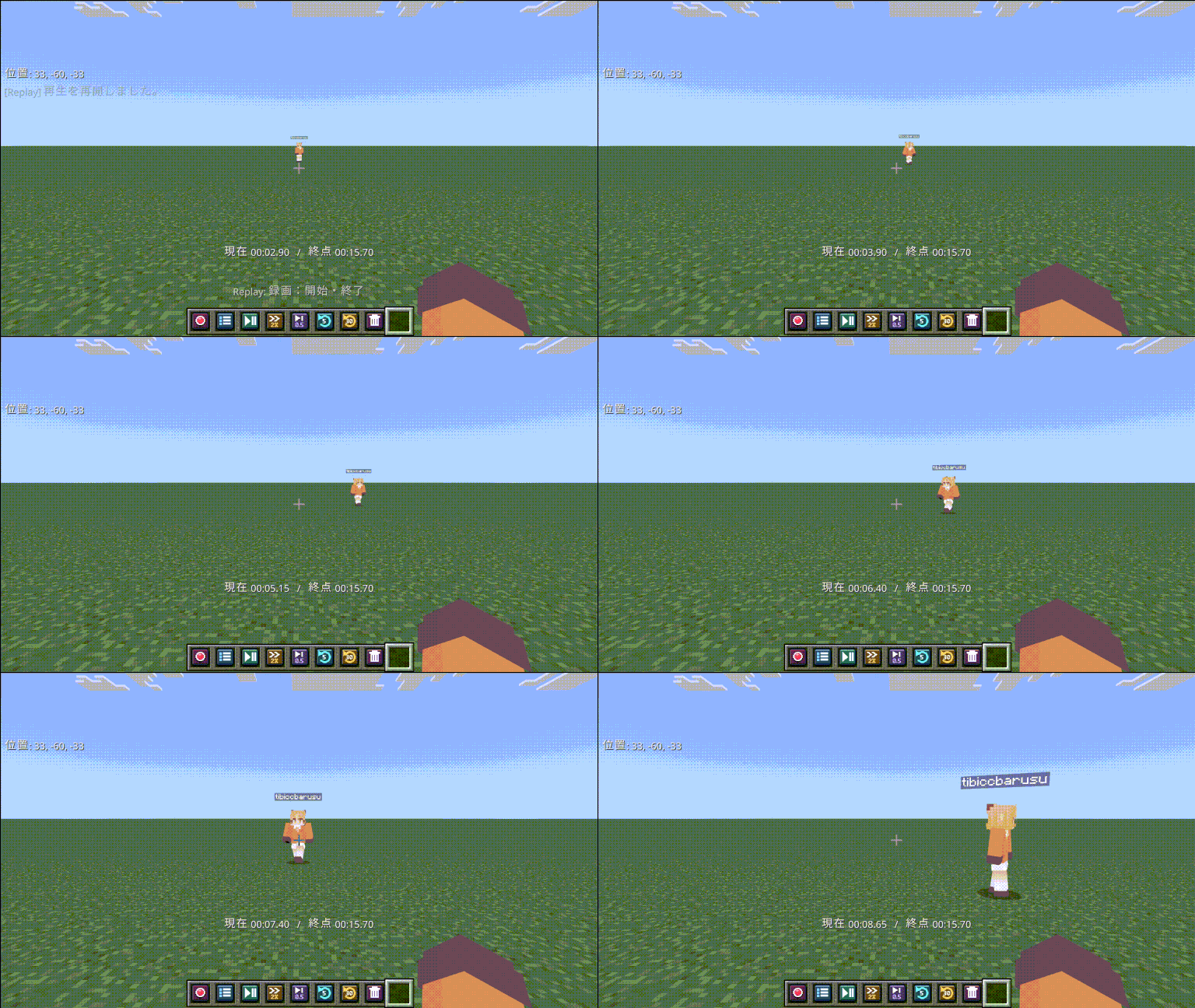
Watch the actor turn its head and body as it changes direction.
Set up your world
- Open the
.mcaddonfile with Minecraft. For an existing world you care about, try the add-on on a copy first. - In the world settings, enable Cheats. Activate the Replay behavior pack and check that the Replay resource pack is active. Turn on Shared Packs so joining players get the same resources.
- Under Experiments, enable Beta APIs, then enter the world. If you can't enable the experiment in an existing world, try a new world. Start with Replay as the only add-on if you run into conflicts.
Record your first take
- Type
/replay:items @sin chat to get the eight controls. You can also find them in the Creative inventory. - Use Replay: Record: start / stop to record yourself. To record a friend instead, use the recorder on that player. Walk a few steps, turn around, or draw a bow.
- Use the recorder again. In Save Recording, enter a unique name such as
Take1. Names can be up to 32 characters. Keep the world open until saving finishes. Submitting a blank name or cancelling the naming form discards the take. - Use Replay: Load / close recording and choose
Take1. The actor appears at the recorded location, paused on the first frame. Move to a good viewing spot, then use Replay: Play / pause to start. Use the same control to pause again, or the load/close control to end the replay.

From left to right: record, load or close, play or pause, double speed, half speed, rewind 5 seconds, rewind 30 seconds, and delete.
The speed controls toggle 2× or 0.5× playback. Use the active speed control again to return to 1×. The two rewind controls jump back 5 seconds or 30 seconds. The delete control asks for confirmation before removing a saved take.
What the replay shows
Player skins. The actor references the recorded player's skin automatically. You can record another player without importing their skin texture into the resource pack. If that player is absent when you play the take, the actor uses Steve's appearance. Keep the same skin during a session.
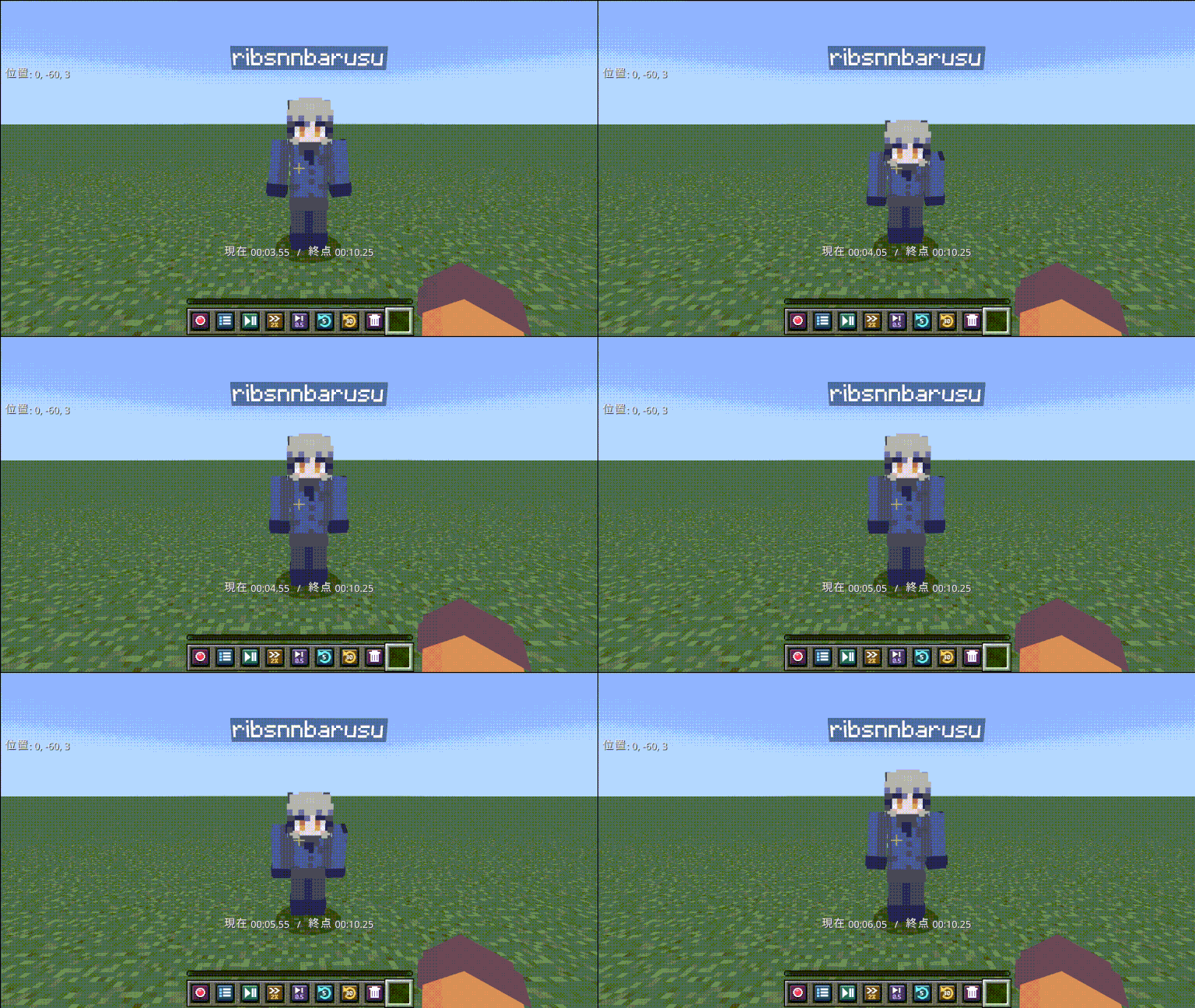
The blue-clad figure is the replay actor using the other player's skin.
Movement and equipment. Replays capture walking and turning, sprinting, sneaking, jumping, swimming, sitting, sleeping, and visible equipment changes. Watch a chestplate appear as it is equipped, or follow a shield in either hand.
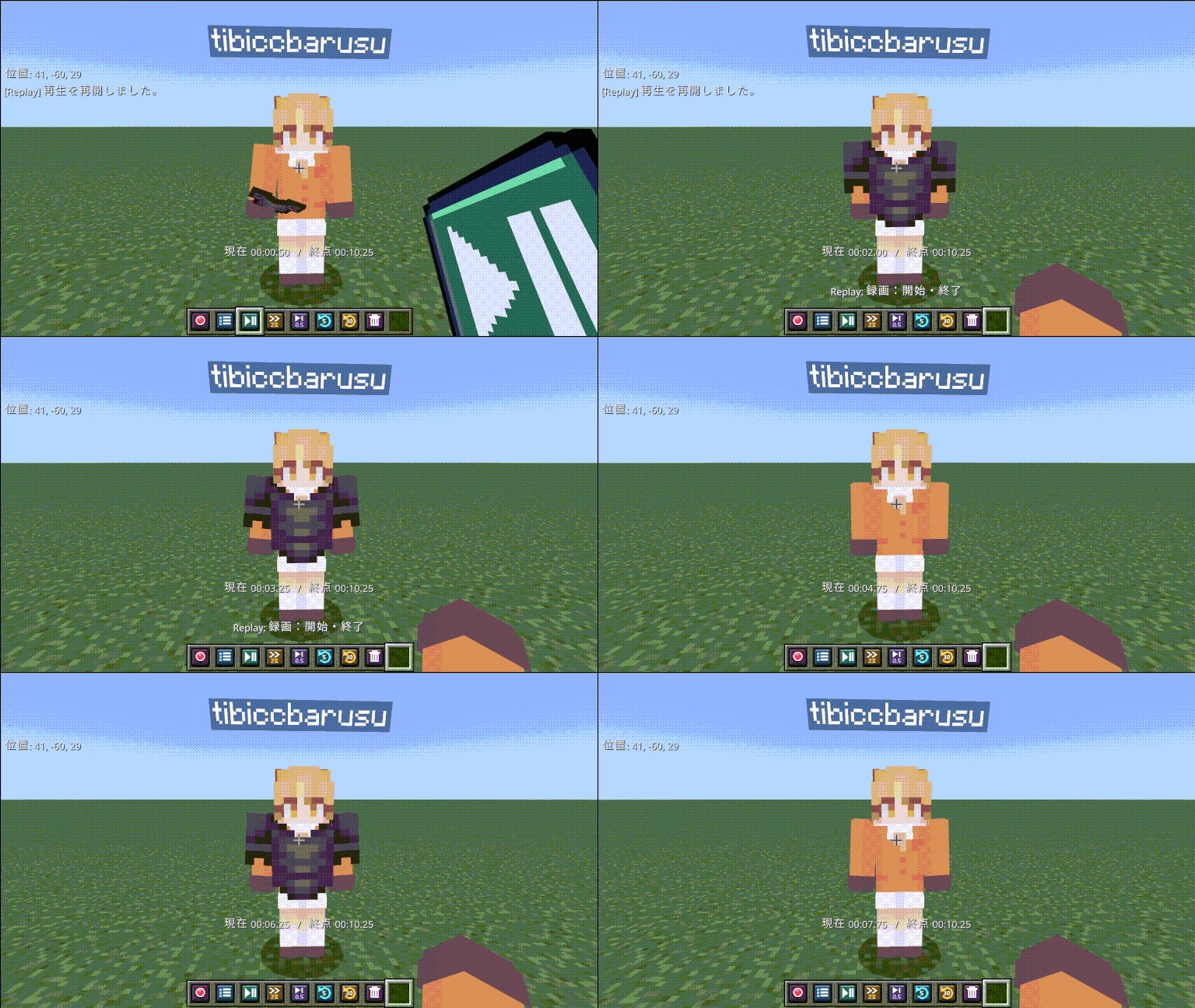
A chestplate appears as the recorded player equips it.
Item use and flight. Recorded actions include arm swings, eating, drawing a bow, using a crossbow or trident, and gliding with an elytra. The actor can also reproduce a hit reaction or turn invisible. A replay actor can keep its name tag while invisible.
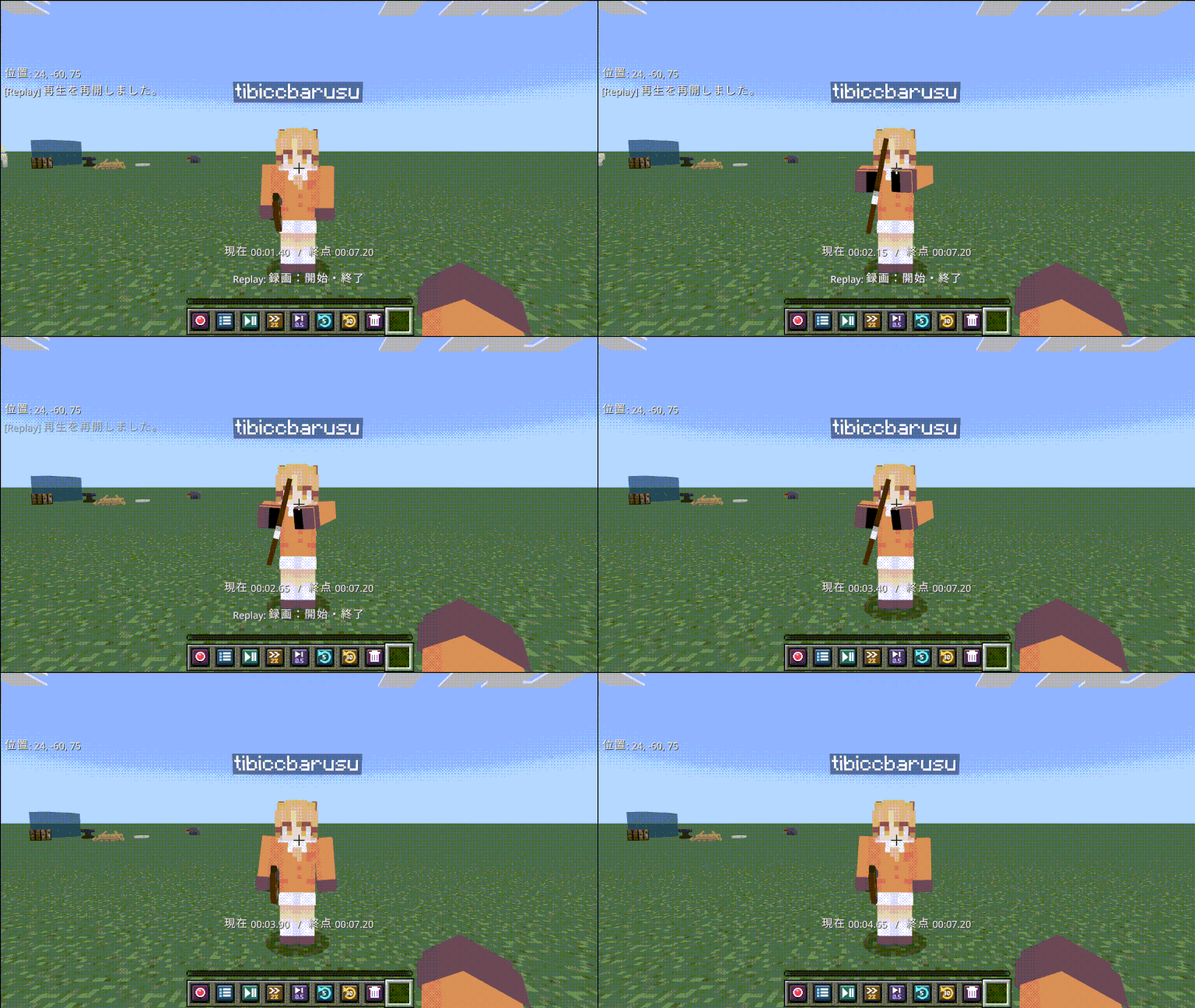
The bow follows the recorded draw animation.
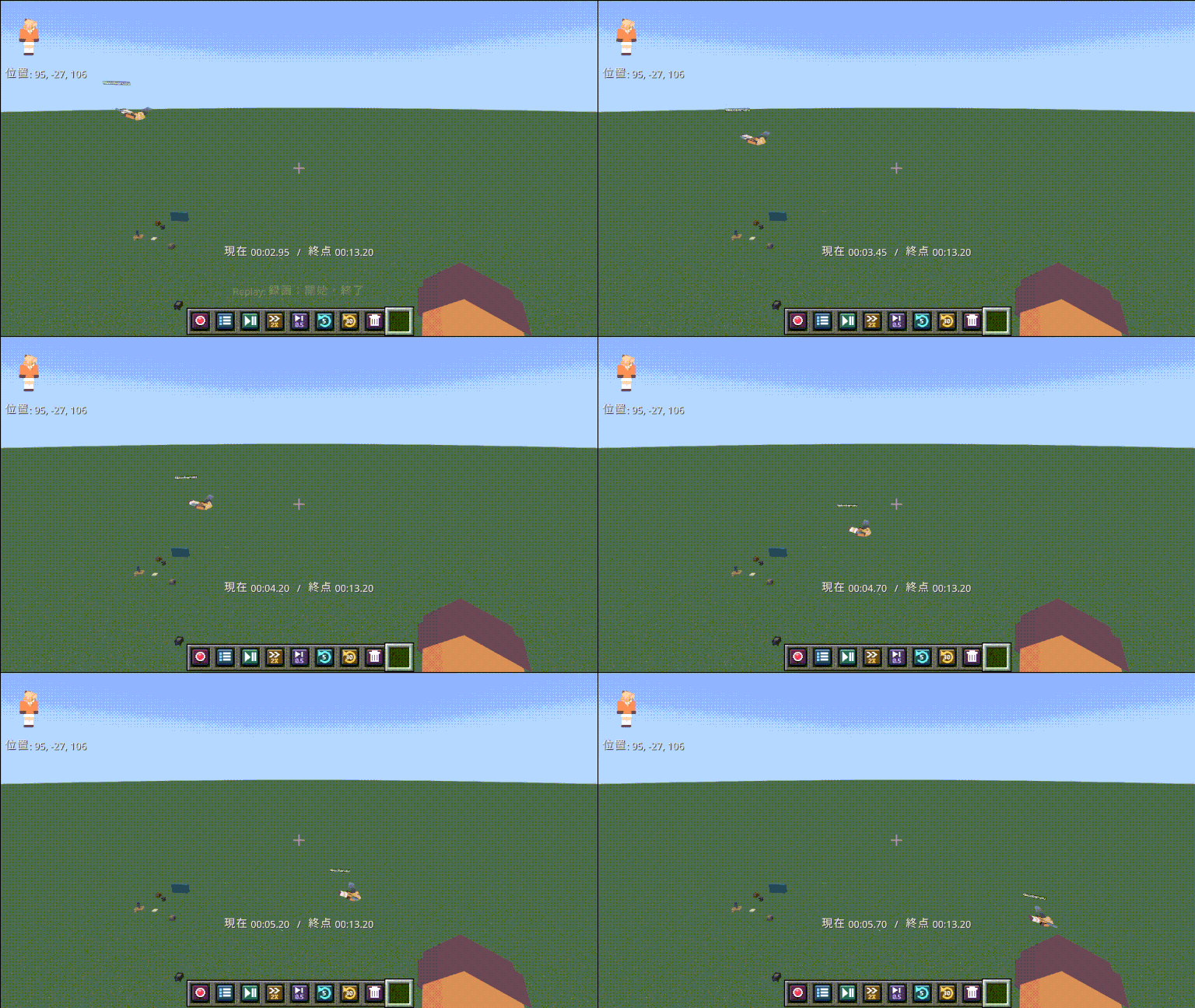
An elytra take, viewed from above the recorded flight path.
Commands for map makers
Run the commands in player chat or a command block with cheats and the required permissions. These three commands make a first take. Run the first, perform your actions, then run the second to save. Run the third after saving has finished.
/replay:record_start @s
/replay:record_stop Take1
/replay:play Take1 @s
In /replay:play Take1 @s, the recording name comes first. The optional player after it receives the action-bar timer. Everyone nearby can see the actor. The command starts playback immediately. The load item opens the take paused.
/replay:items @sgives you the controls. Use/replay:record_start @pin a command block to record the nearest player. Each target selector must resolve to one online player./replay:record_canceldiscards the current unsaved take. Use a new name for each saved take./replay:pause,/replay:resume, and/replay:stopcontrol the active replay./replay:speed slow,/replay:speed normal, and/replay:speed fastset playback to 0.5×, 1×, and 2× respectively./replay:rewind 5and/replay:rewind 30jump back by that many seconds./replay:time offhides the current and end time./replay:chat offhides routine Replay messages. Useonto turn either setting back on./replay:delete Take1permanently deletes that saved recording without a confirmation prompt. Use the delete item if you want to confirm first.
Limits and compatibility
- One active session per world. Finish saving or discarding the active take before playing another. End playback before starting a new recording.
- Short takes. Version 1.1.2 attempts to save automatically after 2,400 game ticks (about two minutes at normal tick speed), or earlier if it approaches its data limit. A world can hold up to 60 saved takes. Saved recordings use world storage, so plan longer scenes as separate takes.
- Player actions and world changes. The actor shows the hand movement used to place a block. To make the block appear again during playback, place it separately, for example with a timed command block. Use your usual screen recorder if you want to export a video.
- Animation accuracy. Teleports and sudden turns can look abrupt. The sleeping transition can snap into position. The chestplate and cushion appear in the recorded examples. Other armor slots and seats, preloaded crossbows, Riptide, and firework boosts have had less testing.
- Compatibility. I tested with two accounts, one on PC and one on mobile. Sessions with three or more players are unverified. Replay uses Beta APIs, so Minecraft updates may affect compatibility. For a bug report, please include your Minecraft version, Replay version, device, and relevant Content Log messages. You can check the add-on version in the Replay resource pack's Technical Details.
Using Replay in your own projects
You're welcome to use Replay in videos, streams, and downloadable worlds. You can modify and redistribute my work under the included zlib License. Keep the included licenses and third-party notices with redistributed copies, identify your changes, and credit the original work accurately. I'd love to see what you make.
The project icon and cover are AI-generated illustrations.
More from tibiccbarusu
You can find more of my Bedrock projects on my creator page. I also write in Japanese about custom backgrounds for Bedrock's Classic UI, designing JSON UI with AI, and playing your own videos on a screen inside Minecraft.
Player Action Replay Team