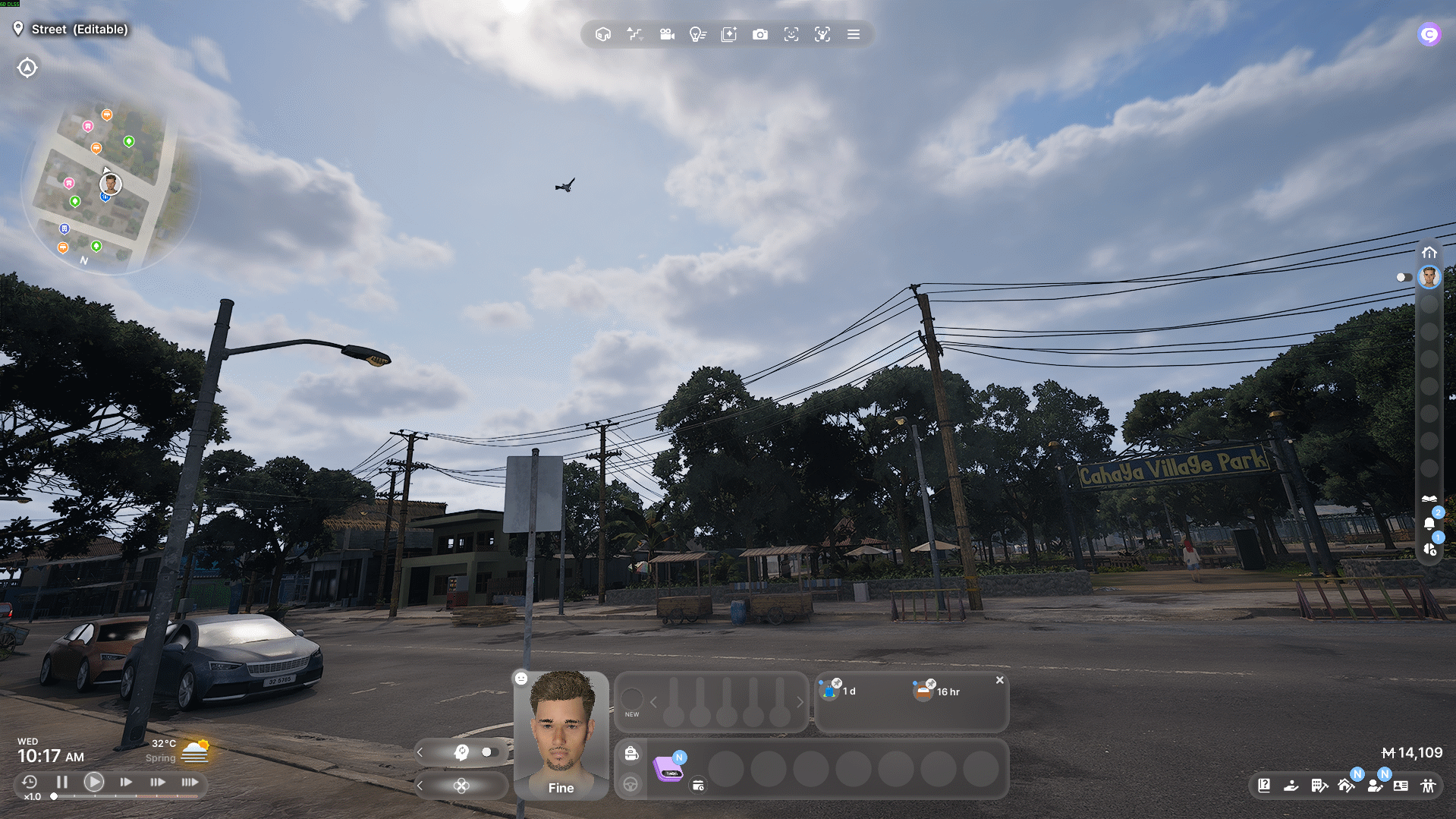
Realistic First Person View
Cook, read, talk, dance and sleep through your Zoi's own eyes.
Tab first person · Middle mouse or $ look mode · F2 settings
On a controller: R3 first person · L3 look mode
What it does
A true first-person camera for inZOI. The view is locked to your Zoi's head bone – position and rotation – so it follows every animation your Zoi plays. You can play it with the keyboard and mouse or with a controller, and change any of its keys in its settings panel, right in the game.
inZOI's own first person rides the character capsule and ignores the head completely. This mod drives the rotation itself, every frame, and tracks the head to within a few degrees.
There are two modes:
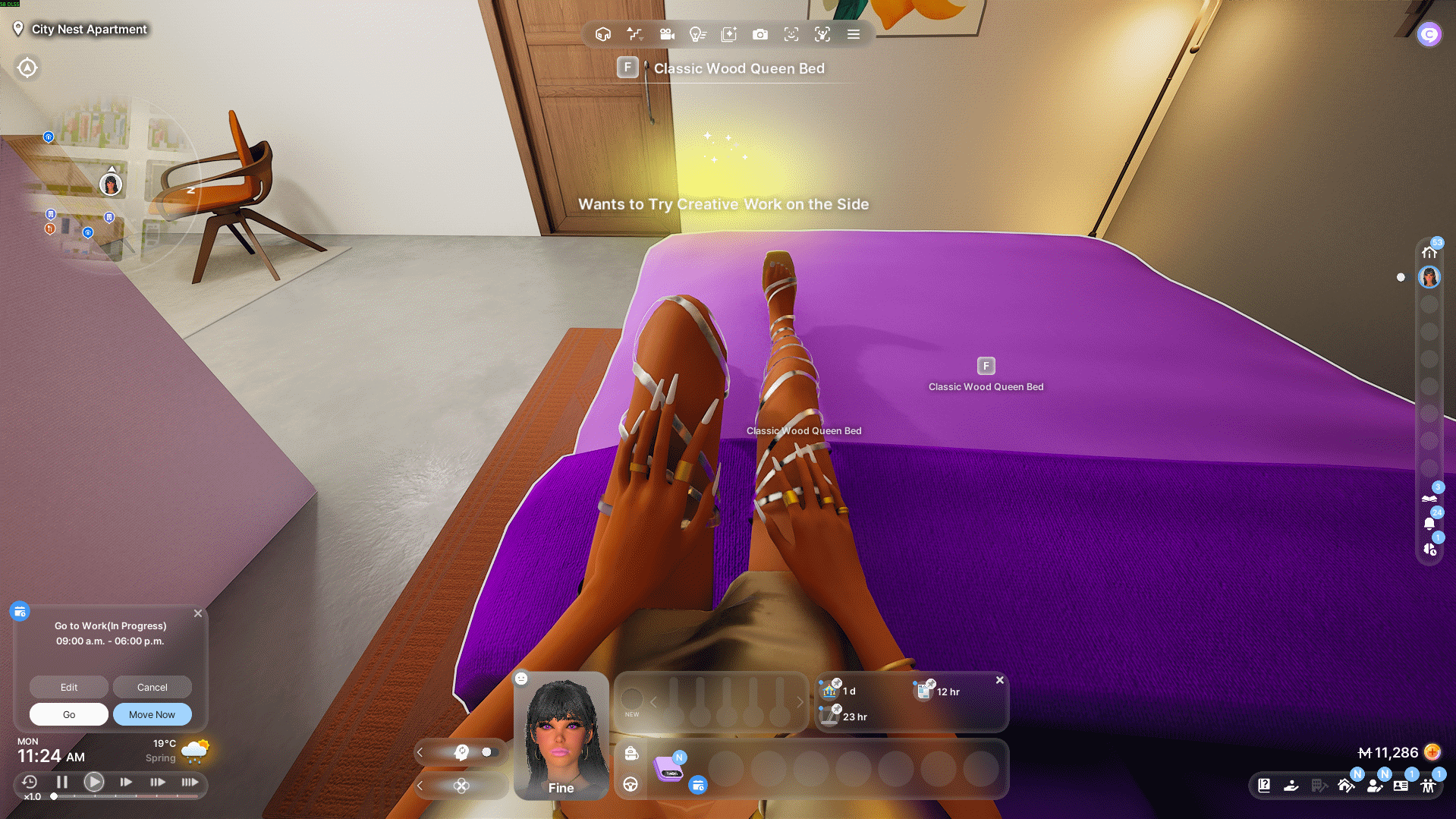
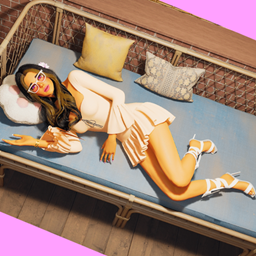
Cursor mode is where you start, and it is the immersive one. The mouse pointer belongs to the game, so you play inZOI normally, click on things, use the menus. The camera is fully locked to the head, including roll: when your Zoi lies down or tumbles, the horizon tilts and the world turns upside down with them. Let go and the view eases back to head-forward on its own.
Look mode allows you to follow your mouse movements as in an FPS game. Look mode is for looking around. Press the middle mouse button or the $ key and the pointer is hidden and taken over: the mouse now looks around freely with no button held, and the view stays wherever you put it. Your Zoi's own head animation is filtered out, so the only thing that moves the camera is your hand – a steady frame to aim in, with much heavier smoothing than cursor mode.
On a controller, press L3 (the left stick) instead. There is no pointer to take, and the right stick looks around in both modes, so there look mode is simply the steady view: your Zoi's own head movement is left out. When it ends, the message says Look mode off rather than Cursor mode.
So I repeat: the toggle between the two modes is done either by a middle mouse click or by pressing the $ key – or by pressing the left stick (L3) on a controller. You can change any of them in the Controls group of the F2 panel.
The mod also takes you back to cursor mode automatically:
- the moment you left- or right-click (A or B on a controller), because clicking means you want to interact
- when your Zoi starts doing something
- after 10 seconds without input
- when you pause, open a menu or alt-tab
Each of these has its own switch, and the delay its own slider, in the Back to cursor mode group of the F2 panel.
Why no button to hold: inZOI's own free-look is wired to the right mouse button, and while that button is down the game rebuilds the camera and throws the roll away. Holding nothing is what keeps the tilt.
What's new in 1.5.0
- Play with a controller. The left stick walks and steps sideways, and the right stick turns your whole Zoi and looks up and down, as in most first-person games. R3 (press the right stick) goes into first person the way
Tab does, L3 (press the left stick) switches look mode, RB + L3 locks the view, and A or B leave look mode. Pull the left stick back and you walk straight back, slowly, as with S. Walking, turning and looking were tried on a real controller; the buttons have only been tried with a simulated one so far, so please report anything odd.
- Keyboard and mouse or controller: whichever you use. There is nothing to switch. Push a stick or press a controller button and the mod plays with the controller; press a key or move the mouse and it is back on the keyboard and mouse. The press that switches still does its job, and look mode stays on: only the mouse pointer changes hands. In first person a short message says Controller or Keyboard and mouse as it switches. Play with, at the top of the new Controls group of the
F2 panel, ties the mod to one device if you prefer; set to Keyboard & mouse, it tells you once per session when it sees a controller, and where the switch is.
- Change any key or button. Controls lists every action of the mod – first person, look mode, the camera lock, leaving look mode, walking, turning, and four look actions (unbound on the keyboard; on a controller they are the right stick) – with its keys for the keyboard and mouse and its buttons for the controller. With Play with on Automatic, pick Controller under Show the buttons of to see and change the controller's. Click a button, then press the key, mouse button or controller button you want: + adds another (up to four), x removes one, and the arrow puts the default back. Hold Shift, Ctrl or Alt first (LB, RB, LT or RT on a controller) for a combination; a note warns you when two actions share a key. Each device keeps its own set, so switching loses nothing. Walk forward, Walk backward, Turn left and Turn right are the exception: they tell the mod which keys the game itself walks with, so keep them on the game's own (W/Z, S, A/Q and D, or the left stick). Changing them here does not change how the game walks. On a keyboard without
$, this is where you pick your own key for look mode now. Give First person on/off another key (F5, say) and it jumps straight in and out of first person from any view.
- Test your controller. In the controller view of Controls (Show the buttons of: Controller), Start test shows for 30 seconds what the mod reads from your controller: the buttons held, where each stick and trigger sits, and which device the mod is playing with. Above it, under Controller feel, you set how the sticks respond: Look speed, Invert up/down, Stick dead zone and more.
- A settings button on screen. A small round camera-and-gear button at the end of the game's menu bar – the row of icons at the top of the screen, with the photo mode button – opens the panel.
F2 still works, and the panel's X or F2 closes it. Settings button, in the On screen group, moves it under the photo mode button or hides it.
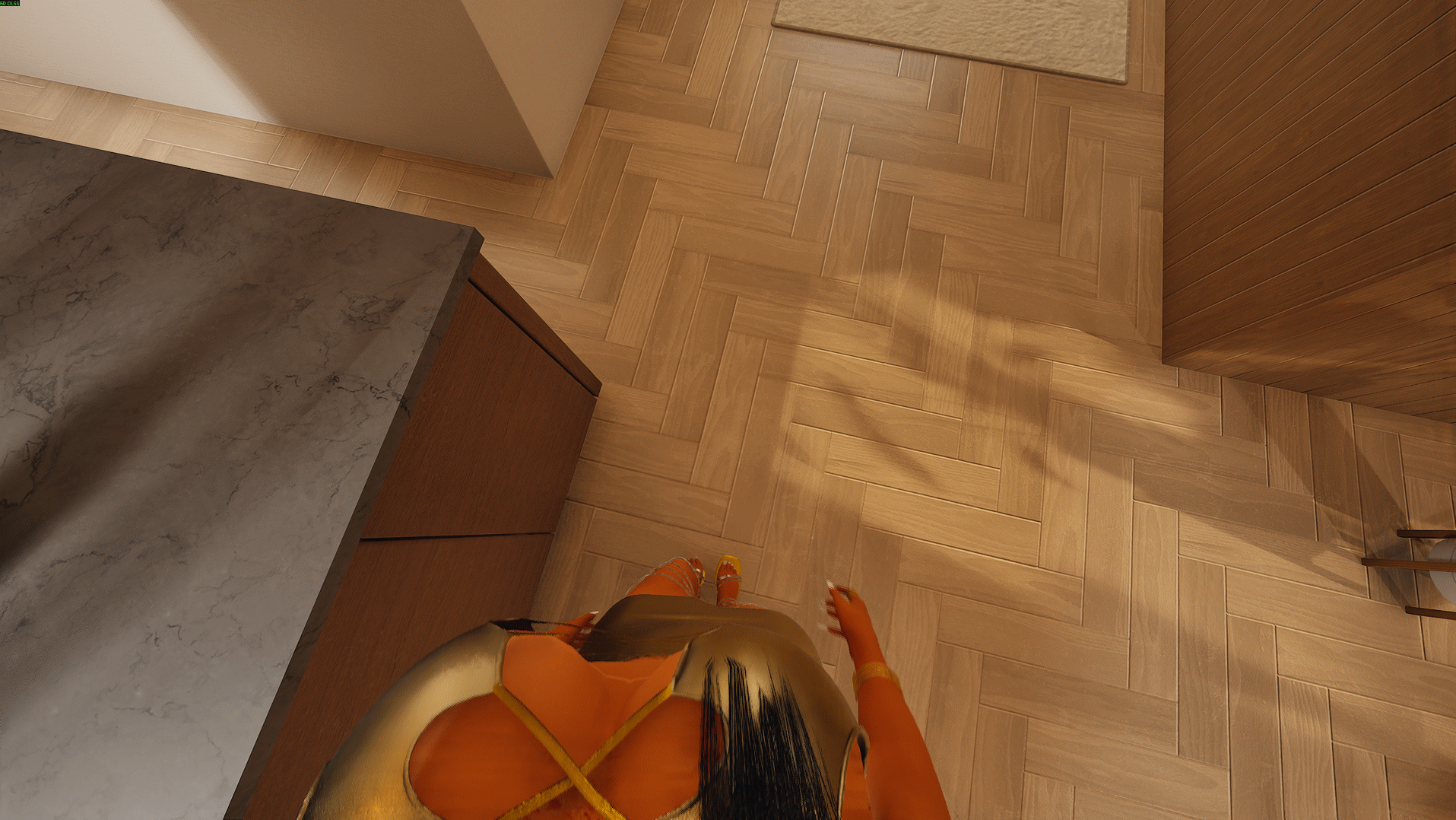
- Shoes stay out of the floor. Looking down at your feet, your shoes used to sink into the floor. In first person your Zoi's body is now raised 2 cm; walking, collisions and interactions are unchanged. Lift off the floor, in the View group, sets the height (up to 10 cm, for heels or thick soles; 0 turns it off), and Lift in third person too (off by default) keeps it outside first person as well.
- Eye effects (BETA), off by default. Soft, out-of-focus versions of what sits right in front of your eyes: your own hair, your lashes, and raindrops or snowflakes. They are experimental, so every one starts switched off: turn on Eye effects (BETA) in the
F2 panel, then the ones you want to try – Your hair (BETA), Your lashes (BETA) or Rain in your eyes (BETA).
- Every setting explained. Each row of the
F2 panel now says in plain words what it does and when you would change it. The panel opens with On screen (the old Messages group), Controls and Eye effects (BETA), then the groups you know. A row that only matters under another setting dims while that one is off, groups stay open or closed as you left them, and Reset all now resets your keys and buttons too.
- Ctrl and Alt are left to the game. The mod's keys no longer fire while you hold Ctrl or Alt, which start the game's and Windows' own shortcuts (Ctrl + L opens the map, Alt + Tab leaves the game), unless you bound them with it. The clicks that end look mode still work. On a controller LB, Y and Menu work the same way, so LB + R3 stays the game's free camera.
- Look mode no longer times out while you back up or turn. Only the mouse and the walk-forward key used to count as input, so holding S, A or D for 10 seconds gave the cursor back. Walking backward, turning, the look keys and a controller's sticks now count too.
Renamed or moved, with the same settings and defaults: A/D turn instead of strafing is now Turn instead of strafing, and Move back near a Zoi is now Move eye back near a Zoi. Mouse sensitivity, Invert vertical (now Invert mouse up/down) and Cursor scale (now Mouse fine scale) moved from Looking around to Controls. Further down the panel: Lean sideways → Extra lean looking sideways; Side-to-side speed → Horizontal speed; Max lag (in Smoothing: position) → Max lag, up-down; Snap over → Snap if head jumps over; Ramp starts → Starts at speed; Ramp full → Full strength at speed; Turning knee → Turning full-speed angle; Max lag running → Max up-down lag, running; Ramp speed → Fade in/out speed; Keep clear of vertical → Keep clear of straight up/down; Yaw guard → Freeze head turn past; Trim pitch / Trim yaw → Aim correction, up/down / Aim correction, left/right; Knee scale → Calm zone size; Wait → How long without input; Turn rate → Steering speed; Only under your control → Only while actually walking; Re-apply every → Re-check head every.
Every panel setting from 1.4.x is still there, with the same default.
Features
- Head-locked POV. The camera sits at the eyes and turns with the head, so cooking, reading, talking, dancing and sleeping are all seen through your Zoi's own eyes.
- Camera roll, which is the part no other approach gives you. The view rolls with the head, so the horizon tilts when your Zoi leans and goes fully upside down when they do.
- A stable aiming frame on demand. Head-driven POV and aiming by hand pull against each other – the animation and the mouse both move the view and fight. Cursor mode keeps the ride-along; look mode filters the head out so only your mouse, or your stick, moves the camera.
- Walk and look at once. While you are genuinely walking, horizontal mouse movement steers the body and vertical movement still looks with the head. Stand still and the same drag moves only your view – the body stays put instead of spinning on the spot.
- Anatomical neck limits. The view can never point anywhere a real neck could not reach: 75 deg to each side, 55 up, 85 down. They are measured against the chest rather than the world, so they stay correct while your Zoi bends over or lies down, and a guard stops the view ever swinging past vertical.
- No head in the way, but mirrors still work. Your own camera sees no skull, hair, beard, glasses, earrings or hat, and the hide is re-applied when your Zoi changes outfit. Mirrors and other Zois still see a complete head, because the mod draws a separate player-only copy of the body rather than removing the real one. Your shadow keeps its head and hair.
- Steady image. Adaptive smoothing removes the step-by-step head bob without making deliberate turns feel laggy, with extra damping that fades in as you speed up so a run does not shake the view apart, and the eye point leans forward as you look down so the camera does not end up inside the chest.
- Field of view 100 by default, because a first-person view wants more than a third-person one and a wider field also reads as steadier.
- Camera lock. Shift +
$ (RB + L3 on a controller) parks the view where you aimed it so you can keep watching something while your Zoi gets on with its business. It releases itself when you walk or when your Zoi starts something new.
- No unasked-for running. The game breaks into a run by itself once you hold a move key, which fights a first-person camera, so the mod turns that option off while you are in first person and gives your own setting back when you leave. Shift (RB on a controller) still sprints on demand.
- Turning that the game does not give you. In first person the strafe keys become turn keys – a smooth, steady sweep in either mode – and on a controller the right stick turns your whole Zoi, so you can aim your Zoi without touching the mouse, and S backs you straight out without spinning round. Stock movement returns the instant you leave first person.
- Other Zois stay in sight up close. Dances, hugs and every other close animation: the game's own rules for hiding a Zoi near the camera are off in first person, and the camera eases back while someone is pressed against you, so they stay in view. Your own head is kept out of the shot meanwhile.
- Slide along walls. Walking into a wall or a door frame slides you along it, so a doorway missed by a little still lets you through.
- Keyboard and mouse, or a controller. On a controller the right stick turns your whole Zoi and looks, the left stick walks and steps sideways, and every button can be changed in the panel, like every key.
- Shoes on the floor, not in it. In first person your Zoi's body is raised a little (2 cm by default), so your shoes no longer sink into the floor when you look down at them. Only the body you see moves: walking and collisions are unchanged.
- Eye effects (BETA). Soft, out-of-focus versions of your own hair, your lashes and raindrops or snowflakes over the first-person view. All off by default, for you to try if you want.
- A settings button you can see. A round camera-and-gear button at the end of the game's menu bar opens the panel. It hides in photo mode and steps aside while the game's menus are open.
- A settings panel in the game.
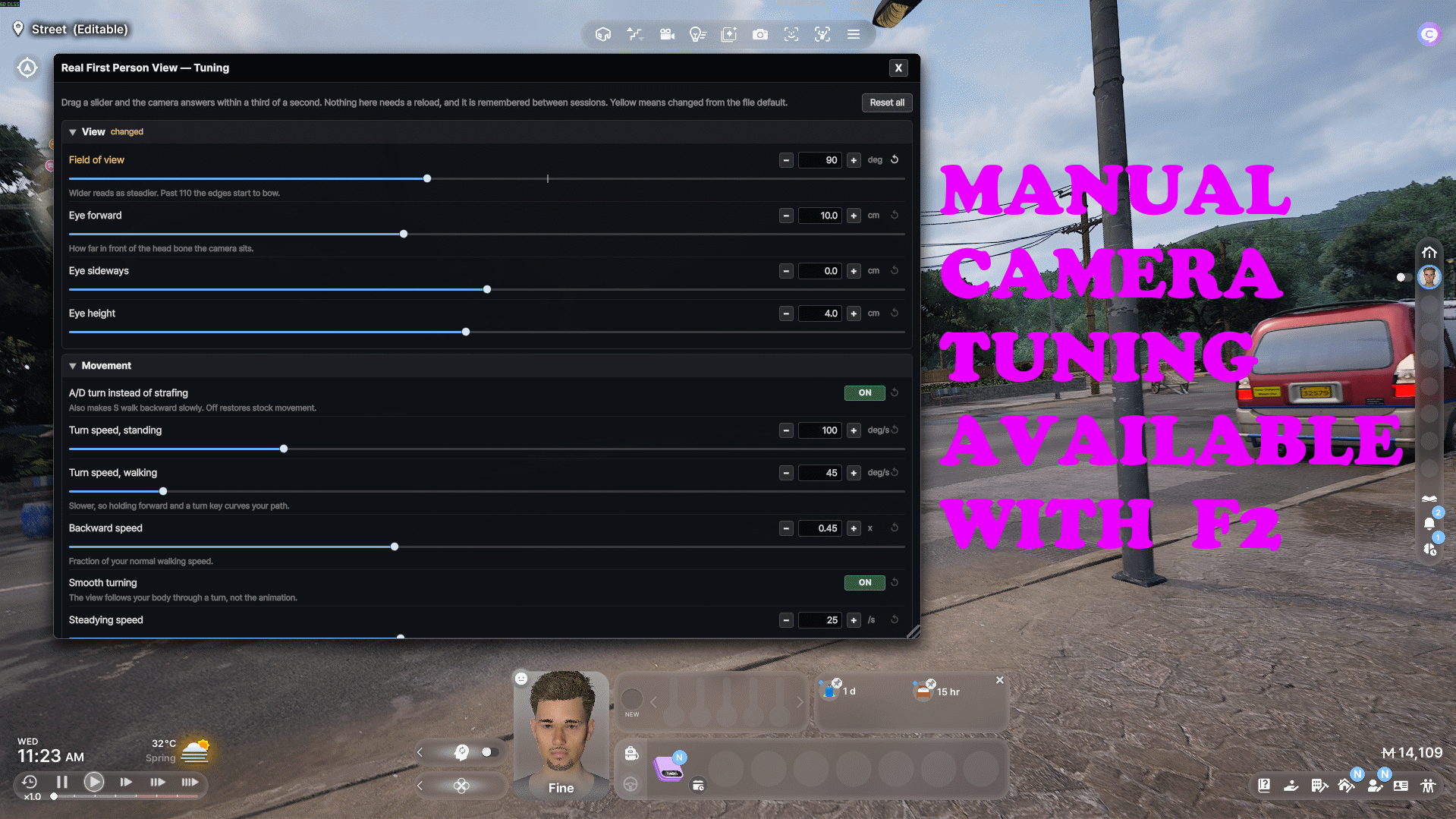
F2, or the camera-and-gear button at the top of the screen, opens over a hundred settings, each explained in plain words, and the camera answers while you drag. No reload, no restart, and your settings are remembered between sessions.
- Everything is tunable. Sensitivity, field of view, smoothing, neck range, turning, wall sliding, close contact, head hiding, every automatic exit and every key and controller button are on the
F2 panel.
Controls
These are the defaults. Each of the mod's own keys and buttons can be changed in the Controls group of the F2 panel: click the button next to an action, then press the key you want. To change a controller button with Play with on Automatic, first pick Controller under Show the buttons of – the group shows the keyboard and mouse keys at first – then click the button next to the action and press the controller button or push the stick you want; a left click cancels. The walking and turning keys are the exception: keep them on the keys the game itself walks with, because the game moves your Zoi and changing them here does not change the game's. The mod plays with whichever you use – touch the controller and it is the controller, press a key or move the mouse and it is the keyboard and mouse – and Play with, in the same group, ties it to one.
Keyboard and mouse
Tab – from the game's top-down view, into first person; from first person, to the shoulder view; from the shoulder view, the game's own top-down view (or first person, if the game does not move)- A / Q, and D – turn left and right
- S – walk straight back, without turning round
- S + A / D – steer while backing, like reversing a car
F2, or the round camera-and-gear button at the end of the game's menu bar – open the settings panel- Middle mouse, or
$ – switch between look mode and cursor mode
- Mouse, in look mode – look around freely, no button held
- Left or right click, in look mode – back to cursor mode, so you can interact
- Movement keys + mouse, in look mode – horizontal steers the body, vertical looks up and down with the head
- Shift +
$ – camera lock: park the view where you aimed it
A is the QWERTY key and Q is the same one on AZERTY; both layouts work out of the box.
$ is the AZERTY key two to the right of P. On another layout, pick your own: in the Controls group of the F2 panel, click the button next to Look mode on/off (and Lock the view) and press the key you want. Middle mouse always works and needs no setup.
The four look keys in that group, Look up, Look down, Look left and Look right, have no key until you give them one: hold one to turn the view without the mouse.
Controller
- R3 (press the right stick) – first person, in the same cycle as
Tab
- Left stick – walk forward and back, and step sideways
- Right stick – left and right turn your whole Zoi, up and down look up and down; seated or busy, it only looks around. The view stays where you leave it until your Zoi starts something new (View stays where you aim, under Controller feel)
- L3 (press the left stick) – look mode on and off: a steady view, with your Zoi's own head movement left out
- A or B, in look mode – leave look mode; A still interacts and B still cancels
- RB + L3 – camera lock: park the view where you aimed it
- RB – sprint (the game's own)
Everything else on the controller stays the game's, its combinations included: LB + R3 is still its free camera. No controller button opens the settings panel: press F2, or click the camera-and-gear button with the mouse.
Turning in first person
inZOI has no turn control of its own. The movement keys walk your Zoi forward, back and sideways, and nothing aims them: hold the right-hand key and your Zoi slides sideways while still facing exactly where they were. In third person that is fine, because the camera orbits the Zoi. In first person it means you cannot look where you are going.
On a controller it works the way most first-person games do: the right stick turns your whole Zoi – the view at once, the body a moment later – and the left stick walks and steps sideways. Seated or busy, the right stick only looks around. Pull the left stick back and you walk straight back, slowly, as with S below. For the keyboard's way instead, bind Turn left and Turn right in Controls to the left stick pushed left and right.
On the keyboard, while first person is on, the mod gives the two strafe keys a better job:
- A (Q on AZERTY) turns left and D turns right, at a steady speed. Hold W (Z on AZERTY) at the same time and your path curves as you turn.
- S walks you straight back along your body, without turning round, so you can back away from something while still watching it. While S is held, A and D steer like reversing a car: D swings your back to the right.
- W / Z and Shift are unchanged: walk and sprint.
Walls and doorways. Walk into a wall at an angle, or clip a door frame, and you slide along it instead of sticking: hold forward and a doorway you missed by a little still lets you through. Sliding pauses while you hold a turn key. Switch Slide along walls off in the Movement group to stop dead at walls instead.
Turning is smooth in cursor mode and look mode alike. While a turn key is held, the view follows your body round instead of your Zoi's own head animation, which turns in jerky steps; let go and the head-locked view eases straight back. Walking backward gets the same treatment: the backward walk looks over each shoulder in turn, and the view follows your body instead. Turn speed (standing and walking), backward speed, Smooth turning, Slide along walls and the three backward-walk switches are all in the Movement group of the F2 panel.
This applies only while first person is on. Press Tab (R3 on a controller) to leave and the stock controls come straight back, strafing included; the mod never changes the game's own key bindings (its own keys are set in the Controls group). If you would rather keep strafing in first person, switch Turn instead of strafing off in the Movement group of the F2 panel.
Installation
- Turn mod support on first. In inZOI, open Settings → Mods and switch mod support on. Nothing installed will load while it is off. The mod needs inZOI's Lua script-mod support, added in the 15 October 2026 update: update the game first if yours is older.
- From the main menu, click Mods, find Realistic First Person View under Browse, open it and click Install.
- Check that it is enabled under Installed Mods. In the game it calls itself Real First Person View, and you may also see Real First Person View - Tuning (the panel), Real First Person View - Eye effects and Real First Person View - Settings button: those are its three on-screen parts, all part of this one mod.
- The game's own First-Person Camera option (Settings → Camera) must be on. The mod switches it on for you whenever you go into first person, so you can leave it as it is.
- Load a save, select a Zoi, and press
Tab (R3, pressing the right stick, on a controller). From the shoulder view press it twice: the first press goes to the game's top-down view.
Installed it by hand before? Delete the FirstPersonHeadCam_EBVQ95 folder from Documents\inZOI\Mods\InGame first, so only one copy is installed: with two at once the camera breaks (see Compatibility).
Updating. New versions arrive through the game's Mods menu. Your F2 settings, keys included, are kept in the mod's own folder, so an update may bring back the defaults; if it does, set yours again in the panel.
Uninstalling. Open Installed Mods, click the mod and click Uninstall. Nothing is left behind: hold-to-sprint and every camera setting the mod touched are back to what they were, except the game's own First-Person Camera option, which stays on (switch it off in Settings → Camera if you like).
Tuning
Press F2, or click the camera-and-gear button at the end of the game's menu bar, and you get the whole mod on one panel – over a hundred settings, grouped as On screen, Controls, Eye effects (BETA), View, Movement, Looking down (eye lean), three sets of smoothing, Neck limits, Looking around, Look mode, Back to cursor mode, Body steering, and Head and mirrors. Every row says right under it what it does and when you would change it.
- Changes apply while you drag. Nothing needs a reload, a save or a mode change, so you can tune the camera while walking around in it.
- Your settings are remembered between sessions.
- Every number has a slider for big changes and - / + buttons for small ones, every switch an ON / OFF button, and every key a button: click it, then press the key you want (+ adds another, x removes one). Each row also has an arrow that puts that one setting back to normal. Anything you have changed is highlighted, and Reset all returns the lot, keys included.
- Drag the title bar to move the panel and the bottom-right corner to resize it.
F2 again, or the X, closes it.
What each group holds:
- On screen – Show pop-up messages, and where the Settings button sits.
- Controls – Play with, then every action with its keys or buttons for the device shown (with Automatic, Show the buttons of picks which), the mouse and look-key speeds, or the controller's feel and Test your controller. Esc or a left click cancels a pick (only a click, while it waits for a controller button); F2, Esc, the Windows keys and the left mouse button cannot be picked.
- Eye effects (BETA) – your hair, your lashes and rain in your eyes, each with its strength. All off by default.
- View – field of view, where the eye sits, Zois up close, and the two lift settings.
- Movement – turning instead of strafing, turn speeds, the backward walk and sliding along walls.
- Looking down (eye lean) – how the eye leans forward and up as you look down, so you never see inside your own chest.
- Smoothing: turning, Smoothing: position and Smoothing: while running – how steady the view is.
- Neck limits – how far you can look each way.
- Looking around – how long a glance holds, and how fast it glides back.
- Look mode – how steady look mode is, the cursor, and the mod's notices and warnings.
- Back to cursor mode – each way look mode ends by itself.
- Body steering – how your body follows your view as you walk.
- Head and mirrors – hiding your own head, your reflection and your shadow.
Troubleshooting
- Nothing happens at all and the mod is not in the list. Mod support is off in Settings → Mods, or the game is older than the 15 October 2026 script-mod update.
Tab does nothing. From the shoulder view the first press goes to the game's own top-down view; press Tab again for first person. (If the game ignores that press, the mod enters first person after a moment by itself.) R3 on a controller works the same way. If that does nothing either, look in Settings → Camera: the mod switches First-Person Camera on by itself, but if it shows off there, switch it on. On a brand-new save, if F2 does nothing either, it is the game holding your input instead – see the F2 entry below.$ does nothing on my keyboard. It is the AZERTY key two to the right of P. On another layout, pick your own key: in the Controls group of the F2 panel, click the button next to Look mode on/off and press the key you want, and the same for Lock the view. Middle mouse always works and needs no setup.- The horizon flattens while I hold right mouse. That is inZOI's own free-look, which rebuilds the camera without roll while the button is down. Nothing in the mod can prevent it, and the view recovers the instant you release. In look mode a right click simply returns you to cursor mode.
- I cannot strafe any more. That is deliberate while first person is on: A / Q and D turn instead. See Turning in first person. Switch Turn instead of strafing off in the Movement group of the
F2 panel to put strafing back. On a controller the left stick steps sideways either way.
F2 does not open the panel. Usually the game itself is swallowing the key. A game panel that closes without tidying up after itself can leave your input blocked, and while that lasts no mod key gets through – Tab goes dead too. Press ESC once and try again. The mod watches for this and tells you when it happens, but it cannot clear it for you. If F2 still does nothing, something else may own the key: click the round camera-and-gear button at the end of the game's menu bar instead.- The panel shows a message instead of settings. The message says which part is missing. If the mod has not reached the Zoi you play yet, load a save, select one of your own Zois and press
F2 again. If its script part is not running, check that the mod is enabled under Installed Mods; if it is, uninstall it, install it again and restart the game.
Tab goes to the top-down view first. Tab is also the game's own key for its top-down and shoulder views, and the game acts on it before the mod does, so first person takes its place in that cycle. To go into first person straight from the shoulder view, give First person on/off another key in the Controls group of the F2 panel (F5, say): it then switches straight in and out from any view.- My partner still clips into the camera in a close animation. Raise Move eye back near a Zoi in the View group of the
F2 panel. When a close animation starts, the game itself hides your partner for a moment while it places you both; that one is the game's, not the camera's.
- My controller does nothing. First check it works in the game itself: the game supports Xbox controllers, and others may need Steam Input. Then open the Controls group of the
F2 panel, check Play with is on Automatic or Controller (with Automatic, pick Controller under Show the buttons of) and press Start test: for 30 seconds it shows what the mod reads from your buttons and sticks.
- Picking a key says the mod did not answer. The mod only listens while one of your Zois is in play: close Edit Appearance, or any menu that pauses the game, and try again.
- There is no settings button. It shows only while the game's menu bar does – not in photo mode, Build, Edit Appearance or on the map – and steps aside while one of the game's menus or windows is open. Check that Settings button, in the On screen group, is not set to Hidden.
F2 opens the panel either way.
- An eye effect shows nothing. Turn on Eye effects (BETA) as well as the effect itself. They show only in first person, and hide while a menu, a pop-up or a cutscene is up. The rain needs you out in the rain, not under a roof or an umbrella, and with Only long lashes (BETA) on, short lash styles show none.
- The view freezes, upside down. Two copies of the mod are loaded at once – this one and a copy installed by hand in
Documents\inZOI\Mods\InGame, say. Keep only one; see Compatibility.
Compatibility
Built to sit quietly next to other mods:
- Your own household always gets it. Some mods attach their scripts to the household you play, and when one does, the game stops giving that household scripts meant for every Zoi. This mod attaches both ways, so it runs whatever else is installed.
- It gives back exactly what it found. The game's first-person camera settings, the mouse cursor, what was shown or hidden on your Zoi's head and outfit, the movement settings and hold-to-sprint are all put back as they were when you leave first person, not reset to defaults – so whatever another mod set there survives.
- It leaves the rest alone. Outside first person it writes nothing to the camera or to your Zoi's movement, and it never releases a movement lock the game or another mod has taken. The one exception is yours to choose: with Lift in third person too on, your own Zoi's body stays raised outside first person too, and if another mod moves the body, the lift steps aside.
- Two camera mods at once cannot both win. If another mod steers the first-person camera at the same time, the view fights itself. The mod watches for this and should tell you once (this has not been tried with a real second camera mod yet), so you can disable one; switch the warning off in the Look mode group of the
F2 panel.
- Quiet when you want it. Show pop-up messages, at the top of the
F2 panel, silences every message the mod shows – warnings included. It is on by default, because the warnings are how a broken install or a clashing mod explains itself; once the mod works for you, switch it off.
- F2 belongs to the panel. If another mod also opens something on
F2, both open.
- One copy only. If you also installed the mod by hand – a
FirstPersonHeadCam_EBVQ95 folder in Documents\inZOI\Mods\InGame – delete that folder or uninstall this one: with both at once the camera breaks and the view freezes, upside down.
Known limits
- Controller support is new. Walking, turning and looking with the sticks were tried on a real controller; the buttons (R3, L3, RB + L3, A and B) have only been tried with a simulated controller so far. Please report anything odd.
- No controller button opens the settings panel: use the
F2 key, or click the camera-and-gear button with the mouse.
- While the panel waits for you to press a new key, the mod's own keys rest, but the game still answers that key: picking
Tab or R3 also switches the game's camera.
- The eye effects are a BETA and start switched off. The hair especially is still far from realistic. Nothing in them moves, for speed: the hair catches up a moment after you look somewhere new, and the drops do not run. With Your hair (BETA) on, taking the picture of your hair can cause a brief hitch as you enter first person or change hairstyle.
- Lift in third person too is new and has not been tried in game yet. It raises only the Zoi you play, not the Zois around it, and a photo mode pose shows a copy the game makes of your Zoi, which is most likely not raised either.
- Holding the right mouse button for any other reason still flattens the horizon while it is down – see Troubleshooting.
- In some close animations the camera can still pass through your partner for a moment – see Troubleshooting.
- First person is driven per Zoi: switch to another Zoi and the camera returns to normal until you press
Tab (R3 on a controller) again.
- On a brand-new save the game can hold on to your input. The mod warns you but cannot release it for you – one press of
ESC does. See Troubleshooting.
Something odd, or a clash with another mod?
Please tell me in the comments: what you did, what happened, and which other mods you use.
Changelog
1.4.2
- Walking backward no longer shakes the camera. inZOI's backward walk looks back over each shoulder in turn – measured, the head swings up to 75 degrees either side and the chest twists up to 30 – and the view rode all of it. While S is held the view now follows your body instead, in cursor mode and look mode alike, and in cursor mode it turns to face straight along your body.
- S walks you straight back. The game aims S by the camera, so a swinging view swung the walk too, and some steps went nowhere. S now takes you straight back along your body, wherever you look.
- Reverse like a car. While walking backward, A and D steer like reversing a car: D swings your back to the right. Forward walking is unchanged.
- Three new switches in the Movement group of the
F2 panel: Steady view walking backward, Walk straight back and Steer like reversing a car.