LootFilter
- By
Automatically filter unwanted loot pickups with customizable presets, category-based rules, and rarity thresholds to keep your inventory clean.
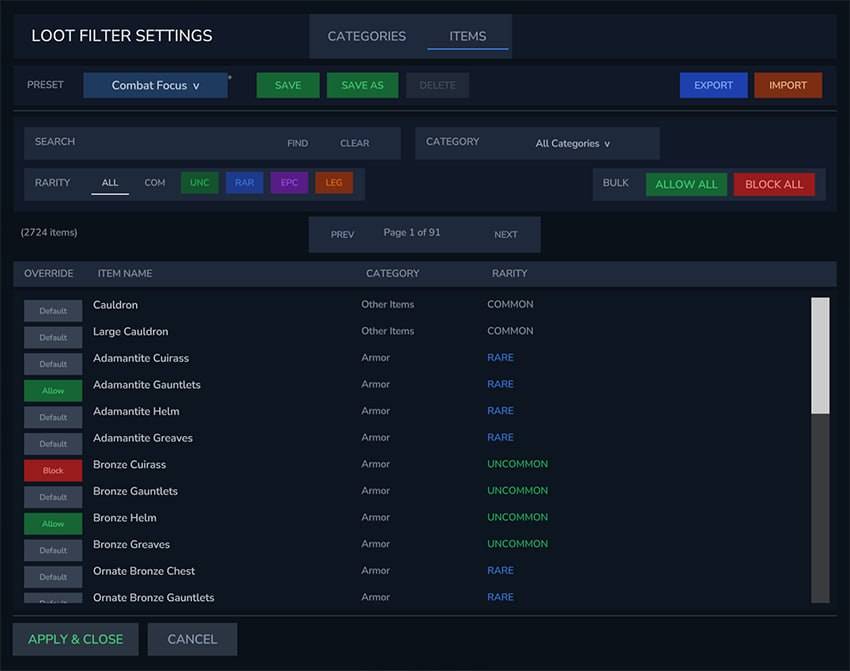
photo_2026-01-29_02-30-41.jpg
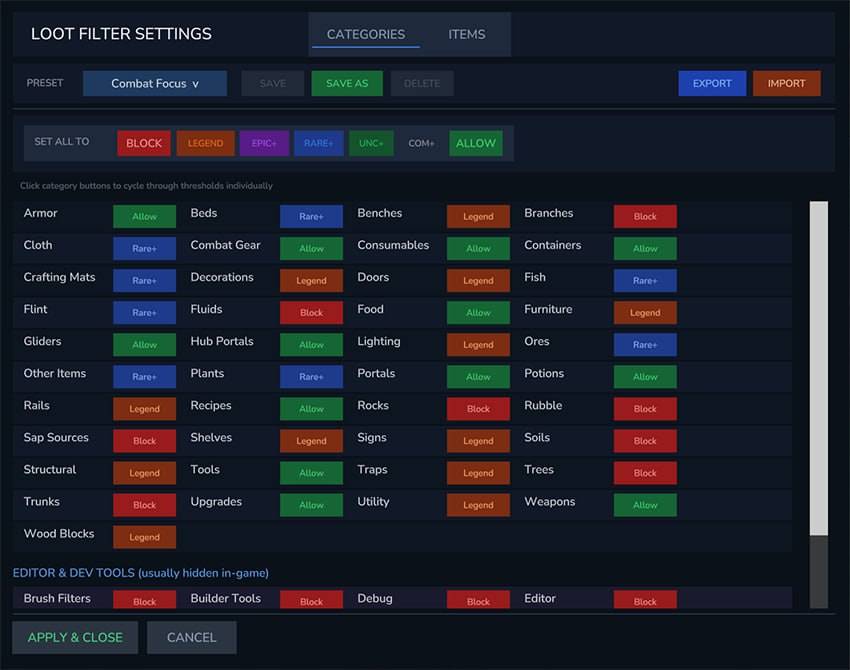
photo_2026-01-29_02-29-48.jpg
pasted file.png
Description
LootFilter
Stop picking up junk. Keep what matters.
LootFilter is a powerful Quality of Life mod that automatically filters unwanted item pickups based on customizable rules. Set up category thresholds, rarity filters, and per-item overrides to keep your inventory clean and organized.
Features
- Massive Item Database - 2,724 items across 53 categories with full rarity data (sourced from hytaleitemids.com)
- Smart Filtering - Automatically block unwanted items from being picked up
- Category-Based Rules - Set rarity thresholds for each item category (Weapons, Armor, Ores, etc.)
- Rarity Thresholds - Filter by rarity: Block All, Legendary Only, Epic+, Rare+, Uncommon+, Common+, or Allow All
- Per-Item Overrides - Force allow or block specific items regardless of category rules
- Built-in Presets - 6 ready-to-use presets for different playstyles
- Custom Presets - Create, save, and manage your own filter configurations
- Export/Import - Share presets with friends via simple JSON files
- Visual Settings UI - Beautiful in-game interface to configure everything
- Command Support - Quick commands for power users
- Bypass Key - Hold Crouch (Ctrl) or Sprint (Shift) to temporarily pick up filtered items
- Live Search - Search items by name with instant results sorted by relevance
- Preset Persistence - Your selected preset is remembered across world restarts
How to Use
Opening the Settings
Type /lf in chat to open the LootFilter settings menu.
Understanding the Interface
The settings UI has two main tabs:
Categories Tab
- View all item categories organized alphabetically
- Each category has a rarity threshold button showing its current setting
- Click a threshold button to cycle through options:
- BLOCK - Block all items in this category
- LEGEND - Only allow Legendary items
- EPIC+ - Allow Epic and above
- RARE+ - Allow Rare and above
- UNC+ - Allow Uncommon and above
- COM+ - Allow Common and above
- ALLOW - Allow all items in this category
Items Tab
- Browse individual items with search and filters
- Set per-item overrides (Allow/Block/Default)
- Filter by rarity and category
Quick Actions
Use the "SET ALL TO" buttons to quickly configure all categories at once.
Presets System
Built-in Presets
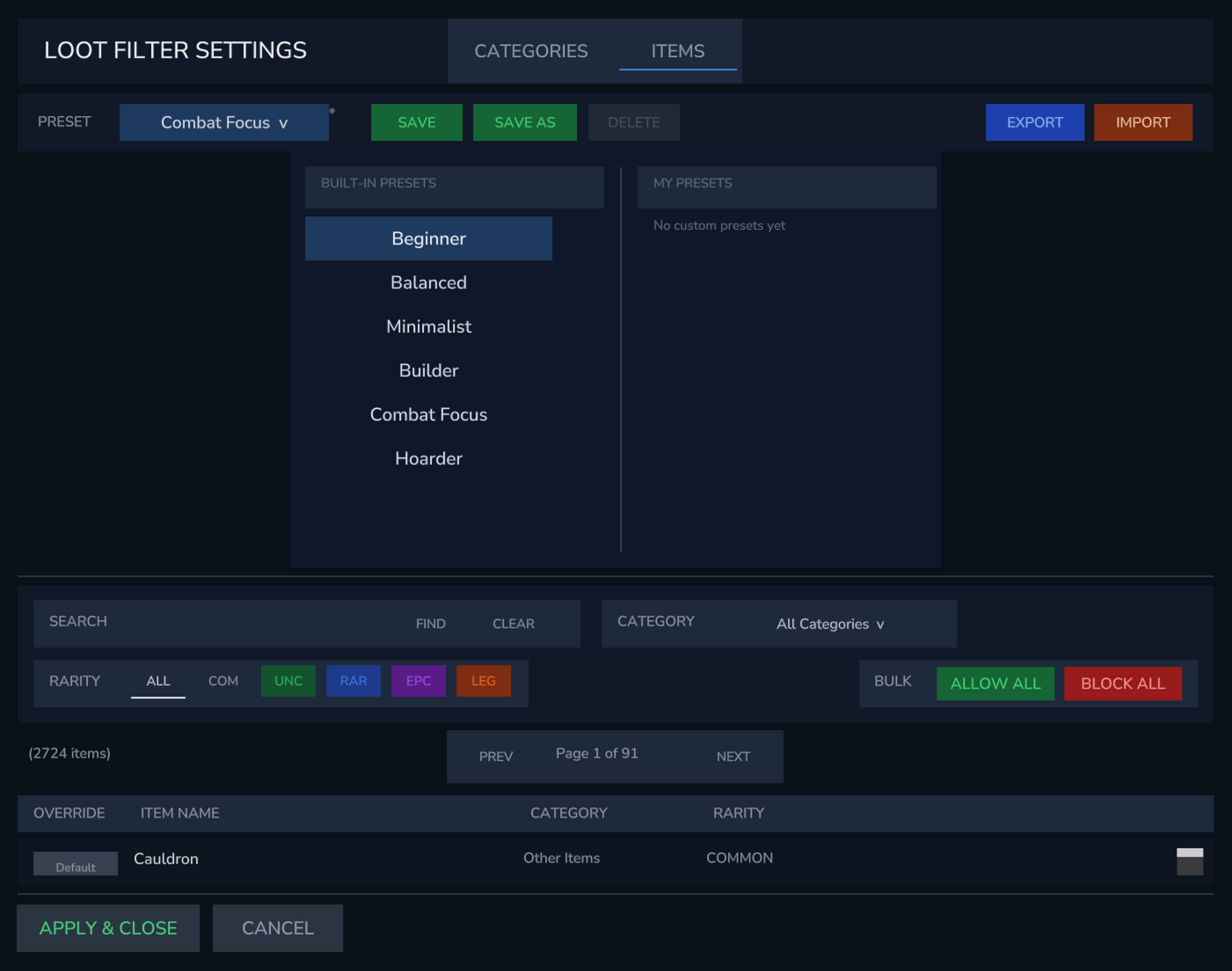
LootFilter comes with 6 carefully crafted presets:
| Preset | Description |
|---|---|
| Beginner | Nothing blocked - all items allowed (great for new players) |
| Balanced | Smart filtering - blocks junk, allows useful items |
| Minimalist | Only valuable items - Rare+ for most categories |
| Builder | Building materials allowed, combat items filtered |
| Combat Focus | Weapons/armor/potions prioritized, building materials filtered |
| Hoarder | Almost everything allowed (only blocks editor items) |
Custom Presets
- Modify any settings to your liking
- Click SAVE AS to create a new preset
- Enter a name and confirm
- Your preset appears in the "My Presets" column
Managing Presets
- SAVE - Save changes to current custom preset
- SAVE AS - Create a new preset from current settings
- DELETE - Remove a custom preset (built-in presets cannot be deleted)
Export & Import Presets
Share your presets with friends or back them up!
Exporting
- Select the preset you want to export
- Click EXPORT
- A dialog shows the file path where it was saved
- Find the
.jsonfile in yoursharedfolder
Importing
- Place the
.jsonpreset file in yoursharedfolder:
.../Saves/[world name]/mods/LootFilter/shared/- Click IMPORT in the settings
- Select the preset from the dropdown
- The preset is added to your custom presets
Sharing with Friends
Simply send the .json file to your friends. They drop it in their shared folder and import it!
Commands
All commands can use /lf, /lootfilter, or /filter as the base command.
Basic Commands
| Command | Aliases | Description |
|---|---|---|
/lf |
Open settings UI | |
/lf settings |
s, config, menu |
Open settings UI |
/lf status |
info, i |
Show current filter status |
/lf toggle |
t |
Toggle filter on/off |
/lf reload |
Reload configuration from file |
Item Commands
| Command | Description |
|---|---|
/lf allow <item_id> |
Always allow a specific item |
/lf block <item_id> |
Always block a specific item |
Examples:
/lf allow Rock_Stone
/lf block Soil_Dirt| Command | Aliases | Description |
|---|---|---|
/lf yes |
y |
Always allow the item you're holding |
/lf no |
n |
Always block the item you're holding |
/lf default |
d |
Reset the held item to default rules |
Category Commands
| Command | Aliases | Description |
|---|---|---|
/lf category-allow <category> |
cat-allow |
Set a category to allow all items |
/lf category-block <category> |
cat-block |
Set a category to block all items |
/lf allow-all |
Set ALL categories to allow | |
/lf block-all |
Set ALL categories to block |
Examples:
/lf category-allow WEAPONS
/lf category-block ROCKS
/lf cat-block SOILS
/lf block-all
Available Categories: ARMORS, WEAPONS, TOOLS, ORES, FOODS, ROCKS, SOILS, PLANTS, POTIONS, CONSUMABLES, FURNITURE, LIGHTING, CONTAINERS, DOORS, BEDS, and more. Use /lf to see all categories in the settings UI.
Finding Item IDs
Item IDs are the internal names used by Hytale for items. They typically follow the format Category_Name (e.g., Rock_Stone, Sword_Iron, Armor_Iron_Chestplate).
You can find item IDs at:
- hytaleitemids.com - Complete database of all Hytale items (source of our item data)
Or simply open the Items tab in /lf settings to browse and search all 2,724 items directly in-game.
Installation
Via CurseForge App (Recommended)
- Open the CurseForge app
- Search for "LootFilter"
- Click Install
Manual Installation
- Download the
.jarfile - Place it in your Hytale mods folder:
- Windows:
%appdata%/Hytale/UserData/Mods/ - Mac:
~/Library/Application Support/Hytale/UserData/Mods/ - Linux:
~/.var/app/com.hypixel.HytaleLauncher/data/Hytale/UserData/Mods/
- Windows:
Configuration Files
Configuration files are stored per-world in the LootFilter mod folder:
.../Saves/[world name]/mods/LootFilter/| File | Purpose |
|---|---|
config.json |
Main configuration file |
lootfilter_presets.json |
Your custom presets |
shared/ |
Folder for import/export |
Tips & Tricks
- Use the Beginner preset when starting out, then customize as you learn what items you want
- Export your presets before major updates as a backup
- Use
/lf block-allthen/lf category-allow WEAPONSto quickly set up minimal filtering - Commands give feedback if an item/category is already in the requested state
- Hold Crouch (Ctrl) to temporarily bypass the filter and pick up blocked items
- Use
/lf yesor/lf nowhile holding an item to quickly override it without opening settings
Support
I'm actively maintaining this mod and genuinely care about your experience!
- Found a bug? Please report it — I want to fix it
- Mod conflict? Let me know which mod and I'll look into compatibility
- Feature request? I'd love to hear your ideas
- Just want to say hi? That's cool too!
Drop a comment below or open an issue on GitHub. I read everything and do my best to respond.
LootFilter Team