💬 DiscordFantastic V1.1
Discord Webhook Avatar Preview
You can disable the small avatar preview thumbnail under Discord webhook messages in the config:
Webhook:
  Enabled: true
  Url: "YOUR_WEBHOOK_URL"
  AvatarUrlFormat: "https://crafthead.net/hytale/avatar/%uuid%/64"
  ShowAvatarThumbnail: false
If you already have the mod installed, you do not need to delete or recreate your config file.
Just add this line to the existing Webhook section in your config:
ShowAvatarThumbnail: false
If you want the avatar preview to stay visible, set it to true:
ShowAvatarThumbnail: true
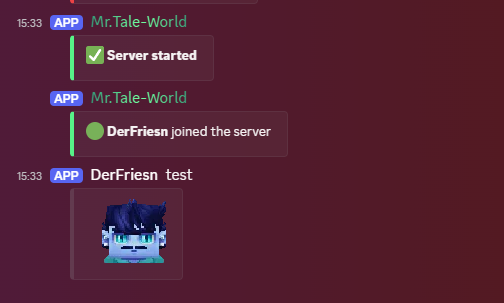
DiscordFantastic is a lightweight Discord relay mod for Hytale servers.
It connects your Hytale server chat with a Discord channel and allows players to communicate between Discord and the game.
✨ Features
- 💬 Ingame chat to Discord
- 🎮 Discord chat to ingame
- 🟢 Join and leave messages
- 🚀 Server start and stop messages
- 🪝 Webhook support for player names
- 🧑 Hytale player avatars via Crafthead
- 🖼️ Avatar fallback as Discord embed thumbnail
- ⚙️ Configurable channels
- 📝 Configurable message formats
- 📄 Simple YAML configuration
🪝 What does the Webhook do?
The Discord bot token is used to connect the bot and read messages from Discord.
The webhook is used for ingame chat messages going to Discord.
With a webhook, DiscordFantastic can display ingame messages like this:
PlayerName: Hello everyone!
instead of:
DiscordFantastic: **PlayerName**: Hello everyone!
The webhook allows DiscordFantastic to use the player's name as the message sender.
It also adds the player's Hytale avatar as an embed thumbnail.
⚙️ Setup
1️⃣ Create a Discord Bot
- Go to the Discord Developer Portal.
- Create a new application.
- Add a bot to the application.
- Copy the bot token.
- Invite the bot to your Discord server.
- Make sure the bot has permission to read and send messages.
The bot needs the following permissions:
- 👀 View Channels
- 💬 Send Messages
- 📜 Read Message History
- 😀 Use External Emojis
- 🔗 Embed Links
You also need to enable the Message Content Intent in the Discord Developer Portal.
2️⃣ Get your Discord Channel ID
- Enable Developer Mode in Discord.
- Right-click your Discord chat channel.
- Click Copy Channel ID.
- Paste the ID into the config.
3️⃣ Create a Webhook
The webhook is needed for better looking ingame chat messages in Discord.
- Open your Discord server.
- Right-click the channel where ingame chat should appear.
- Click Edit Channel.
- Go to Integrations.
- Open Webhooks.
- Click New Webhook.
- Choose the correct channel.
- Click Copy Webhook URL.
- Paste the URL into the config.
Your webhook URL looks similar to this:
https://discord.com/api/webhooks/123456789012345678/xxxxxxxxxxxxxxxxxxxx
⚠️ Do not share your webhook URL publicly.
📄 Example Config
Discord:
  Token: "Discord Developer Portal Token"
  ChatChannelId: "Channel ID"
  JoinLeaveChannelId: "Channel ID"
  StatusChannelId: "Channel ID"

Webhook:
  Enabled: true
  Url: "Right-click on the channel/Edit Channel/Integrations/Add Webhook
"
  AvatarUrlFormat: "https://crafthead.net/hytale/avatar/%uuid%/64"

Features:
  ChatToDiscord: true
  DiscordToChat: true
  JoinLeave: true
  ServerStatus: true

Formats:
  DiscordToGame: "[Discord] %user%: %message%"
  GameToDiscord: "**%player%**: %message%"
  Join: ":green_circle: **%player%** joined the server"
  Leave: ":red_circle: **%player%** left the server"
  ServerStart: ":white_check_mark: **Server started**"
  ServerStop: ":octagonal_sign: **Server stopped**"

Debug:
  Enabled: false
🔍 Config Explanation
💙 Discord
Token: ""
Your Discord bot token.
ChatChannelId: ""
The Discord channel ID used for chat messages.
JoinLeaveChannelId: ""
The Discord channel ID used for join and leave messages.
If empty, the chat channel is used.
StatusChannelId: ""
The Discord channel ID used for server start and stop messages.
If empty, the chat channel is used.
🪝 Webhook
Enabled: true
Enables webhook messages for ingame chat.
Url: ""
Your Discord webhook URL.
AvatarUrlFormat: "https://crafthead.net/hytale/avatar/%uuid%/64"
The avatar URL format used for Hytale player avatars.
Available placeholders:
%uuid%   Player UUID
%player% Player name
✨ Features
ChatToDiscord: true
Sends ingame chat messages to Discord.
DiscordToChat: true
Sends Discord messages to the ingame chat.
JoinLeave: true
Sends join and leave messages to Discord.
ServerStatus: true
Sends server start and stop messages to Discord.
📝 Formats
You can customize the text of all messages.
Available placeholders:
%player%  Hytale player name
%user%    Discord username
%message% Chat message
%uuid%    Player UUID
Example:
DiscordToGame: "[Discord] %user%: %message%"
🔐 Important Security Notice
Never share your Discord bot token or webhook URL.
Do not upload your real config file with your token or webhook URL to CurseForge, GitHub, Discord, or any public place.
If you accidentally shared your token or webhook URL:
- Reset your bot token in the Discord Developer Portal.
- Delete the old webhook in Discord.
- Create a new webhook.
- Update your config with the new values.
🛠️ Troubleshooting
❌ Discord messages do not appear ingame
Check:
- The bot token is correct.
- Message Content Intent is enabled.
- The bot is invited to your Discord server.
- The bot can read the selected channel.
DiscordToChat is set to true.
❌ Ingame messages do not appear in Discord
Check:
ChatToDiscord is set to true.ChatChannelId is correct.- The webhook URL is correct.
- The bot and webhook both use the correct Discord channel.
🖼️ Avatars are not shown as profile pictures
Discord can be strict with webhook avatar URLs.
DiscordFantastic also adds the Hytale avatar as an embed thumbnail so the player's avatar is still visible in the message.
🙌 Inspiration
This mod was inspired by Relay Mod.
❤️ Support
If you enjoy this mod, consider leaving a ⭐ on CurseForge!
🔗 Check Out My Other Hytale Projects
Take a look at my other Hytale mods and projects here:
👉 DerFriesn CurseForge Projects
Tale-World German Community