ZoneMapHUD
ZoneMap HUD puts a map of your current zone right on your screen, so you don’t have to keep pressing M. The map is cut out along the zone’s own borders, with no rectangle or empty filler around it, so it sits cleanly over the game world.
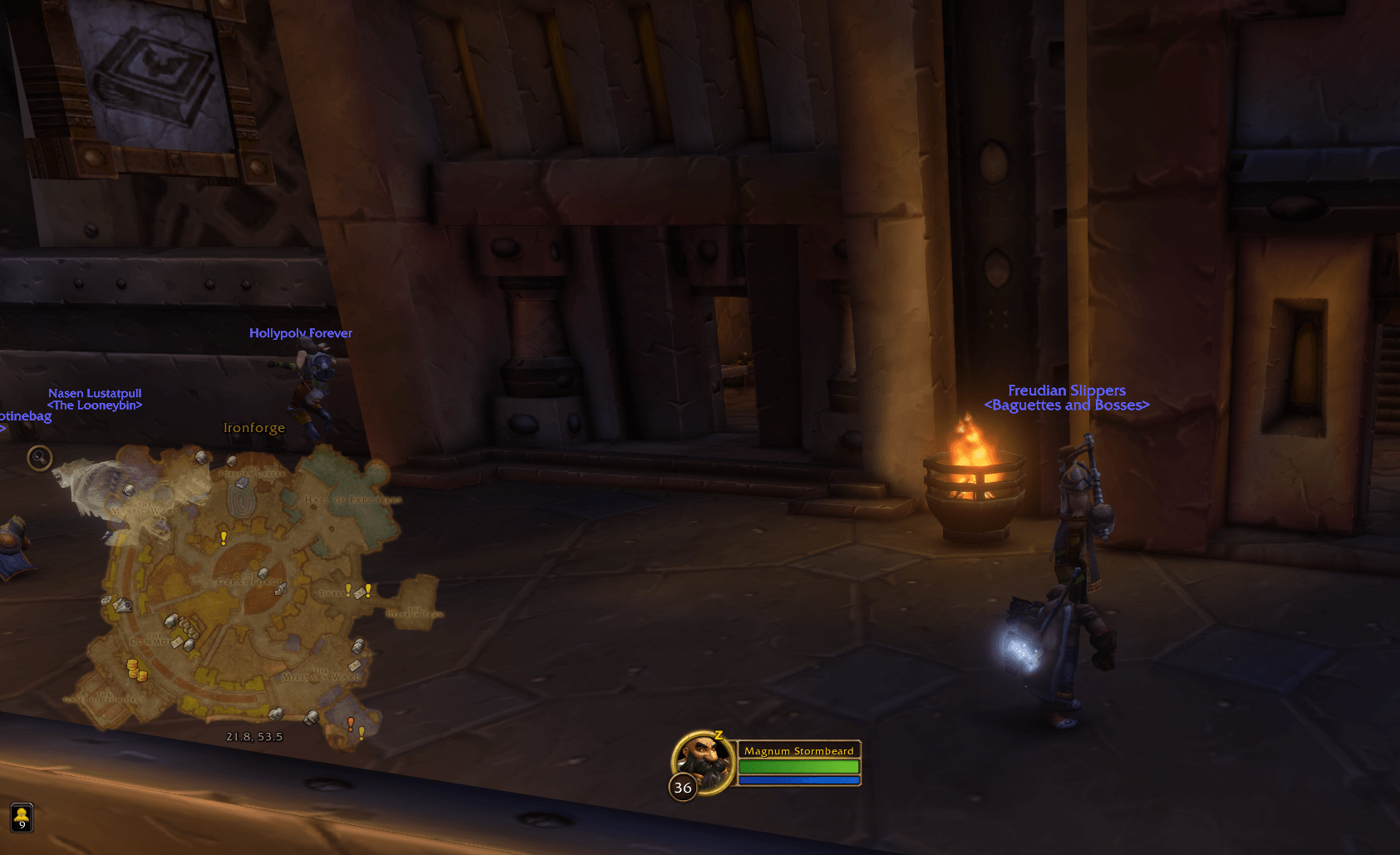
ZoneMapHUD Ironforge.png
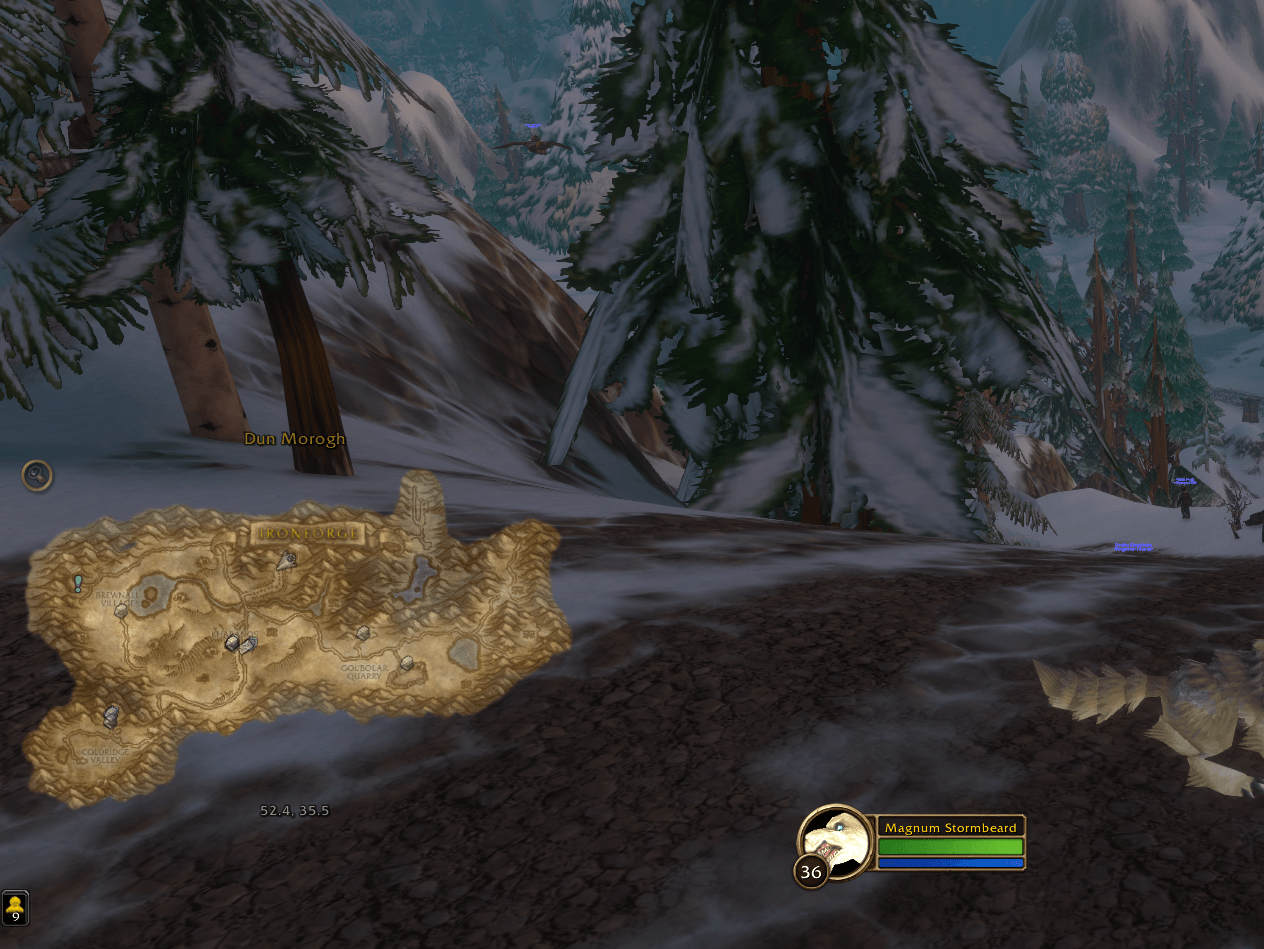
ZoneMapHUD Dun Morogh.png
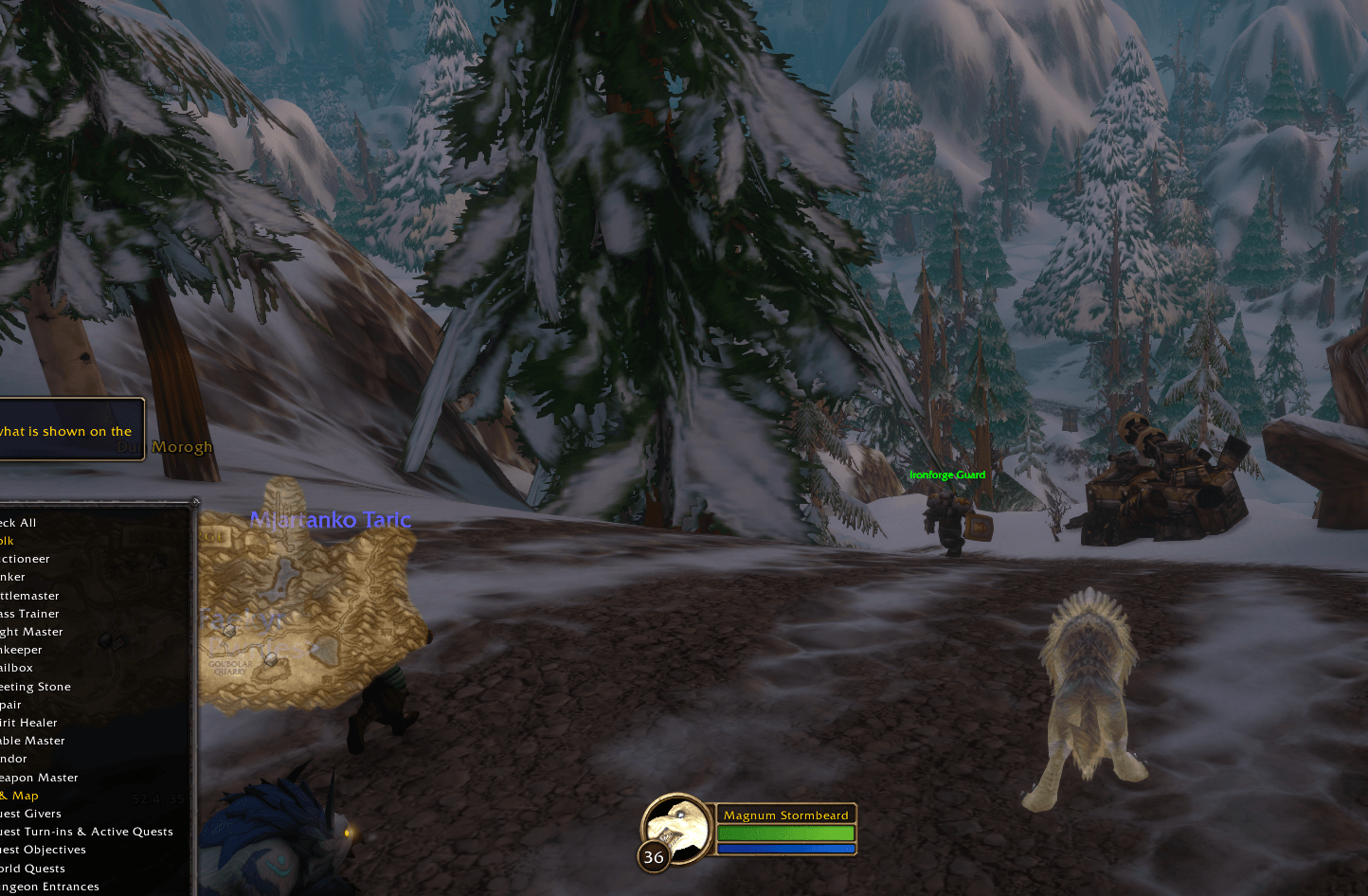
ZoneMapHUD tracking.png
Description
# ZoneMap HUD
**A clean, see-through zone map that sits right on your screen, cut out along the shape of the zone you're in.**
ZoneMap HUD shows the map of your current zone as a heads-up display. No frame or square box: the map is cut out along the real zone border and fades into the game world. You can see where you are, where your quests are, and what's nearby without opening the world map. Inside dungeons, raids and caves it draws a proper instance map, with the bosses marked on it.
Made for **World of Warcraft Forever**. Available in English, German, French and Spanish.
---
## Features
### The map
- **Cut out along the zone border.** Every zone in Kalimdor and the Eastern Kingdoms has its own outline, and so do the cities, battlegrounds, caves and dungeon floors.
- **Soft fade along the outline**: the map fades out gently just beyond the zone border instead of stopping at a hard edge. Choose Off, Small, Medium or Large.
- **Other edge shapes** if you prefer: torn edge, soft edge, or a plain rectangle.
- **Auto-zoom** fits the zone outline neatly into the map area.
- **Zoom in around you**: show a zoomed-in part of the zone that follows you, handy in big zones (off by default).
- **Darkened unexplored areas**, like the classic world map.
- **Player arrow** showing your position and facing, always drawn on top of everything else.
- **Zone name** above, inside or below the map, with the **level range** of the zone ("Duskwood (18–30)", coloured for your level) and **faction colours** (orange for contested, red for hostile).
- **Coordinates** below the map, at your mouse, or both.
- **Fades** smoothly out and back in when you switch zones or floors.
- **Outline variants**, for example Elwynn Forest with or without Stormwind.
### Quests
- **Quest markers like the game's own**: round markers with "..." for quests in progress and "?" for quests ready to turn in. The quest you focus turns gold, and markers light up when you hover over them.
- **The game's quests first, Questie fills the gaps**, so quests in WoW Forever's new zones show up too.
- **Tracked quests** and their objectives, and the **quest area** of the quest you've selected.
- **Quest tooltips** like the game's: "[level] title" in difficulty colour, quest type (Elite, Dungeon...), objectives and distance.
- **Click** a marker to focus the quest, **Shift-click** to link it in chat. Optional click sound, with five sounds to choose from.
- **Arrow on the map's edge** pointing to your focused quest when it's in another zone.
- **Only this zone's quests**: markers for quests that belong to a neighbouring zone are left off, even when they're close to the border. Quests that belong to this zone but lie just outside its outline stay visible, on the edge of the map. The quest you've focused always shows.
- The **focused quest marker** is drawn above all other markers.
- **Questie support**: quest givers, turn-ins and objectives from Questie, with an option to **hide grey (low-level) quests**.
### Dungeons, raids and caves
- Inside instances and caves the addon draws its own **instance map**, with all floors. The map switches with you when you change floors.
- **Level range and boss count** next to the dungeon name: "Scarlet Monastery – Library (34–45) · 2/3 bosses".
- **Boss markers**: a skull at every boss, only for the floor you're viewing.
- Bosses you've killed turn **grey with a red cross**.
- The **last boss you killed glows**: you're around there.
- **Shift-click** a skull to name a boss yourself.
- With **NeedRoll** installed, clicking a named boss opens its loot.
- A key binding switches between the dungeon map and the zone it's in.
### Map pins
Turn each type on or off:
- Quest givers, turn-ins and active quests, quest objectives, tracked quests, the selected quest area
- Dungeon entrances, dungeon bosses
- Party and raid members (class-coloured, with level and class)
- Rares and treasures, points of interest, world quests, your waypoint
- **Services**: auctioneer, banker, battlemaster, class trainer, flight master, innkeeper, mailbox, meeting stone, repair, spirit healer, stable master, vendor and weapon master
### Remembered as you play
- **Herbs you picked and ore you mined** are saved and shown faintly on the map.
- **Rares you've seen** are saved where you spotted them.
- **Flights**: on a flight path, the map shows your destination and the time left. After your first flight on a route, the time is exact.
- **Your corpse** after dying, with a line to it, or an arrow when it's further away.
- **Distance** in yards in the tooltips.
### Using the map
- **Ctrl-click** to place the game's waypoint (it shows in the 3D world too). Click the waypoint to remove it.
- **Shift-click** to put the coordinates in chat: "Duskwood 45.2, 61.0".
- **Right-click** for a small menu: lock or unlock, settings, remove waypoint.
- **Map buttons** above the map: tracking (what to show), settings, and a lock. Each optional, left or right.
- **Key bindings** to show or hide the map, zoom in around you, and switch between zone and dungeon map.
### Looks and behaviour
- Map size, opacity and fade times are all adjustable.
- **On mouseover**: fade out (to see through it), fade in (keep it subtle until you need it), or do nothing.
- **Lock the map** in place and make it click-through.
- **In combat**: hide the map, fade it, shrink it, or leave it as is.
- **On a flight path**: show the route, hide the map, or leave it as is.
- Automatically hide the map in dungeons, in battlegrounds and arenas, while resting, or while the world map is open.
- Minimap button.
### Profiles
- Save different setups as **profiles**, switch between them, and choose a profile per character.
- **Export** a profile as text to share it, and **import** one from someone else.
### Settings window
A compact settings window in the WoW Forever style, with **icon tabs down the side** like the game's Looking For Group window. Nine short pages: Appearance, Opacity, Behavior, Visibility, Map pins, Quests, Services, Maps and Outlines. It reopens on the tab you used last. Open it with the cogwheel, the right-click menu, the minimap button, or `/zmap`.
---
## Slash commands
- `/zmap`: open the settings
- `/zmap toggle`: show or hide the map
- `/zmap lock`: lock or unlock the map
- `/zmap reset`: move the map back to its default position
- `/zmap size <number>`: set the map size
- `/zmap zoom`: auto-zoom on or off
- `/zmap name above | inside | below`: zone name position
- `/zmap minimap`: show or hide the minimap button
- `/zmap profiles`: open the profiles window
- `/zmap clear`: clear the learned services for the current zone
- `/zmap forget`: clear the saved gathering spots and rares
---
## Credits
- Zone outlines from **Waymark** (MIT licence).
- Dungeon and cave map data from **OpenMap** (MIT licence).
- Works together with **Questie** and **NeedRoll** when they're installed. Neither is required.
ZoneMapHUD Team